
Yes, you can cast photos from your iPhone to your TV. This guide will walk you through the steps, including how to cast photos stored in Google Photos, so you can easily display your favorite memories on a larger screen for everyone to enjoy. Let's dive into how to cast photos from iPhone to TV.
How to Cast Photos to TV from iPhone for Free
You can easily cast photos or videos from your iPhone's Photos app or Google Photos app to your TV using the right method.
- If you're using the Photos app, take advantage of your iPhone's built-in AirPlay feature. Just make sure your TV supports AirPlay.
- If you're using Google Photos, you'll need Google Cast, which works when your TV has Chromecast built in or when a Chromecast device is connected.
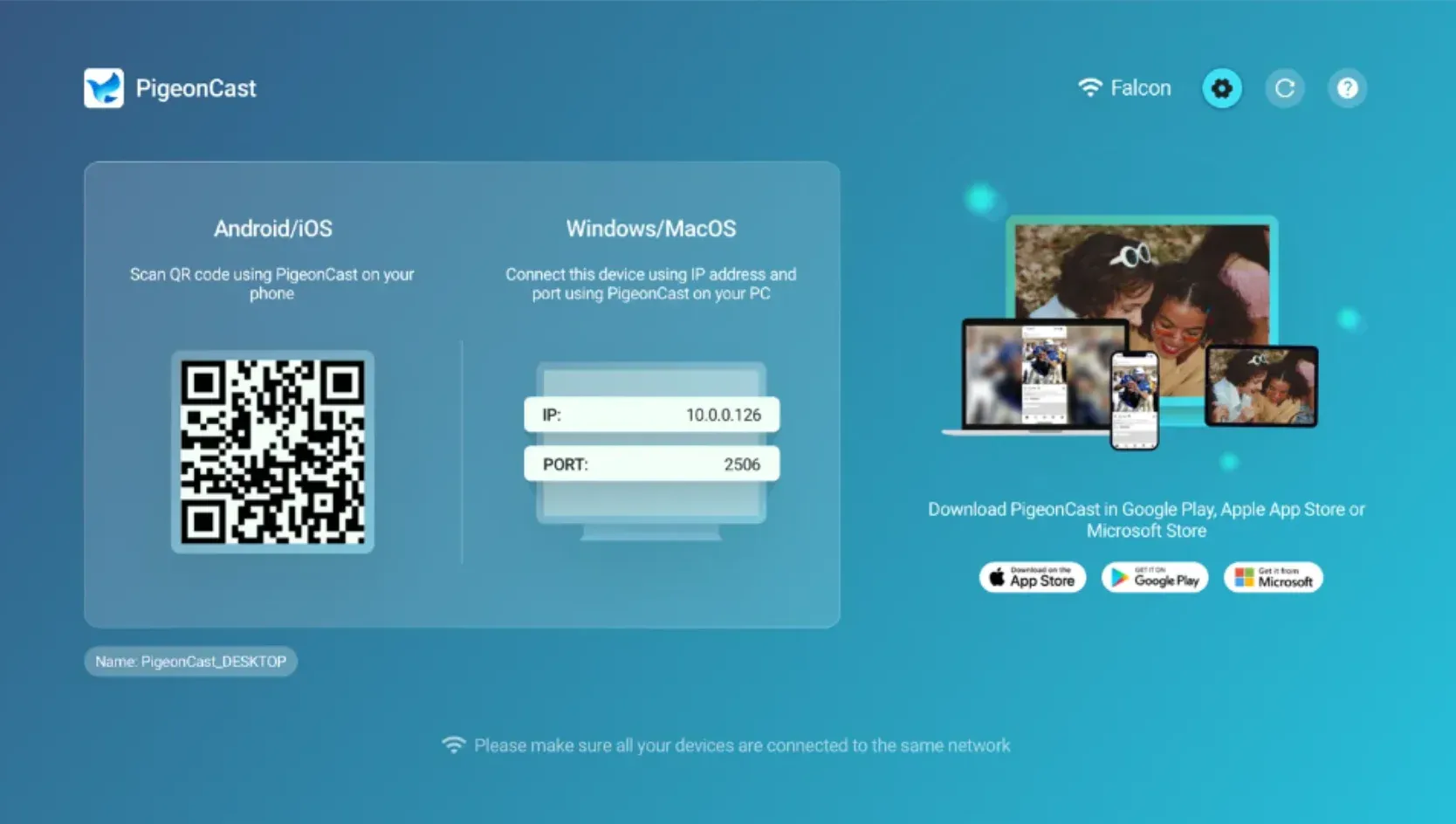
These days, most smart TVs come with AirPlay or Chromecast support. But if your TV doesn't, how to show iPhone photos on TV? PigeonCast can turn your TV into an AirPlay or Google Cast receiver, allowing you to cast photos effortlessly.


PigeonCast Screen Mirroring

Official Download



- Download PigeonCast from Google Play or App Store.
- Launch the app on your Android TV (or Google TV) or Apple TV.
- Once launched, your TV will be ready to receive both AirPlay and Google Cast connections.
It seems everything is prepared, and let's check how to show pictures on TV from iPhone now.
Method 1: Use Apple AirPlay (for iPhone Photos)
AirPlay is the easiest way to cast photos from your iPhone's Photos app to your TV if your TV supports AirPlay. Here's how to AirPlay photos to TV from iPhone:
Step 1. Make sure your iPhone and AirPlay-enabled TV are connected to the same Wi-Fi network.
Step 2. Open the Photos app on your iPhone and select the photos or videos you want to view on your TV.
Step 3. Tap the Share icon, then choose AirPlay.
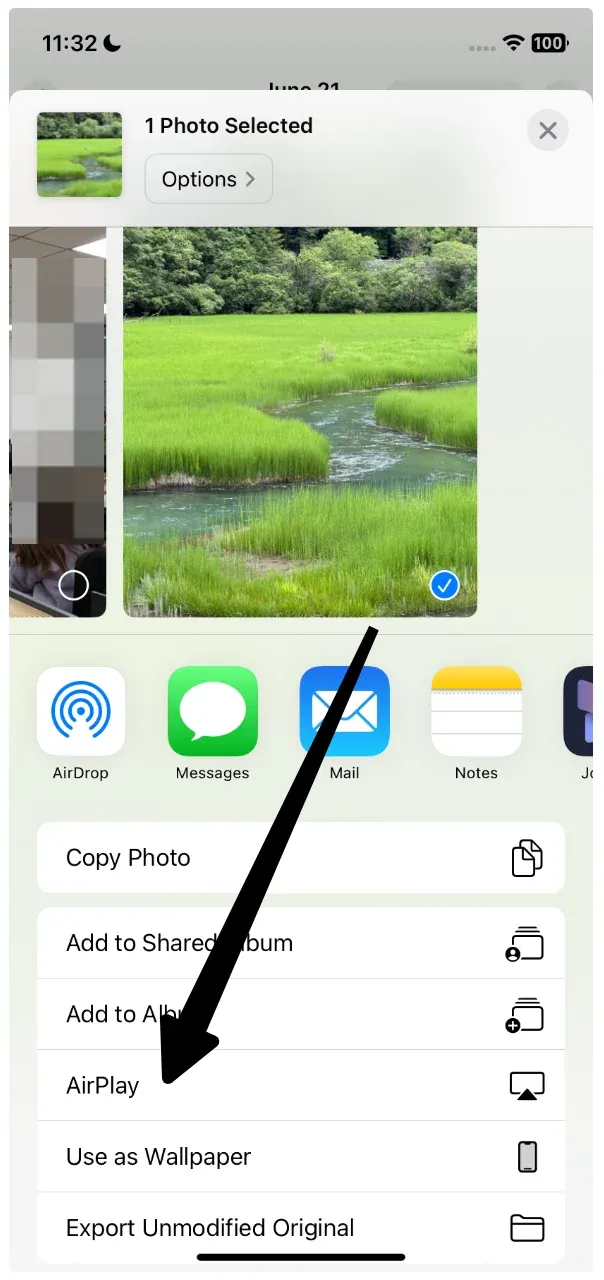
Step 4. From the list of available devices, select your TV.
Tip: If you don't see your TV on the AirPlay list, ensure AirPlay is enabled in your TV's settings.
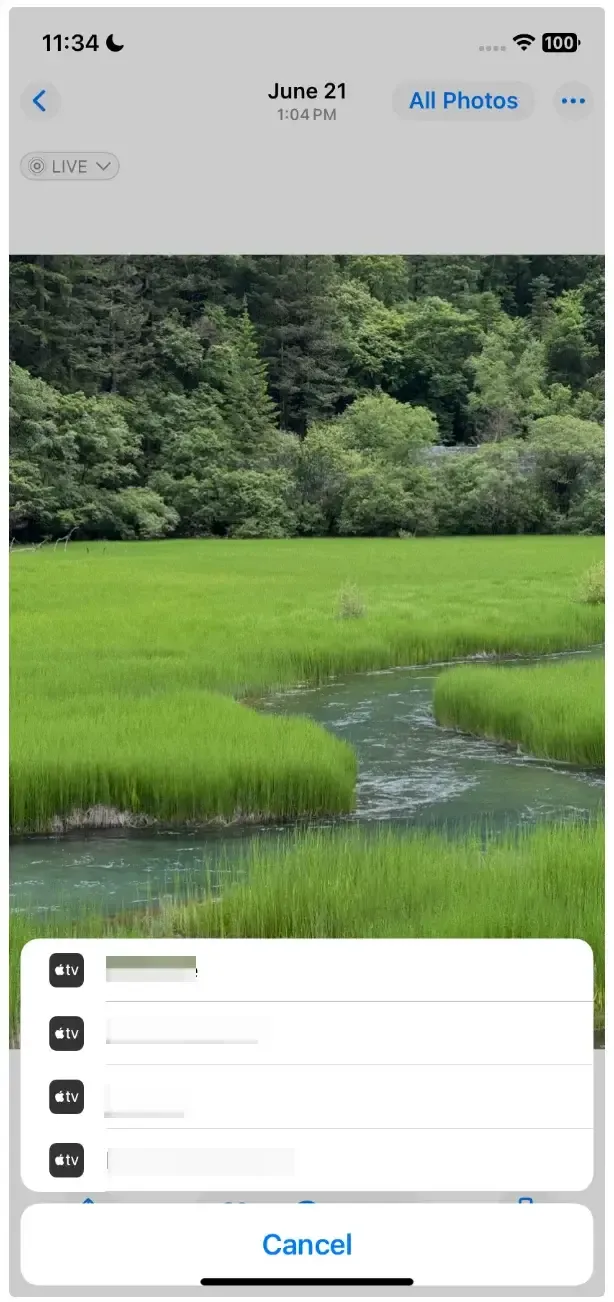
Step 5. Your selected photos will now appear on the TV screen.
That's how to cast iPhone photos to your TV using AirPlay, quick, simple, and built right into your iPhone. If your photos are stored in Google Photos, don't worry — casting them to your TV is just as easy.
Method 2: Use Google Chromecast (for Google Photos)
Google Photos makes it simple to cast pictures or albums to your TV using Chromecast. Here's how to cast Google Photos to TV from iPhone:
Step 1. Make sure your iPhone and your TV (with Chromecast or PigeonCast) are connected to the same Wi-Fi network.
Step 2. Open the Google Photos app on your iPhone.
Step 3. Select a photo, video, or album you want to display on the TV.
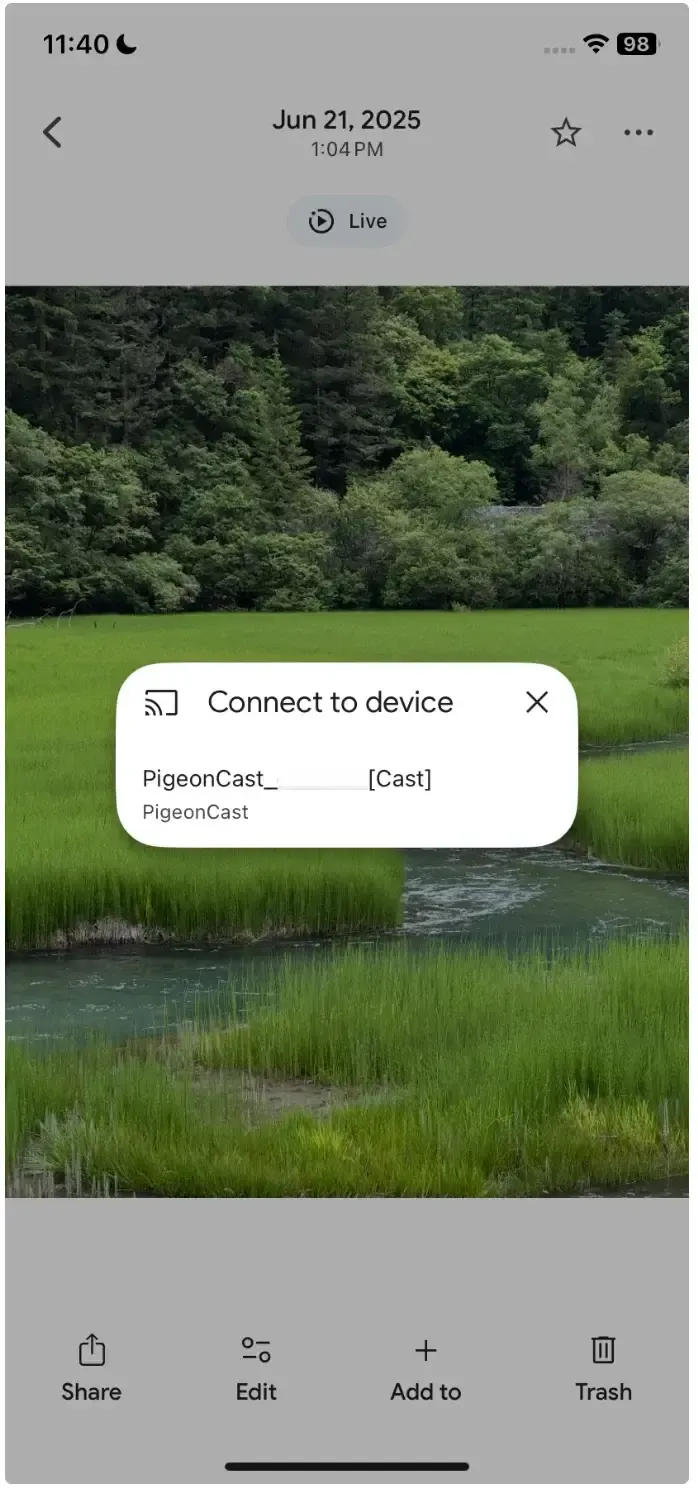
Step 4. Tap the three dots option in the upper-right corner and choose the Cast option.
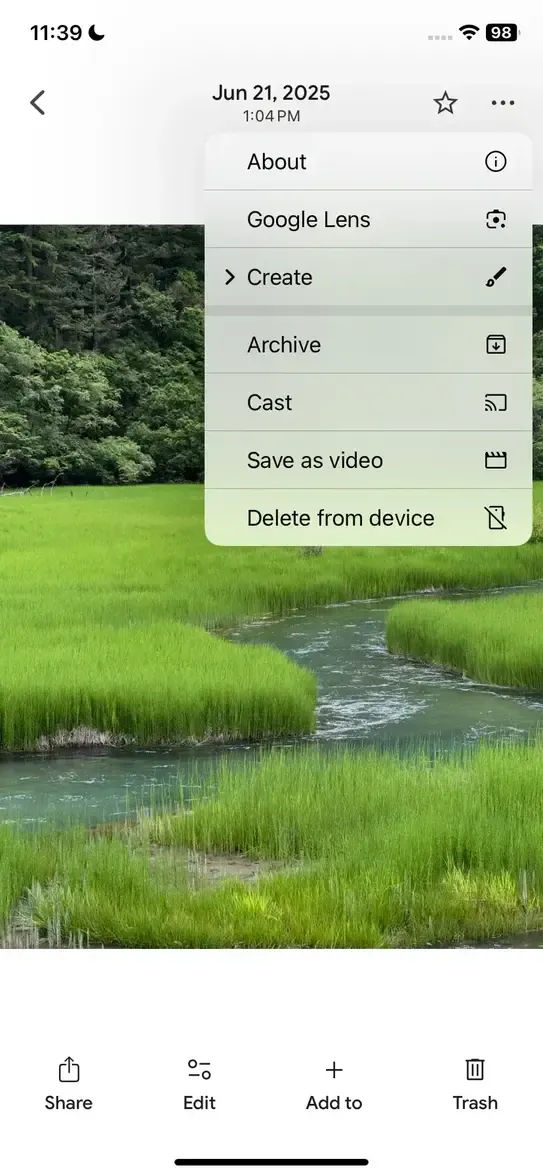
Step 5. Choose your TV from the list of available devices.
Conclusion
Now you know how to cast iPhone photos to TV using two simple methods: AirPlay for photos stored in the iPhone Photos app and Chromecast for those in Google Photos. Both options let you enjoy your favorite moments on a bigger screen with just a few taps.
However, if your TV doesn't support AirPlay or Chromecast, or if you want a smoother cross-platform casting experience, try PigeonCast. It turns any smart TV into an AirPlay and Google Cast receiver, making it easy to mirror and cast photos, videos, and apps from your iPhone or Android device without compatibility issues.
How to Cast Photos from iPhone to TV FAQs
Q: How to cast photos from iPhone to Samsung TV?
Most Samsung smart TVs support AirPlay, so you can cast photos directly from the iPhone's Photos app. Make sure both devices are on the same Wi-Fi network, open a photo, tap Share → AirPlay, and select your Samsung TV.
Q: How to cast iPhone photos to Chromecast?
To cast from an iPhone to a Chromecast device, use the Google Photos app. Connect your iPhone and Chromecast to the same Wi-Fi network, open Google Photos, tap the Cast icon, select your TV, and start sharing your photos. If your TV isn't Chromecast-enabled, you can use PigeonCast as an alternative receiver.
Q: Why can't I cast from my iPhone to my TV?
Common causes include different Wi-Fi networks, disabled AirPlay or Cast settings, or an unsupported TV model. Check that both devices are connected to the same network and that AirPlay or Chromecast is turned on. If your TV doesn't support either, PigeonCast can bridge the gap.
Q: How do I enable casting on my iPhone?
For AirPlay, swipe down to open Control Center, tap Screen Mirroring, and choose your TV. For Google Cast, open an app that supports casting (like Google Photos), tap the Cast icon, and select your TV.
Q: Why is Cast not finding my device?
This usually happens when your iPhone and TV aren't on the same Wi-Fi, or the casting feature is disabled on the TV. Restart both devices, check network settings, and make sure casting is enabled. If the issue persists, try using PigeonCast for a more stable connection.
Mia Clarke is a technology editor specializing in screen mirroring and casting solutions across multiple platforms. Mia provides clear, practical guides and in-depth insights to help users seamlessly connect their devices. Passionate about enhancing digital experiences, Mia is dedicated to keeping readers updated on the latest trends and tools in cross-platform screen sharing. Whether you’re looking to mirror your smartphone, laptop, or smart TV, Mia’s content delivers reliable, user-friendly advice to simplify your tech setup.