
If you want to watch a video from your iPhone, iPad, or Mac on a bigger screen, AirPlay is usually the fastest wireless option. It can send a video directly to an Apple TV or an AirPlay-compatible TV, and in some cases to a Mac set up as a receiver.
The main point to understand is simple: AirPlay video and screen mirroring are related, but they are not the same. Direct AirPlay sends the video itself. Screen mirroring duplicates your whole display. If your goal is only to watch a video, direct AirPlay is usually the better path.
What AirPlay Video Means
AirPlay video is the wireless playback of video from an Apple device to a compatible receiving screen. In practice, you will use one of these two methods:
- Direct AirPlay: You tap the AirPlay button in a video app or media player and send only the video to the TV.
- Screen mirroring: You mirror your full iPhone, iPad, or Mac screen to the TV.
Direct AirPlay is usually cleaner for movies, clips, and personal videos because it sends the video without duplicating the rest of your screen. Mirroring is more useful when the app does not show an AirPlay button or when you need to display more than just the video player.
Check TV Compatibility Before You AirPlay Video
Most AirPlay failures come from setup, not from the feature itself. Check these points first:
- Your receiving device or TV supports AirPlay.
- Both devices are on the same Wi-Fi network.
- AirPlay is enabled in the TV or receiver settings if that option exists.
- Your Apple device and receiving device are running current software versions.
If a smart TV does not include built-in AirPlay support, it may not appear in the available device list.
How to AirPlay Video From iPhone or iPad
On iPhone or iPad, the best starting point is direct AirPlay from the video player itself. It is usually easier to control and may avoid some playback restrictions associated with full-screen mirroring.
Stream video directly from iPhone or iPad
Step 1. Connect your iPhone or iPad to the same Wi-Fi network as the TV, Apple TV, or Mac.
Step 2. Open the video you want to play.
Step 3. Tap the AirPlay button in the player controls.
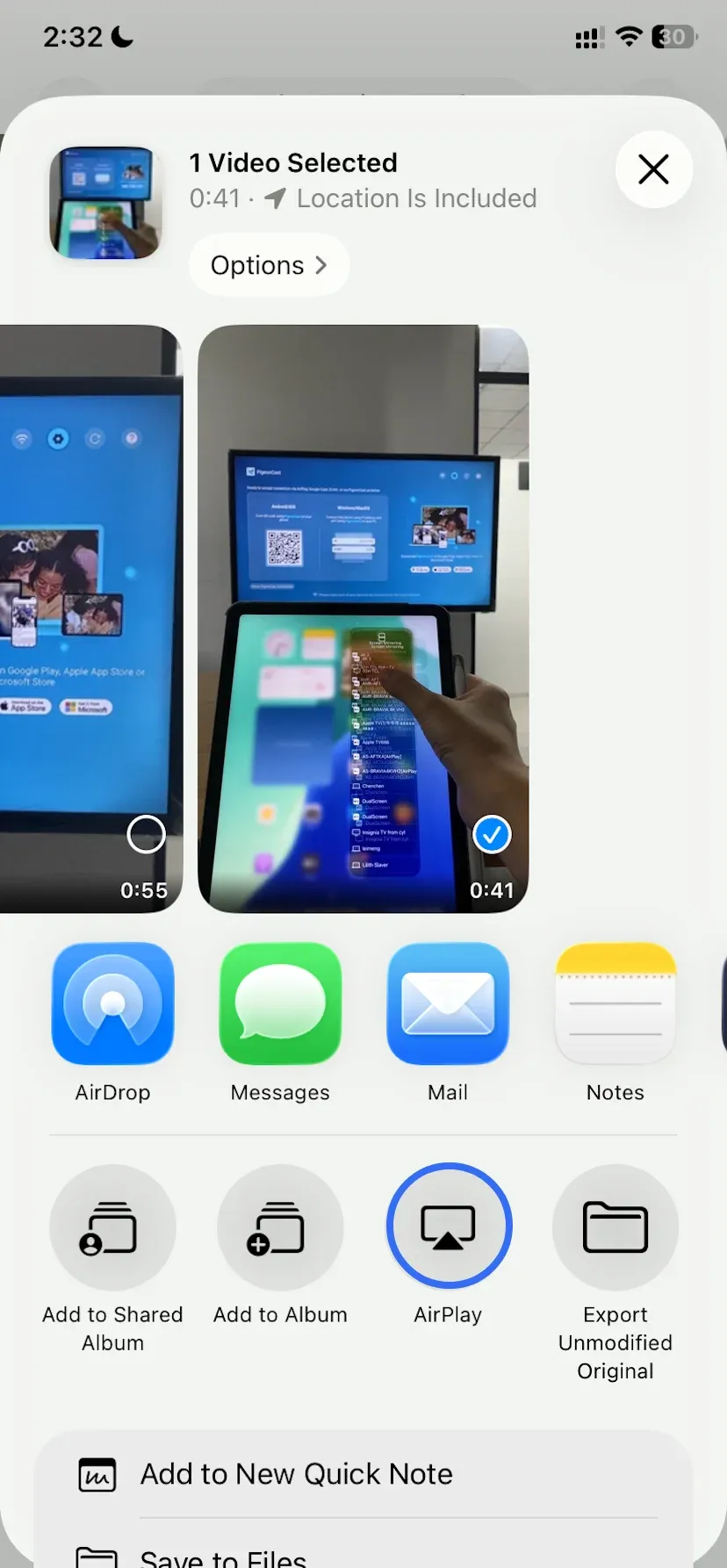
Step 4. Select your TV, Apple TV, or Mac from the list.
Step 5. Use your device as the playback controller.
This method is usually the best fit for watching video because it does not require you to mirror the full display.
Mirror video from iPhone or iPad
Use mirroring when the app does not provide an AirPlay button.
Step 1. Connect both devices to the same Wi-Fi network.
Step 2. Open Control Center, tap Screen Mirroring, and choose your TV or Mac.
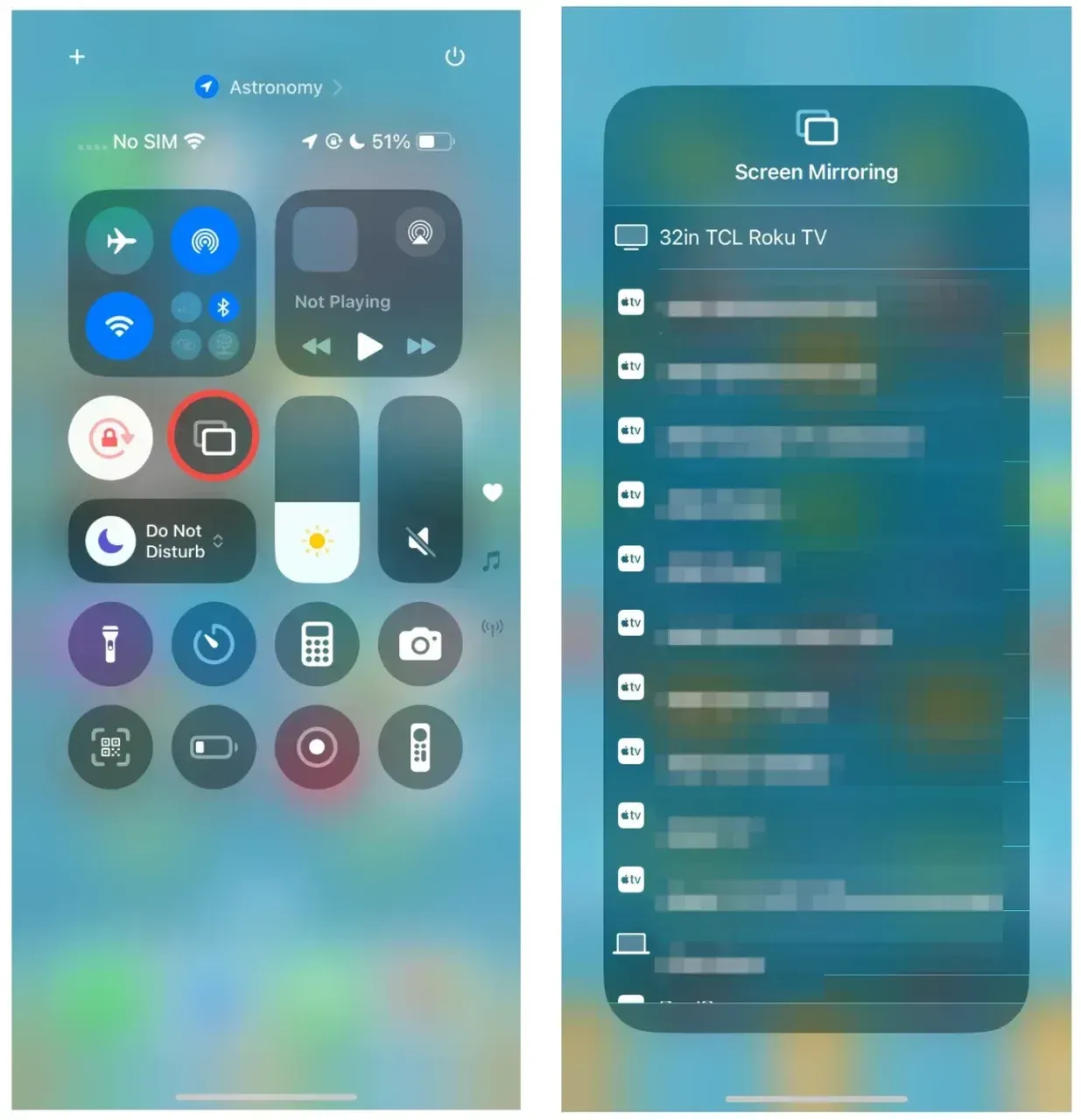
Step 3. Enter the passcode if the receiving screen shows one.
Mirroring works, but some services may limit or block playback when you mirror protected content.
How to AirPlay Video From Mac
Mac follows the same logic, but the practical split is a little different. If you are using a supported video app, direct AirPlay is still the cleaner route. If you are watching from a browser, local file, or desktop workflow, mirroring is often the simpler answer.
Stream video directly from Mac
Step 1. Connect the Mac and receiving device to the same Wi-Fi network.
Step 2. Open the video, then click the AirPlay button in the playback controls.

Step 3. Select your TV or Apple TV.
This is the better option when the app supports direct video handoff.
Mirror video from Mac
Step 1. Make sure the Mac and TV are on the same Wi-Fi network.
Step 2. Open Control Center from the menu bar.
Step 3. Click Screen Mirroring.
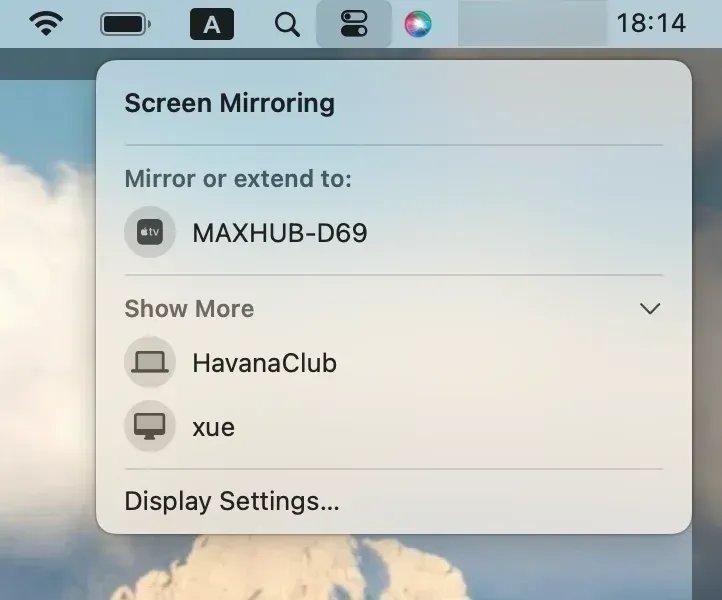
Step 4. Select your TV or Apple TV.
Step 5. Follow the onscreen options to mirror the display, extend it, or share a window when available.
Mirroring is often the more practical route for browser video, local files, demos, and other desktop content that does not expose a separate AirPlay button.
What to Do If Your TV Is Not AirPlay Compatible
If your TV does not support AirPlay, it may never appear in the device list, even when the iPhone, iPad, or Mac is set up correctly. In this case, continuing to repeat the same AirPlay troubleshooting steps will not solve the compatibility gap.
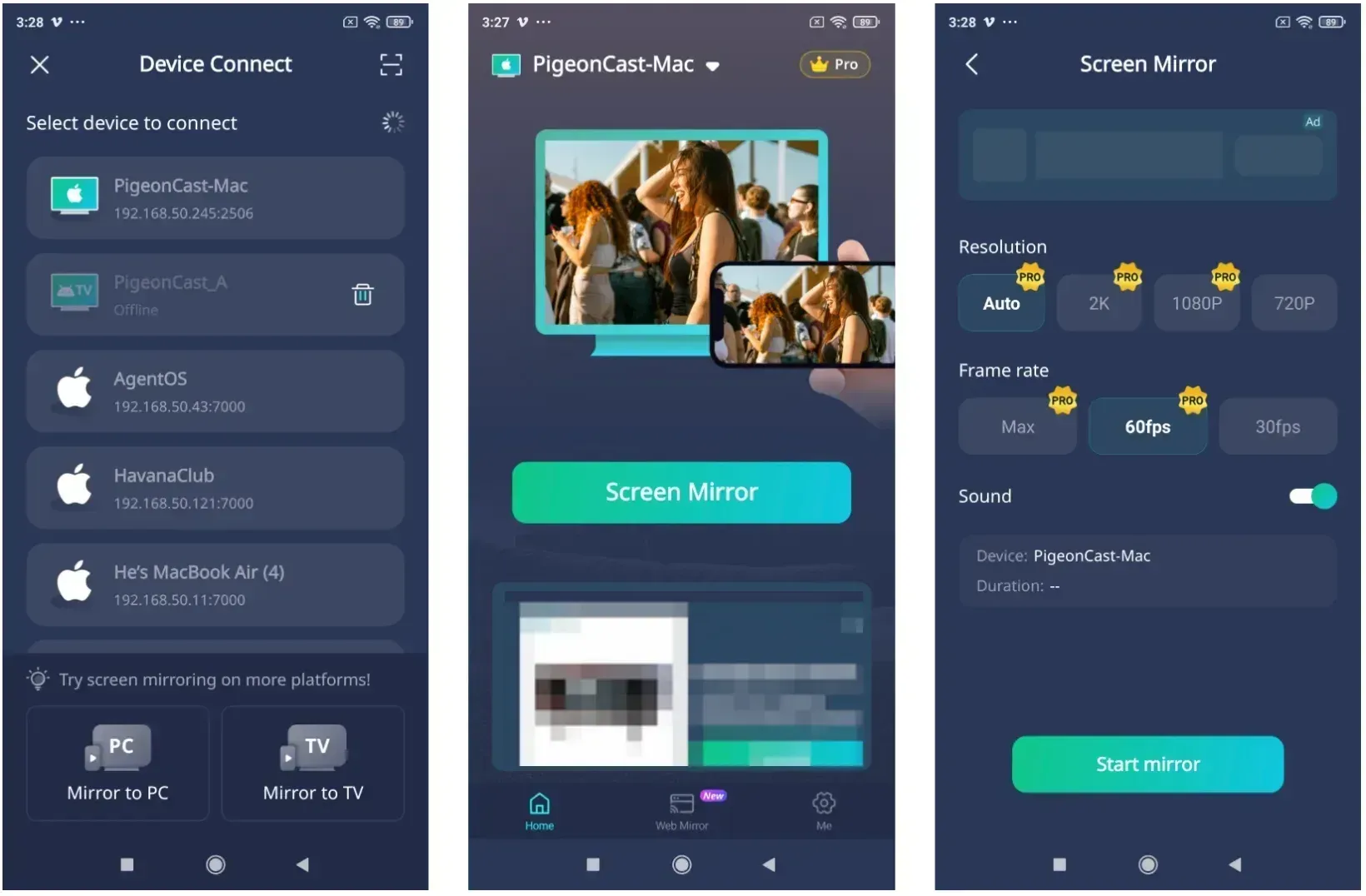
PigeonCast offers a cross-platform screen mirroring option for TVs without built-in AirPlay or for setups where AirPlay support is unreliable. Use native AirPlay when it works well; use PigeonCast when you need another way to send video or mirror your screen to the TV.
How to stream video to a TV with PigeonCast:
Step 1. Install and open PigeonCast on the TV or supported receiving device.
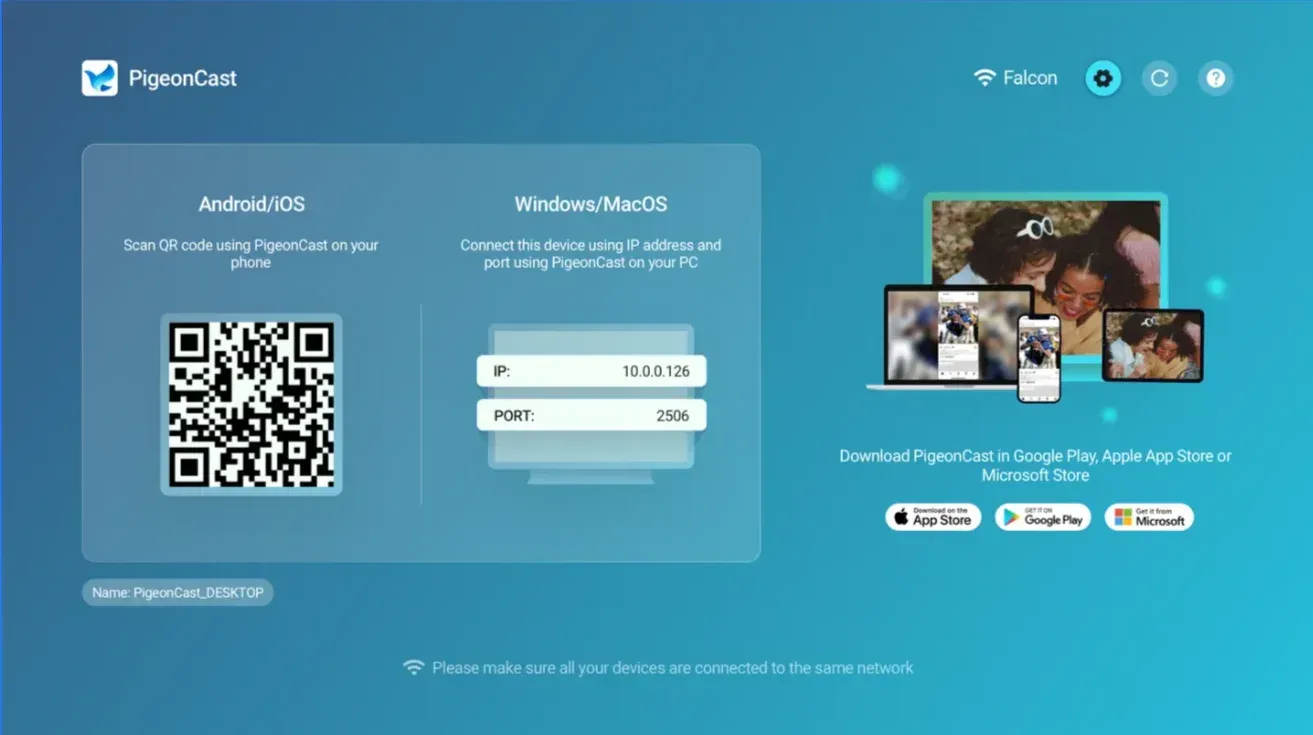
Step 2. Install and open PigeonCast on your phone or computer.


Overall Rating:



Step 3. Connect the sending device and receiver to the same Wi-Fi network.
Step 4. Select the PigeonCast receiver, then start streaming or mirroring the video.
Why AirPlay Video Is Not Working
If AirPlay video fails, the problem is usually one of a few repeat issues.
The TV does not appear
Check these first:
- the devices are not on the same Wi-Fi network
- the TV does not support AirPlay
- AirPlay is turned off in the receiving device settings
- one of the devices needs a restart
If the TV never appears, confirm the exact model supports AirPlay instead of assuming every smart TV does.
The video stays on the device
If the app supports direct AirPlay, use that instead of screen mirroring. If you already did, disconnect AirPlay, close the video, reopen it, and try the handoff again from the app controls.
The screen is black after connecting
This often points to a content restriction rather than a broken connection. Some services behave differently during mirroring. Try the app's direct AirPlay button instead of mirroring the whole screen.
Playback stutters or disconnects
When AirPlay video is unstable:
- move closer to the router
- reduce heavy traffic on the same Wi-Fi network
- restart the router if the connection has been weak
- update the TV or receiver software
Video playback usually shows Wi-Fi weakness faster than simpler tasks do.
Conclusion
AirPlay video is easiest when you keep the workflow simple. Use direct AirPlay when the app offers it. Switch to screen mirroring only when direct playback is missing or when you need to show the whole screen.
If it does not work, start with the basics: compatibility, same-network Wi-Fi, and AirPlay settings on the receiving device. If the real issue is that the TV is not AirPlay-compatible, move to a fallback like PigeonCast instead of repeating the same connection steps.
AirPlay Video FAQ
What is the difference between AirPlay video and screen mirroring?
AirPlay video usually sends only the video stream to the receiving screen. Screen mirroring duplicates your whole display. For watching video, direct AirPlay is usually better. For showing everything on screen, mirroring is more useful.
Can I AirPlay video to any smart TV?
No. A smart TV is not automatically an AirPlay-compatible TV. The receiving device needs built-in AirPlay support or another compatible receiving method.
Why is the AirPlay button missing from my video app?
Some apps do not provide direct AirPlay controls in every playback flow. In that case, you may need to use Screen Mirroring instead.
Can I AirPlay video from iPhone to Mac?
Yes, in supported setups. Apple says iPhone and iPad can stream or share content to a compatible Mac configured as an AirPlay receiver.
Why does AirPlay video show a black screen?
That often happens when mirrored playback is restricted by the content source. Try using the app's direct AirPlay button instead of mirroring the whole device.
Does AirPlay video require Wi-Fi?
For most normal home setups, yes. Apple support guidance for iPhone and iPad AirPlay video says the sending device and receiving device should be on the same Wi-Fi network.
Mia Clarke is a technology editor specializing in screen mirroring and casting solutions across multiple platforms. Mia provides clear, practical guides and in-depth insights to help users seamlessly connect their devices. Passionate about enhancing digital experiences, Mia is dedicated to keeping readers updated on the latest trends and tools in cross-platform screen sharing. Whether you’re looking to mirror your smartphone, laptop, or smart TV, Mia’s content delivers reliable, user-friendly advice to simplify your tech setup.