
If you are wondering how to AirPlay to TV from an iPhone, iPad, or Mac, the first step is not tapping Screen Mirroring right away. AirPlay can stream videos, photos, music, or your full screen to Apple TV or a compatible smart TV, but not every TV supports it in the same way. Before you start, it helps to check whether your TV supports AirPlay, confirm which Apple device you are using, and then choose the right setup for your TV.
If you want to understand AirPlay more broadly before choosing a TV setup, start with our complete AirPlay guide.
Quick Answer: How to AirPlay to TV
The easiest way to AirPlay to TV is to use Control Center on your iPhone, iPad, or Mac, choose Screen Mirroring or the AirPlay button, and then select your TV. For this to work smoothly, your TV needs to support AirPlay, both devices should be on the same Wi-Fi network, and AirPlay may need to be turned on in the TV settings.
| What You Need to Check | What It Means |
|---|---|
| TV support | Use AirPlay directly if your TV supports AirPlay or if you have Apple TV. |
| Sending device | Use iPhone or iPad mirroring for mobile screens, and Mac screen mirroring for a Mac display. |
| App or full screen | Use the AirPlay button for supported videos or music, and Screen Mirroring for the whole screen. |
| Same Wi-Fi network | Keep your Apple device and TV on the same network so they can find each other. |
| No AirPlay support | Use Apple TV, HDMI, or a receiver app if your TV cannot receive AirPlay directly. |
Start by checking whether your TV supports AirPlay. After that, choose the section below based on whether you are using an iPhone, iPad, Mac, Apple TV, or a TV brand that needs extra setup.
Step 1: Check If Your TV Supports AirPlay
Before you learn how to AirPlay to TV, check whether your TV can receive AirPlay first. AirPlay works directly with Apple TV and many newer smart TVs, but it is not available on every TV model.
In most cases, you need:
- an iPhone, iPad, or Mac to send the screen or media
- an Apple TV or a smart TV with AirPlay support
- both devices connected to the same Wi-Fi network
- AirPlay turned on in the TV settings, if your TV has a separate AirPlay menu
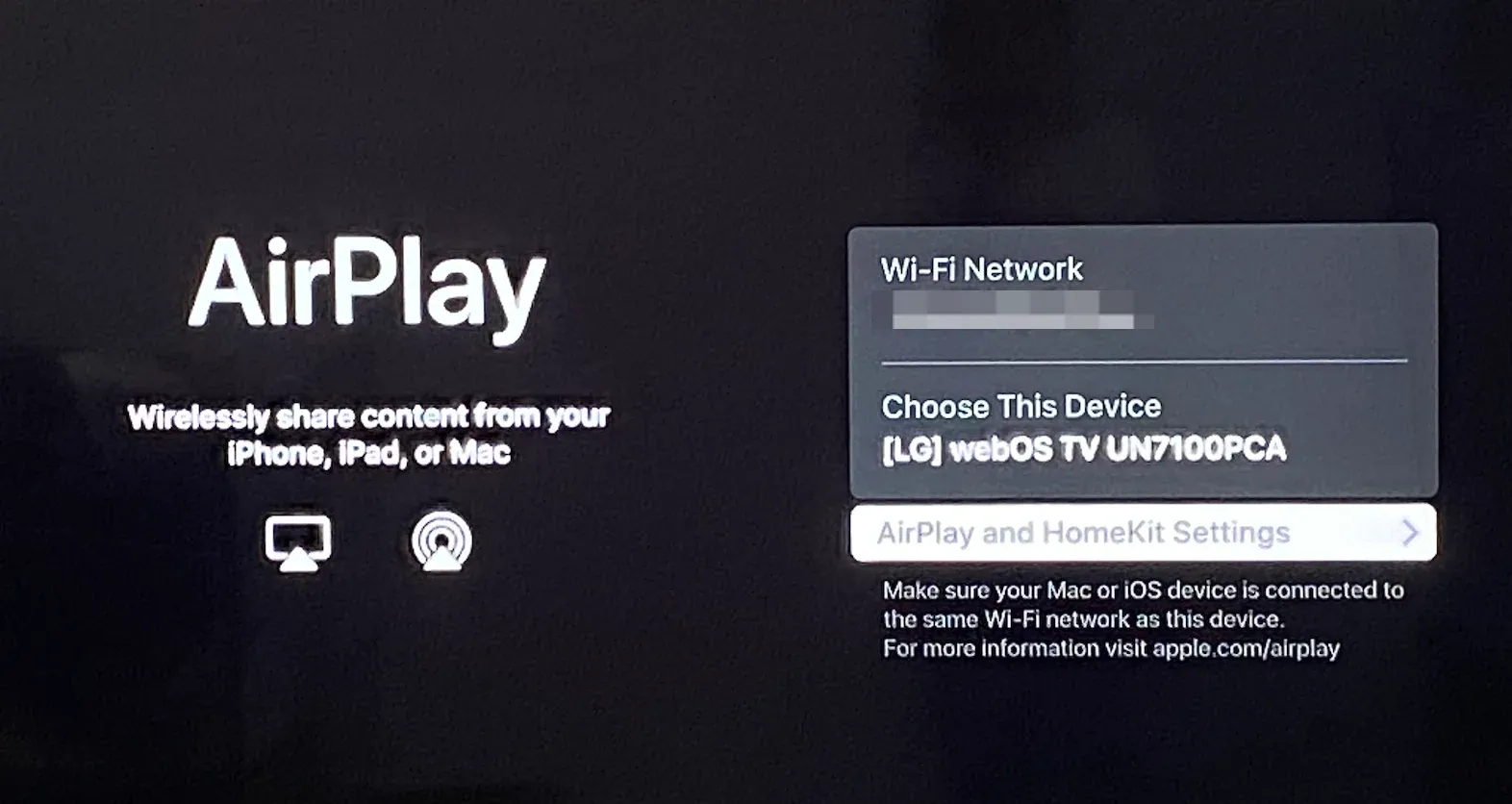
AirPlay support can vary by brand, model year, region, and software version. The safest way to check is to open your TV settings and look for AirPlay, Apple AirPlay, or Apple AirPlay and HomeKit.
AirPlay TV Compatibility by Brand
| TV / Device Type | AirPlay Support | What to Check or Do Next |
|---|---|---|
| Apple TV | Yes | Use AirPlay directly from iPhone, iPad, or Mac. |
| Samsung TV | Many newer models support AirPlay | Check AirPlay to Samsung TV if your Samsung TV has AirPlay settings. |
| LG TV | Many newer webOS models support AirPlay | Check LG TV AirPlay for compatibility. |
| Sony TV | Many newer Android TV and Google TV models support AirPlay | Check AirPlay to Sony TV for Sony setup details. |
| Roku TV | Some Roku TVs and players support AirPlay | Check AirPlay to Roku to confirm Roku model and settings. |
| Vizio TV | Many SmartCast TVs support AirPlay | Check how to turn on AirPlay on Vizio TV. |
| Google TV | Depends on the TV or streaming device | Check AirPlay to Google TV before assuming it will appear. |
| Fire TV | Many Fire TV Stick setups do not support native AirPlay | Check AirPlay to Fire TV if you need an app on the TV or receiver device. |
| Older smart TVs | Often no native AirPlay | Use Apple TV, HDMI, or a receiver app. |
| Non-smart TVs | No native AirPlay | Use Apple TV, HDMI, or another receiver device. |
If your TV does not show any AirPlay or Apple AirPlay setting, it may not support native AirPlay. In that case, do not spend too much time looking for the TV in Screen Mirroring. Use Apple TV, HDMI, or an AirPlay receiver app instead.
Step 2: Choose How You Want to AirPlay
After checking TV support, choose the way to connect based on the Apple device you are using. iPhone and iPad users usually start from Screen Mirroring or the AirPlay button inside an app. Mac users also start from Screen Mirroring, but they can choose whether to mirror the Mac display or use the TV as a second screen.
If You Use iPhone or iPad
On iPhone or iPad, open Control Center and tap Screen Mirroring to show the full screen on your TV. If you are watching a supported video or playing music, you may also see an AirPlay button inside the app.
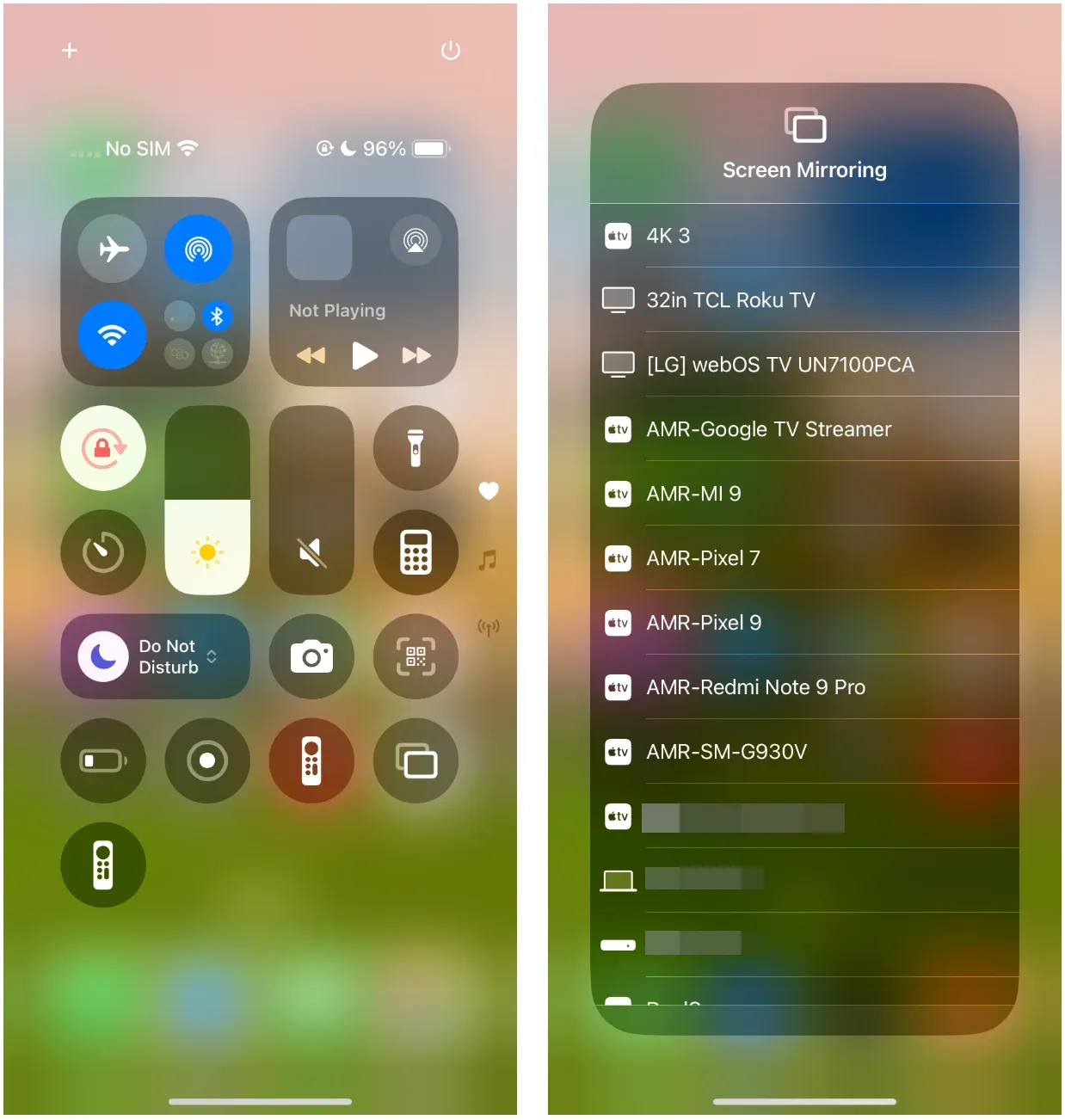
For the full setup, including where to find Screen Mirroring and what to check when the TV does not appear, use the guide on how to AirPlay from iPhone to TV. If you only want to show photos or videos from the Photos app, see AirPlay photos to TV.
If You Use Mac
On Mac, open Control Center, choose Screen Mirroring, and select your TV or Apple TV. You can mirror the same Mac screen on the TV or use the TV as an extra display.
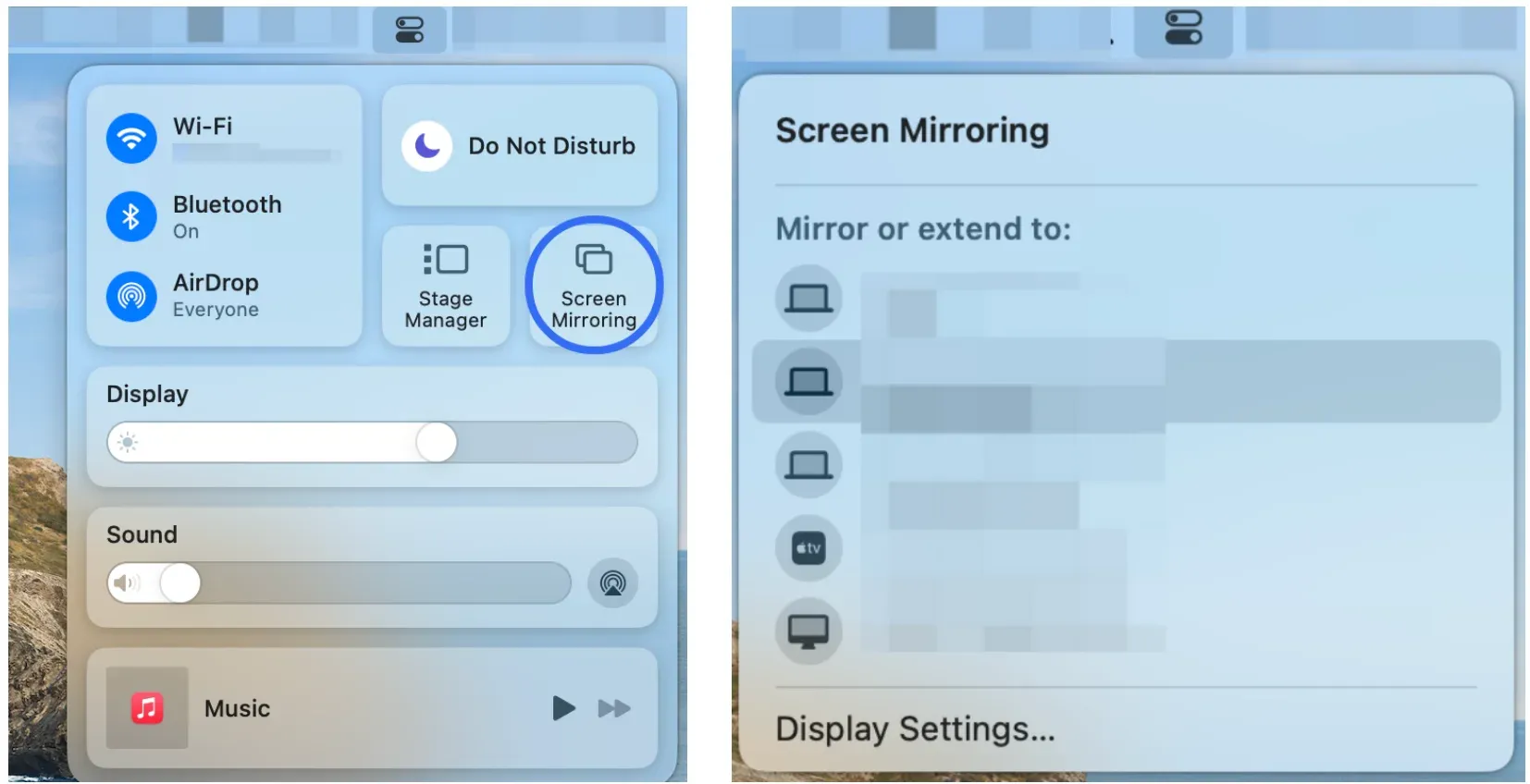
If you need the complete Mac setup, including mirror mode, extended display, and common connection checks, open AirPlay from Mac to TV. If your receiver is specifically Apple TV, Mac users can also check AirPlay from Mac to Apple TV.
If Your TV Does Not Support AirPlay
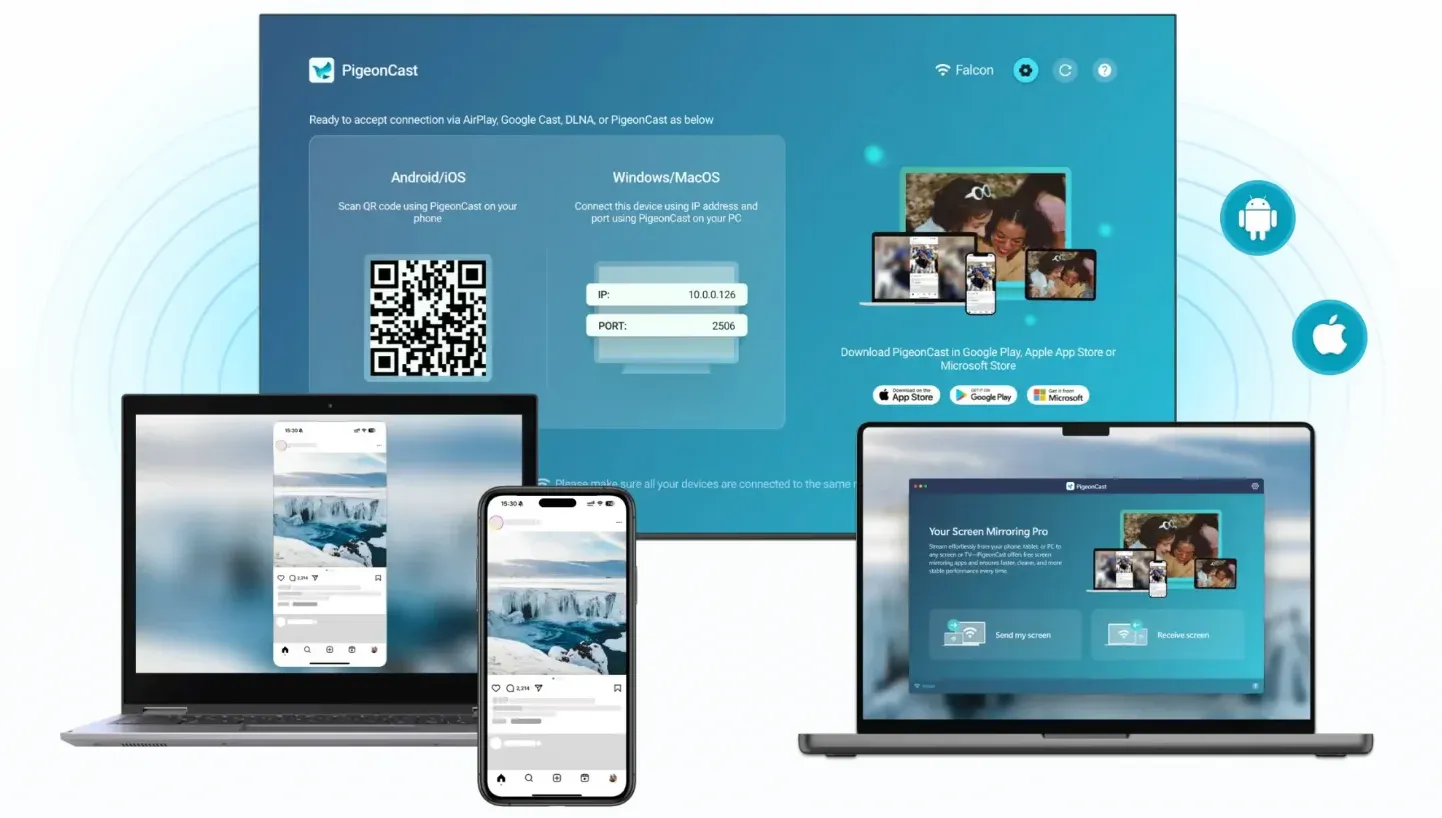
If your TV does not support AirPlay, it may never appear in the Screen Mirroring list. In that case, use Apple TV, HDMI, a receiver app, or a cross-device screen mirroring app such as PigeonCast.
PigeonCast is useful when your TV lacks native AirPlay, when Fire TV or an older smart TV needs an app-based receiver, or when your home uses iPhone, Android, Windows, and Mac together.
Step 3: Choose the Guide That Matches Your Setup
By this point, you should know two things: whether your TV supports AirPlay and which Apple device you want to use. Use that information to choose the most relevant guide below.
If you are using an iPhone or iPad, start with how to AirPlay from iPhone to TV. This guide is best when you want to mirror the full iPhone or iPad screen, show an app on TV, or check why the TV does not appear in Screen Mirroring.
If you are using a Mac, start with AirPlay from Mac to TV. This guide is better for Mac users because it covers mirroring, using the TV as a second display, and choosing the right display option.
If the problem is your TV brand, choose a brand-specific guide instead of a general setup article. TV menus and AirPlay support can vary a lot, so a brand guide is usually more helpful when you are not sure where to turn on AirPlay or whether your model supports it.
For TVs that commonly include built-in AirPlay on newer models, start with AirPlay to Samsung TV, AirPlay to Sony TV, AirPlay to Roku TV, or AirPlay to Vizio TV. For platforms where AirPlay support depends more on the exact device or may need an app-based receiver, check AirPlay to Google TV or AirPlay to Fire TV.
If your TV does not show any AirPlay setting, do not start with a general AirPlay guide. Use Apple TV, HDMI, or an app-based receiver instead. For Samsung users, connect iPhone to Samsung TV without AirPlay is the better article when AirPlay is missing or unreliable.
If AirPlay Is Not Available on Your TV
If your TV does not support AirPlay, it will not appear in Screen Mirroring no matter how many times you refresh the list. At that point, the better choice is to use Apple TV, HDMI, or an app-based receiver.
For mixed-device homes, PigeonCast can be a simpler option because it works across iPhone, Android, Windows, Mac, and supported TV devices. Install PigeonCast on the sending device and the receiver, connect both devices to the same Wi-Fi network, then choose the receiver and start mirroring.
Start mirroring with PigeonCast:


Overall Rating:



Common AirPlay to TV Problems
If your TV supports AirPlay but the connection still fails, check the basics before changing methods. Most AirPlay issues come from Wi-Fi, TV settings, app limits, or software compatibility.
| Problem | What to Check First |
|---|---|
| TV not showing up | Make sure both devices use the same Wi-Fi network, AirPlay is turned on, and the TV model supports AirPlay. |
| AirPlay button missing in an app | Check whether the app supports AirPlay. Some apps only support Screen Mirroring, while others show a separate AirPlay button. |
| TV appears but connection fails | Restart both devices, check the AirPlay code, update system software, and follow the detailed AirPlay not connecting to TV guide if it still fails. |
| Black screen after connecting | Some streaming apps block screen mirroring. Try the app’s AirPlay button instead of mirroring the full screen. |
| No sound on TV | Check TV volume, audio output, app sound settings, then disconnect and reconnect AirPlay. |
| Frequent disconnects | Move closer to the router, turn off VPN, use a stronger Wi-Fi network, and update the TV firmware. |
If your TV does not support AirPlay, these checks will not make it appear in Screen Mirroring. Use Apple TV, HDMI, or an app-based receiver instead.
Conclusion
AirPlay works best when your TV supports it and your Apple device can find it on the same Wi-Fi network. Before trying the same steps again and again, check whether your TV has AirPlay support, then choose the guide that matches your device or TV brand. If your TV does not support native AirPlay, use Apple TV, HDMI, or an app-based receiver instead. For mixed-device homes, PigeonCast can also help you mirror across iPhone, Android, Windows, Mac, and supported TV devices.
How to AirPlay to TV FAQ
Why can't I see my TV on AirPlay?
The most common reasons are Wi-Fi mismatch, missing AirPlay support, disabled AirPlay settings on the TV, or devices not refreshing properly. Check that both devices are on the same network, confirm the TV is compatible, update TV software if needed, and restart both devices before troubleshooting anything more advanced.
Does every smart TV support AirPlay?
No. Some newer Samsung, LG, Sony, Roku, and Vizio devices support AirPlay, but many older or lower-cost models do not. Fire TV support also depends on the exact device. The safest check is whether your TV settings show AirPlay support and whether the TV appears as a receiver from your Apple device.
Can I AirPlay to TV without Wi-Fi?
In most home setups, AirPlay works best when both devices are on the same Wi-Fi network. Apple TV may support peer-to-peer AirPlay in some cases, but that is not the normal assumption for smart TVs. For most TV setups, same-network Wi-Fi is still the practical requirement.
Can I AirPlay to a TV that does not support AirPlay?
Not directly. If your TV does not support AirPlay, it usually will not appear in Screen Mirroring on your iPhone, iPad, or Mac. You can use Apple TV, an HDMI cable or adapter, or an app-based receiver such as PigeonCast if you want to mirror to a TV without built-in AirPlay.
How do I know if my TV has AirPlay?
Open your TV settings and look for AirPlay, Apple AirPlay, or Apple AirPlay and HomeKit. On some TVs, this option appears under connection, network, general, or system settings. If you cannot find any AirPlay setting, check your TV model information or use another receiver option.
Is AirPlay the same as Screen Mirroring?
Not exactly. AirPlay can send videos, music, photos, or your full screen from an Apple device to a compatible receiver. Screen Mirroring is one AirPlay feature that shows your entire iPhone, iPad, or Mac screen on the TV. Some apps use a separate AirPlay button instead of full-screen mirroring.
Can I AirPlay from iPhone to TV without Apple TV?
Yes, if your smart TV has built-in AirPlay support. Many newer TVs from brands such as Samsung, LG, Sony, Roku, and Vizio support AirPlay on selected models. If your TV does not support AirPlay, you need Apple TV, HDMI, or a screen mirroring app like PigeonCast.
What can I AirPlay to TV?
You can AirPlay photos, videos, music, presentations, and in many cases your full screen. Some apps also let you hand off only the media stream instead of mirroring the whole device. Keep in mind that certain streaming services may restrict mirroring or show a black screen because of content protection rules.
Mia Clarke is a technology editor specializing in screen mirroring and casting solutions across multiple platforms. Mia provides clear, practical guides and in-depth insights to help users seamlessly connect their devices. Passionate about enhancing digital experiences, Mia is dedicated to keeping readers updated on the latest trends and tools in cross-platform screen sharing. Whether you’re looking to mirror your smartphone, laptop, or smart TV, Mia’s content delivers reliable, user-friendly advice to simplify your tech setup.