
If you want a clean answer to how to AirPlay from iPhone to TV, this guide focuses on the exact setup order that works in real home networks, not trial-and-error steps. You will quickly see what to check before connecting, how to start a stable session, and what to do first when issues like TV not found, random disconnects, or audio-video sync drift appear.
Can You AirPlay from iPhone to TV
Yes, but not every TV supports AirPlay. If your TV is not compatible with AirPlay, it will not appear in iPhone Screen Mirroring, so use this quick check before you continue:
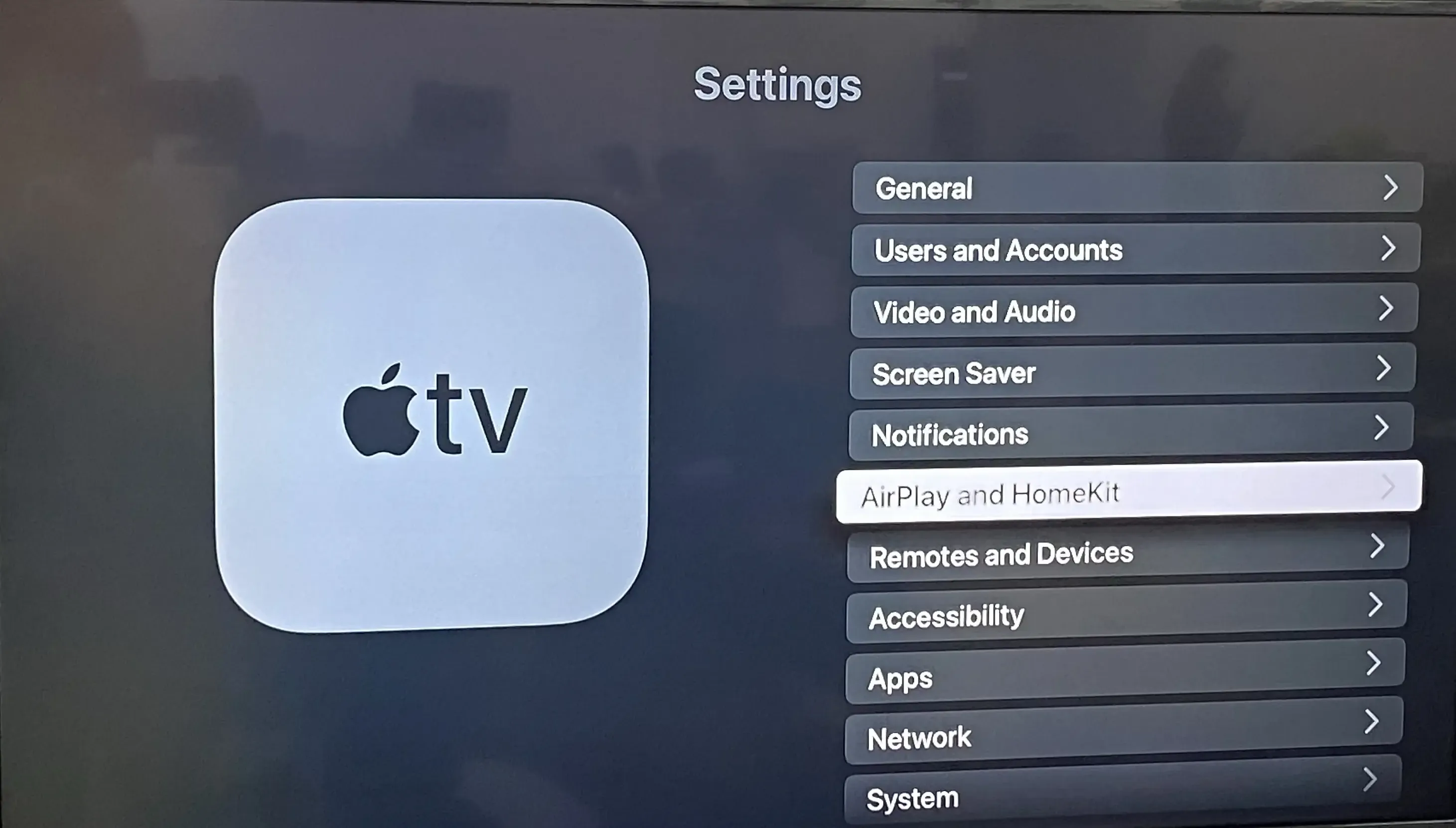
Step 1. Open TV Settings and find AirPlay or Apple AirPlay.
Step 2. If found, turn it on and keep the TV on that screen.
Step 3. Connect iPhone and TV to the same Wi-Fi.
Step 4. Pause VPN and keep guest/client isolation off.
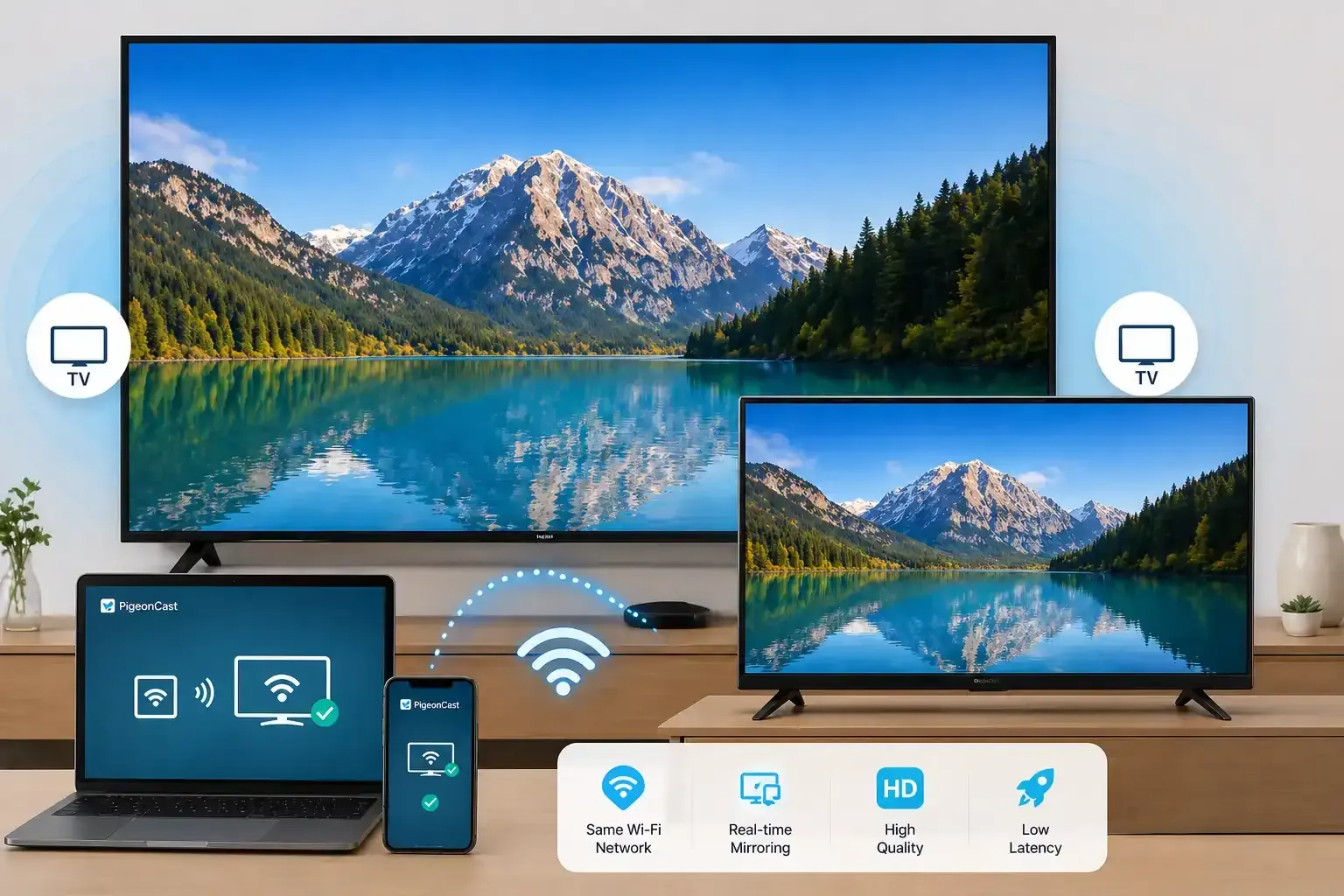
Bonus: If your TV is incompatible with iPhone AirPlay, use PigeonCast as a practical fallback. This free tool supports AirPlay, Google Cast, and DLNA in one app, so you can keep casting to TVs over Wi-Fi without extra cables or adapters, instead of repeating the same failed AirPlay setup.


Overall Rating:



How to AirPlay to TV from iPhone
If your TV supports native AirPlay, follow this flow to complete pairing once and keep future connections stable, here're the specific steps:
Step 1. Connect iPhone and TV to the same Wi-Fi network. Step 2. On TV, use the remote to open TV Settings > AirPlay (or Apple AirPlay), then turn AirPlay ON.
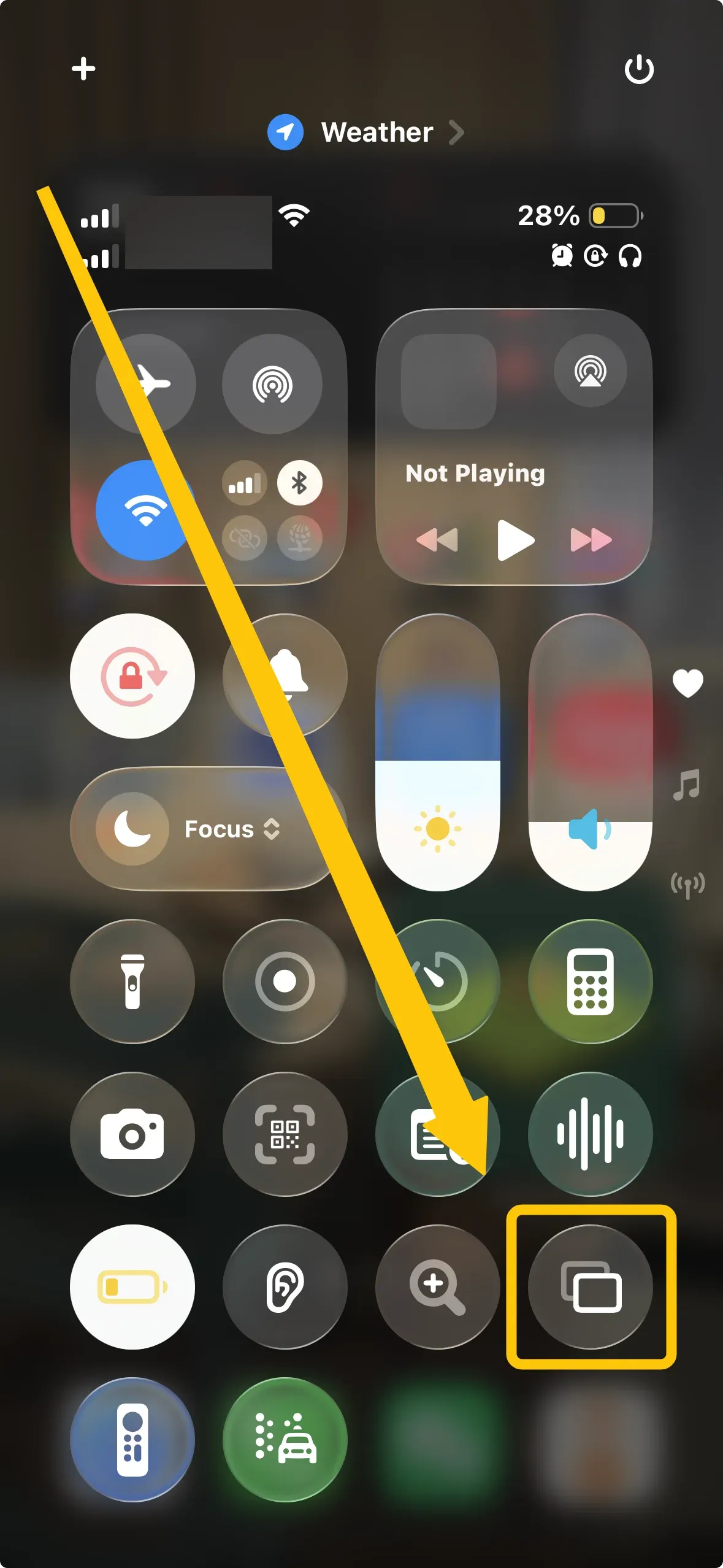
Step 3. On iPhone, open Control Center > Screen Mirroring, then select your TV from the device list. Step 4. Enter the on-screen verification code if prompted, then play a short video to confirm picture and audio are stable.
How to AirPlay from iPhone to TV Without AirPlay
If your TV cannot use native AirPlay, switch to a fallback path immediately instead of retrying the same AirPlay steps.
Step 1. Download PigeonCast on your phone and TV from App Store.
Step 2. Connect your phone and TV to the same Wi-Fi network.
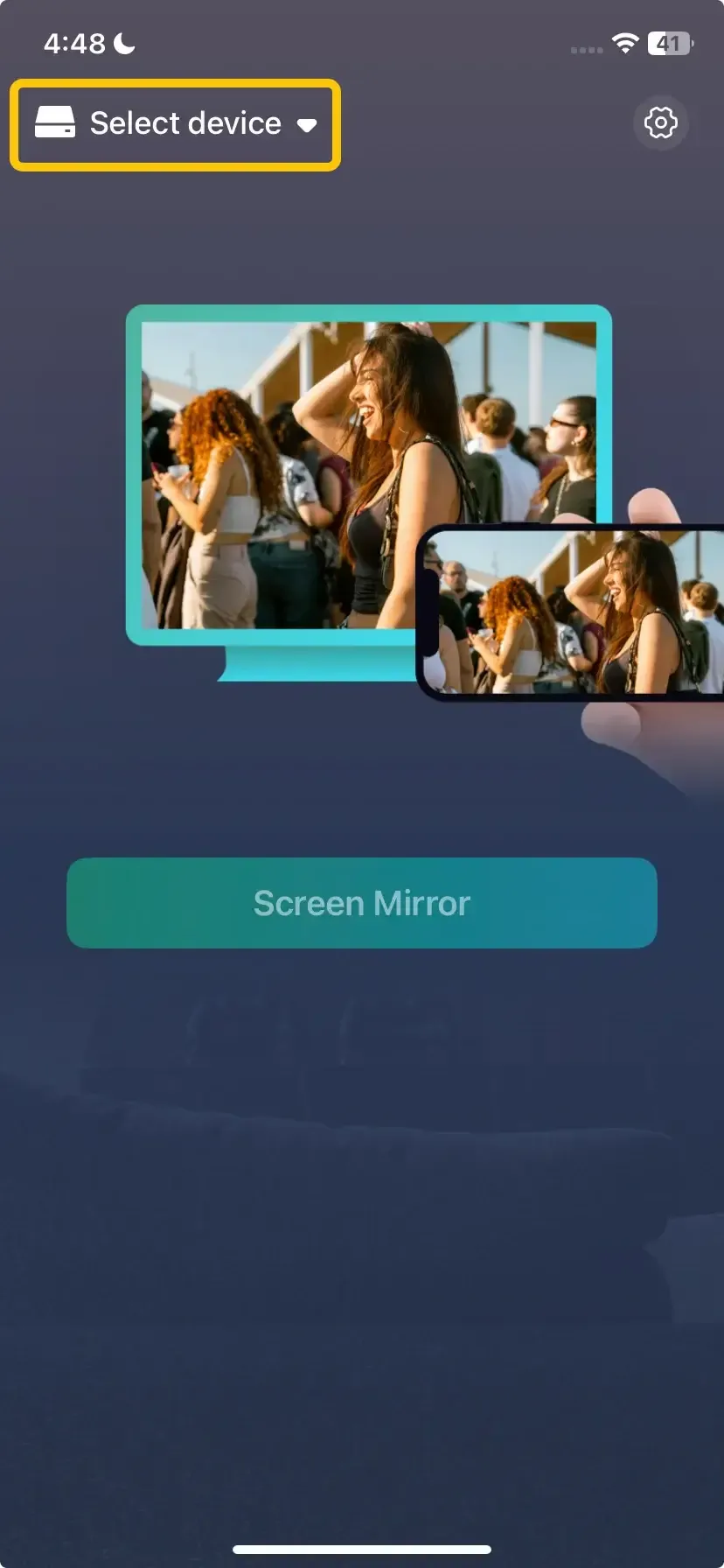
Step 3. Launch the app, tap Select device to choose your TV from the device list.
Step 4. Enter the onscreen PIN code to confirm the pairing request.
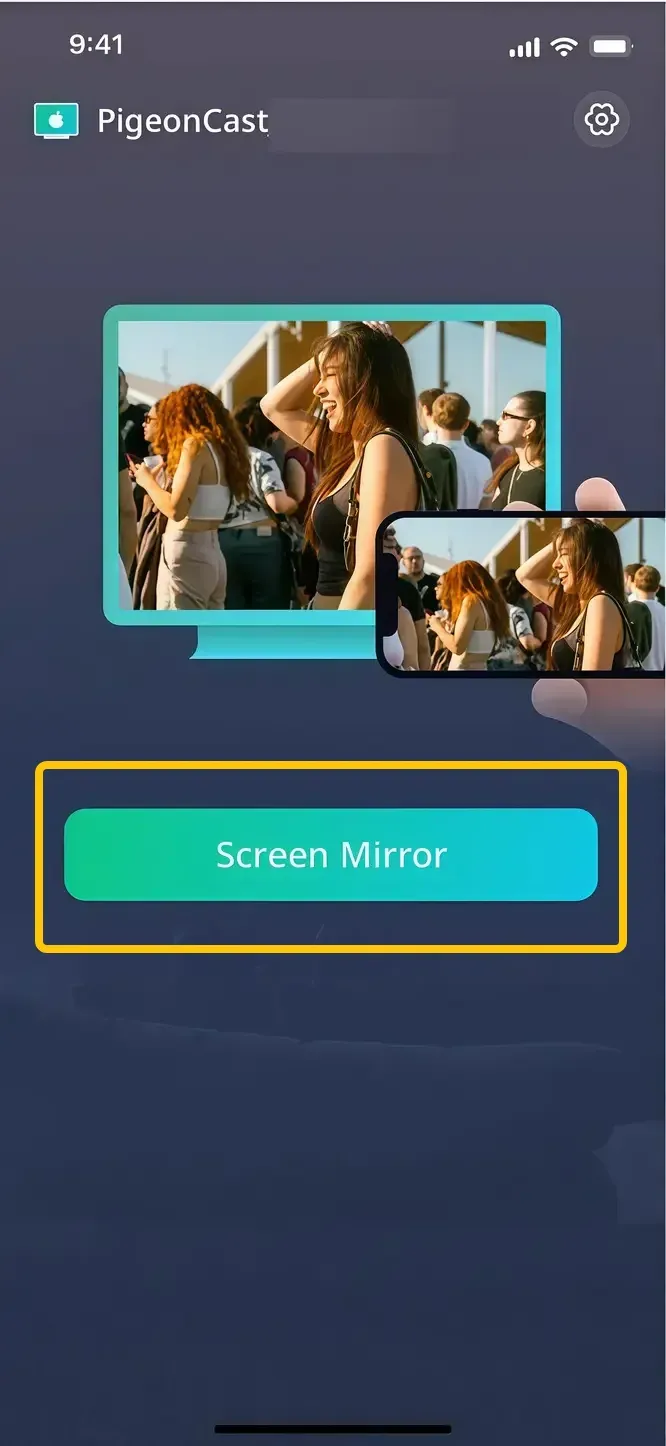
Step 5. Click Screen Mirror to start your mirroring activities.
Common Issues About AirPlay from iPhone
If AirPlay fails, do not reset everything at once. Identify the symptom first, then use the matching fix below, because “TV not found,” disconnects, and sync issues usually have different causes.
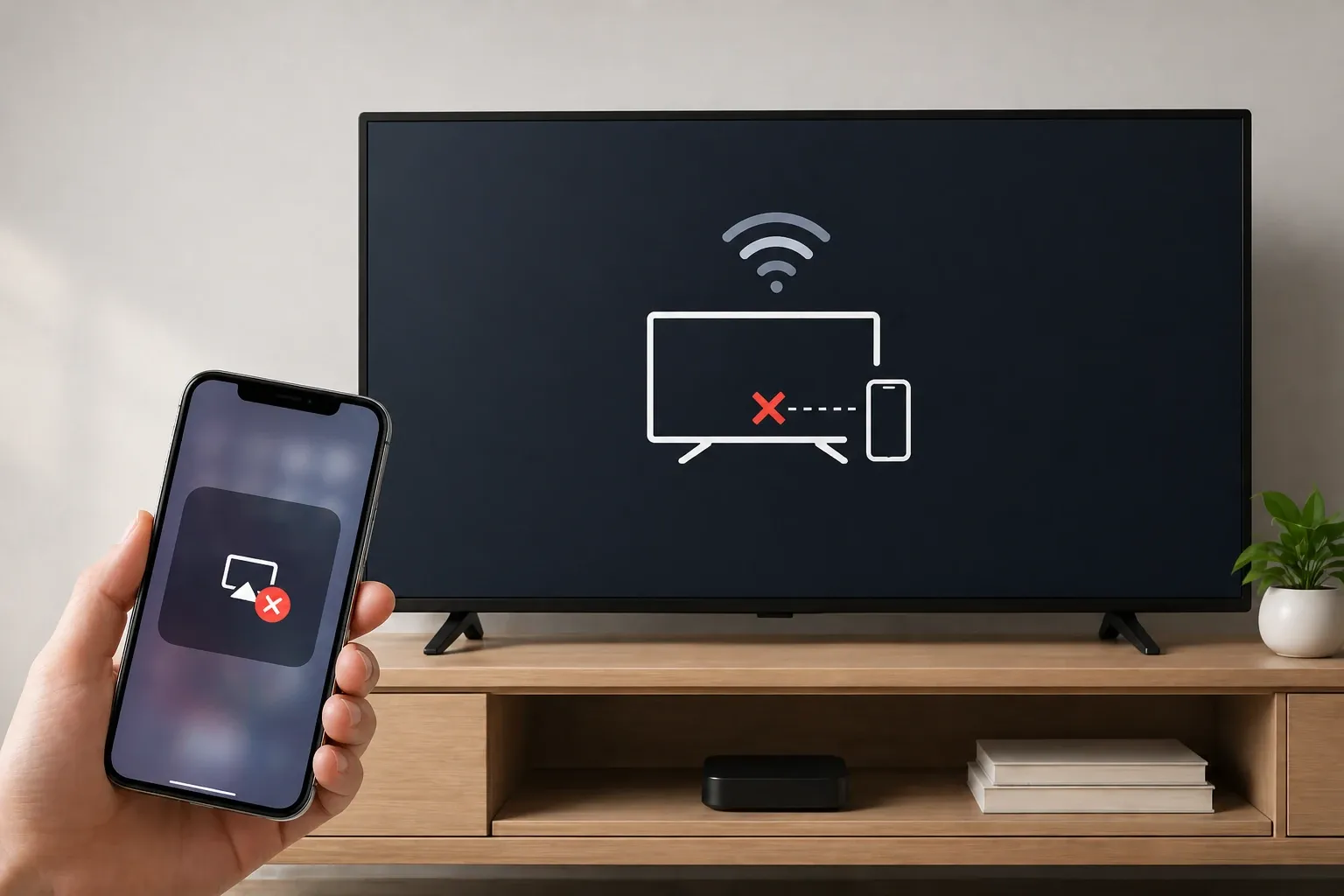
- iPhone cannot find TV in Screen Mirroring
Step 1. On TV, reopen Settings > AirPlay and make sure AirPlay is ON.
Step 2. Confirm iPhone and TV are on the same Wi-Fi name.
Step 3. Turn off VPN and guest/client isolation, then refresh Screen Mirroring on iPhone.
Step 4. If the TV still does not appear, restart TV receiving mode and scan again.
- AirPlay connects, then disconnects
Step 1. Move iPhone closer to the router and keep TV on a stable signal.
Step 2. Pause heavy downloads/uploads on the same network.
Step 3. Reconnect once and test with a short video clip.
Step 4. If drops continue, restart TV receiving mode before the next attempt.
Step 1. Stop mirroring and reconnect once.
Step 2. Test with another short clip to isolate source-specific issues.
Step 3. Reduce network load and retest.
Step 4. If sync issues remain across all sources, switch TV audio processing to a lower-latency mode.
The End
To keep AirPlay sessions stable, always run the same workflow: confirm your TV supports AirPlay, keep iPhone and TV on the same Wi-Fi, enable AirPlay in TV Settings, then complete pairing from iPhone Screen Mirroring and validate with a short clip. If the TV never appears, do not loop through the same retries; switch to the fallback path directly and continue casting with PigeonCast.
How to AirPlay from iPhone to TV FAQ
How to AirPlay from iPhone to Roku TV?
- Connect iPhone and Roku TV to the same Wi-Fi.
- On Roku, open Settings > Apple AirPlay and HomeKit, then turn AirPlay ON.
- On iPhone, open Control Center > Screen Mirroring.
- Select your Roku TV and enter the on-screen code if prompted.
How to Remove AirPlay from iPhone Lock Screen?
- Open iPhone Settings > General > AirPlay & Continuity.
- Disable options that allow automatic nearby AirPlay suggestions.
- If AirPlay controls still appear, disconnect active AirPlay sessions from Control Center.
- Restart the media app once.
Can I AirPlay Netflix from iPhone to TV?
- Confirm your TV or receiver supports AirPlay.
- Connect iPhone and TV to the same Wi-Fi.
- Open Netflix on iPhone and start playback.
- Tap the AirPlay/Cast option and choose your TV.
- If direct playback is restricted in your setup, use screen mirroring as fallback.
Why does my TV not appear in Screen Mirroring?
- AirPlay receiving mode is OFF or timed out on the TV.
- iPhone and TV are on different Wi-Fi networks or different network bands with isolation rules.
- Guest Wi-Fi or client isolation blocks local device discovery.
- VPN, private relay, or strict network filtering interrupts local AirPlay discovery.
- Router multicast/mDNS handling is unstable, so the TV does not appear in scan results.
- TV firmware or iOS session state is stale, causing intermittent discovery failure.
Why does connection succeed but drop quickly?
This usually indicates link instability after initial handshake rather than a pairing failure. Common causes include fluctuating Wi-Fi quality, high network contention from other devices, TV receiver mode refreshing during stream startup, multicast/mDNS instability on the router, and power-saving behavior on either device that interrupts session continuity.
Can I use AirPlay for interactive tasks?
You can, but AirPlay is better suited for presentation-style interaction than latency-critical control. Input responsiveness depends on end-to-end delay across Wi-Fi quality, receiver processing, and TV image processing, so tasks like drawing demos or navigation usually work, while fast gaming or precision interaction may feel delayed.
Clara Rossi is an experienced technology editor and a seasoned expert in screen mirroring and casting technologies. With a keen eye for detail and a deep understanding of how to seamlessly connect devices, Clara excels at optimizing user experiences for effortless sharing and streaming. Whether you're seeking quick fixes or advanced tips, her expertise and responsiveness ensure that every query is met with a well-informed and efficient solution.