
Want to do screen mirroring iPhone to Samsung TV without AirPlay? It's completely possible. Whether your TV is an older model or your Wi-Fi is unreliable, this guide covers the 2 most effective methods to connect your Apple device to your Samsung television.
Can You Screen Mirror iPhone to Samsung TV Without AirPlay
Yes, you absolutely can. While AirPlay is the most seamless method for modern devices, it's not the only way. The key is to use a third-party adapter or app that acts as a translator between your iPhone's output and your Samsung TV's input. These solutions eliminate the need for the two devices to communicate directly over Wi-Fi using Apple's proprietary protocol, offering a reliable alternative to screen mirroring.
How to Mirror iPhone to Samsung TV Without AirPlay
If you're ready to dive in, here are a few practical ways to mirror your iPhone to a Samsung TV without using AirPlay. Each method has its own steps, so let's explore these options to find the one that works best for you.
Way 1. Use Third-Party Streaming Device
How to cast iPhone to Samsung TV without AirPlay? You can add a streaming device that supports screen mirroring from iPhones. Devices like a Google Chromecast with Google TV or a Roku Streaming Stick plug into your TV's HDMI port and create their own casting environment. Here we use a Chromecast as an example, and you can follow the steps on screen mirroring iPhone to old Samsung TV without AirPlay:
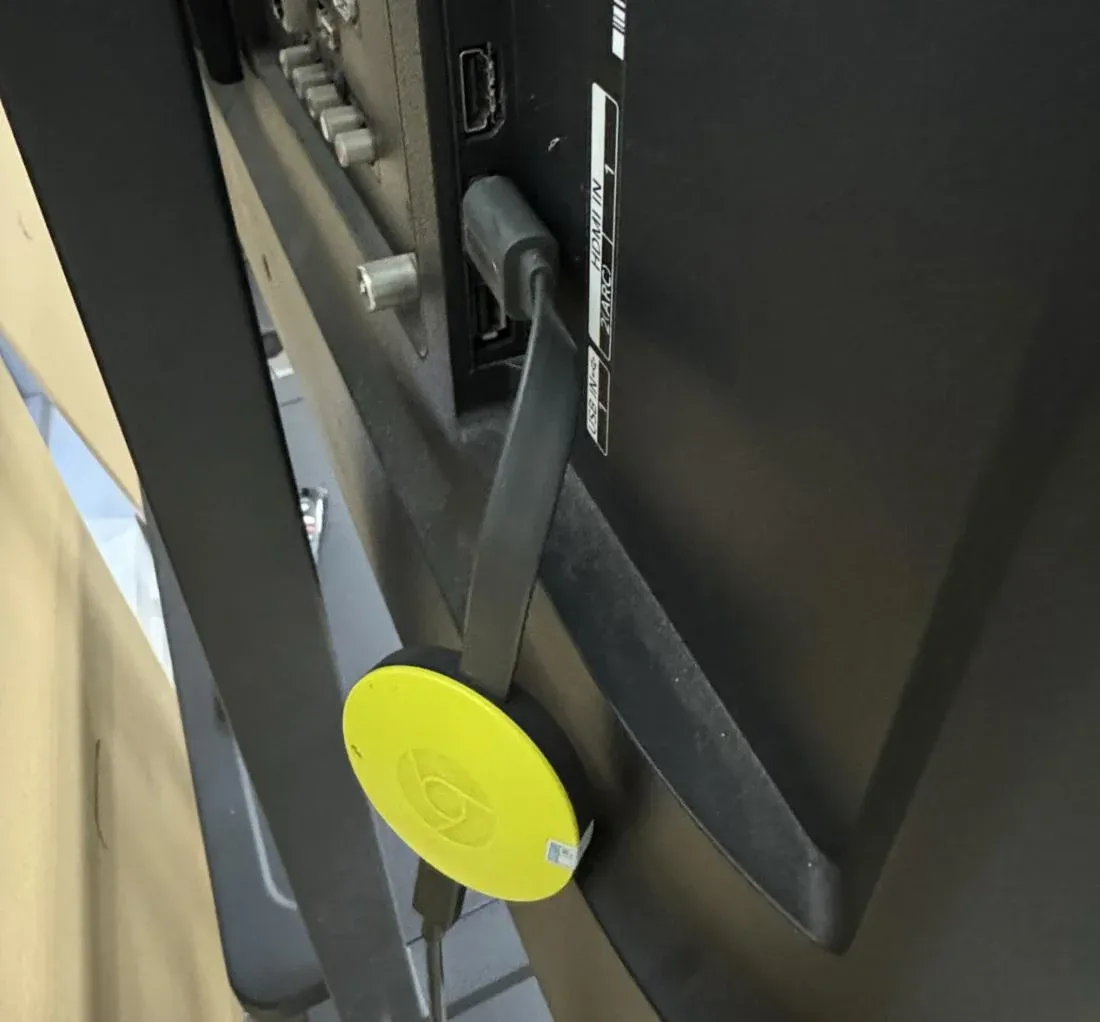
Step 1. Plug the Chromecast into your Samsung TV's HDMI port and connect it to power. Complete the initial setup to connect it to your Wi-Fi network using the Google Home app on a separate device.
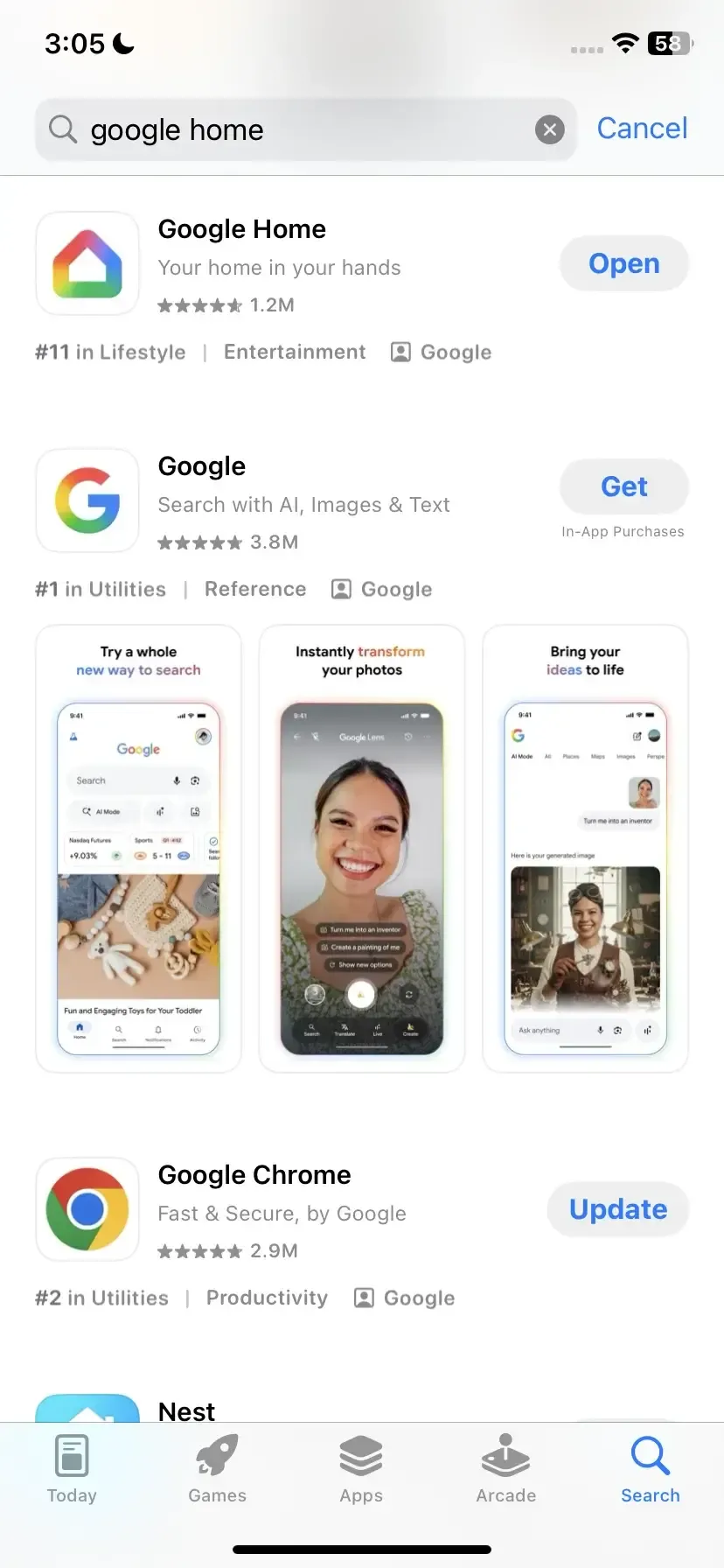
Step 2. Download and open the Google Home app on your iPhone from the App Store.
Step 3. Ensure your iPhone is on the same Wi-Fi network as Chromecast.
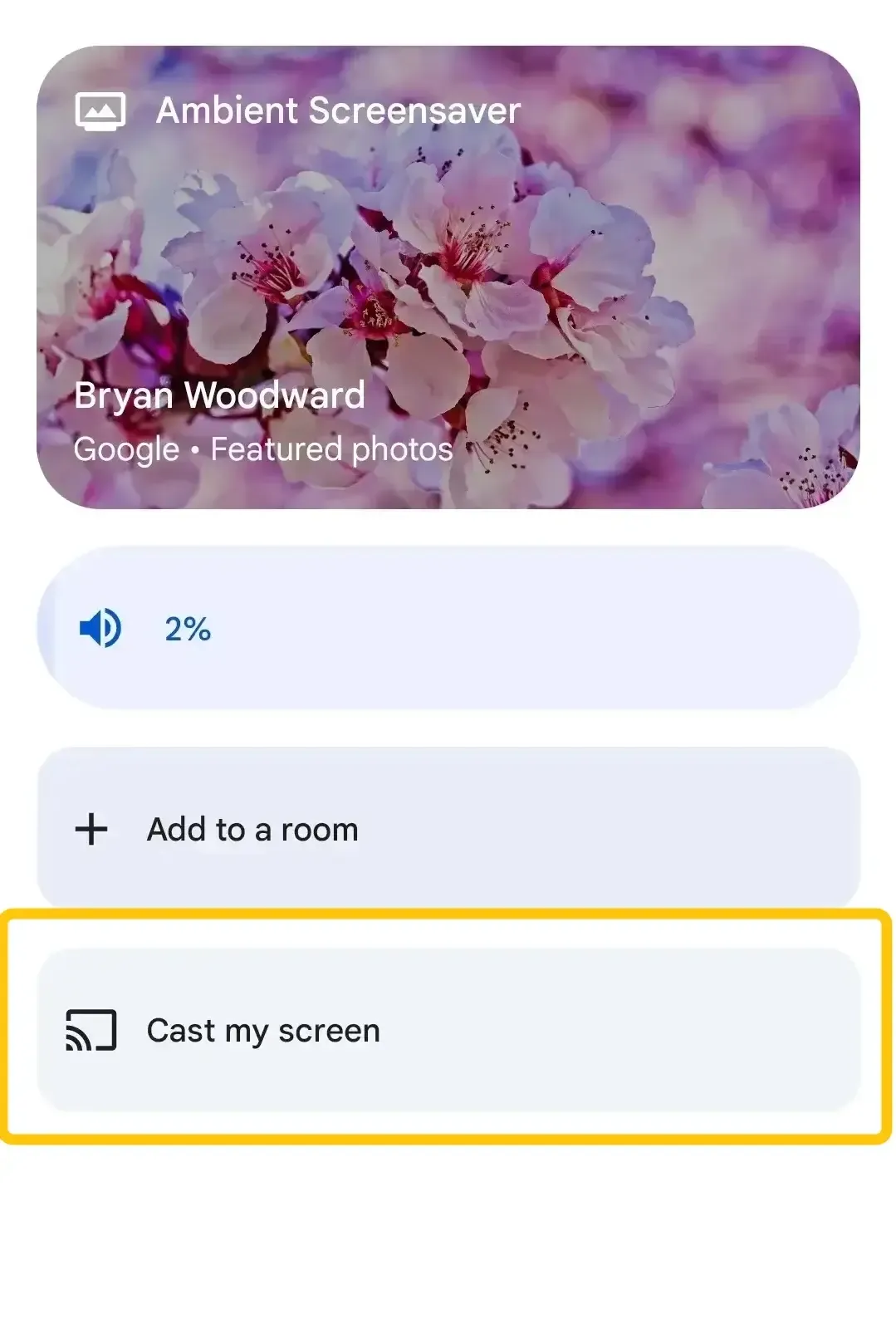
Step 4. In the Google Home app, select your Chromecast device. Tap Cast my screen and then Cast screen on the prompt. Your iPhone screen will now be mirrored to the TV.
Tip: If you're looking for a comprehensive solution to mirror to Chromecast from iPhone, Android, Windows PC, or Mac, PigeonCast is a great option. It's a free, secure third-party app that supports Google Cast, allowing seamless casting across multiple devices.


PigeonCast Screen Mirroring

Official Download



Way 2. Use an HDMI Cable and HDMI Adapter
If you prefer screen mirroring iPhone to Samsung TV without AirPlay app, the most reliable and universally compatible method is to use a physical adapter. For iPhones 15 and newer, you'll need a USB-C to HDMI adapter. For iPhone 14 and older models, you'll need a Lightning to HDMI adapter. Here's how you can mirror your iPhone to your Samsung TV, depending on your model:
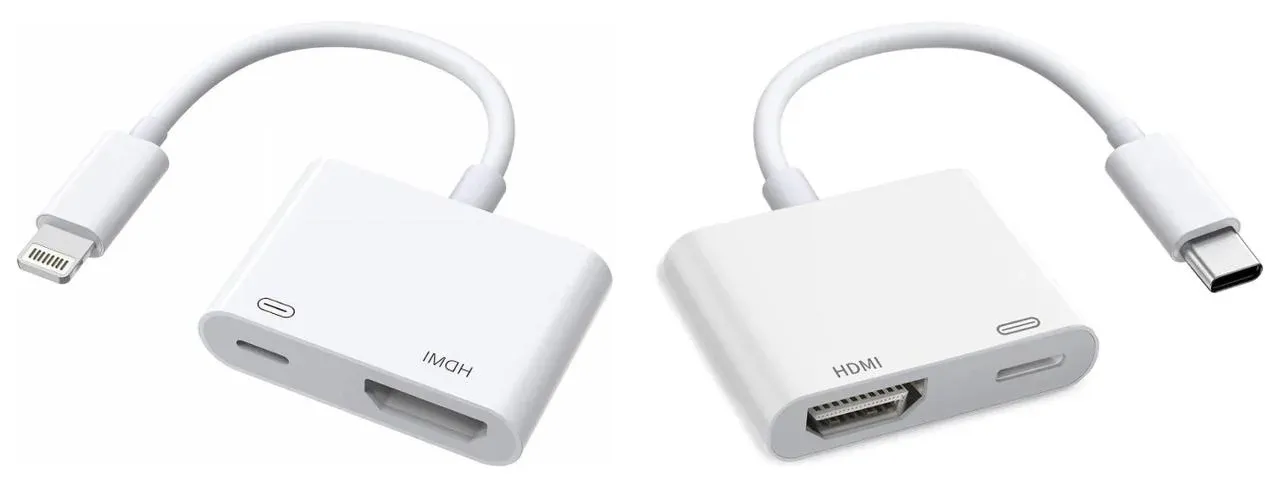
Step 1. For iPhone 15 and newer, purchase a USB-C to HDMI adapter and an HDMI cable. For iPhone 14 and older, purchase a Lightning to HDMI adapter and an HDMI cable.
Step 2. Connect the adapter to your iPhone.
Step 3. Plug one end of the HDMI cable into the adapter and the other end into an available HDMI port on your Samsung TV.
Step 4. Switch to the correct HDMI input on your Samsung TV.
Step 5. Once the connection is made, your iPhone's screen will appear on your Samsung TV.
To Sum Up
Screen mirroring iPhone to Samsung Smart TV without AirPlay is definitely achievable, and it's easier than you might think. Whether you choose to use a third-party streaming device like Chromecast or Roku or a reliable HDMI adapter, each method offers a simple solution for connecting your iPhone to your Samsung TV. Pick the method that works best for your setup and start enjoying content on the big screen today!
Screen Mirroring iPhone to Samsung TV Without AirPlay FAQ
How to do Screen Mirroring iPhone to Samsung TV Without AirPlay free?
If you're looking for free methods to mirror your iPhone to a Samsung TV without AirPlay, here are two options:
- Use the Samsung Smart View app
- Use a free third-party app
Why is my Samsung TV not screen mirroring?
There are several reasons why your Samsung TV might not be screen mirroring:
- Wi-Fi Connection Issues
- AirPlay or Screen Mirroring Settings
- Device Compatibility
- Outdated Software
- Interference from Other Devices
Can an iPhone do a mirror on a Samsung TV?
Yes, an iPhone can mirror a Samsung TV. While the most common method is through AirPlay, which newer Samsung Smart TVs support, there are other ways to mirror your iPhone if your TV doesn't support AirPlay or if you encounter issues. You can use third-party apps like PigeonCast, or devices like Chromecast or Roku, or even connect your iPhone via an HDMI adapter for a wired solution.
Screen Mirroring iPhone to Samsung TV Without WiFi?
If you want to mirror your iPhone to a Samsung TV without Wi-Fi, there are a couple of simple solutions:
- Use a Wired HDMI Connection
- Use Hotspot
- Use a Wireless HDMI Kit
How to solve the Screen Mirroring iPhone to Samsung TV not working?
If screen mirroring from your iPhone to your Samsung TV isn't working, here's a step-by-step guide to troubleshoot and fix the issue:
- Check Wi-Fi connection
- Enable AirPlay on Samsung TV
- Update software on both devices
- Restart Both Devices
- Ensure Bluetooth and Wi-Fi are enabled
- Check the TV's Input Source
- Reset network settings (iPhone Only)
- Try an alternative method
Clara Rossi is an experienced technology editor and a seasoned expert in screen mirroring and casting technologies. With a keen eye for detail and a deep understanding of how to seamlessly connect devices, Clara excels at optimizing user experiences for effortless sharing and streaming. Whether you're seeking quick fixes or advanced tips, her expertise and responsiveness ensure that every query is met with a well-informed and efficient solution.