
Streamlining your entertainment by casting content from your Apple device directly to your TV is incredibly convenient. If you're using a Sony TV, you're in luck, as many of the latest models come with AirPlay support built in. This guide will take you through every step on how to AirPlay to Sony TV, so you can easily enjoy your favorite videos, photos, and music on the big screen without any hassle.
How to AirPlay on Sony TV
Before you start casting, it's important to make sure your Sony TV can support AirPlay. Not all models have this feature, so checking compatibility is key. AirPlay 2, the latest version, is available on most Sony smart TVs released in 2019 and later. If your TV isn't compatible with AirPlay, don't worry. Head to the next section to learn how to use the free mirroring app, PigeonCast, to help you Sony TV AirPlay easily.
How to AirPlay from iPhone/iPad to Sony tv
Now that you've completed the preliminary checks, mirroring your iOS device's screen or streaming content directly to your Sony TV is just a few taps away. Now, let's follow these succinct steps on how to turn on AirPlay on Sony TV and Sony AirPlay with your iPhone or iPad:
Step 1. Make sure your Sony TV and iPhone or iPad are connected to the same wireless network.
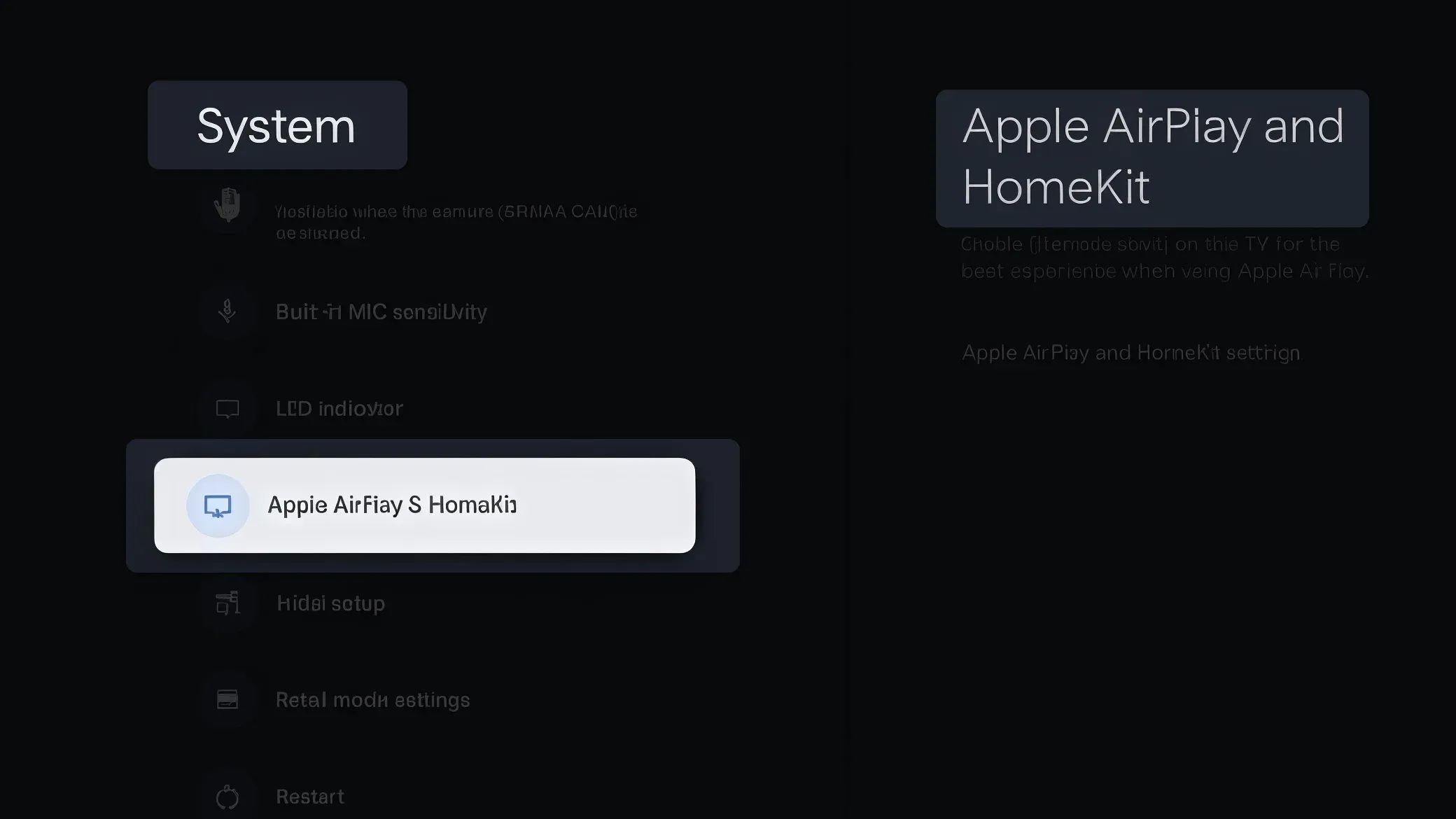
Step 2. On your TV, navigate to Settings > System > Apple AirPlay & HomeKit. Make sure AirPlay is turned on.
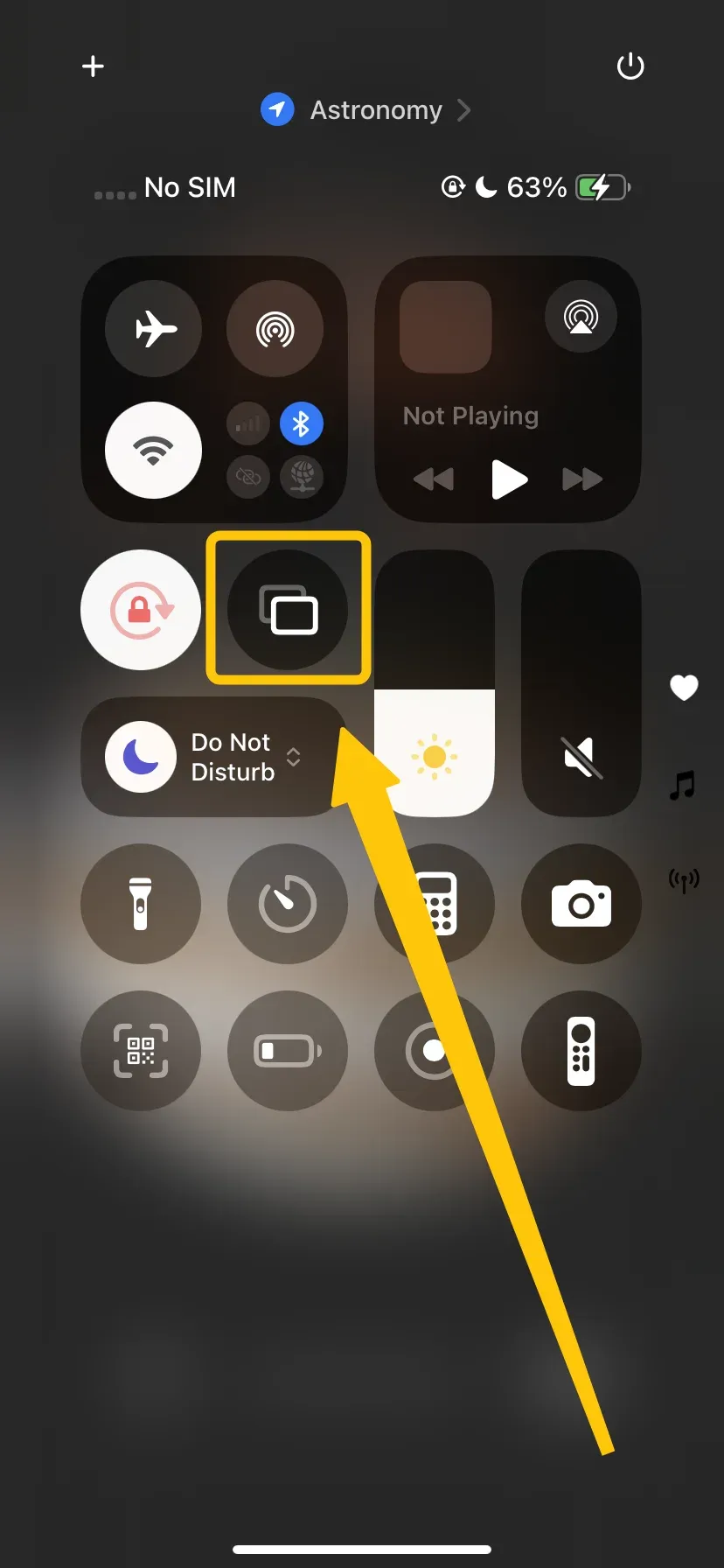
Step 3. On your iPhone or iPad, tap Screen Mirroring in the Control Center to choose your Sony TV.
Step 4. If prompted, enter the onscreen code to finish the pairing process.
Step 5. When you succeed, you can do Sony Bravia AirPlay from your Apple device smoothly.
How to AirPlay from Mac to Sony TV
AirPlay is also available on Mac computers, letting you share your entire screen or turn your Sony TV into a wireless external display. Whether you're working on a project, watching a movie, or giving a presentation, this feature makes it simple to display your Mac's screen on the big TV. Here's how to use AirPlay on Sony TV:
Step 1. Ensure your Mac and Sony TV are on the same Wi-Fi.
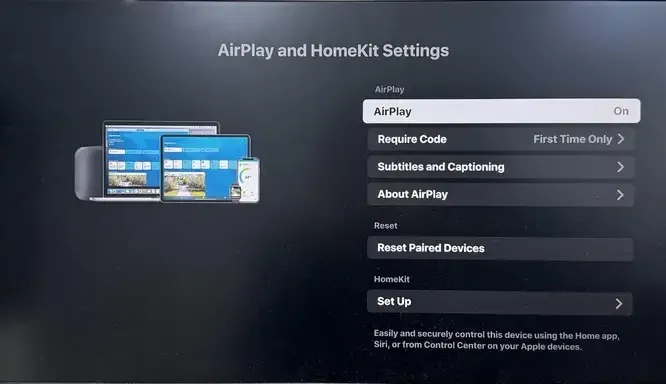
Step 2. On your TV, navigate to Settings > System > Apple AirPlay & HomeKit. Make sure AirPlay is turned on.
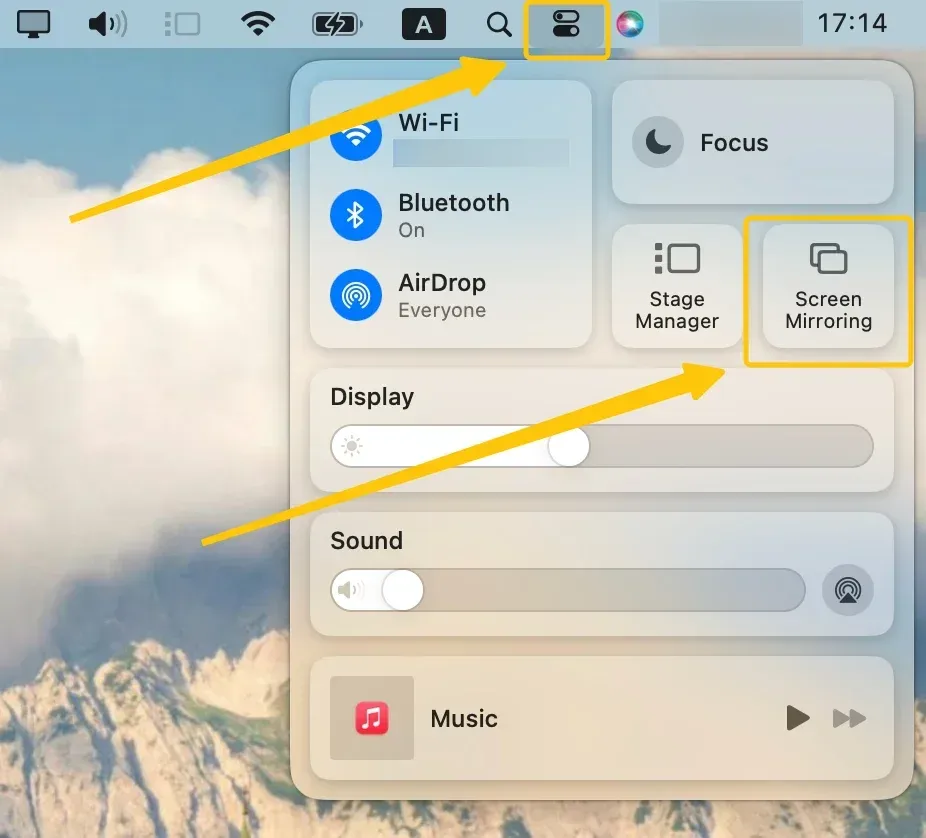
Step 3. On your Mac, click the Control Center icon in the menu bar and select Screen Mirroring.
Step 4. Choose your Sony TV from the available list and enter the PIN code if prompted.
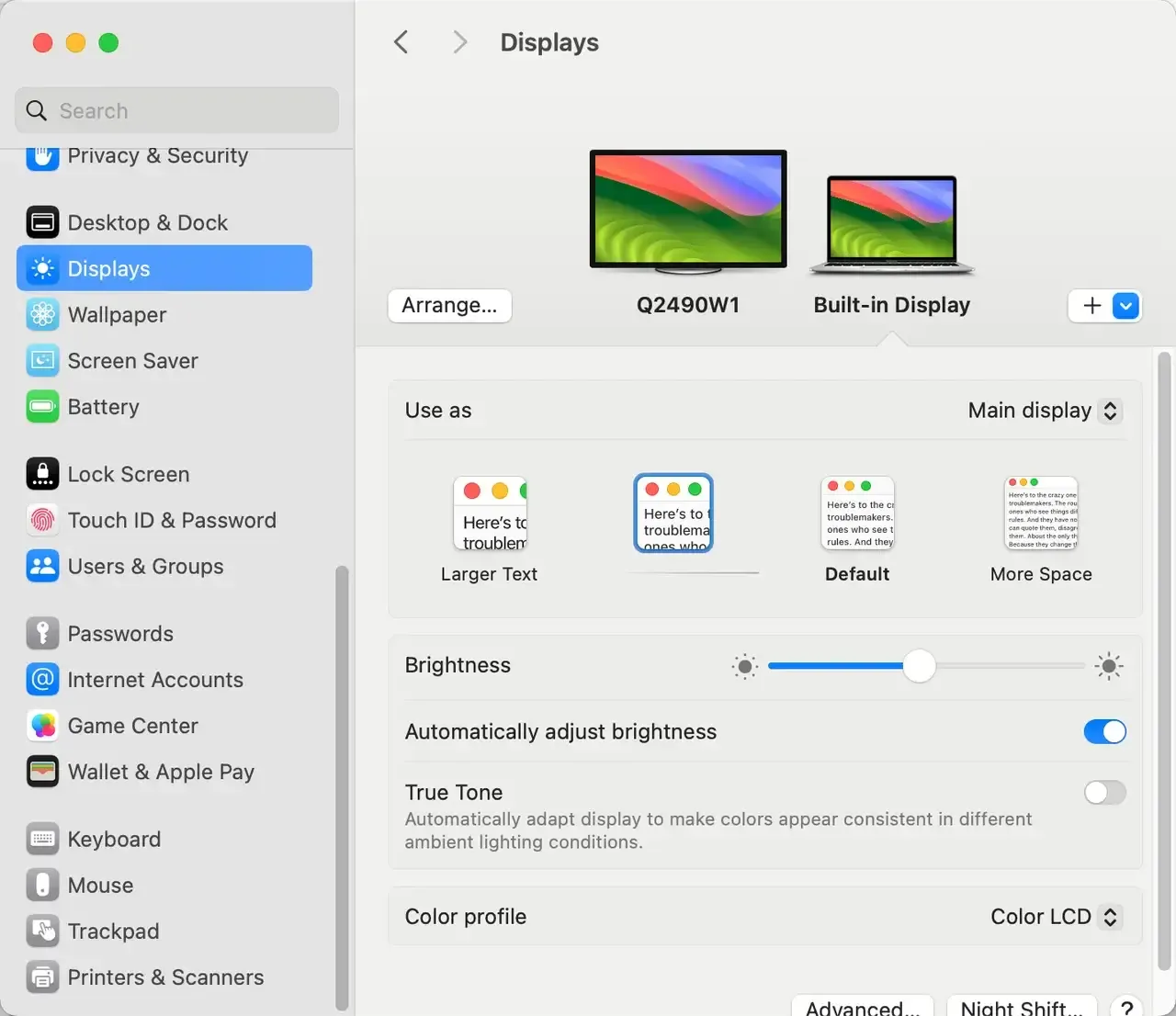
Step 5. If you complete, you are allowed to choose either to mirror your Mac's display or use the television screen as a separate extending display.
How to Connect to Sony TV Without AirPlay
What if your Sony TV is an older model without built-in AirPlay? Fortunately, there are still great options to achieve similar functionality. For Sony TVs that don't support AirPlay, alternative solutions can offer a comparable, and in some cases, even more versatile casting experience.
Way 1. Use Chromecast Built-in App
If your Sony TV supports Chromecast, you can cast content from your Apple device using apps that support Chromecast, like Netflix, Spotify, and YouTube. Most Sony Bravia TVs with Google TV or Android TV, especially models from 2017 onward, come with Chromecast built in, making it easy to stream directly to your TV.
Step 1. Ensure your Apple device and Sony TV are under the same wireless network.
Step 2. Open a Chromecast-supported app on your phone (e.g., Netflix, Spotify, YouTube).
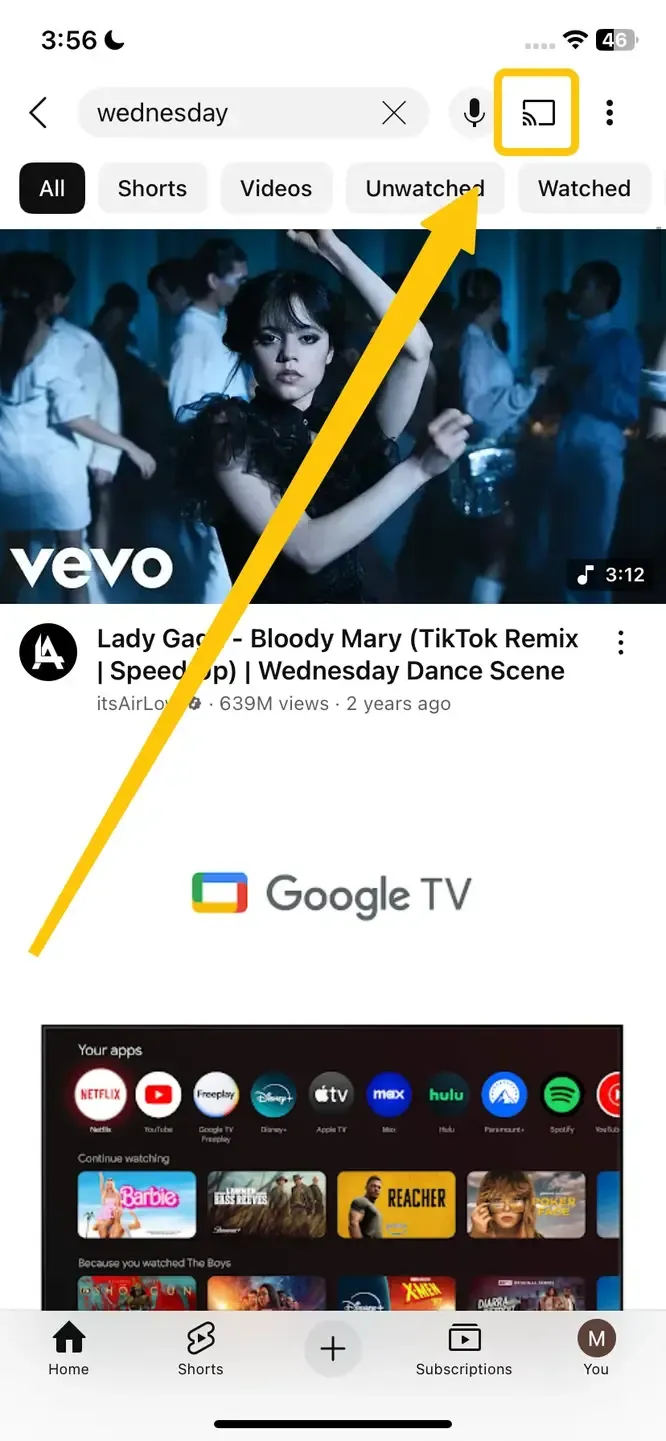
Step 3. Tap the Cast icon and select your Sony TV from the device list.
Step 4. Your mobile screen will then appear on your Sony TV screen.
Way 2. Use PigeonCast
Alternatively, you can try the free app PigeonCast, a smart screen mirroring tool that turns your Sony TV into a versatile display for almost any device. It's a great AirPlay alternative when official casting options aren't available. What's more, PigeonCast supports a wide range of devices with different operating systems, so you don't have to worry about compatibility issues or checking long lists of supported devices.
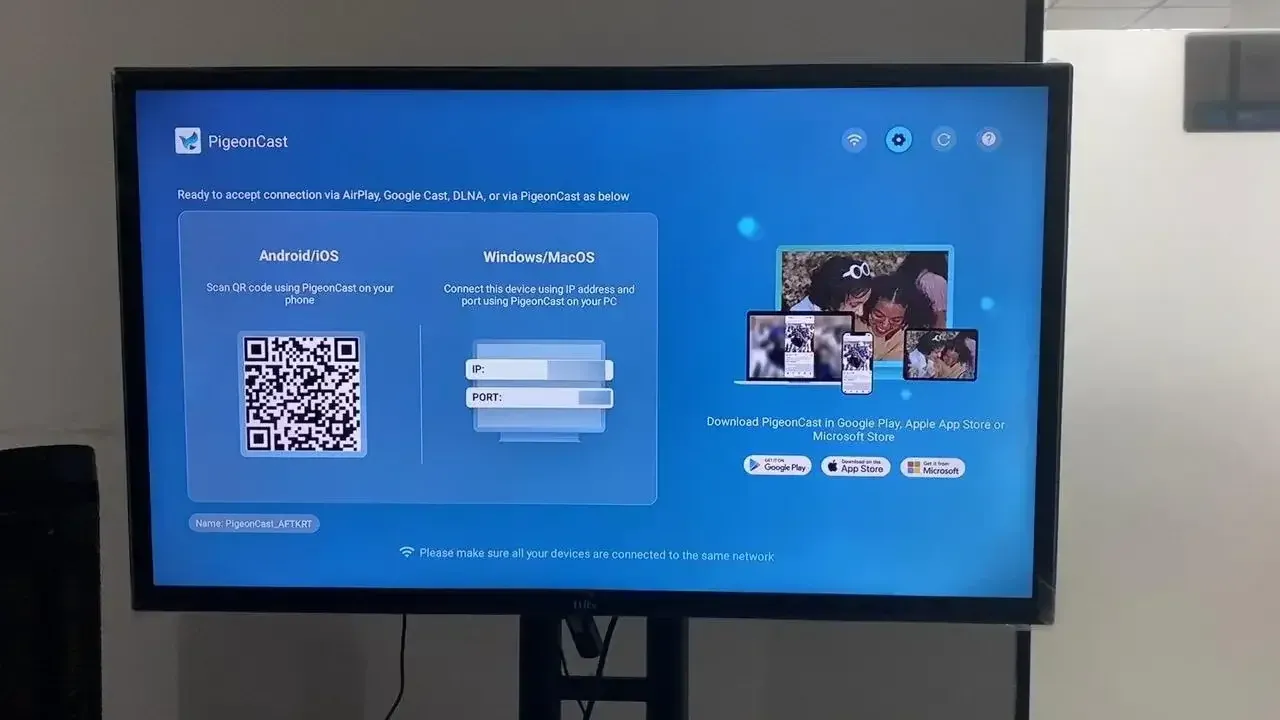
Step 1. Ensure your iPhone, iPad, or Mac and Sony TV are covered by the same wireless network.


Overall Rating:


Step 2. Install PigeonCast on your Apple device from the App Store and launch it.
Overall Rating:

Step 3. Download PigeonCast on your Sony TV from the Google Play Store, then open it.
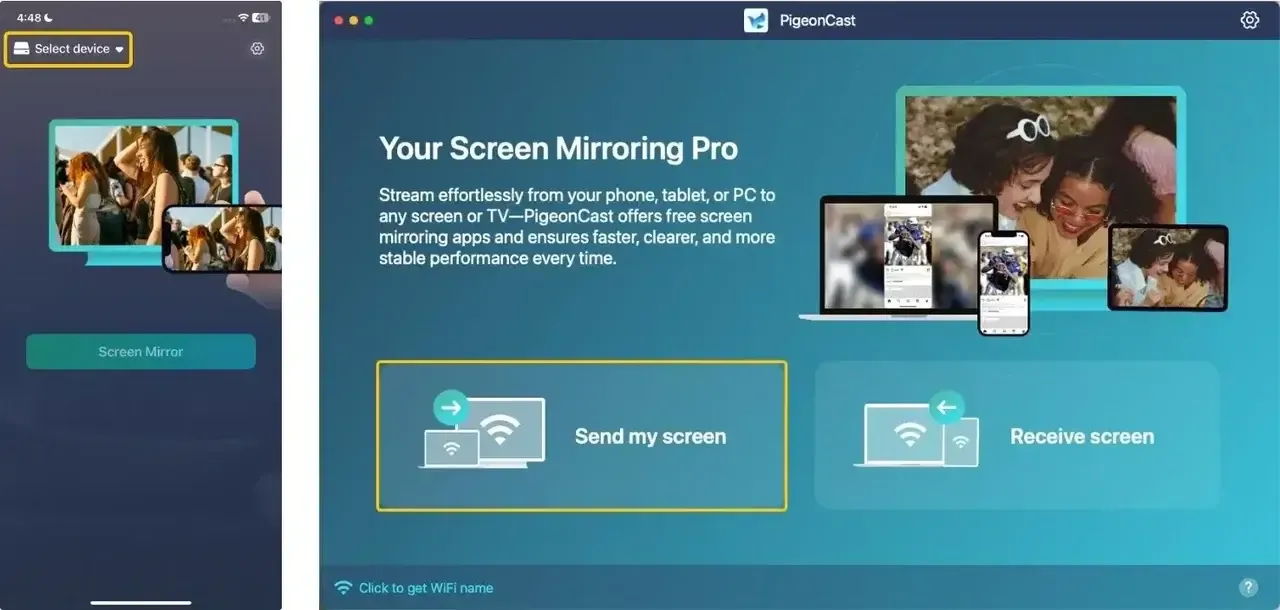
Step 4. On the Apple device, tap Select device or Send my screen to choose your Sony TV from the device list.
Step 5. Enter the onscreen PIN code to finish the connection process.
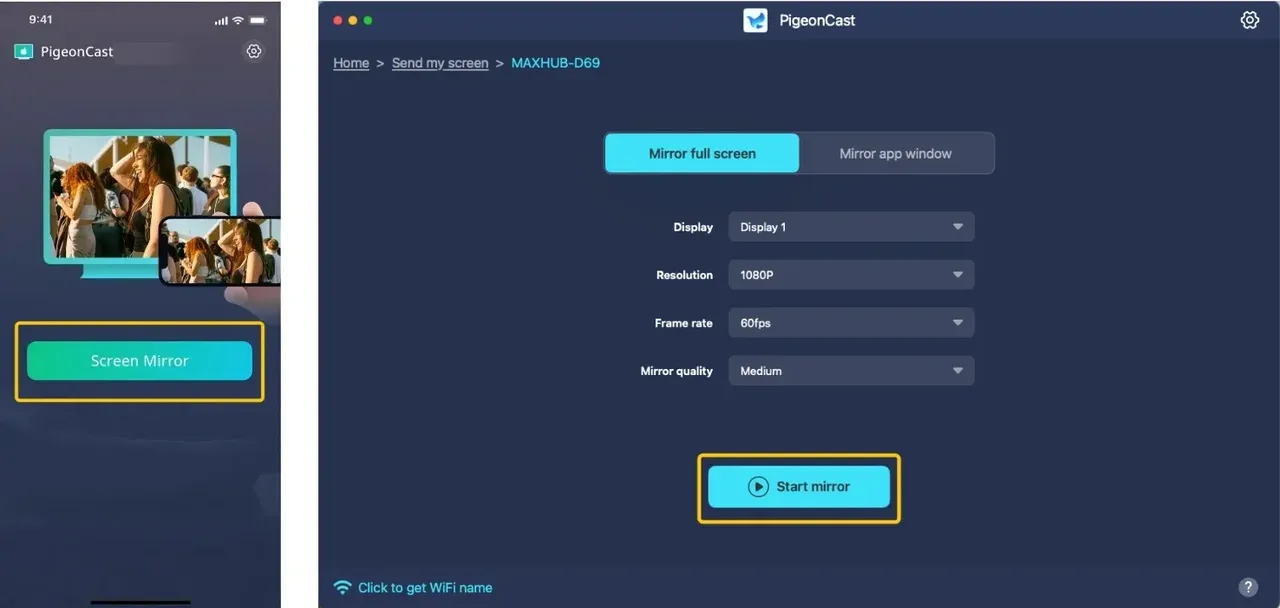
Step 6. Once the connection finishes, you can tap Screen mirror or Start mirror to start your mirroring activities on your Sony TV screen.
Final Verdict
How to get Apple AirPlay on Sony TV? By following the steps outlined in this guide, you'll be able to set up and enjoy content from your iPhone, iPad, or Mac on your Sony TV with minimal hassle. Whether you're using AirPlay 2 for newer Sony models or alternative methods for older TVs, there's a solution for every setup. Enjoy your favorite content in a whole new way, right from the comfort of your living room!
How to AirPlay to Sony TV FAQ
Why is AirPlay not working on Sony TV?
AirPlay may not be working on your Sony TV for several reasons:
- Incompatible Model
- Network Issues
- AirPlay Disabled
- Outdated Software
- Connection Interference
Do all Sony TVs support AirPlay?
No, not all Sony TVs support AirPlay. AirPlay 2, the latest version, is available on most Sony smart TVs released in 2019 or later, especially those with Google TV or Android TV. Older models or those without these operating systems may not have AirPlay support. It's important to check the specifications of your specific model to confirm compatibility.
How to AirPlay to Sony TV Without an Apple TV?
To AirPlay to a Sony TV without an Apple TV, follow these steps:
- Ensure your Sony TV supports AirPlay 2. Most Sony smart TVs from 2019 onward with Google TV or Android TV have AirPlay built in.
- Make sure both your Apple device (iPhone, iPad, or Mac) and Sony TV are connected to the same Wi-Fi network.
- On your Sony TV, go to Settings > AirPlay & HomeKit, and make sure AirPlay is turned on.
- Start AirPlay from Your Apple Device:
- On your iPhone/iPad, open the Control Center, tap Screen Mirroring, and select your Sony TV.
- On your Mac, click the Control Center icon in the menu bar, select Screen Mirroring, and choose your Sony TV.
- If your TV asks for a code, enter the code shown on the TV screen to complete the connection.
Clara Rossi is an experienced technology editor and a seasoned expert in screen mirroring and casting technologies. With a keen eye for detail and a deep understanding of how to seamlessly connect devices, Clara excels at optimizing user experiences for effortless sharing and streaming. Whether you're seeking quick fixes or advanced tips, her expertise and responsiveness ensure that every query is met with a well-informed and efficient solution.