
If your Sony TV AirPlay not working, the cause is often a disabled AirPlay setting, network isolation, or a software version mismatch. Casting may work on other devices but fail on Sony Bravia TVs for one of these reasons. The steps below outline checks and fixes to restore the AirPlay connectivity on your Sony TV.
Why Is AirPlay Not Working on Sony TV
Most Sony smart TVs released in 2019 or later, especially Android TV and Google TV models, support Apple AirPlay 2 and HomeKit natively. While the feature is generally reliable, AirPlay depends on several conditions working together. If any one of them fails, your iPhone or Mac may not detect the TV, or the connection may drop after it starts.
- Compatibility gap: older Sony models or older firmware may not support the latest AirPlay behavior.
- Network isolation: guest Wi-Fi, AP isolation, or router client isolation can block local discovery.
- AirPlay disabled on TV: AirPlay or HomeKit can be switched off after a reset or update.
- Software mismatch: iOS/macOS and TV firmware combinations can produce unstable handshakes.
- Pairing conflicts: Old pairing records can create repeated connection failures.
How to Fix AirPlay Not Working Sony TV
The steps below start with simple checks and move to more advanced solutions. Follow them in order, since each step helps rule out a common cause such as network problems or incorrect settings. If AirPlay starts working at any point, you can stop and skip the remaining steps.
Move 1. Check the Compatibility
How AirPlay not working on Sony Bravia TV? If AirPlay is not working on your Sony Bravia TV, first make sure your devices actually support the feature. Checking compatibility early can save time and prevent unnecessary network changes or system resets.
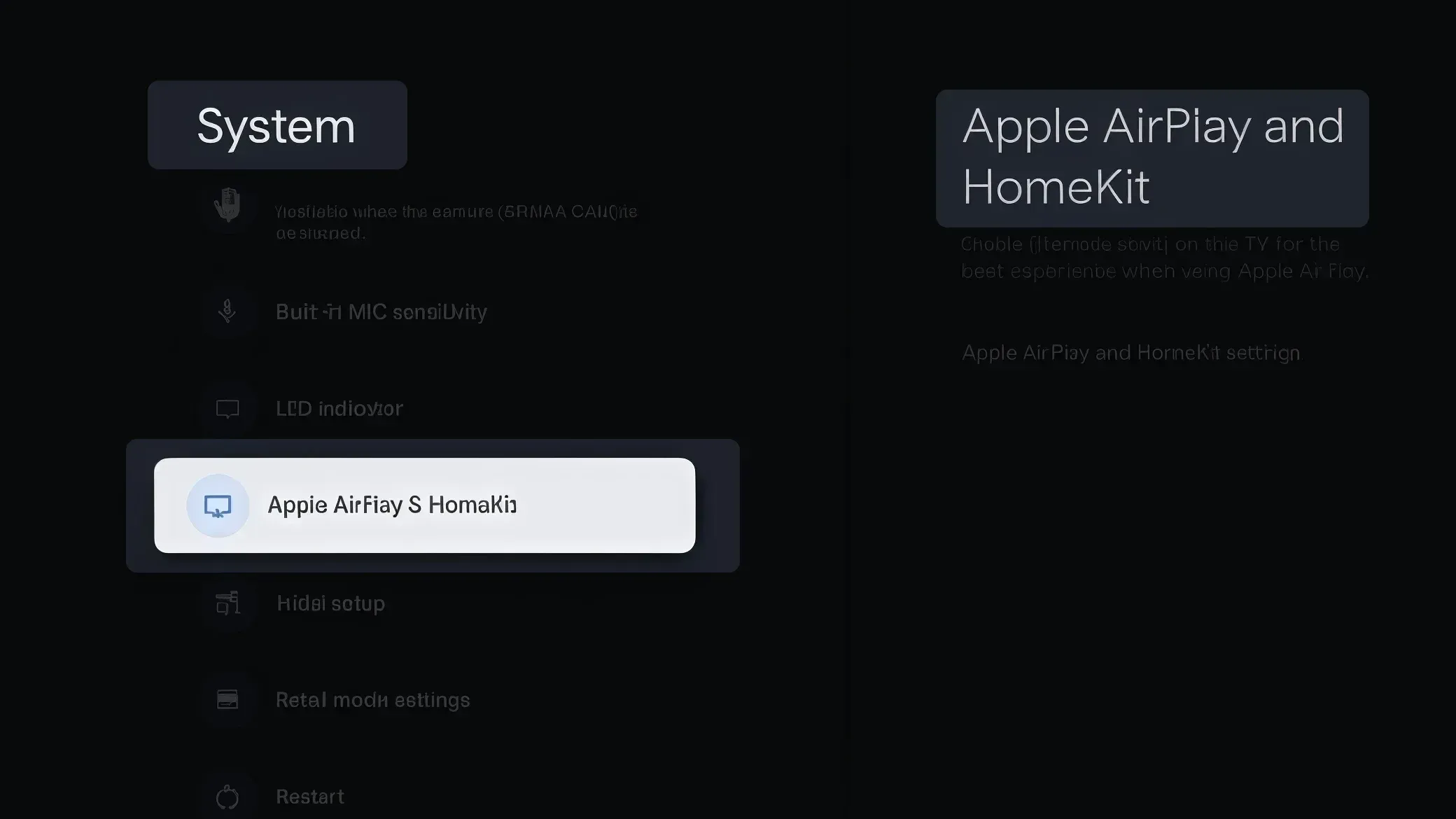
Step 1. Open Sony TV settings and look for Apple AirPlay and HomeKit.
Step 2. Confirm your Sony model series supports AirPlay 2 in your region.
Step 3. Verify the sender device is compatible (recent iPhone, iPad, or Mac with supported OS).
Move 2. Restart Your Devices
Restarting your devices can fix many AirPlay issues, including Sony TV Apple Airplay not working. It clears temporary glitches, refreshes the connection between devices, and resets any stuck pairing or discovery sessions. Restart the devices below in order to help restore a clean connection.
- Restart iPhone or iPad:
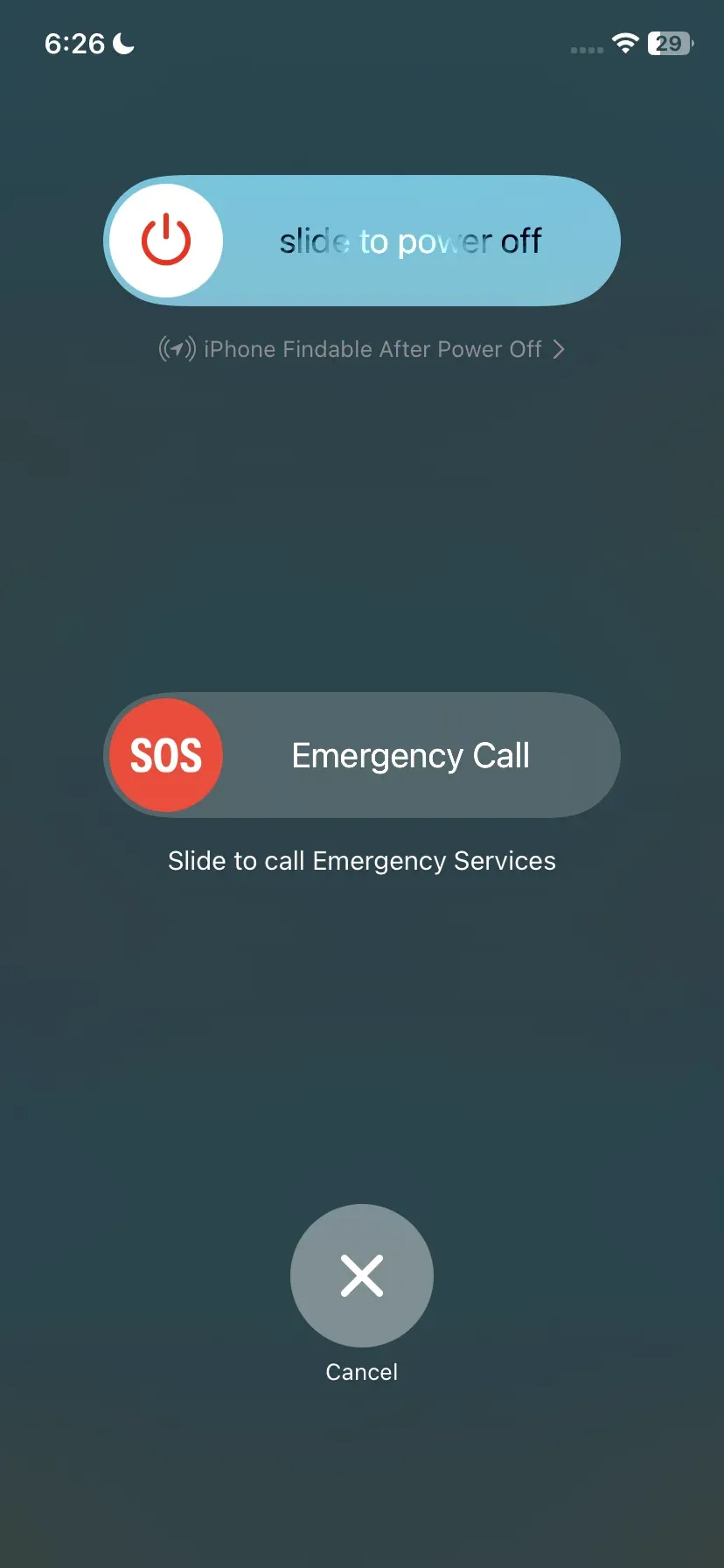
Step 1. Press and hold the Side button and either Volume button until the power off slider appears.
Step 2. Drag the slider to turn off your iPhone or iPad.
Step 3. Wait about 10–15 seconds for the device to shut down completely.
Step 4. Press and hold the Side button again until the Apple logo appears, then release the button.
Step 5. After the device restarts, reconnect to Wi-Fi and try AirPlay again.
- Restart MacBook:
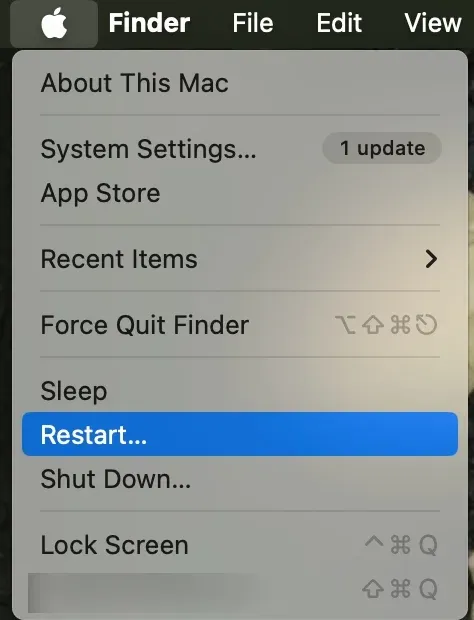
Step 1. Click the Apple menu () in the top-left corner of the screen and select Restart from the dropdown menu.
Step 2. If prompted, click Restart again to confirm. Wait for your MacBook to shut down and start up again.
Step 3. After the restart, reconnect to Wi-Fi if needed and try using AirPlay to your Sony TV again.
- Restart Sony TV:
Step 1. Turn off your Sony TV using the remote control.
Step 2. Unplug the TV power cord from the wall outlet.
Step 3. Wait for about 60 seconds to allow the TV to fully discharge and clear temporary system glitches.
Step 4. Plug the power cord back into the outlet, turn on the TV and try AirPlay again.
- Restart Your WiFi Router
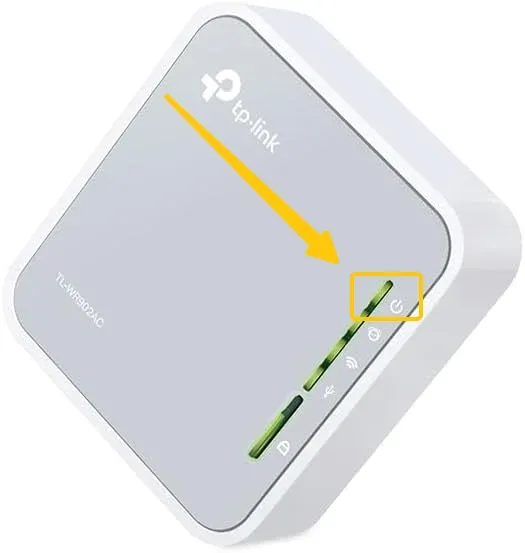
Step 1. Turn off your Wi-Fi router using the Power button, or unplug the power cable from the outlet.
Step 2. Wait about 30–60 seconds to clear the network cache and reset the connection.
Step 3. Plug the router back in or turn it on again.
Step 4. Wait until the internet and WiFi lights are stable (this may take 1–2 minutes).
Step 5. Reconnect your iPhone, iPad, Mac, and Sony TV to this WiFi network, then try AirPlay again.
Move 3. Ensure the Network Connection
AirPlay depends on local network discovery, not just internet access. Understanding how to connect AirPlay to a TV properly can also help prevent connection problems. Even if both devices can browse the web, they may still fail to detect each other if they are not connected to the same Wi-Fi network or if the network blocks device discovery.
Step 1. Make sure both devices are on the same Wi-Fi network. On your iPhone, iPad, or Mac, go to Wi-Fi settings and confirm it is connected to the same network name (SSID) as your Sony TV. Avoid using a guest network.
Step 2. Turn off VPN on the sending device. If a VPN is active on your iPhone, iPad, or Mac, temporarily disable it, as VPNs can block local network discovery used by AirPlay.
Step 3. Check your router settings for device isolation. Log in to your router settings and look for options such as AP Isolation, Client Isolation, or Wireless Isolation. Turn these features off so devices on the same Wi-Fi network can communicate.
Step 4. Reconnect both devices to Wi-Fi. Disconnect and reconnect your Sony TV and Apple device to Wi-Fi, then try AirPlay again. If the TV still doesn't appear, open the AirPlay menu and check again after a few seconds.
Move 4. Enable AirPlay on Your Sony TV
In some cases, AirPlay is supported on the TV but may be turned off or incorrectly configured after a system update or reset. Checking the AirPlay settings on your Sony TV helps AirPlay to Sony TV not working and ready to receive connections from your Apple device.
Step 1. On Sony TV, open Settings > Apple AirPlay and HomeKit.
Step 2. Turn AirPlay on, then confirm receiver mode allows new connections.
Step 3. Check code requirement settings and pick a mode that fits home use.
Step 4. Start a fresh connection from iPhone/Mac and confirm code prompt appears correctly.
Move 5. Check for Update
Why is screen mirroring not working on my Sony TV? Outdated software can sometimes cause AirPlay connection problems. If your Sony TV or Apple device is running an older version of its system software, compatibility issues may prevent AirPlay from working properly.
- Update iPhone/Mac:
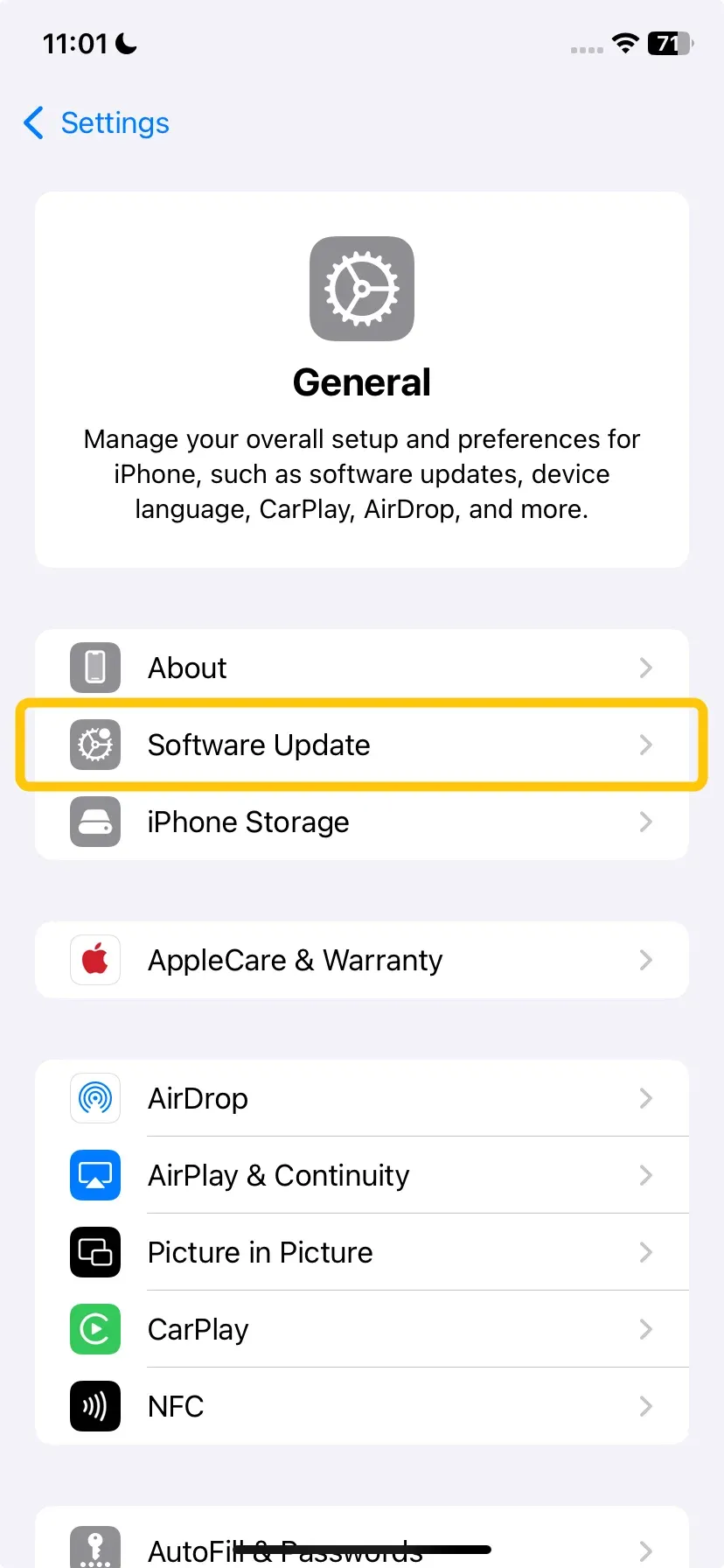
Step 1. Click Settings > General > Software Update.
Step 2. If an update is available, click Update Now or Upgrade Now.
- Update Sony TV:
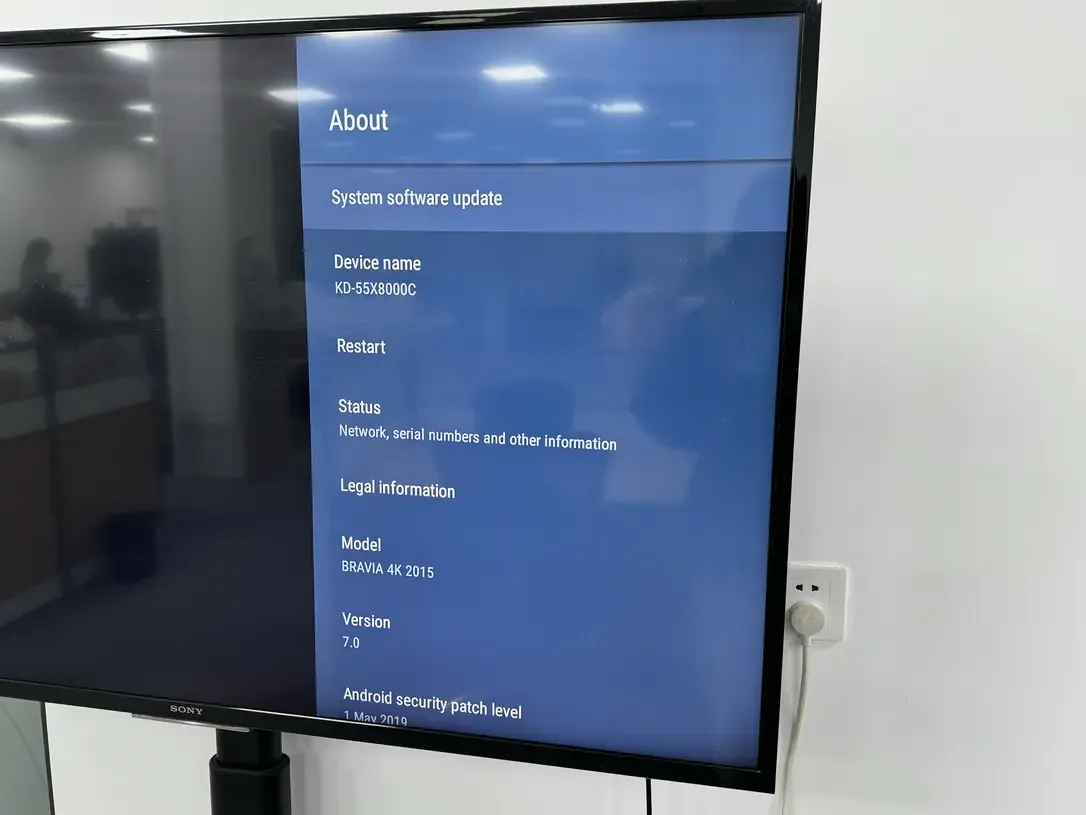
Navigate to Settings > System/Device Preferences > About > System Update, and select Check for update.
Move 6. Get in Touch with Support
If all previous moves fail to deal with your Sony Bravia TV AirPlay not working, collect evidence before contacting support. Structured details help support teams identify model-specific or firmware-specific issues faster.
Step 1. Record Sony TV model number, firmware version, and sender device OS version.
Step 2. Note exact symptom pattern: not discovered, code loop, disconnect, no audio, or black screen.
Step 3. Contact Sony support for TV-side diagnostics and Apple support for sender-side AirPlay behavior.
Step 4. Share your completed move list so support can skip repeated basic checks.
Alternative Workaround If AirPlay Still Fails
If Apple AirPlay not working on Sony TV persists after trying the standard fixes, you can still mirror or stream your content using AirPlay alternative methods. Below are two reliable options that can help you continue sharing your screen or media without relying on AirPlay.
Alternative 1. Use PigeonCast Screen Mirroring App
If native AirPlay remains unstable after the full fix path, use one of these fallback options so you can keep casting while you continue root-cause work. PigeonCast as a universal mirroring solution, is a simple and ad-free option that supports AirPlay, DLNA, and Google Cast. Whether you want to cast from an iOS, Android, or even Windows device, it can serve as a reliable bridge for seamless streaming.
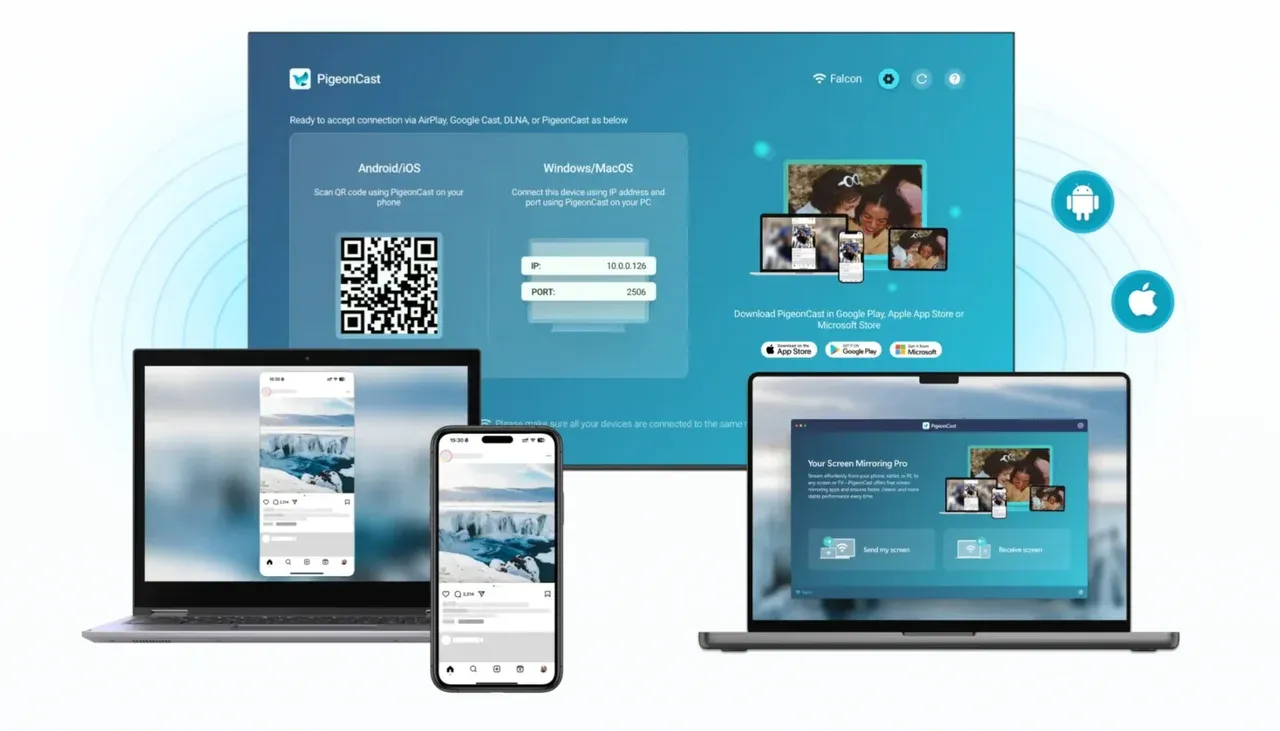
Step 1. Ensure your devices are covered by the same wireless network.


Overall Rating:



Step 2. Install PigeonCast on your iPhone or other mobile device you want to cast from.
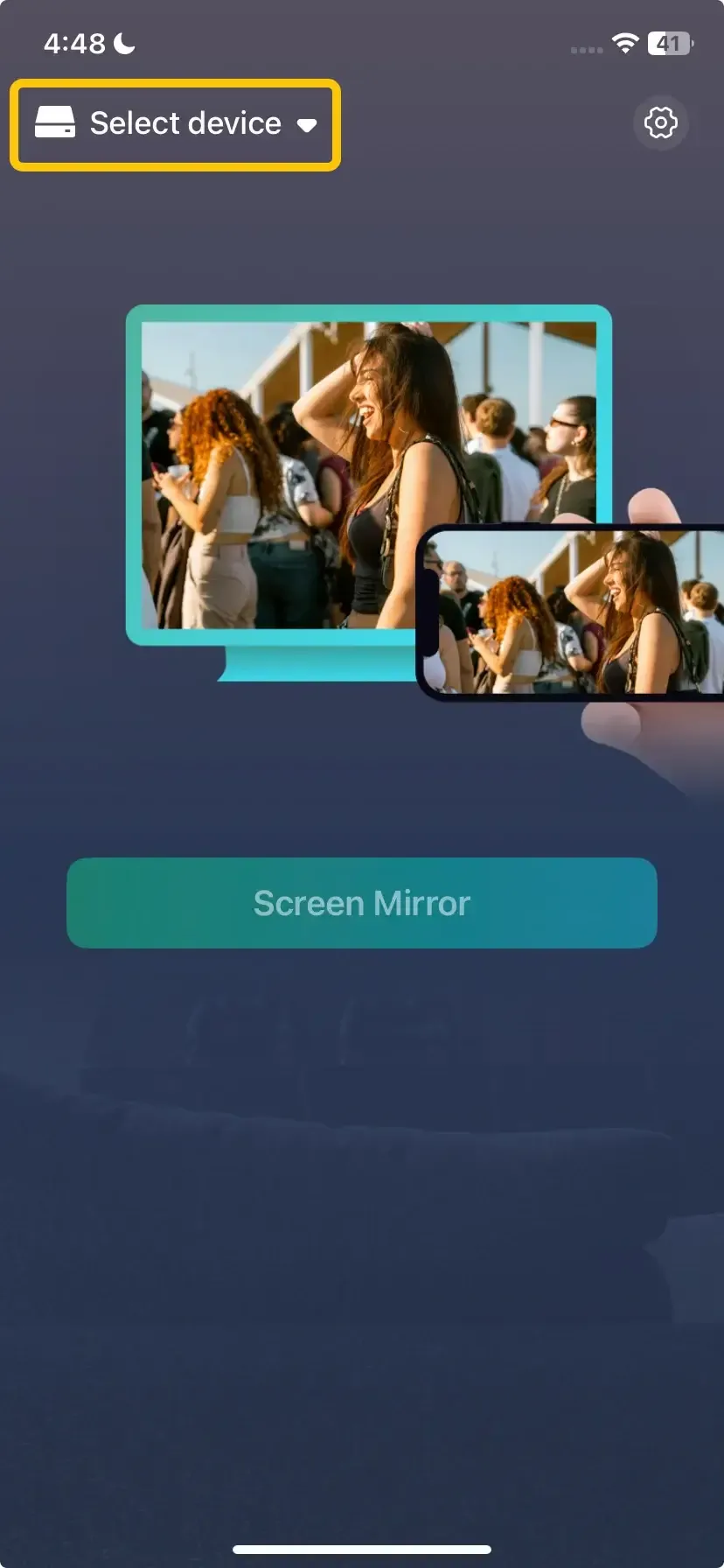
Step 3. Launch the PigeonCast on your mobile device, and tap Select device to choose your sony TV from the available device menu.
Step 4. Enter the onscreen PIN code to finish the pairing process.
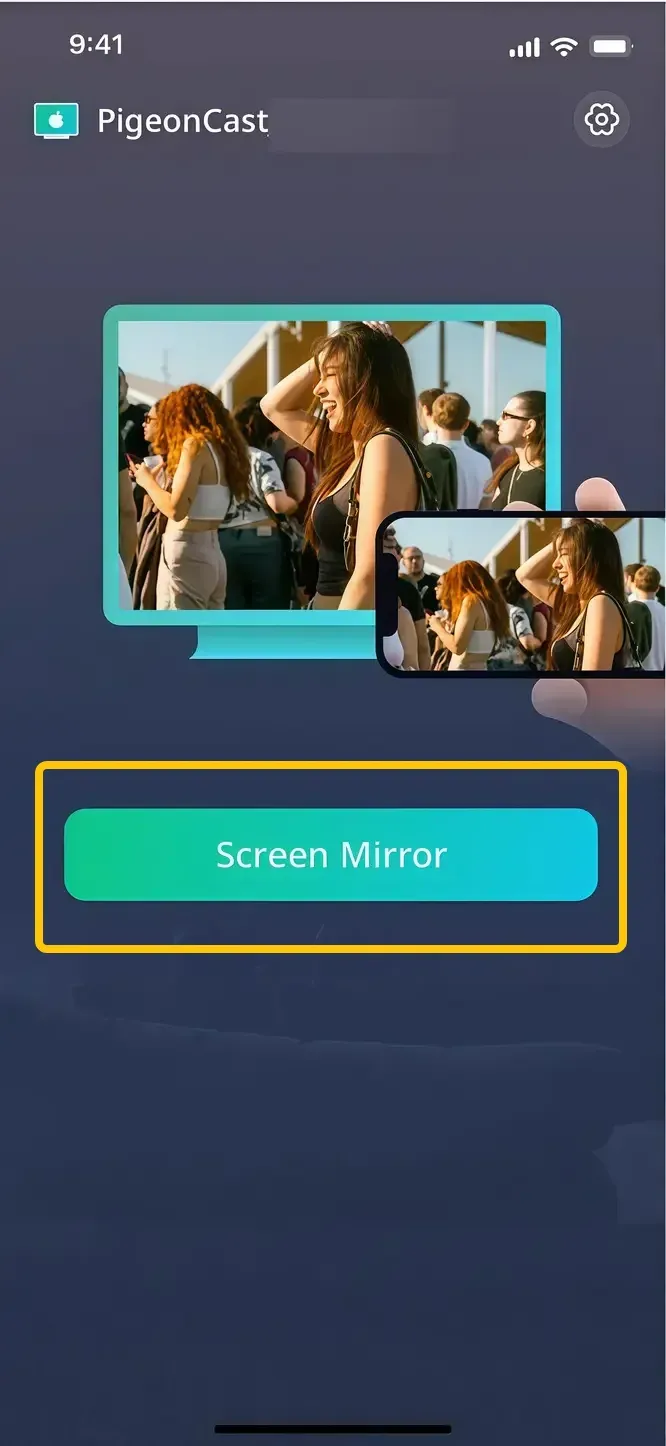
Step 5. If you connect successfully, you can then tap Start mirror to start mirroring performance on the Sony TV.
Alternative 2 . Use HDMI
Another simple and reliable solution is using a wired HDMI connection. With the help of a compatible adapter (such as a Lightning-to-HDMI or USB-C-to-HDMI adapter), you can directly connect your device to a TV, monitor, or projector.
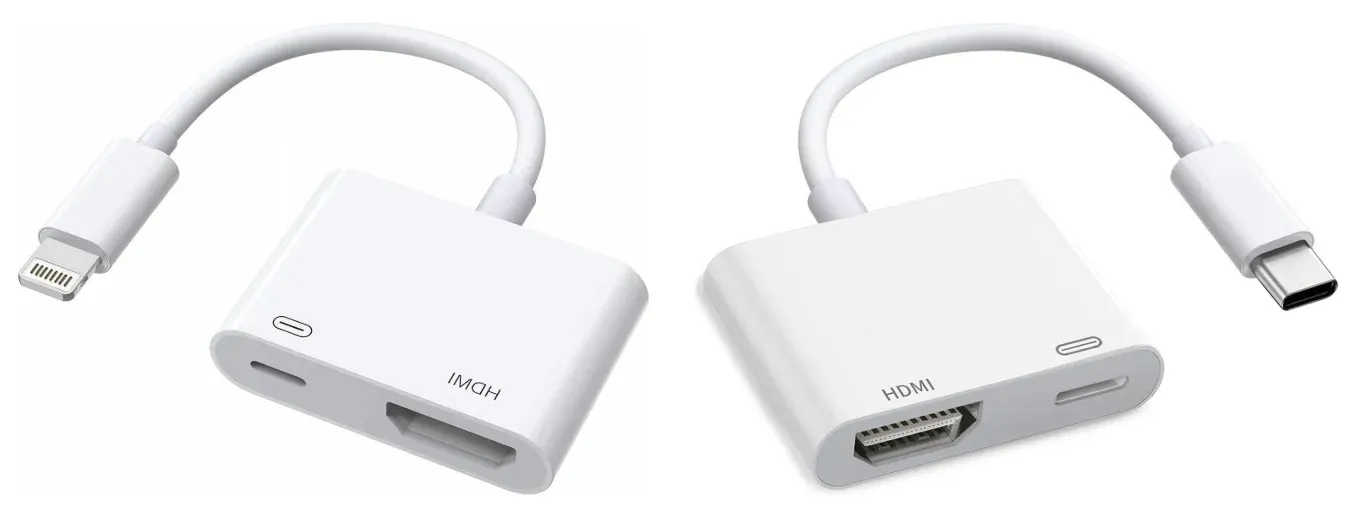
Step 1. Get a compatible HDMI adapter for your device, such as a Lightning-to-HDMI adapter for older iPhones/iPads or a USB-C-to-HDMI adapter for newer devices.
Step 2. Connect the adapter to your phone, tablet, or computer.
Step 3. Plug one end of the HDMI cable into the adapter, and plug the other end of the HDMI cable into your TV, monitor, or projector.
Step 4. Turn on the display and switch the input source to the correct HDMI port.
Step 5. Wait a few seconds for the screen to appear. Your device display should now be mirrored on the larger screen.
Bottom Line
If Sony Bravia AirPlay not working appears, the issue is usually related to compatibility, network settings, disabled AirPlay features, or outdated software. By checking device support, restarting your devices, confirming the network connection, enabling AirPlay, and updating software, most problems can be resolved. If AirPlay still doesn't work, you can use alternatives like PigeonCast or an HDMI connection to mirror your screen and continue streaming without interruption.
Sony TV AirPlay Not Working FAQ
How to solve Sony TV AirPlay code not working?
If the AirPlay code on your Sony TV is not working, it is usually caused by a connection or pairing issue between the TV and your Apple device. You can try the following fixes:
- Make sure both devices are on the same Wi-Fi network. AirPlay requires your iPhone, iPad, or Mac and the Sony TV to be connected to the same network.
- Restart your devices. Restart your Sony TV, Apple device, and Wi-Fi router to clear temporary connection problems.
- Reset the AirPlay connection. On the Sony TV, go to Settings > Apple AirPlay and HomeKit, turn AirPlay off and on again, then reconnect.
- Check the code settings. In AirPlay settings, make sure the Require Code option is set properly (for example, "First Time Only" or "Every Time").
- Update your software. Ensure your Sony TV and Apple devices are running the latest system updates.
How to fix AirPlay audio not working on Sony TV?
If AirPlay audio is not working on your Sony TV, the problem is usually related to audio settings, connection issues, or outdated software. Try these fixes:
- Make sure your Sony TV is not muted and the volume is turned up. Sometimes AirPlay connects but the TV audio is muted.
- Restart your Sony TV and the Apple device (iPhone, iPad, or Mac). This refreshes the AirPlay connection and clears temporary glitches.
- On your Apple device, open the AirPlay menu and confirm that your Sony TV is selected as the audio output.
- Ensure both devices are connected to the same Wi-Fi network. AirPlay audio may fail if the devices are on different networks.
- Make sure your Sony TV firmware and Apple device OS are up to date, since outdated software can cause AirPlay audio issues.
How to deal with Apple TV app not working on Sony Smart TV?
If the Apple TV app is not working on your Sony Smart TV, the issue is usually caused by network problems, outdated software, or temporary app glitches. Try the following solutions:
- Restart your Sony TV.
- Check your internet connection.
- Update the Apple TV app.
- Update your TV software.
- Sign out and sign in again.
Why is screen mirroring iPhone to Sony TV not working?
If screen mirroring from your iPhone to a Sony TV is not working, it is usually caused by network issues, disabled AirPlay settings, or compatibility problems. Here are the most common reasons:
- Devices are not on the same Wi-Fi network
- AirPlay is turned off on the Sony TV
- Network isolation or router restrictions
- Outdated software
- Temporary connection glitches
Can you use AirPlay to Sony Bravia without Apple TV?
Yes, you can use AirPlay with a Sony Bravia TV without an Apple TV, but only if the TV supports Apple AirPlay 2. Many Sony Bravia models released in 2019 or later (especially Android TV and Google TV models) have AirPlay 2 built in, which allows you to mirror your iPhone, iPad, or Mac directly to the TV.
Why is my TV not letting me AirPlay anymore?
If your TV is not letting you AirPlay anymore, several common issues may be responsible:
- AirPlay is disabled on the TV
- Different Wi-Fi networks
- Network restrictions
- Software incompatibility
- Compatibility limitations
- Temporary system or network glitches
Clara Rossi is an experienced technology editor and a seasoned expert in screen mirroring and casting technologies. With a keen eye for detail and a deep understanding of how to seamlessly connect devices, Clara excels at optimizing user experiences for effortless sharing and streaming. Whether you're seeking quick fixes or advanced tips, her expertise and responsiveness ensure that every query is met with a well-informed and efficient solution.