
Screen mirroring Mac to Sony TV is usually simple when the TV supports AirPlay and both devices are on the same Wi-Fi network. In the best-case setup, you open Control Center on your Mac, choose Screen Mirroring, pick the Sony TV, and start sharing the screen in less than a minute.
The problem is that not every Sony TV supports the same wireless path. Some newer Sony TV models support AirPlay directly, while older models may need a different method. The fastest approach is to confirm compatibility first, then use the right connection path for your setup.
What You Need Before You Mirror Mac to Sony TV
The easiest wireless path depends on built-in AirPlay support on the TV.
Based on the current Apple and Sony support guidance verified on April 27, 2026:
- Your Mac and Sony TV should be on the same local Wi-Fi network
- AirPlay should be enabled on the TV
- Your Sony TV must support the Apple wireless receiver path you want to use
- Guest Wi-Fi, VPNs, or network isolation can block discovery even when both devices have internet access
Sony's support documentation says all current Google TV models support AirPlay and HomeKit, while support on older Android TV models varies by series and may depend on a software update. In practical terms, that means "Sony TV" alone is not enough information. The exact TV family matters.
If your TV does not support AirPlay, the Mac may never see it in the screen mirroring list no matter how many times you retry. In that situation, a third-party screen mirroring app for Mac like PigeonCast is the more practical Mac mirroring solution, especially if you want a simpler cross-device path instead of forcing the native AirPlay route.
How to Check Whether Your Sony TV Supports Mac Mirroring
This is the step that saves the most time.
Start by checking whether your Sony TV has an AirPlay or AirPlay & HomeKit section in settings. On many supported Sony TVs, that option is available from the TV input menu or the settings area.
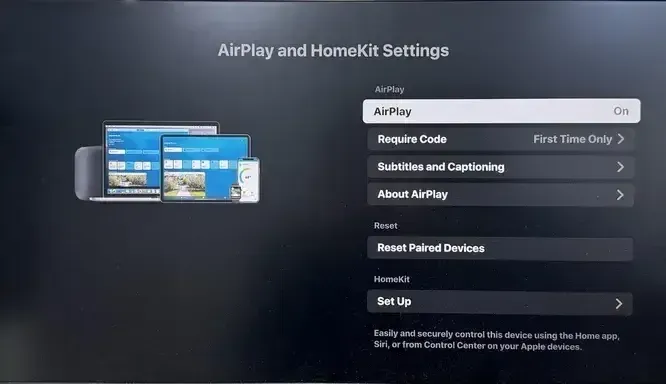
You are looking for one of these signs:
- an AirPlay input or tile on the TV
- an AirPlay & HomeKit settings page
- documentation for your exact Sony TV model that confirms AirPlay support
If you find those settings, the wireless Mac-to-TV path is usually available. If you do not, your TV may still support other casting methods, but not the built-in AirPlay route that Mac screen mirroring usually depends on. In that case, stop troubleshooting the Mac and switch methods instead. If your real goal is a bigger living-room display rather than Sony-specific troubleshooting, screen mirroring MacBook to TV covers the broader TV workflow.
How to Do Screen Mirroring MacBook to Sony TV
There are three practical ways to handle this setup. The best one depends on whether your Sony TV supports AirPlay, whether you want a wireless workflow, and how much reliability matters for your use case.
Method 1: AirPlay Sony TV from Mac
This is the simplest wireless option when the Sony TV supports AirPlay. Before you start, make sure the Mac and TV are on the same Wi-Fi network, the TV is not on guest Wi-Fi, and the Mac is not using a VPN during the first test.
Here is how to AirPlay to Sony TV from Mac:
Step 1. Open the relevant settings area on the Sony TV and make sure AirPlay is enabled.
Step 2. Complete any required TV privacy or service setup if the option appears but pairing is still unavailable.
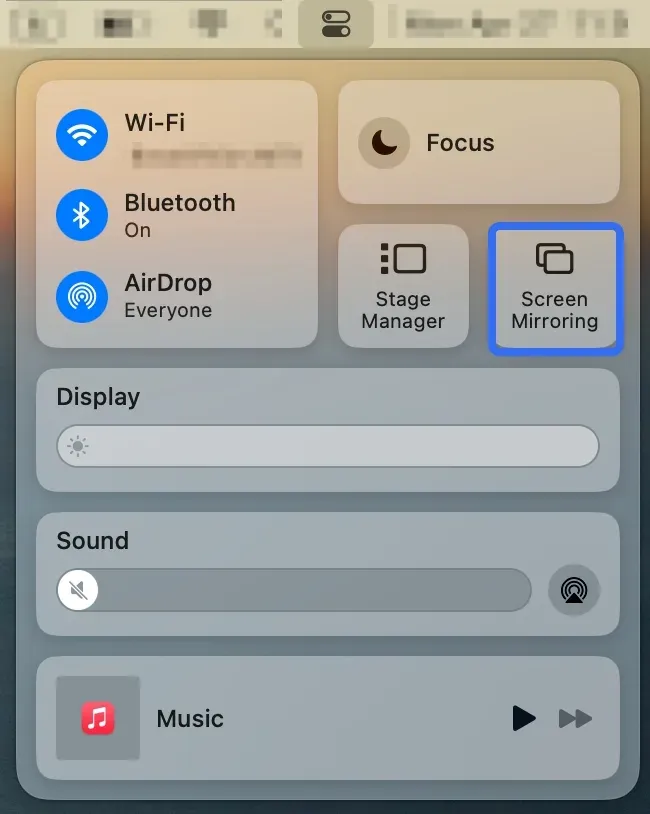
Step 3. On your Mac, click Control Center, open Screen Mirroring.
Step 4. Select the Sony TV from the device list.
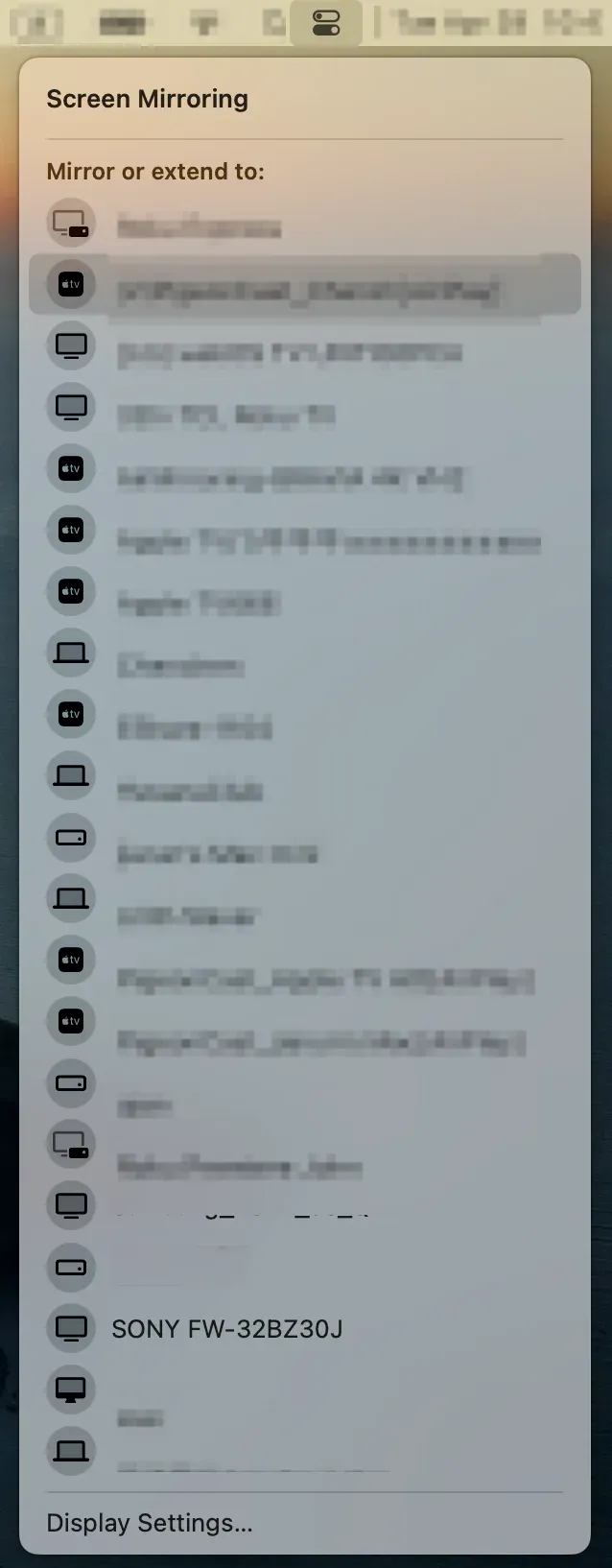
Step 5. Enter the code shown on the television if prompted, then start mirroring.
Step 6. Test text readability, audio output, and playback smoothness before real use.
Method 2: Mirror Mac to Sony TV via PigeonCast
If the Sony TV does not support AirPlay well, or if AirPlay is not working on the TV, PigeonCast is the most natural app-based fallback. This method is better when you still want wireless mirroring but do not want to depend entirely on Sony TV AirPlay behavior.
It is especially useful when the TV does not appear in the Mac AirPlay list, the native path feels unreliable, or you want a simpler cross-device workflow.
Step 1. Install and open PigeonCast on the devices you need for the mirroring workflow.


Overall Rating:



Step 2. Make sure the devices are on the same local network.
Step 3. On your devices, launch the PigeonCast app.
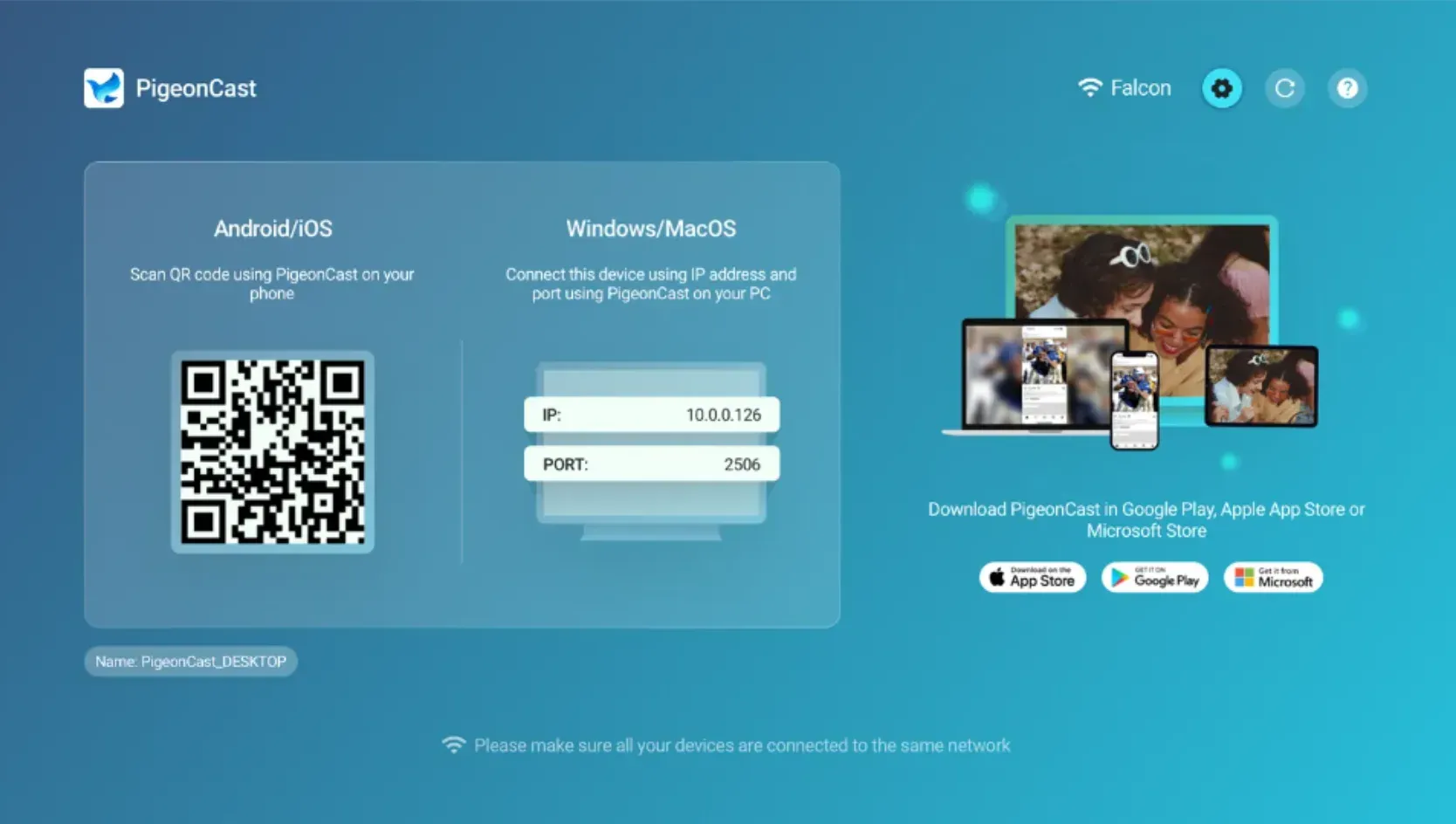
Step 4. On your Mac, click the Send my screen option.
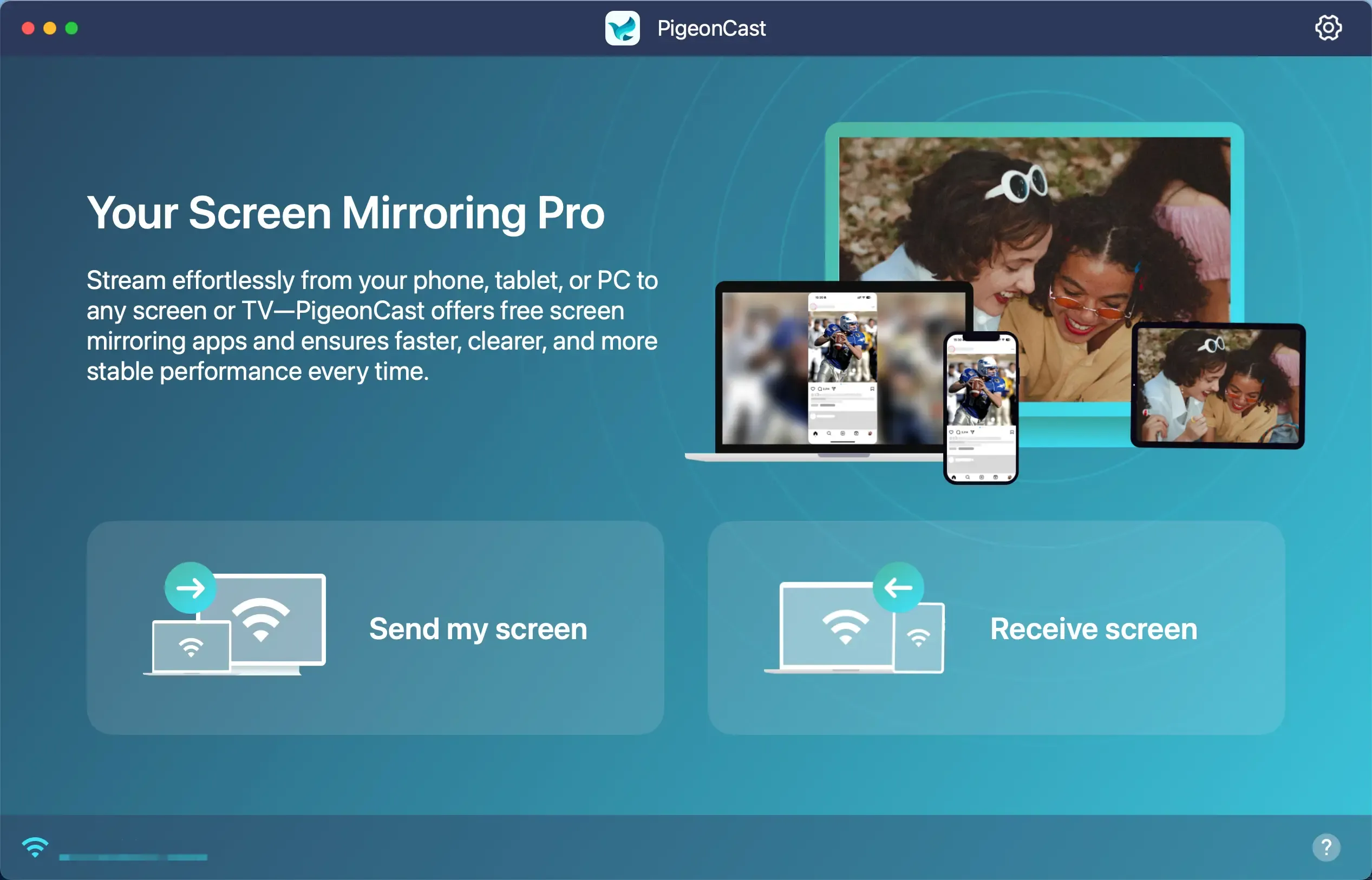
Step 5. Choose your Sony TV from the listed devices.
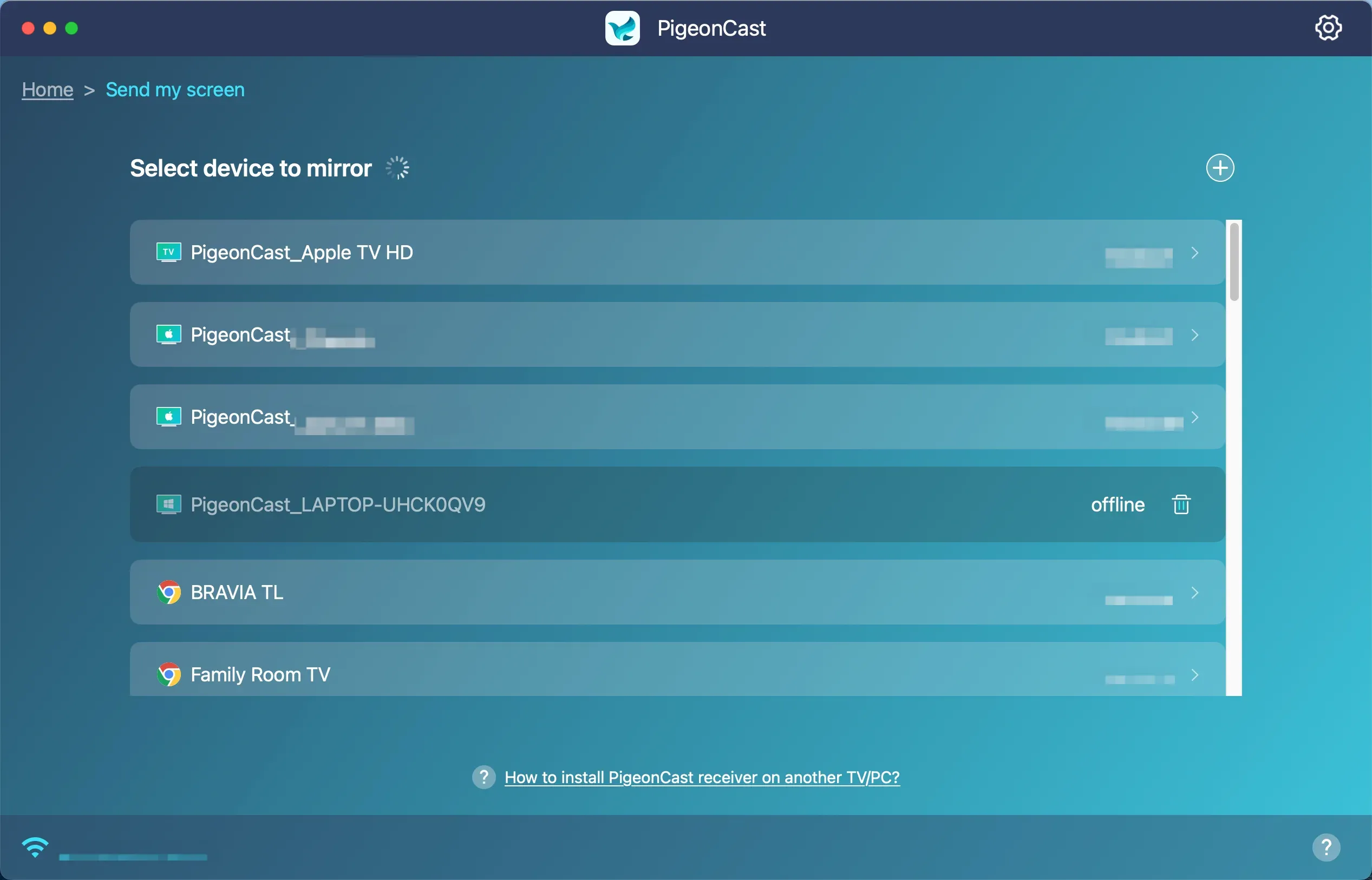
Step 6. Once connected your Mac to Sony TV, click Start mirror.
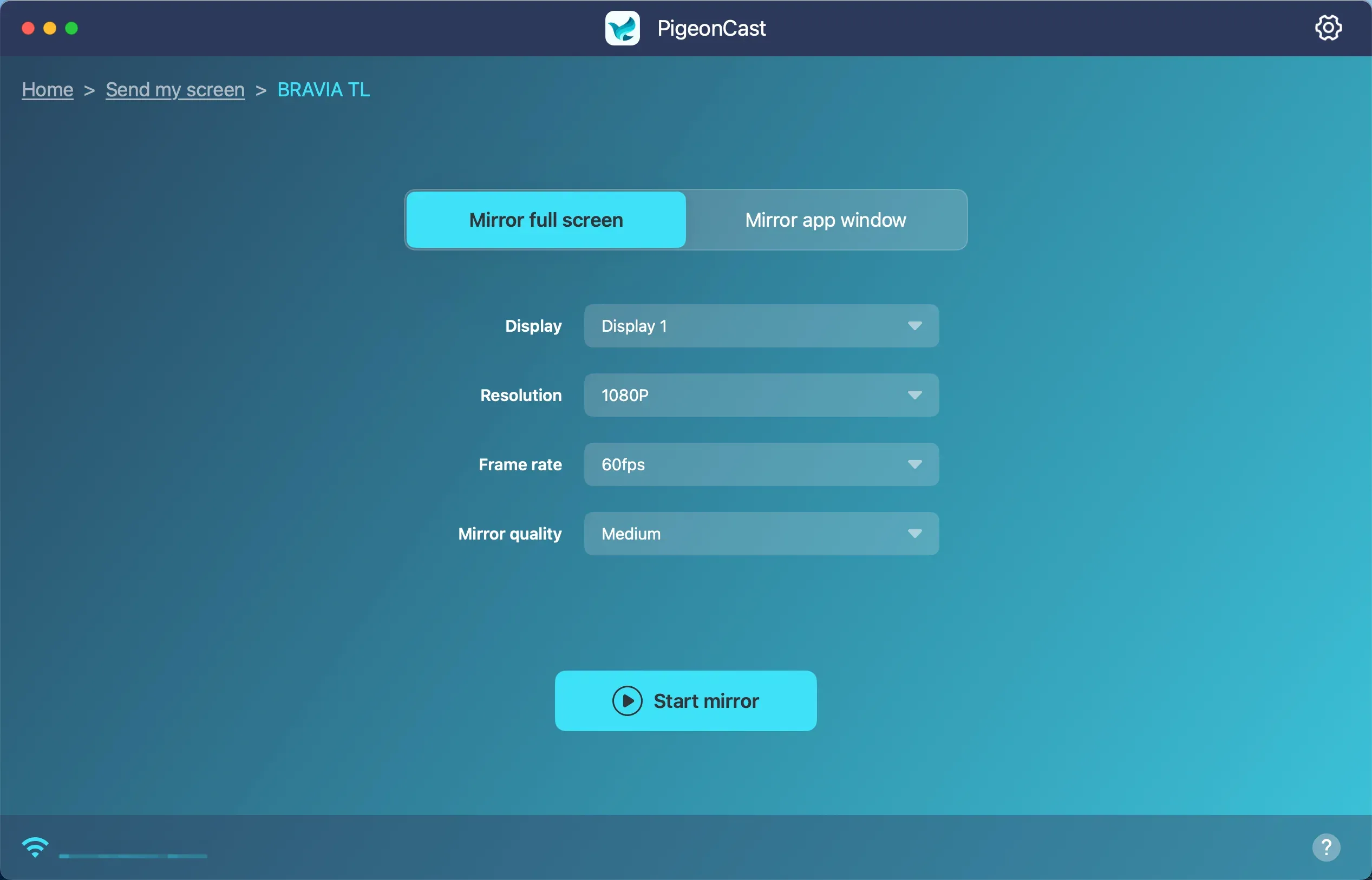
Step 7. Enjoy your Mac content on your TV.
Method 3: Connect Mac to Sony TV via HDMI Cable
If reliability matters more than convenience, screen mirroring Mac with HDMI is still the simplest answer. This is the better option when low delay matters, the Wi-Fi network is crowded, or the Sony TV is older and wireless support is limited.
When it comes to cast Mac to Sony Bravia TV, HDMI is less elegant than wireless mirroring, but it is usually the lowest-risk method for presentations, playback, and situations where the connection must work the first time.
Step 1. Connect the Mac to the Sony TV with the appropriate HDMI adapter or cable.
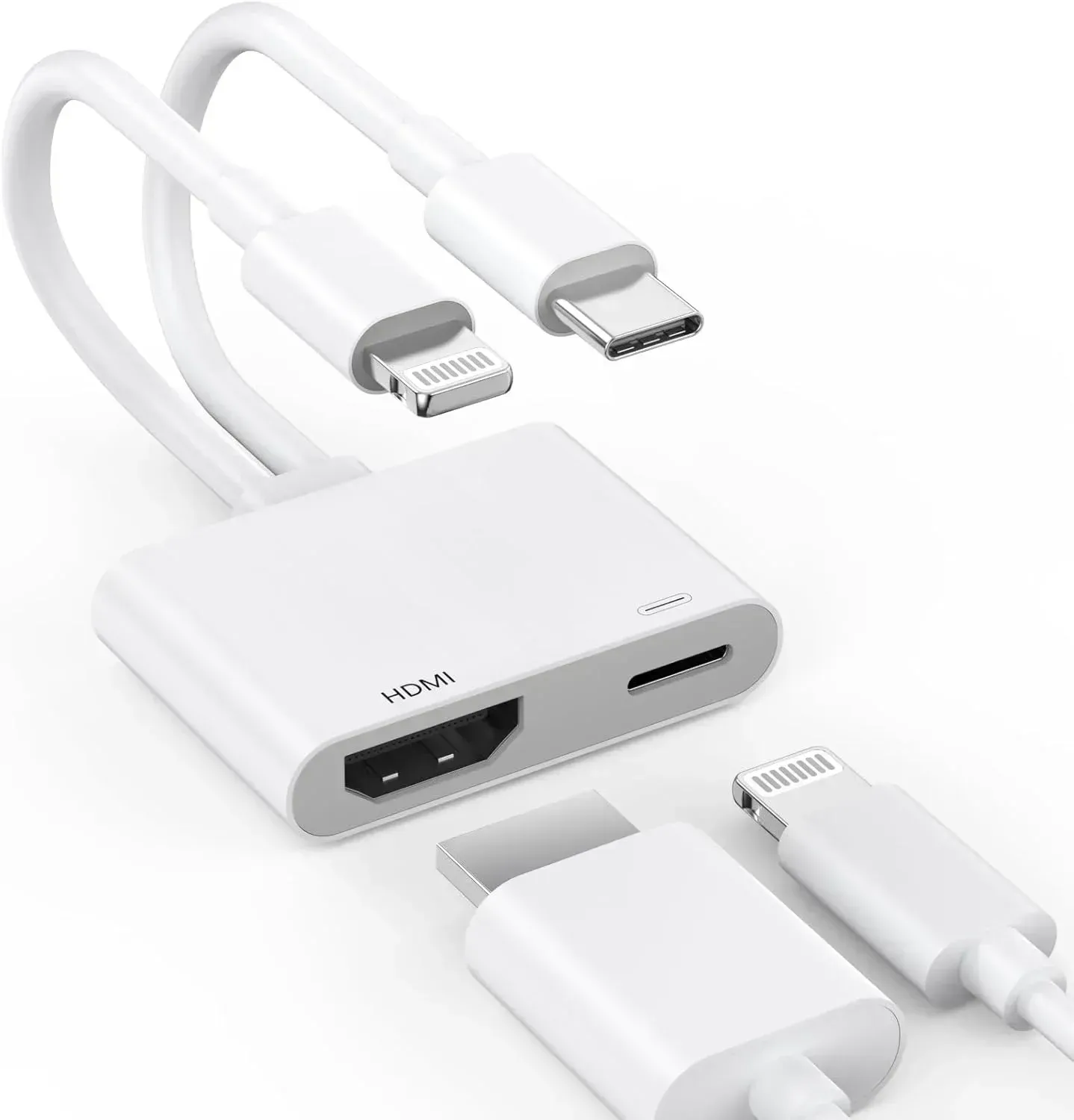
Step 2. Switch the TV to the correct HDMI input.
Step 3. Adjust the display mode on the Mac if you want mirroring instead of extended display.
Step 4. Test text size, resolution, and audio output.
AirPlay, PigeonCast, or HDMI: Which Is Best?
There is no single best method for every Sony TV. The easier way to choose is to match the method to the situation instead of treating one option as universal.
| Method | Best for | Main advantage | Main limitation |
|---|---|---|---|
| AirPlay on supported Sony TV | Fast wireless everyday use | Built into compatible devices | Depends on TV support and network discovery |
| PigeonCast | Mixed setups | More flexible when native support is limited | Requires app-based setup |
| HDMI cable | Stability and low delay | Most reliable connection | Wired setup is less flexible |
Use AirPlay first when the Sony TV clearly supports it and you want the fastest built-in wireless path. Use PigeonCast when you still want wireless mirroring but do not want to depend entirely on Sony TV AirPlay behavior. Use HDMI when stability matters more than convenience.
If you want a simple rule:
- choose AirPlay for supported Sony TVs and light everyday use
- choose PigeonCast for more flexible wireless mirroring
- choose HDMI for the most reliable connection
Why Your Sony TV May Not Show Up on the Mac
If screen mirroring Mac to Sony TV is not working, the cause is usually one of a few repeat patterns.
Your Sony TV Does Not Support AirPlay
This is the biggest one. Some Sony TVs support Apple's wireless receiver system, and some do not. If the TV is outside the supported groups, it may never appear in the Mac list.
That is why compatibility should always be your first check, not your last one.
AirPlay Is Off on the TV
Even compatible TVs need the feature enabled.
If the TV supports AirPlay but your Mac cannot find it, reopen the TV settings and confirm:
- AirPlay is turned on
- the TV completed its service or privacy setup
- the TV is visible on the network
The Network Blocks Local Discovery
This is common in hotels, campuses, offices, and some apartment Wi-Fi setups.
Common blockers include:
- guest Wi-Fi
- VPN traffic on the Mac
- router isolation between devices
- unstable Wi-Fi signal near the TV
If possible, test both devices on a simple home Wi-Fi network first.
The TV or Mac Needs a Restart
Discovery can get stale. If the Sony TV should be supported and the settings look right, restart both devices and retry the connection.
That is not the most sophisticated fix, but it often works because wireless discovery sessions are sometimes cached longer than users expect.
Conclusion
The easiest way to handle screen mirroring Mac to Sony TV is to choose the method that matches your setup instead of forcing one path to work.
- Use AirPlay if your Sony TV clearly supports it and you want the fastest built-in wireless option
- Use PigeonCast if you still want wireless mirroring but need a more flexible fallback
- Use HDMI if reliability matters more than convenience
That is the most practical way to save time. Instead of repeatedly retrying one failed connection path, choose the method that fits your TV support, network conditions, and actual use case.
Screen Mirroring Mac to Sony TV FAQ
Can I mirror my MacBook to my TV wirelessly?
Yes, if the TV supports a compatible wireless method such as AirPlay or if you use a third-party screen mirroring app like PigeonCast. For Sony TVs, the exact wireless path depends on whether the TV supports AirPlay well enough for native Mac mirroring.
Can Apple screen mirror to Sony?
Yes, Apple devices can screen mirror to some Sony TVs, but not to every Sony TV in the same way. If the Sony TV supports AirPlay, a Mac, iPhone, or iPad can usually connect wirelessly through Apple's native path. If not, you may need an app-based alternative or an HDMI connection.
Can I mirror Mac to Sony TV without Apple TV hardware?
Yes, if the Sony TV itself supports AirPlay. In that case, the TV can appear directly in the Mac screen mirroring list without separate Apple TV hardware.
Does every Sony Bravia TV support Mac screen mirroring?
No. Support varies by TV family and model. Sony's current support guidance says all Google TV models support AirPlay and HomeKit, while older Android TV support depends on the specific series and may require an update.
Why is my Sony TV not showing up on my Mac?
The most common reasons are lack of AirPlay support, AirPlay being turned off on the TV, both devices being on different networks, guest Wi-Fi isolation, or a VPN interfering with local discovery.
Is AirPlay the same as full screen mirroring?
Not always. AirPlay can be used for full-screen mirroring, window sharing, or media streaming depending on the device and context. That is why some sessions look like full desktop duplication while others behave more like simple video playback.
What is the most reliable way to connect a Mac to a Sony TV?
For reliability, HDMI is usually the most stable method. For convenience, AirPlay is the easiest wireless method when the Sony TV supports it and the network is working properly.
Mia Clarke is a technology editor specializing in screen mirroring and casting solutions across multiple platforms. Mia provides clear, practical guides and in-depth insights to help users seamlessly connect their devices. Passionate about enhancing digital experiences, Mia is dedicated to keeping readers updated on the latest trends and tools in cross-platform screen sharing. Whether you’re looking to mirror your smartphone, laptop, or smart TV, Mia’s content delivers reliable, user-friendly advice to simplify your tech setup.