
Android screen mirroring to Mac is possible, but not usually through the kind of built-in casting flow you might expect. If you want to mirror Android to Mac, the main question is not whether your phone can cast. It is whether your Mac can receive that cast in a compatible way.
Android phones often support Google Cast, some devices support their own wireless display tools, and some apps can mirror through a browser or cable. But a Mac is not a universal native receiver for every Android casting protocol. A dedicated mirroring app like PigeonCast gives you a more direct path for sending an Android screen to a Mac without depending on narrow native receiver support.
If your goal is a quick meeting display, a demo on a bigger screen, or a simple way to watch phone content on a Mac, start with the method that is most likely to connect cleanly the first time. If your setup is already failing, the problem is usually network discovery, receiver compatibility, permissions, or the wrong expectation about what Mac can receive by default.
Can You Screen Mirror Android to Mac?
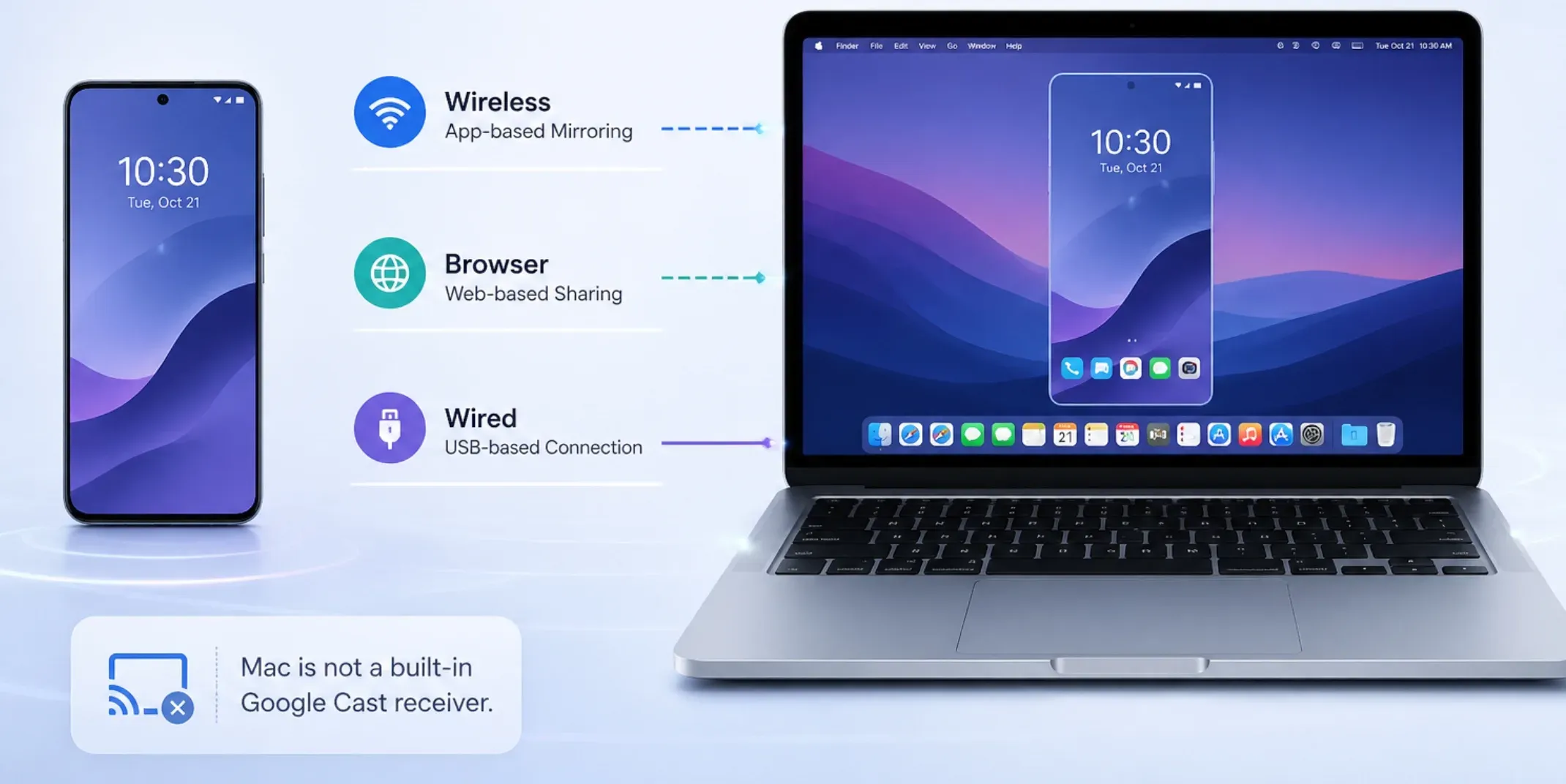
Yes, but not every Android-to-Mac mirroring is native.
In practice, there are three different paths you might mean when you want Android screen mirroring to Mac:
- a wireless app-based mirroring workflow
- a browser-based sharing workflow
- a wired USB-based workflow through a compatible desktop app
What usually does not work the way you might assume is treating a Mac like a generic Chromecast target. Google's Cast guidance focuses on sending from Android to Cast-enabled TVs, displays, or other compatible receivers. That matters because your Mac may be excellent as a laptop, but it is not automatically a built-in Google Cast receiver for Android screen mirroring.
That is why the first useful decision is simple:
- If you want the quickest everyday workflow, use a dedicated mirroring app on the Mac.
- If you only need a temporary share session, a browser-based method can be enough.
- If you need the lowest possible lag for a specific task, a USB path may be worth testing.
Best Way to Mirror Android to Mac
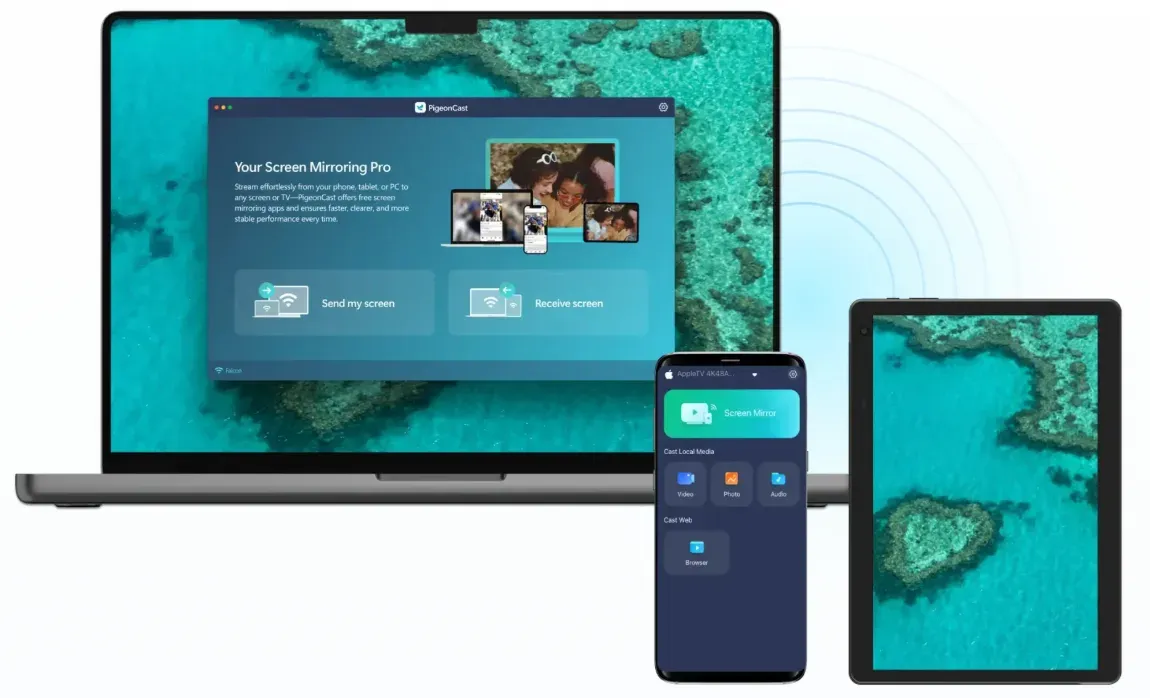
If you want a direct Android-to-Mac workflow, PigeonCast is a strong starting point because it matches the real problem better than native workarounds do.


Overall Rating:



The core issue is not that Android cannot share its screen. The issue is that Android and macOS do not always meet on one clean built-in receiver standard. PigeonCast makes more sense as the default recommendation because it is designed for cross-device mirroring instead of assuming both sides already speak the same native protocol.
This is the better route when you want to:
- mirror an Android phone to a Mac for presentations or demos
- watch Android media on a larger Mac display
- avoid guessing whether your phone brand and Mac setup support the same native path
- use the same mirroring workflow across Android, iPhone, Mac, Windows, and TV devices
If your goal is not a one-time experiment but something you can repeat without rebuilding the setup every week, product-led tools make more sense than protocol guessing. That is the real reason to start with PigeonCast instead of spending time on partial workarounds first.
How to Screen Mirror Android to Mac via PigeonCast
Once you choose the app-based route, the actual setup is usually short.
Step 1. Install and open PigeonCast on both your Android phone and your Mac.
Overall Rating:
Download PigeonCast on the Mac that will receive the Android screen, then install the Android mirroring app on your phone as the sender. Open the app on both devices before you start pairing. On the Mac side, click Receive screen and keep the receiver window open so the device name and QR code stay visible.
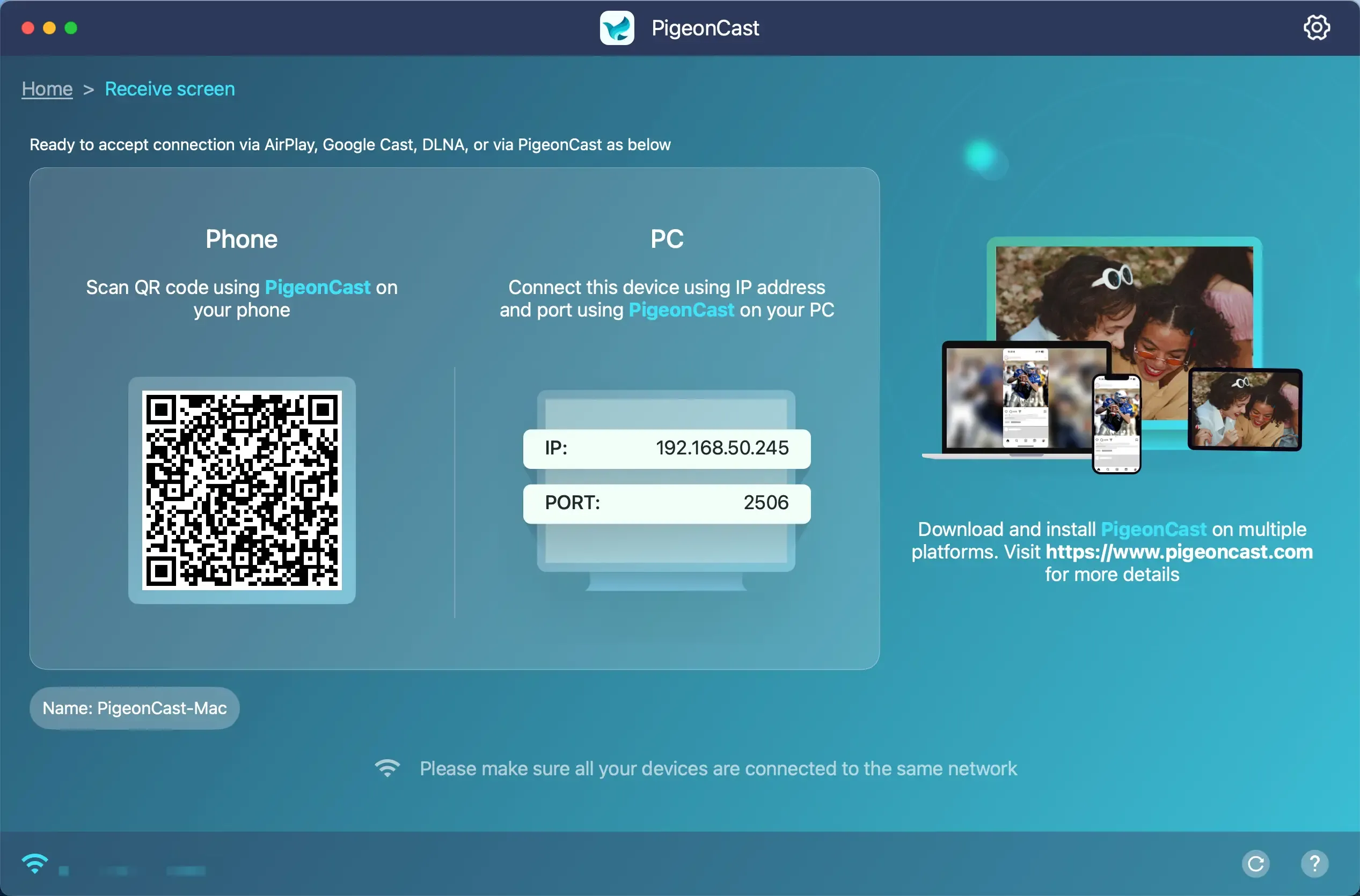
If you are using this for a meeting or class, do the first test before the real session starts. Discovery problems are easier to fix when you are not already presenting live.
Step 2. Connect your Android phone and Mac to the same Wi-Fi network.
For the smoothest Android screen mirroring to Mac workflow, keep both devices on the same local Wi-Fi network before you try to connect.
Check these basics:
- both devices are on the same Wi-Fi
- guest Wi-Fi is not isolating devices
- VPN is turned off during the first setup
- the Mac stays awake and connected while you test
If the phone and Mac cannot see each other, the cause is often local network isolation rather than a deeper bug.
Step 3. Connect your Android to your Mac.
On your Android phone, open PigeonCast and look for your Mac in the device list. Tap the Mac receiver name to connect. If you want a faster pairing flow, tap the scan option in the Android app and scan the QR code shown in the Mac receiver window.
If your Mac does not appear in the list, go back and check the network first. In most cases, a missing device comes from Wi-Fi isolation or a receiver window that is not open on the Mac.
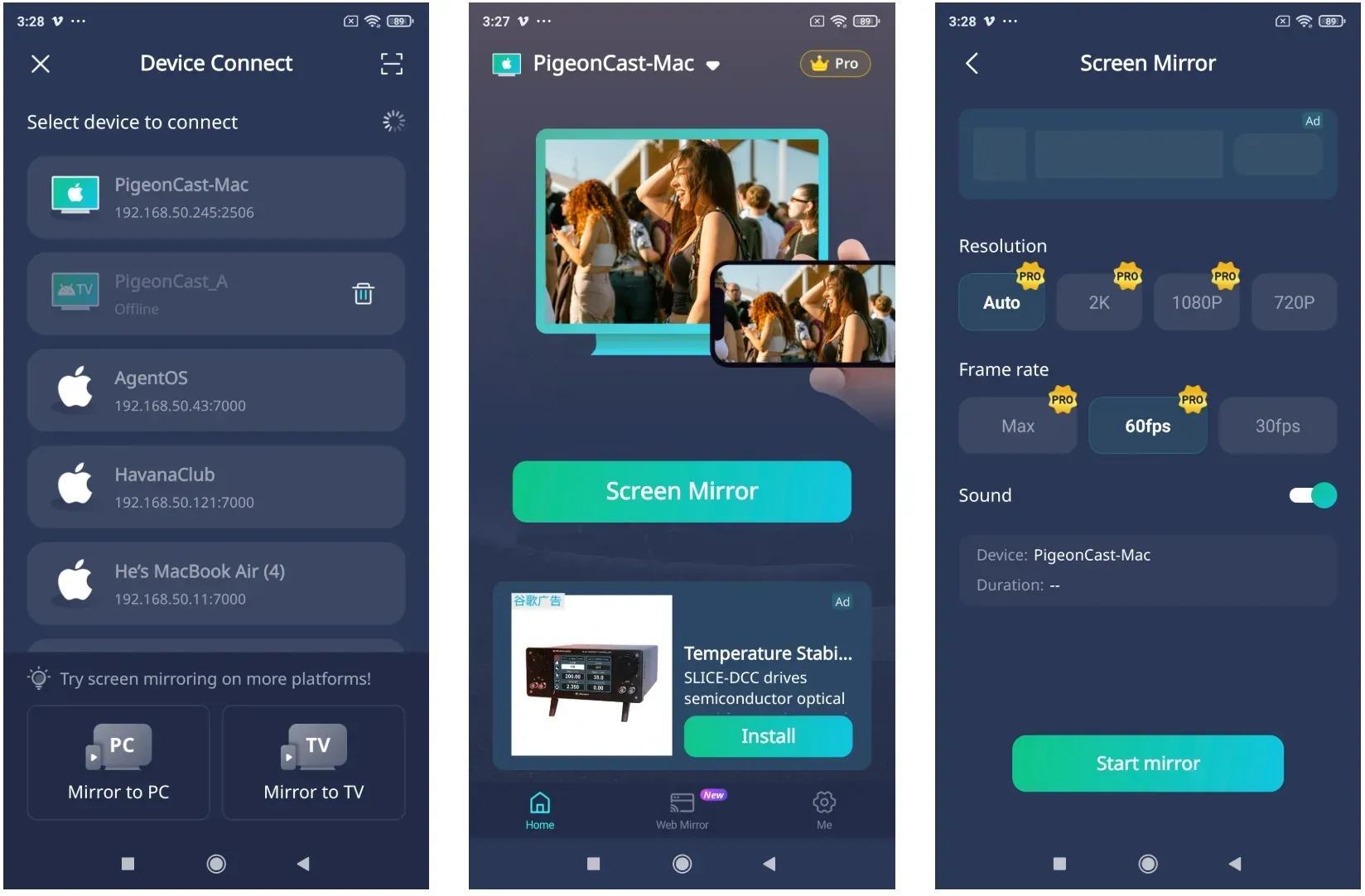
Step 4. Tap Screen mirror and choose your mirroring settings.
After your Android phone connects to the Mac, tap Screen mirror in the Android app. Then choose the quality settings you want before starting the session. PigeonCast supports high-quality mirroring up to 2K/60FPS, but the smoothest option still depends on your Wi-Fi stability and device performance.
If you want audio on the Mac, turn on the Sound switch before you begin. If you only need silent screen sharing, leave it off.
Step 5. Follow the onscreen instructions to display your Android screen on your Mac.
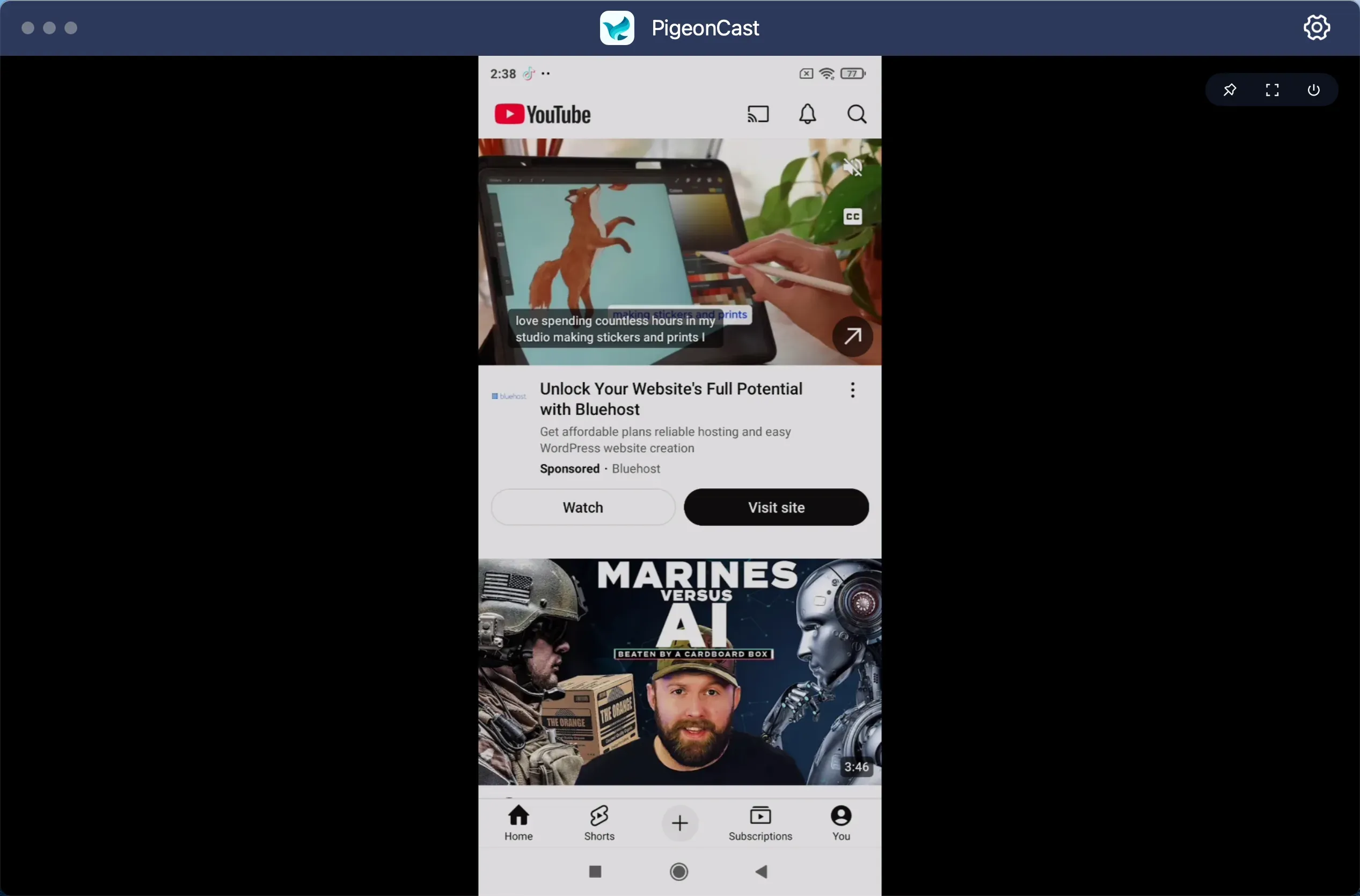
Note: Do not turn off the phone screen during mirroring, or the session may pause or disconnect.
Other Ways to Try for Android Screen Mirroring to Mac
PigeonCast is the default path in this guide, but it is not the only possible method.
Can you mirror Android to Mac through a browser?
Sometimes, yes. Some tools let Android share its screen to a browser session that opens on the Mac. This can be useful when:
- you need a quick temporary share
- you cannot install a full receiver app
- your goal is simple viewing rather than the smoothest long session
The tradeoff is that browser-based methods can be more limited on image quality, latency, audio handling, or long-session stability.
Is USB screen mirroring from Android to Mac worth trying?
Sometimes, especially when wireless lag is the main problem. A USB-based workflow may help if:
- your Wi-Fi is crowded or unstable
- you need a more stable demo path
- you are testing app behavior and want fewer network variables
The downside is convenience. Wired mirroring is usually less flexible and less natural for everyday screen sharing than a clean app-based wireless setup.
What about native Google Cast or other built-in paths?
Use them when your exact devices and apps already support them, but do not assume they are the best default for Mac.
That is the key distinction. Android can cast well in the right ecosystem. The weak point is usually the Mac side of the connection, not the phone side. If your expectation is that every Android cast option should discover a Mac automatically, you will often waste time troubleshooting a limitation that is structural rather than temporary.
If you want a broader Mac-focused setup guide, see how to screen mirror on Mac.
Why Android Won't Mirror to Mac
Most failures come from one of four causes: the Mac is not acting as a compatible receiver, the devices cannot see each other on the network, permissions are blocking the session, or the chosen method is too fragile for the task.
The Mac Does Not Show Up as a Receiver
This is the most common problem.
Work through this order:
Step 1. Confirm you are using a Mac workflow that can actually receive Android mirroring.
Step 2. Make sure the receiver app is open on the Mac.
Step 3. Check that both devices are on the same local Wi-Fi network.
Step 4. Turn off VPN temporarily.
Step 5. Avoid guest Wi-Fi or AP isolation.
Step 6. Restart Wi-Fi on both devices if discovery still looks stale.
If you are using a native Android cast menu and no compatible Mac receiver is present, the Mac may never appear at all. That is not always a bug. Sometimes it is simply the wrong receiver expectation.
The Screen Connects but Lags or Stutters
Screen mirroring lags usually point to network quality.
Try these fixes:
- move closer to the router
- pause heavy downloads or sync jobs
- close high-load apps on the Mac
- reduce background activity on the phone
- test again on a less crowded network
For ordinary office or home demos, stable Wi-Fi matters more than peak internet speed.
The Screen Goes Black or Audio Is Missing
When the video goes black or audio behaves strangely, the cause is usually app-level playback limits, unstable reconnection, or a format mismatch between the session and the content.
Start with:
- testing a simple home screen mirror instead of protected video first
- rotating the phone once to refresh the session
- reconnecting after closing the receiver and sender
- trying a different app or media type
If your main problem is a blank display rather than discovery, this screen mirroring black screen checklist is the better next step.
The Connection Drops Mid-Session
This is common in long meetings, classes, or demos if the session was never stable to begin with.
Check whether:
- the Mac went idle
- the Android phone locked or changed networks
- Wi-Fi quality shifted during the session
- another app interrupted the mirroring permission flow
If you need something dependable every week, that is another reason to prefer a dedicated app workflow over a fragile one-off workaround.
Conclusion
The fastest way to handle Android screen mirroring to Mac is to stop treating the Mac like a guaranteed native Cast receiver and use a method designed for cross-platform mirroring instead. In most setups, that means starting with PigeonCast.
That recommendation is not about adding another app for the sake of it. It is about choosing the workflow that fits the job. If you want Android to Mac screen mirroring that is easy to repeat, simple to explain, and less dependent on protocol edge cases, PigeonCast is the strongest first option. If you only need a temporary share, browser or USB methods may be enough, but they are usually not the cleanest long-term default.
Android Screen Mirroring to Mac FAQ
Can I screen mirror Android to Mac without installing anything?
Sometimes, but it depends on the exact workflow. A browser-based share can work for temporary sessions, but it is usually less stable and less flexible than a dedicated receiver app on the Mac.
Why doesn't my Mac show up when I cast from Android?
Usually because the Mac is not acting as a compatible receiver for the casting method your Android phone is using, or because local network discovery is blocked by Wi-Fi isolation, VPN rules, or an inactive receiver app.
What is the best app for Android to Mac screen mirroring?
PigeonCast is a strong first option because it is built for cross-platform mirroring and avoids the native receiver gap that often causes Android-to-Mac setup problems.
Is Android to Mac screen mirroring good for meetings and demos?
Yes, as long as you test the session first and use a stable receiver workflow. For repeated demos, a dedicated app setup is usually much safer than relying on a partial native method.
Should I use wireless or USB mirroring?
Use wireless if convenience and mobility matter most. Use USB if your Wi-Fi environment is unreliable and lower-lag stability matters more than convenience.
Mia Clarke is a technology editor specializing in screen mirroring and casting solutions across multiple platforms. Mia provides clear, practical guides and in-depth insights to help users seamlessly connect their devices. Passionate about enhancing digital experiences, Mia is dedicated to keeping readers updated on the latest trends and tools in cross-platform screen sharing. Whether you’re looking to mirror your smartphone, laptop, or smart TV, Mia’s content delivers reliable, user-friendly advice to simplify your tech setup.