
Want to stream your favorite iPhone videos, MacBook presentations, or music directly to your Samsung TV? The good news is that it's easier than ever. Samsung has support AirPlay since 2018, allowing seamless screen mirroring and media streaming from Apple devices. Whether you're new to AirPlay or troubleshooting a connection issue, this guide will walk you through everything you need to know about how to AirPlay to Samsung TV, including setup process, compatible devices, and alternatives when AirPlay doesn't work.
How to Enable AirPlay on Samsung TV
Before you start AirPlay to Samsung TV, you'll need to make sure AirPlay is turned on. Many Samsung TVs, including QLED, Frame, Serif, Crystal UHD, and Smart Monitor models (2018 and later), come with AirPlay 2 built in. If your Samsung TV is compatible with AirPlay, follow the guide on how to enable AirPlay on Samsung TV:
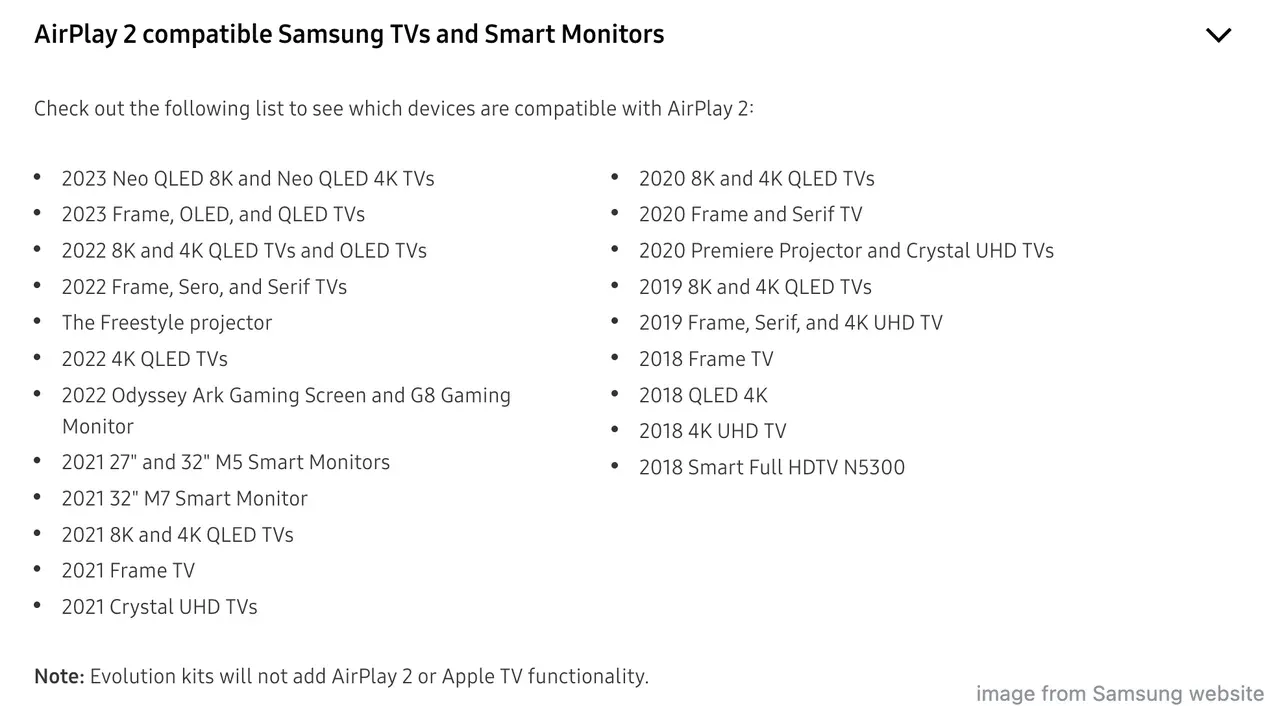
Step 1. On your Samsung remote, press the Home button.
Step 2. Go to Settings > Connection > Apple AirPlay Settings.
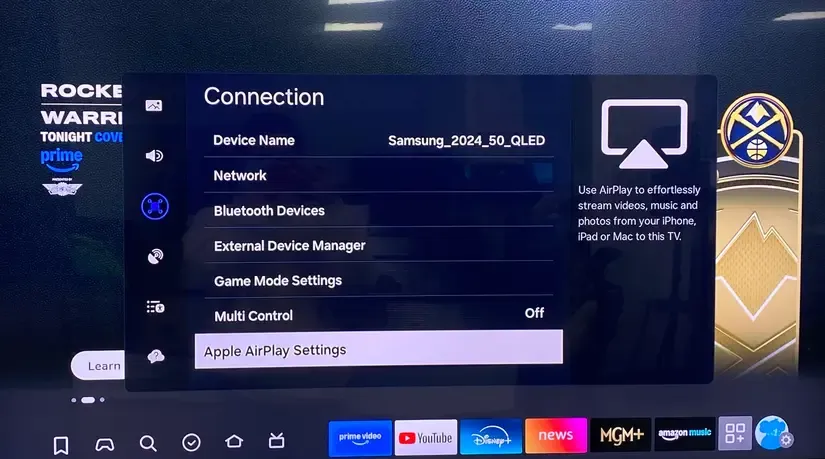
Step 3. Switch AirPlay to On.
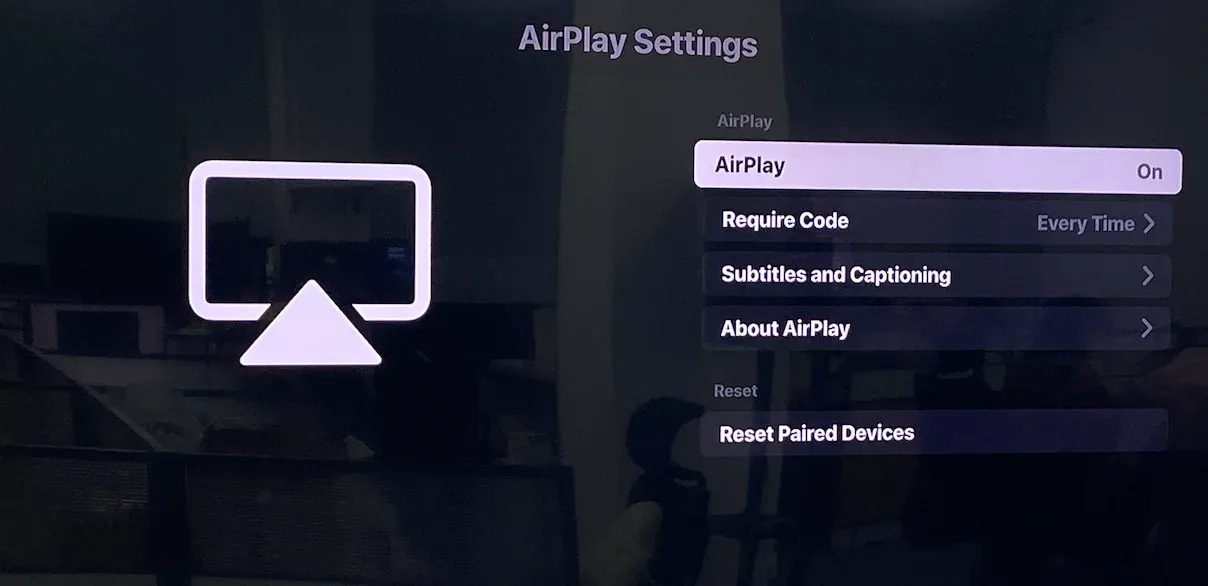
Step 4. Set Require Code to First Time Only or Every Time for security.
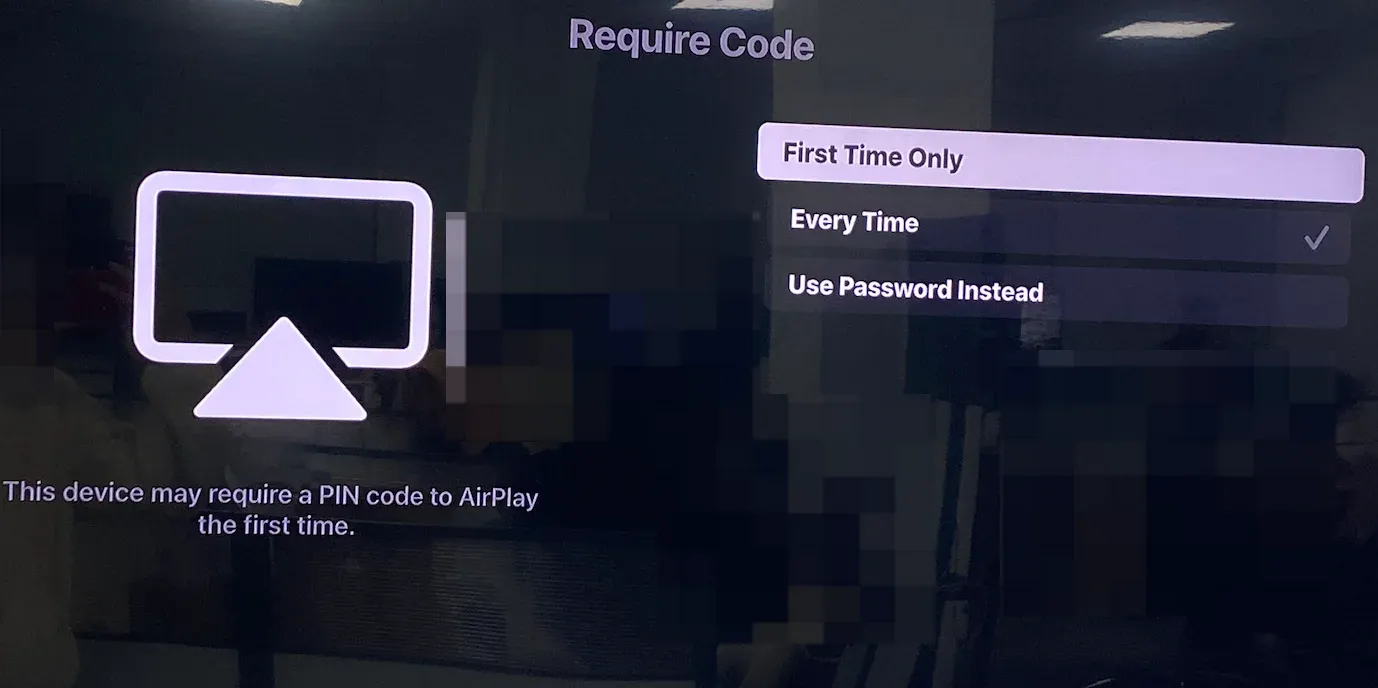
Step 5. Now Samsung TV AirPlay is enabled, then make sure your Samsung TV and Apple device are on the same WiFi network.
Once that's done, your Samsung TV will appear automatically when you open AirPlay from your iPhone, iPad, or MacBook. You're now ready to start streaming.
How to AirPlay to Samsung TV
With AirPlay enabled, your Samsung TV becomes a wireless display for your Apple ecosystem. Whether you want to stream a movie, mirror your screen, or share photos, each device connects slightly differently.
Below, we'll show you how to AirPlay on Samsung TV from various devices, including iPhone, Mac, Android, and even Windows PCs.
#1. AirPlay iPhone to Samsung TV
If you're using an iPhone, AirPlay integration is built right into iOS, so you don't need any additional setup. It's perfect for instantly showing off vacation photos, streaming YouTube videos, or mirroring apps.
To AirPlay from iPhone to Samsung TV:
Step 1. Swipe down from the top-right corner to open Control Center.
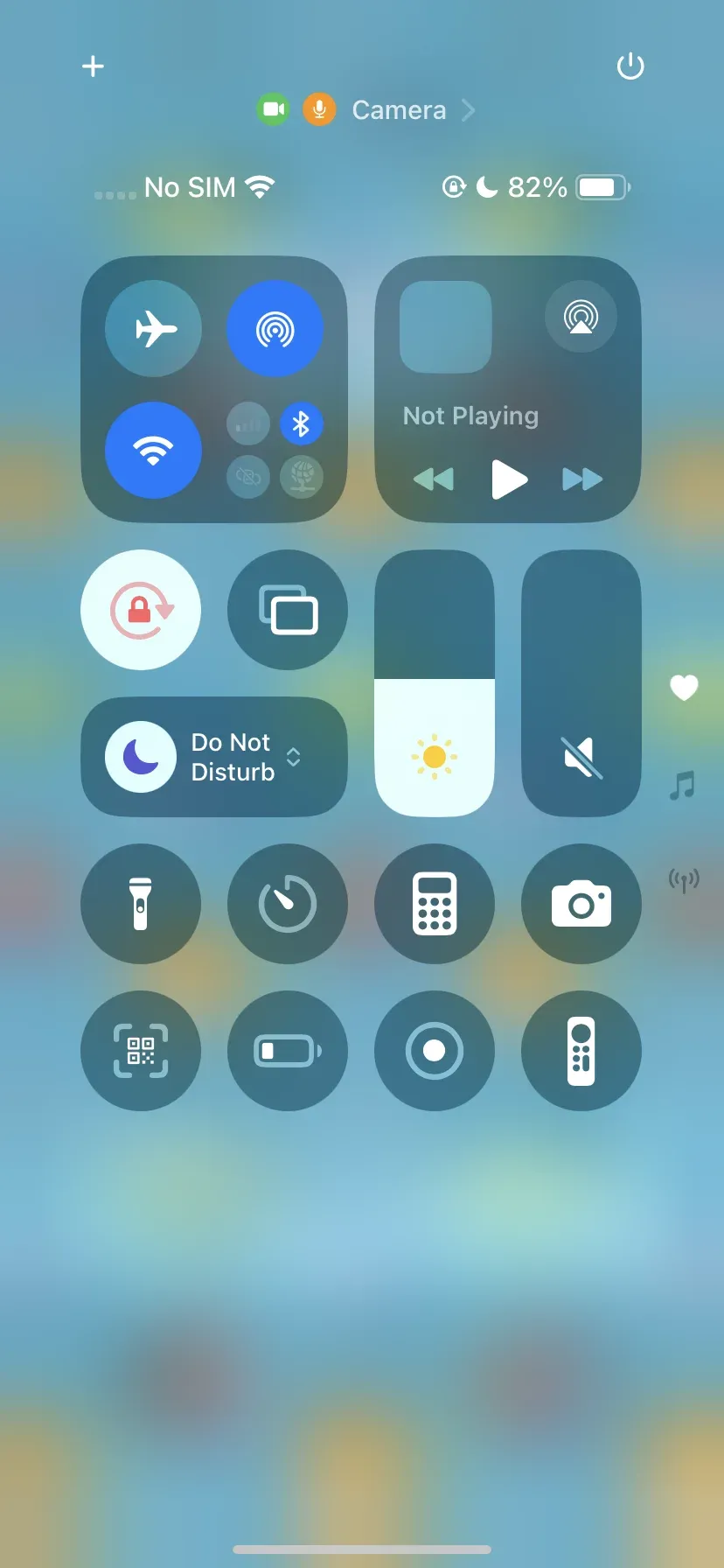 Step 2. Tap the Screen Mirroring icon (two rectangles) and choose your Samsung TV list.
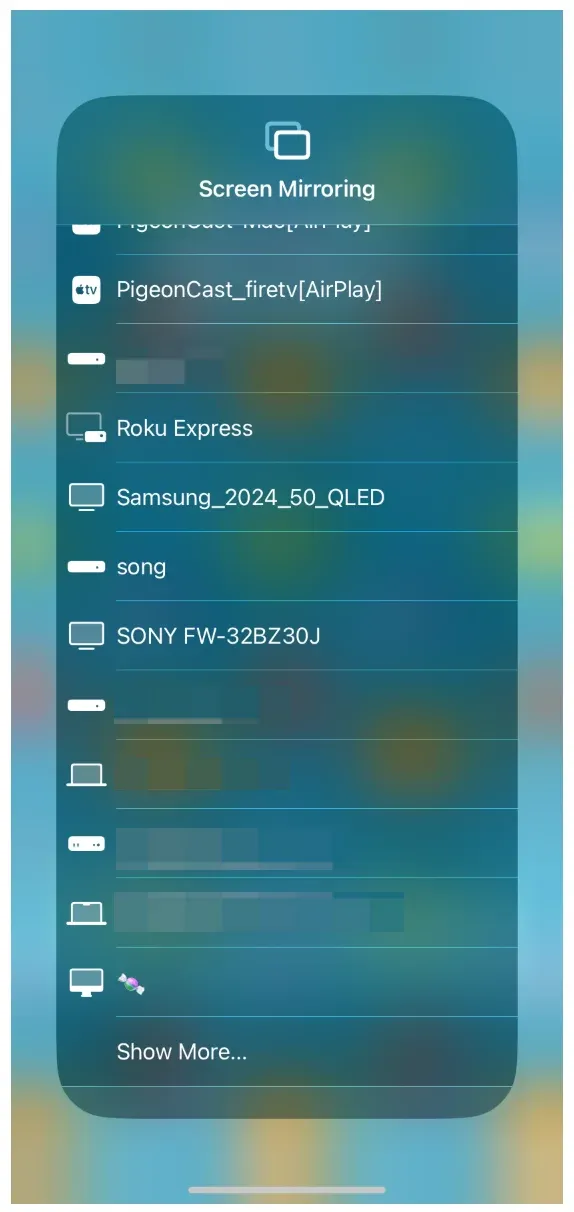
Step 3. If prompted, entire AirPlay code shown in your Samsung TV.
After that, your iPhone display will appear on the TV within seconds. This method works great for presentations, FaceTime calls, or simply enjoying your content on a larger screen.
#2. AirPlay MacBook to Samsung TV
Streaming from your MacBook to Samsung TV is just as simple. Whether you're working on a project, streaming Apple TV+, or sharing slides, AirPlay makes it easy to go wireless. Most modern MacBooks come with built-in AirPlay support, so you don't need any third-party app. Here's how to AirPlay on Samsung TV from a MacBook:
Step 1. Click the Control Center icon in your Mac's menu bar.
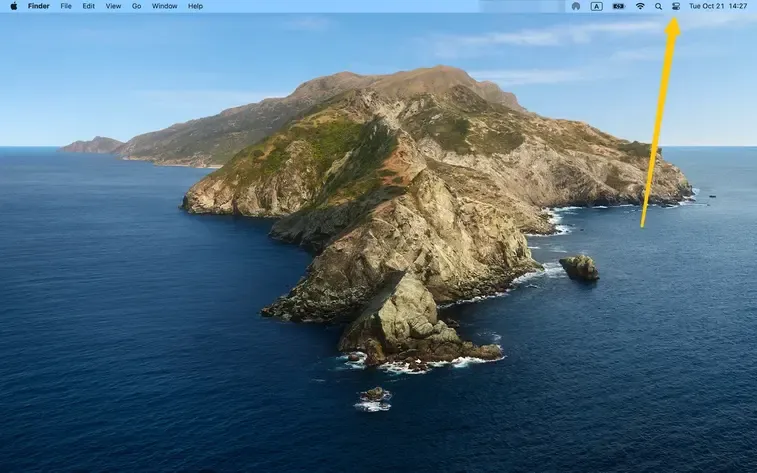
Step 2. Choose Screen Mirroring or AirPlay.
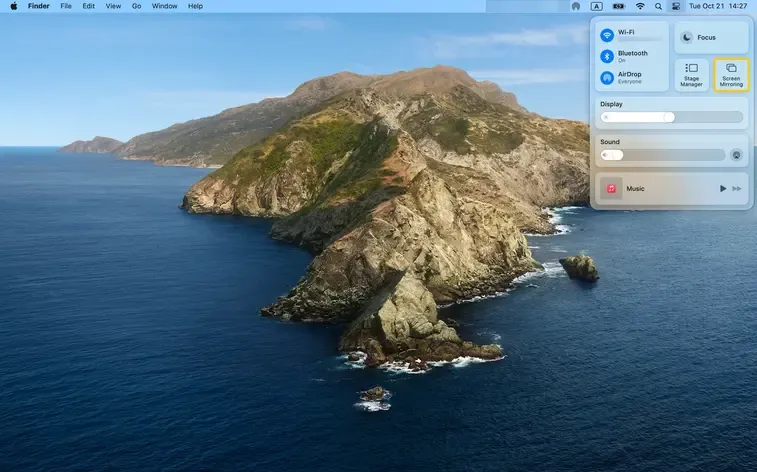
Step 3. Choose your Samsung TV from the available devices.
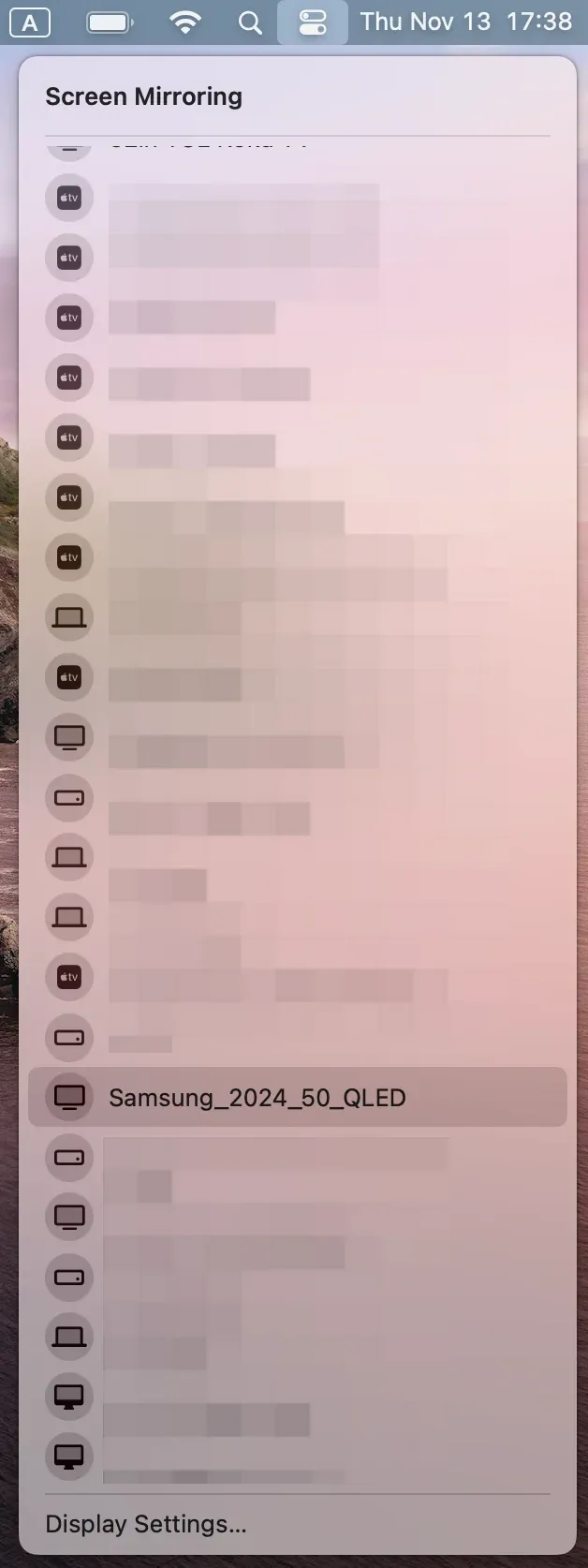
Step 4. Enter the AirPlay code if one appears on your screen.
Your Mac display will then be mirrored or extended to your Samsung TV, perfect for multitasking, presentations, or movie nights.
#3. AirPlay Android Phone to Samsung TV
Now, what if you're an Android user? While Android devices don't natively support AirPlay, you can still achieve the same result using PigeonCast for Android app.
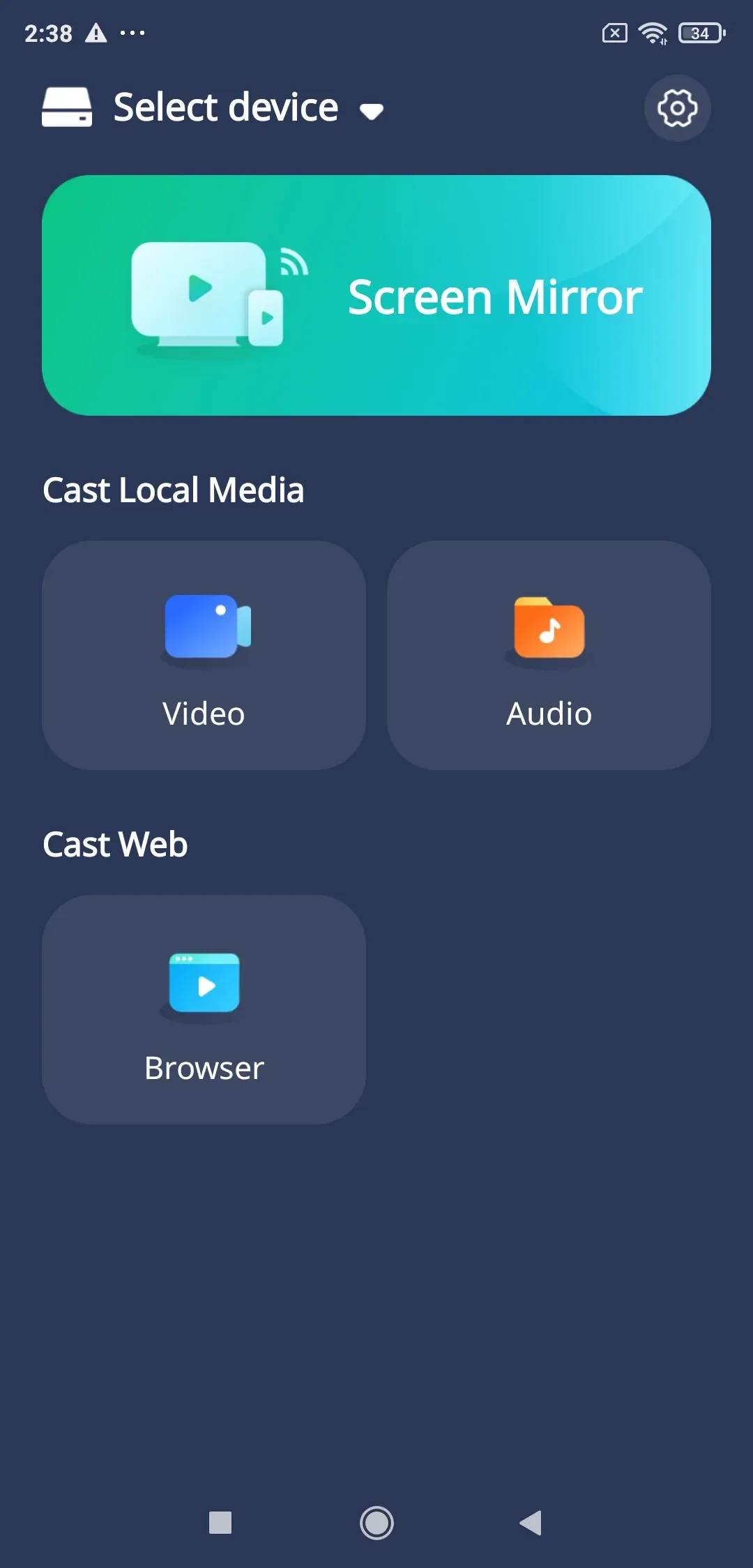
PigeonCast is a smart cross-platform mirroring app that works on Android devices. It integrates AirPlay, Google Cast, and DLNA in one app, making it one of the most versatile tools for screen mirroring. It allows Android phones to connect seamlessly with Samsung TV and even Apple devices, as long as both are on the same Wi-Fi network.
To AirPlay from Android to Samsung TV using PigeonCast:
Step 1. Install PigeonCast on your Android phone or tablet.

PigeonCast Screen Mirroring

Official Download


Step 2. Connect your Android and Samsung TV to the same Wi-Fi network.
Step 3. Open the PigeonCast app on your Android device and choose your Samsung TV from the available devices.
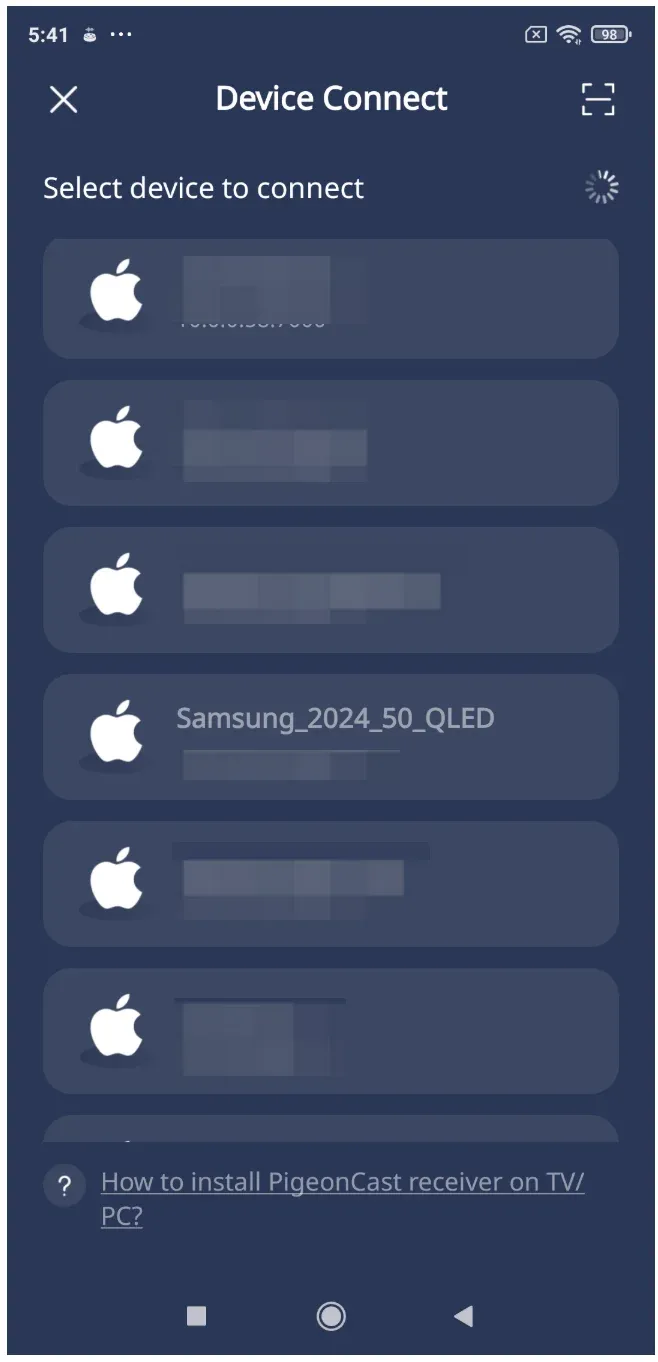
Step 4. Once connected, you can tap one of features the app provides to stream your interested content to your TV.
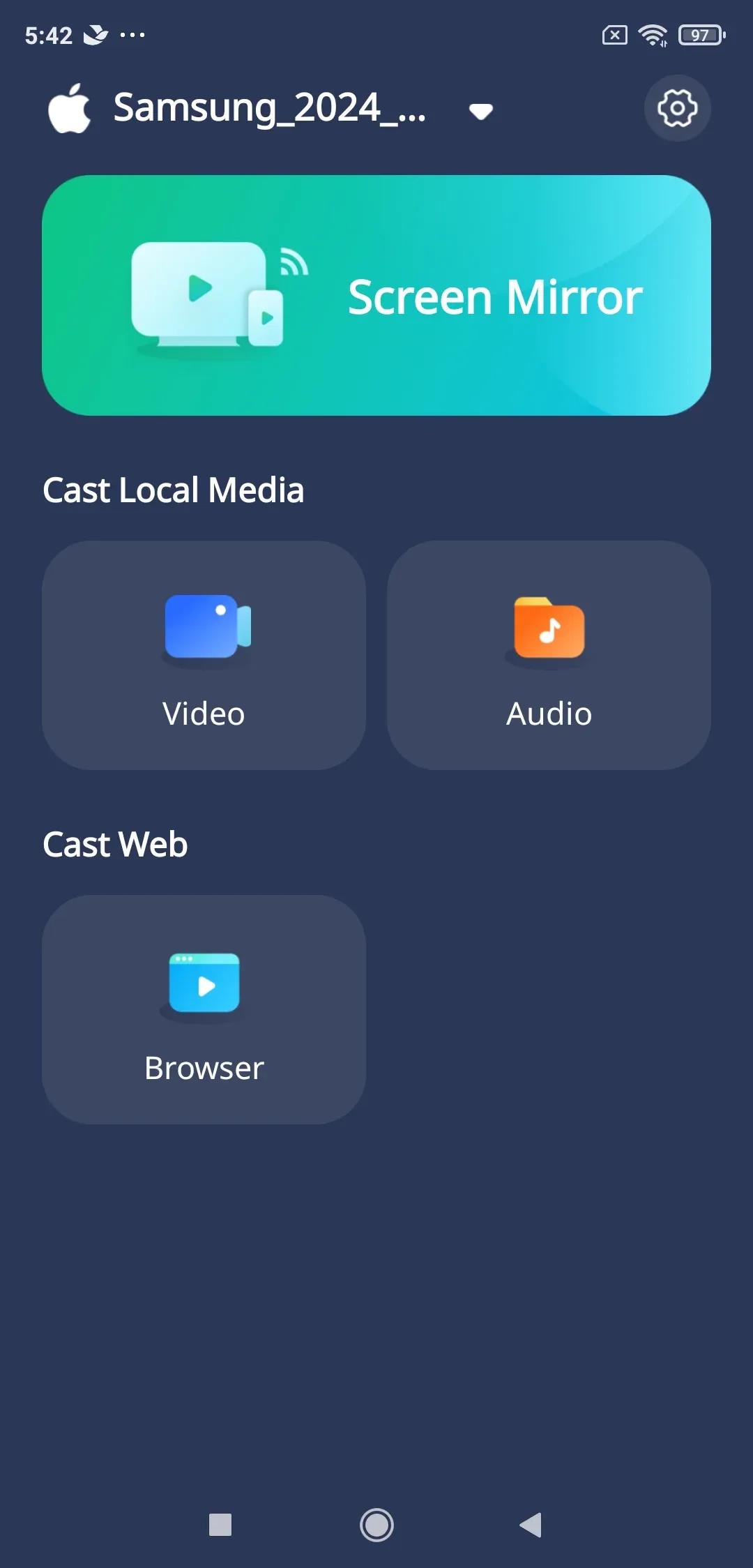
Within moments, your Android screen will appear on your Samsung TV, no Apple hardware required. This is the most practical way to AirPlay to Samsung TV from Android, bridging the gap between different ecosystems.
#4. AirPlay Windows PC to Samsung TV
Like Android devices, Windows doesn't support AirPlay natively, but with PigeonCast for Windows mirroring solution, you can mirror your PC screen, stream local videos, or display documents wirelessly.
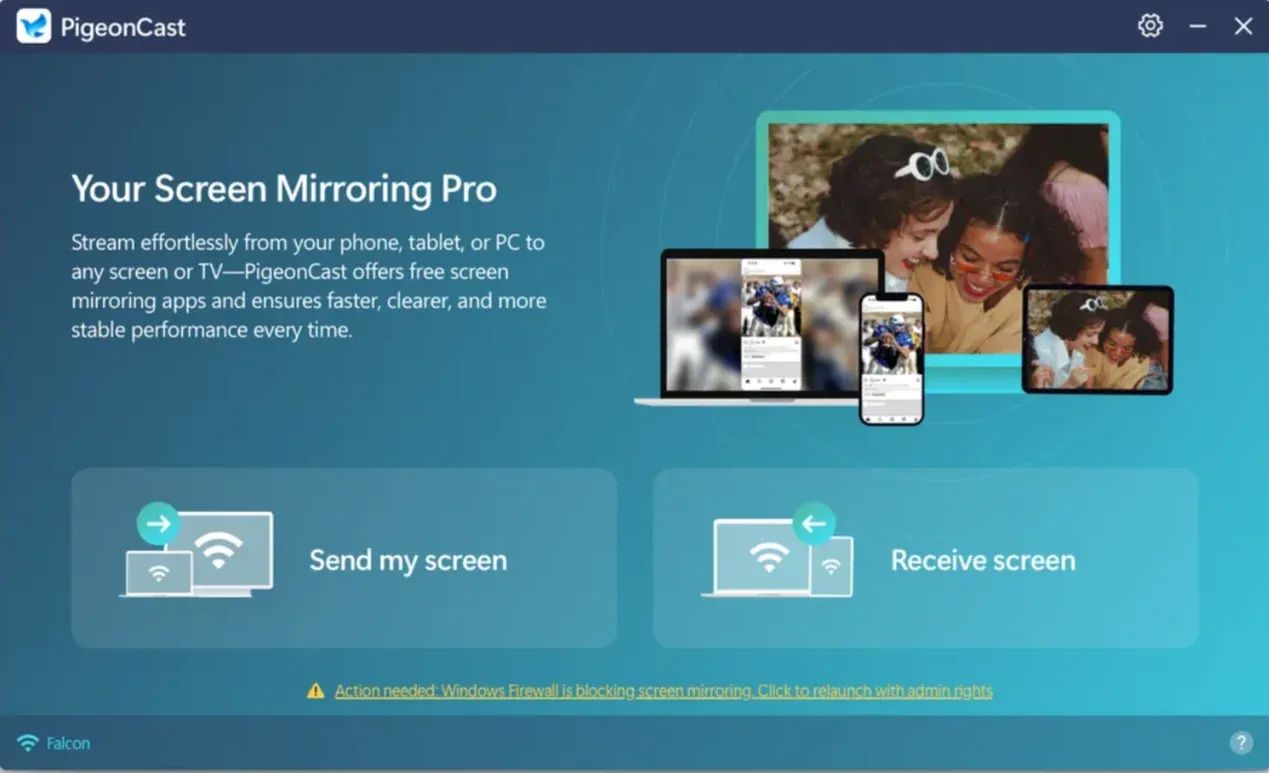
If you're wondering how to AirPlay to Samsung TV from Windows, follow these steps:
Step 1. Install PigeonCast on your Windows 10/11 computer.
PigeonCast Screen Mirroring
Official Download

Step 2. Make sure your Windows PC and Samsung TV are on the same Wi-Fi network.
Step 3. Open the PigeonCast desktop app and choose Send my screen.
Step 4. Choose your Samsung TV from the available options.
Step 5. Once connected, choose to mirror your entire screen or a single window.
Step 6. Click Start mirror.
Your PC screen will appear on the TV instantly. It's ideal for meetings, streaming, or casual entertainment, and offers a true AirPlay equivalent for Windows users.
Fixed: Samsung AirPlay Not Working
Even though AirPlay is designed to be seamless, it can occasionally act up, especially with network or software issues. If you can't connect, here are a few reliable fixes:
- Power cycle your TV and iPhone or MacBook.
- Reconnect to Wi-Fi. AirPlay requires both devices on the same network.
- Update your firmware. Go to Settings > Support > Software Update on your Samsung TV.
- Reset AirPlay settings. Navigate to Apple AirPlay Settings and re-enable AirPlay.
- Check Bluetooth interference. Turn off Bluetooth on nearby devices if mirroring lags.
Final Verdict
Learning how to use AirPlay on Samsung TV opens a world of wireless convenience — from watching videos to sharing work presentations. And even if you're not in the Apple ecosystem, PigeonCast bridges the gap, letting Android and Windows users enjoy similar mirroring capabilities.
So whether you're streaming from an iPhone, MacBook, or another device, there's always a way to AirPlay to Samsung TV and enjoy a bigger, smarter screen experience
How to AirPlay to Samsung TV FAQs
Why can't I connect to AirPlay on my Samsung TV?
Ensure that AirPlay is enabled in your TV's settings and that both your Samsung TV and Apple device are on the same Wi-Fi network. Restart both if needed.
How to screen mirror to Samsung TV?
You can use AirPlay, Smart View (for Samsung phones), or PigeonCast for Android and Windows devices to mirror your screen wirelessly.
How to mirror iPhone to Samsung TV without AirPlay?
You can mirror your iPhone to a Samsung TV without AirPlay by using an HDMI adapter (such as Apple's Lightning Digital AV Adapter) or a third-party mirroring app that supports DLNA or screen casting, like PigeonCAST. These methods let you display photos, videos, and apps directly on your TV without needing AirPlay.
What Samsung TVs support AirPlay?
All Samsung Smart TVs released from 2018 onward, including QLED, Frame, Serif, and Crystal UHD, support AirPlay 2.
Why does AirPlay keep disconnecting on my Samsung TV?
This can happen if your Wi-Fi signal is weak or your firmware is outdated. Move closer to your router or update your TV's software.
Can I AirPlay to Samsung TV without Wi-Fi?
You can screen mirror between Apple devices with peer-to-peer AirPlay, which requires no network connection. However, you can't AirPlay to Samsung TV from your iPhone or MacBook without Wi-Fi.
Mia Clarke is a technology editor specializing in screen mirroring and casting solutions across multiple platforms. Mia provides clear, practical guides and in-depth insights to help users seamlessly connect their devices. Passionate about enhancing digital experiences, Mia is dedicated to keeping readers updated on the latest trends and tools in cross-platform screen sharing. Whether you’re looking to mirror your smartphone, laptop, or smart TV, Mia’s content delivers reliable, user-friendly advice to simplify your tech setup.