
AirPlay from Mac to Apple TV makes it easy to share content on the big screen, whether you're presenting a slideshow, showing family photos, or streaming a video. With just a few simple steps, you can wirelessly mirror your Mac's screen or stream media directly to your TV. This guide will cover everything from setting it up and show you how to Mirror from MacBook to Apple TV without AirPlay via PigeonCast.
How to AirPlay from MacBook to Apple TV
Getting started with AirPlay is straightforward and works effortlessly within Apple's ecosystem. Before you begin, ensure AirPlay is enabled on your Apple TV and both your devices are connected to the same Wi-Fi network. Once that's confirmed, you're just a few clicks away from a bigger screen experience. Now follow the steps on how to use AirPlay from Mac to Apple TV:
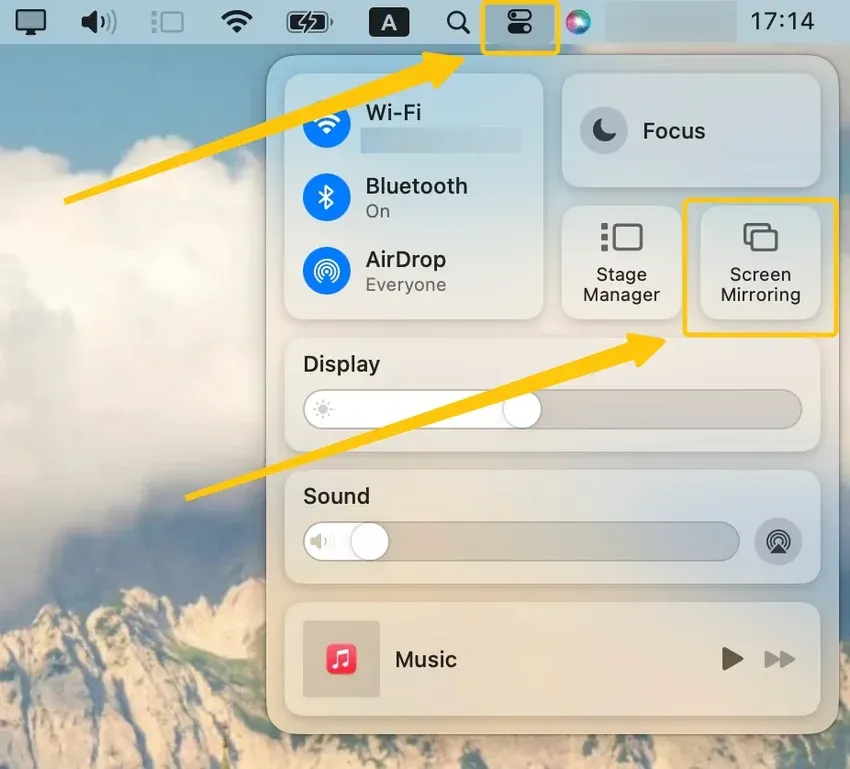
Step 1. On your Mac, click Screen Mirroring in the Control Center icon in the menu bar (it looks like two toggle switches).
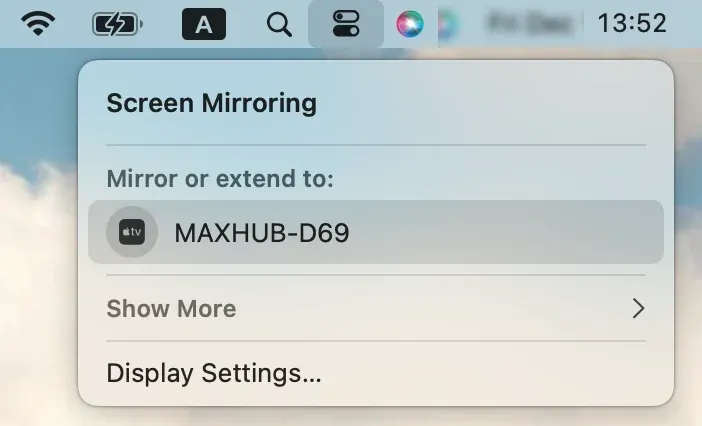
Step 2. Select your Apple TV from the available device list.
Step 3. If prompted, enter the onscreen code, and your Mac screen should now be duplicated on your TV.
Step 4. To stop mirroring, open your Mac's Control Center > Screen Mirroring, and tap the device again.
How to Mirror from MacBook to Apple TV Without AirPlay
If AirPlay isn't working for you or you prefer not to use it, there are still other ways to mirror your MacBook to your Apple TV. One reliable alternative is using PigeonCast, a free third-party app that allows you to wirelessly mirror your MacBook screen to your Apple TV. PigeonCast offers a smooth, ad-free experience and can be a great solution when AirPlay isn't an option or if you're looking for a more versatile casting method.
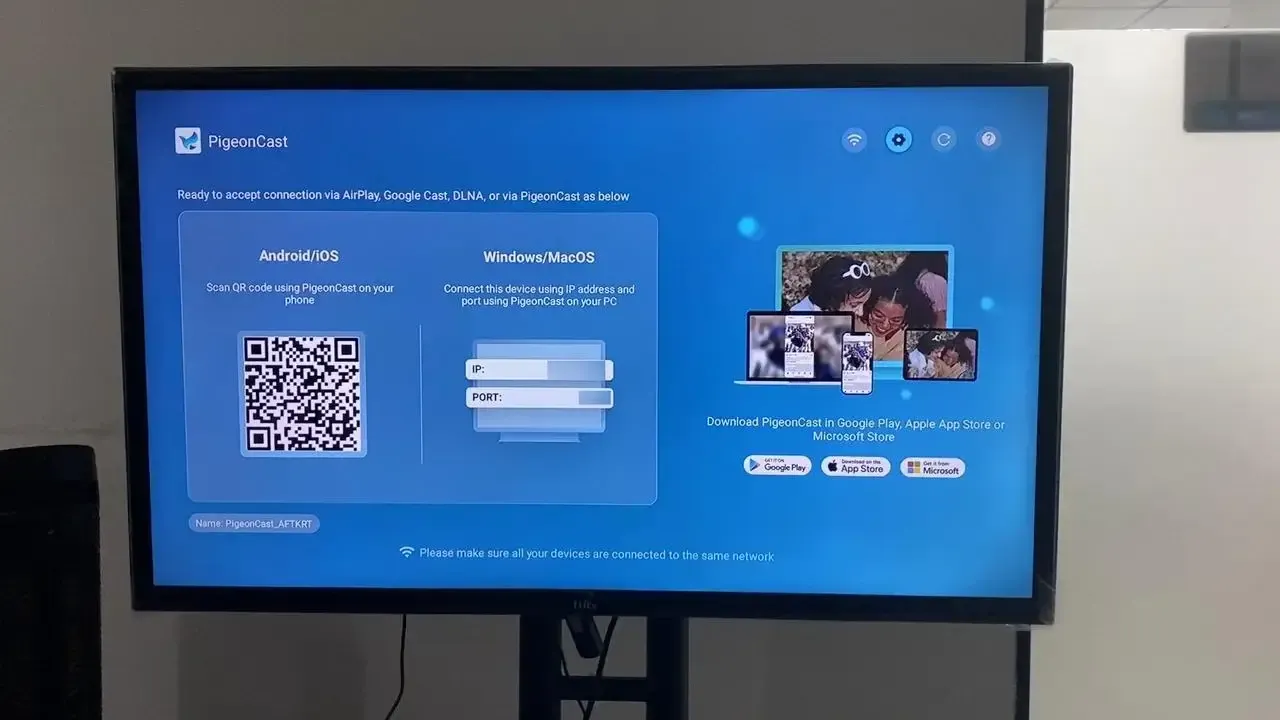
Step 1. Install PigeonCast on your MacBook and Apple TV from the App Store and launch it.


Overall Rating:


Step 2. Connect both your devices to the same wireless network.
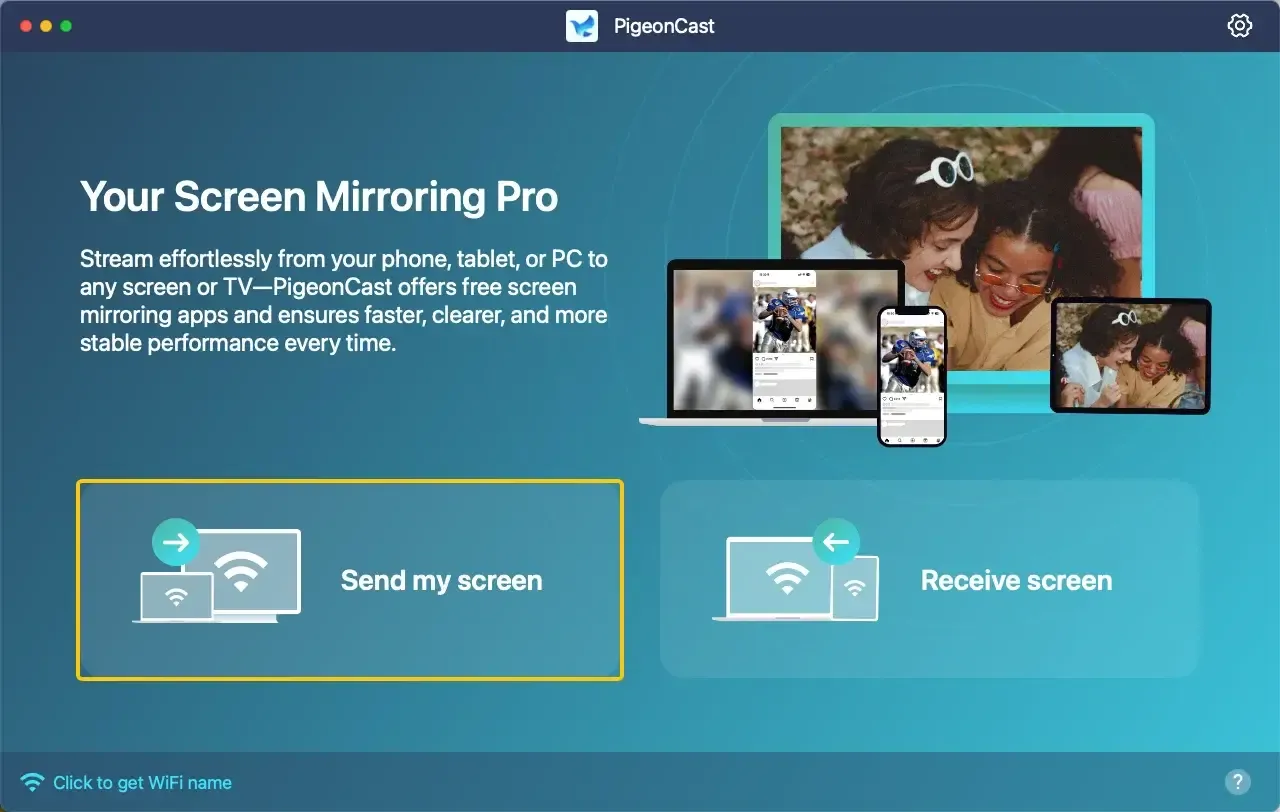
Step 3. On your MacBook, tap Send my screen to choose your Apple TV from the device list.
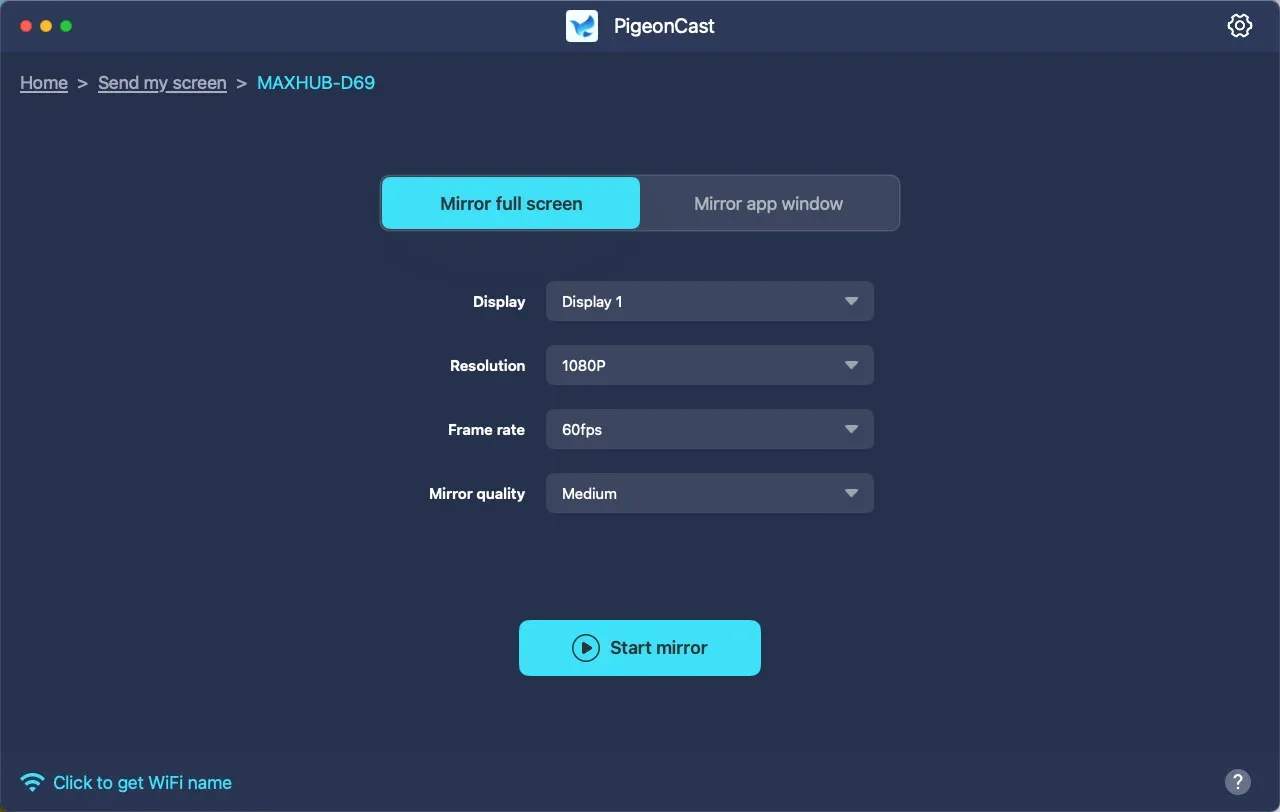
Step 4. Enter the pairing code, then choose whether to mirror your entire screen or just an app window.
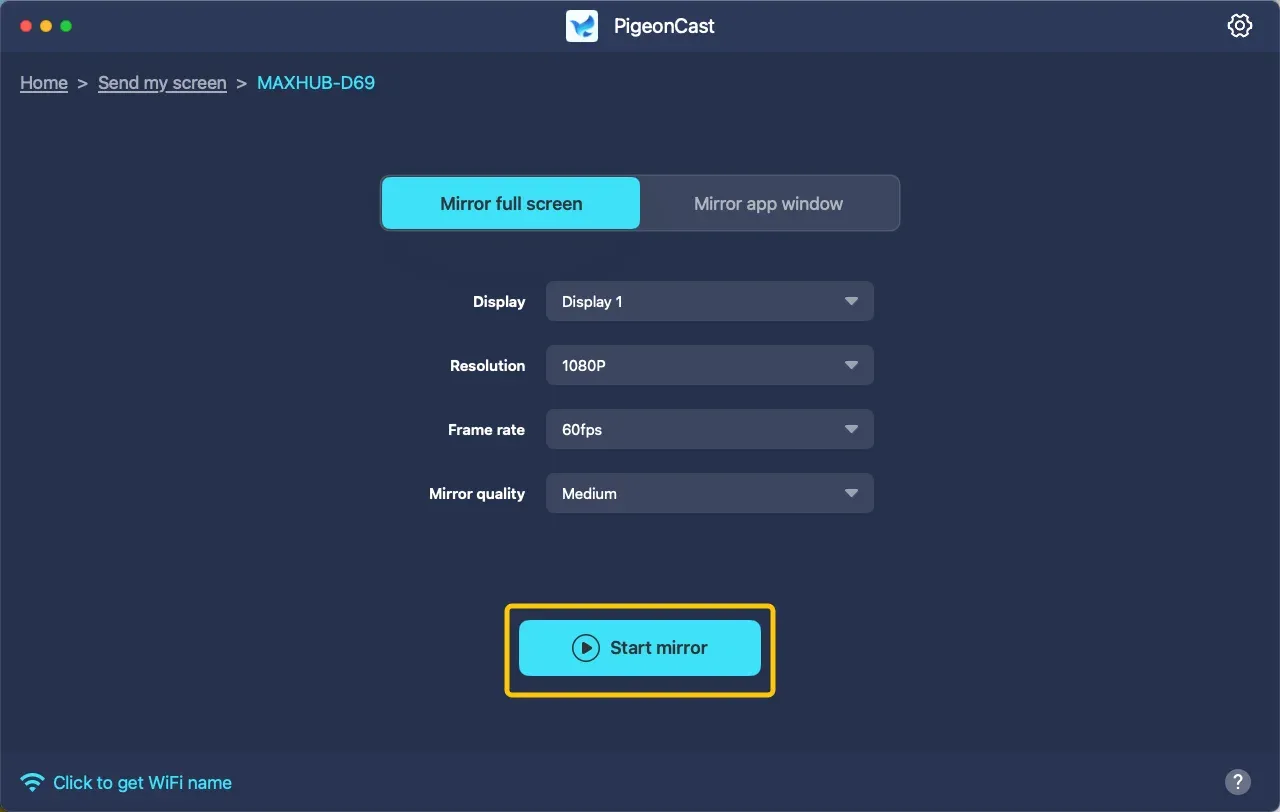
Step 5. Select Start Mirror to begin your mirroring activities from your MacBook screen.
Simple Solutions: Screen Mirroring MacBook to Apple TV Not Working
It can be frustrating when you can't AirPlay from Mac to Apple TV. Before you resort to restarting everything, try a systematic approach. Often, this can resolve the issue much more quickly. Most AirPlay problems are caused by a few common factors, which are usually easy to fix.
- Check Your Wi-Fi: Double-check that both your Mac and Apple TV are on the exact same 2.4GHz or 5GHz Wi-Fi network. Being on different bands of the same network can sometimes cause issues.
- Restart Everything: The classic IT solution works wonders. Restart your Mac, Apple TV, and your Wi-Fi router.
- Update Software: Go to System Settings > General > Software Update on your Mac and Settings > System > Software Updates on your Apple TV to ensure both are running the latest versions.
- Check Apple TV AirPlay Settings: On your Apple TV, navigate to Settings > AirPlay and HomeKit and ensure that AirPlay is turned on.
- Disable VPNs and Firewalls: Security software on your Mac can sometimes block the local network connections that AirPlay requires. Temporarily disable them to see if it resolves the issue.
- Use PigeonCast: Simply install PigeonCast, ensure both your devices are on the same Wi-Fi network, and follow the easy steps to cast your MacBook's screen directly to your TV.
Final Verdict
How to connect MacBook to Apple TV wirelessly? By following the simple setup steps outlined in this guide, you can easily mirror or stream from your Mac to the big screen, making the most of your Apple ecosystem. If you encounter any issues with AirPlay from Mac to Apple TV not working, try using PigeonCast as an alternative for seamless wireless streaming and mirroring.
AirPlay from Mac to Apple TV FAQ
How to AirPlay from Mac to Apple TV with sound?
By default, when you mirror your screen, the audio from your Mac should automatically route to your Apple TV and play through your TV or connected speakers. If you don't hear audio, first check your Mac's sound output by clicking the Volume icon in the menu bar.
How to AirPlay from Mac to Apple TV app?
To stream content from a specific app on your Mac (such as Netflix, YouTube, or Apple TV+), just follow these steps:
- Open the app on your Mac.
- Look for the AirPlay icon (usually next to the playback controls or in the toolbar).
- Click on the AirPlay icon and select your Apple TV from the list.
- Once selected, the app's content will stream directly to your Apple TV.
Why is AirPlay from Mac to Apple TV lagging?
AirPlay lag can be caused by several factors, including:
- Weak Wi-Fi Connection
- Network Congestion
- Outdated Software
- Hardware Limitations
- Network Interference
How to fix the AirPlay from Mac to Apple TV black screen?
- Ensure both your Mac and Apple TV are connected to the same Wi-Fi network.
- Restart both your Mac and Apple TV.
- Ensure that both your Mac and Apple TV are running the latest software updates.
- On your Mac, disable the screen saver or set the computer to "Never Sleep" under System Preferences > Energy Saver (or Battery on newer macOS versions).
- Make sure AirPlay is enabled on your Apple TV. Go to Settings > AirPlay and HomeKit, and ensure AirPlay is turned on.
- In the Control Center on your Mac, turn off Screen Mirroring, then turn it back on and try reconnecting.
- Disconnect from AirPlay on your Mac, then reconnect to your Apple TV by selecting it again in the Screen Mirroring menu.
- If you're using an Apple TV, try switching the HDMI port on your TV. A faulty or slow port could cause display issues.
- Consider DRM Protection: Some videos and streaming platforms use DRM (Digital Rights Management), which can block mirroring and result in a black screen. If only certain content fails to display, DRM may be the cause.
How to AirPlay video from Mac to Apple TV?
AirPlaying video from your Mac to Apple TV is simple:
- Open the video you want to watch in Safari or an app like YouTube or Apple TV.
- Click the AirPlay icon in the media controls.
- Select your Apple TV as the playback device.
- The video will stream directly to your TV, allowing you to enjoy full-screen viewing.
Clara Rossi is an experienced technology editor and a seasoned expert in screen mirroring and casting technologies. With a keen eye for detail and a deep understanding of how to seamlessly connect devices, Clara excels at optimizing user experiences for effortless sharing and streaming. Whether you're seeking quick fixes or advanced tips, her expertise and responsiveness ensure that every query is met with a well-informed and efficient solution.