
If you want Vizio cast from laptop to work quickly, the first thing to decide is what you are actually trying to send. Casting a Chrome tab or a supported video is not the same as mirroring your full laptop screen, and the better method depends on whether you use Windows, Mac, or Chromebook.
That distinction matters because current Vizio TVs are generally positioned as receivers for Google Cast and AirPlay rather than browser-first devices. In practical terms, that means the easiest route is usually to send content from the laptop you already use, not to treat the TV like a desktop computer.
Quick Answer: Best Way to Cast From Laptop to Vizio TV
Vizio TVs are built to receive Google Cast and, on supported models, AirPlay. If your Vizio TV appears in Chrome, start with Chrome casting first. If you use a MacBook and your Vizio model supports AirPlay, AirPlay is the cleanest built-in option. If neither one appears or you need to show the full laptop screen instead of just a tab or video, move to screen mirroring or HDMI sooner rather than later.
| Laptop setup | Best first method | Use it when | Main limitation |
|---|---|---|---|
| Windows laptop | Chrome Cast | You want to cast a browser tab, video, or browser-based content | Less ideal for full desktop control |
| Chromebook | Chrome Cast | You already work inside Chrome and the TV appears as a cast target | Some sites work better than others |
| MacBook | AirPlay | Your Vizio TV supports AirPlay and both devices see each other | Support still depends on the TV model and settings |
| Windows PC and MacBook | PigeonCast | You want to send the full screen or just one app window | Requires app-based setup |
| Any laptop | HDMI | You want the most stable result | Not wireless |
The easiest rule is this: cast when you only need a tab or video, mirror when you need the full laptop screen, and use HDMI when you want the most dependable result.
What to Check Before Casting Laptop to TV
Before you try to cast laptop to Vizio TV, check the basics first:
- the laptop and Vizio TV are on the same Wi-Fi network
- guest Wi-Fi or VPN is not blocking discovery
- Chrome is updated if you plan to use Google Cast
- your Vizio TV is powered on
- whether you need tab casting, video casting, or the full screen
That last point matters more than most people expect. Casting and screen mirroring solve different problems.
Casting sends a Chrome tab, a supported media stream, or another selected source to the TV. Screen mirroring duplicates the entire laptop display, including browser tabs, desktop movement, and notifications.
If you only want to show a web video or a browser tab, casting is usually cleaner. If you need to show a full website, a login flow, slides, or one app outside Chrome, screen sharing is the better fit.
Method 1: Cast a Chrome Tab From Laptop to Vizio TV
This is the best first method for Windows laptops and Chromebooks, and it can also work well on a Mac when you want to use Chrome instead of AirPlay.
This option makes the most sense when the Vizio TV already appears in Chrome and you mainly want to show a browser tab, slides, a dashboard, or a supported video site.
Start with a tab first because it is usually the cleaner choice for Vizio.
Step 1. Connect the laptop and Vizio TV to the same Wi-Fi network.
Step 2. Open Google Chrome on the laptop.
Step 3. Open the site, tab, or media you want to show.
Step 4. In Chrome, click the three-dot menu, then choose Cast, save, and share and Cast.
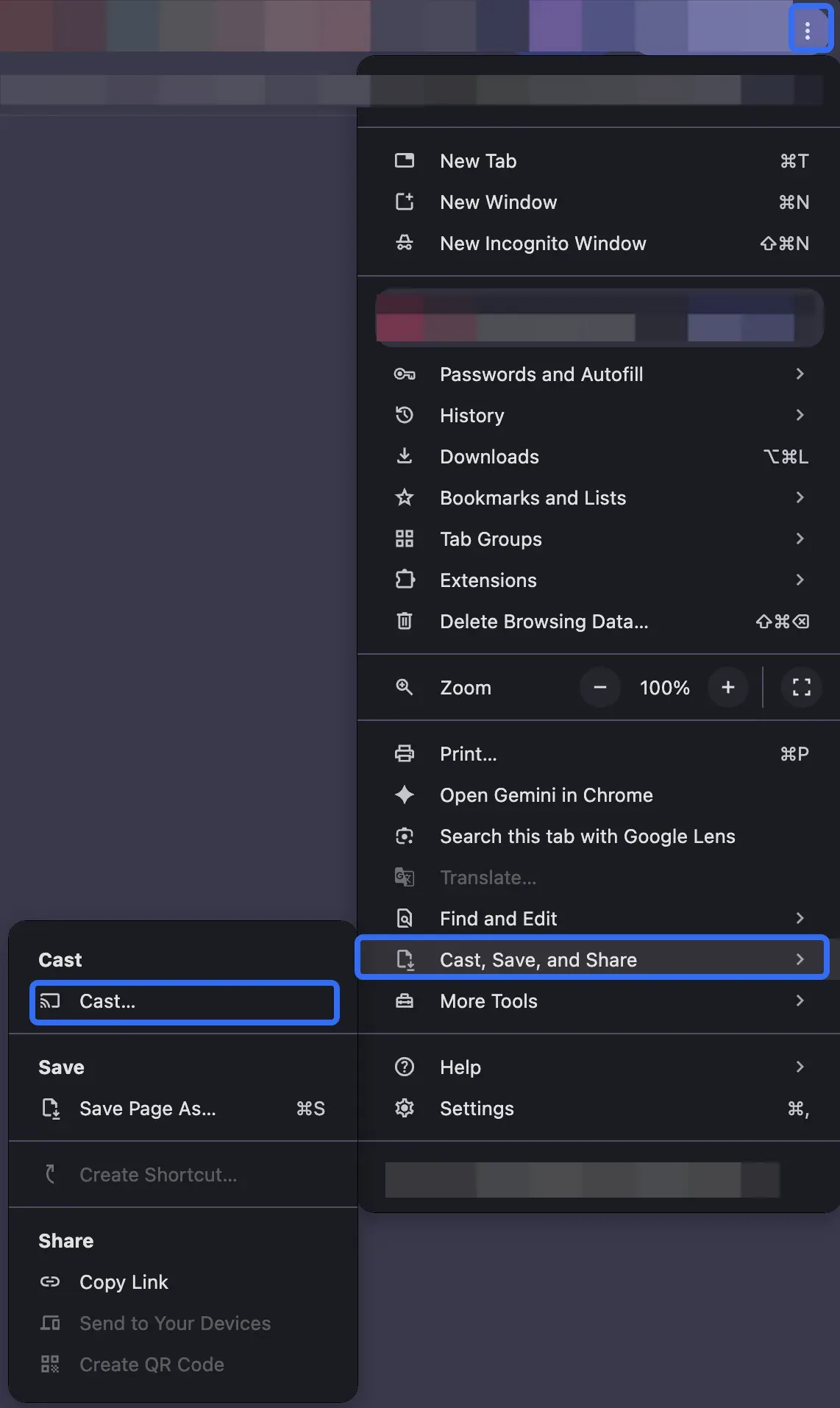
Step 5. Select your Vizio TV from the available device list.
Step 6. If the content is video-first, prefer the site's own Cast button when it appears instead of forcing a tab cast.
Cast-ready video sites usually perform better than ordinary tab casting.
When to Use Cast Screen Instead
If the Vizio TV appears in Chrome but a tab cast is too limited, switch the source to Cast screen instead of abandoning the wireless route entirely.
Cast screen is the better choice if you need the full browser window, want to show a presentation outside one Chrome tab, are using a site that is not Cast-enabled, or need to display something beyond a video player.
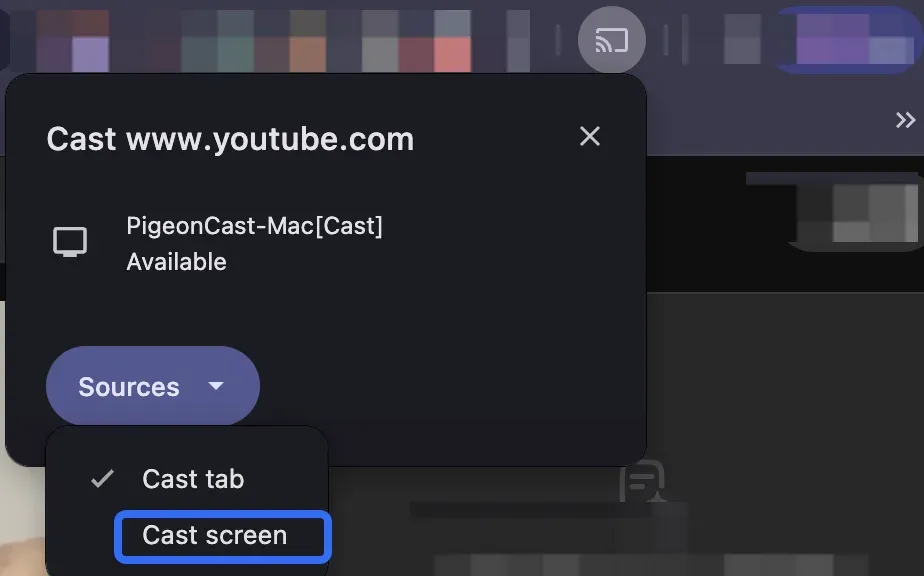
The tradeoff is that full-screen casting can feel less smooth than tab casting, and audio may behave differently too.
Method 2: Use AirPlay From MacBook to Vizio TV
If you are using a MacBook, AirPlay from Mac to TV is the best built-in Vizio option to try before you install anything else.
AirPlay is the right starting point if you are on a MacBook, the Vizio TV exposes AirPlay support, both devices are on the same Wi-Fi network, and you want a built-in wireless option instead of Chrome casting.
Step 1. Confirm that your Vizio TV has AirPlay enabled in its settings. If needed, use how to turn on AirPlay on Vizio TV.
Step 2. Connect the MacBook and Vizio TV to the same Wi-Fi network.
Step 3. On the MacBook, open Control Center and choose Screen Mirroring.
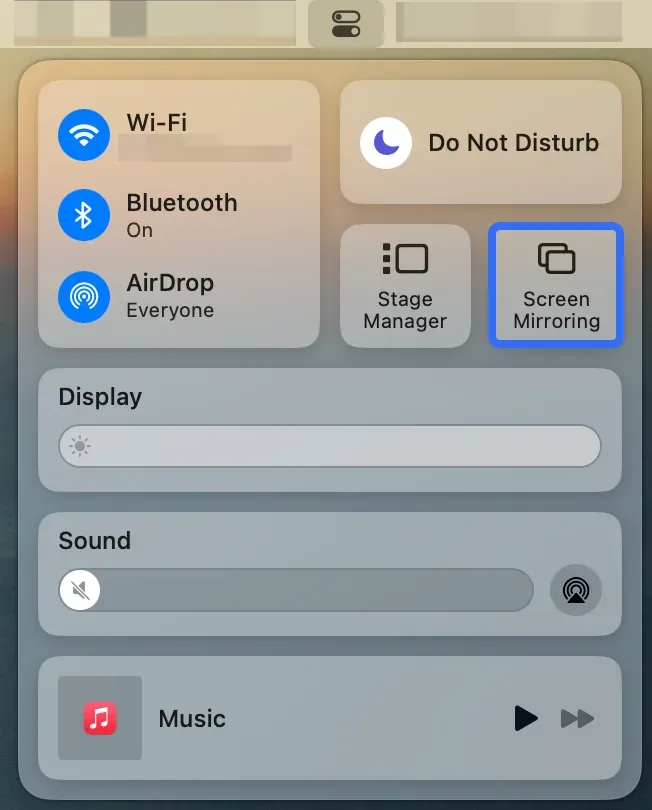
Step 4. Select the Vizio TV from the list.
Step 5. Enter the code shown on the TV if the TV requests one.
Step 6. Test readability, audio, and lag before relying on it for a meeting or long video session.
If the TV never appears, do not spend too long assuming the Mac is the problem. In many cases, the issue looks like Vizio TV AirPlay not working, disabled AirPlay settings, or blocked network discovery.
Method 3: Use PigeonCast for Full Screen or One App
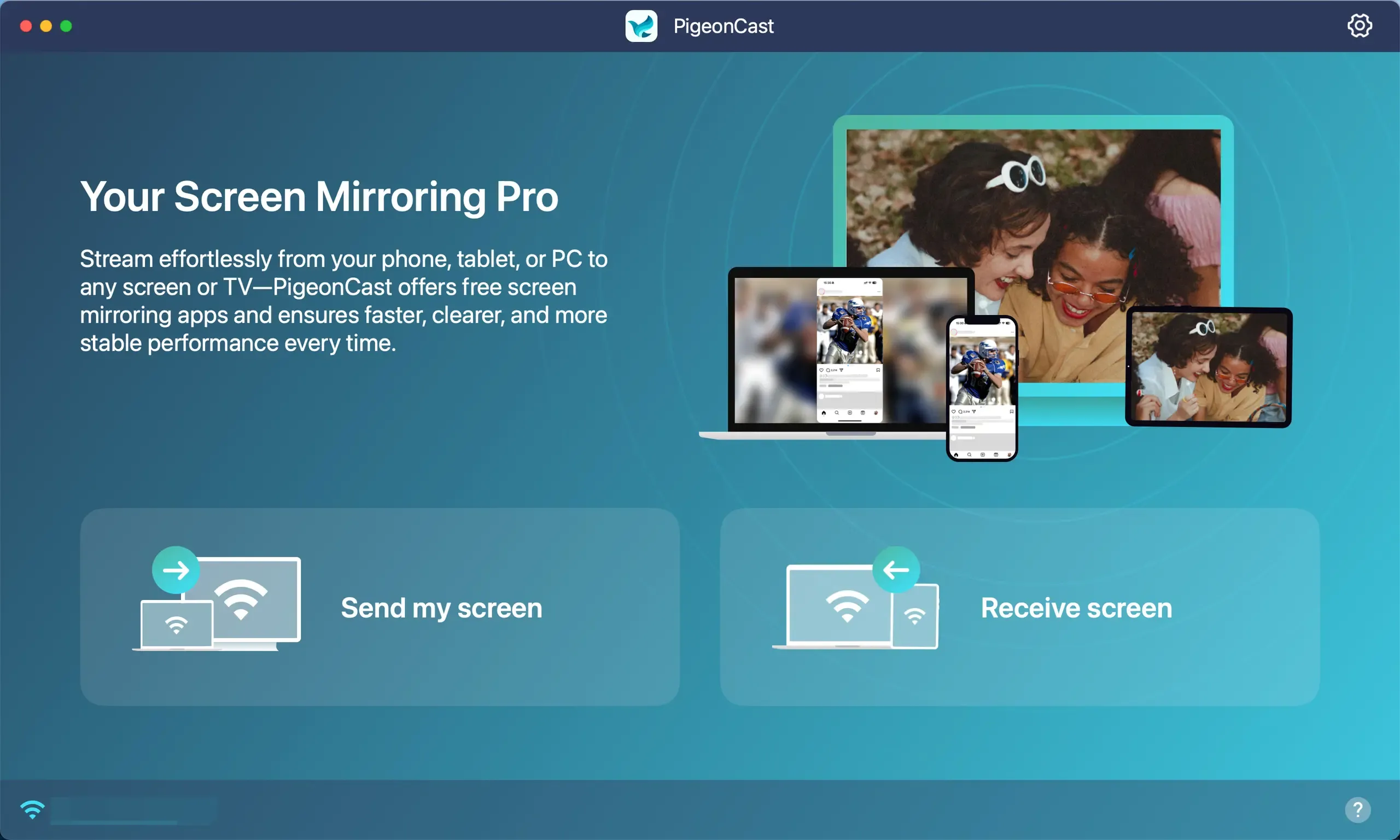
PigeonCast makes sense when you want more control over what shows on the TV or when Chrome or AirPlay keeps failing. It currently supports Windows screen mirroring and Mac screen mirroring, and on those laptops it can send either the full screen or a single app window.
This is more useful when the Vizio TV does not appear in Chrome or AirPlay consistently, when you want to send the full laptop screen or just one app, and when you want one simpler wireless option on Windows or macOS.
Step 1. Install PigeonCast on the laptop.


Overall Rating:



Step 2. Make sure the laptop and your Vizio TV are on the same local network.
Step 3. On the laptop, click Send my screen, then choose your Vizio TV from the list.
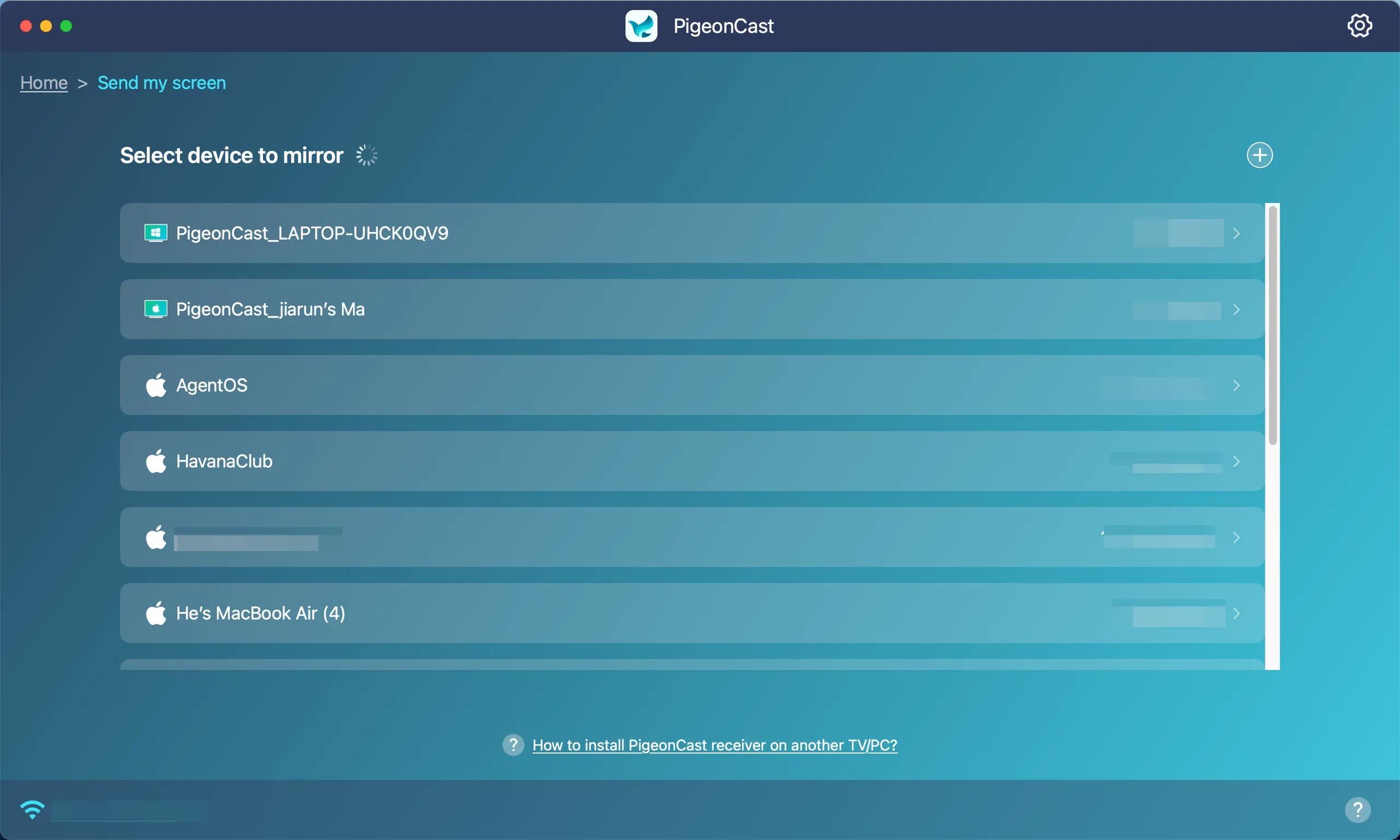
Step 4. Once the connection is ready, choose Mirror full screen or Mirror app window.
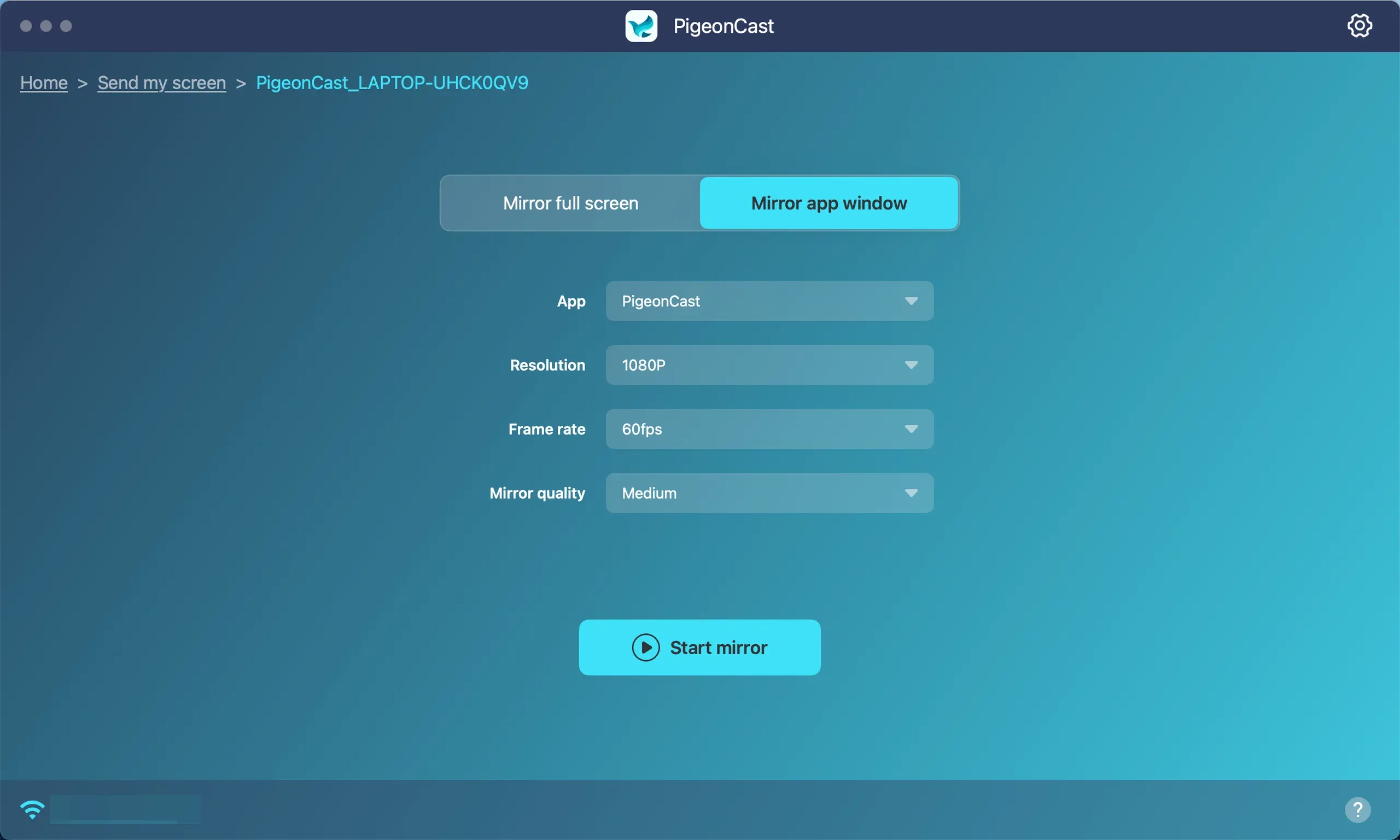
Note: If you want to cast one app, open that app first and do not minimize its window.
Step 5. Adjust the mirroring resolution and frame rate if needed, then click Start mirror.
This is not the first method to use when Chrome Cast or AirPlay already works. It is the better choice when you want dependable sharing on Windows or macOS and need something more flexible than sending only a browser tab.
Method 4: Use HDMI If You Just Need It to Work
If reliability matters more than convenience, HDMI screen mirroring is still the fastest way to stop troubleshooting and get the laptop onto the Vizio TV.
HDMI is the safer move when the Vizio TV does not show up wirelessly, the network is crowded or unstable, or when other attempts to connect laptop to TV without HDMI have failed.
Step 1. Connect the laptop to the Vizio TV with HDMI or the correct USB-C adapter.
Step 2. Switch the TV to the right HDMI input.
Step 3. Open the laptop's display settings and choose mirror or extend based on what you need.
Step 4. Check resolution, scaling, and audio output before you begin.
This is the least elegant method, but it is usually the most predictable.
Why Your Laptop Won't Cast to Vizio TV
Most Vizio laptop-casting problems fall into a small number of patterns. The faster you separate them, the faster you stop changing the wrong setting.
Vizio TV Not Showing in Chrome Cast
If the TV does not appear in Chrome, check these first:
- Confirm the laptop and TV are on the same Wi-Fi network.
- Turn off VPN on the laptop during testing.
- Restart Chrome, the TV, and the laptop.
- Update Chrome and the TV software.
- Retry with the TV awake on the home screen instead of in a deep idle state.
If the TV still does not appear, switch to AirPlay on Mac or a mirroring app instead of repeating the same failed Chrome steps.
MacBook AirPlay Not Appearing on Vizio TV
If a MacBook cannot see the Vizio TV in Screen Mirroring, the usual causes are:
AirPlay may be disabled on the TV, the TV model may not expose AirPlay the way you expected, the MacBook and TV may not be on the same network, or the network may be blocking local discovery.
The Devices Are on Different Wi-Fi Networks
This sounds obvious, but it is still one of the most common failures. A laptop on one SSID and a TV on guest Wi-Fi or a different mesh node setup may not see each other correctly even when both look "online."
When in doubt, reconnect both devices to the exact same visible network name and test again before you do anything more advanced.
The Tab Cast Works but Video or Audio Fails
This usually means the browser connection is working, but the way the content is being sent is not ideal.
Common reasons include a site that is not fully Cast-enabled, DRM or playback restrictions, a situation where direct media casting would work better than tab casting, or a case where screen casting is being used even though tab casting would handle audio more cleanly.
If there is a Cast button inside the site's player, use that first. If the site still behaves badly, switch to full-screen mirroring or HDMI depending on how important stability is.
Final Words
One useful thing to keep in mind is that a successful laptop-to-TV connection is not only about the casting method. It is also shaped by the kind of content you are trying to show. A browser tab, a protected streaming video, a PowerPoint deck, and a single app window do not all behave the same way once they reach the TV, even if the connection itself looks successful at first.
That is also why people who solve the connection problem first often end up asking a different second question: not "How do I connect?" but "What kind of experience do I actually want on the TV?" For some readers, that means keeping notifications and extra tabs off the screen. For others, it means making sure audio stays in sync during a presentation, or avoiding protected video services that behave unpredictably once mirrored.
In other words, getting a laptop onto a Vizio TV is only the first layer. The more useful long-term habit is learning to match the content to the display method. Once you start thinking that way, setup becomes less frustrating, and it becomes much easier to choose between a quick browser cast, a full-screen share, a single-app share, or a wired connection before problems start.
Vizio Cast From Laptop FAQ
Can I cast from a Windows laptop to a Vizio TV?
Yes. In most cases, the first method to try is Chrome casting, especially if the Vizio TV appears in Chrome's cast list. If you need the whole desktop instead of one tab, switch from tab casting to screen casting or use a mirroring app.
Can I cast from MacBook to Vizio TV without HDMI?
Yes, sometimes. If the Vizio TV supports AirPlay and both devices are on the same Wi-Fi network, a MacBook can often connect wirelessly through Screen Mirroring. If AirPlay does not appear reliably, a mirroring app is the cleaner fallback.
What is the easiest way to cast browser content from a laptop to Vizio TV?
Usually, it is Chrome tab casting. It is the simplest method when the TV already appears as a cast target and you only need to show one tab, a dashboard, or a supported web video.
Can I cast local files from a laptop to a Vizio TV?
Sometimes, but it depends on how you send them. If the local file opens in Chrome and the TV appears in the cast list, a tab cast may be enough for simple playback. If the file player behaves badly or you need full desktop control, screen mirroring or HDMI is usually better.
Is HDMI better than wireless casting for presentations?
Usually, yes. If you are giving a presentation and cannot afford delays, missing audio, or device discovery problems, HDMI is the safer choice. Wireless casting is more convenient, but wired video is still more predictable when the session has to run smoothly.
Mia Clarke is a technology editor specializing in screen mirroring and casting solutions across multiple platforms. Mia provides clear, practical guides and in-depth insights to help users seamlessly connect their devices. Passionate about enhancing digital experiences, Mia is dedicated to keeping readers updated on the latest trends and tools in cross-platform screen sharing. Whether you’re looking to mirror your smartphone, laptop, or smart TV, Mia’s content delivers reliable, user-friendly advice to simplify your tech setup.