
When people search for how to cast mobile to laptop windows 11, they usually want to show a phone screen on a bigger display for a class, a meeting, a demo, or simple viewing. The confusing part is that a Windows 11 laptop is not the same kind of receiver as a TV. Some phones can connect to it more easily than others, and some methods work only with certain devices.
That is why the first question is not just "Can my phone cast?" The real question is whether your Windows 11 laptop can receive the screen in a way your phone supports. For Android, Windows may be able to do this with its own wireless display feature. For iPhone, you will usually need an app that can handle the connection on the Windows side.
Quick Answer for Screen Mirroring Mobile to Windows 11
If you use Android, you may be able to cast your phone to a Windows 11 laptop with the laptop's built-in wireless display feature. This works best when the laptop supports it properly and both devices are on the same Wi-Fi network.
If you use iPhone, Windows 11 does not offer the same built-in option that Android can use. In that case, an app like PigeonCast is usually the simpler choice. It also helps when the Android built-in option is missing, unstable, or too limited for what you need.
Method 1: Cast Android to Windows 11 with the Built-In Option
This method is only for Android phones. It depends on your Windows 11 laptop being able to receive a wireless display connection.
Before you start, check these basics:
- your Android phone and laptop are on the same Wi-Fi
- Wi-Fi is turned on for both devices
- the laptop stays awake during setup
- VPN is off for the first test
Here are the basic steps to mirror your Android phone to Windows 11:
Step 1: Prepare the Windows 11 laptop.
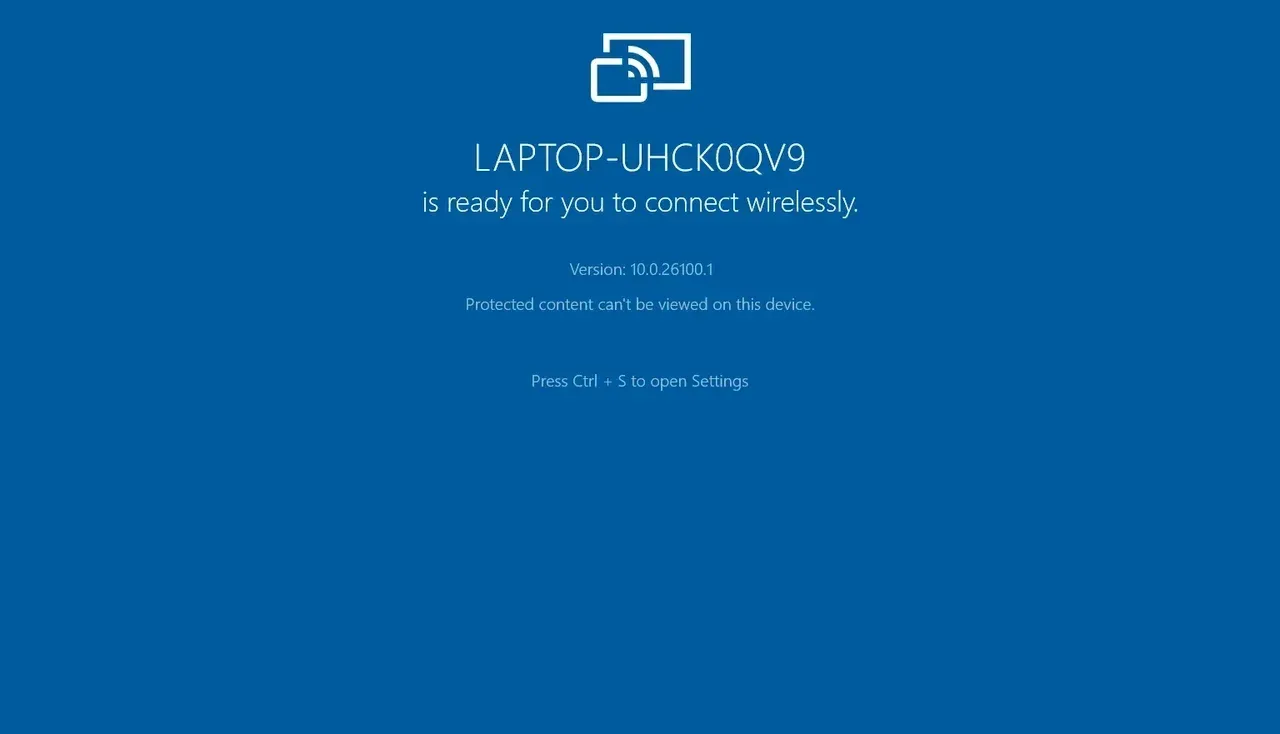
On the Windows 11 laptop, open Settings and look for the option that lets the PC receive a wireless display connection. On some laptops, you may need to add or enable the Wireless Display feature first.
Once that is ready, open the receive screen option on the laptop and leave it on the screen. Your laptop needs to stay visible while the Android phone looks for it.
Step 2: Open casting on the Android phone.
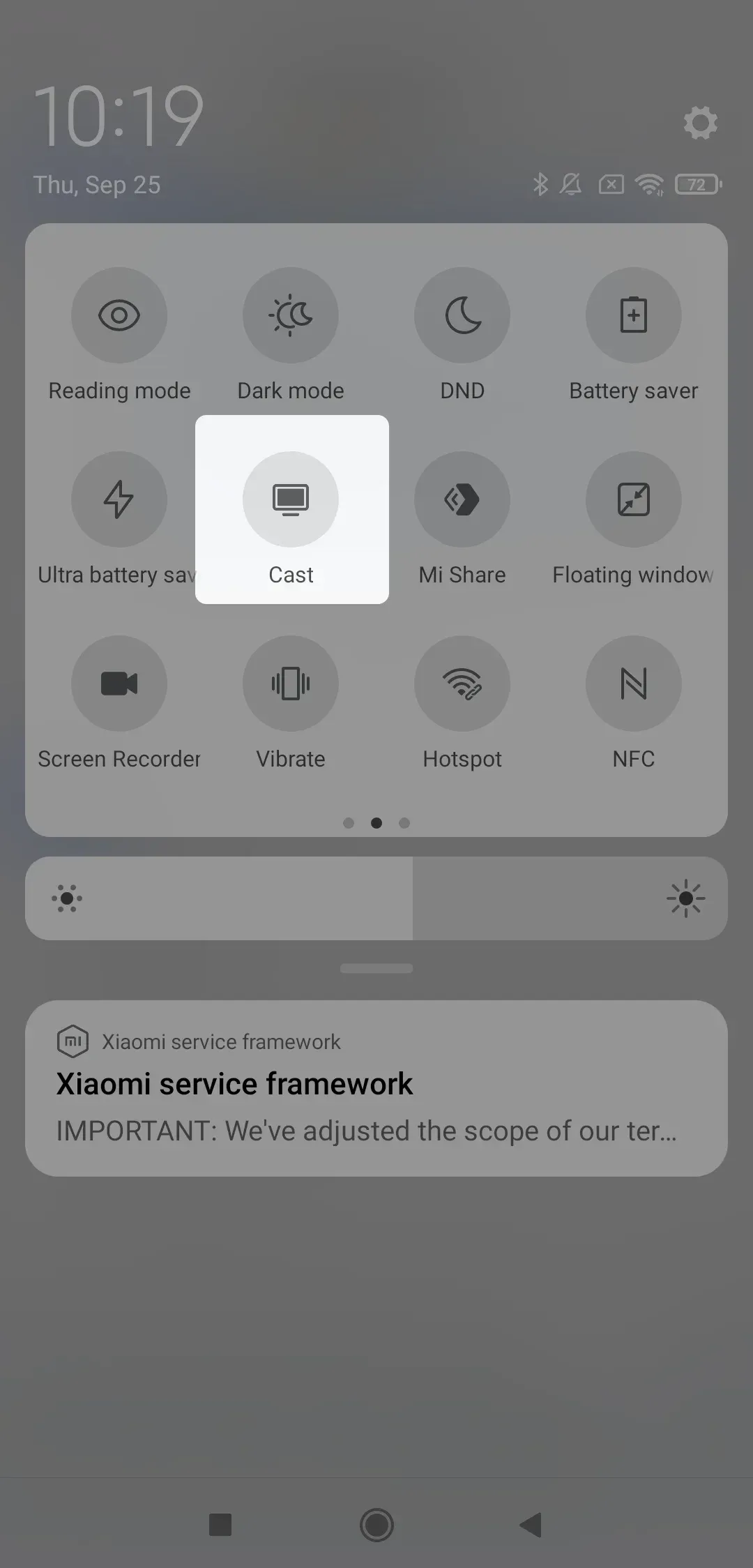
On your Android phone, open the screen casting menu. The name varies by brand. You may see labels such as:
- Cast
- Screen Cast
- Smart View
- Wireless Display
- Screencast
Wait for the phone to search for available devices.
Step 3: Choose the Windows 11 laptop.
When the laptop name appears on your phone, tap it. The laptop may ask you to accept the connection. Approve it, then wait a moment for the phone screen to appear on the laptop.
If it connects, you can usually use this method for:
- showing apps on a bigger screen
- giving a quick presentation
- sharing photos or simple videos
- checking a phone screen from your desk
Method 2: Use PigeonCast for Android/iPhone to Windows
If you want one method that covers both Android and iPhone, PigeonCast for Windows is the easier choice to start with. It makes more sense when the Windows built-in option is unavailable, when Android casting keeps failing, or when you want to mirror an iPhone to a Windows 11 laptop.
This method is useful when:
- you use iPhone and Windows together
- your Android phone does not connect well to the built-in Windows option
- you want one app for more than one device type
- you want a simpler setup for repeat use
If you want to mirror an iPhone to a Windows laptop, PigeonCast makes the process straightforward.
Step 1: Install PigeonCast on the Windows 11 laptop.
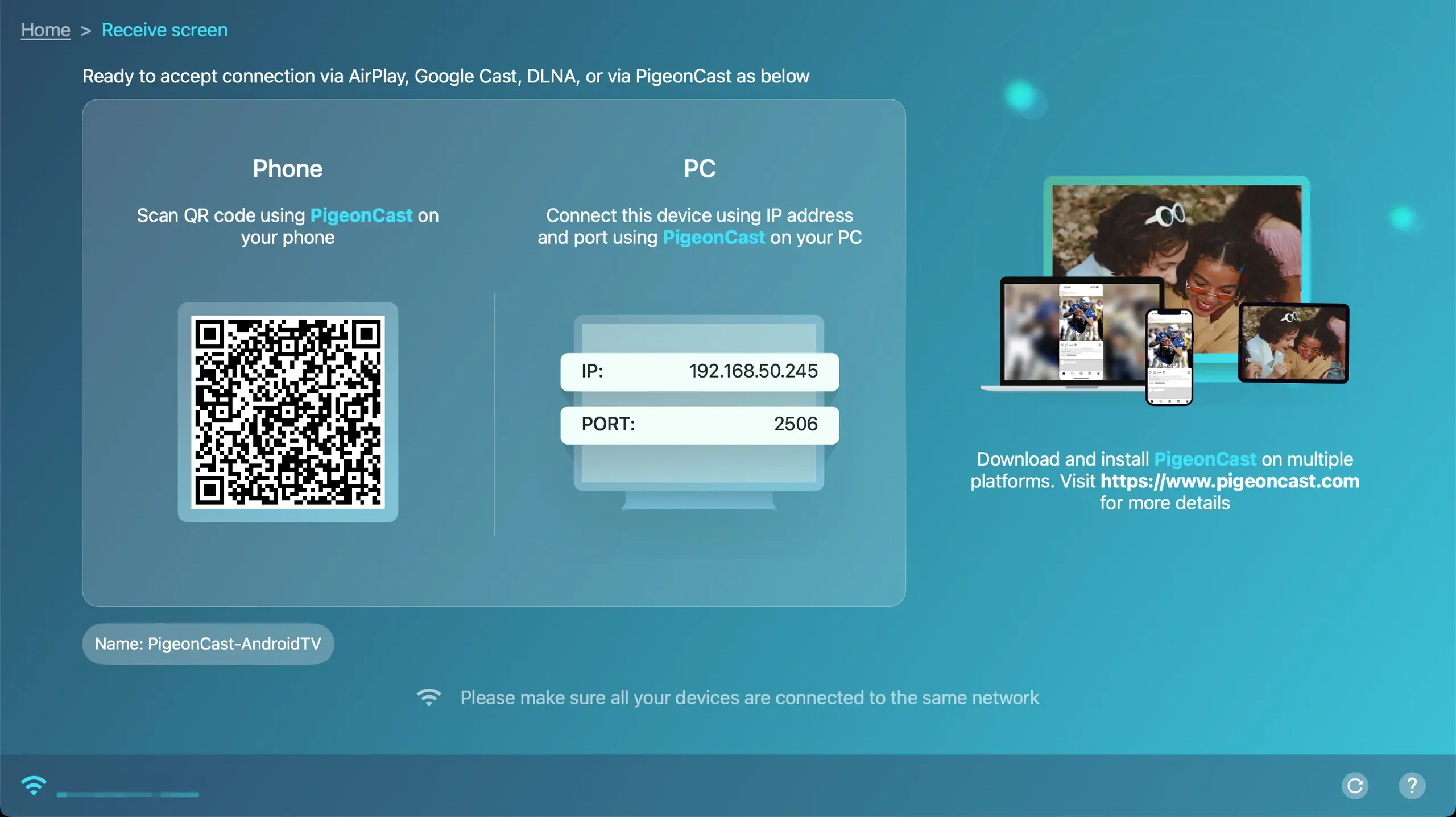
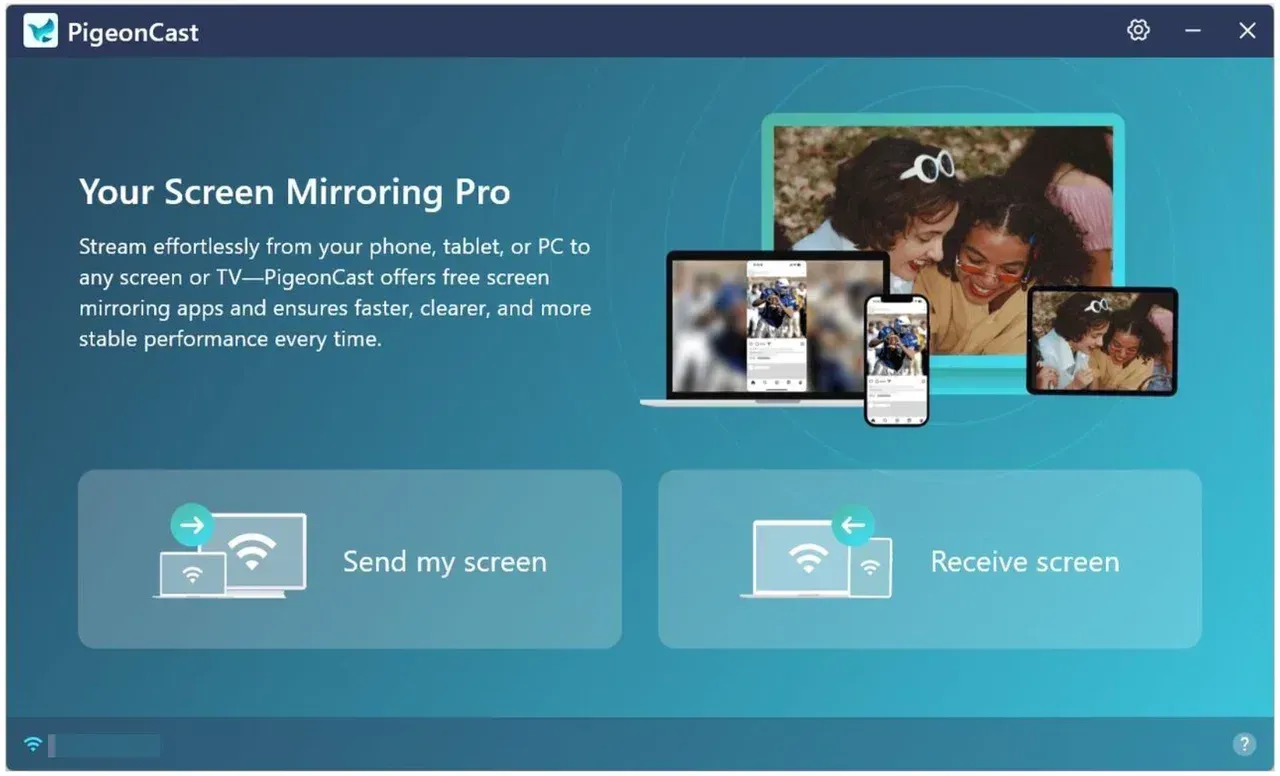
Install PigeonCast on the laptop that will receive the phone screen. Open it and choose the Receive screen option so the laptop is ready to accept the connection. Keep the app open during setup.


Overall Rating:


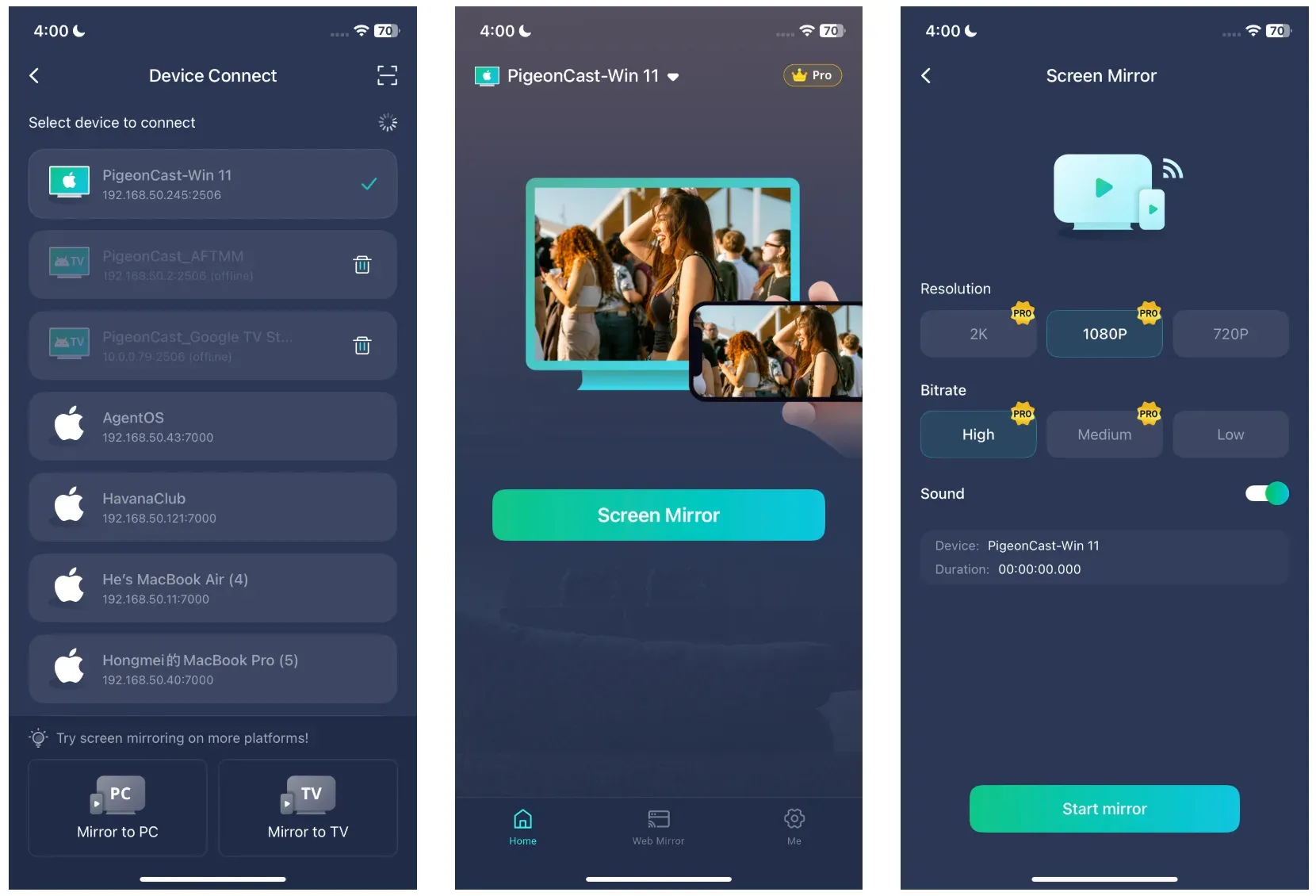
Step 2: Connect the phone and laptop.
Make sure the phone and the Windows 11 laptop are on the same Wi-Fi network. Then open PigeonCast on the phone.
- If you use Android, install the Android version and look for your Windows laptop in the device list.
- If you use iPhone, install the iPhone version and connect to the Windows laptop through the app's pairing steps.
Overall Rating:


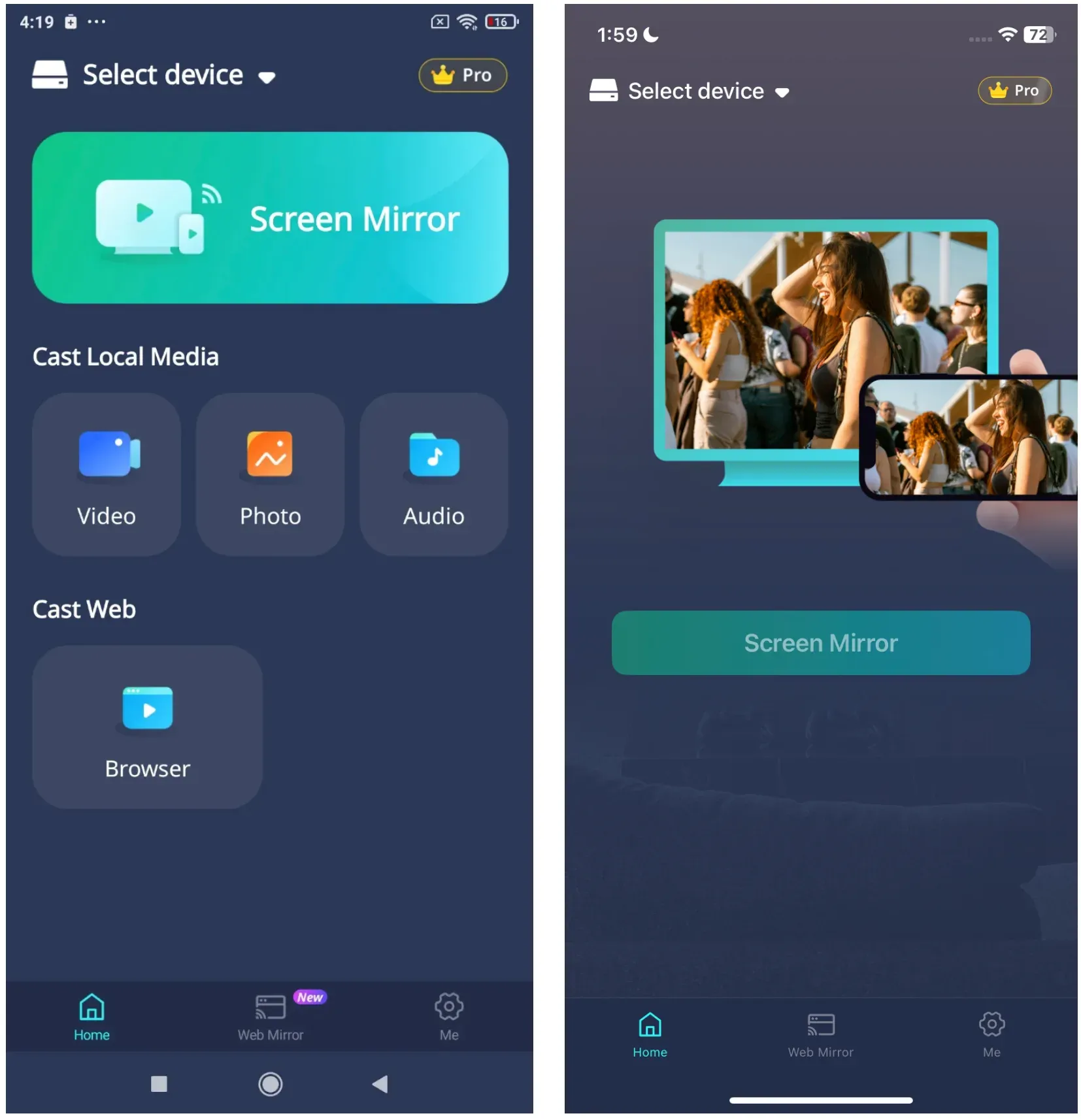
Step 3: Start mirroring from mobile to Windows 11 laptop.
Select the Windows laptop from the phone, confirm the connection, and start mirroring. Once the session begins, your phone screen should show on the laptop.
This method is often the better choice when:
- you need iPhone to Windows support
- you switch between Android and iPhone
- you do not want to depend on laptop-specific wireless display support
- you want a method you can repeat without digging through Windows settings each time
If you want to learn more ways to show a phone screen on a computer, this guide on casting a phone to a browser is also relevant.
Closing Words
Casting a mobile phone to a Windows 11 laptop is possible, but the experience depends heavily on the phone type and what your laptop actually supports.
For Android to Windows 11 screen mirroring, the built-in Windows wireless display feature may be enough for quick presentations, casual viewing, or temporary screen sharing. But support varies between laptops, and setup can sometimes feel inconsistent depending on the device brand and Windows configuration.
For iPhone to Windows 11 screen mirroring, however, the situation is different. Windows 11 does not natively handle iPhone screen mirroring the way some TVs and Apple devices do. That is why many users end up relying on a dedicated solution like PigeonCast instead of troubleshooting Windows settings every time.
In practice, the best method comes down to what you need most:
- use the built-in Windows option if you only need occasional Android casting
- use PigeonCast if you want a more repeatable setup across both Android and iPhone
- choose a dedicated app if reliability matters more than experimenting with laptop compatibility
The important thing is understanding that Windows 11 is not automatically a universal casting receiver. Once you know that difference, choosing the right method becomes much easier.
How to Cast Mobile to Laptop on Windows 11 FAQ
Can I cast my phone to a Windows 11 laptop?
Yes, but the method depends on the phone type and whether the laptop can receive wireless display connections.
- Android phones may work with the built-in Windows 11 wireless display feature on supported laptops.
- iPhones usually require a third-party app because Windows 11 does not support native AirPlay receiving.
For users who want one method for both Android and iPhone, apps like PigeonCast are often the simpler option.
Why can't my Android phone find my Windows 11 laptop?
This usually happens because the Windows laptop is not configured to receive wireless display connections.
Common causes include:
- the Wireless Display feature is not installed
- the laptop does not support Miracast receiving
- both devices are not on the same Wi-Fi network
- VPN or firewall settings are blocking discovery
- the laptop is in sleep or battery-saving mode
If the built-in Windows option keeps failing, a dedicated mirroring app is often more reliable.
Can I cast iPhone to Windows 11 without extra software?
In most cases, no. Windows 11 does not natively support AirPlay receiving the way Apple devices or some smart TVs do. That means iPhones usually need third-party software to mirror their screen to a Windows laptop. Apps like PigeonCast are commonly used for this because they simplify the connection process between iPhone and Windows.
Does Windows 11 support AirPlay?
No. Windows 11 does not include native AirPlay receiver support. An iPhone may detect Apple TVs, Macs, or compatible smart TVs automatically, but Windows laptops usually need additional software before they can receive an AirPlay-style connection.
Does Windows 11 support Miracast?
Some Windows 11 laptops support Miracast receiving, but not all of them do. Even when Windows 11 is installed, the laptop hardware must still support wireless display features. That is why two Windows 11 laptops may behave differently when trying to receive Android casting.
Can I mirror my phone to a laptop without Wi-Fi?
Sometimes, yes, but it depends on the method.
Most wireless casting methods require both devices to be on the same Wi-Fi network. However, some apps may support:
- USB-based screen mirroring
- direct hotspot connections
- local peer-to-peer connections
For standard Windows 11 wireless display casting, Wi-Fi is usually required.
Can a Windows 11 laptop work like a Chromecast receiver?
Not exactly. A Windows 11 laptop can sometimes receive wireless display connections from Android phones, but it is not a true Chromecast receiver by default. Chromecast support depends on the app, protocol, and whether additional software is installed.
Is PigeonCast only for iPhone to Windows?
No. PigeonCast also supports Android to Windows screen mirroring. Many users choose it because it provides one consistent method across both Android and iPhone instead of depending entirely on Windows built-in wireless display support.
Mia Clarke is a technology editor specializing in screen mirroring and casting solutions across multiple platforms. Mia provides clear, practical guides and in-depth insights to help users seamlessly connect their devices. Passionate about enhancing digital experiences, Mia is dedicated to keeping readers updated on the latest trends and tools in cross-platform screen sharing. Whether you’re looking to mirror your smartphone, laptop, or smart TV, Mia’s content delivers reliable, user-friendly advice to simplify your tech setup.