

Screen mirroring and casting can both put content from a phone, tablet, or computer onto a larger display, but they do not work in the same way.
Screen mirroring duplicates the full screen of the sending device. Casting usually sends a specific video, song, photo, or browser tab to the receiver without continuously displaying the entire device interface.
Understanding screen mirroring vs casting can help you choose the right method based on what you want to show, how playback should work, and whether privacy, latency, or device compatibility matters most.
Quick Answer: Screen Mirroring vs Casting
The simplest way to compare screen mirroring vs casting is to look at what each method sends:
- Screen mirroring shows everything happening on the source device.
- Casting usually sends selected content to the receiving device for playback.
For example, mirroring an iPhone displays the entire iPhone screen on the TV, including app changes and notifications. Casting a YouTube video normally shows only the video while the phone acts as a remote control.
| Comparison | Screen mirroring | Casting |
|---|---|---|
| What appears on the TV | The full device screen | Selected media, a tab, or a supported file |
| Best for | Presentations, apps, websites, games | Videos, music, photos |
| Sender involvement | Stays active throughout the session | May act mainly as a controller |
| Notifications | May appear on the TV | Usually remain hidden |
| App support required | Not always | Often required |
| Typical latency | More noticeable | Less relevant for media playback |
| Battery use | Usually higher | Often lower during long sessions |
Neither method is universally better. The right option depends on whether you need to show the device interface or only the content itself.
What Is Screen Mirroring?
Screen mirroring creates a live copy of one device screen on another display.
When you open an app, scroll through a website, change tabs, rotate the phone, or move the cursor, the receiving screen follows those actions. The source device remains responsible for running the app and producing the visual output.
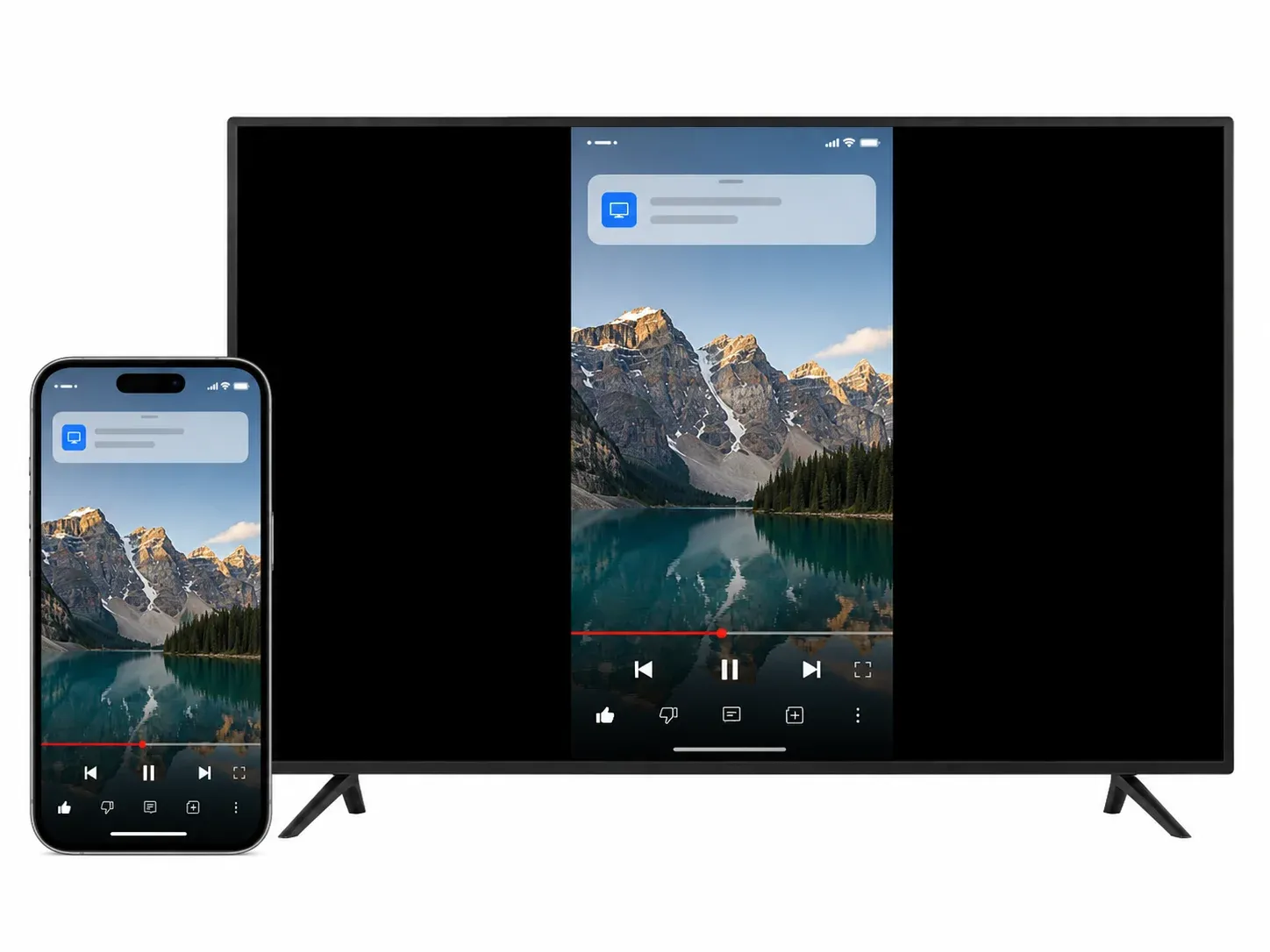
This makes screen mirroring useful when the steps happening on the device are part of what people need to see.
When screen mirroring works best
Screen mirroring is generally the better choice for:
- displaying presentations, documents, or dashboards
- demonstrating how an app works
- showing a website or unsupported streaming page
- sharing an entire computer desktop
- viewing mobile games on a larger screen
- walking someone through menus or settings
- displaying content from an app without a Cast button
The main advantage is flexibility. As long as the sender and receiver support a compatible mirroring connection, the content does not always need built-in casting support.
The tradeoff is that the sender must continuously transmit the screen. This can increase battery use, network demand, and visible latency.
What Is Casting?
Casting is usually a content-focused connection.
Instead of duplicating the entire sender screen, the sender selects a video, song, photo, browser tab, or supported file and sends it to the receiving device. In many casting sessions, the receiver handles playback more independently after the connection begins.
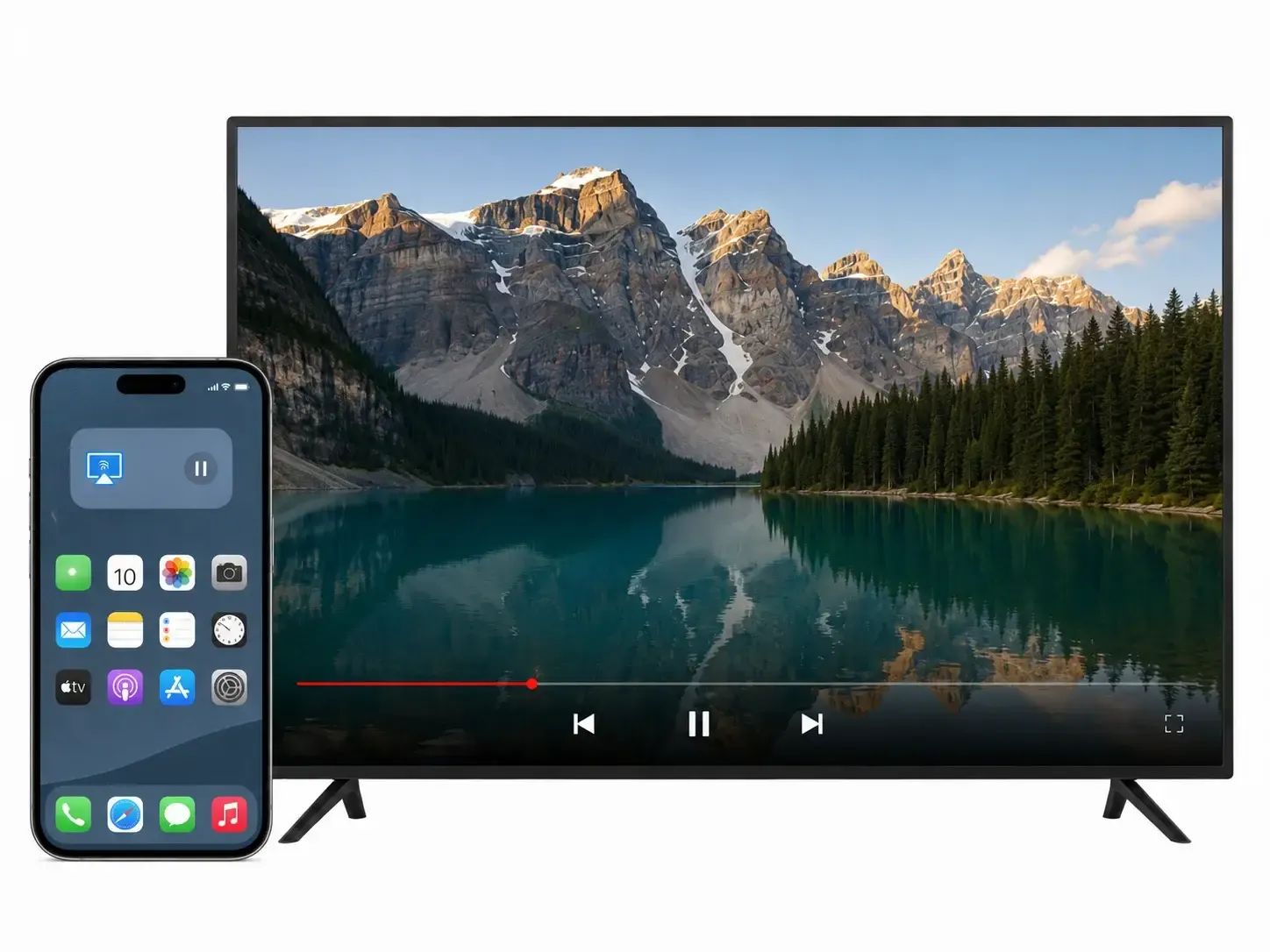
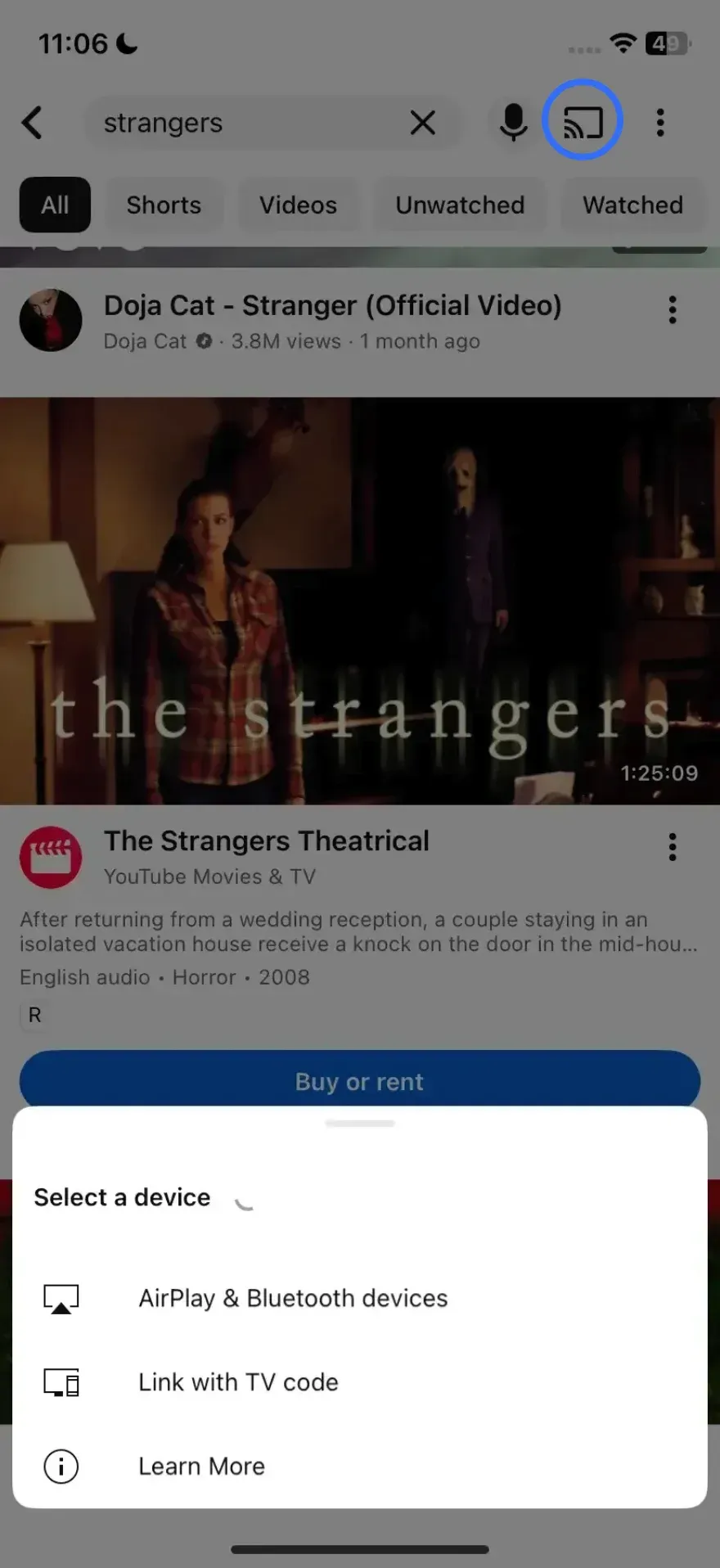
A common example is tapping the Cast icon inside YouTube. The video plays on the TV, while the phone can be used to pause, seek, change the volume, or add another video to the queue.
When casting works best
Casting is generally better for:
- watching videos from supported streaming apps
- playing music on a TV or speaker
- displaying selected photos
- playing compatible local media files
- watching long-form content without mirroring the phone interface
- keeping notifications and unrelated apps off the TV
Because the receiving device is focused on the selected content, casting often feels more natural for movies, playlists, and other media-first sessions.
Its main limitation is compatibility. The app, sending device, and receiver must support a compatible casting method. When one part of that chain does not match, the Cast button may be missing or the connection may not work as expected.
Screen Mirroring vs Casting: Key Differences
Is casting the same as screen mirroring? No. Although both methods can display content on a larger screen, casting vs mirroring differs in how content is transferred, what appears on the receiving screen, and how the source device is used during playback.
What appears on the receiving screen
Screen mirroring displays the complete sender interface. App menus, browser tabs, message banners, control panels, and device rotation may all appear on the larger screen.
Casting normally displays only the selected content. The TV does not need to show every action performed on the phone or computer.
This makes mirroring better for demonstrating a process, while casting is better when the process used to start playback is not important.
How playback is handled
During screen mirroring, the source device continues to render and transmit the visible screen. The receiver reproduces that live output.
During a typical casting session, the sender initiates playback and provides instructions, while the receiver handles more of the media playback itself.
The exact behavior depends on the platform. Casting a Chrome tab, for example, is different from sending a YouTube video through Google Cast. One transmits the contents of a browser tab, while the other can hand supported media playback to the receiver.
Video quality and stability
Casting usually provides the cleaner experience for supported video services because the receiver can play the media without reproducing every movement on the sender screen.
This is particularly helpful for:
- long movies and TV episodes
- music videos
- high-resolution streaming
- extended playlists
- background playback
Screen mirroring can also produce clear video, but its performance depends more heavily on the sender, Wi-Fi conditions, encoding, and receiver capabilities. Network congestion or background activity may cause resolution changes, frame drops, or temporary lag.
For supported streaming apps, casting is usually preferable. For content that cannot be handed off directly, mirroring provides broader access.
Latency and interaction
Screen mirroring requires the sender to capture, encode, transmit, and display live screen activity. A small delay is therefore normal.
For slides, browsing, documents, and casual demonstrations, this delay may not matter. It becomes more noticeable during:
- fast mobile games
- drawing or handwriting
- live camera previews
- precise cursor movement
- other time-sensitive interactions
Casting is not necessarily designed for instant interaction either, but latency is less distracting when the receiver is playing a video or song independently.
For gaming, mirroring may be the only suitable wireless method, although a wired connection may still provide better responsiveness when low latency is essential.
Audio behavior
Casting is normally well suited to media audio because the receiver plays the selected video or music directly.
Screen mirroring may also carry audio, but support varies by device, operating system, receiver, and mirroring method. Some combinations mirror the picture correctly but require additional settings or a different connection method for sound.
For music-only playback, casting is generally the more direct option. Mirroring is more appropriate when the sound belongs to an app, presentation, game, or full-screen demonstration.
Battery and network use
Screen mirroring keeps the sending device actively involved throughout the session. It must continue running the source content and transmitting the screen, which can increase battery drain and network usage.
Casting can reduce this workload when the receiver takes over playback. The phone or computer may remain available for playback controls without continuously transmitting the full interface.
For a short presentation, the difference may be insignificant. For a two-hour movie or a long playlist, casting is usually more efficient.
Privacy and notifications
Privacy is one of the most important differences between screen mirroring and casting.
When mirroring, anything that appears on the source screen may also appear on the TV, including message previews, email notifications, search suggestions, recently opened apps, account names, browser history, and incoming call banners.
Casting usually shows only the selected content, making it safer when sharing a screen in front of family members, students, clients, or coworkers.
Before starting a mirroring session, it is a good idea to enable Do Not Disturb, close unrelated apps, and remove sensitive information from the screen.
App and device compatibility
Casting usually requires support from several parts of the setup:
- The app must support a compatible casting method.
- The sender must be able to initiate that method.
- The receiver must be able to accept it.
When all three align, casting is simple and polished. When they do not, the Cast icon may be unavailable even though both devices are connected to the same network.
Screen mirroring is less dependent on individual app support. It can display apps, websites, and files that do not offer a native casting option, provided the sender and receiver support a common mirroring method.
That makes casting more refined within supported ecosystems and mirroring more flexible across varied content.
Screen Mirroring vs Casting: Which Should You Use?
Start by asking one question:
Do you need people to see the content, or do they need to see what is happening on your device?
Choose casting when the selected media is the focus. Choose screen mirroring when the full device experience matters.
| Content or activity | Recommended method | Why |
|---|---|---|
| Netflix, YouTube, or another supported streaming app | Casting | Cleaner media playback |
| Music or playlists | Casting | Receiver handles audio playback |
| Selected photos | Casting | Keeps the rest of the device private |
| Presentation slides | Screen mirroring | Shows slide changes and presenter actions |
| PDF or document review | Screen mirroring | Displays scrolling and navigation |
| Website demonstration | Screen mirroring | Shows the complete browser session |
| Mobile app demonstration | Screen mirroring | Displays menus, taps, and app changes |
| Unsupported video website | Screen mirroring | Does not require a native Cast button |
| Mobile game | Screen mirroring | Displays the full interactive screen |
| Local video file | Usually casting | Better when the receiver supports the format |
| Full computer desktop | Screen mirroring | Shows multiple apps and windows |
Choose casting first when:
- the app already provides a Cast or media AirPlay button
- you are watching a long video
- you want to continue using the phone without showing its screen
- battery efficiency matters
- notifications must remain private
- the receiver can play the media directly
Choose screen mirroring first when:
- there is no Cast button
- you need to show an entire app or desktop
- viewers need to follow your actions
- the content is inside a browser, document, or unsupported app
- the sender and receiver use different ecosystems
- direct media casting is unavailable or unreliable
In many homes and workplaces, both methods are useful. Casting handles supported entertainment, while mirroring covers presentations, apps, websites, and less standardized device combinations.
Common Problems When Casting or Mirroring
Although both methods are usually wireless, their connection problems often have different causes.
The Cast button is missing
A missing Cast button usually indicates that the app does not support the receiver, the devices are not discoverable on the same network, or the required casting protocol is unavailable.
Check that:
- both devices are connected to the same Wi-Fi network
- the receiver is powered on and ready
- the app supports the chosen receiver
- local network permission is enabled
- VPN or guest network isolation is not blocking discovery
- the app and receiver software are up to date
When an app does not support casting, screen mirroring may still work.
The mirrored screen is delayed
Some screen mirroring delay is expected because the sender must transmit live screen activity.
To reduce lag:
- move both devices closer to the router
- use a stable 5 GHz or 6 GHz network when supported
- stop large downloads or uploads
- close unnecessary background apps
- reduce the mirroring resolution or frame rate
- restart the sender, receiver, and router
- use Ethernet on the receiving device when possible
For tasks that require immediate response, a wired HDMI connection may be more reliable.
Video appears black during mirroring
Some subscription streaming services protect video with digital rights management. The app interface, controls, or subtitles may appear, while the video area remains black.
This is not always a connection failure. The service may block full-screen capture or mirroring.
Use the app's native Cast or AirPlay option when available. It is more likely to provide an authorized media playback connection.
Mirroring works but there is no sound
Audio support can differ between mirroring methods. Confirm that the receiver supports audio transmission from the sender and that the correct output device is selected.
Also check:
- the sender and TV volume
- Bluetooth audio connections
- the computer's sound output settings
- app-specific audio restrictions
- whether the chosen mirroring mode supports sound
Switching to media casting may solve the problem when the main goal is video or music playback.
How PigeonCast Supports Mirroring and Casting
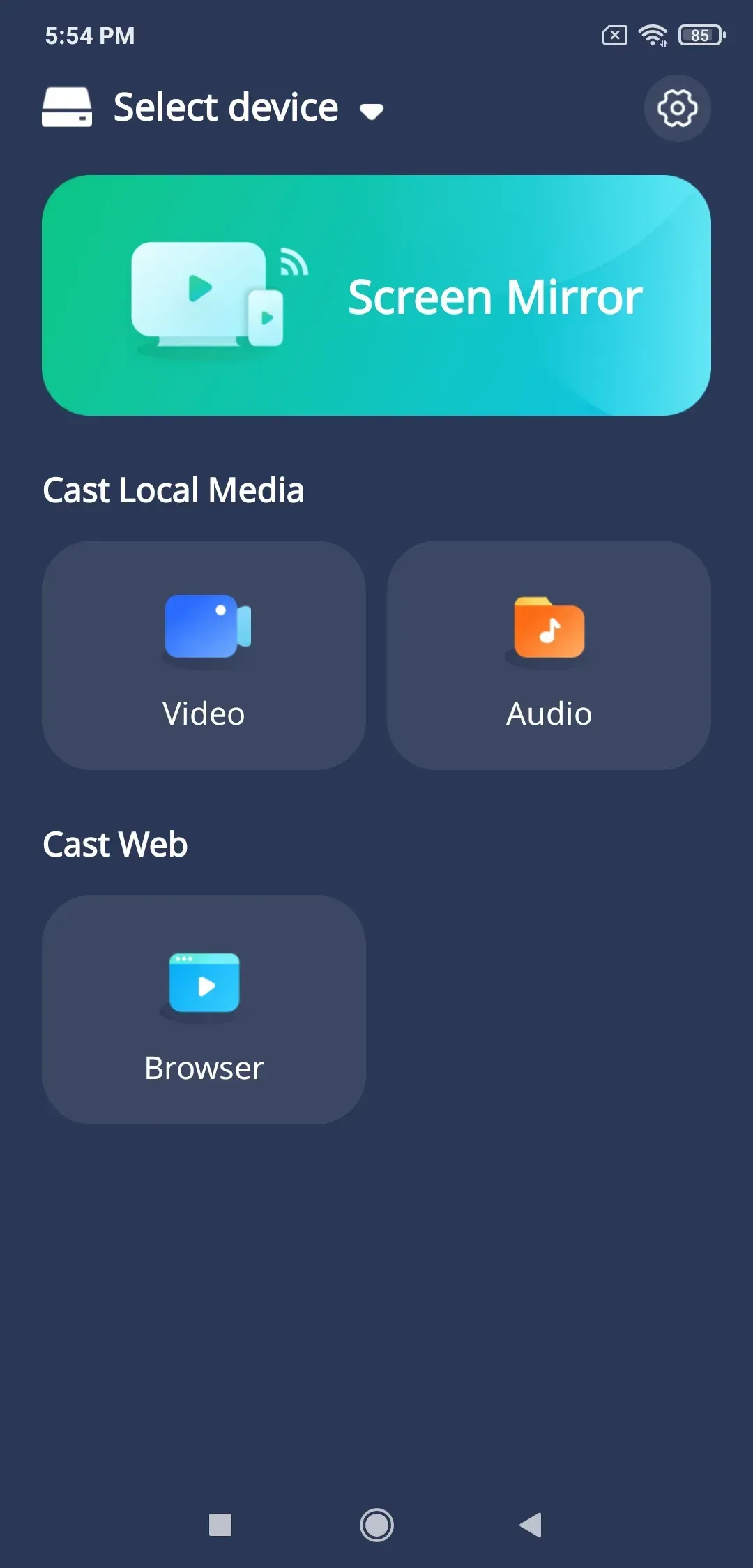
PigeonCast is a screen mirroring and casting app that connects phones, computers, TVs, and browsers. You can mirror an entire device screen when you need to show apps, websites, documents, or presentations, or cast a video or song when you only want to play selected media on the receiving device.
How to Mirror a Screen with PigeonCast
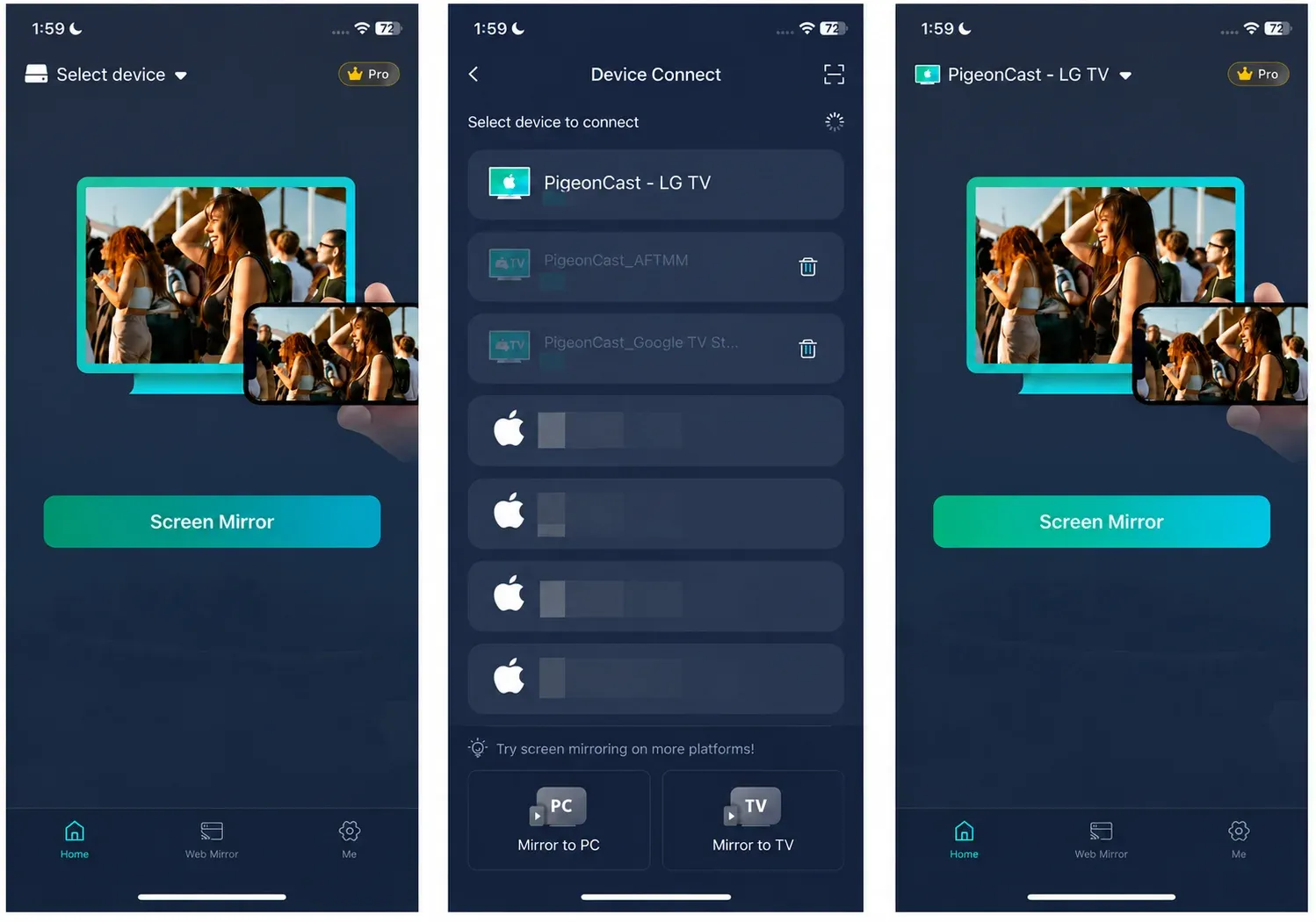
- Install PigeonCast on the sending device.
- Install and open PigeonCast on the receiving device.
- Connect both devices to the same Wi-Fi network.
- Select the receiver or scan the QR code.
- Choose the preferred resolution and frame rate when available.
- Start mirroring.
How to Cast a Video or Song with PigeonCast
- Open PigeonCast on the sending and receiving devices.
- Make sure both devices are connected to the same Wi-Fi network.
- Choose the receiving device from the available device list.
- Select the video, music, or other supported media you want to play on your Android phone or tablet.
- Start casting and control playback from the sending device.


Overall Rating:



Conclusion
The difference between screen mirroring and casting comes down to what is being shared.
Screen mirroring duplicates the complete device screen, making it suitable for presentations, apps, websites, documents, games, and demonstrations. Casting focuses on selected media, making it the better option for supported videos, music, photos, and longer playback sessions.
Use casting when the receiver can play the content directly. Use screen mirroring when viewers need to see the full interface or when the app does not support a native media handoff.
When a setup includes different operating systems, TV platforms, or browser receivers, PigeonCast provides both mirroring and casting options without limiting the connection to one device ecosystem.
Screen Mirroring vs Casting FAQ
Is screen casting the same as screen mirroring?
Not always. “Screen casting” is sometimes used as another name for screen mirroring, but it can also refer broadly to sending content to another display. The more useful distinction is whether the receiver shows the full sender screen or plays only selected media.
Is Chromecast casting or screen mirroring?
Chromecast is primarily a casting platform, but it supports several connection types. You can cast media from supported apps, cast a Chrome tab, share a computer desktop, or mirror a supported Android screen. App-based video playback behaves like casting, while desktop or full-screen sharing is closer to screen mirroring.
Is AirPlay casting or screen mirroring?
AirPlay supports both. Using the AirPlay button inside a video or audio app sends selected media to the receiver. Choosing Screen Mirroring from an iPhone, iPad, or Mac duplicates the full display instead.
Can you use screen mirroring or casting without internet?
Sometimes. Many mirroring and local media casting methods only require the sender and receiver to be connected to the same local network. However, streaming services such as YouTube or Netflix still need internet access to load and play online content. Device discovery and account verification may also require an active connection on some platforms.
Can you turn off your phone while casting?
You can often lock the phone or turn off its screen during app-based casting because the receiving device handles playback. The phone remains available as a remote control. During screen mirroring, the phone usually needs to stay active because the receiver is continuously displaying its screen.
Can you use other apps while casting?
Usually yes. When a supported app hands media playback to the receiver, you can often leave the app and use the phone for other tasks without changing what appears on the TV. During screen mirroring, opening another app also changes the content shown on the receiving screen.
Can screen mirroring or casting work between different brands?
It depends on the protocols supported by both devices. Native features work most smoothly when the sender and receiver share a compatible system, such as AirPlay or Google Cast. A cross-platform app such as PigeonCast can provide another connection method when the phone, computer, and TV use different operating systems.
Can you mirror one device to multiple screens?
Some professional or app-based solutions support multiple receivers, but standard AirPlay, Google Cast, and built-in TV mirroring features usually connect to one receiving display at a time. The exact limit depends on the sender, receiver, network capacity, and software being used.
Is HDMI better than screen mirroring or casting?
HDMI is usually more stable and has lower latency because it does not depend on Wi-Fi. It is a better choice for gaming, long presentations, or environments with an unreliable network. Wireless mirroring and casting are more convenient when portability and cable-free setup matter more.
Why does a video play normally when casting but show a black screen when mirroring?
Protected streaming services may block screen capture to prevent unauthorized copying. As a result, the app interface may appear during mirroring while the video remains black. Using the service’s native Cast or AirPlay button usually provides an authorized playback method and avoids this restriction.
Mia Clarke is a technology editor specializing in screen mirroring and casting solutions across multiple platforms. Mia provides clear, practical guides and in-depth insights to help users seamlessly connect their devices. Passionate about enhancing digital experiences, Mia is dedicated to keeping readers updated on the latest trends and tools in cross-platform screen sharing. Whether you’re looking to mirror your smartphone, laptop, or smart TV, Mia’s content delivers reliable, user-friendly advice to simplify your tech setup.