

Most people think screen mirroring is a standard feature that "just works," but if you have ever tried to connect a Google Pixel to a Roku TV or an older Samsung tablet to a Firestick, you know the frustration of protocol mismatches. Android uses various standards like Google Cast and Miracast, which do not always talk to each other.
Finding the best screen mirroring app for Android to TV free means finding a tool that bridges these technical gaps without hitting you with a subscription wall after three minutes of use. This post covers 5 options that actually work across different Android phones and TV brands, explains what each app is good at and where it falls short, and helps you pick a free solution that fits how you mirror in real life, not just on paper.
Which Is the Best Free Screen Mirroring App for Android
The "best" app is not just the one with the most downloads; it is the one that solves the specific handshake issue between your phone and your TV. To qualify as a top-tier choice in 2026, an app must meet non-negotiable criteria:
-
Zero-Latency Sync: If there is a two-second delay between your phone and the TV, the app is useless for gaming or even scrolling through photos.
-
Protocol Agnostic: It should bridge the gap between Google Cast (Android native) and AirPlay/Miracast (common in TVs).
-
True "Free" Utility: Many apps claim to be a free mirror app for Android, but are actually "free to download" while requiring a premium sub to unlock audio or high resolution.
Top 5 Best Screen Mirroring Apps for Android to TV Free
Not all free screen mirroring apps solve the same problem. Some work best inside a single ecosystem, others focus on presentations, and a few try to handle mixed devices without friction.
This list ranks five Android-to-TV mirroring apps based on real-world reliability, device compatibility, and how usable they remain without forcing an upgrade.
#1: PigeonCast
PigeonCast is the current gold standard for anyone seeking a free mirror app for Android that actually behaves like a premium tool. Unlike most "free" competitors that bombard you with pop-up ads or disconnect your stream after ten minutes, PigeonCast is completely free to use with no ads and no usage time limits.
-
The Standout Feature: It is a true all-in-one hub. While most apps only handle screen mirroring, PigeonCast supports media casting (sending specific files like photos or 4K videos) and web casting (streaming video directly from a browser to your TV).
-
Universal Compatibility: It works across almost every hardware combination, including Android phones, TVs with Android TV or Google TV system, and streaming boxes like Firestick. It even bridges the gap between Android and Apple TV.
-
The Trade-off: To get the best results for high-intensity tasks like gaming, you'll want to manually adjust the settings to 2K at 60fps to ensure zero lag.
It is one of the best screen mirroring apps for Android to TV for users in "mixed" households (e.g., Android phone + Apple TV).
#2: LetsView
LetsView is a powerful, high-definition tool that remains completely free for personal use. It is widely considered the best choice for users who prioritize image clarity and professional utility over raw convenience.
-
The Standout Feature: It includes a suite of built-in annotation tools, such as a whiteboard and a screen-marking pen. This makes it a top-tier choice for educators or professionals giving live demonstrations from their mobile devices.
-
Universal Receipt: Beyond just TVs, it allows you to mirror your Android phone to a PC, Mac, or even another tablet, turning any screen in your house into a temporary monitor.
-
The Limitation: It is not a "plug-and-play" system. Unlike PigeonCast, you generally need to have the LetsView app installed on both the sender and the receiving device for the connection to initiate.
LetsView is a worthwhile option for office presentations or online teaching where you need to draw on the screen while you speak.
#3: Google Home
If you own a Chromecast or a TV with "Chromecast Built-in" (like Sony or Hisense), Google Home is likely the best screen mirror app Android to TV already sitting on your phone. It offers the most stable connection because it is built by the same company that designed your phone's OS.
-
The Standout Feature: Seamless System Integration. You don't need to open the app every time; you can often trigger the mirror from your phone's "Quick Settings" panel. It handles background audio better than almost any third-party app.
-
Device Management: It doubles as a smart home hub, allowing you to adjust TV volume or play/pause media even if you aren't the one currently casting.
-
The Limitation: It is a closed ecosystem. If you are trying to mirror to a Firestick, Roku, or an Apple TV, Google Home will simply not "see" the device.
Google Home is the ultimate choice for pure Android-to-Chromecast households who want zero setup friction.
#4: AirDroid Cast
AirDroid Cast is a specialist tool designed for scenarios where your devices aren't necessarily right next to each other. It bridges the distance gap by allowing mirroring over different networks.
-
The Standout Feature: Remote Mirroring. Unlike most apps that require you to be on the same Wi-Fi, AirDroid Cast can mirror your screen to a device across the city using a unique "Cast Code."
-
No-Install Web Casting: You can mirror your phone to any TV or computer that has a web browser by navigating to their "Webcast" URL—no TV-side app installation is required.
-
The Limitation: While local Wi-Fi casting is free, the Remote Casting feature and the ability to control your phone from the larger screen are usually locked behind a premium subscription.
AirDroid Cast is the best solution for remote troubleshooting or sharing your screen with a colleague in a different location.
#5: TV Cast for Chromecast
TV Cast for Chromecast is a versatile utility that turns your phone into a multimedia powerhouse and a remote control. It is designed to bridge the gap for users who want to cast more than just a home screen.
-
The Standout Feature: Beyond standard mirroring, it includes a built-in remote control feature, allowing you to manage volume and navigation without a physical remote. It also supports IPTV and live streams, making it a favorite for cord-cutters.
-
Wide Support: It works with a massive range of brands including LG, Samsung, Roku, FireTV, and Sony. It even supports casting from your phone to a PC with a receiver app installed.
-
The Trade-off: While it supports a massive range of brands, the free version is ad-supported and some advanced features like 4K streaming may require a purchase.
It is the best choice if you need a "swiss army knife" app that includes web video discovery and a virtual remote.
How to Choose Your Android Screen Mirroring App
Selecting the best free screen mirroring app for Android to TV depends entirely on your specific hardware and whether you need a "set it and forget it" tool or a feature-packed hub.
The following comparison highlights the core strengths and limitations of our top picks to help you make an immediate decision.
| If Your Priority Is... | And Your Hardware Is... | Recommended App | Why? |
|---|---|---|---|
| Zero Ads & No Limits | Any Smart TV, Box, PC, or Mac | PigeonCast | Truly free with no time caps, no ads, and 2K resolution support. |
| Education & Whiteboarding | PC, Mac, or Smart TV | LetsView | Best-in-class annotation tools and virtual whiteboard. |
| Native Ecosystem | Chromecast / Google TV | Google Home | Built-in system stability with no third-party installation needed on phone. |
| Remote Sharing | Different Wi-Fi Networks | AirDroid Cast | Unique "Cast Code" allows mirroring over the internet (outside the home). |
| All-in-One Utility | LG, Samsung, Roku, etc. | TV Cast for Chromecast | Includes a virtual remote and superior web-video discovery for streaming. |
Decision Guide: Which One Should You Download?
-
Choose PigeonCast if you are tired of "free" apps that interrupt you with video ads or cut your connection after 10 minutes. It is the most reliable for mixed-brand households (like using a Samsung phone with an Apple TV).
-
Choose LetsView if you are a teacher or a presenter. The ability to draw on your phone screen and have those marks appear on the TV is a game-changer for live demos.
-
Choose Google Home if you value simplicity and only use Google-certified devices. It's the closest thing to a "native" experience.
-
Choose AirDroid Cast if you are helping a family member troubleshoot their phone from a different location or if you want to cast to a device via a web browser.
-
Choose TV Cast (BoostVision) if you lost your physical remote or primarily want to cast live web streams (IPTV) and movies directly from websites.
How to Screen Mirror Android to TV With a Screen Mirroring App
The process for screen mirroring varies slightly depending on which app you choose, but the general principle remains the same: your phone and TV must "see" each other on the same network.
Using PigeonCast as our primary example, here is the step-by-step breakdown of how to get your screen on the big display in seconds.
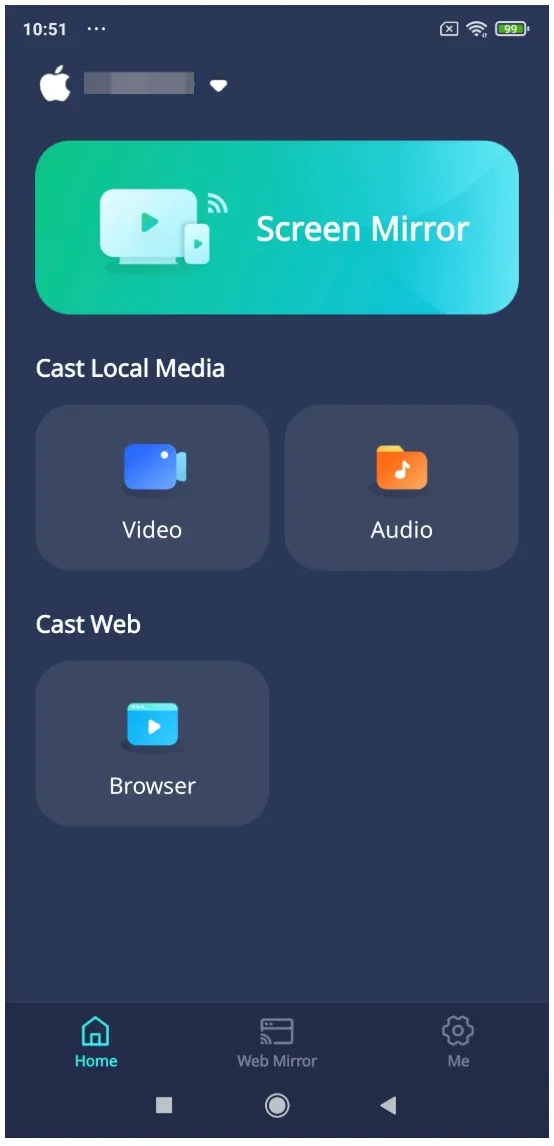
Step 1. Ensure your Android phone or tablet and TV are connected to the same Wi-Fi network.
Step 2. Download the PigeonCast app from the Google Play Store.
Step 3. If you are using Android TV, Google TV, or a Firestick, install PigeonCast from the TV's app store as well.
Tip: Running the app on both devices improves connection stability and delivers noticeably smoother screen mirroring.
Step 4. Open the PigeonCast app on your phone and TV. It will automatically scan your network for compatible receivers.
Step 5. Tap Select Device and pick your TV from the list.
Step 6. Once connected, tap the Screen Mirror button to show your Android screen on TV.
Final Thoughts
Choosing the best screen mirroring app Android to TV free shouldn't feel like a compromise between paying a subscription or being buried in ads. The right tool depends on your specific goal: are you looking for a permanent entertainment hub, a professional presentation tool, or a quick way to share photos with the family?
Regardless of your choice, ensure your Wi-Fi is stable, stick to the 5GHz band whenever possible, and enjoy the view on the big screen.
Best Screen Mirroring App for Android to TV Free FAQs
Can I mirror Android to a TV without Wi-Fi?
Most wireless screen mirroring apps require a local network connection. The phone and TV usually need to be connected to the same Wi-Fi network, although an internet connection may not always be necessary. To mirror Android to TV without Wi-Fi, a USB-C-to-HDMI adapter is generally the most reliable option, provided your Android phone supports video output.
Why can’t my screen mirroring app find my TV?
First, confirm that the Android phone and TV are connected to the same Wi-Fi network. Guest networks, VPNs, router isolation, disabled casting permissions, or an unsupported TV receiver can prevent device discovery. Restart both devices, reopen the receiving app on the TV, and check whether the app requires a QR code or PIN connection instead.
Do I need to install a screen mirroring app on both devices?
It depends on the app and receiving device. Some apps work with built-in Chromecast, Miracast, or AirPlay receivers, while others require a companion app on the TV or streaming device. Installing the same app on both devices can provide a more consistent connection when the phone and TV do not support the same native casting protocol.
Can a screen mirroring app send Android audio to the TV?
Many Android screen mirroring apps can transmit both video and internal audio, but support varies by phone model, Android version, receiving device, and app. Some setups may only play sound through the phone. Check the app’s audio settings and make sure the TV is selected as the audio output before starting playback.
Why does Android screen mirroring lag or keep disconnecting?
Screen mirroring lagging is commonly caused by a weak Wi-Fi signal, network congestion, high resolution settings, or an overloaded phone or TV. Move both devices closer to the router, use a 5 GHz Wi-Fi connection when available, close background apps, and lower the mirroring resolution or frame rate if the connection remains unstable.
Mia Clarke is a technology editor specializing in screen mirroring and casting solutions across multiple platforms. Mia provides clear, practical guides and in-depth insights to help users seamlessly connect their devices. Passionate about enhancing digital experiences, Mia is dedicated to keeping readers updated on the latest trends and tools in cross-platform screen sharing. Whether you’re looking to mirror your smartphone, laptop, or smart TV, Mia’s content delivers reliable, user-friendly advice to simplify your tech setup.