
If you are searching for the best screen mirroring app for Mac, the first thing to clarify is what you actually want your Mac to do. You may want to mirror an iPhone to your Mac. You may want to mirror your Mac to a TV. Or you may need your Mac to receive content from Android, Windows, or another Mac without being locked into Apple's built-in path.
That distinction matters because AirPlay is a built-in Apple feature, not a full cross-platform mirroring app. In practice, you are usually comparing three different things at once: native Apple mirroring, receiver software for a Mac, and a broader app that can handle mixed-device sending and receiving.
That difference matters more than the app list itself. As of April 27, 2026, Apple's native AirPlay workflow still works well inside the Apple ecosystem, but it is not the best answer for every Mac mirroring setup.
Quick Answer: Which Mac Screen Sharing App Should You Use?
If you want a fast recommendation without reading the full guide:
- Choose AirPlay if your setup is fully Apple and already compatible
- Choose free PigeonCast app if you use Android, Windows, or multiple device types
- Choose Reflector or AirServer if your Mac mainly acts as a receiver
- Choose LetsView if you just want a free basic option to test
This quick filter already solves most real-world decisions.
Understanding AirPlay First: The Default Mac Mirroring Option
AirPlay is the most straightforward Mac screen mirroring option when:
- Both devices are Apple devices
- Both are on the same Wi-Fi network
- Your Mac supports AirPlay Receiver
- You only need simple screen mirroring
In this scenario, it works well because it is already built into macOS and does not require installation.
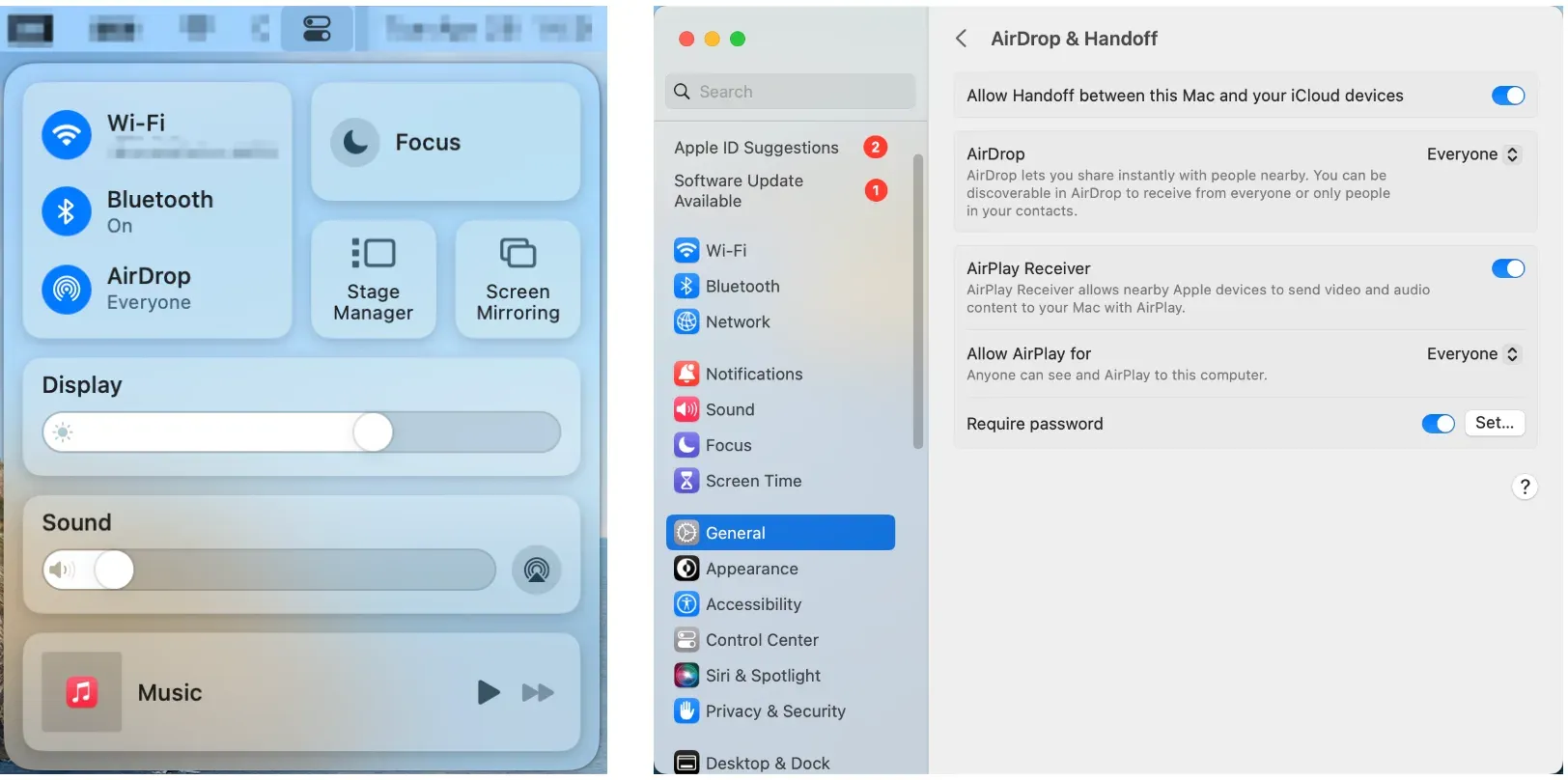
However, AirPlay becomes less reliable or less suitable when:
- You need Android or Windows involved
- Devices do not show up consistently
- Your Mac does not support the receiver feature
- You want one repeatable workflow across different setups
In these cases, it usually makes more sense to look for an AirPlay alternative that is designed for cross-platform screen mirroring instead of relying on Apple’s native protocol.
Types of Screen Mirroring Apps for Mac
There are three types of screen mirroring tools for Mac:
-
Native Protocol: AirPlay belongs here. It is built into macOS and works well inside the Apple ecosystem but does not extend far beyond it.
-
Receiver Tools: Reflector and AirServer fall into this category. They turn your Mac into a receiving screen, which is useful in classrooms, meetings, or shared environments.

- Cross-Platform Apps: PigeonCast and LetsView are designed for mixed-device use. They support multiple protocols and allow different systems to connect without relying on a single ecosystem.
Best Screen Mirroring App for Mac: PigeonCast
If your setup involves more than just Apple devices, PigeonCast on Mac is the most practical starting point.
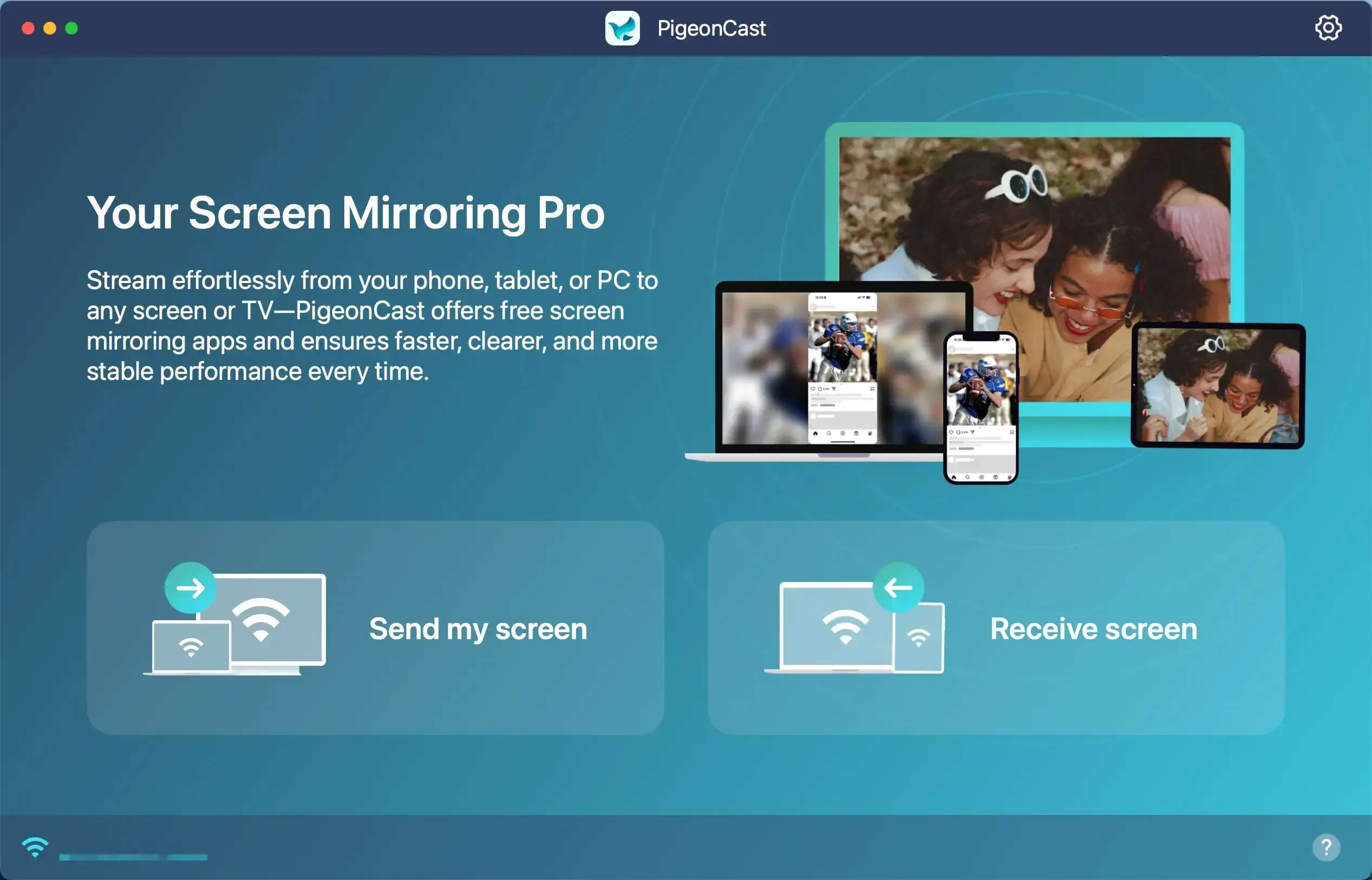
Instead of depending on one protocol, it supports AirPlay, Google Cast, and DLNA. This allows your Mac to connect with a wider range of devices without switching tools.
Why It Works Well in Real Use
Most mirroring problems are caused by compatibility, not missing features. PigeonCast addresses this by working across:
- iPhone to Mac
- Android to Mac
- Mac to TV
- Mac to Windows
This makes it easier to keep one consistent workflow instead of adjusting your setup each time.
When You Should Choose It
PigeonCast makes the most sense when:
- Your devices change frequently
- You use both Apple and non-Apple systems
- AirPlay does not behave consistently
- You want a single tool for multiple use cases
Basic Setup
Step 1. Install the app on your Mac and the target device.


Overall Rating:



Step 2. Connect both devices to the same Wi-Fi network.
Step 3. Launch the screen mirroring app for Mac on both devices.
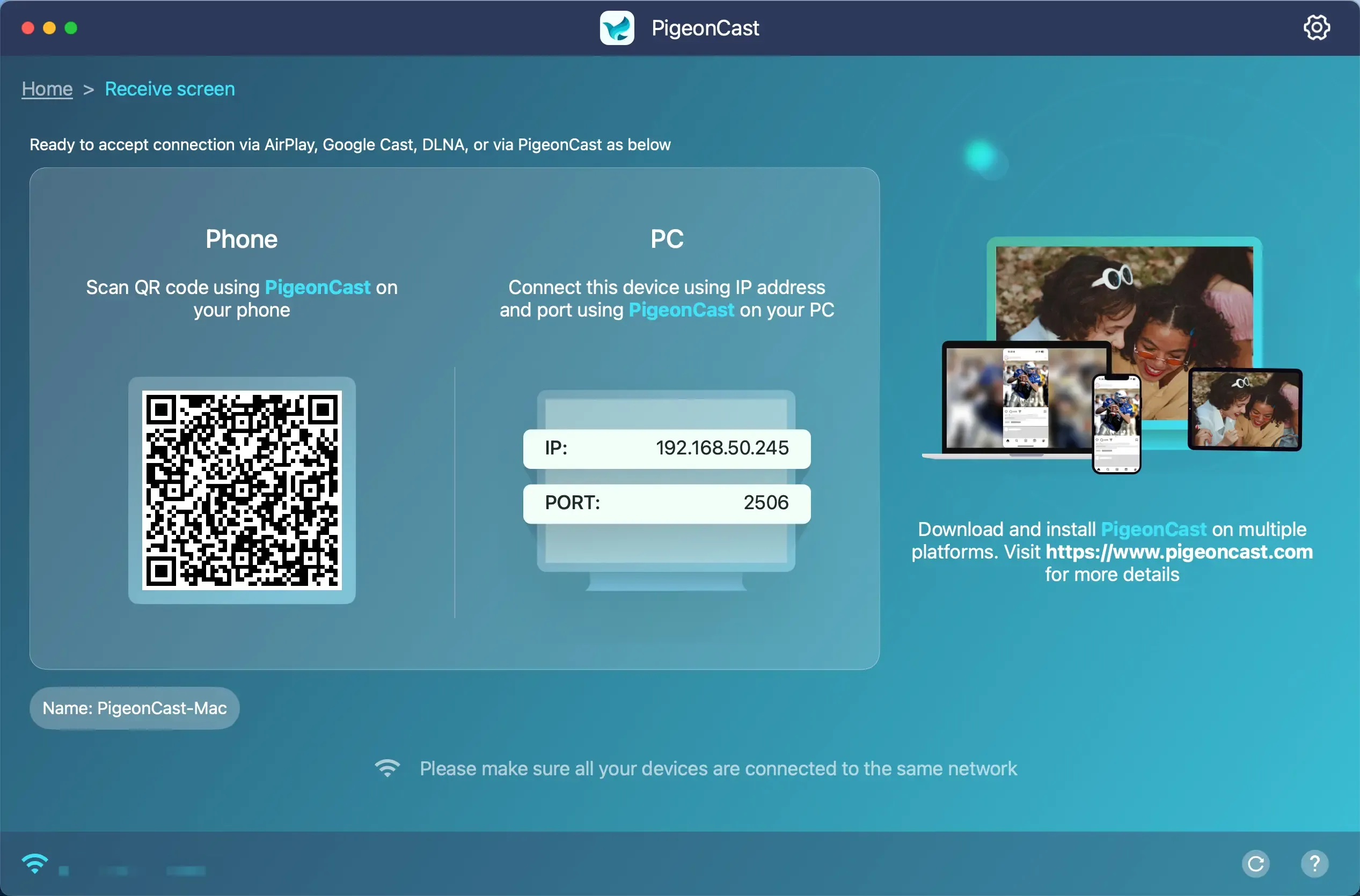
Step 4. Start Mac screen mirroring.
- To mirror a phone or computer to Mac, click the Receive screen inside the app on your Mac, which turns your Mac into a receiver.
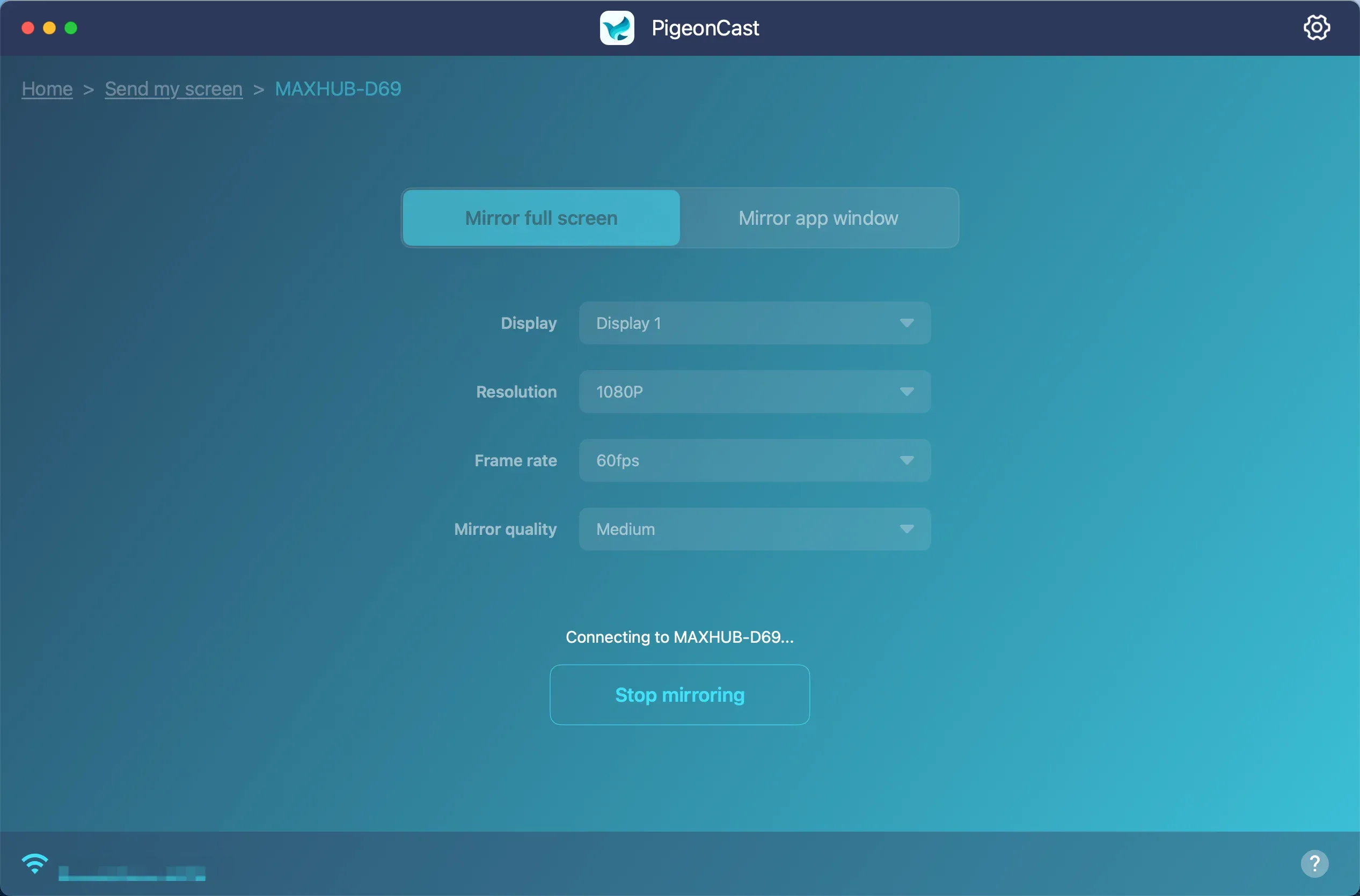
- To mirror your Mac to TV, keep PigeonCast receiver running on the target device, click Send my screen on your Mac, choose the target device, and click Start mirror.
Reflector vs AirServer on Mac
Reflector and AirServer are best understood as receiver tools rather than general mirroring apps.
Reflector
Reflector is useful when your Mac needs to display content from multiple devices at the same time. It supports AirPlay, Google Cast, and Miracast, which makes it suitable for teaching or demonstrations.
AirServer
AirServer also turns your Mac into a receiver, focusing on AirPlay and Google Cast. It is commonly used in meeting rooms or shared environments where multiple users need to connect.
LetsView: A Free Screen Mirroring Option
LetsView is one of the easiest tools to try because it is free and supports multiple platforms. It works across Mac, Windows, iOS, and Android.
It is a reasonable choice for testing, but performance and stability may vary depending on your setup.
Mac Screen Mirroring App Comparison
| Option | Best for | Send and receive | Main strength | Main limitation |
|---|---|---|---|---|
| PigeonCast | Mixed-device everyday use | Yes | Works across multiple platforms | Depends on network stability |
| AirPlay | Apple-only setups | Limited | Built-in and simple | Not cross-platform |
| Reflector | Presentations and demos | Mainly receive | Multi-device display support | Not focused on daily use |
| AirServer | Meeting environments | Mainly receive | Strong receiver capability | Less beginner-friendly |
| LetsView | Free testing | Varies | Easy to start | Less consistent performance |
Common Mac Screen Mirroring Problems
Before switching apps, check the basics:
- Both devices are on the same Wi-Fi network
- VPN is turned off
- Guest networks are not isolating devices
- The receiver is already active
- Your Mac supports the feature
If problems continue, reviewing a troubleshooting guide is often more useful than trying more apps.
Final Thoughts
The best screen mirroring app for Mac depends on how you use your devices.
AirPlay works well inside the Apple ecosystem. Once your setup extends beyond that, cross-platform tools like PigeonCast become more practical. If your Mac mainly acts as a display, receiver tools are a better fit.
The goal is not to choose the most popular app, but to choose the one that works consistently for your setup.
Best Screen Mirroring App for Mac FAQ
What is the best screen mirroring app for Mac overall?
If you want the most flexible overall option, PigeonCast is the best choice because it fits more real-world device combinations than Apple-only or receiver-only tools.
Is there a free screen mirroring app for Mac?
Yes. PigeonCast and LetsView both offer free paths, while AirPlay is built into Apple's ecosystem when your devices are compatible.
Is AirPlay an app on Mac?
No. AirPlay is a built-in Apple feature. That is why it should be compared separately from dedicated Mac screen mirroring apps.
Is AirPlay better than a screen mirroring app for Mac?
Only for certain setups. AirPlay is better when both of your devices are Apple devices and the native workflow already fits the job. A dedicated app like PigeonCast is better when you need broader compatibility or a more repeatable cross-device workflow.
What is the best app to mirror Android to Mac?
If you are mirroring Android to Mac, PigeonCast is usually the best first option because that workflow often needs a true cross-platform solution rather than a native Apple receiver path.
What is the best app to turn a Mac into a screen mirroring receiver?
Reflector, AirServer, and PigeonCast are the most relevant receiver-focused options if your Mac mainly needs to accept incoming streams in a classroom, meeting, or demo environment.
Mia Clarke is a technology editor specializing in screen mirroring and casting solutions across multiple platforms. Mia provides clear, practical guides and in-depth insights to help users seamlessly connect their devices. Passionate about enhancing digital experiences, Mia is dedicated to keeping readers updated on the latest trends and tools in cross-platform screen sharing. Whether you’re looking to mirror your smartphone, laptop, or smart TV, Mia’s content delivers reliable, user-friendly advice to simplify your tech setup.