
If you are searching for what is screen mirroring on Mac, you likely want two things: a clear definition and a reliable setup path. Screen mirroring on Mac means your Mac displays the same visual output on another screen, and the most common built-in transport for wireless output is AirPlay. Follow my guide to learn more about Mac screen mirroring.
What Is Screen Mirroring on Mac
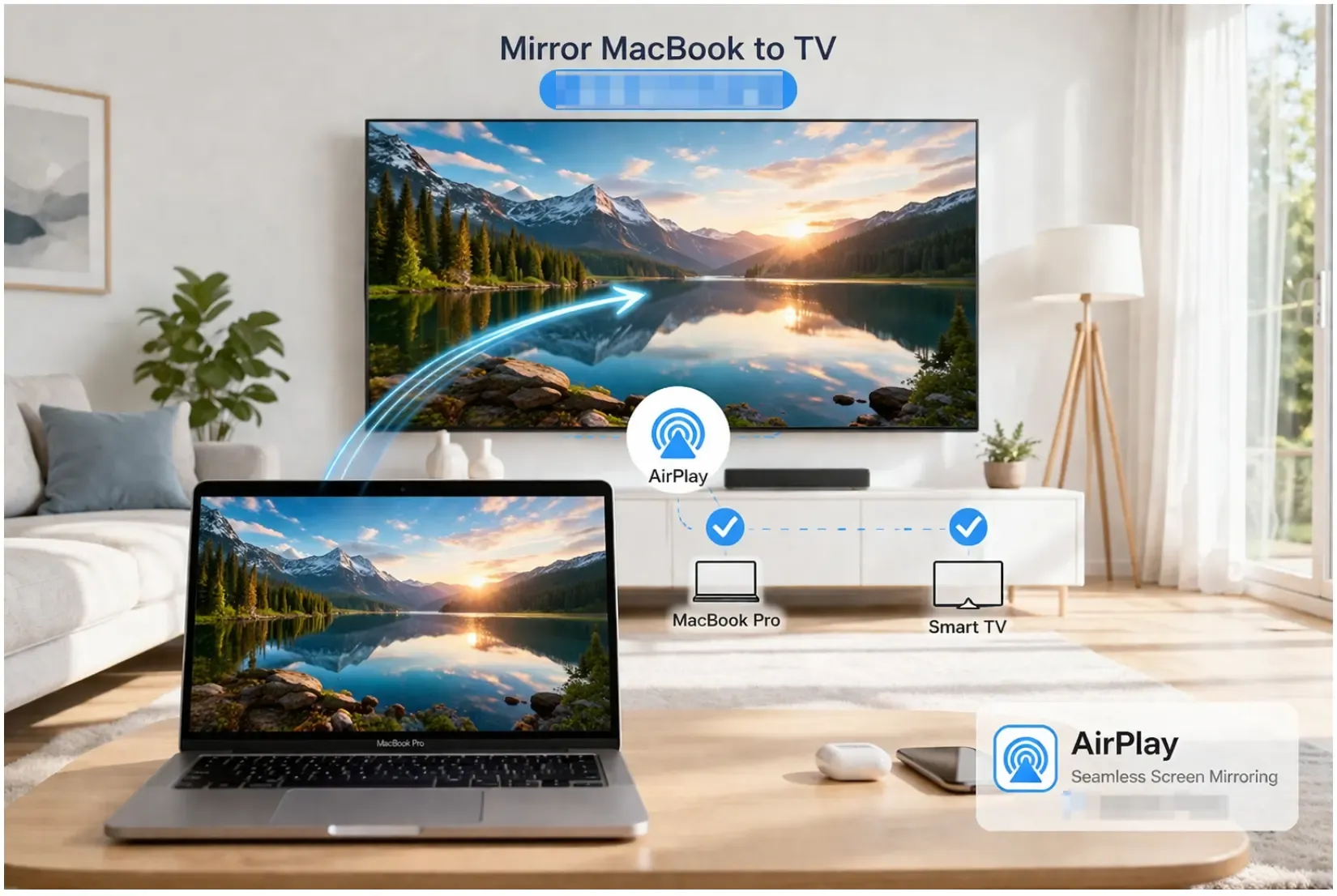
Screen mirroring on Mac is a display behavior. It means your Mac duplicates its current screen onto another display, such as a TV, projector, or streaming receiver. Whatever appears on your Mac appears on the second screen at the same time: windows, mouse movement, notifications, and live app changes.
Mac Screen Mirroring vs Mac AirPlay
People often get stuck because they treat "screen mirroring" and "AirPlay" as identical terms, then choose the wrong mode for their goal.
That mismatch causes practical problems: video may play on TV while your desktop behavior does not match expectations, or your cursor actions become visible when you only wanted media playback. To avoid that confusion, define the concepts first, then choose a mode based on outcome.
AirPlay is the Apple protocol that carries audio or video between Apple devices and compatible targets over the local network. AirPlay can deliver full desktop mirroring, but it can also send app-level media streams without cloning the full desktop. That is why users sometimes say "AirPlay is working" while still feeling "screen mirroring is not what I expected".
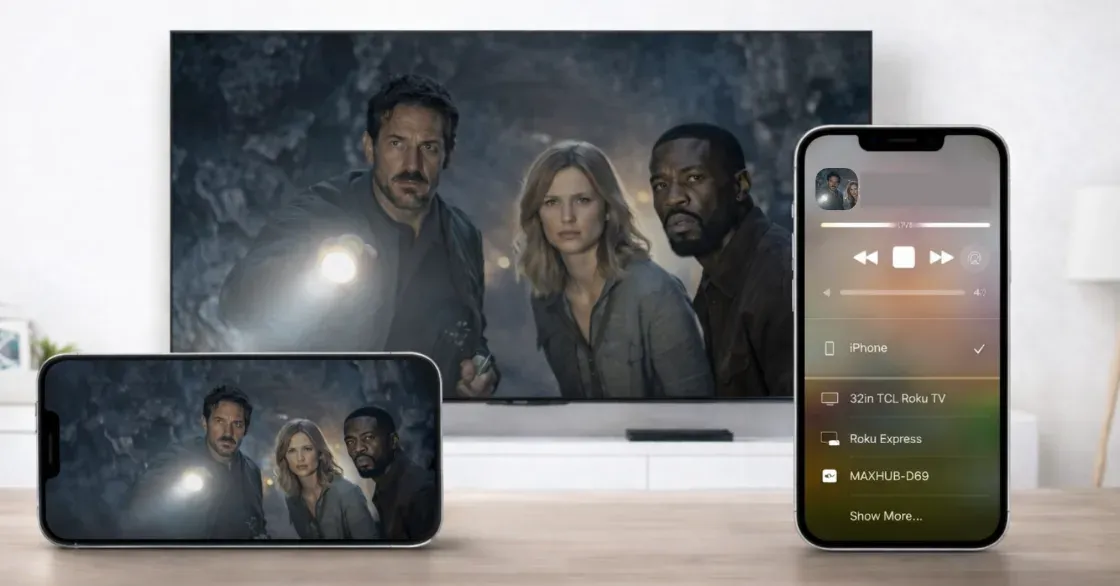
The relationship is simple: screen mirroring Mac describes the result, while AirPlay describes one delivery path. You can mirror through AirPlay, but AirPlay can also be used in non-mirroring scenarios, such as sending only a video stream from an app.
If you need your audience to see every click, choose mirroring. If you want to keep working on your Mac while a video continues on TV, choose AirPlay media streaming instead.
| Concept | Screen Mirroring on Mac | AirPlay on Mac |
|---|---|---|
| Core meaning | Display mode (duplicate output) | Wireless transport protocol |
| What viewers see | Full Mac desktop in real time | Full desktop or app-only stream |
| Typical purpose | Demos, training, live walkthroughs | Media playback, wireless audio/video routing |
| Mac independence during playback | Low, viewers see your actions | Higher in app-streaming scenarios |
| Key decision question | "Do others need to see everything I do?" | "Do I need wireless delivery to a compatible target?" |
How to Screen Mirror on Mac with AirPlay
You should start with the native path because it is fast, free, and already integrated into macOS.
Before setting up Mac screen mirroring, check these prerequisites:
-
Your Mac is updated and supports current AirPlay features.
-
Your target device supports AirPlay 2 (smart TV or Apple TV).
-
Both devices use the same local network and are not on guest isolation.
-
VPN is off during first-time pairing.
Now screen mirror your Mac via AirPlay:
Step 1. Turn on the TV or Apple TV and enable AirPlay reception.
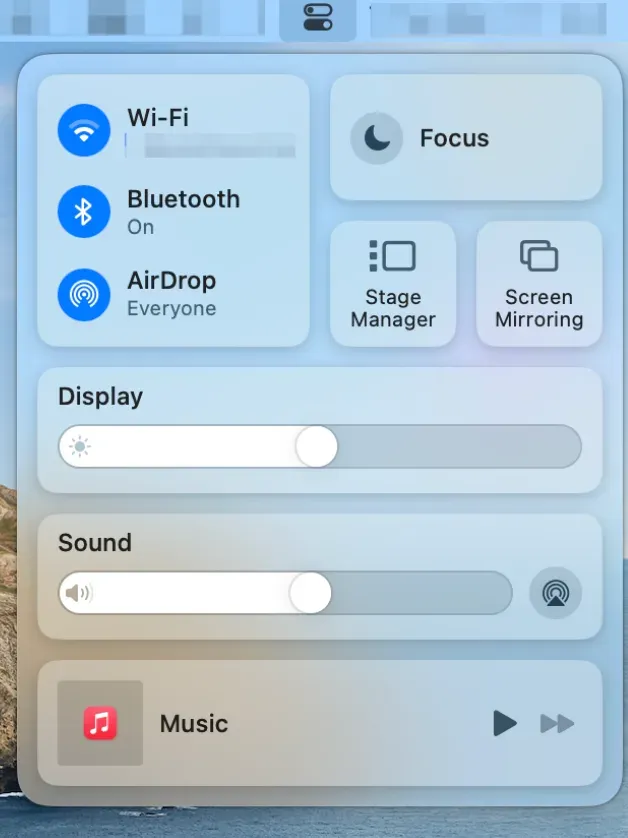
Step 2. On Mac, open Control Center, and select Screen Mirroring.
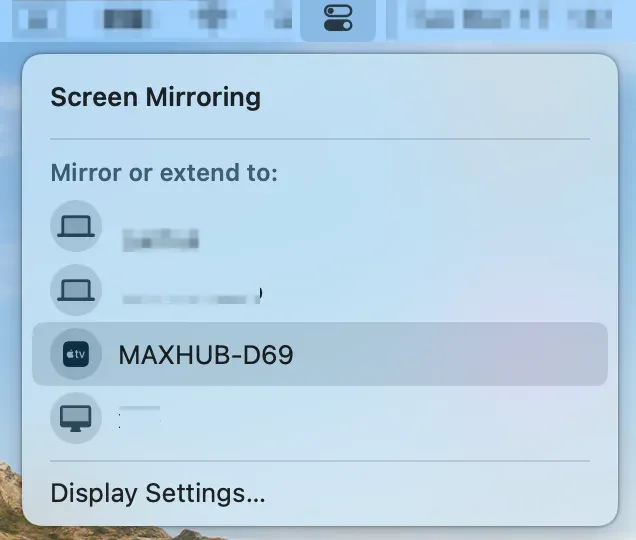
Step 3. Choose your target device from the list.
Step 4. Enter the pairing code if prompted.
Step 5. Open System Settings > Displays and choose Mirror or Extend.
Step 6. Test with a short clip and confirm audio output device.
When to Screen Mirror Mac Without AirPlay
Built-in mirroring is convenient, but certain environments expose hard limits that settings tweaks cannot fully remove:
-
Discovery instability on segmented or enterprise networks.
-
Higher latency during busy Wi-Fi periods.
-
Full desktop exposure when you only wanted media output.
-
Device compatibility gaps on non-AirPlay receivers.
Switch rule you can apply immediately:
-
If the target device is still missing after network check plus one reboot cycle, switch away from native mirroring.
-
If your workflow requires private multitasking while a public screen plays video, use an AirPlay alternative with better session control.
-
If the session is high-stakes (class, live demo, client meeting), avoid repeated wireless retries and switch sooner.
How to Screen Mirror Mac with PigeonCast
When native options are blocked by compatibility or network policy, a Mac screen mirroring app can restore a predictable workflow. The key impact is operational: instead of retrying discovery, you move to a controlled sender-receiver path with clearer connection feedback.
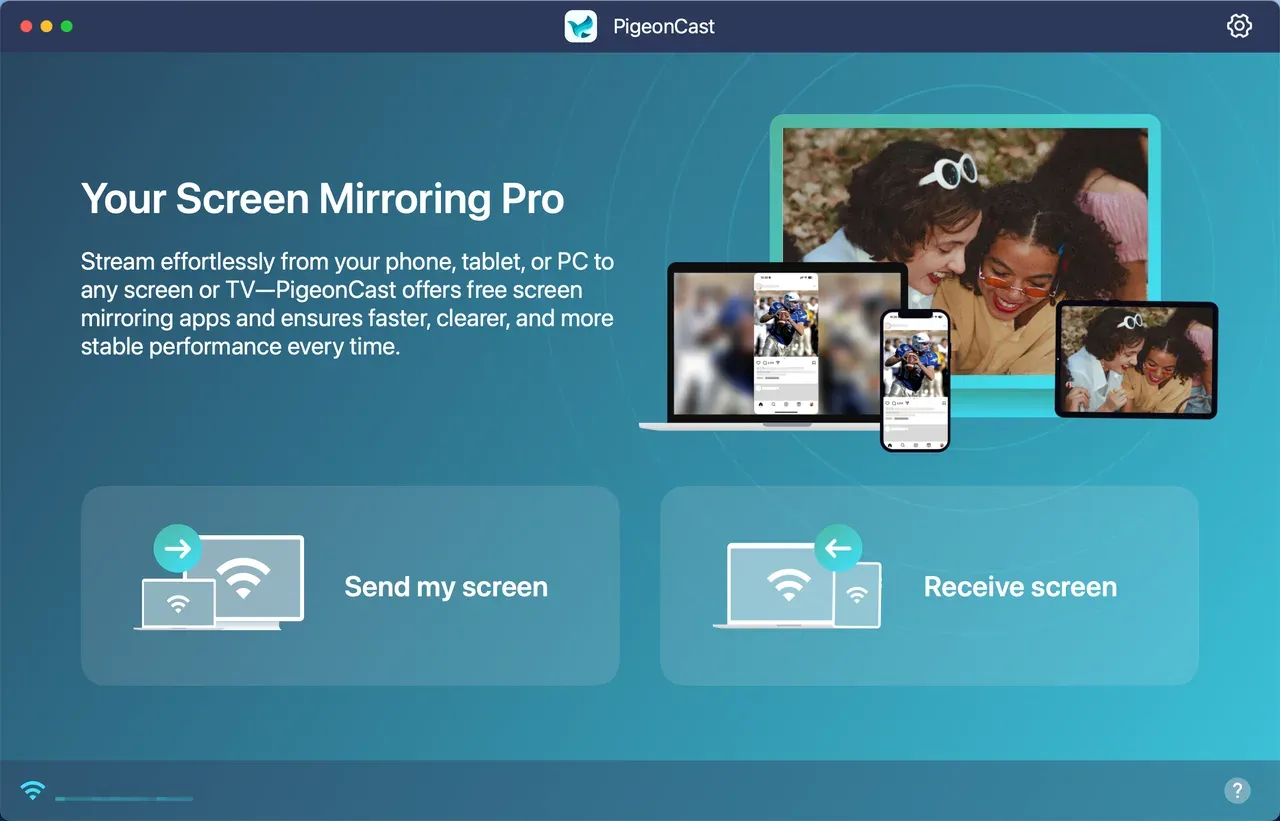
PigeonCast is a free screen mirroring application, connecting your Mac to PC or TV wirelessly for full screen mirroring or app streaming. is a free screen mirroring app that wirelessly connects your Mac to a PC or TV for full-screen mirroring or app streaming. It also lets your Mac act as a receiver, so you can stream content from an iPhone, Android device, or a laptop.
How to screen mirror Mac with PigeonCast:
Step 1. Install PigeonCast on your Mac and the target device, like a Windows PC or Smart TV.


Overall Rating:


Step 2. Launch the screen mirroring app on both sides and ensure they are connected to the same Wi-Fi network.
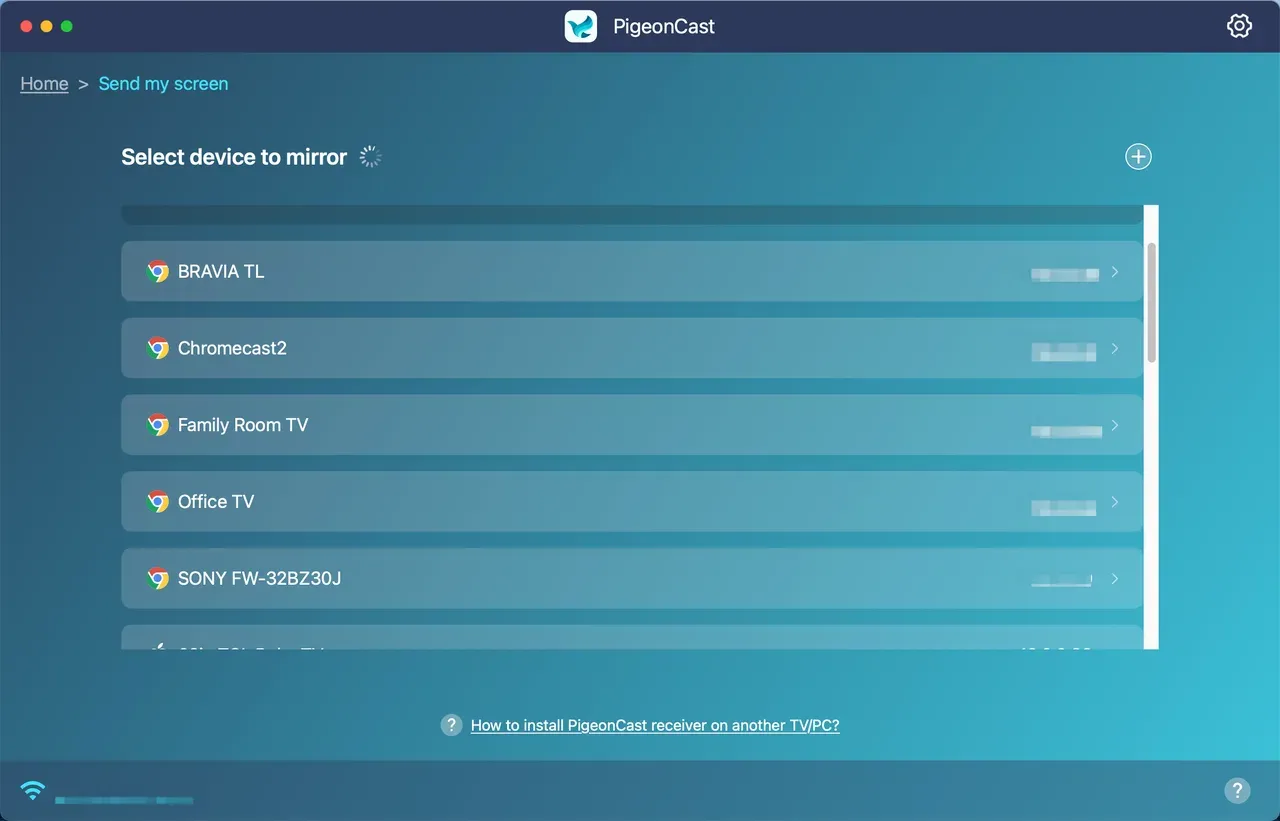
Step 3. Click Send my screen on your Mac and choose your target device.
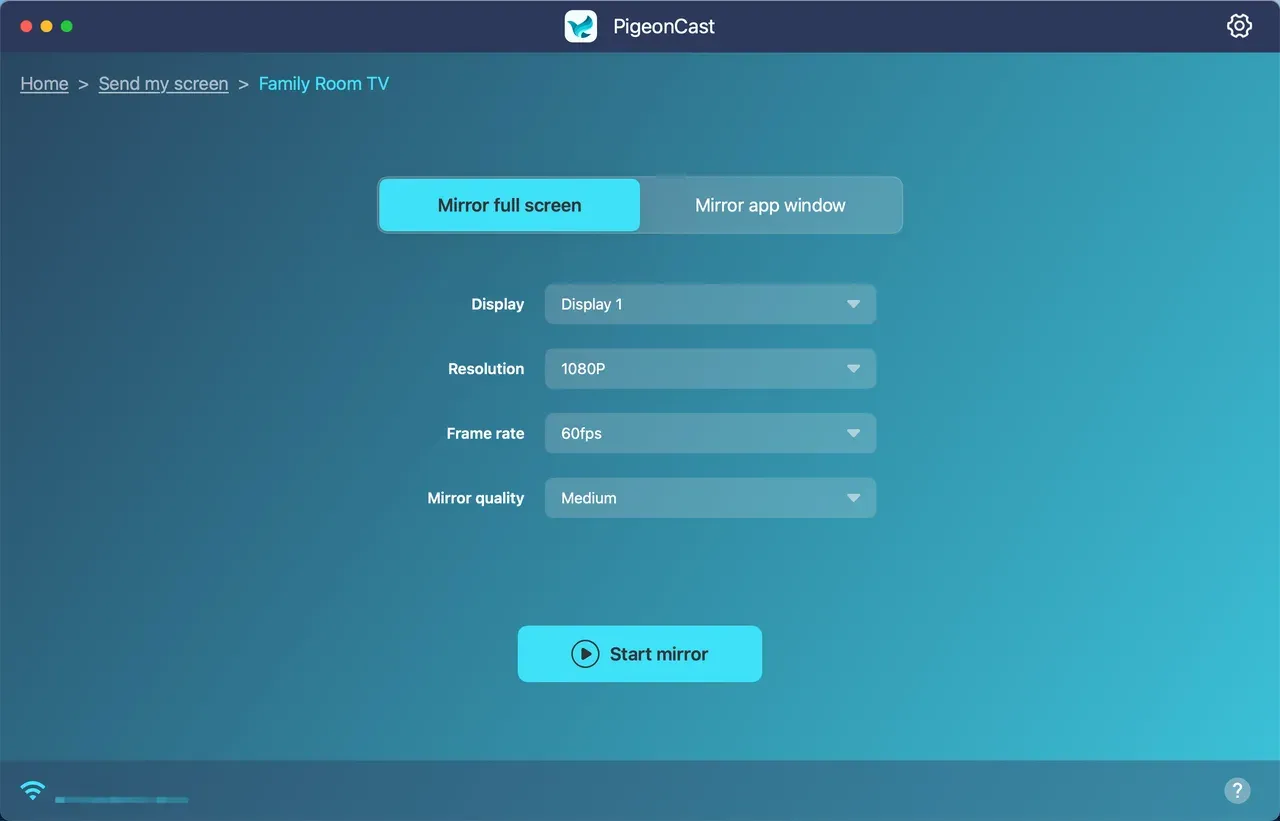
Step 4. Customize your streaming experience, like choosing 1080p or 60fps, and click Start mirror.
PigeonCast is best for:
-
Non-AirPlay targets.
-
Mixed-device environments.
-
Cases where native discovery repeatedly fails.
Bottom Line
Mac screen mirroring is a display behavior, not a protocol. AirPlay is one built-in wireless transport that can deliver mirroring, but it can also stream media without full desktop duplication. To screen mirror your Mac, start with native AirPlay for simplicity, then switch to PigeonCast when compatibility or network constraints block stable results.
What Is Screen Mirroring on Mac FAQ
Is screen mirroring on Mac the same as AirPlay?
No. Start with the concept split: screen mirroring is what the audience sees, while AirPlay is how data is transmitted wirelessly on supported devices. Use AirPlay for delivery, but decide first whether you need full desktop duplication or app-level streaming.
Can I use screen mirroring on Mac without Apple TV?
Yes. Use a smart TV that supports AirPlay 2, then connect it to the same local network as your Mac and pair from Control Center. If your target does not support AirPlay, try PigeonCast to bridge the gap.
Why does my Mac not find my TV in Screen Mirroring?
Check network topology first. Different SSIDs, guest mode, or corporate isolation often block discovery even when both devices have internet access. After one reboot cycle and a clean network check, switch methods instead of repeating the same pairing flow.
Should I choose mirroring or extending display?
Choose mirroring when viewers must follow every click and window change from your Mac. Choose extended display when you need a second workspace and do not want duplicate output.
Is native Mac mirroring good enough for meetings?
For many home or small office setups, yes. Start with native AirPlay because it is quick and requires no extra software. For critical sessions on unstable networks, prepare a screen mirroring app like PigeonCast path in advance.
When should I use PigeonCast instead of built-in AirPlay?
Use PigeonCast after native discovery fails repeatedly or when your target hardware lacks AirPlay support. It is a solid option for compatibility and operational stability.
Mia Clarke is a technology editor specializing in screen mirroring and casting solutions across multiple platforms. Mia provides clear, practical guides and in-depth insights to help users seamlessly connect their devices. Passionate about enhancing digital experiences, Mia is dedicated to keeping readers updated on the latest trends and tools in cross-platform screen sharing. Whether you’re looking to mirror your smartphone, laptop, or smart TV, Mia’s content delivers reliable, user-friendly advice to simplify your tech setup.