
Streaming your Mac's display to your TV wirelessly doesn't always require an Apple TV. Whether you're giving a presentation, watching a movie, or simply extending your desktop, there are several effective methods to make this connection. This guide will walk you through the necessary tools and steps, focusing on compatibility with different TV types and showing you how to connect Mac to TV wirelessly without Apple TV.
How to Connect MacBook Air to TV Wirelessly Without Apple TV
Before diving into the specific methods, it's important to assess your TV's capabilities. The best approach largely depends on whether your TV natively supports AirPlay or runs on a different platform, like Android TV. Knowing this will help you choose the right tool for a smooth, wireless connection.
Condition 1. Mirror Mac to AirPlay-Compatible TV
If your TV is a recent model from brands like Samsung (2019 and later), LG (2019 and later), Sony, or Vizio, it may come with AirPlay 2 support built in. This feature enables you to connect directly from your Mac to your TV, providing a similar experience to Apple TV without requiring any additional hardware. Here's the specific steps on how to connect Macbook to TV wirelessly without Apple TV:
Step 1. Ensure both your Mac and TV are on the same Wi-Fi network.
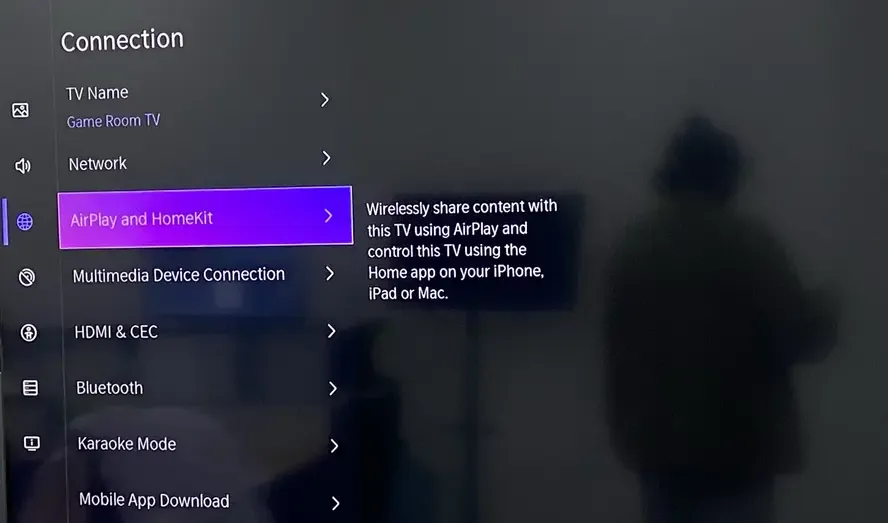
Step 2. Open the settings on your TV, look for AirPlay or Apple and Homekit in the settings menu (this might be under general settings, device preferences, or network settings, depending on your TV brand).
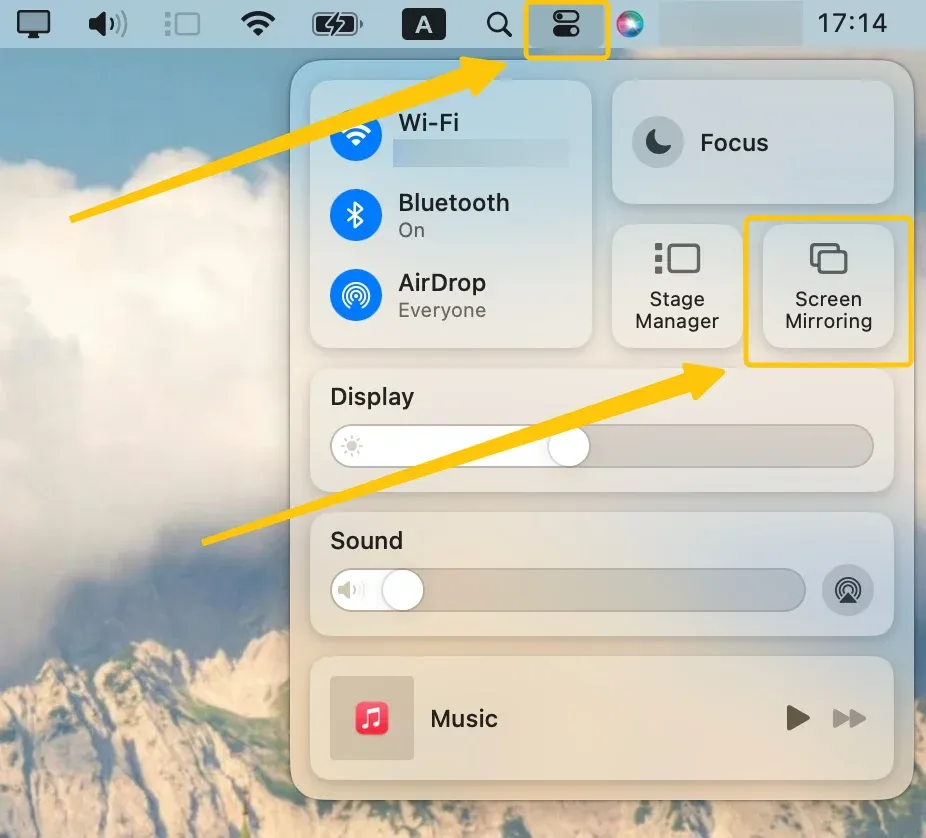
Step 3. Click Screen Mirroring in the Control Center menu bar on the Mac.
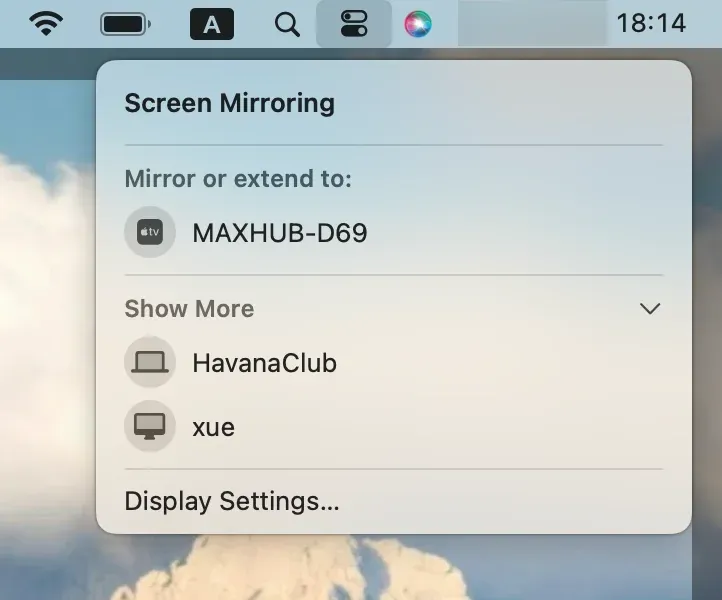
Step 4. Select your AirPlay-compatible TV from the list of available devices.
Step 5. After selecting the TV, you can either mirror your Mac's display or extend your Mac, depending on your preference.
Condition 2. Mirror Mac to Android TV via PigeonCast
For TVs that don't support AirPlay, such as many Android TV, Google TV or older smart TV models, a third-party app can fill the gap. PigeonCast is a great option. It's a free, user-friendly app that installs directly on your TV. Supporting AirPlay, DLNA, and Google Cast, it lets you wirelessly stream content without needing cables or adapters.

Step 1. Ensure your devices are under the same wireless network.


Overall Rating:



Step 2. Install PigeonCast on both your Mac and Android TV from the app store, then open it.
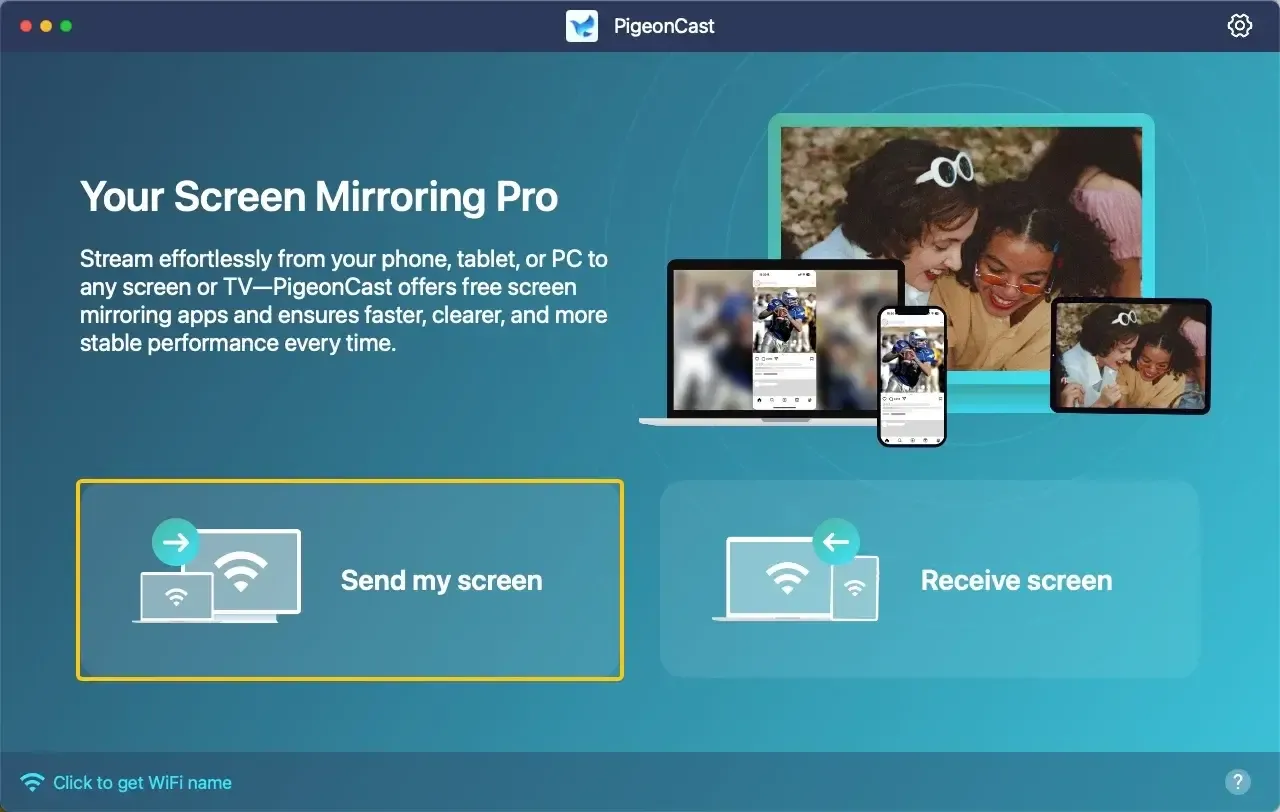
Step 3. On your Mac, tap Send my screen to choose your smart television from the available list.
Step 4. Enter the onscreen PIN code to confirm the pairing requisition.
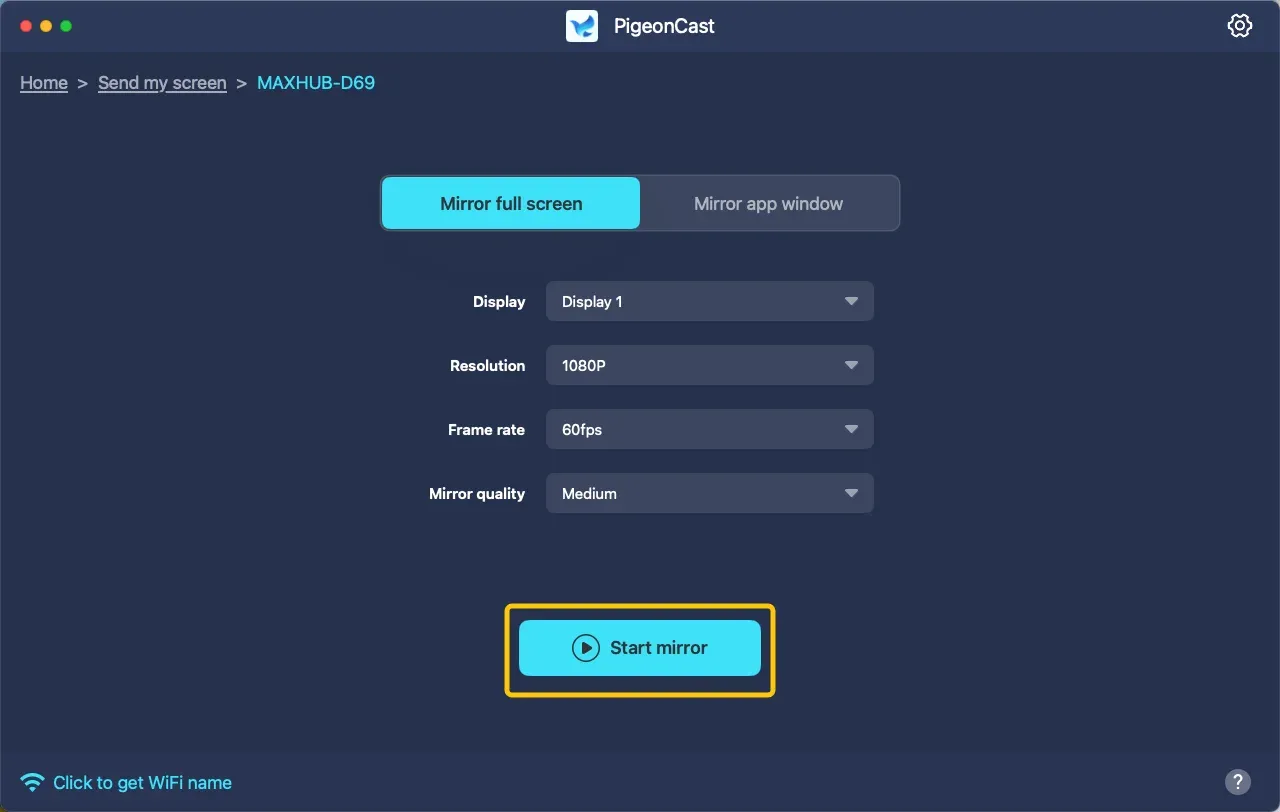
Step 5. When you finish the connection, you can choose mirror the full screen or a single app window, then click Screen Mirror to begin the Mac mirroring activities.
Wrapping Up
How do I connect my Mac to my TV wirelessly without Apple TV? Streaming your Mac to your TV wirelessly doesn't always need an Apple TV. If your TV supports AirPlay, you can easily connect directly to your Mac. For TVs that don't support AirPlay, apps like PigeonCast let you mirror your Mac to your TV without cables. By knowing your TV's capabilities and choosing the right method, you can enjoy a smooth, wireless connection for presentations, movies, or extending your desktop.
How to Connect Mac to TV Wirelessly Without Apple TV FAQ
How to connect Mac to TV wirelessly without AirPlay?
To connect your Mac to a TV wirelessly without AirPlay, you can use third-party apps like PigeonCast. These apps support multiple streaming protocols such as DLNA and Google Cast, allowing you to mirror your Mac's screen to your TV without the need for AirPlay or additional hardware.
How to connect a MacBook to a TV without an HDMI?
To connect your MacBook to a TV without using an HDMI cable, you can use wireless methods or alternative adapters:
- Use AirPlay (for AirPlay-compatible TVs)
- Use Third-Party Apps: PigeonCast (for Non-AirPlay TVs)
- Use Google Chromecast
How to connect Mac to an LG TV wirelessly without Apple TV?
To connect your Mac to an LG TV wirelessly without using an Apple TV, you can follow these methods:
- Use AirPlay (for AirPlay-Compatible LG TVs)
- Use Google Chromecast
- Use Third-Party Apps (e.g., PigeonCast)
How do you screen mirror from a Mac to a TV?
To screen mirror from your Mac to a TV, you can use either a wireless or wired method, depending on the type of TV and devices you have. Here's how to do it:
- Screen Mirroring via AirPlay (for AirPlay-Compatible TVs)
- Screen Mirroring via Chromecast (for TVs with Chromecast built-in or using a Chromecast device)
- Using Third-Party Apps: PigeonCast (for Non-AirPlay and Non-Chromecast TVs)
- Wired Option (Using HDMI Cable and Adapter)
How do I connect my Mac to my TV wirelessly without Apple TV?
To connect your Mac to your TV wirelessly without using Apple TV, you can use the following methods depending on your TV type:
- Use AirPlay
- Use Third-Party Apps: PigeonCast (for Non-AirPlay and Non-Chromecast TVs)
How to connect MacBook to TV wirelessly with Apple TV?
To connect your MacBook to a TV wirelessly with an Apple TV, follow these simple steps:
- Both your MacBook and Apple TV must be on the same network for the connection to work.
- On your Apple TV, swipe down on the remote to access the "Control Center" and ensure that AirPlay is turned on.
- On your MacBook, click the Screen Mirroring (a rectangle with a triangle) in the menu bar at the top of the screen. Select your Apple TV from the list of available devices.
- You can choose to either mirror your MacBook screen or use the TV as a separate display. Select the option that best suits your needs.
- Once connected, your MacBook's screen will appear on the TV, allowing you to stream videos, share presentations, or simply use the TV as an extended display.
Clara Rossi is an experienced technology editor and a seasoned expert in screen mirroring and casting technologies. With a keen eye for detail and a deep understanding of how to seamlessly connect devices, Clara excels at optimizing user experiences for effortless sharing and streaming. Whether you're seeking quick fixes or advanced tips, her expertise and responsiveness ensure that every query is met with a well-informed and efficient solution.