
If screen mirroring not working on Mac is your problem today, start with a fast diagnosis and fix order instead of random retries. Check compatibility and network basics first, run focused AirPlay resets second, then switch to HDMI or an app alternative if discovery still fails. This guide focuses on Mac-to-TV troubleshooting and how to screen mirror from Mac quickly.
Why Is My Screen Mirroring Not Working on MacBook
AirPlay failures usually come from one broken prerequisite, not a mysterious system error. Most cases trace back to network visibility, outdated software, or output misrouting between display and audio targets. Once you classify the failure pattern, you can avoid random retries and move directly to the fix that matches your symptom.
Start by identifying which pattern matches your case:
-
TV never appears in Screen Mirroring: usually network segmentation, guest Wi-Fi, or AirPlay disabled on the TV.
-
TV appears but connection fails: often outdated macOS or TV firmware, temporary service cache, or firewall/VPN interference.
-
Connection succeeds then drops: common with weak Wi-Fi signal, router congestion, or display mode conflicts.
-
Video works but no audio: output device routing is wrong after connecting.
Pre-Check Before Fixes: Mac, TV, and Network Requirements
Before you change settings, confirm the base requirements in one pass. A clean pre-check prevents circular troubleshooting, where each retry creates a slightly different result and confusion grows. This baseline also helps you decide whether the issue is discovery, connection stability, or media output routing.
Run these checks in order when you run into Mac screen mirroring not working:
- Confirm AirPlay support
-
On TV: AirPlay must be enabled in settings.
-
On Mac: update to a supported macOS version for your hardware.
- Put both devices on the same local network
-
Match the exact Wi-Fi network name (SSID).
-
Avoid guest mode or isolated IoT networks.
- Disable blockers for testing
-
Turn off VPN temporarily.
-
If you use strict firewall tools, allow local discovery traffic.
- Power cycle once
-
Restart Mac and TV.
-
Reopen TV input/home screen where AirPlay is available.
- Open the right macOS controls
-
Go to Control Center > Screen Mirroring.
-
Also check System Settings > Displays.
If your TV is still missing after this full pre-check, stop repeating connection clicks and move to the fix sequence below.
How to Fix Screen Mirroring Not Working on Mac
When AirPlay not working on Mac becomes persistent, a structured repair path is faster than random retries.
To fix screen mirroring Mac to TV not working, start with low-risk actions first so you can restore service quickly without overchanging your setup. Then move to deeper resets only if the previous checkpoint still fails after a test clip.
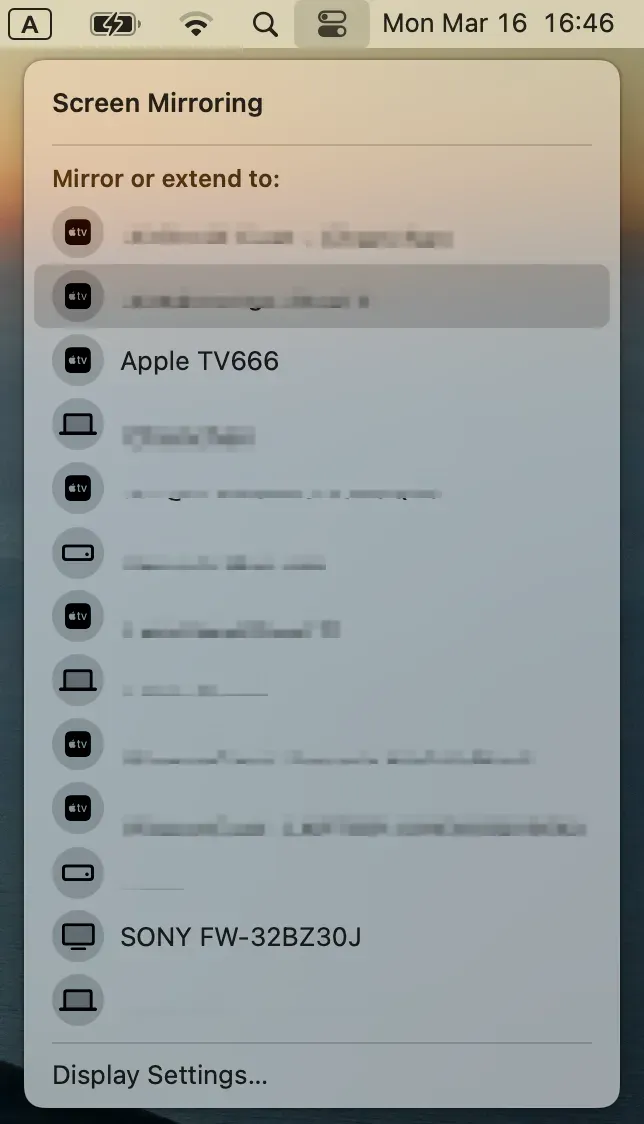
Step 1. Reset wireless discovery on Mac.
-
Turn Wi-Fi off for 10 seconds, then on.
-
Close Control Center and reopen Screen Mirroring.
-
Try to mirror Mac to TV again.
Step 2. Rebuild the AirPlay handshake.
-
Restart the TV and keep it on an active home/input screen.
-
On Mac, connect from Screen Mirroring.
-
Enter the pairing code and wait for full connection before opening apps.
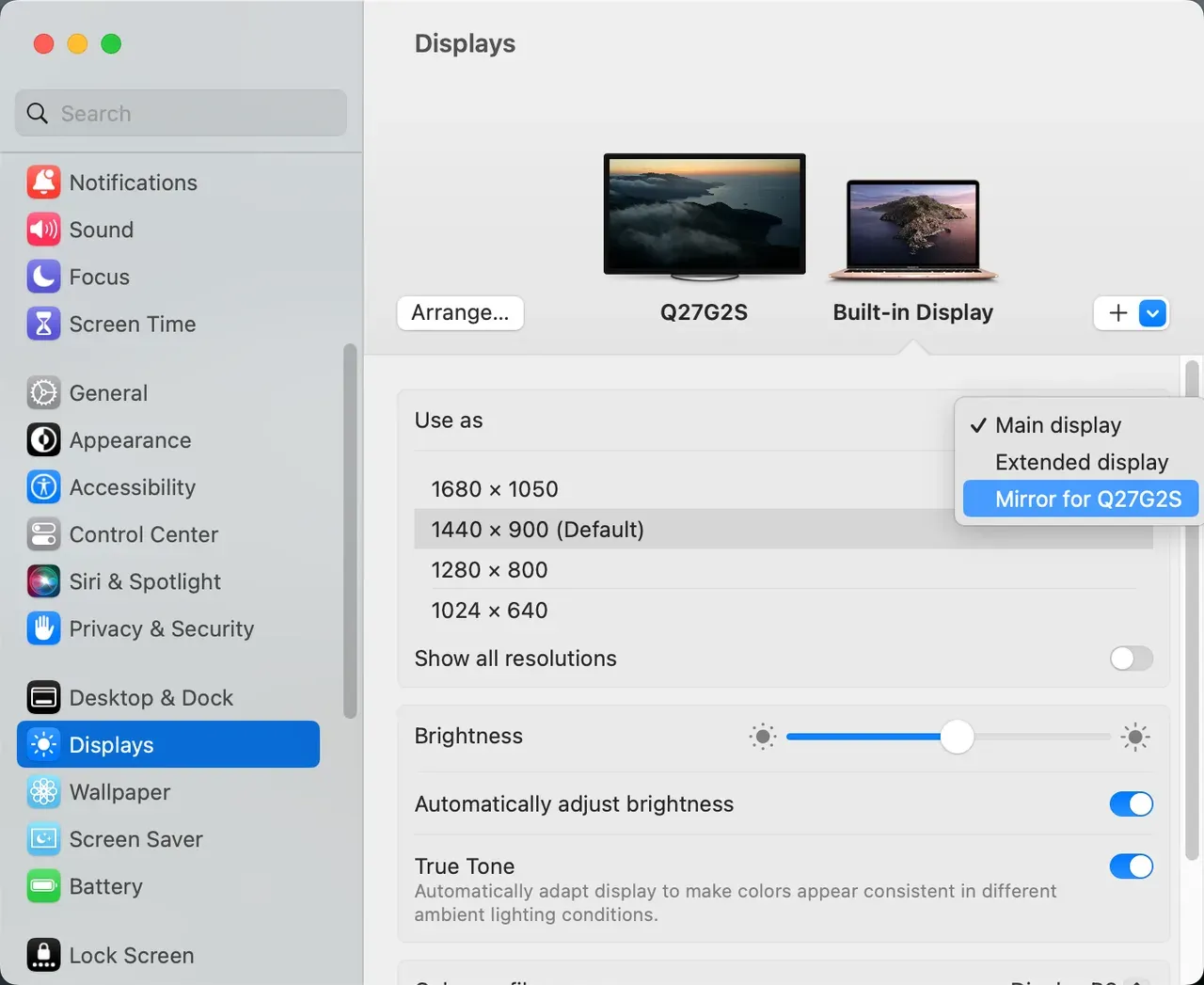
Step 3. Fix display mode conflicts.
-
Open System Settings > Displays.
-
Select Mirror first from Main display; test stability for 1 minute.
-
Switch to Extend only if you need multi-screen workspace.
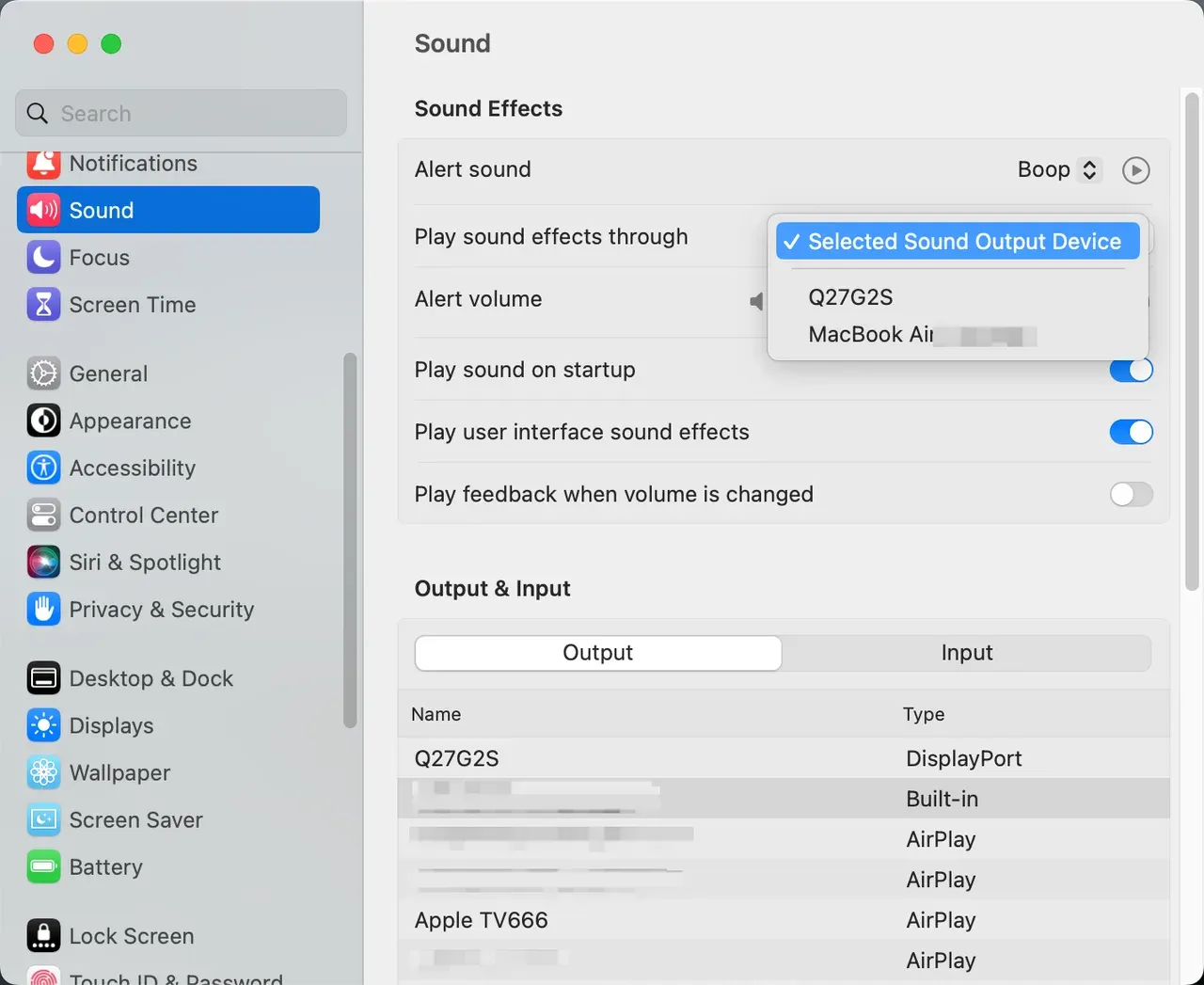
Step 4. Correct audio output routing.
-
Open System Settings > Sound.
-
Set output to your TV or AirPlay target.
-
Play a short clip and verify both image and sound.
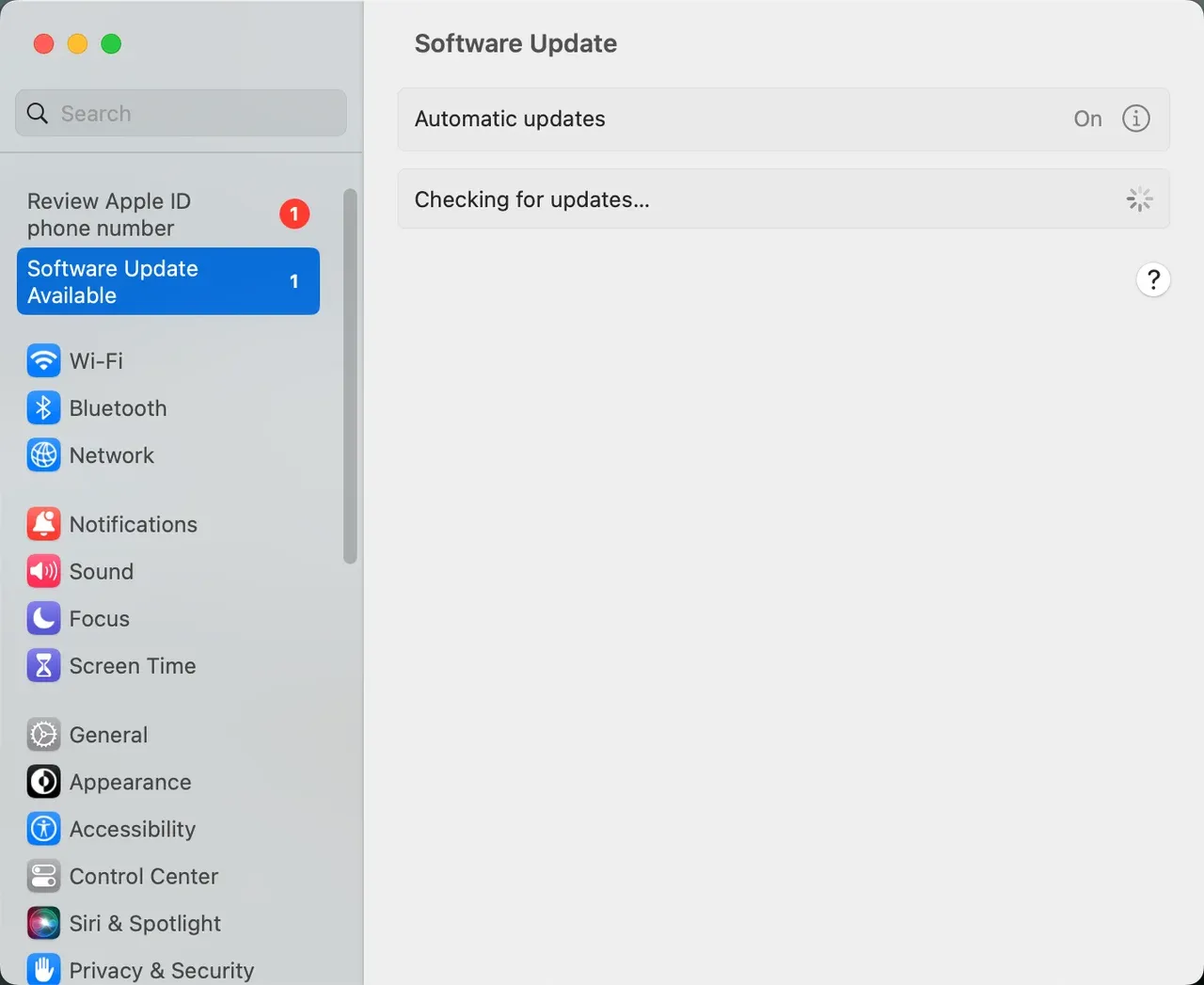
Step 5. Update both endpoints.
-
Install pending macOS updates.
-
Update TV firmware from device settings.
-
Restart both devices and reconnect.
Two Backup Options When Mac AirPlay Fails
AirPlay is convenient, but reliability should come first when timing matters. If you are about to present, teach, or run a live demo, stable output matters more than keeping a cable-free desk. Instead of repeatedly retrying wireless mirroring, switch to a backup method quickly.
Backup 1: Use PigeonCast (Wireless Alternative)
When native AirPlay fails because of mixed-device environments, limited TV support, or network restrictions you cannot change, a screen mirroring app can provide a practical wireless fallback.
PigeonCast for Mac app works well in these situations when you still prefer wireless casting but AirPlay cannot reliably discover the target device.
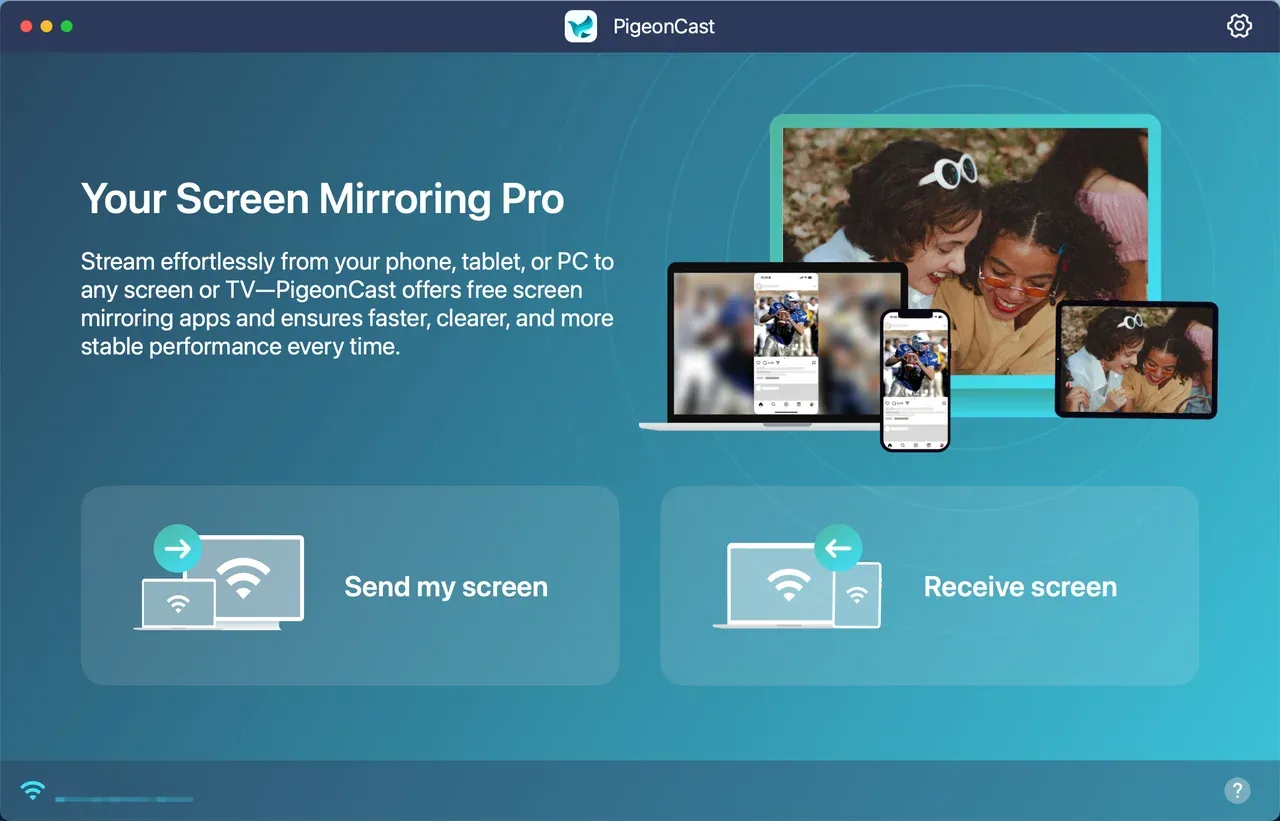
How to use PigeonCast to screen mirror from Mac:
Step 1. Install PigeonCast on your Mac and the target TV or streaming device.


Overall Rating:


Step 2. Connect both devices to the same local network.
Step 3. Launch the screen mirroring on the two devices.
Step 4. Click Send my screen on the Mac side.
Step 5. Choose your target device from the device list.
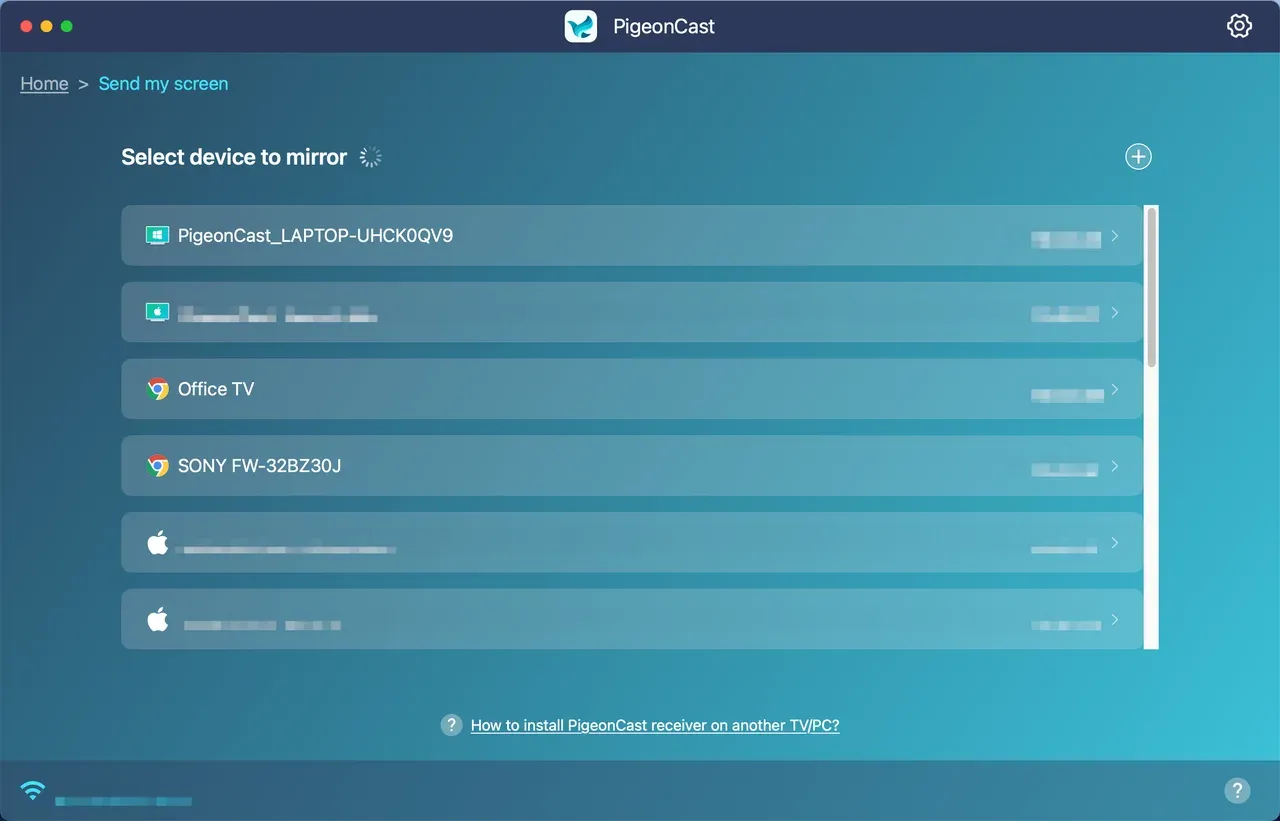
Step 6. Click Start mirror in the app.
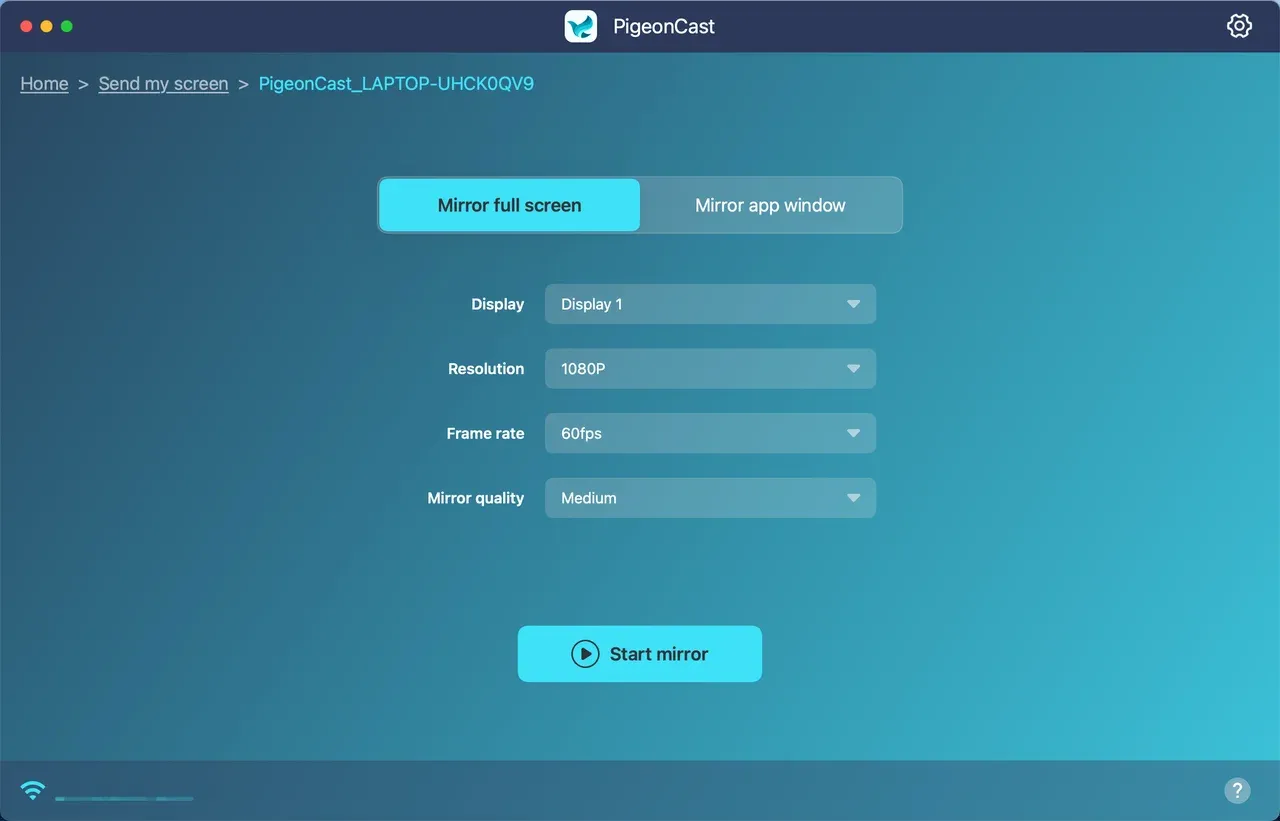
Step 7. Lower resolution or frame rate if latency spikes on weaker networks.
Backup 2: Use HDMI (Maximum Reliability)
If timing is critical—such as during meetings, classes, or live demonstrations—switch to a wired connection. HDMI provides the most stable and predictable output and avoids network-related interruptions.
How to screen mirror Mac with HDMI:
Step 1. Connect your Mac to the TV using the correct cable or adapter (USB-C to HDMI for most newer Macs).
Step 2. Select the matching HDMI input on the TV.
Step 3. On your Mac, open System Settings → Displays and choose Mirror or Extend.
Step 4. Go to System Settings → Sound and switch the audio output to the TV.
Step 5. Test playback with a local video file for 30–60 seconds.
Wrapping Up
When screen mirroring is not working on Mac, the fastest solution is to troubleshoot in a clear order instead of repeatedly retrying AirPlay. Start by confirming the basics: AirPlay compatibility, the same Wi-Fi network, and no VPN or firewall blocking discovery. Then move through targeted fixes such as resetting Wi-Fi discovery, rebuilding the AirPlay handshake, correcting display or audio output settings, and updating both macOS and your TV firmware.
If the issue persists after these checks, switch to a backup method instead of continuing to troubleshoot during a time-sensitive session. A wireless alternative like PigeonCast can help when AirPlay discovery is inconsistent or the TV has limited AirPlay support. For situations where reliability matters most, such as meetings, classes, or live demos, a wired HDMI connection remains the most stable option.
By following a structured diagnosis and knowing when to switch to a backup method, you can restore Mac-to-TV screen mirroring quickly and avoid unnecessary interruptions.
Screen Mirroring Not Working on Mac FAQ
Why is screen mirroring not working on Mac even when both devices are online?
Online status alone is not enough. Your Mac and TV must be discoverable on the same local network segment, and guest or isolated Wi-Fi often blocks that discovery.
How do I mirror Mac to TV if my TV does not show in AirPlay?
First confirm AirPlay is enabled on the TV and both devices share the same SSID. Then retry from Control Center > Screen Mirroring after restarting both endpoints.
Is AirPlay not working on Mac usually a Mac issue or a network issue?
In most cases, it is a network discovery issue or compatibility mismatch, not a hardware fault on Mac. That is why same-network checks and isolation settings matter first.
What is the fastest fix for unstable Mac screen mirroring during presentations?
Use HDMI before the session starts. It removes Wi-Fi variability and gives consistent audio and video routing with minimal risk.
Can I use an AirPlay alternative for MacBook to smart TV casting?
Yes. A compatible screen mirroring app can help when AirPlay support is limited or inconsistent on your target display.
Should I keep retrying AirPlay if it disconnects repeatedly?
No. Repeated disconnects usually indicate an environmental problem such as network congestion or unstable discovery conditions.
Mia Clarke is a technology editor specializing in screen mirroring and casting solutions across multiple platforms. Mia provides clear, practical guides and in-depth insights to help users seamlessly connect their devices. Passionate about enhancing digital experiences, Mia is dedicated to keeping readers updated on the latest trends and tools in cross-platform screen sharing. Whether you’re looking to mirror your smartphone, laptop, or smart TV, Mia’s content delivers reliable, user-friendly advice to simplify your tech setup.