
Knowing the right screen share shortcut Windows keys can save you from digging through complex settings. Whether you are on Windows 10 or 11, these keys allow you to present, cast, or mirror your PC instantly. This guide covers the essential shortcuts you need and how to troubleshoot common casting issues.
Windows Shortcut for Screen Mirroring
When you need to send your display to a smart TV, wireless monitor, or another PC, you don't have to navigate through the Settings app. There are two primary shortcuts you should master to handle every mirroring scenario.
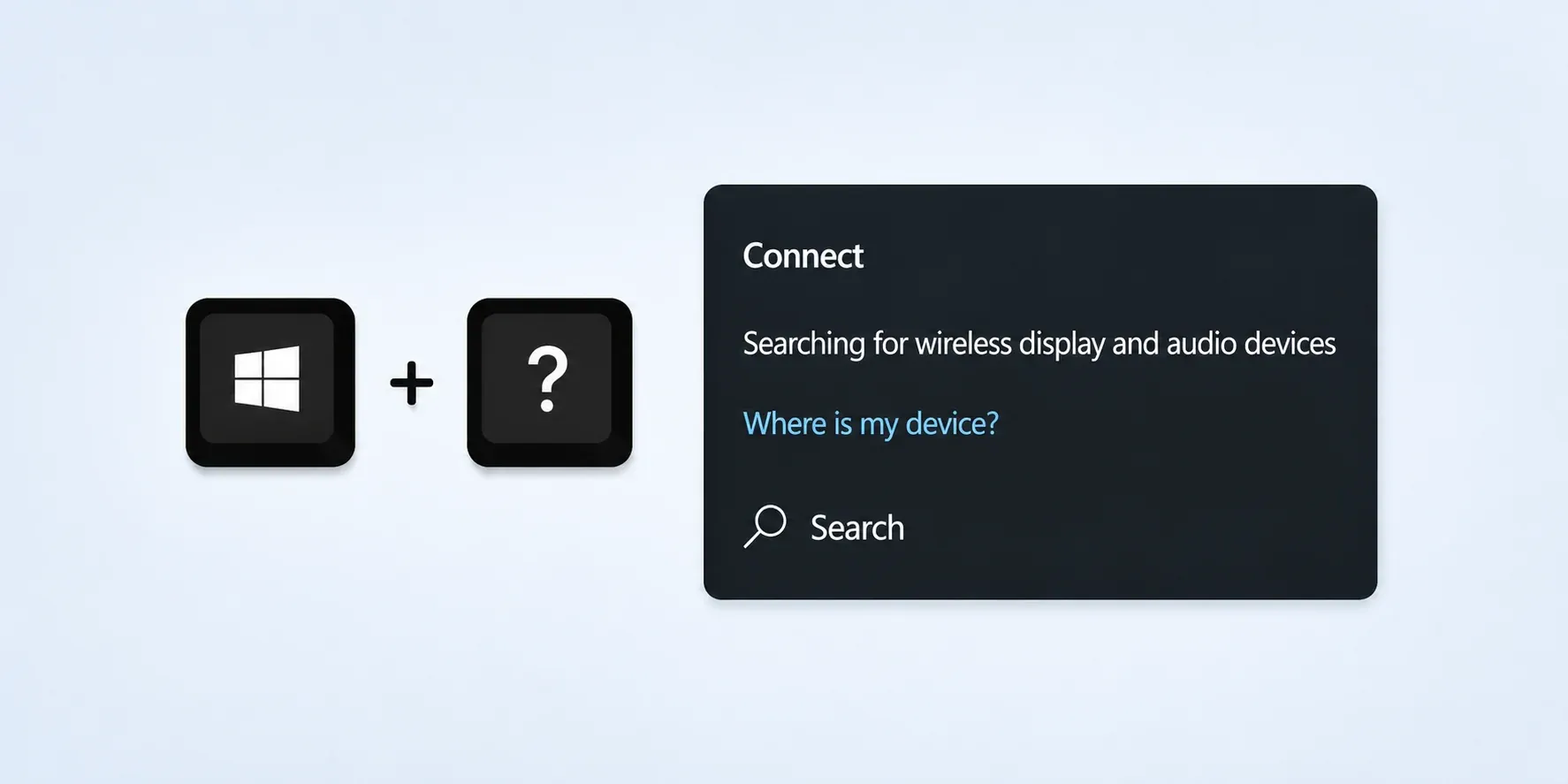
The Quickest Way to Connect: Win + K
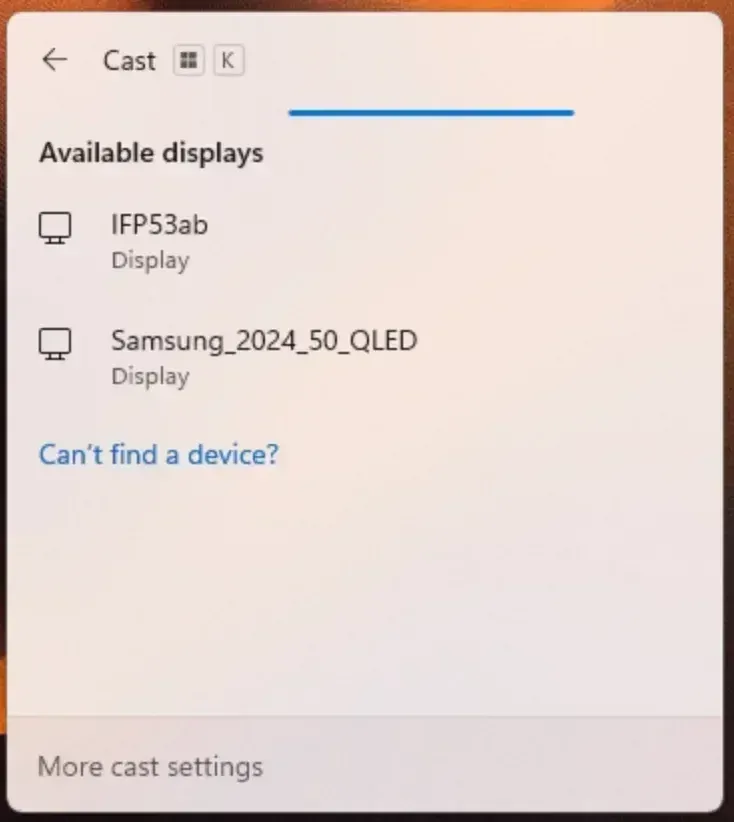
Instead of searching through the settings menu, the Win + K mirror display shortcut Windows 10 triggers an immediate broadcast to any wireless display. This command utilizes the Miracast protocol on Windows to establish a direct, low-latency connection between your devices.
-
OS Compatibility: This shortcut opens the Cast panel on Windows 11 and the Connect pane on Windows 10. Native wireless support via this key began with Windows 8.1, so Win + K is not available for wireless casting on Windows 7. In that case, mirroring a Windows 7 laptop to a TV requires another route, such as HDMI, Chrome casting, or DLNA.
-
Hardware Barrier: You must have Wi-Fi enabled, as this shortcut relies on Wi-Fi Direct for point-to-point transmission. While standard on laptops, custom desktop PCs often require a compatible Wi-Fi adapter to support this wireless handshake, even if you are already connected to the internet via Ethernet.
-
Quality & Sync: It supports up to 4K resolution and carries stereo audio natively. Since it creates a direct system-level link rather than routing through a server, it avoids the typical compression artifacts found in software-based screen sharing, making it ideal for high-definition video.
-
Remote Input (UIBC): A standout feature is the User Input Back Channel. Once connected, you can toggle "allow input" to control your PC using the touch screen or mouse of the receiving display, effectively turning the external monitor into a remote workstation.
Manage Your Display Layout: Win + P
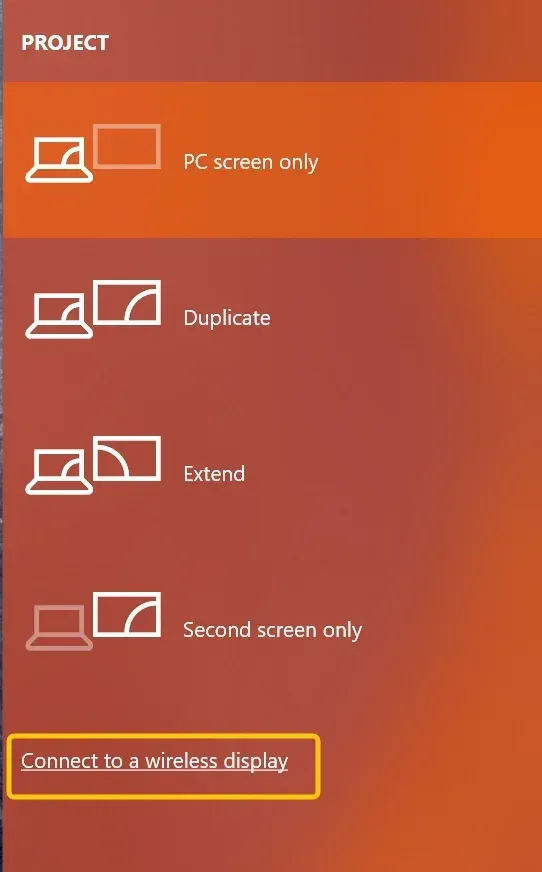
Once you are connected, you need to control how your content is displayed. The Win + P shortcut to cast screen Windows 11 is the universal tool for toggling between different projection modes instantly. This command works regardless of whether you are using a wireless Miracast connection or a physical HDMI cable.
-
PC Screen Only: This mode terminates the feed to the external display while keeping the connection active in the background. It is the fastest way to hide sensitive information from an audience without needing to unpair your devices.
-
Duplicate: This mode forces both displays to share the same resolution and content. While it is the standard for basic presentations, keep in mind that your laptop will often downscale its resolution to match the native capabilities of the external monitor or projector.
-
Extend: This is the professional choice for multitasking that allows you to extend screen on Windows to the external screen while keeping your private notes or communication apps visible only on your laptop.
-
Second Screen Only: This option deactivates your primary laptop panel and treats the external monitor as the sole display. This is ideal for saving power or reducing heat when you are using a larger monitor as your primary workstation for extended periods.
A Universal Alternative: When Shortcuts Aren't Enough
While the Windows shortcut key for screen mirroring is powerful, they are often limited by hardware compatibility or network restrictions that results in Windows + K shortcut not working. If your PC lacks Miracast support or you need to bridge the gap between different ecosystems like Windows, iOS, and Android TV, a dedicated tool like PigeonCast is the ideal solution.
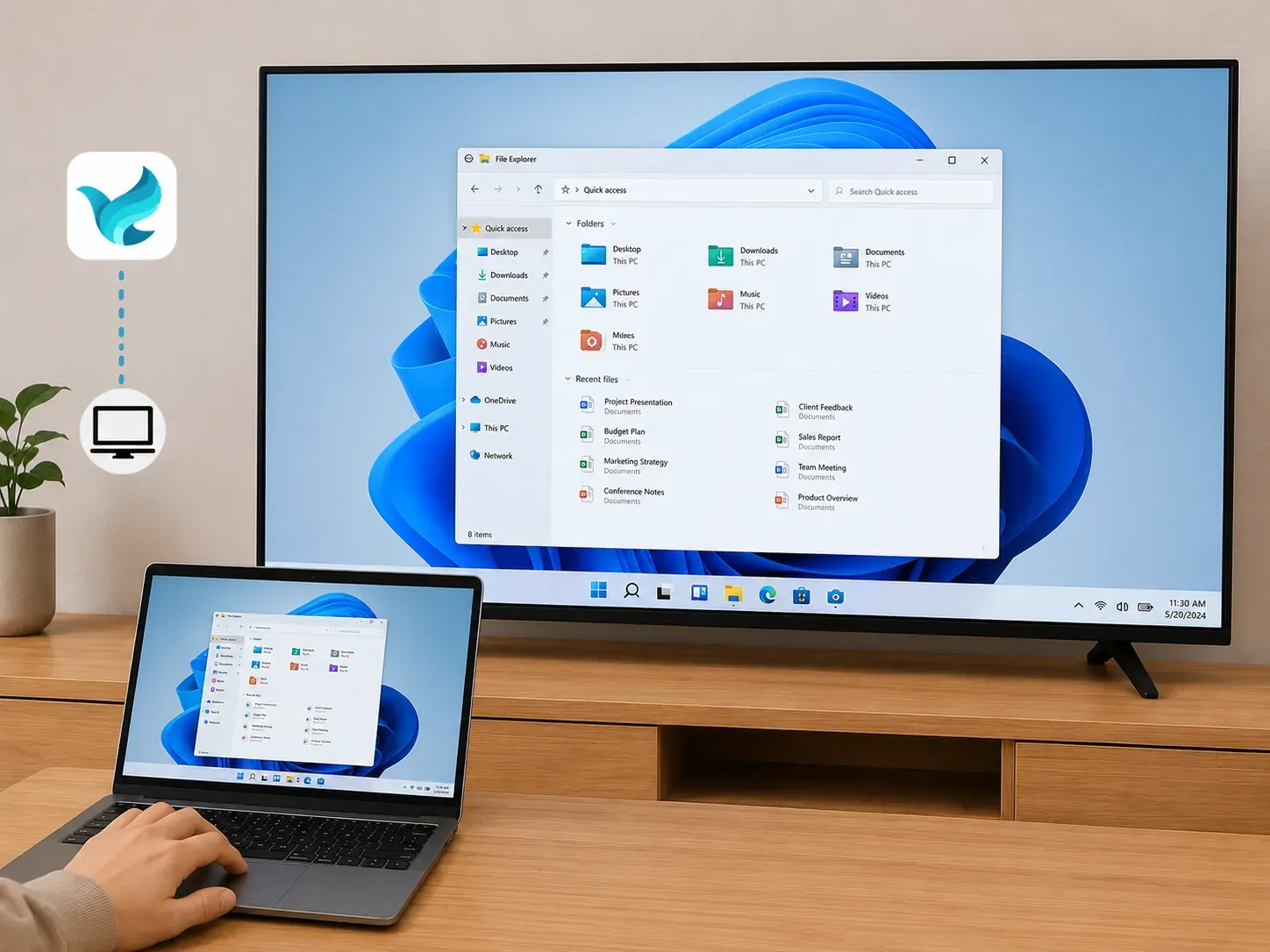
Step 1. Ensure your Windows PC and TV or another laptop are covered by the same wireless network.


Overall Rating:



Step 2. Install PigeonCast on your Windows PC from Microsoft Store and TV in the app shop if available.
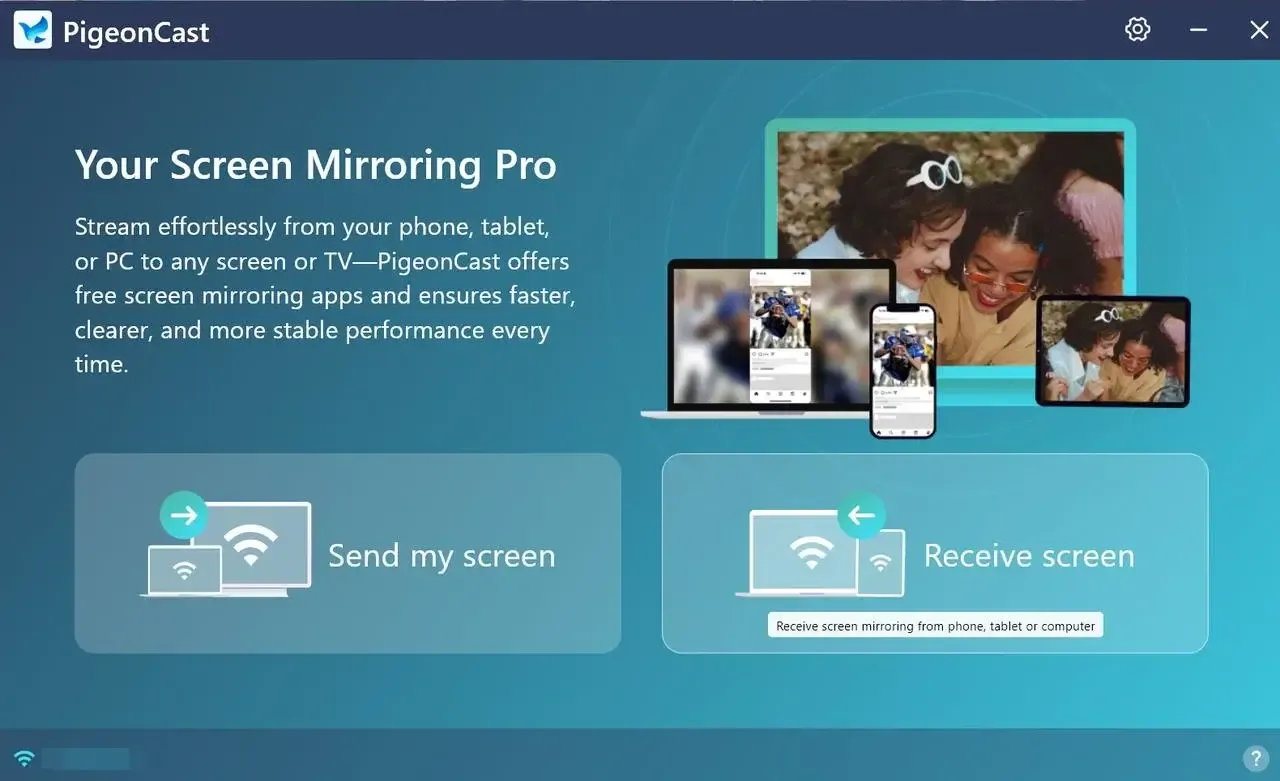
Step 3. Launch the app, tap Send my screen to choose your receiver device from the available list.
Step 4. Enter the onscreen PIN code to confirm the pairing requisition.
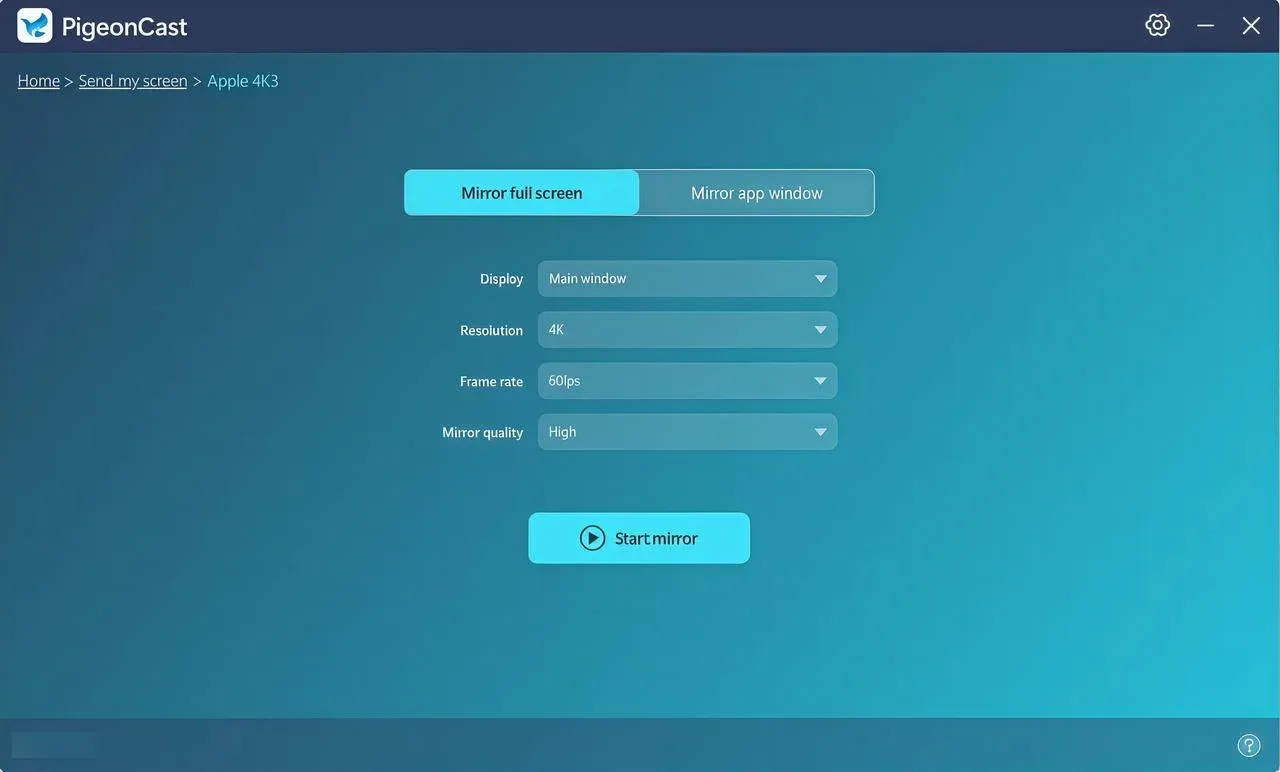
Step 5. When you finish the connection, you can click Start mirror to begin your mirroring activities. You are also allowed to mirror the full screen or a singel app window.
Troubleshooting Windows Shortcut for Screen Sharing Issues
When the Windows 10 screen mirroring shortcut keys fail to respond or connect it usually indicates a breakdown in the handshake between your hardware and the operating system. You can follow these steps to identify and resolve the root cause.
- Confirm Miracast Compatibility
You should first verify that your system supports the Miracast protocol required for wireless sharing. Type dxdiag in the Windows search bar to run the DirectX Diagnostic Tool and click Save All Information. Open the resulting text file and search for Miracast to see if your hardware is joined to the wireless display architecture.
- Update Network and Display Drivers
Outdated firmware is the most frequent cause of connection failures. You must ensure that both your Display Adapters and Wireless Network Adapters are updated to their latest versions in the Device Manager. Windows frequently disables the casting feature if it detects a driver that cannot handle the low latency requirements of a wireless stream.
- Adjust Network Profile and Firewall
Your security settings might be intercepting the connection attempt. You need to verify that your network is set to Private in the Network and Internet settings because Windows blocks casting on Public networks for security. Additionally you should ensure that Wireless Display is permitted through the Windows Defender Firewall settings.
- Reinstall the Wireless Display Feature
If the shortcut opens the panel but stays stuck on searching you may need to reset the optional feature. Navigate to the Optional Features section in your settings and locate Wireless Display. You can uninstall this module then reinstall it to clear the system cache and restore the native casting functionality.
Advanced Shortcuts for Professional Presentations
Mastering the screen mirroring shortcut Windows is only the first step toward a seamless workflow. To maintain a professional edge during live meetings you should utilize these auxiliary commands to manage your workspace and privacy.
- Organize Your Workspace with Win + Z
Before you trigger your screen share you should arrange your apps to avoid on screen clutter. On Windows 11 pressing Win + Z activates the snap layouts menu which allows you to lock your presentation and reference notes into a clean split screen view. This ensures your audience sees a structured layout rather than a messy desktop.
- Manage System Audio with Win + A
Adjusting volume during a presentation can be distracting if you use the mouse. Pressing Win + A opens the Quick Settings flyout where you can instantly modify audio levels or toggle Bluetooth devices. This allows you to manage your sound environment without interrupting the active shortcut for screen mirroring Windows stream.
- Capture Your Session with Win + Alt + R
If you need to archive a presentation for future review the Xbox Game Bar provides a native recording solution. Using this command starts a screen capture immediately including all system audio. It is a lightweight alternative to heavy third party software and works perfectly while you are mirroring your display.
- Clear Your Desktop with Win + D
If you need to find a file quickly without your audience seeing your open windows you can use this shortcut to minimize everything at once. This acts as a panic button to hide sensitive information before you select a specific window to share in your meeting app.
Final Verdict
Utilizing the shortcut to cast screen Windows 10 via Win + K and Win + P provides instant control over your professional presentations. When native hardware limits occur, PigeonCast serves as the essential bridge for cross-platform stability and seamless high-definition mirroring. These tools combined ensure a reliable display connection for any meeting environment.
Screen Share Shortcut Windows FAQ
What's the screen mirroring shortcut on the iPhone?
On the iPhone, the screen mirroring shortcut is:
-
Open Control Center
-
iPhone with Face ID: swipe down from the top-right corner
-
iPhone with Home button: swipe up from the bottom
-
-
Tap Screen Mirroring
-
Select your TV or compatible device from the list
How to enable screen mirroring on Windows 10?
To enable screen mirroring on Windows 10:
-
Open Settings > System, select Projecting to this PC.
-
Set it to Available everywhere or Available everywhere on secure networks.
-
Adjust the options based on your preference (e.g., ask for permission)
To start mirroring from another device:
-
Press Windows + K on the sending device
-
Select your Windows 10 PC from the list
What's screen mirroring keyboard shortcut Mac?
On a Mac, the screen mirroring shortcut is: Press Control (⌃) + Command (⌘) + F → toggles full screen (not mirroring, but often confused).
For actual screen mirroring (AirPlay), there is no default direct keyboard shortcut. Instead: Click the Control Center icon (top-right menu bar) > Screen Mirroring. Or click the AirPlay icon if it's visible in the menu bar.
What is the shortcut key to duplicate the screen on Windows?
On Windows, you can quickly duplicate (mirror) your screen using a keyboard shortcut:
-
Press Windows + P to open the projection menu
-
Select Duplicate to mirror your display on all connected screens
This shortcut works on Windows 10 and Windows 11 and is the fastest way to switch between display modes, including Duplicate, Extend, Second screen only, and PC screen only.
Can I share audio when I screen share from Windows?
Yes, you can share audio when screen sharing from Windows, but it depends on the app or method you're using.
-
Built-in Windows (e.g., wireless display/Miracast): Supports audio sharing along with screen mirroring if the receiving device supports it.
-
Video conferencing apps (Zoom, Microsoft Teams, Google Meet): Most platforms offer a "Share sound" or "Include system audio" option when you start screen sharing.
-
HDMI connection: Audio is typically transmitted automatically through the HDMI cable if selected as the output device.
Which is better for presentations, Duplicate or Extend?
For presentations, Extend is generally better than Duplicate.
-
Extend (recommended): Lets you use your main screen for notes, controls, or preparation, while the audience sees only the presentation on the second screen.
-
Duplicate: Shows the exact same content on both screens.
Clara Rossi is an experienced technology editor and a seasoned expert in screen mirroring and casting technologies. With a keen eye for detail and a deep understanding of how to seamlessly connect devices, Clara excels at optimizing user experiences for effortless sharing and streaming. Whether you're seeking quick fixes or advanced tips, her expertise and responsiveness ensure that every query is met with a well-informed and efficient solution.