
Screen mirroring on a Dell laptop is simpler than many people expect. Whether you want to show your laptop screen on a TV for a movie, share slides in a meeting, or extend your workspace wirelessly, Dell laptops running Windows offer several practical options. This guide walks you through how to screen mirror on Dell laptop.
How to Screen Mirror on Dell Laptop
Dell laptop screen mirroring displays your Windows laptop screen on another device, usually a TV or external display, without using an HDMI cable. In most home and office setups, this relies on WiFi-based technologies or third-party software rather than proprietary hardware.
Think of it this way. Your Dell laptop remains stationary, but its screen appears elsewhere in real-time. That is the core idea behind screen mirror on Dell laptop setups.
Method 1: Use Built-in Windows Wireless Display (Miracast)
If your Dell laptop supports Miracast, this is the most direct way to screen mirror on Dell laptop without installing extra software. Most modern Dell laptops with Windows 10 or Windows 11 support it.
How to screen mirror on a Dell laptop over Miracast:
Step 1. Turn on your TV and enable its wireless display or screen mirroring mode from the Settings menu.
Step 2. On your Dell laptop, open Settings > System > Display.
Step 3. Click Connect to a wireless display.
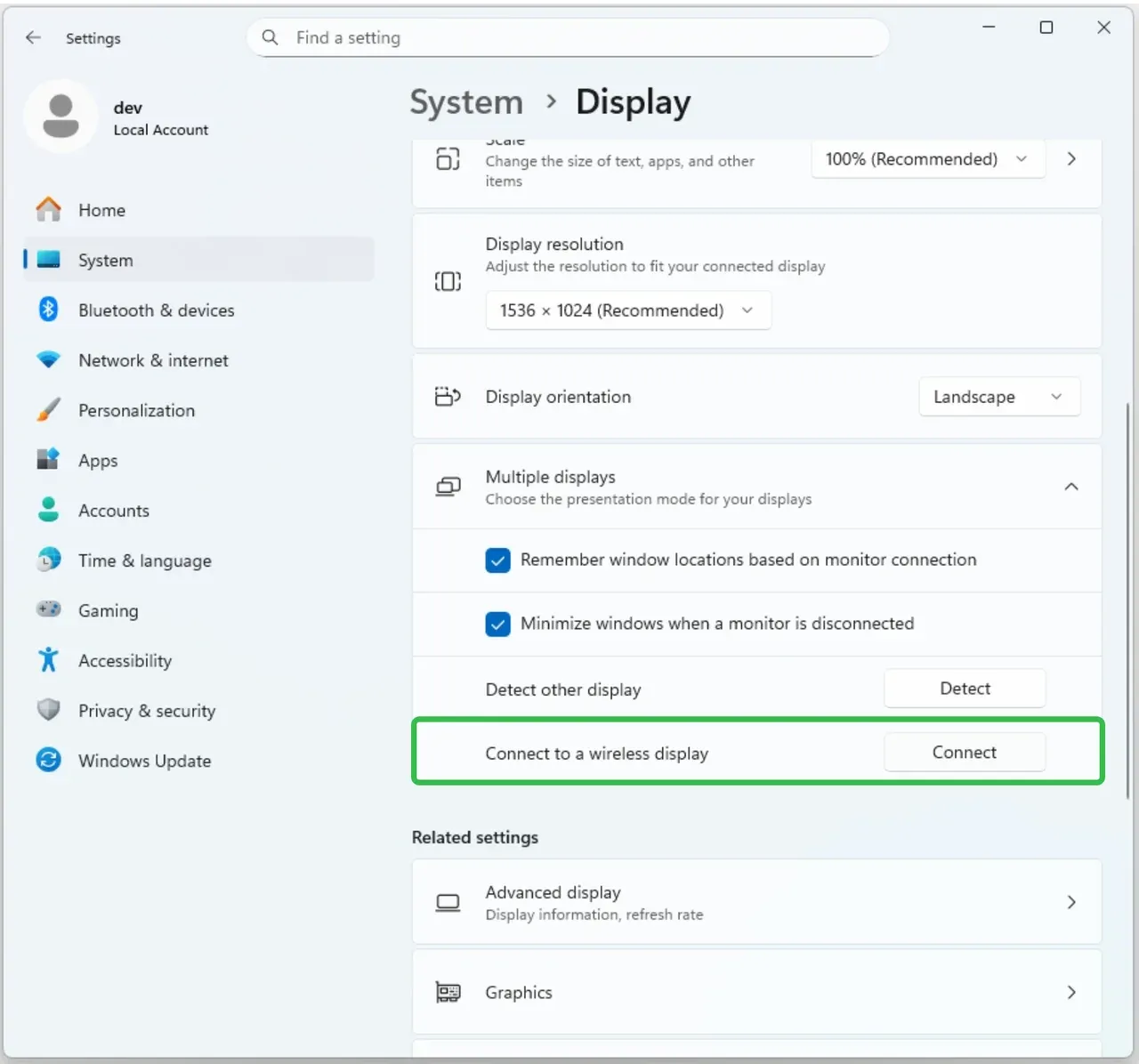
Step 4. Choose your TV from the list.
Once connected, your Dell laptop screen mirroring session starts instantly.
Method 2: Use a Free Screen Mirroring App (PigeonCast)
The built-in Miracast on Windows PC, like a Dell laptop, is convenient, but it is limited. Compatibility varies by TV model, connection stability depends heavily on the network, and advanced controls are minimal. If Miracast fails to detect your TV or drops the connection mid-session, third-party software becomes the practical alternative.
PigeonCast offers a more flexible way to screen mirror on Dell laptops, especially when you want fewer device restrictions. It works across Windows laptops, smart TVs, streaming devices, and mobile phones, without relying on Miracast support from the display.
How to connect Dell laptop to TV wirelessly using PigeonCast:
Step 1. Connect your Dell laptop and TV to the same WiFi network.
Step 2. Install PigeonCast on your Dell laptop from the Microsoft Store and launch it.


Overall Rating:


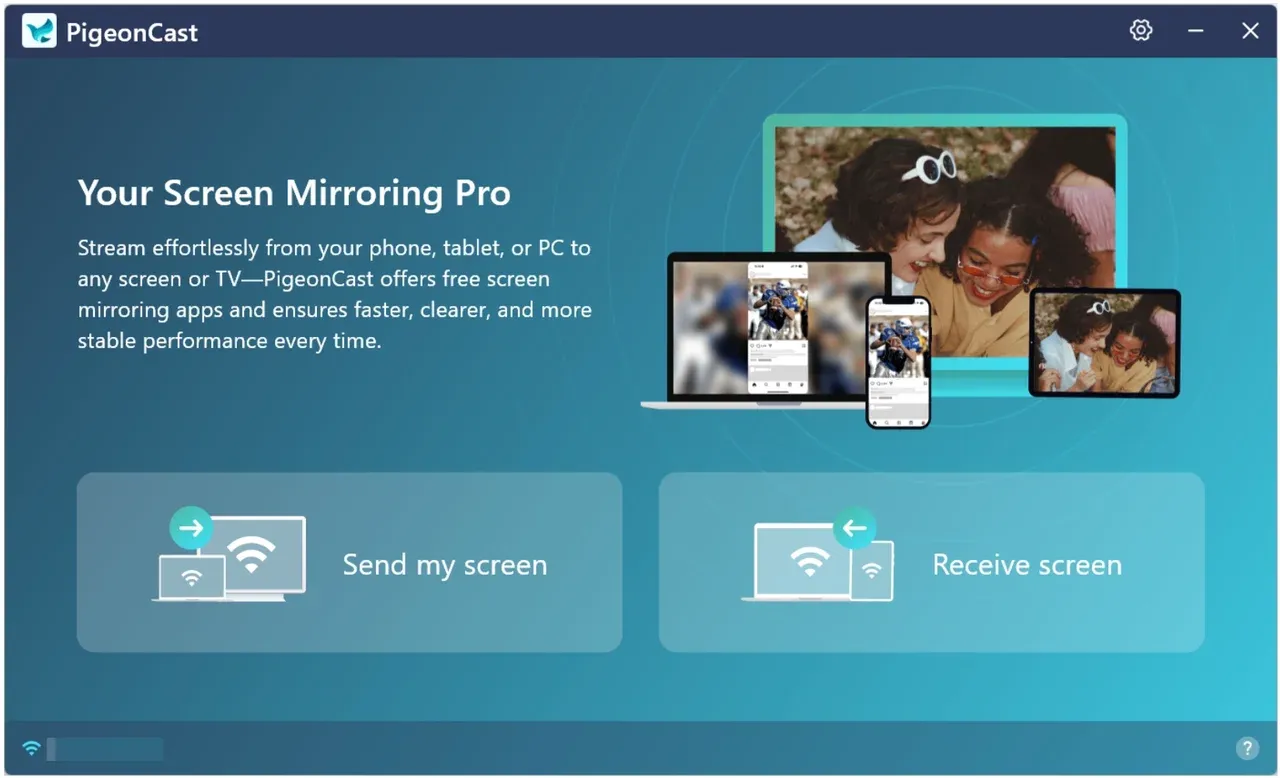
Step 3. On the target device, such as a smart TV or streaming box, go to the app store, download PigeonCast, and set it up.
Tip: PigeonCast is available on devices that run Android TV, tvOS, or Fire OS.
Step 4. On your Dell laptop, click the Send my screen option and choose your target device from the list.
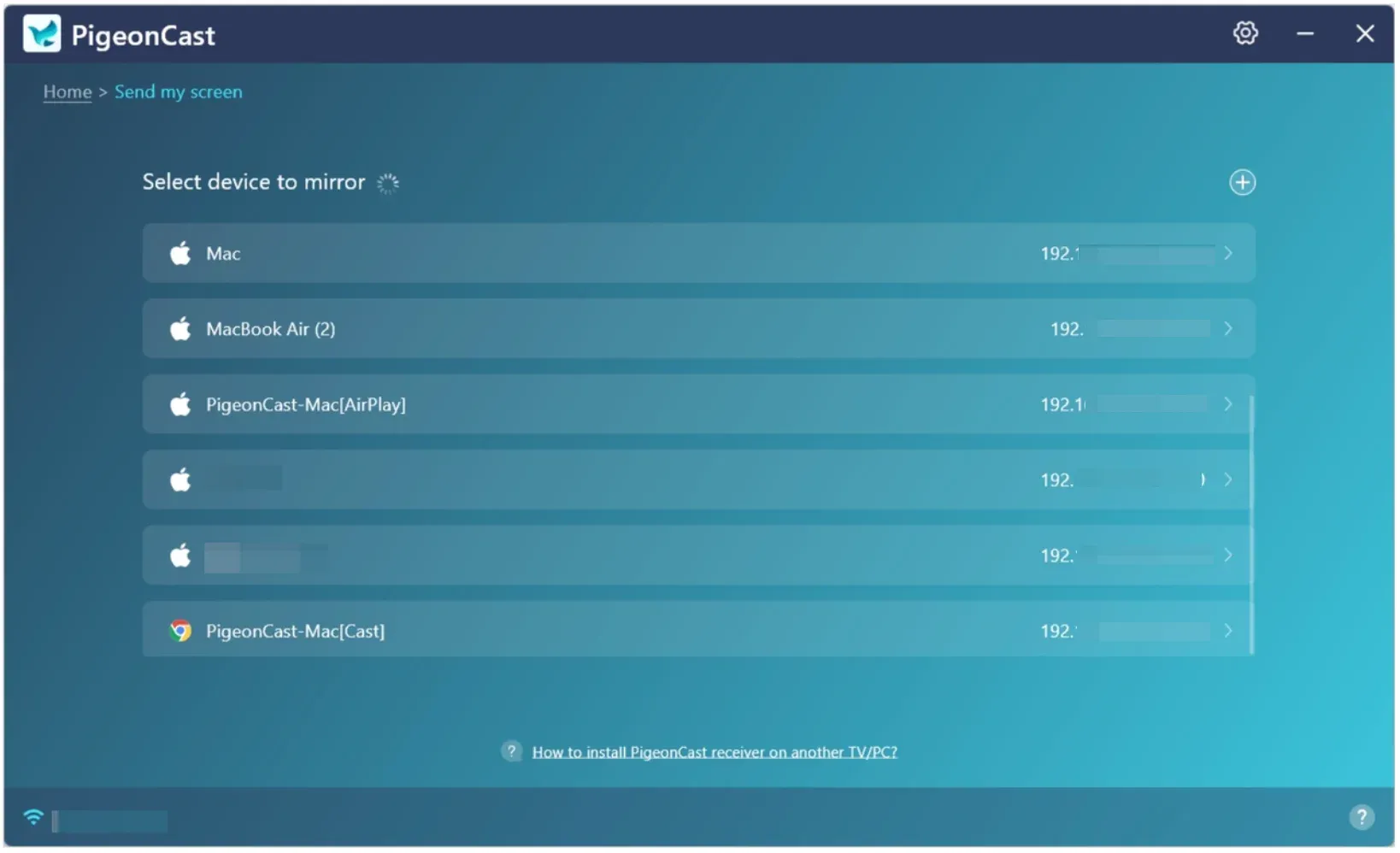
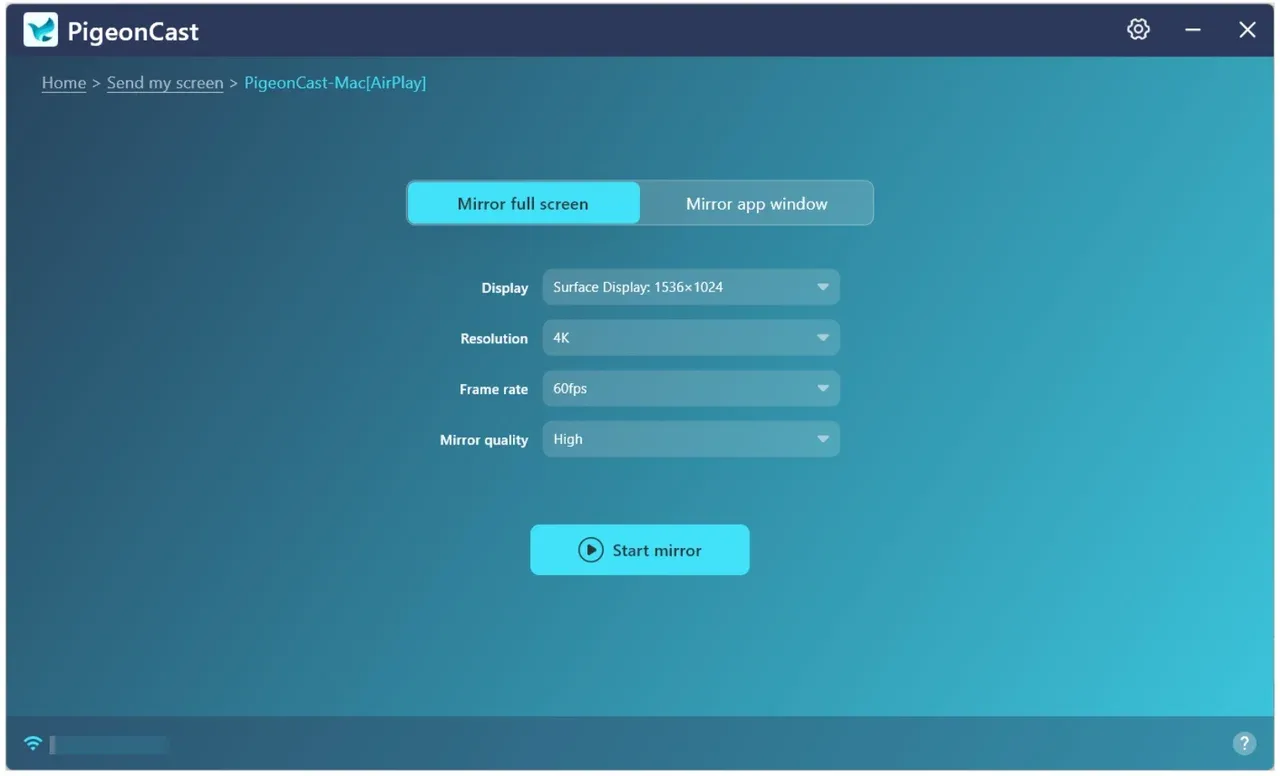
Step 5. Once connected, set your mirroring preference and tap Start mirror.
With the free PigeonCast app, you can easily connect your Dell laptop to a TV, including Apple TV, and effortlessly mirror your iPhone to your Dell laptop as well
Wrapping Up
How to screen mirror Dell laptop to TV? Dell laptop screen mirroring does not need to be complicated and works best when you match the method to your environment instead of forcing a single solution. Built-in Windows tools handle basic needs, while third-party apps offer more consistency across different TVs and networks.
If your goal is to screen mirror Dell laptop to TV wirelessly for work or entertainment, starting with Miracast makes sense. When that falls short, software-based alternatives provide the flexibility Windows users often need.
How to Screen Mirror on Dell Laptop FAQs
How do I screen mirror my Dell laptop to my TV?
You can screen mirror a Dell laptop to a TV wirelessly using Windows built-in features or third-party apps. If your TV supports Miracast, open Settings > System > Display > Connect to a wireless display on your Dell laptop and select your TV. This works well for basic screen sharing at home or in a meeting room. If your TV does not support Miracast, a screen mirroring app like PigeonCast can bridge the gap and provide a more stable connection.
How can I mirror my phone to my Dell laptop?
Mirroring a phone to a Dell laptop depends on the phone's operating system. For Android phones, some models support wireless display features that work with Windows. For iPhones, Windows does not support native AirPlay, so you need a dedicated screen mirroring app. Tools like PigeonCast allow you to display your phone screen on a Dell laptop in real time, which is useful for demos, tutorials, or presentations.
How to start screen mirroring on laptop?
To start Dell laptop screen mirroring, first decide what device you are mirroring to. For TVs or wireless displays, check whether Miracast is available and enable wireless display mode on the target device. Then initiate the connection from Windows display settings. For phone or cross-platform mirroring, install a compatible screen mirroring app on both devices, launch it, and follow the on-screen connection steps.
Can I screen mirror a Dell laptop without WiFi?
In most cases, wireless screen mirroring on a Dell laptop requires WiFi, even if both devices are on the same local network. If WiFi is not available or unstable, using an HDMI cable is the most reliable alternative. Some third-party apps also support local hotspot connections, but performance can vary.
Why does screen mirroring on my Dell laptop lag or disconnect?
Lag usually comes from network congestion, weak WiFi signals, or hardware limitations on the receiving device. To improve performance, keep both devices on the same high-speed network, close background apps, and lower the mirroring resolution if possible. Dedicated screen mirroring tools often handle these issues better than built-in options.
Mia Clarke is a technology editor specializing in screen mirroring and casting solutions across multiple platforms. Mia provides clear, practical guides and in-depth insights to help users seamlessly connect their devices. Passionate about enhancing digital experiences, Mia is dedicated to keeping readers updated on the latest trends and tools in cross-platform screen sharing. Whether you’re looking to mirror your smartphone, laptop, or smart TV, Mia’s content delivers reliable, user-friendly advice to simplify your tech setup.