
You're in a meeting, sharing your screen on a laptop, when someone asks to see the same content on another PC in the room. Sending files feels slow. Logging into cloud tools breaks the flow. What you really need is a simple way to mirror one screen to another instantly.
This is where learning how to connect laptop to PC for screen mirroring becomes useful. Instead of juggling windows or re-sharing links, you can display one laptop's screen directly on another PC in real time.
In this guide, we focus only on screen mirroring. You'll learn practical ways to connect devices using built-in features, wireless tools, and wired options, so you can choose the method that fits your setup.
What Screen Mirroring Means When Connecting Laptop to PC
When people search for how to connect a laptop to a PC, they often mean screen mirroring. Screen mirroring displays the same content on two devices at the same time, which is different from remote control or file sharing.
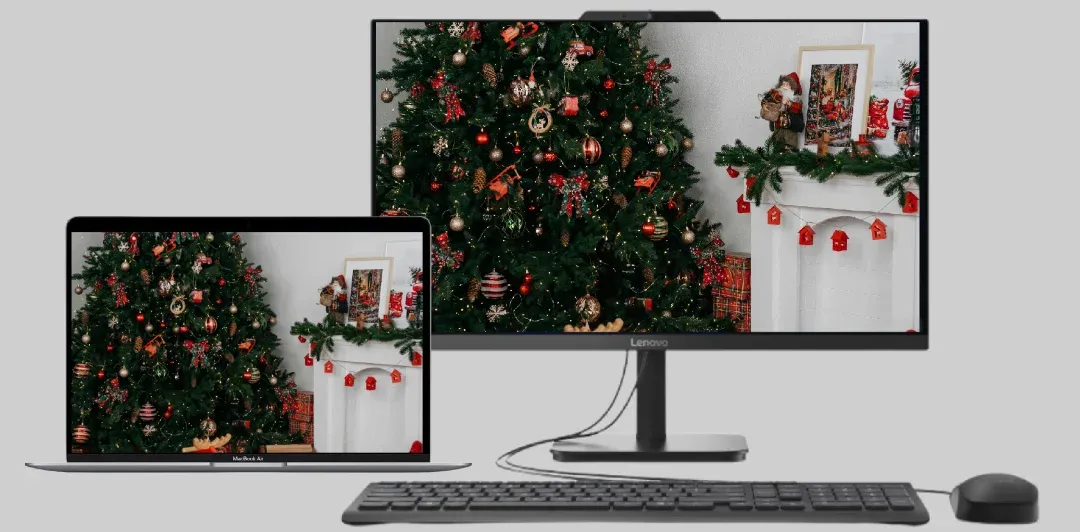
In real scenarios, screen mirroring is commonly used for live demos, online teaching, or sharing content during meetings. Once connected, everything shown on one screen appears instantly on the other, with no need to manually sync files.
How to Connect Laptop to PC Using Built-in Feature
Some operating systems include native tools that allow basic screen mirroring without installing extra software. These options work best when both devices use the same platform.
Connect Windows Laptop to Windows PC via Miracast
Miracast allows you to connect a Windows laptop to another Windows PC wirelessly if both devices support it.
Here is how to connect laptop to PC wirelessly:
Step 1. On the receiving PC, enable wireless display.
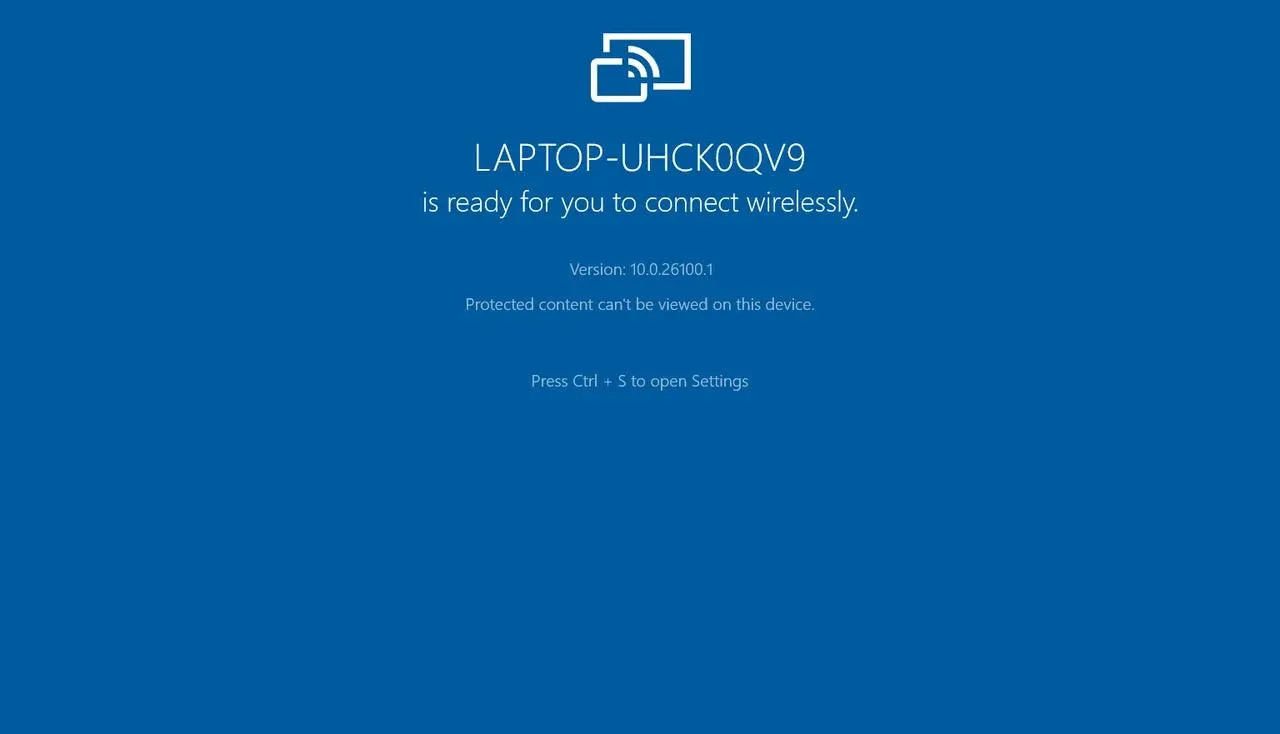
Step 2. On the sending laptop, press Windows + K to open the Cast menu.
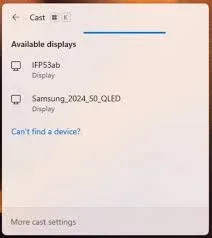
Step 3. Select the target PC from the list and confirm the connection.
This method is useful for quick setups, though performance can vary depending on hardware and network stability.
Connect MacBook to iMac via AirPlay
Apple devices support screen mirroring through AirPlay, making it easy to connect them within the same ecosystem.
Check how to connect PC to laptop screen:
Step 1. Make sure both devices are connected to the same Wi-Fi network.
Step 2. Click Control Center on the menu bar.
Step 3. Select Screen Mirroring and choose the desktop.
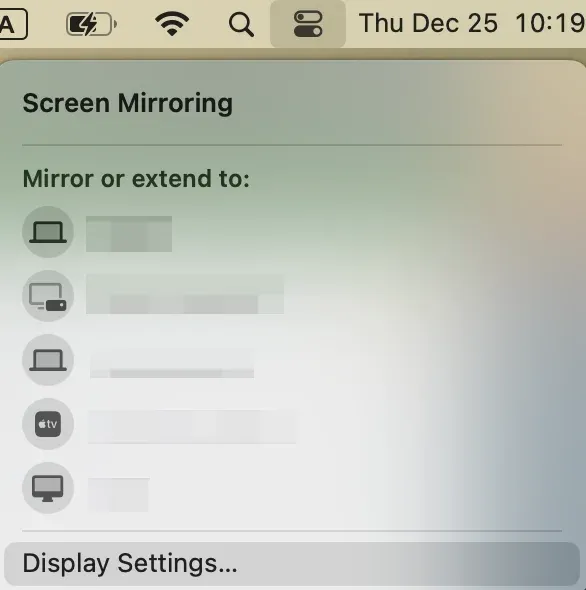
AirPlay is smooth and reliable for Apple users, but it does not support Windows devices.
How to Connect Laptop to PC Using PigeonCast
If you need flexibility across different systems, the free PigeonCast app offers a more universal approach. It supports how to connect laptop to PC wirelessly, regardless of whether you use Windows or macOS.
With PigeonCast, all of the following are possible:
- Windows to Windows
- Mac to Mac
- Windows to Mac
- Mac to Windows
How to connect a laptop to a PC with PigeonCast:
Step 1. Install PigeonCast on both devices and launch the app.


Overall Rating:



Step 2. Connect both devices to the same Wi-Fi network.
Step 3. On the sending platform, click Send my screen.
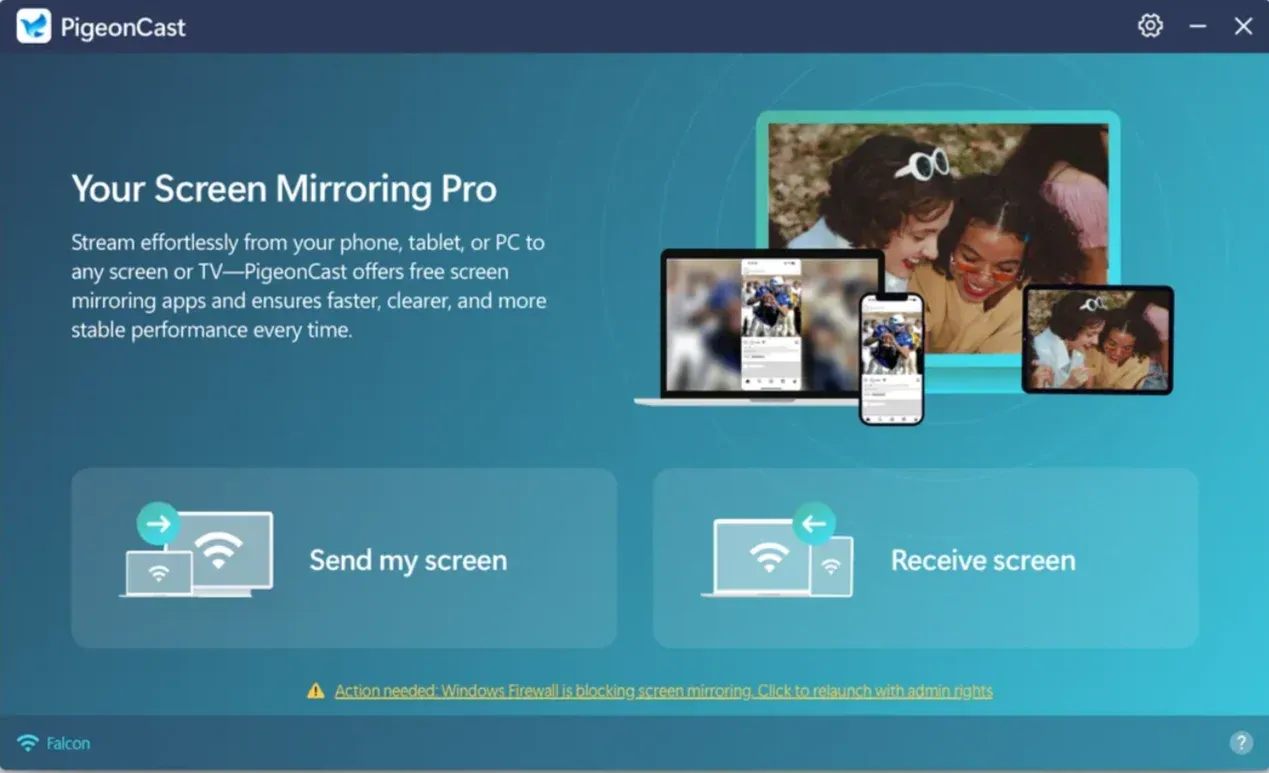 Step 4. On the receiving platform, click Receive screen, and it is ready.
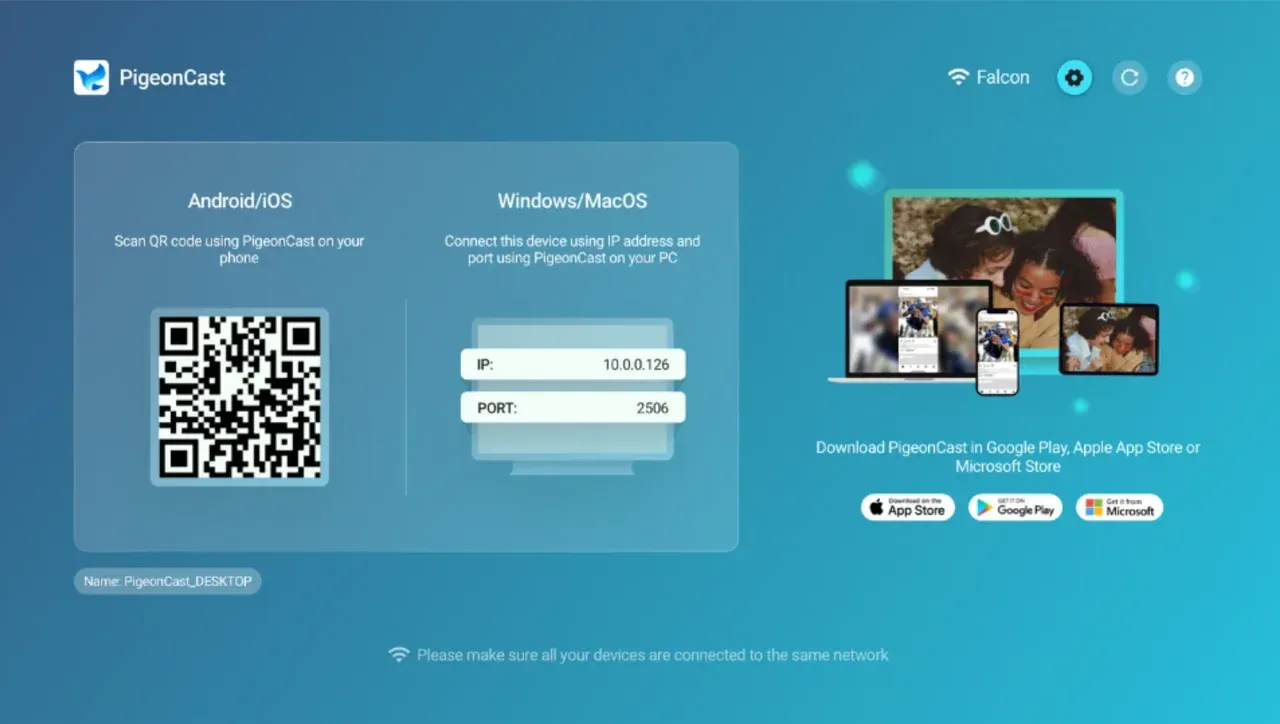
Step 5. On the sending device, choose the target device from the list of available devices.
Step 6. Then, click the Start mirror.
This approach fits mixed-device environments such as offices or classrooms, where consistent performance across different operating systems matters.
How to Connect Laptop to PC Using HDMI Cable
If wireless options are unstable or unavailable, a wired connection can still work.
Here's how to connect laptop to PC with HDMI cable:
Step 1. Connect an HDMI cable from the laptop to a capture device or compatible input.
Step 2. Open display settings on the receiving PC.
Step 3. Select the correct input source to display the mirrored screen.
This method reduces latency but requires additional hardware and limits mobility.
Wrapping Up
Learning how to connect PC to laptop for screen mirroring gives you more control over how you share and present content. Built-in features work well for same-platform devices, while third-party solutions offer greater flexibility.
The best method depends on your devices, network, and use case. Once set up, screen mirroring becomes a powerful and time-saving tool.
How to Connect Laptop to PC for FAQs
Can you connect a laptop to a PC?
Yes. You can connect a laptop to a PC for screen mirroring using built-in wireless features like Miracast or AirPlay, third-party mirroring apps like PigeonCast, or a direct HDMI cable. The best method depends on your operating systems and whether you need wireless flexibility or the lowest possible latency.
How to connect laptop to PC as second monitor?
To use a laptop or PC as a second monitor, you usually need a wired connection such as HDMI with capture hardware, or dedicated software designed for extended displays.
Does screen mirroring work between Windows and Mac?
Built-in screen mirroring tools do not work directly between Windows and Mac. Miracast is Windows-only, and AirPlay is designed for Apple devices. To mirror a Windows PC to a Mac or a MacBook to a Windows PC, you need a cross-platform screen mirroring app like PigeonCast that supports both systems.
Is HDMI better than wireless screen mirroring?
HDMI offers the lowest latency and the most stable connection, making it ideal for gaming or professional use. Wireless screen mirroring provides more flexibility and convenience, especially for quick sharing or remote setups, but it may introduce slight delay depending on network quality.
Mia Clarke is a technology editor specializing in screen mirroring and casting solutions across multiple platforms. Mia provides clear, practical guides and in-depth insights to help users seamlessly connect their devices. Passionate about enhancing digital experiences, Mia is dedicated to keeping readers updated on the latest trends and tools in cross-platform screen sharing. Whether you’re looking to mirror your smartphone, laptop, or smart TV, Mia’s content delivers reliable, user-friendly advice to simplify your tech setup.