

If you are asking “what is Miracast receiver,” the simple answer is it is the device, TV feature, projector feature, or software endpoint that receives a Miracast screen mirroring signal from a compatible phone, tablet, or computer.
In simple terms, it is the receiving side of a wireless display connection. Your laptop or phone sends the screen. The Miracast receiver shows that screen on a TV, monitor, projector, or another display. It can be useful, but it is not the same as Chromecast, AirPlay, or a full streaming device.
Quick Answer: What Does a Miracast Receiver Do?
A Miracast receiver receives a wireless screen mirroring signal from a compatible phone, tablet, or computer and shows that screen on a TV, monitor, or projector.
It is mainly used for full-screen duplication, not app-native streaming. That means the receiver shows what is happening on the sender device, such as a desktop, browser window, presentation, document, or app screen.
The most common use case is simple: a compatible Windows PC or Android device sends its screen, and the Miracast receiver displays it on a larger screen.
Miracast Sender vs Miracast Receiver
A Miracast connection has two sides: the sender and the receiver. The sender is the device that starts the screen mirroring session. The receiver is the display side that accepts the connection and shows the screen.
This distinction matters because many people search for a Miracast receiver when they are really trying to solve a device compatibility problem. A receiver cannot make every phone, laptop, or app support Miracast. Both sides still need to work with the same wireless display method.
| Part | What It Means | Common Examples |
|---|---|---|
| Miracast sender | The device that sends the screen | Windows laptop, compatible Android phone, tablet |
| Miracast receiver | The device or feature that receives the screen | TV, projector, HDMI dongle, wireless display adapter |
| Display output | The screen shown on the larger display | Presentation, desktop, app screen, browser window, document |
For example, if you mirror a Windows laptop to a meeting room projector, the laptop is the sender. The projector, adapter, or display system is the Miracast receiver.
How Does a Miracast Receiver Work?
A Miracast receiver works by accepting a wireless display connection from a compatible sender. In everyday use, the process feels similar to choosing a wireless display from your phone or computer.
The basic flow looks like this:
- The sender searches for available wireless display targets.
- The Miracast receiver appears as a display option.
- You select the receiver from the sender device.
- The sender creates a wireless display connection.
- The receiver shows the live screen output on the larger display.
Unlike app-native casting, Miracast usually mirrors what is happening on the sender device. If you open a document, switch windows, move your mouse, or change apps, the receiver follows the screen because it is displaying a live copy of the sender’s screen.
That is why Miracast is often useful for presentations, classrooms, and office displays. It is built around showing the screen itself, not handing off a streaming link to a TV app.
What Devices Work with a Miracast Receiver?
Device support is the most important thing to check before buying a Miracast receiver. A Miracast dongle or adapter may work well in one setup and feel useless in another.
Windows is usually the safest match, especially for wireless display use in meetings, classrooms, and projector setups. Android support depends more on the phone brand, TV brand, and software version. Some Android devices still offer wireless display or screen sharing features that can work with Miracast-style receivers, while others focus more on Chromecast, Smart View, or brand-specific casting.
Apple devices are different. iPhone, iPad, and Mac do not use Miracast as their native screen mirroring path. Apple users should usually look at AirPlay or a screen mirroring app instead.
| Device Type | Works with Miracast Receiver? | Best Practical Answer |
|---|---|---|
| Windows PC | Usually yes, if the PC and display support Miracast | Good fit for wireless display and presentations |
| Android phone | Depends on brand and model | Check for Wireless Display, Smart View, Cast, or screen sharing options |
| iPhone | Not natively | Use AirPlay or a cross-platform mirroring app |
| iPad | Not natively | Use AirPlay or another compatible receiver path |
| Mac | Not natively | Use AirPlay or a Mac-compatible mirroring solution |
| Smart TV | Depends on TV model and built-in features | Check whether the TV already supports wireless display, AirPlay, or Google Cast |
| Projector | Sometimes | Useful when the projector has Miracast built in or uses a Miracast adapter |
Before buying, check both the sender and the receiver. A Miracast receiver alone does not guarantee that every device in your home can mirror to it.
When a Miracast Receiver Still Makes Sense
A Miracast receiver still makes sense when your main goal is direct screen duplication from a compatible device. It is not outdated in every situation. It is just more specific than many buyers expect.
The strongest use case is still Windows screen mirroring. If you often connect a Windows laptop to a TV, office display, monitor, or projector, a Miracast receiver can remove the need for HDMI cables. That is useful in meeting rooms, classrooms, training spaces, and shared work areas.
It can also make sense for older displays. If a monitor or projector has HDMI input but no wireless display feature, a Miracast dongle can turn it into a simple wireless display target.
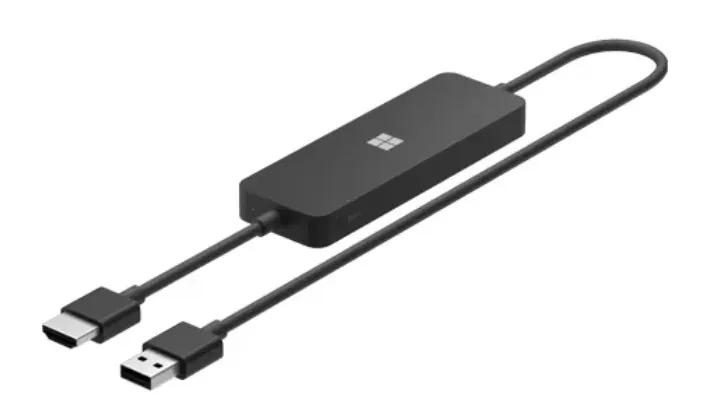
A Miracast receiver is also useful when you need to show a full screen rather than stream one video app. Presentations, browser tabs, spreadsheets, PDFs, local apps, and desktop demos are all good examples.
Choose a Miracast receiver when your setup is simple: one compatible sender, one display, and a clear need for full-screen mirroring.
When a Miracast Receiver Is the Wrong Choice
A Miracast receiver is the wrong choice when your real problem is not Miracast. That sounds obvious, but it is the reason many people buy the wrong adapter.
If your home mainly uses iPhone, iPad, or Mac, a Miracast-only receiver is usually not the best fit. Apple devices are built around AirPlay for native wireless streaming and screen mirroring. A Miracast dongle may add friction instead of making the setup easier.
It can also be the wrong choice for app-based streaming. If your goal is to cast YouTube, watch streaming apps, or use the TV remote while content plays directly on the TV, Chromecast-style casting or the TV’s native app may feel more natural.
A Miracast receiver may also be unnecessary if your smart TV already supports the method your device uses. Many modern TVs already include AirPlay, Google Cast, screen sharing, or brand-specific mirroring features.
Skip a Miracast-only receiver if you need one solution for mixed devices. Homes with iPhone, Android, Windows, Mac, and smart TVs usually need more flexibility than a single wireless display standard can offer.
When to Try a Miracast Receiver Alternative
A Miracast receiver is useful when you have a compatible Windows PC or Android device, but it is not always the best receiver for every screen mirroring setup. If your devices include iPhone, iPad, Mac, Google TV, Android TV, Fire TV, or different smart TV systems, another receiver path may be easier.
The best Miracast receiver alternative depends on what you want to do. Some users need app-based casting. Some need Apple-friendly mirroring. Others need one receiver option that works across different phones, computers, and TVs.
Use Chromecast for App-Based Casting
Chromecast or Google Cast makes more sense when your main goal is app-based casting. If you often cast YouTube, Chrome browser tabs, music apps, or supported video apps to a TV, Chromecast can feel more natural than Miracast.
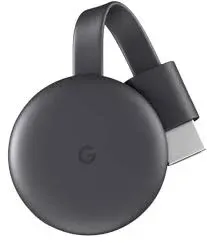
The key difference is that Chromecast is not only about duplicating your entire screen. In many cases, it lets a supported app send playback to the TV, while your phone or computer works more like a remote. That is why Chromecast is often better for casual living-room streaming than a basic Miracast receiver.
It is a strong fit for Android users, Google TV users, and people who already use Chrome on a laptop. It is less ideal if your main goal is full desktop mirroring from every device you own.
Use AirPlay for iPhone, iPad, and Mac
AirPlay is the better native choice for Apple devices. If you want to mirror an iPhone, iPad, or Mac to a TV, an AirPlay-compatible receiver will usually feel smoother than trying to force a Miracast setup.
This matters because Apple devices do not use Miracast as their built-in screen mirroring method. If your home is mostly iPhone, iPad, Mac, Apple TV, or AirPlay-compatible smart TVs, AirPlay is the path to check first.
AirPlay works well when your devices are inside the Apple ecosystem. The limitation appears when your home is not Apple-only. Once Android phones, Windows laptops, Fire TV, Android TV, or mixed smart TVs enter the setup, AirPlay alone may not cover everything.
Use PigeonCast Receiver for Mixed-Device Screen Mirroring
PigeonCast Receiver is a better fit when your problem is not one protocol, but too many devices. It supports common casting and mirroring paths such as Chromecast, AirPlay, and DLNA, while also working as a cross-platform screen mirroring receiver for supported phones, computers, and TVs.
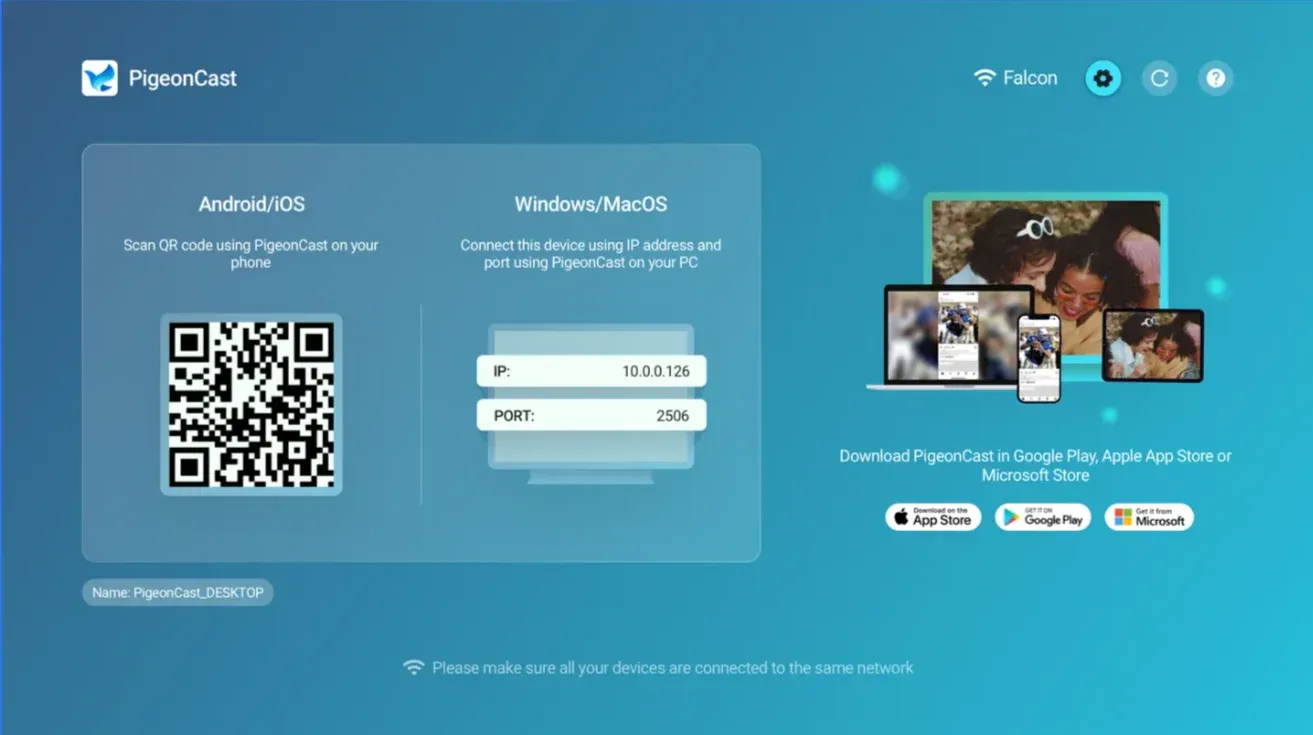
This makes it useful in mixed-device homes or small teams where one person uses iPhone, another uses Android, and someone else needs to mirror from Windows or Mac. Instead of choosing a receiver only for one ecosystem, PigeonCast gives you a shared mirroring path across common everyday devices.
To get started, open PigeonCast on the receiving device, such as a Mac, Windows PC, or TV. As long as both devices are on the same Wi-Fi network, you can mirror your phone, tablet, or computer to the receiver screen in just a few steps.


Overall Rating:



It is especially worth considering when native casting works on one device but fails on another. If Miracast is too limited, AirPlay is too Apple-focused, and Chromecast does not cover the mirroring setup you need, PigeonCast Receiver can be the more practical alternative.
Quick Comparison: Miracast Receiver Alternatives
| Receiver Option | Best For | Main Strength | Main Limitation |
|---|---|---|---|
| Miracast Receiver | Windows laptop mirroring, presentations, projectors | Direct wireless screen duplication | Limited fit for Apple devices and mixed-device homes |
| Chromecast / Google Cast | App-based casting, Chrome browser, Google TV | Strong for supported apps and Google-based setups | Not always the best full-screen mirroring option |
| AirPlay | iPhone, iPad, Mac, Apple TV, AirPlay TVs | Best native receiver path for Apple devices | Less flexible outside the Apple ecosystem |
| PigeonCast Receiver | iPhone, Android, Windows, Mac, and TV mirroring | Cross-platform screen mirroring for mixed devices | Requires the PigeonCast app on supported sender or receiver devices |
Conclusion
A Miracast receiver is still useful when you need direct wireless screen mirroring from a compatible Windows PC or supported Android device. It works best for simple setups, presentations, projectors, and full-screen duplication.
But it is not a universal casting answer. Once your setup includes iPhone, Mac, app-based streaming, or mixed devices, a Miracast receiver alternative may be easier to use.
What Is Miracast Receiver FAQ
Is a Miracast receiver the same as a wireless display receiver?
A Miracast receiver is one type of wireless display receiver. The broader phrase can also refer to other receiver systems, including AirPlay receivers, Chromecast-enabled TVs, screen mirroring apps, and built-in TV casting features. If a product says “wireless display receiver,” check which standards it actually supports before buying.
Does a Miracast receiver work with iPhone?
No, not in the native way most iPhone users expect. iPhone uses AirPlay for built-in wireless streaming and screen mirroring. If you want to mirror an iPhone to a TV, choose an AirPlay-compatible receiver, an Apple TV, an AirPlay smart TV, or a cross-platform mirroring app such as PigeonCast.
Does Android still support Miracast?
It depends on the Android phone, TV, and software version. Some Android devices still support wireless display features that may work with Miracast receivers. Others rely more on Google Cast, Smart View, or brand-specific screen sharing. Check your phone’s display, cast, or screen sharing settings before buying a Miracast dongle.
Can Windows use a Miracast receiver?
Yes, Windows is one of the best matches for Miracast receiver use. A compatible Windows PC can project to a TV, projector, or wireless display that supports Miracast. This is especially useful for presentations, meetings, classrooms, and desktop sharing without an HDMI cable.
Is Miracast better than Chromecast?
Miracast is better for direct screen mirroring when you want to show the whole screen from a compatible device. Chromecast is often better for app-based video casting and Chrome browser casting. The better choice depends on whether you want to mirror a screen or send media from supported apps.
Do I need internet to use a Miracast receiver?
Not always. Miracast is designed for wireless display connection between compatible devices, so it does not work exactly like internet-based streaming. However, your apps, videos, websites, and cloud files may still need internet access on the sender device. The connection method and the content source are separate things.
Can a Miracast receiver play Netflix or YouTube?
A Miracast receiver may show Netflix or YouTube by mirroring your device screen, but that is not the same as native app casting. Some streaming apps may limit or block screen mirroring because of playback or content protection rules. For video apps, a smart TV app or Chromecast-style casting may work better.
What is the best alternative to a Miracast receiver?
The best alternative depends on your devices. AirPlay is usually better for iPhone, iPad, and Mac. Chromecast or Google Cast is better for Android, Google TV, and Chrome browser casting. PigeonCast is a strong choice when you need flexible screen mirroring across iPhone, Android, Windows, Mac, and TV.
Mia Clarke is a technology editor specializing in screen mirroring and casting solutions across multiple platforms. Mia provides clear, practical guides and in-depth insights to help users seamlessly connect their devices. Passionate about enhancing digital experiences, Mia is dedicated to keeping readers updated on the latest trends and tools in cross-platform screen sharing. Whether you’re looking to mirror your smartphone, laptop, or smart TV, Mia’s content delivers reliable, user-friendly advice to simplify your tech setup.