
Miracast is a brilliant technology for wirelessly mirroring your phone, tablet, or laptop screen. But when Miracast not working suddenly happens, it can be incredibly frustrating. The error can stem from a simple setting, a driver conflict, or a deeper compatibility issue. This comprehensive guide will help you diagnose the reasons behind your Miracast problems and provide step-by-step solutions to get your wireless display working again.
Why Is My Miracast Not Working
Miracast not working on TV is usually a breakdown in the complex handshake between your source device and your receiver. Common culprits include outdated software or drivers, incorrect network configurations, disabled Windows features, and inherent hardware compatibility limitations. Sometimes, the issue is with the app you're trying to mirror, such as streaming services enforcing HDCP copy protection.
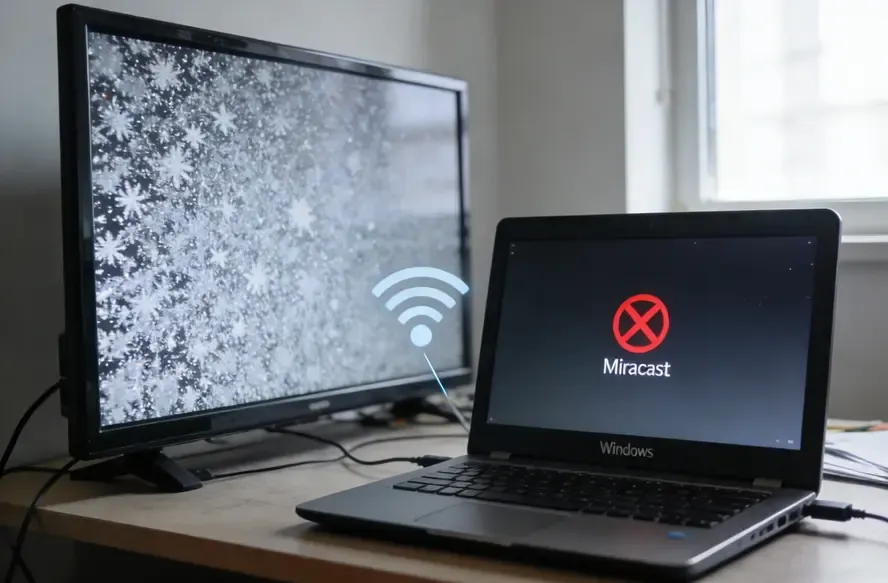
How to Solve Miracast Screen Mirroring Not Working
Try the following fixes in any order. After each step, attempt to use Miracast again to check if it's working. If you're anxious to solve the problem quickly, you can skip straight to the final solution (#8) to try a powerful Miracast alternative.
#1. Basic Checks
Before changing advanced Miracast settings, it's worth checking a few basics first. These quick steps solve most Miracast connection problems.
- Ensure all devices are on the same Wi-Fi network: Miracast relies on your Wi-Fi connection for device discovery. Make sure every device (your computer, TV, and wireless display adapter) is connected to the same network (SSID). A mismatch between the 2.4 GHz and 5 GHz bands can sometimes cause issues.
- Verify all devices are connected to the internet: While not always necessary for basic mirroring, a stable internet connection ensures devices can check for updates and certificates.
- Update your Windows computer: Go to Settings > Update & Security > Windows Update to check for the latest updates, including optional driver updates.
- Restart all devices: A simple restart can clear temporary glitches and reset connections.
- Check your TV's firmware: Visit your TV manufacturer's website or check the settings menu (usually under Support or About) for the latest firmware updates.
#2. Check Miracast Compatibility
The next step is to check whether your devices actually support Miracast. Not all devices are compatible, and ensuring compatibility is key to resolving the issue. Let's take a closer look at how to verify this.
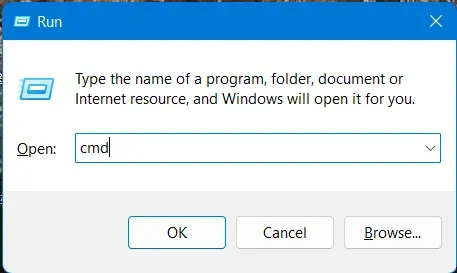
Step 1. Press Win + R, type cmd, and press Enter.
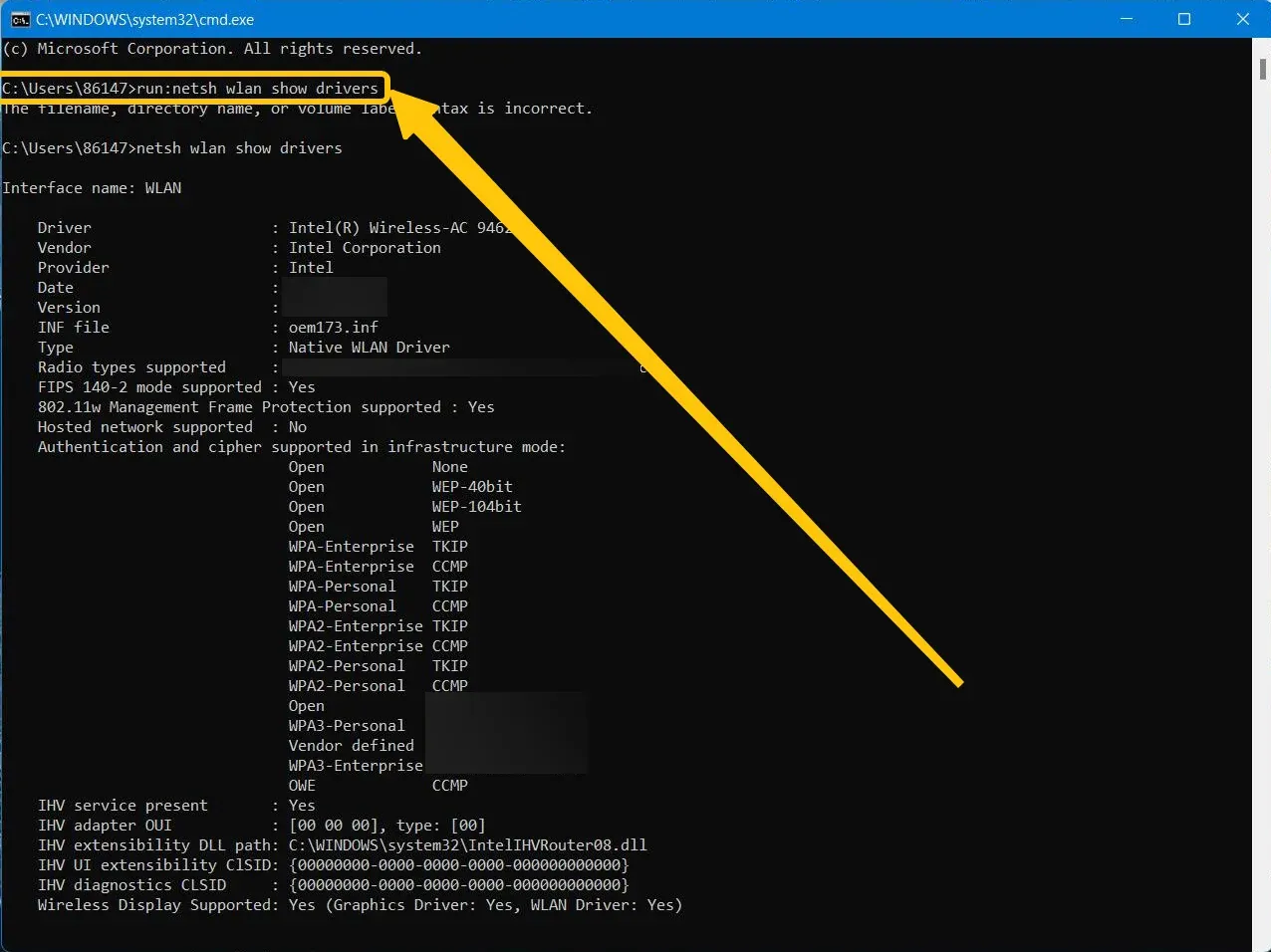
Step 2. Type and run: netsh wlan show drivers.
Step 3. Look for "Wireless Display Supported: Yes". If it says "No", Miracast may no longer be supported your device due to driver changes.
#3. Roll Back Display & Network Drivers
Why is Miracast not working suddenly? Sometimes, newly updated drivers can cause issues with Miracast. If you've recently updated your display or network drivers, it might be worth rolling back to the previous version.
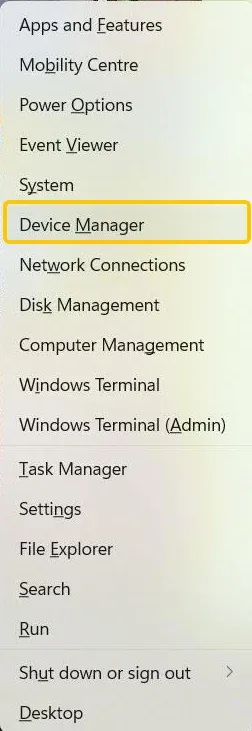
Step 1. Press Win + X and open the Device Manager menu.
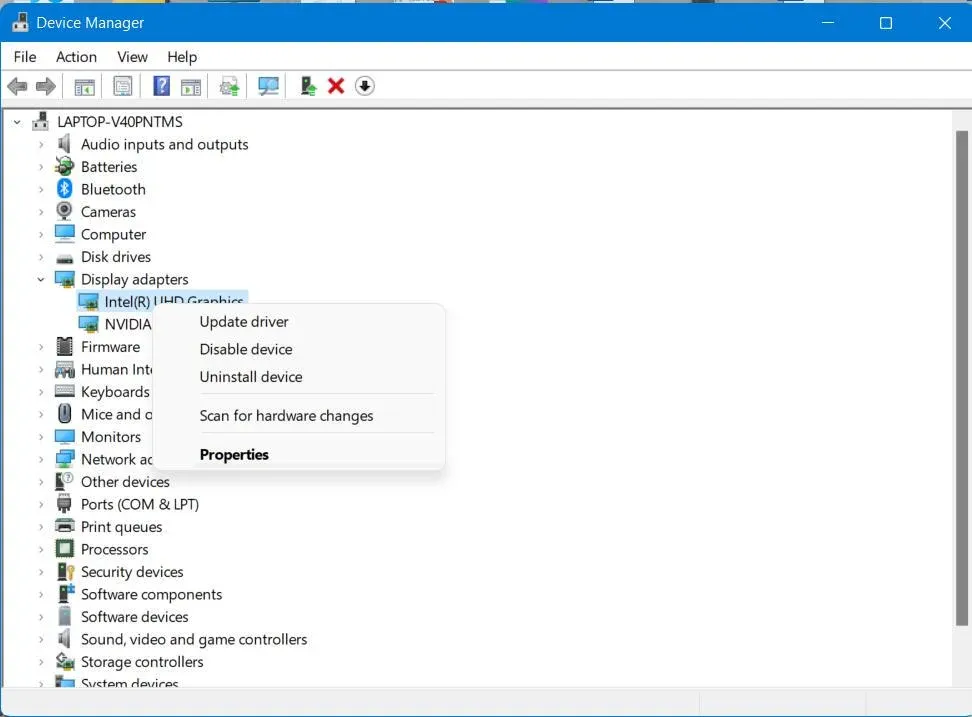
Step 2. Find the Display Adapters, right-click your Intel HD Graphics, and select Properties > Driver > Roll Back Driver.
Step 3. Repeat this process for your Network adapter.
#4. Update or Reinstall Drivers
How to fix Windows 10 Miracast not working? If you're still having trouble with Miracast, outdated or corrupted drivers could be the culprit. Here's how to manually update or reinstall them:
Step 1. Go to your hardware manufacturer's website (e.g., Intel, AMD, NVIDIA for graphics; Intel or Realtek for Wi-Fi) and manually download the latest drivers, rather than relying on Windows Update.
Step 2. Once installed, open Device Manager, right-click the device in question, and select Update driver.
Step 3. Then choose Browse my computer for drivers > Let me pick to select the newly installed driver.
Step 4. If updating doesn't help, you can uninstall the driver by right-clicking the device and selecting Uninstall device. After restarting your PC, Windows will attempt to reinstall the driver automatically.
#5. Enable Wireless Display Features
The "my Miracast is not working" persists often because the wireless display feature is disabled on your system. This feature may not be enabled by default, preventing Miracast from functioning properly. To fix this, make sure that the Wireless Display feature is turned on in your settings. Here's how to enable it.
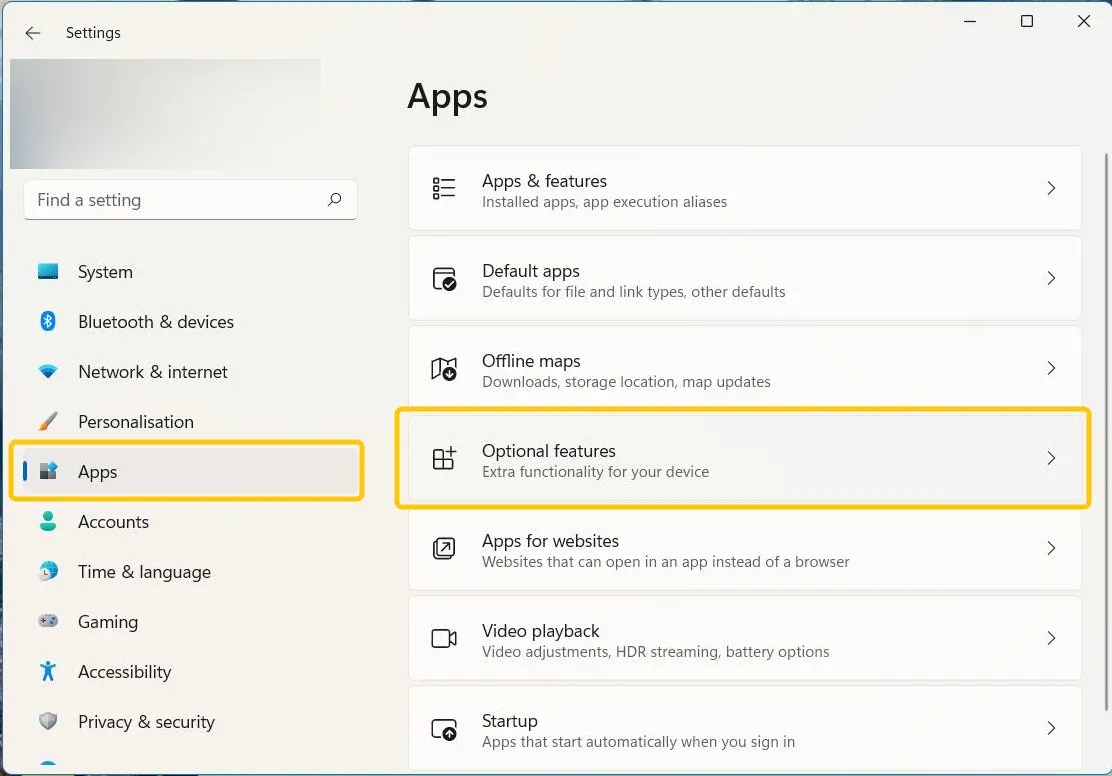
Step 1. On your Windows PC, go to Settings > Apps > Optional Features.
Step 2. Search for Wireless Display and install it if missing.
#6. Uninstall Device
The corrupted connection profile may be the final reason why Miracast not working. If that's the case, uninstalling and reconnecting your device can help reset the connection. Here's how to do it:
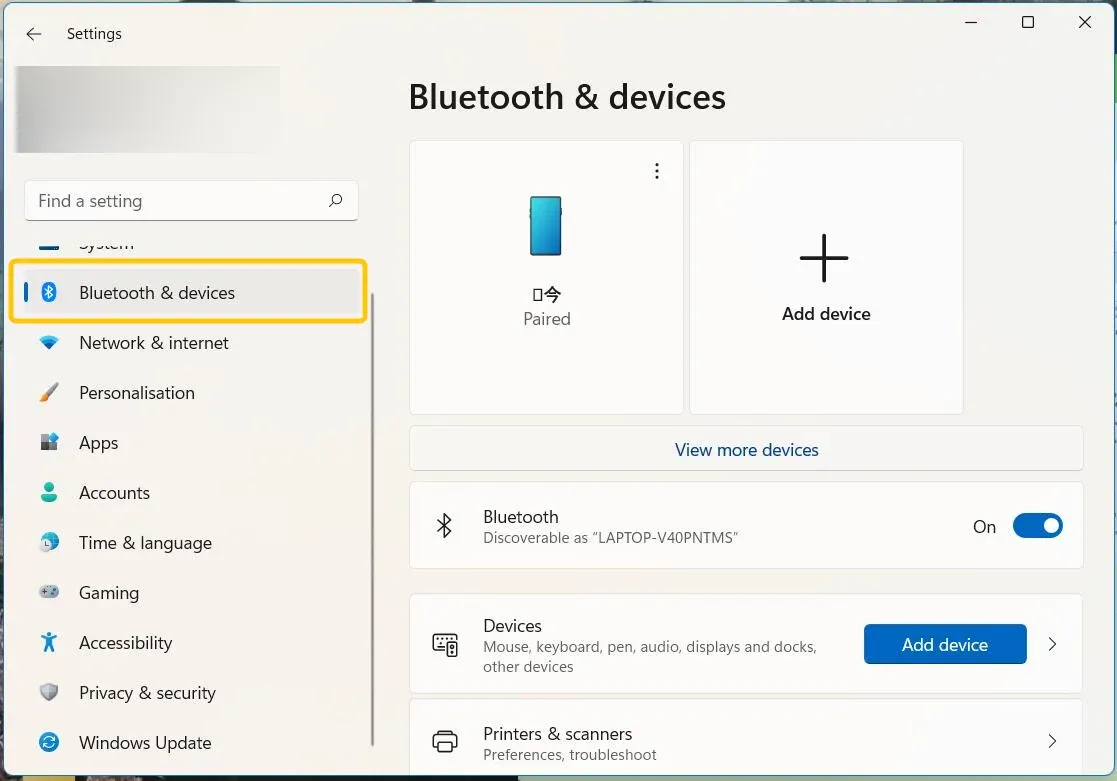
Step 1. On your Windows PC, go to Settings > Devices > Bluetooth & devices.
Step 2. In "View more devices" menu, find your TV or wireless display name.
Step 3. Click on it and select Remove device. Then, try to rediscover and reconnect from scratch.
#7. Reset Network Service
For those dealing with Miracast supported but not working issues, network problems could be the culprit. A fix that has worked for some users, also shared on Reddit, is resetting the network service. Even months later, many still find this method helpful. Here's how to try it:
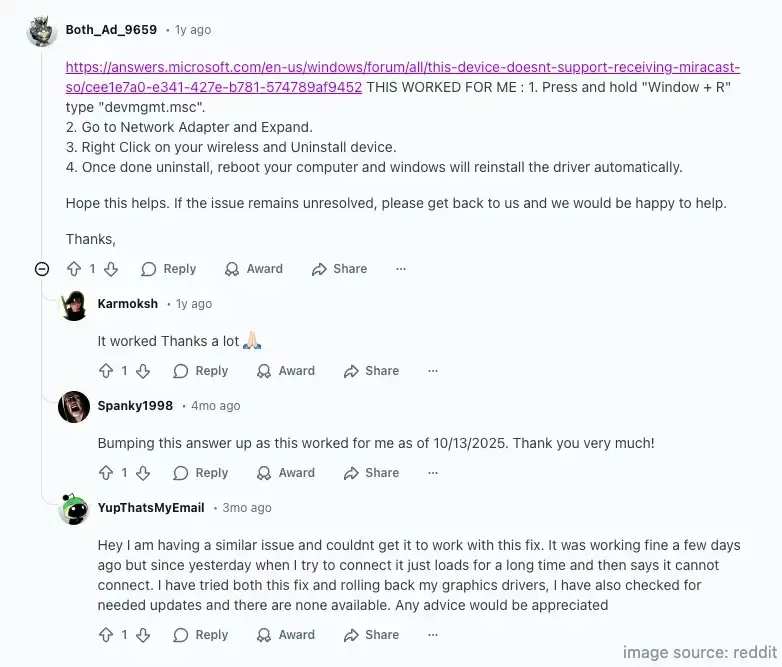
Step 1. Press and hold Windows + R, type devmgmt.msc.
Step 2. Go to Network Adapter and Expand.
Step 3. Right-click on your wireless and Uninstall device.
Step 4. Once done uninstall, reboot your computer and Windows will reinstall the driver automatically.
#8. Try PigeonCast
If none of the above methods work, PigeonCast for Windows is a great alternative. It's a free, ad-free, and universal screen mirroring app that supports a wide range of devices across Android, iOS, Windows, Mac, and TVs. PigeonCast offers a stable, user-friendly experience with 4K resolution and minimal latency, making it a great choice for seamless screen mirroring, even for laptop-to-laptop connections.
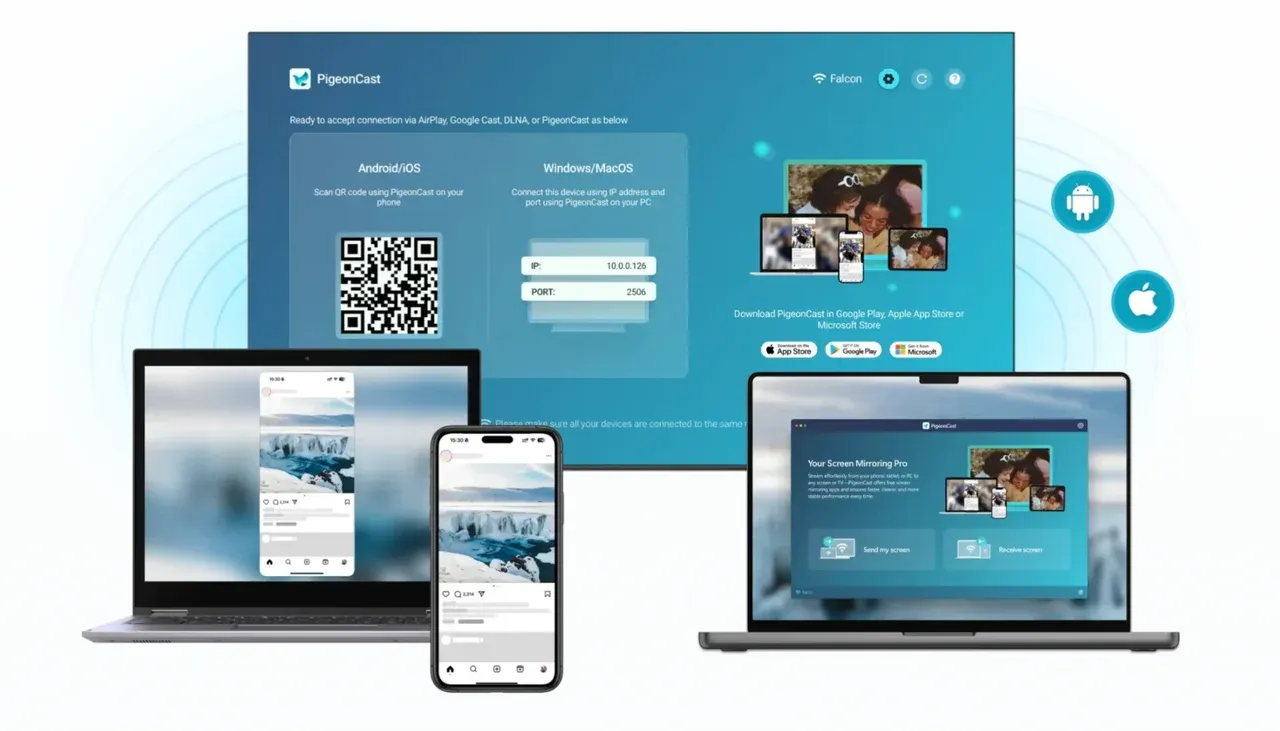
Step 1. Ensure your Windows and TV are connected to the same wireless network.


Overall Rating:



Step 2. Install PigeonCast on both your Windows from the Microsoft Store, and your TV from the App Store if available.
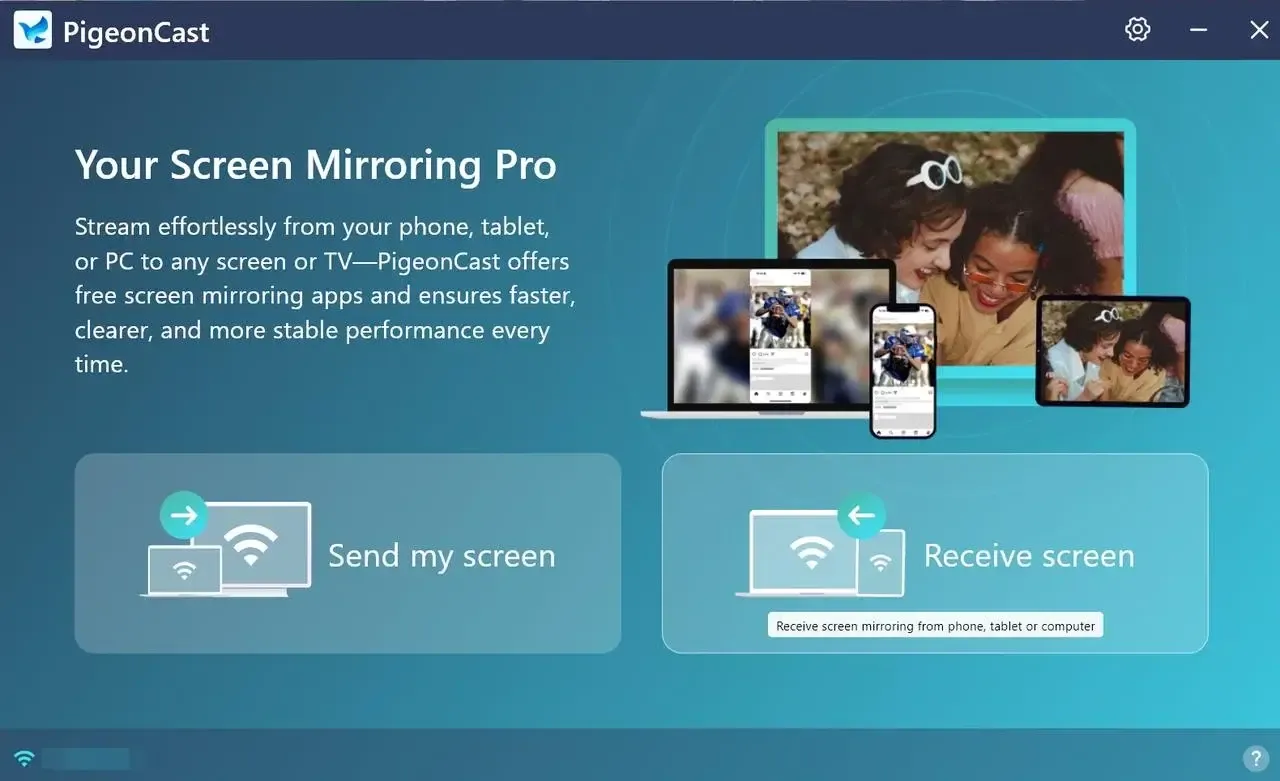
Step 3. Launch the app, click Send my screen to choose your TV from the available list to pair.
Step 4. Enter the prompted code to confirm the pairing requisition.
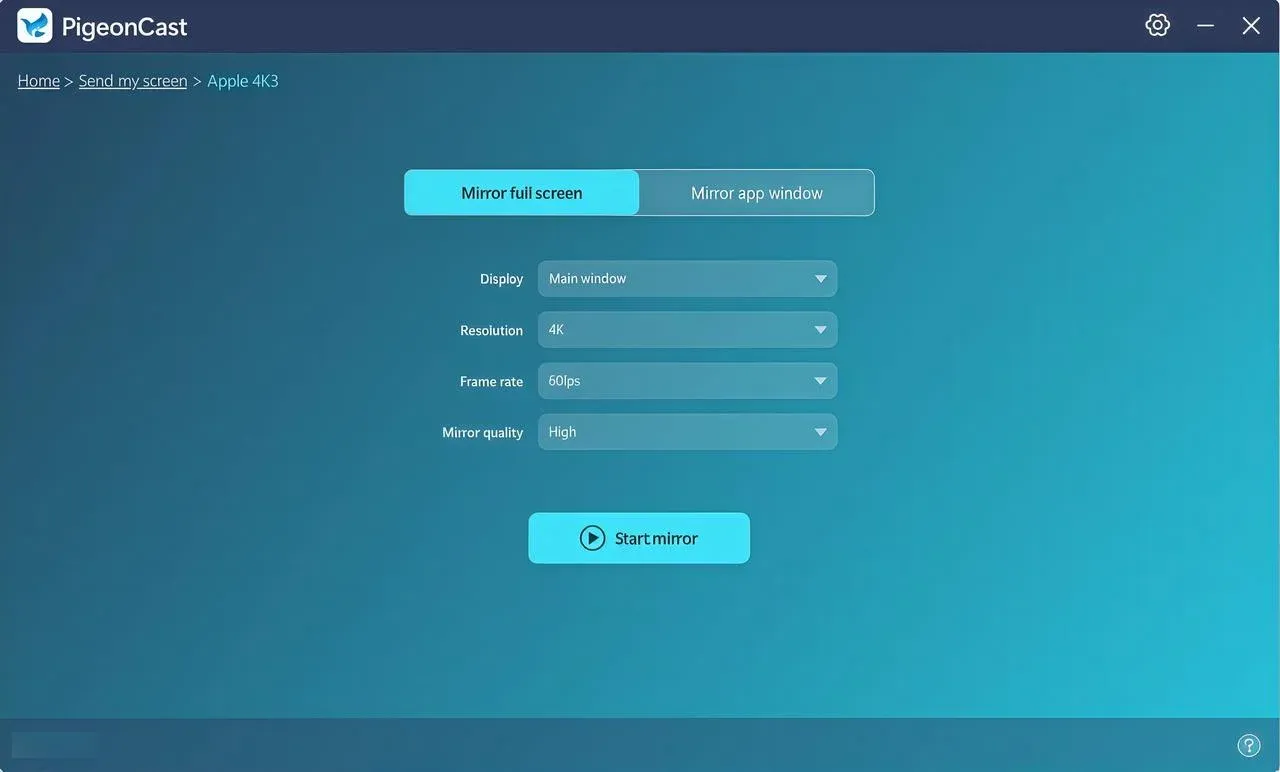
Step 5. Once the connection succeeds, you can choose whether to mirror the whole screen or only the single app window and click Start mirror to begin your mirroring activities.
The End
While Miracast is a convenient way to wirelessly mirror devices, it can sometimes fail due to issues like driver problems, incorrect settings, or network issues. By following the troubleshooting steps in this guide, checking compatibility, updating drivers, and resetting settings, you can often fix these problems. If Miracast still doesn't work, consider trying PigeonCast as a stable alternative for screen mirroring.
Miracast Not Working FAQ
Why is LG Miracast not working?
Here are some common reasons why LG Miracast might not be working:
- Incompatible devices
- Outdated drivers
- Weak or unstable Wi-Fi
- Incorrect settings
- Software bugs
- Device interference
- Incompatible software versions
- Outdated TV firmware
How to solve Miracast Disney Plus not working?
This is almost always due to HDCP (High-bandwidth Digital Content Protection). Disney+ enforces HDCP 2.2. If your TV, adapter, or graphics driver doesn't fully support it, the stream will block or show a black screen. Ensure all your hardware supports HDCP 2.2, and try using an HDMI connection to verify.
Why is Miracast available with HDCP not working?
If Miracast with HDCP (High-bandwidth Digital Content Protection) is not working, here are some possible reasons:
- If the devices involved don't support the same version of HDCP (e.g., HDCP 2.2 vs. HDCP 1.4), Miracast may fail to establish a connection.
- Certain media or apps with strict content protection may block Miracast from working due to HDCP restrictions.
- If using any adapters or cables in the setup, they may not support HDCP, causing the connection to fail.
- Either the sending or receiving device might have outdated software or firmware that doesn’t properly support HDCP or Miracast functionality.
- Incorrect settings on the devices (e.g., not enabling HDCP or Miracast on the source or display) can prevent the connection from working.
- If the network connection is weak or unstable, HDCP may not be able to maintain a secure connection between devices.
- Certain apps or software on either device might block HDCP content from being transmitted wirelessly.
- The TV or display may not support Miracast over HDCP or may need a firmware update to handle it properly.
How to fix the Sharp TV Miracast not working?
If Miracast isn't working on your Sharp TV, here are some steps to troubleshoot and potentially fix the issue:
- Ensure that your Sharp TV supports Miracast. Not all Sharp models do, so verify the TV’s specifications or manual for Miracast support.
- On your Sharp TV, go to the settings menu and ensure that the Miracast option is enabled. This may be labeled as "Screen Mirroring" or "Wireless Display".
- Make sure your Sharp TV's firmware is up to date. Check the manufacturer's website for any available updates and follow the instructions to update the firmware.
- Ensure that the device you're using to cast (laptop, smartphone, etc.) has the latest Wi-Fi and display drivers installed. For Windows PCs, this means updating your graphics and Wi-Fi drivers.
- Both the TV and the device you're trying to cast from need to be connected to the same Wi-Fi network. Make sure both are on the same network and that the Wi-Fi connection is stable.
- Try restarting both your Sharp TV and the device you want to mirror. This can help resolve temporary software or connection glitches.
- If you're using a VPN or proxy on your device, try disabling it. Sometimes, these can interfere with wireless display connections.
- Sometimes network issues can affect Miracast. Rebooting your router can help resolve any temporary Wi-Fi connection problems.
- Wireless devices nearby (such as microwaves or cordless phones) may interfere with the Miracast signal. Try moving devices away from the TV and router.
- If the Miracast connection works with another device, it might indicate a problem with the original device you're trying to cast from.
- On your Sharp TV, go to the settings and reset the network settings. This can help if there's an issue with the connection.
- If none of the above work, as a last resort, you can perform a factory reset on your Sharp TV. This will erase all settings, so make sure to back up any important information before doing so.
Why is Netflix not working on Miracast?
If Netflix is not working on Miracast, it could be due to several reasons related to content protection, device compatibility, or network issues. Here are the most common causes:
- HDCP content protection
- Device incompatibility
- App restrictions
- Network issues
- Outdated software or firmware
- Incorrect Miracast Settings
- Device-Specific restrictions
- Background apps or processes
Why does Miracast sound not working Android?
If the sound isn't working when using Miracast on your Android device, here are some common reasons and potential causes:
- Incorrect audio output settings
- Miracast connection issue
- HDMI vs. Wireless audio transmission
- Outdated software/firmware
- App-Specific issues
- Audio format incompatibility
- Volume Settings
- Bluetooth or other wireless audio conflicts
- Network issues
- Miracast adapter issues
Clara Rossi is an experienced technology editor and a seasoned expert in screen mirroring and casting technologies. With a keen eye for detail and a deep understanding of how to seamlessly connect devices, Clara excels at optimizing user experiences for effortless sharing and streaming. Whether you're seeking quick fixes or advanced tips, her expertise and responsiveness ensure that every query is met with a well-informed and efficient solution.