
Wireless display is supposed to feel simple: open Cast, pick a screen, and start presenting. Traditional Miracast can do that, but the direct Wi-Fi link behind it is not always ideal in offices, classrooms, or managed networks where stability and network policy matter more than one-off pairing.
That is where Miracast over Infrastructure becomes useful. Instead of keeping the media path on a pure Wi-Fi Direct connection, Windows can use the existing LAN or secure Wi-Fi network when the receiver supports it, which usually makes the session easier to manage and more stable.
What Is Miracast over Infrastructure
Miracast over Infrastructure (MoI) is a Windows wireless display mode that uses the existing network after the sender discovers a compatible receiver. Instead of keeping the full media path on a pure Wi-Fi Direct link, it sends the session over LAN or secure Wi-Fi when that route is available. In Microsoft documentation, the connection-establishment layer is also referred to as MS-MICE.
Miracast itself became the standard Windows wireless display technology after earlier solutions such as Intel Wireless Display, while Miracast over Infrastructure builds on that experience by allowing the media stream to use the existing network instead of relying only on a direct Wi-Fi connection.
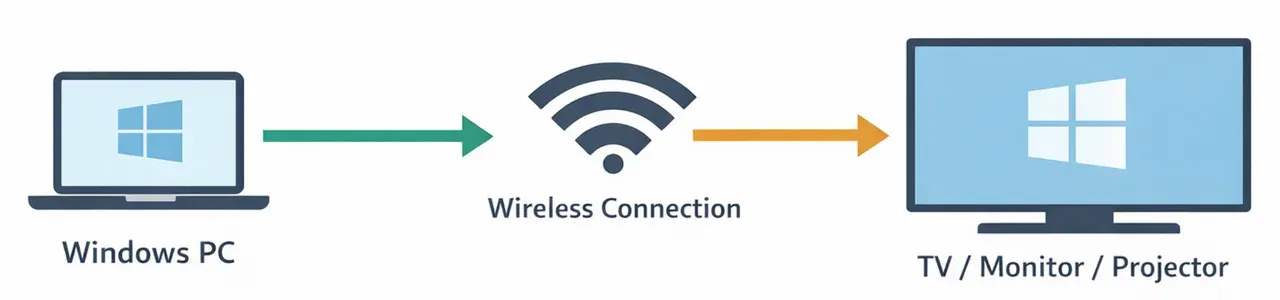
Miracast over Infrastructure vs Miracast
The clearest way to understand Miracast over Infrastructure vs Miracast on Windows 10 is to compare how the connection is carried after discovery.
| Comparison point | Miracast over infrastructure | Traditional Miracast |
|---|---|---|
| Connection method | Existing LAN or secure Wi-Fi after discovery | Wi-Fi Direct peer-to-peer media path |
| Stability | Usually better in managed environments | More dependent on direct wireless conditions |
| Latency behavior | Often more consistent on enterprise networks | Can vary more with direct-link conditions |
| Enterprise suitability | Stronger fit for meeting rooms and deployment fleets | Better for simple ad hoc connections |
| Receiver support | Must support MoI, not just Miracast | Works with standard Miracast receivers |
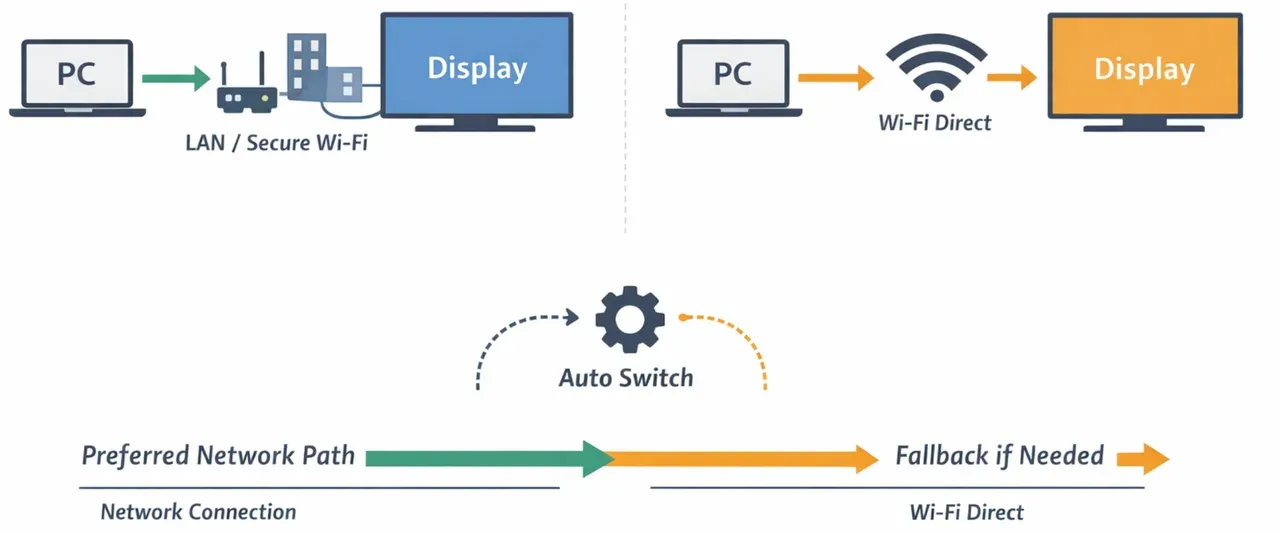
The part many users miss is Windows connection behavior:
-
Windows first tries Miracast over Infrastructure when it detects that the receiver and network support it.
-
If that path fails, Windows falls back to Wi-Fi Direct, which is traditional Miracast.
That fallback is why many users never notice the difference. They use the same Cast experience in Windows, while the operating system decides which transport path to use in the background.
How Miracast over Infrastructure Works
At a simplified level, the flow looks like this:
-
Windows discovers a nearby Miracast-capable receiver through normal wireless display discovery.
-
Windows checks whether that receiver supports Miracast over infrastructure.
-
Windows tries to resolve the receiver through DNS or mDNS.
-
If the infrastructure path is available, the projection session runs over the existing network.
-
If that path is not available, Windows falls back to traditional Miracast over Wi-Fi Direct.
The practical takeaway is simple: Wi-Fi Direct is still involved in discovery logic, but the media session does not have to stay on a Wi-Fi Direct path when MoI is available.
Why Use Miracast over Infrastructure
MoI matters because it improves the parts of Miracast that often become painful in managed environments.
-
Better stability on enterprise and campus networks
-
No need to rely on a full Wi-Fi Direct media path
-
Less chance of awkward network switching during projection
-
Better fit for conference rooms and classroom deployments
-
Support for receivers connected through wired Ethernet, not only wireless-only receivers
How to Enable Miracast over Infrastructure
There is usually not one simple Windows toggle for Miracast over Infrastructure setup. Windows uses it automatically when the environment meets the required conditions:
Step 1. Confirm you are using Windows 10 or Windows 11.
This feature is tied to Microsoft's wireless display stack, so do not expect the same behavior from macOS, iPhone, iPad, or generic Android TV casting flows.
Step 2. Confirm the receiver supports Miracast over Infrastructure**.**
A normal Miracast-capable receiver is not automatically an MoI-capable receiver.
Step 3. Make sure the receiver hostname can be resolved.
Windows relies on standard DNS or mDNS resolution when it tries to establish the infrastructure session.
Step 4. Allow the required network path.
Microsoft documents TCP port 7250 as required for the infrastructure connection path.
Step 5. Do not turn off Wi-Fi on the Windows device.
Even when the session ends up using the existing network, Wi-Fi discovery still matters during setup.
How to Use Miracast over Infrastructure
In normal use, MoI does not require a separate user workflow.
Step 1. Connect the Windows device and the receiver to the same secure network.
Step 2. Open Cast via Windows + K or Project via Windows + P in Windows.
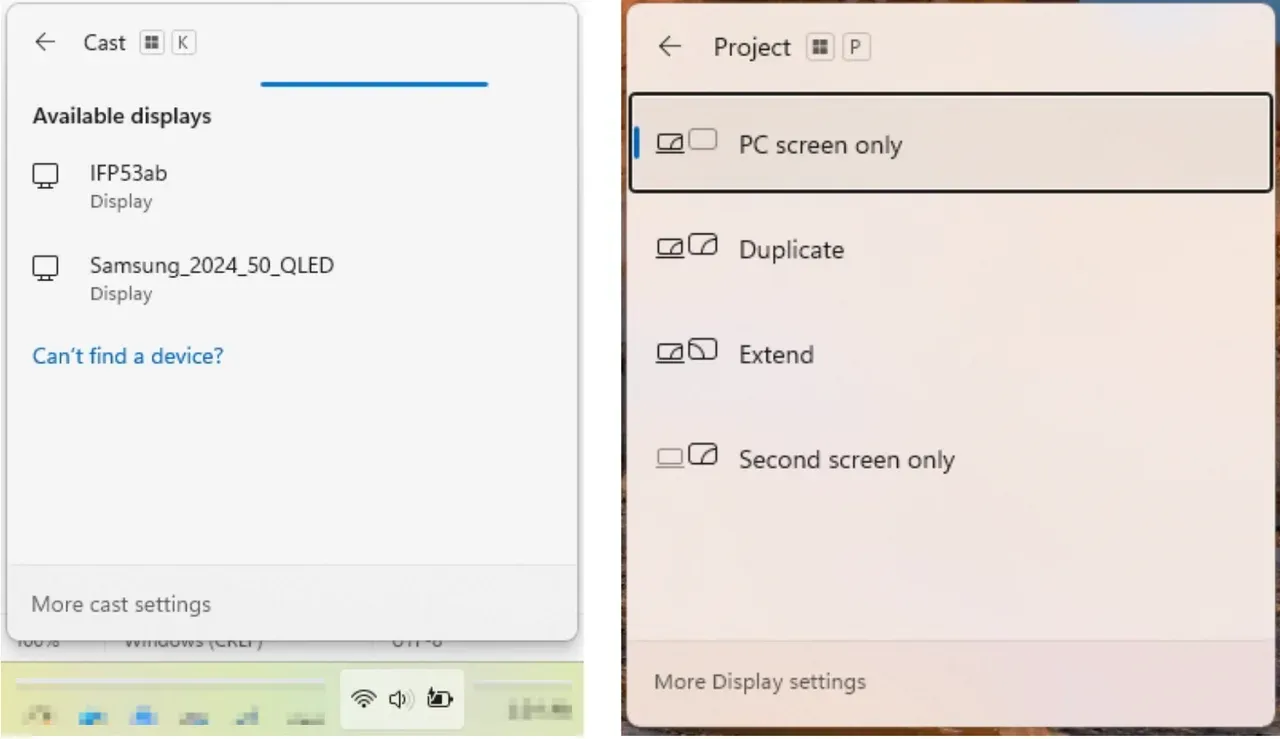
Step 3. Select the receiver from the list.
Step 4. Let Windows choose the best available connection path.
If the receiver supports MoI and the network is configured correctly, Windows will try that route first. If not, it can fall back to traditional Miracast.
Try PigeonCast for Windows Screen Mirroring Without MoI Support
PigeonCast fits naturally when you want the practical benefits users usually hope to get from Miracast over infrastructure: stable wireless presentation, simpler real-world setup, and better behavior in managed or mixed-device environments.
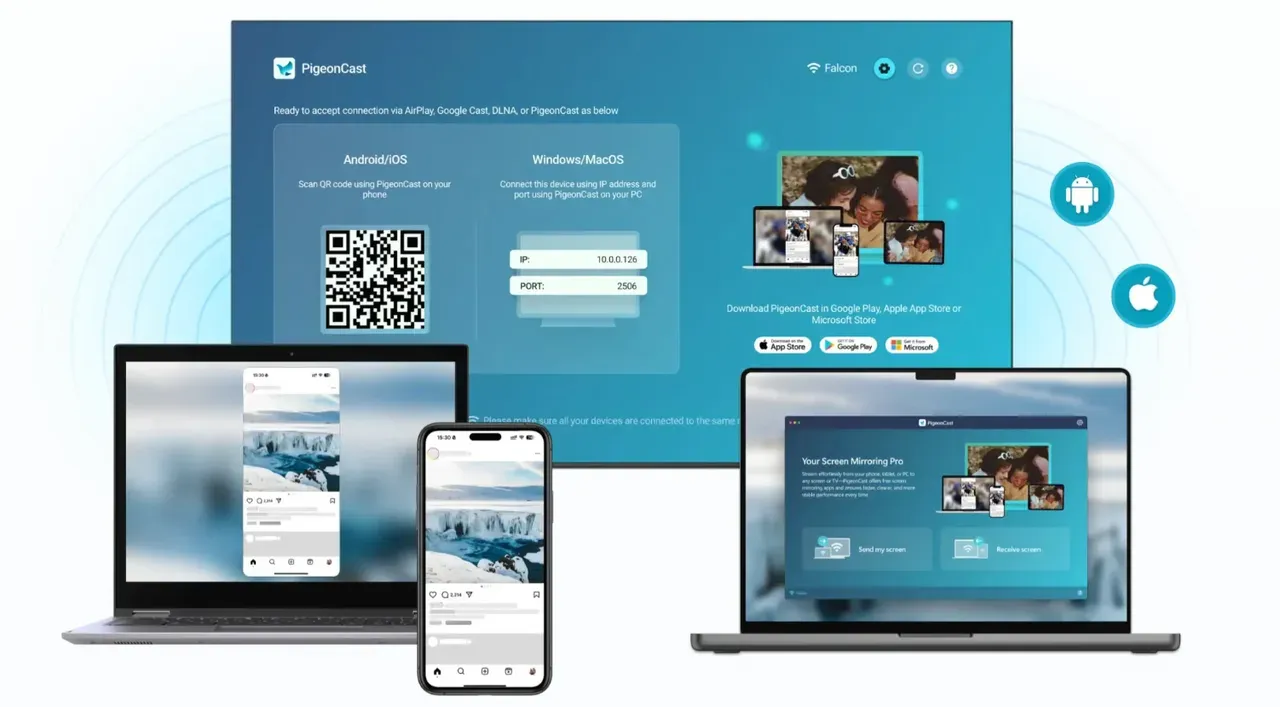
Instead of optimizing around whether a specific receiver supports the MoI path correctly, PigeonCast gives users a more direct presentation workflow. That makes it a practical option for teams or individuals who want a reliable Miracast-like experience without depending on narrow receiver support or enterprise-specific configuration.
The Windows screen mirroring app makes it straightforward to connect your PC to another PC, Mac, or TV. Moreover, it can also display the content from Android devices and iPhones.
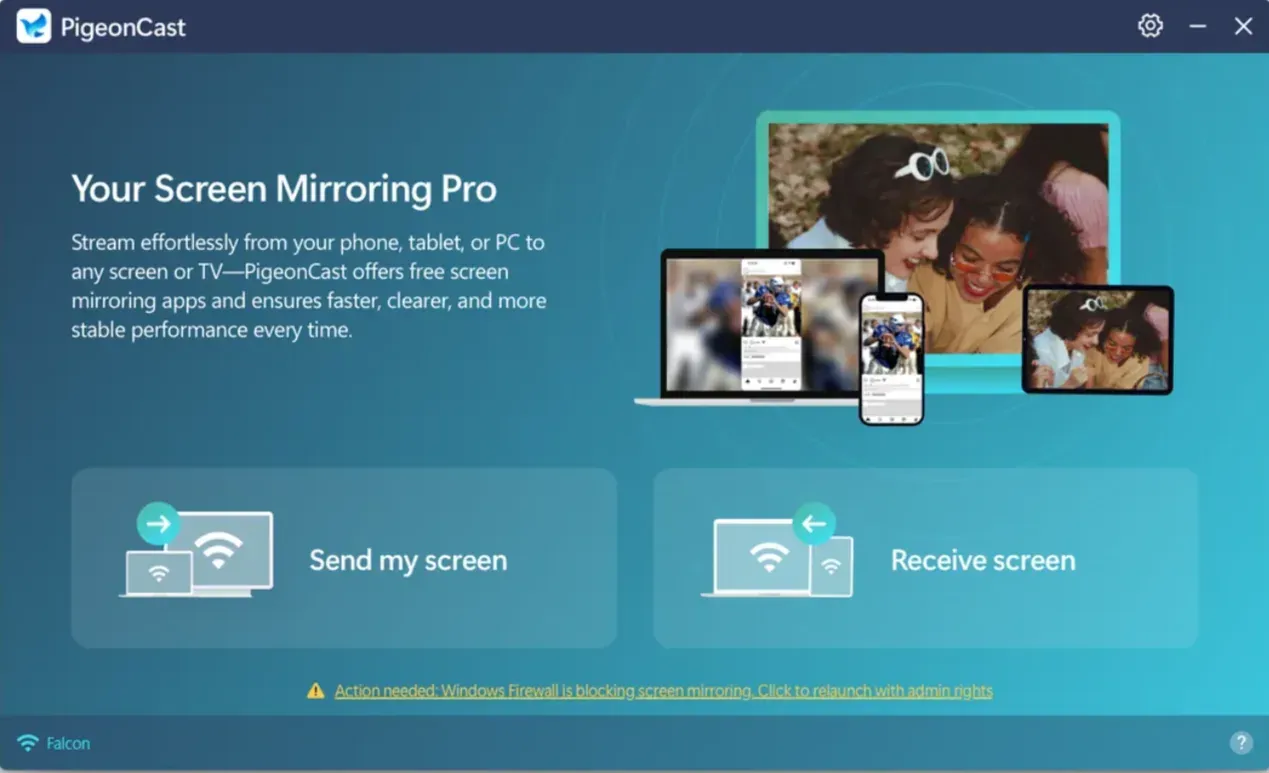
How to screen mirror Windows with PigeonCast:
Step 1. Download and install PigeonCast from the Microsoft Store and launch the screen mirroring app.


Overall Rating:


(Optional) Step 2. Download and install PigeonCast on your phone, laptop, or TV, which ensures a stable wireless connection.
Overall Rating:


Step 3. Ensure your devices are on the same Wi-Fi network.
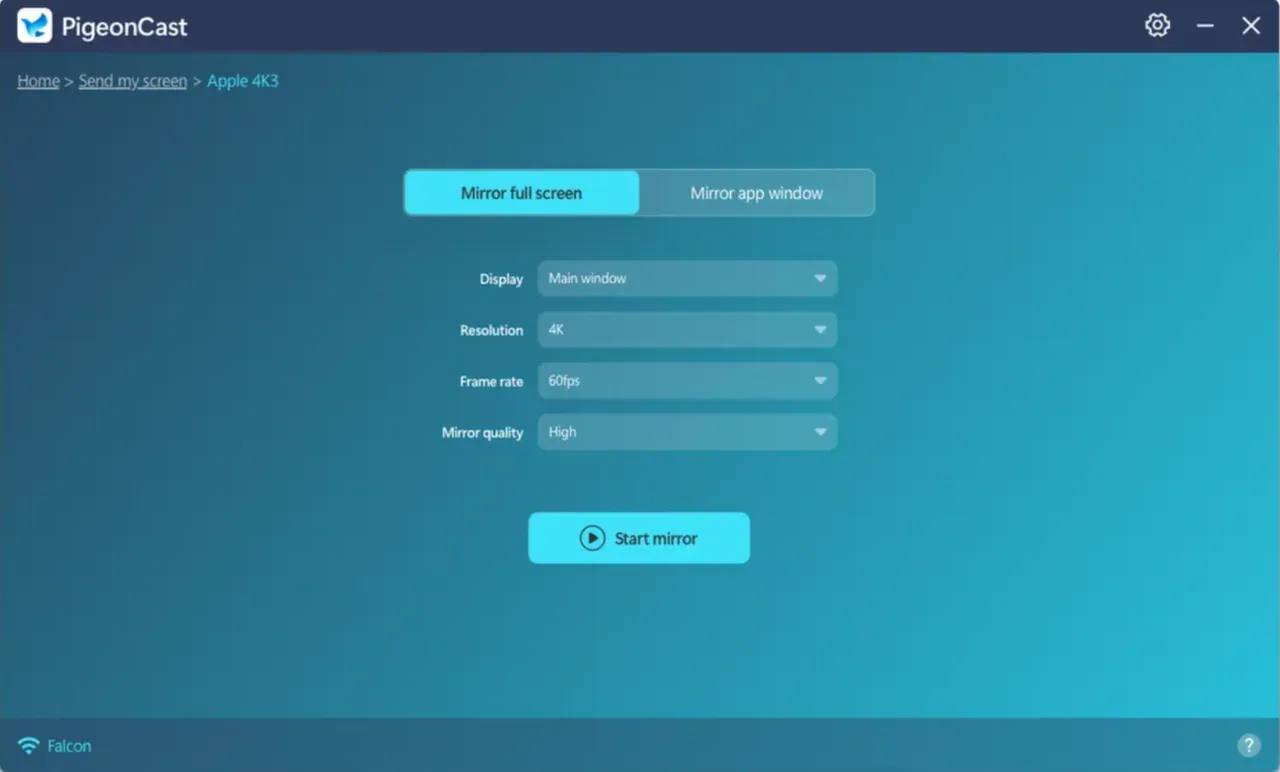
Step 4. Start Windows screen mirroring:
-
Connect Windows to another laptop or TV: on your PC, click Send my screen, choose the target device, and click Start mirror.
-
Connect the phone to Windows: click Receive screen on your computer, then enable Cast or AirPlay on your phone.
Conclusion
Miracast over Infrastructure is best understood as a more stable, network-based form of Miracast for Windows environments. It improves on the traditional direct-link model by using the existing network when the receiver and deployment support it.
The useful part is that Windows handles most of the mode selection automatically. It prefers MoI when available, and falls back to Wi-Fi Direct when it is not. That means the quality of the receiver matters more than most users realize, which is exactly why choosing a practical, reliable option such as PigeonCast can make the overall wireless presentation experience smoother.
Miracast over Infrastructure FAQ
Is Miracast over Infrastructure better than Miracast?
Not universally. Miracast over infrastructure is better when you need a managed Windows wireless display setup that works across an existing network. Standard Miracast is often simpler when you only need direct one-to-one mirroring.
Can I use Miracast over Infrastructure on any smart TV?
No. Support depends on the receiver, not just the Windows PC. A TV or receiver that supports ordinary wireless display behavior does not automatically support Miracast over infrastructure.
Is Miracast over Infrastructure a Windows-only feature?
In practical terms, it is primarily discussed as a Windows 10 and Windows 11 wireless display capability. It is not a general casting feature you should expect across Apple devices, Chromecast-style receivers, or every smart TV platform.
What replaced Miracast?
Miracast has not been fully replaced. Instead, different ecosystems use their own wireless display technologies, such as AirPlay for Apple devices and Chromecast for Google-based casting. Miracast is still widely used on Windows, and Miracast over Infrastructure can be seen as an evolution that improves how Miracast works in network-based environments.
Does Windows automatically use Miracast over Infrastructure?
Yes. Windows will prioritize Miracast over Infrastructure when both the sender and receiver support it. If the connection cannot be established over the network, Windows will automatically fall back to traditional Miracast using Wi-Fi Direct.
How do I know if Miracast over Infrastructure is being used?
There is no clear on-screen indicator. In most cases, if your device stays connected to the same Wi-Fi network and does not switch to a DIRECT-xx connection, it is likely using Miracast over Infrastructure.
Why is Miracast over Infrastructure not working?
Common reasons include lack of support on the receiver, devices not being on the same network, or network restrictions such as firewall rules or client isolation. In many cases, Windows will silently fall back to standard Miracast.
When should I use Miracast over Infrastructure instead of standard Miracast?
You should use it in environments like meeting rooms, classrooms, or offices where you need stable wireless screen sharing over a network and better compatibility with Windows wireless display.
Mia Clarke is a technology editor specializing in screen mirroring and casting solutions across multiple platforms. Mia provides clear, practical guides and in-depth insights to help users seamlessly connect their devices. Passionate about enhancing digital experiences, Mia is dedicated to keeping readers updated on the latest trends and tools in cross-platform screen sharing. Whether you’re looking to mirror your smartphone, laptop, or smart TV, Mia’s content delivers reliable, user-friendly advice to simplify your tech setup.