
Intel Wireless Display (Intel WiDi) has been discontinued for nearly a decade, yet many users still search for an Intel Wireless Display alternative when trying to mirror a Windows PC to a TV or projector. The reason is simple: the need for wireless screen sharing never disappeared, but the technology behind it changed.
After Intel ended WiDi support in 2016, Microsoft shifted users toward Miracast, while newer casting solutions expanded support across Windows, Mac, Android, iPhone, and smart TVs. Today, the best Intel WiDi alternative for most users is a cross-platform screen mirroring app like PigeonCast because it delivers the same cable-free screen sharing experience without requiring Intel-specific hardware or outdated software.
This guide explains what replaced Intel Wireless Display, how Miracast compares, and which modern wireless display solutions make the most sense in 2026.
What Was Intel Wireless Display?
Intel Wireless Display, usually called Intel WiDi, was a wireless screen-mirroring technology developed by Intel. Its purpose was to let users send a laptop screen to a TV, projector, or external monitor without using an HDMI cable.
Intel WiDi was mainly used on older Windows laptops with supported Intel processors, Intel graphics, compatible wireless adapters, and a WiDi-ready receiver or TV. When the setup worked, users could mirror their desktop, play local videos, show presentations, or view photos on a larger screen.
This made Intel Wireless Display useful in homes, classrooms, and meeting rooms. Instead of connecting a laptop with a cable, users could walk into a room and display content wirelessly.
However, WiDi was not a universal wireless display solution. It depended heavily on Intel hardware, specific driver support, and compatible receiving devices. That meant not every Windows laptop could use it, and phones, Macs, iPhones, and many smart TVs were outside its original use case.
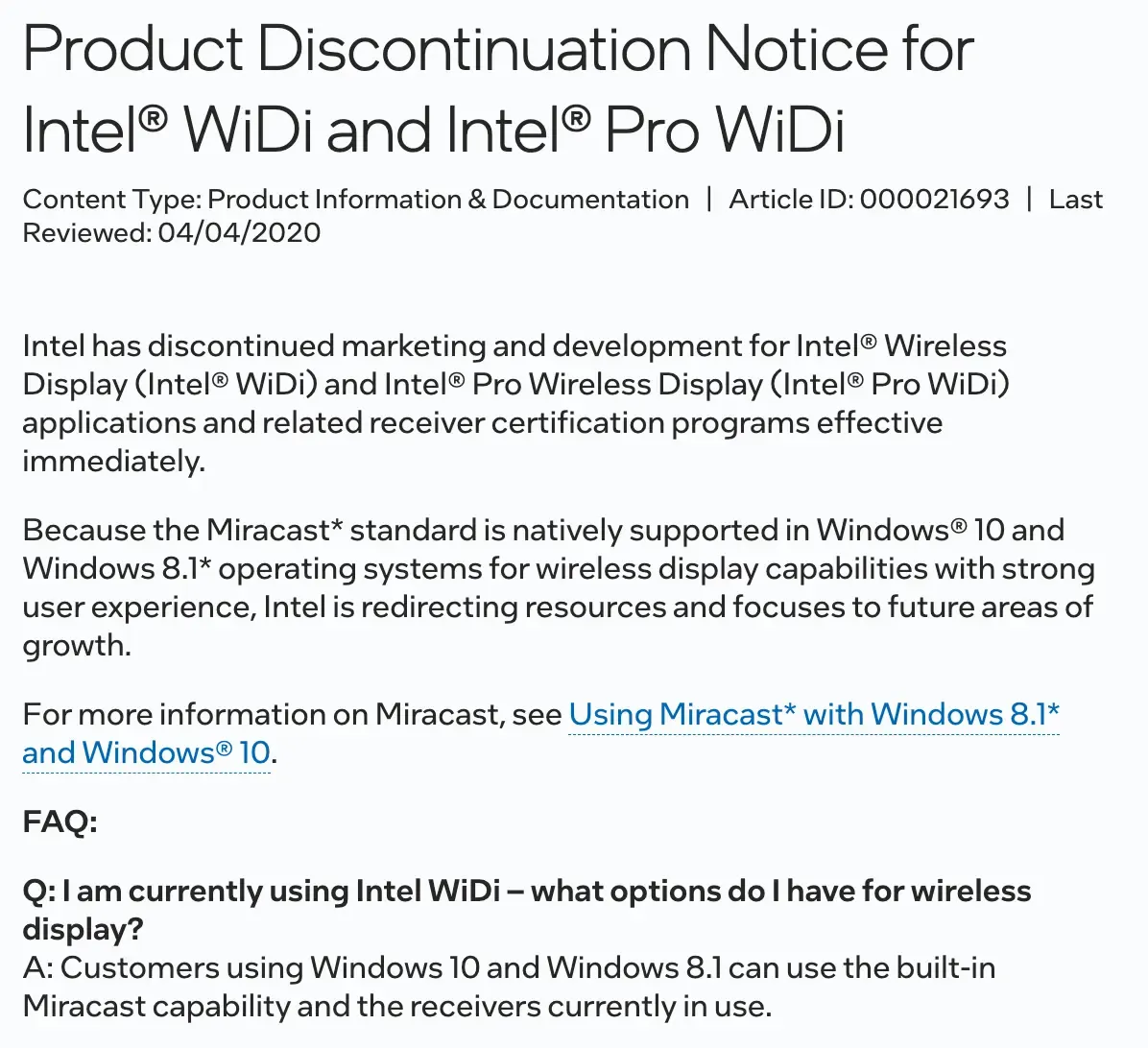
Intel eventually moved away from WiDi as the industry shifted toward broader wireless display standards such as Miracast. After Intel discontinued WiDi in 2016, the technology became outdated for modern users. The idea behind WiDi still matters, but the original Intel Wireless Display system is no longer a practical choice.
Intel WiDi Timeline
| Year | Event |
|---|---|
| 2010 | Intel introduces Wireless Display (WiDi) on supported Intel laptops. |
| 2011–2013 | WiDi adoption grows across business laptops, home entertainment systems, and classroom presentations. |
| 2014 | More smart TVs and wireless receivers begin adding WiDi support. |
| 2015 | Intel aligns WiDi more closely with Miracast, the wireless display standard developed by the Wi-Fi Alliance. |
| January 2016 | Intel announces plans to discontinue WiDi. |
| August 15, 2016 | Intel removes WiDi software downloads from its website. |
| October 15, 2016 | Intel officially ends customer support for Intel Wireless Display. |
| 2017–Present | Miracast, AirPlay, Google Cast, and third-party screen mirroring apps become the primary alternatives. |
Intel WiDi vs Miracast: What's the Difference
When Intel discontinued WiDi, it did not leave users without a wireless display option. Instead, the industry was already moving toward Miracast, a wireless display standard developed by the Wi-Fi Alliance.
Unlike Intel WiDi, which was closely tied to Intel hardware and software, Miracast was developed by the Wi-Fi Alliance as an industry-standard wireless display technology that could be adopted by different device manufacturers. In fact, Intel had already aligned later versions of WiDi with Miracast before ending support.
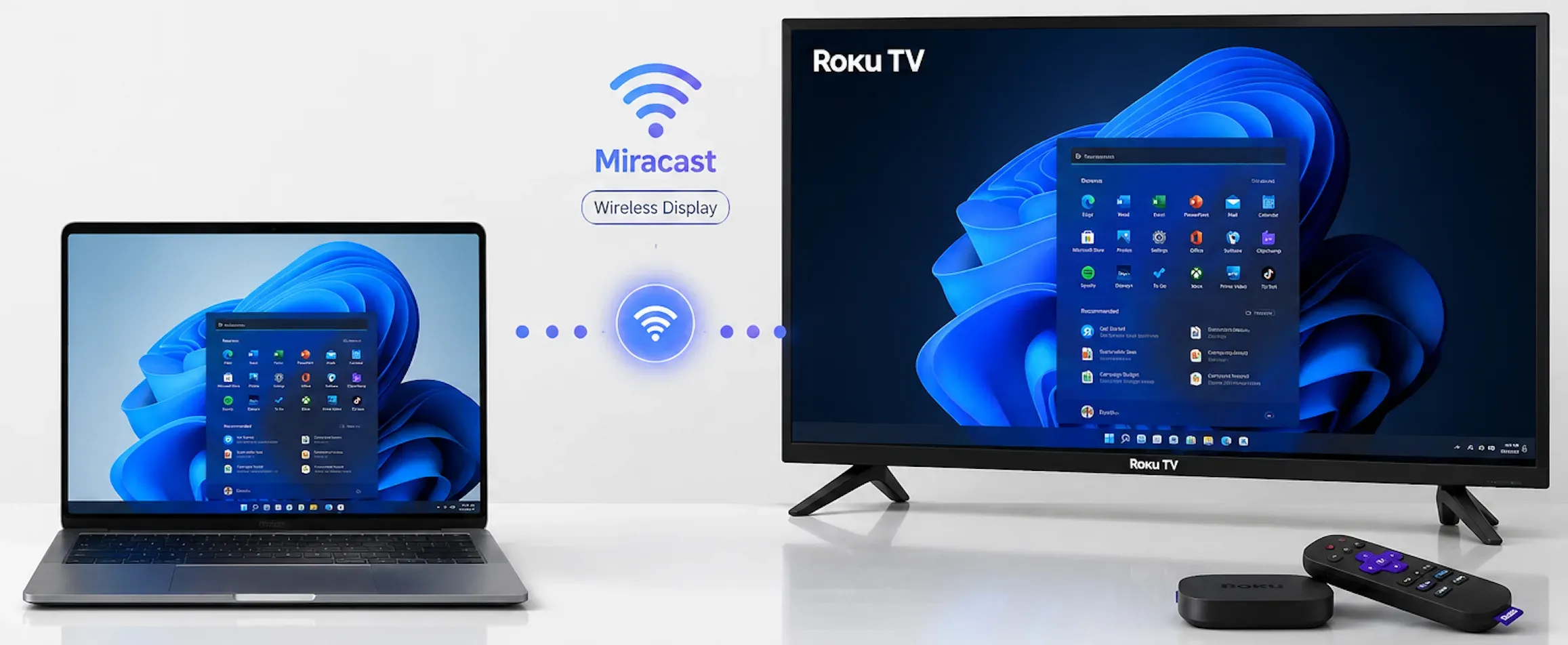
As a result, many Windows users naturally transitioned from WiDi to Miracast. This is why Miracast is often considered the closest built-in successor to Intel Wireless Display.
However, Miracast is only one of several modern alternatives available today. Depending on your devices and screen-sharing needs, other options such as AirPlay, Google Cast, HDMI, or cross-platform screen mirroring apps may be a better fit.
Why Do People Need an Intel WiDi Alternative Now?
People need an Intel WiDi alternative because the original technology no longer fits today’s devices, operating systems, or viewing habits. WiDi was designed for a narrower hardware environment, while modern users often switch between Windows PCs, Macs, Android phones, iPhones, tablets, smart TVs, and streaming devices.
The most common problem is compatibility. A user may still remember Intel WiDi from an older laptop, but their current Windows PC may no longer include the same WiDi software or driver support. Their TV may also support a different casting standard, such as Miracast, Google Cast, or AirPlay, instead of Intel’s older system.
Another issue is device flexibility. Intel WiDi was mainly built around Windows laptops with Intel hardware. Today, many users want to mirror more than one type of device. They may need to cast a Windows screen for work, mirror an iPhone for photos, share an Android screen for apps, or connect a Mac to a TV. A WiDi-style solution that only focuses on older Intel-based PCs is too limited for that kind of mixed-device environment.
There is also a support and reliability problem. Since Intel WiDi is discontinued, users cannot rely on official software updates, current troubleshooting resources, or long-term compatibility with newer systems. Even if an old WiDi setup still works, it may break after a device upgrade, driver change, or TV replacement.
That is why the search for an Intel Wireless Display alternative is really a search for a modern wireless display method. The goal is not to recreate Intel WiDi exactly. The goal is to get the same cable-free screen sharing experience with better support for current devices.
For users who only need Windows-to-TV mirroring, Miracast may be enough if both devices support it. For users who want broader compatibility across phones, computers, and smart TVs, a cross-device screen mirroring solution such as PigeonCast is usually a better long-term replacement.
Best Intel Wireless Display Alternative: PigeonCast
Finding an Intel WiDi alternative is no longer just about replacing a discontinued technology. Most users are trying to achieve something much simpler: they want a reliable way to mirror a screen without worrying about device compatibility, hardware requirements, or display standards.
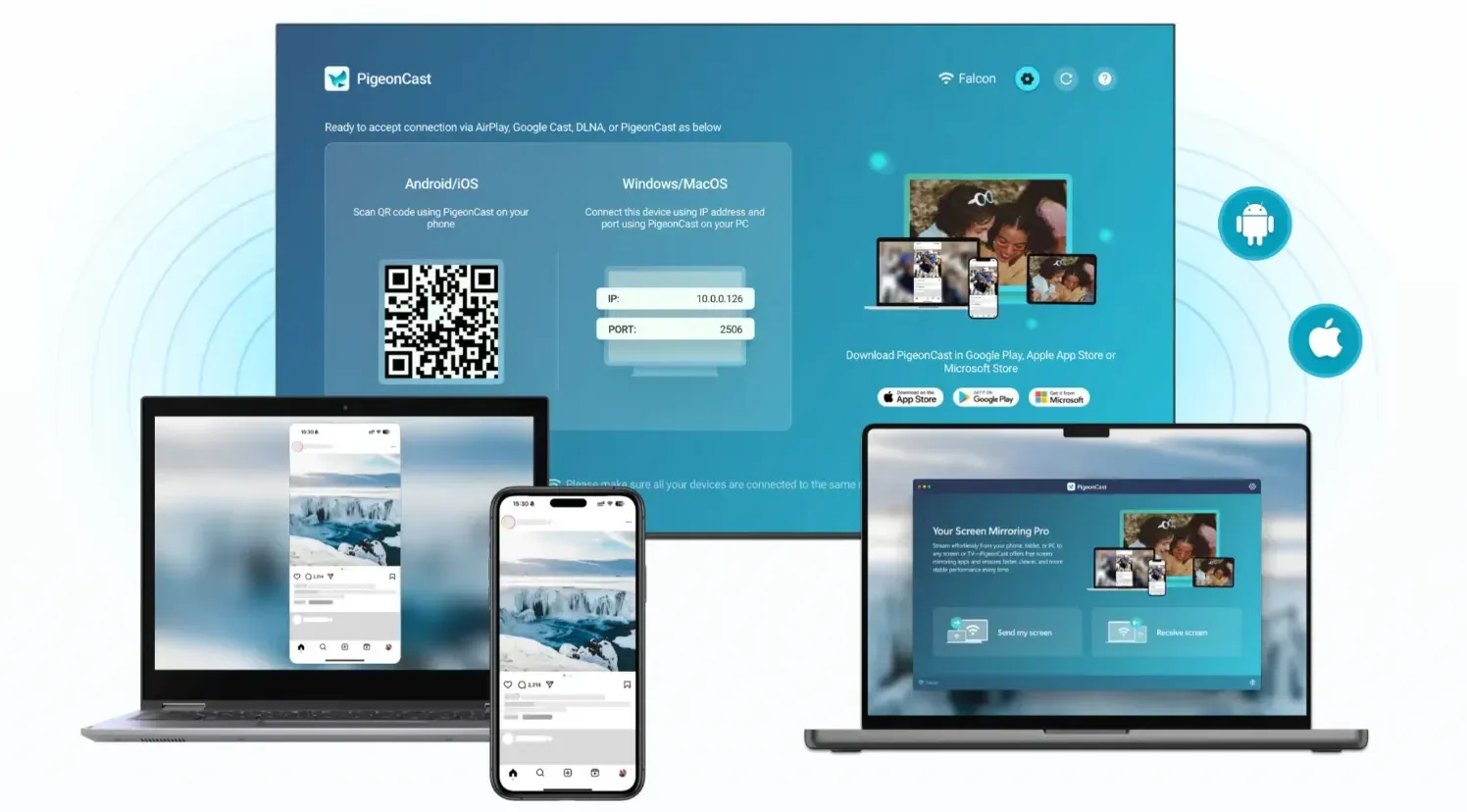
This is where modern screen mirroring solutions differ from older wireless display technologies. Instead of focusing on a specific protocol, many newer solutions focus on making screen sharing work across a wider range of devices and operating systems. For users who regularly move between PCs, phones, tablets, and TVs, that flexibility often matters more than the underlying wireless display technology.
Why App-Based Screen Mirroring Has Become a Popular Alternative
Today's wireless display ecosystem is fragmented. Some devices support Miracast, others rely on AirPlay, while many TVs and streaming devices use Google Cast or their own proprietary solutions.
For users, this can create a confusing experience. A casting method that works perfectly on one device may not be available on another. As households and workplaces increasingly use a mix of operating systems and hardware brands, relying on a single wireless display standard becomes less practical.
This is one reason app-based screen mirroring has become more popular in recent years. Rather than requiring users to understand which protocol every device supports, app-based solutions provide a more consistent way to connect screens across different environments.
The goal shifts from matching a specific casting standard to achieving a simpler screen-sharing experience.
Why PigeonCast Is a Better Fit for Modern Devices
Among modern app-based screen mirroring solutions, PigeonCast is designed to prioritize compatibility across different device types and operating systems.
Instead of requiring Intel-certified hardware, dedicated receivers, or support for a particular legacy technology, it enables compatible devices to connect through a unified screen mirroring platform.
For example, users can mirror a Windows PC to a TV, share content from a phone to a larger display, or connect devices across different operating systems without needing to recreate an old Intel WiDi setup.
This approach is particularly useful in environments where multiple device types are used together, such as:
- Windows laptops and smart TVs
- Android phones and larger displays
- iPhones and non-Apple displays
- mixed-device homes and workplaces
Rather than focusing on protocol compatibility, the focus becomes device compatibility.
To use the Windows screen mirroring app, you just need to:
Step 1. Download and install PigeonCast from Microsoft Store and launch it.


Overall Rating:


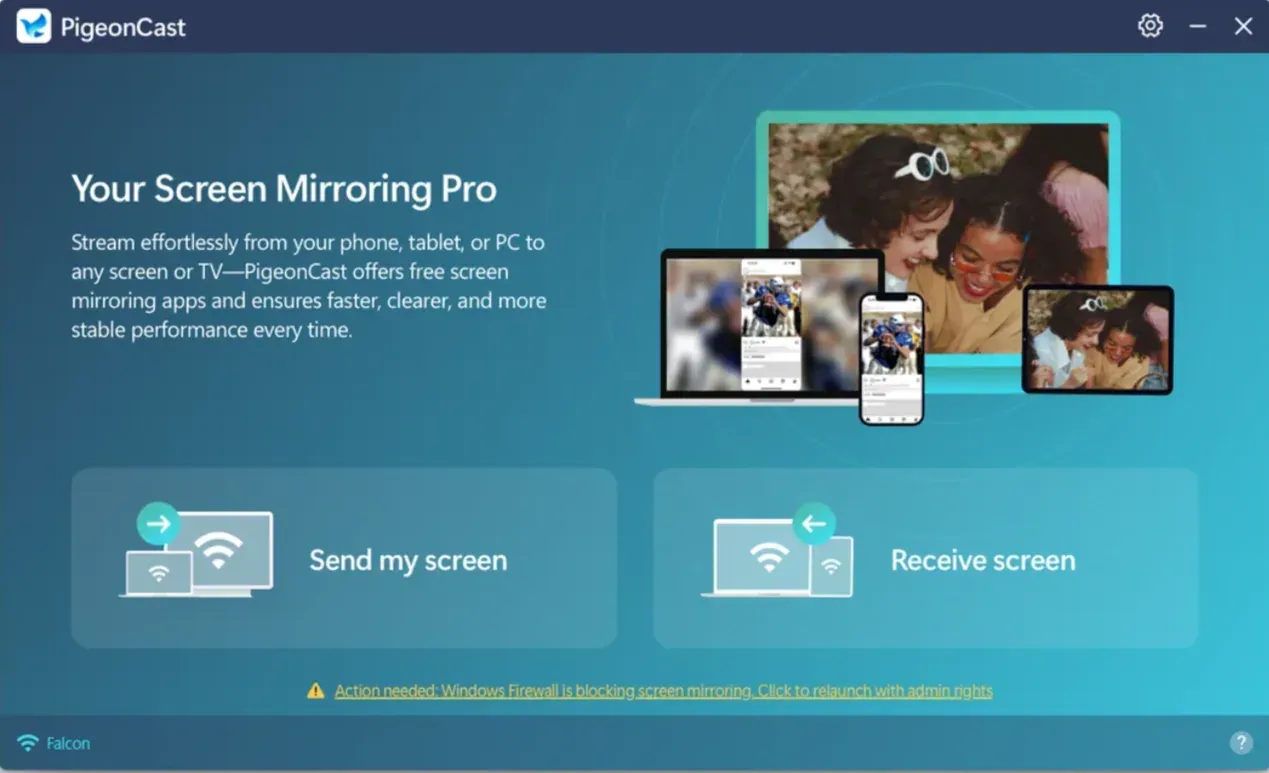
Step 2. Also set up PigeonCast on your phone or TV for stable and HD screen mirroring, launch it, and ensure that device is connected to the same Wi-Fi network as your PC.
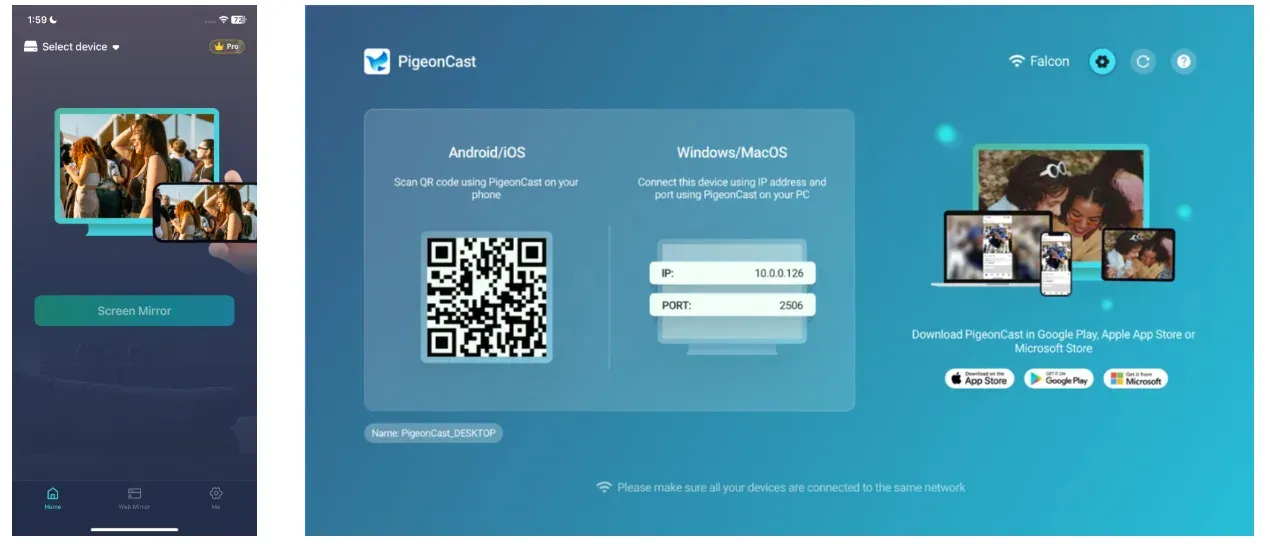
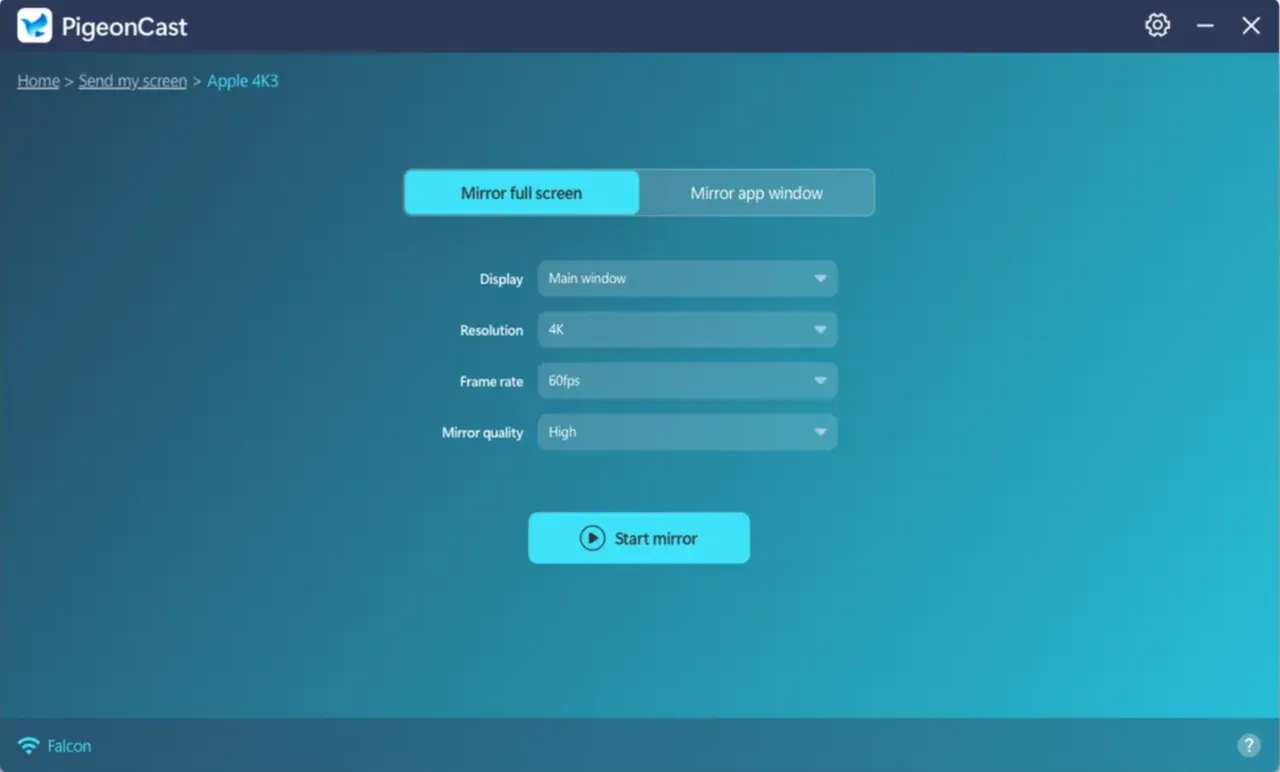
Step 3. Start mirroring to or from your Windows laptop.
- Mirror to PC: click Receive screen on your computer and on your phone, choose your computer from the device list and start screen mirroring.
- Mirror from PC: click Send my screen on your computer, choose your TV or streaming device from the device list and start screen mirroring.
Intel WiDi vs PigeonCast
| Feature | Intel WiDi | PigeonCast |
|---|---|---|
| Still Supported | No | Yes |
| Requires Intel Hardware | Yes | No |
| Windows Support | Legacy Systems Only | Modern Windows Versions |
| Mac Support | No | Yes |
| iPhone Support | No | Yes |
| Android Support | Limited | Yes |
| Smart TV Compatibility | Receiver Dependent | Broader Compatibility |
| Ongoing Updates | Ended | Active |
| Cross-Platform Use | Limited | Designed for Mixed Devices |
The biggest difference is that Intel WiDi was designed around a specific hardware ecosystem, while PigeonCast is designed around modern device interoperability. For most users replacing WiDi today, that flexibility is more valuable than maintaining compatibility with an older wireless display standard.
Who Should Choose PigeonCast
PigeonCast is a strong option for users who:
- need a modern Intel WiDi replacement
- use more than one operating system or device type
- want a Windows screen mirroring solution that works with current hardware
- prefer a software-based approach to wireless display
- want a single screen-sharing workflow across multiple devices
If your goal is simply to mirror a screen without worrying about hardware requirements or legacy display technologies, PigeonCast is one of the most practical Intel Wireless Display alternatives available today.
What Else Can Replace Intel WiDi?
While PigeonCast is the best Intel WiDi alternative for most users, it is not the only option. Depending on your devices, budget, and screen-sharing needs, several other technologies can replace Intel Wireless Display.
Miracast
Miracast is the closest direct successor to Intel WiDi on Windows. It allows compatible devices to mirror screens wirelessly without additional hardware or software.
Miracast is a good choice when:
- you use a Windows PC
- your TV or wireless display adapter supports Miracast
- you only need basic screen mirroring
The biggest advantage is that it is often built into Windows. The biggest limitation is that support varies across devices and TV manufacturers.
Google Cast (Chromecast)
Google Cast is Google's casting technology and is commonly found on Chromecast devices, Google TV, and many Android TVs.
Unlike Miracast, Google Cast often streams content directly from supported apps rather than mirroring an entire screen, which can improve performance for video streaming.
It works best when:
- you use Android devices
- your TV supports Chromecast or Google TV
- streaming video is more important than full desktop mirroring
Apple AirPlay
AirPlay is Apple's wireless display and media-sharing technology. It is an excellent choice for users who primarily use iPhones, iPads, Macs, and Apple TV.
Within the Apple ecosystem, AirPlay provides one of the smoothest wireless display experiences available. Moreover, many modern smart TVs now include AirPlay support, reducing the need for a dedicated Apple TV device.
HDMI
HDMI remains the simplest and most reliable replacement for Intel WiDi.
A wired HDMI connection offers:
- low latency
- stable video quality
- no wireless interference
- support for presentations, gaming, and video playback
The downside is the obvious one: you need a cable.
Intel Wireless Display Alternative Comparison
| Option | Best For | Strength | Limitation |
|---|---|---|---|
| PigeonCast | Mixed-device users | Broad compatibility | Requires app installation |
| Miracast | Windows users | Built into Windows | Limited cross-platform support |
| Google Cast | Chromecast users | Excellent media streaming | Not ideal for every screen-mirroring scenario |
| AirPlay | Apple ecosystem | Seamless Apple integration | Limited outside Apple devices |
| HDMI | Reliability-focused users | Stable wired connection | Requires cable |
Final Words
Intel Wireless Display played an important role in the early development of wireless screen sharing, but the technology has been officially discontinued since 2016. If you want a modern answer now, PigeonCast is the best Intel WiDi alternative for most readers because it solves the same core problem with better support for current device combinations.
Miracast still has a place on supported Windows setups. HDMI still has a place when you want a cable and no surprises. But if you want the clearest modern answer to "what should I use instead of Intel Wireless Display," start with PigeonCast.
Intel Wireless Display Alternative FAQ
What is the best Intel Wireless Display alternative?
For most users, screen mirroring apps like PigeonCast are the best Intel Wireless Display alternatives because they provide wireless screen mirroring across modern Windows PCs, Macs, Android phones, iPhones, and TVs. Unlike Intel WiDi, they do not depend on Intel-specific hardware and works with today's device ecosystems.
Is Intel WiDi still supported?
No. Intel officially discontinued Intel WiDi in 2016. Software downloads were removed on August 15, 2016, and customer support ended on October 15, 2016. Modern Windows devices no longer rely on WiDi, and Intel recommends using newer wireless display technologies such as Miracast instead.
Is Miracast the same as Intel WiDi?
No. Intel WiDi and Miracast serve a similar purpose, but they are different technologies. Intel WiDi was a proprietary Intel solution, while Miracast is an industry-standard wireless display protocol. Later versions of WiDi incorporated Miracast technology, which helped users transition after WiDi was discontinued.
What replaced Intel WiDi on Windows?
For most Windows users, Miracast became the direct successor to Intel WiDi after Intel ended support. However, many people now use cross-platform screen mirroring solutions such as PigeonCast because they support more devices and work beyond the limitations of Windows-only wireless display standards.
What is the best wireless display alternative for Windows?
The best wireless display alternative for Windows depends on your setup. Miracast is a good choice when both the PC and display support it. If you need broader compatibility across TVs, phones, and different operating systems, a dedicated solution such as PigeonCast is often the more flexible option.
Is HDMI better than an Intel WiDi alternative?
HDMI is generally more stable because it uses a direct wired connection with minimal latency. However, it lacks the convenience of wireless display technology. If you want cable-free screen sharing between modern devices, a wireless solution or Miracast is usually the better choice.
Mia Clarke is a technology editor specializing in screen mirroring and casting solutions across multiple platforms. Mia provides clear, practical guides and in-depth insights to help users seamlessly connect their devices. Passionate about enhancing digital experiences, Mia is dedicated to keeping readers updated on the latest trends and tools in cross-platform screen sharing. Whether you’re looking to mirror your smartphone, laptop, or smart TV, Mia’s content delivers reliable, user-friendly advice to simplify your tech setup.