
You may need to show one Windows screen on another PC for a meeting, class, or quick review, and you need it working in minutes. The hard part is that Windows mirroring only works smoothly when both devices support the same projection features and stay stable on the same network.
Don't worry; this guide gives you two easy wireless methods to mirror PC to PC: running a native Wireless Display setup or using an alternative screen mirroring app, and helps you fix disconnects with a clear fallback rule.
How to Mirror PC to PC: Check Compatibility First
Before you start clicking projection menus, confirm both computers can actually complete a mirror session. Most failed attempts come from missing Wireless Display support on the receiver, blocked discovery, or old Wi-Fi/display drivers. A two-minute compatibility check prevents a long troubleshooting loop later.
How do you check if screen mirroring between PCs works:
Step 1. Confirm both devices are Windows PCs on the same local network. Native wireless projection usually depends on local network discovery, so avoid guest Wi-Fi and isolated hotspot modes during setup.
Step 2. On the receiving PC, open Settings > Apps > Optional features and verify Wireless Display is installed. If it is missing, add it first, then restart the receiving device.
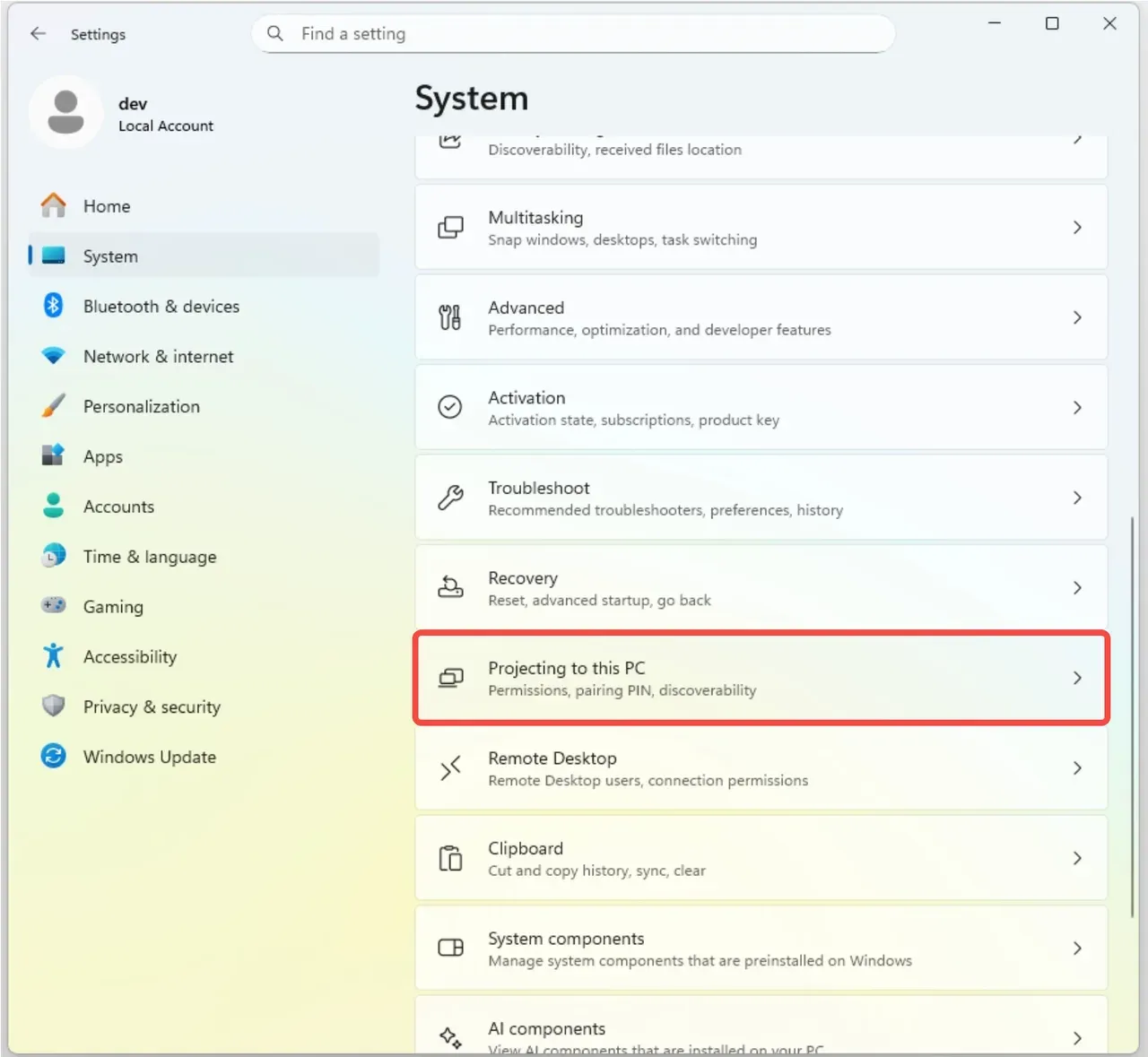
Step 3. Open Settings > System > Projecting to this PC on the receiving PC and allow projection for trusted devices. If this page is unavailable, that device likely cannot receive native projection in its current configuration.
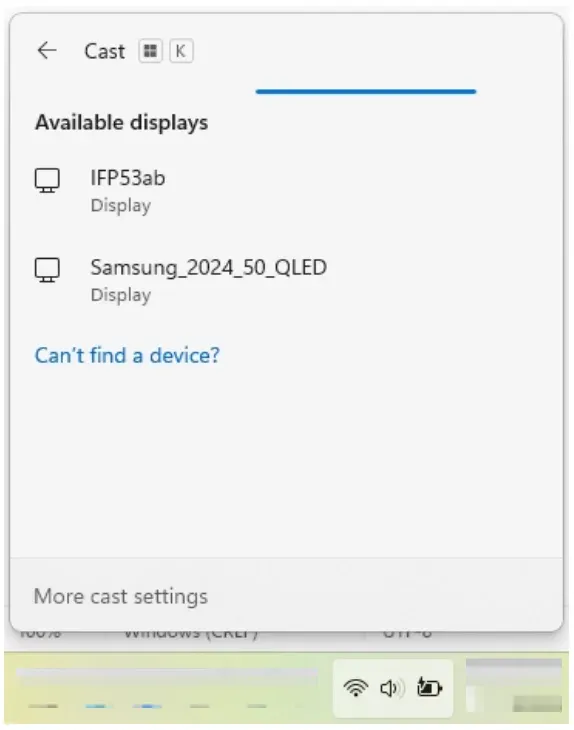
Step 4. On the sending PC, press Windows + K and check whether nearby display devices appear. If nothing appears at this stage, update Wi-Fi and graphics drivers before moving forward.
If both PCs pass the checks, start with native Windows mirroring; if either device fails these checks, switch to an alternative method immediately instead of repeating the same discovery attempts.
Mirror PC to PC with Windows Wireless Display
If both machines pass compatibility checks, native Wireless Display is the cleanest option because it is already built into Windows. It is usually the fastest setup for local mirroring and does not add another tool to your workflow. Start with duplicate mode for true mirroring, then adjust quality and display mode after the connection is stable.
How to mirror PC to PC on Windows 11:
Step 1. On the receiving PC, keep Projecting to this PC open so approval prompts are visible. Set the receiver to ask for permission each time while you test.
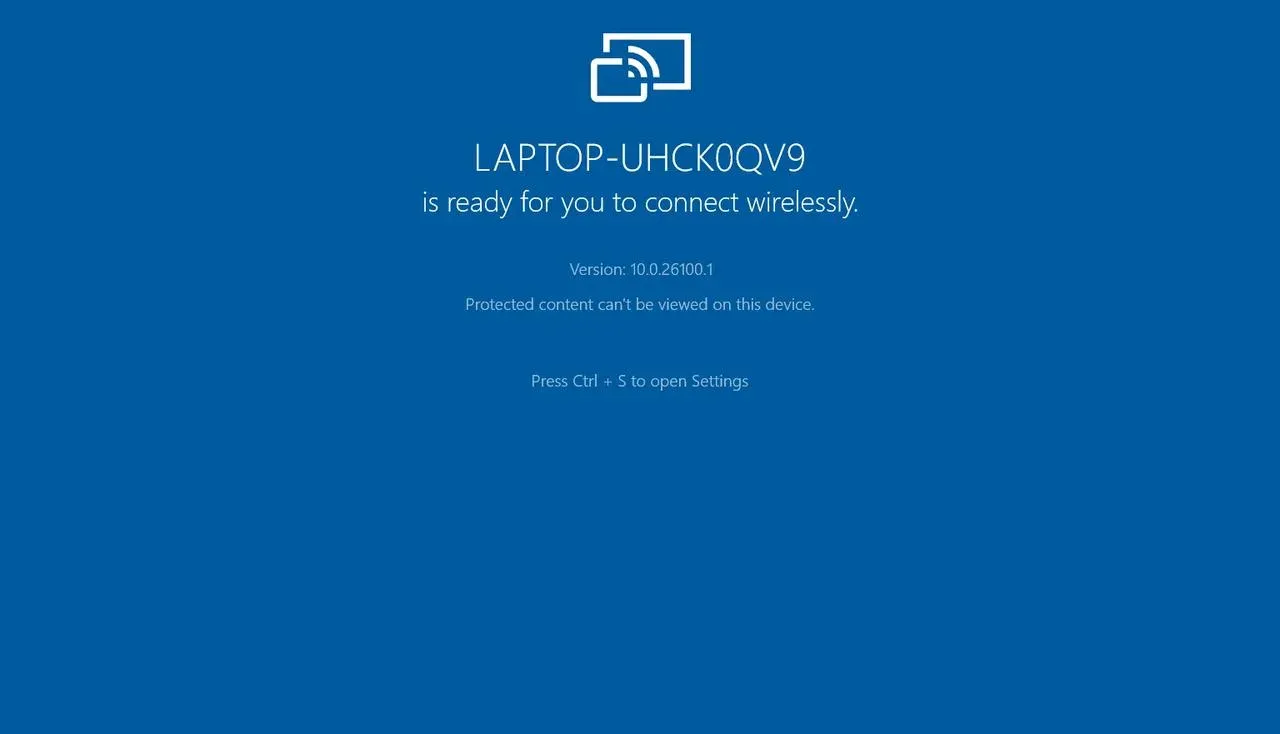
Step 2. On the sending PC, press Windows + K, choose the receiving PC from the list, and wait for the approval request. Approve on the receiving PC without minimizing the prompt.
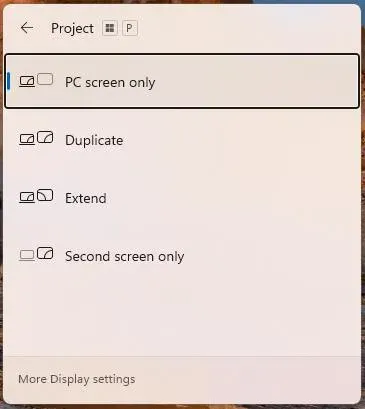
Step 3. After connection, press Windows + P on the sending PC and choose Duplicate if you want a true mirror view. Choose Extend only if you need extra workspace instead of mirrored output.
Step 4. Test stability for at least one minute by opening and moving windows across the desktop. If the session drops or freezes repeatedly, stop here and move to the alternative method section.
For most Windows-to-Windows cases, this remains the first method to use. But if your receiver appears intermittently, pairing fails after approval, or the stream becomes unusably choppy, do not keep retrying native projection for too long.
Mirror PC to PC with PigeonCast
Windows + K does not mirror PC to PC Windows 10? Some PC pairs fail native projection even when they look compatible on paper. Driver differences, enterprise firewall rules, or inconsistent discovery behavior can interrupt sessions at random. In those cases, a free Windows screen mirroring app like PigeonCast gives you a faster route to restore usability and continue your task.


Overall Rating:


How to mirror PC to another PC with PigeonCast:
Step 1. Download and install PigeonCast on both PCs and ensure both devices are connected to the same network segment.
Note: Keep VPN and strict network isolation settings off during first-time pairing.
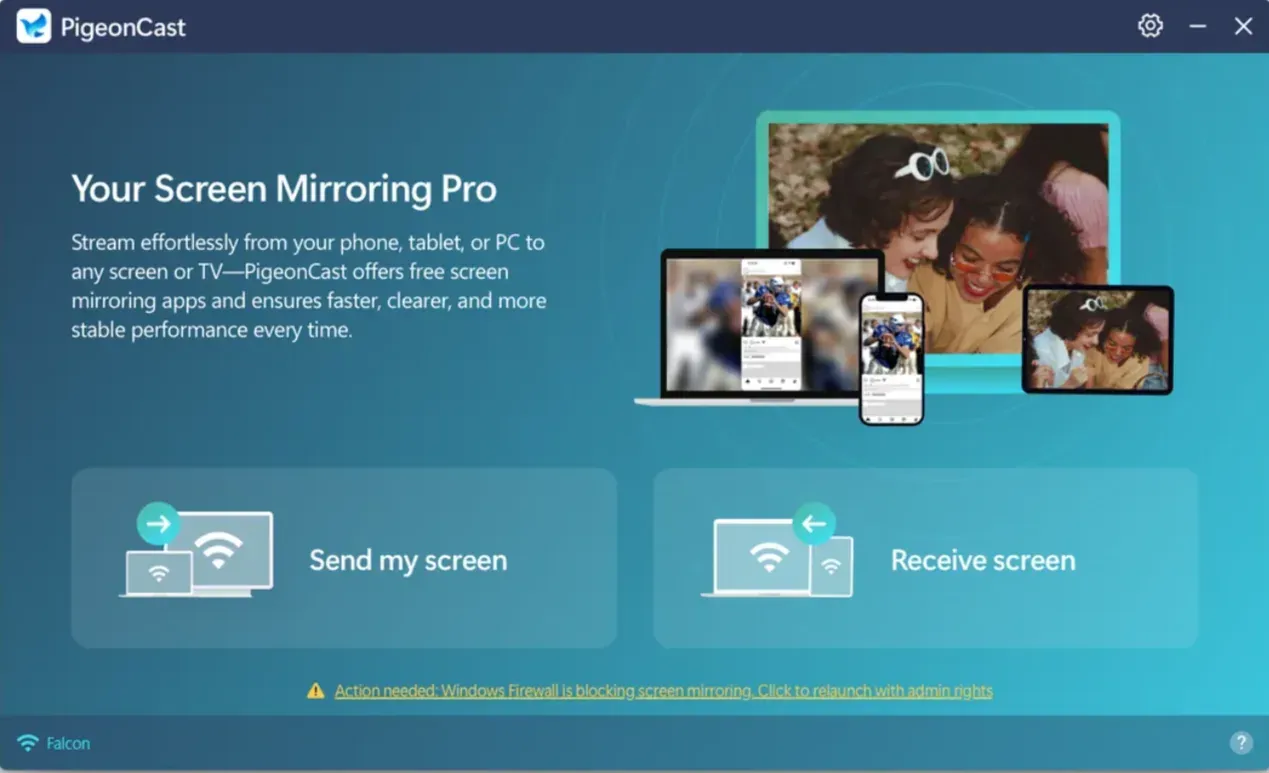
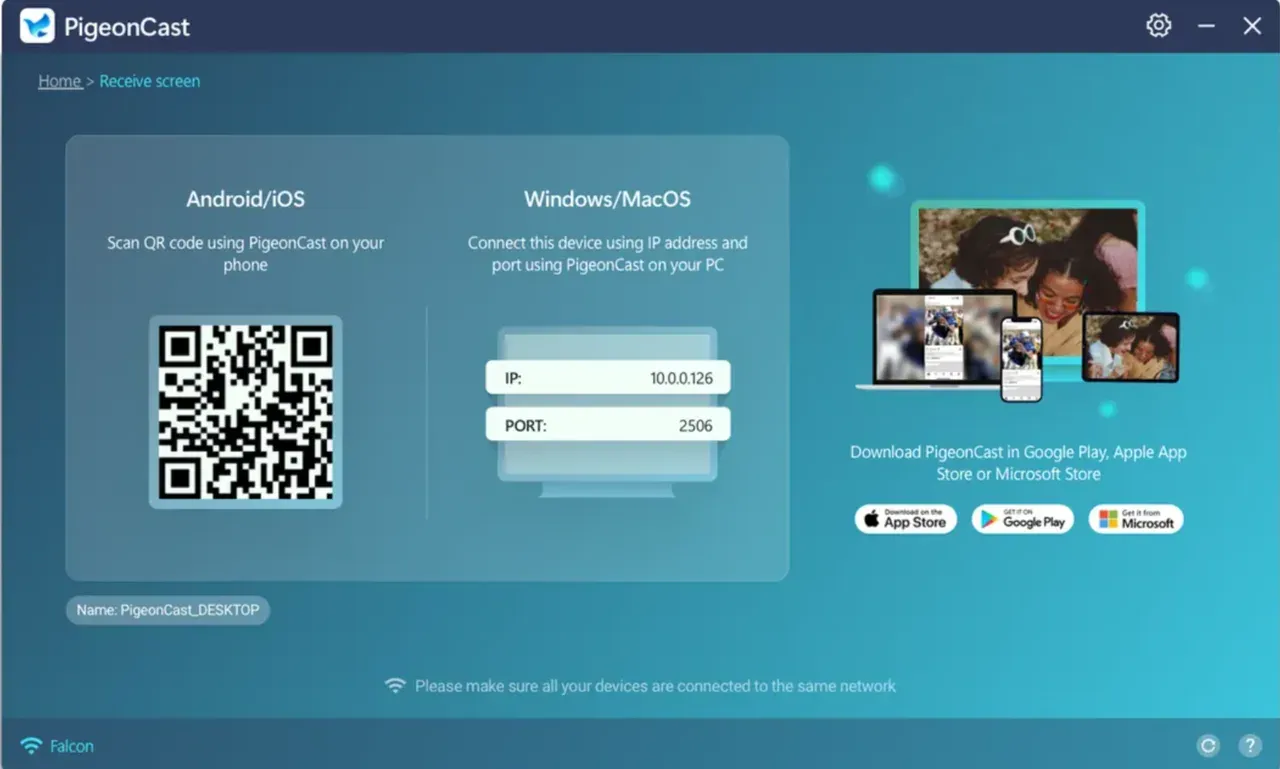
Step 2. Open the app on two PCs. On the receiving device, click Receive screen, and your PC can receive content from Android, iPhone, Windows laptop, and Mac.
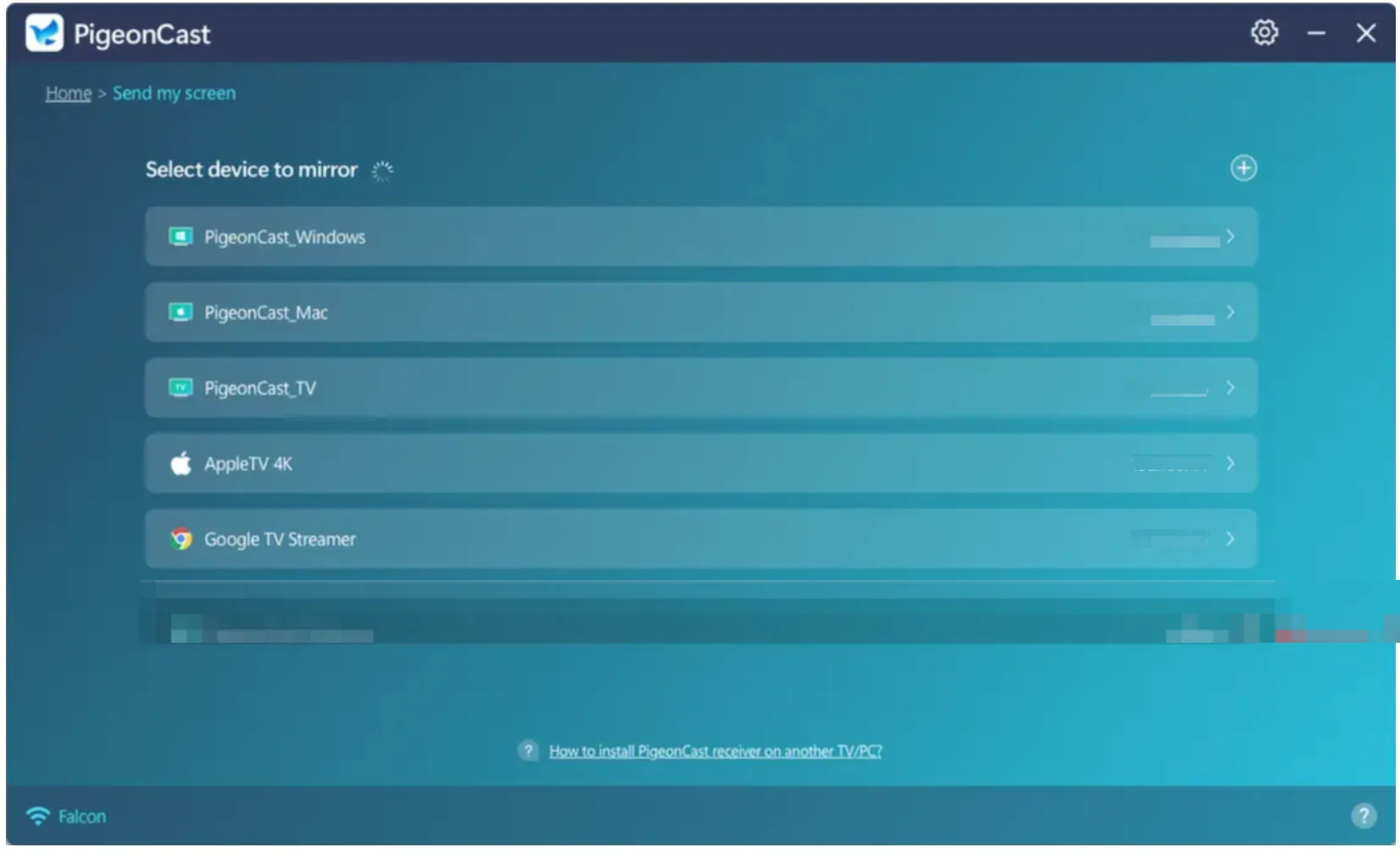
Step 3. On the sending PC, click Send my screen, choose another PC, and click Start mirror.
Step 4. Enjoy your PC screen on another PC.
If you are on mixed device models or older Wi-Fi chipsets, this path is often more predictable for immediate use. But if native Windows mirroring becomes stable again after driver and network cleanup, switch back to native mode to reduce app overhead in daily use.
Troubleshooting Mirror PC to PC Not Working
When screen mirror PC to PC sessions disconnect, lag, or fail halfway through, start with the fastest checks first. Most reliability issues come from network quality, receiver permission state, or a stale driver stack. The sequence below is ordered from easiest fixes to deeper resets so you can recover quickly.
Step 1. Confirm both PCs are on the same Wi-Fi band and move closer to the router if signal is weak. A weak or switching signal can cause discovery success but unstable streaming.
Step 2. Reopen projection settings on the receiver and re-allow incoming projection requests. Permission prompts can silently fail if the receiver was locked, asleep, or switched users.
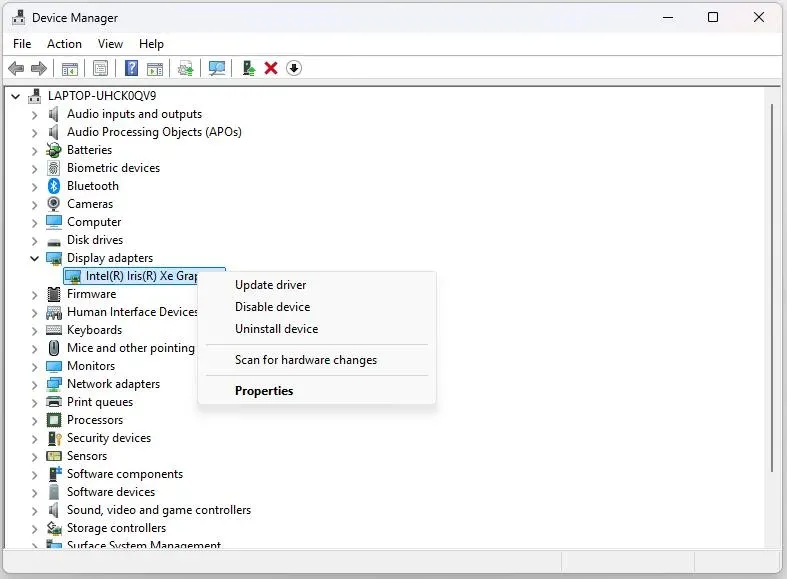
Step 3. Restart Wi-Fi and graphics adapters on both PCs from Device Manager, then retry the session. This clears temporary adapter state that often survives a normal reconnect.
Step 4. Update Windows, graphics drivers, and wireless drivers on both machines, then reboot both devices fully. Use manufacturer driver packages when Windows Update does not resolve repeated drops.
Final Thoughts
For most users, the best way to mirror PC screen to PC is simple: run a compatibility check, then start with Windows Wireless Display. If that route is unstable on your hardware or network, move to the alternative app path immediately so you can keep working without delay.
For ongoing reliability, use the fix order from network and permissions to driver refresh, then apply one clear rule: recover fast first, optimize native later. That approach gives you both short-term reliability and a cleaner long-term setup.
Mirror PC to PC FAQ
Can I mirror one PC to another without extra software?
Yes. If both devices support Windows Wireless Display and are configured correctly, native projection can handle basic PC to PC mirroring without additional tools.
Why does the receiving PC not appear in Windows + K?
This usually means missing receiver support, network isolation, or outdated Wi-Fi or graphics drivers. Check optional feature installation and projection permissions on the receiving PC first.
Does mirror PC to PC require both PCs on the same Wi-Fi?
For native Windows wireless projection, yes in most home and office setups. Keeping both devices on the same local network greatly improves discovery and connection stability.
Should I choose Duplicate or Extend mode?
Choose Duplicate when you need true mirrored output on both screens. Choose Extend when you want extra desktop space and independent window placement.
Why is my mirrored screen laggy even after it connects?
Lag usually comes from weak Wi-Fi, high background load, or outdated display/network drivers. Test with a lighter workload, stronger signal, and current drivers before assuming hardware is unsupported.
Can I mirror PC to PC without internet?
Yes. You can mirror Windows PC without internet as long as both devices are on the same local network. Wireless projection (Miracast) does not require internet access, but it does require network connectivity between device. If you are using a hotspot or restricted network, make sure device discovery is not blocked.
Why does screen mirroring disconnect randomly?
Random disconnections are usually caused by unstable network conditions or interference. Common reasons include:
-
Weak Wi-Fi signal or switching between bands (2.4GHz / 5GHz)
-
Network congestion or router instability
-
Power-saving settings affecting Wi-Fi performance
-
Driver or system-level interruptions
Mia Clarke is a technology editor specializing in screen mirroring and casting solutions across multiple platforms. Mia provides clear, practical guides and in-depth insights to help users seamlessly connect their devices. Passionate about enhancing digital experiences, Mia is dedicated to keeping readers updated on the latest trends and tools in cross-platform screen sharing. Whether you’re looking to mirror your smartphone, laptop, or smart TV, Mia’s content delivers reliable, user-friendly advice to simplify your tech setup.