
Toshiba screen mirroring allows users to effortlessly display their smartphones, tablets, or computers on a larger Toshiba TV screen. This feature can be incredibly useful whether you want to share photos with friends and family, watch movies, or give a presentation. In this guide, we'll dive into how Toshiba screen mirroring works, walk you through step-by-step instructions, and address troubleshooting issues to ensure a smooth experience. Let's get started.
What Is Toshiba Screen Mirroring
Toshiba TVs come equipped with the ability to mirror screens from a variety of devices, allowing users to share their content on a bigger screen. Toshiba TV screen mirroring is especially useful for showing off media, presenting slides, or even watching your favorite videos in a larger format. It's a convenient feature for those who prefer wireless solutions over traditional HDMI cables.
Depending on the model and year of your Toshiba TV, it may support different screen mirroring technologies. Some of the most common options for Toshiba Fire TV screen mirroring include Miracast, Chromecast, and AirPlay. Each technology offers distinct advantages and methods for setting up, so understanding what your device supports can help make the process smoother.
How Does Toshiba Screen Mirroring Work
Toshiba TVs support various screen mirroring technologies, and each one works a bit differently. Here's an overview of the most common screen mirroring Toshiba TV options:
- Miracast: A widely used wireless display standard that allows you to directly mirror your device's screen to your Toshiba TV without the need for an internet connection. This method works seamlessly with many Android and Windows devices.
- Chromecast: With Chromecast, you can wirelessly cast content from apps that support Chromecast, such as YouTube or Netflix, from your Android or iOS device to your Toshiba Android TV. This provides an easy way to stream media on a larger screen.
- AirPlay: For Apple users, AirPlay enables you to wirelessly mirror content from your iPhone, iPad, or Mac to your Toshiba TV (if your TV model supports AirPlay). This is perfect for users within the Apple ecosystem who want a seamless casting experience.
Supported Protocols and Toshiba TV Models
To ensure a smooth screen mirroring experience, it's important to know which protocols your Toshiba TV supports. Here's a list of supported models and their compatible screen mirroring protocols:
| Supported Protocols | Supported Toshiba TV Models |
|---|---|
| Miracast | Toshiba C350 Series, Toshiba V35 Series, Toshiba E330 Series, Toshiba M550 Series, Toshiba X9900 Series, Toshiba 4K UHD (2022), Toshiba 4K UHD - Fire TV (2020, 2021) |
| Chromecast | Toshiba C350 Series, Toshiba E330 Series, Toshiba M550 Series, Toshiba X9900 Series, Toshiba 4K UHD (2022), Toshiba 4K UHD – Fire TV (2020, 2021) |
| AirPlay | Toshiba 32V35KC (2024), Toshiba 4K UHD Fire TV (2020, 2021), Toshiba 4K Far-field UHD (2021) |
How to Set Up Screen Mirroring on Toshiba TV
To use any of these protocols for screen mirroring on Toshiba TV, follow these simple steps:
Step 1. Open the Settings menu on your Toshiba TV.
Step 2. Navigate to the Network or Connections section.
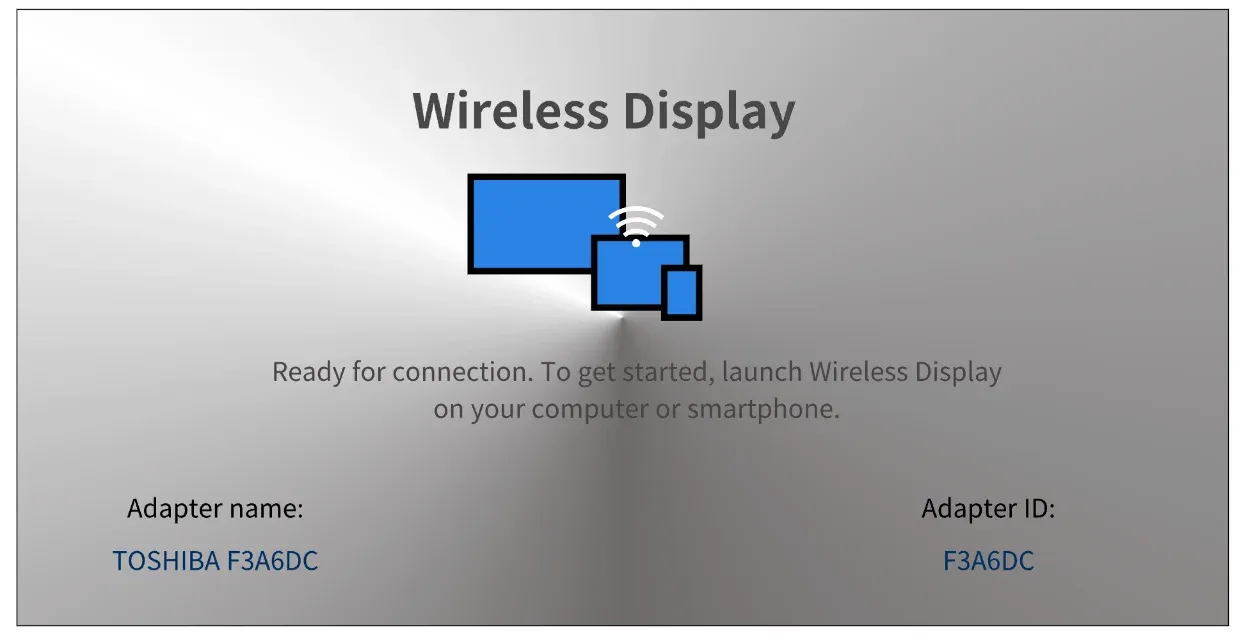
Step 3. Depending on your TV model, enable Miracast (or Toshiba wireless display), Cast, or AirPlay to start the mirroring process.
Using Third-Party Apps for Screen Mirroring
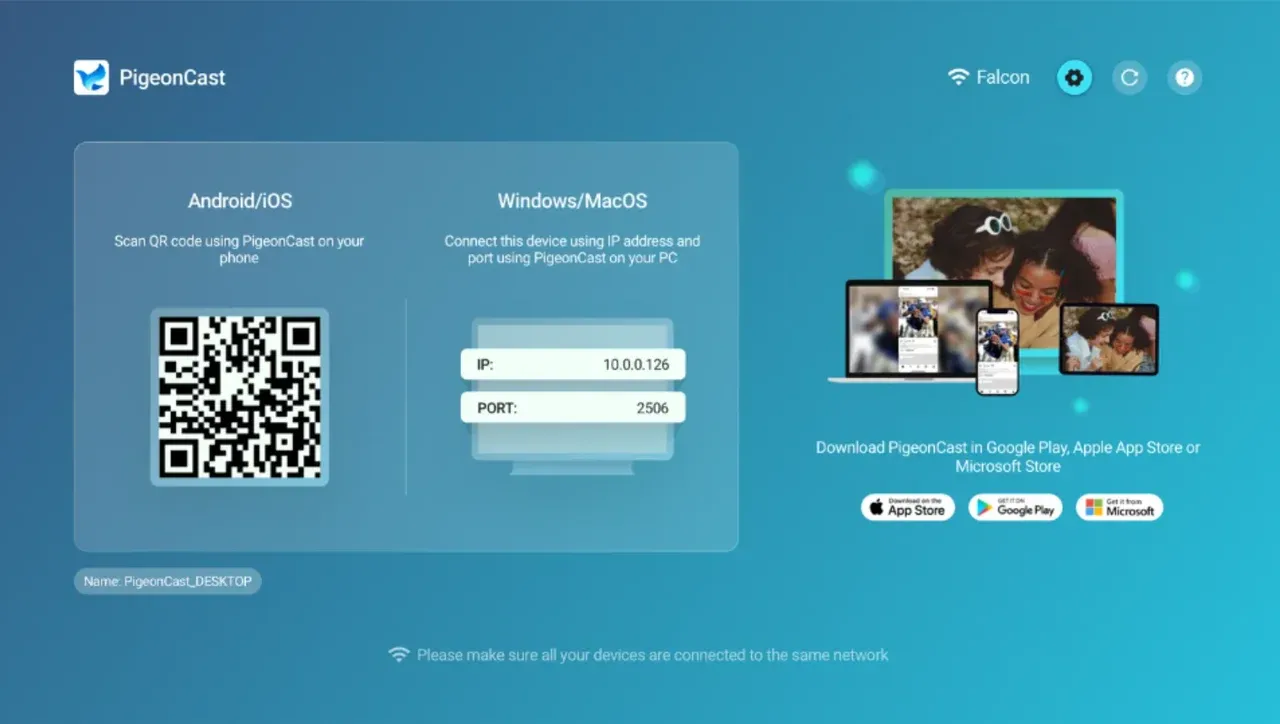
While built-in options work well for many users, third-party apps can offer additional flexibility, especially if your device doesn't support a particular mirroring protocol. One great free option is PigeonCast, a user-friendly app that supports screen mirroring across Toshiba TV models with Amazon Fire TV and Google TV/Android TV.
How to turn on screen mirroring on Toshiba TV via PigeonCast? Just go to the Amazon Appstore or Google Play Store on your TV, search for PigeonCast to install the app, and open it.
How to Screen Mirror on Toshiba TV
Here's a breakdown of how to Toshiba TV from various devices (like Android phones, iPhones, Windows PCs, and MacBooks) using different methods.
Method 1: Using Miracast to Screen Mirror to Toshiba TV (for Android and Windows)
Follow the steps for Toshiba smart TV screen mirroring Android phone or Windows PC:
Step 1. Open the TV settings and ensure Miracast is enabled.
Step 2. Make sure your Toshiba TV and device (Android phone or Windows laptop) are connected to the same Wi-Fi network.
Step 3. Enable Miracast on the sending device:
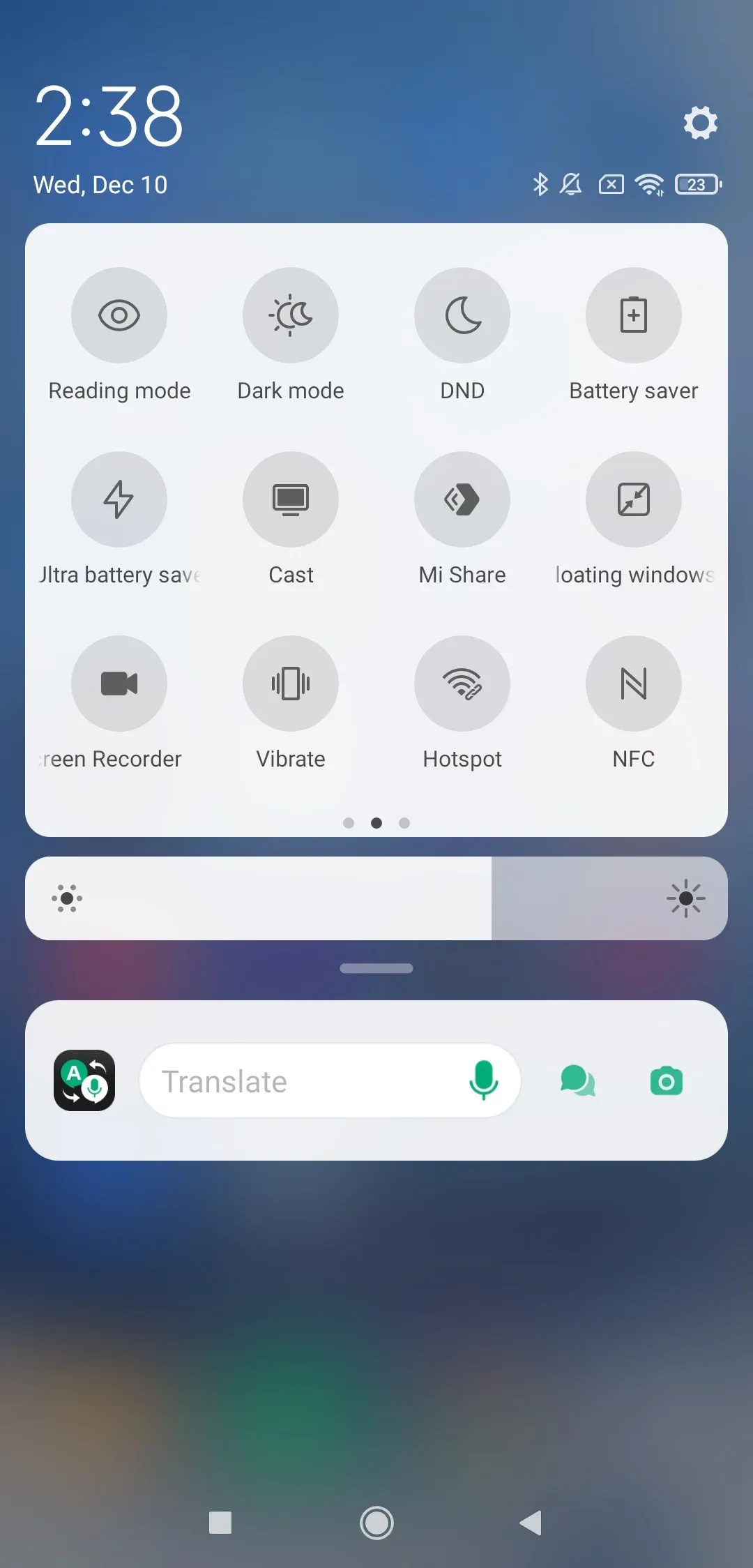
- On an Android phone: swipe down the Quick Settings menu, tap Cast (Google Pixel), Smart View (Samsung), Screen Mirroring (Vizio, Sony), or Wireless Display.
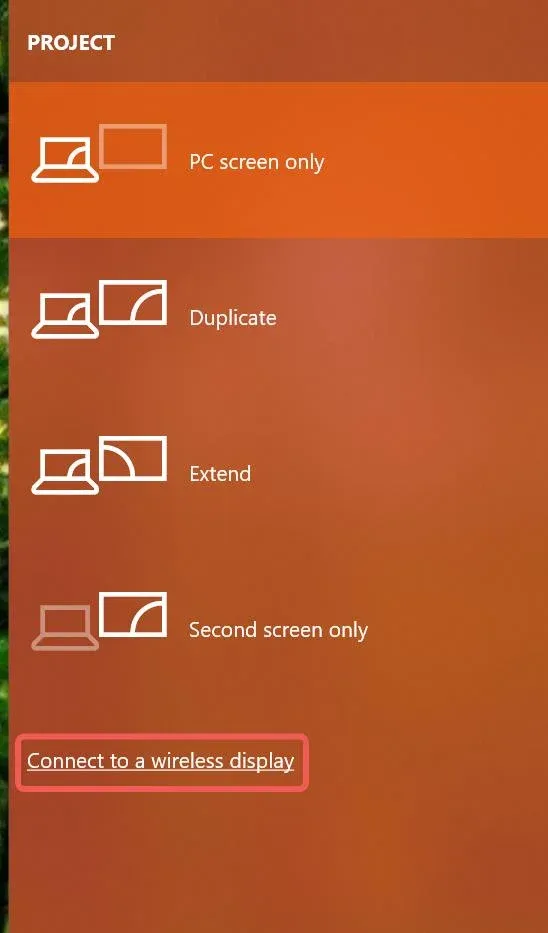
- On a Windows PC: press the Windows + P shortcut and click the Connect to a wireless display option on the Project menu.
Step 4. Your Toshiba TV should appear in the list of available devices. Select it to connect.
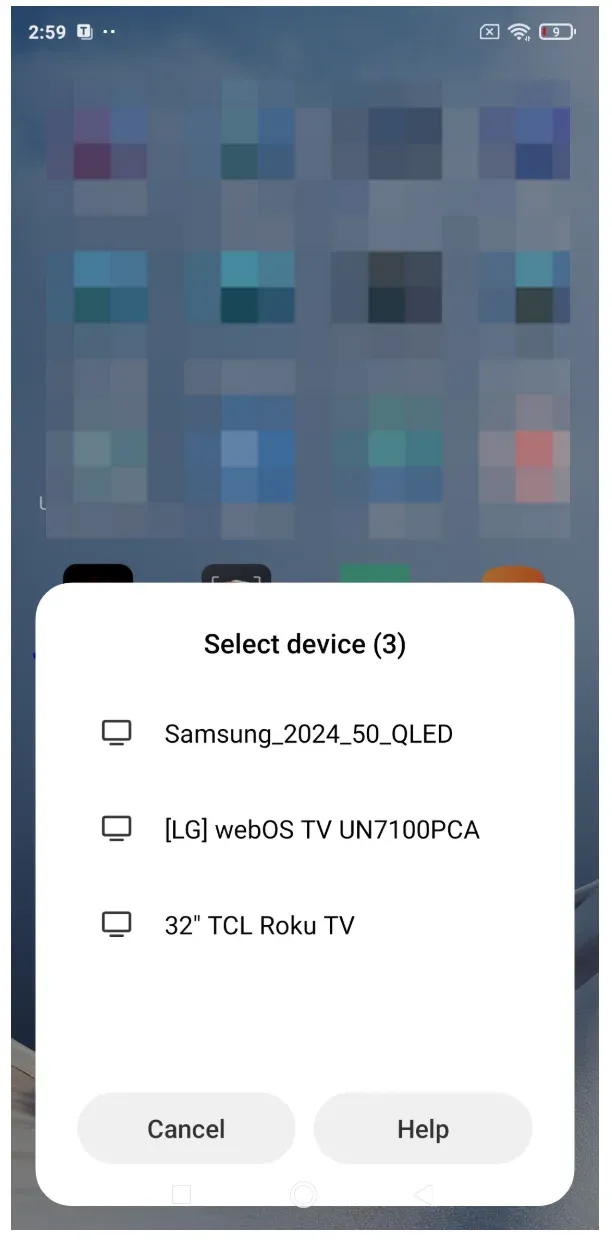 Step 5. Once connected, your device's screen will appear on the Toshiba TV.
Method 2: Using Chromecast to Screen Mirror to Toshiba TV (for Android and Computer)
Casting from your Android phone or computer (Windows PC or MacBook) to a Toshiba TV using Chromecast is a simple and effective method. Here's how you can do it:
For Toshiba Smart TV screen mirroring Android:
Step 1. Enable the Cast feature on your Toshiba TV.
Note: If it is unavailable, plug the Chromecast dongle into an available HDMI port on your Toshiba TV.
Step 2. Ensure both your Toshiba TV and device are connected to the same Wi-Fi network.
Step 3. Open the Google Home app on your phone.
Step 4. Choose your Chromecast device and tap the Cast my screen > Cast screen option.
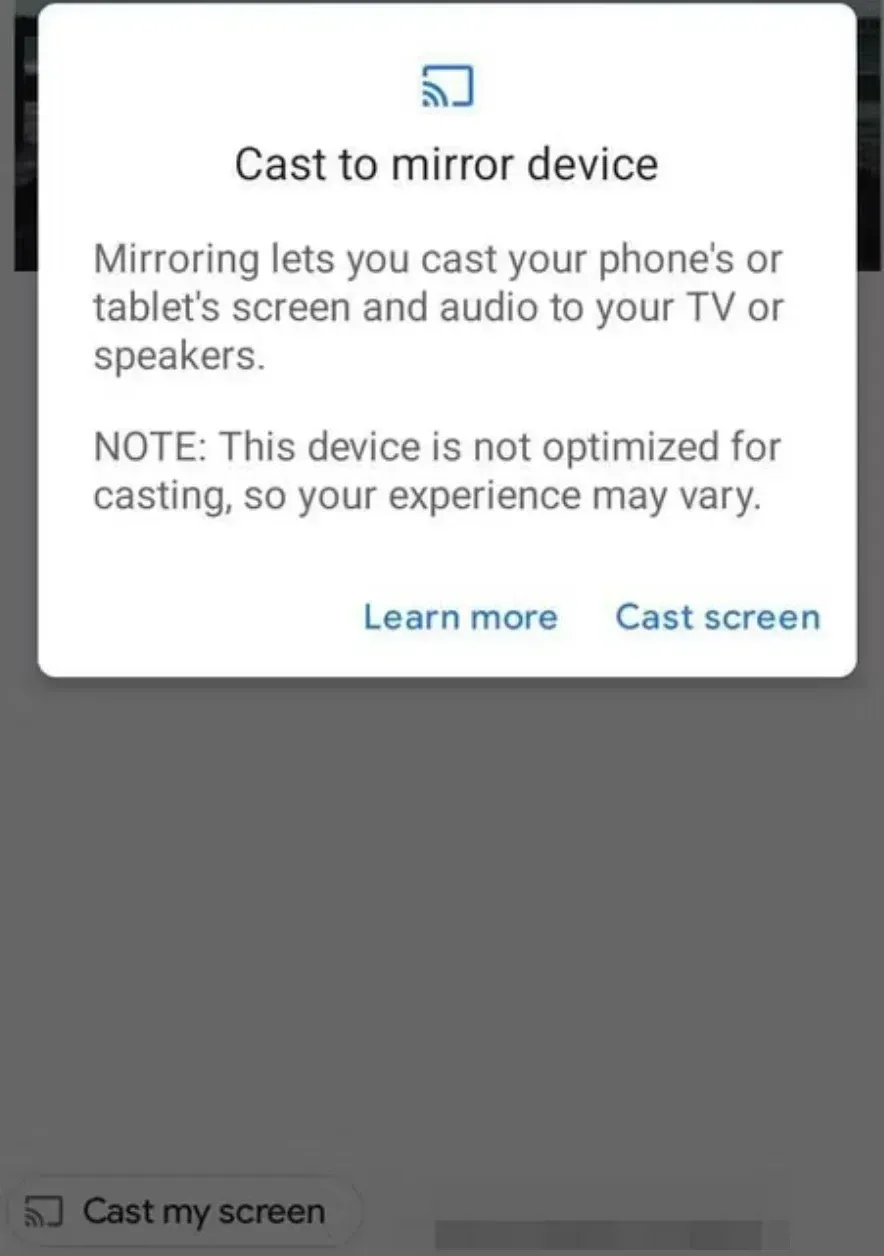
Step 5. Tap Start now to start screen mirroring to Chromecast if needed.
For Toshiba Smart TV screen mirroring computer:
Step 1. Launch Google Chrome on your PC or Mac.
Step 2. Ensure your computer is also connected to the same Wi-Fi network as your Toshiba TV.
Step 3. In Chrome, click the three-dot menu in the upper-right corner of the browser window.
Step 4. From the dropdown menu, select Cast. Chrome will search for available devices.
Step 5. Your Toshiba TV should appear in the list of available devices. Click on it to start mirroring.
Step 6. After selecting your Toshiba TV, click Cast Desktop.
Note: This allows you to mirror your entire computer screen to the TV. You can also choose to cast specific browser tabs for streaming content.
Step 7. Once connected, your PC screen will appear on the Toshiba TV.
Method 3: Using AirPlay to Screen Mirror to Toshiba TV
If your Toshiba TV supports AirPlay, you can mirror an iPhone without Apple TV or use the same wireless connection from a Mac. For Mac users, Toshiba wireless display from Mac follows a similar AirPlay-based setup. Here's how to screen mirror an iPhone or MacBook to a Toshiba TV:
Step 1. Turn on AirPlay on your Toshiba TV and ensure the device is connected to the same Wi-Fi network as your Apple device.
Step 2. Open the Control Center on your Apple device, tap Screen Mirroring, and select your Toshiba TV.
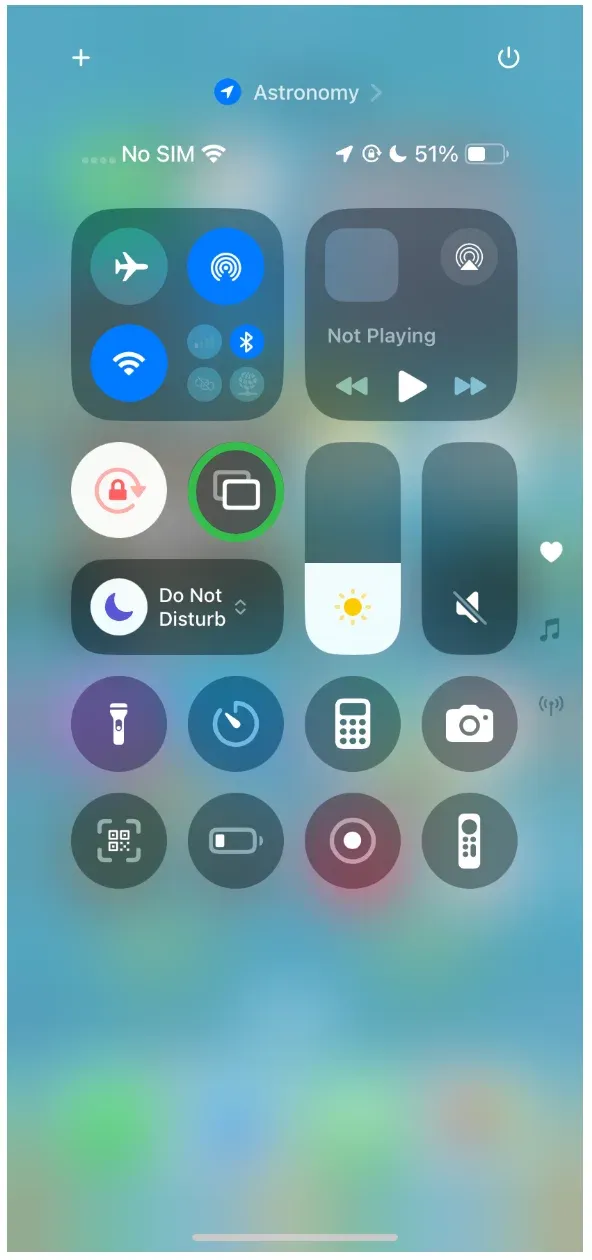
Step 3. Enter the PIN code displayed on your TV on your Apple device if prompted.
Step 4. Your device's screen will now appear on your TV.
Method 4: Using Third-Party Apps like PigeonCast
If Miracast or AirPlay doesn't work, you can use free screen mirroring apps like PigeonCast to easily screen mirror to Toshiba Fire TV. This app supports a variety of devices, including Android, iOS, and Windows, and it is free to use with no ads or hidden limitations.
Start screen mirroring on Toshiba Fire TV or Toshiba Android TV:
Step 1. Launch PigeonCast on your Toshiba TV and ensure the device is connected to the Wi-Fi network your mobile phone or laptop uses.
Step 2. For a smooth Toshiba screen mirroring experience, download PigeonCast on your sending device from the app store.


Overall Rating:



Step 3. Open PigeonCast and select your Toshiba TV from the list of available devices (or scan the QR code offered by PigeonCast on the TV for direct connection).
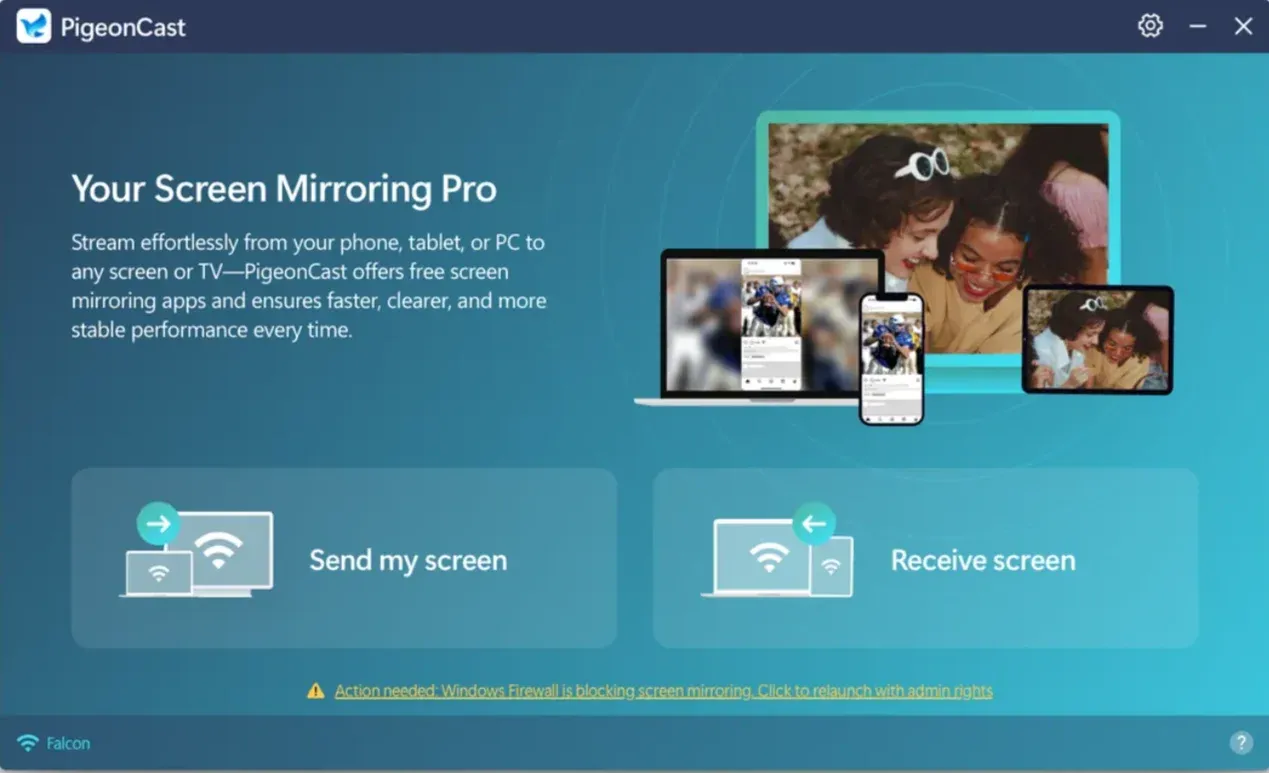
Step 4. Choose whether to mirror your screen or cast media.
Troubleshooting Toshiba Screen Mirroring Issues
Despite its ease of use, sometimes screen mirroring Toshiba Fire TV can run into problems. Here are some common issues and how to solve them:
- Toshiba TV Not Detecting Devices: Ensure your TV and device are connected to the same Wi-Fi network. You might also need to restart the TV or device.
- Unstable Connection: If your connection keeps dropping, check your Wi-Fi signal strength and consider moving closer to your router.
- Lag or Delay: High network congestion can cause delays. Try reducing the number of connected devices or switching to a faster 5GHz Wi-Fi network.
- Device Incompatibility: Some older Toshiba TV models may not support all screen mirroring protocols like Miracast or AirPlay. In such cases, using a third-party app like PigeonCast can offer a workaround or try wired options like an HDMI cable.
Conclusion
Toshiba screen mirroring is an excellent way to enhance your media experience by casting your device's screen to a larger display. Depending on the model, your Toshiba smart TV may support protocols like Miracast, Chromecast, or AirPlay, each offering a unique way to share your content. If compatibility issues arise, PigeonCast provides an easy, free alternative to help ensure your devices work together. Whether you choose a built-in option or a third-party app, you'll enjoy the benefits of larger, more immersive screen sharing.
Toshiba Screen Mirroring FAQs
How to AirPlay on a Toshiba TV?
If your Toshiba TV supports AirPlay, simply enable the feature in your TV settings, and then select your Toshiba TV from the AirPlay menu on your iPhone or MacBook to start mirroring.
Why doesn't my Toshiba Fire TV have screen mirroring?
Screen mirroring should be enabled in your Toshiba Fire TV settings. If it's not available, make sure your device is compatible and that the TV is connected to the same Wi-Fi network as the device.
What is Toshiba wireless display?
Toshiba wireless display refers to the screen mirroring feature that allows you to wirelessly cast or mirror content from compatible devices to your Toshiba TV, using protocols like Miracast or Chromecast.
How do I set up screen mirroring on Toshiba TV?
Go to your Toshiba TV settings, activate screen mirroring (often labeled Wireless Display), and ensure your device is connected to the same Wi-Fi network.
Does Toshiba TV support Miracast?
Yes, many Toshiba TVs support Miracast. However, it's important to check if your model supports this feature.
How do I use Chromecast with Toshiba TV?
Plug the Chromecast device into the HDMI port on your Toshiba TV, connect it to the same Wi-Fi network as your device, and start casting from any Chromecast-supported app.
Why can't I mirror content to my Toshiba TV?
There are several possible reasons: Your device may not support the selected mirroring protocol, both your Toshiba TV and the casting device may not be connected to the same Wi-Fi network, or screen mirroring might not be enabled on your TV. Additionally, outdated software or interference from other devices on the network could cause issues with mirroring.
How do I fix screen mirroring issues on Toshiba TV?
Check your Wi-Fi connection, restart your devices, update the TV firmware, or use a third-party app like PigeonCast to solve compatibility issues.
Are there better alternatives to built-in screen mirroring?
Yes, PigeonCast offers a versatile and easy-to-use solution for devices that don't support standard mirroring protocols.
Mia Clarke is a technology editor specializing in screen mirroring and casting solutions across multiple platforms. Mia provides clear, practical guides and in-depth insights to help users seamlessly connect their devices. Passionate about enhancing digital experiences, Mia is dedicated to keeping readers updated on the latest trends and tools in cross-platform screen sharing. Whether you’re looking to mirror your smartphone, laptop, or smart TV, Mia’s content delivers reliable, user-friendly advice to simplify your tech setup.