
Getting your Toshiba wireless display Mac sounds simple, but differences between AirPlay and Miracast and a few hidden settings can make it more frustrating than it should be. This guide breaks down what actually works on Mac, along with the easiest ways to connect and fix common issues without the guesswork.
Can You Use Toshiba Wireless Display on Mac
Whether your Toshiba TV works with a Mac mainly depends on the wireless protocol it supports, not just the brand or "wireless display" feature. In most cases, the key difference comes down to whether your TV supports AirPlay or only Miracast.
-
Miracast-only models (common in older and budget TVs): Work with Windows and Android, but not with Mac.
-
Chromecast Built-in (Android / Google TV): Supports casting from apps like YouTube, but not full Mac screen mirroring.
-
AirPlay 2 (some 2020+ Fire TV and Google TV models): Fully compatible with Mac for wireless screen mirroring.
How to Check If Your Toshiba TV Supports Mac (AirPlay):
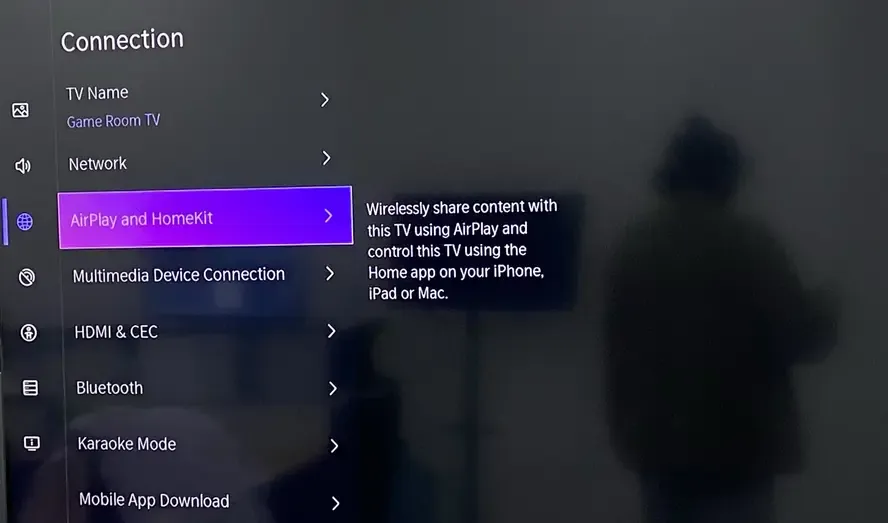
Step 1. On your TV, go to Settings and look for AirPlay & HomeKit (on Fire TV models, this is usually under Display & Sounds)
Step 2. If AirPlay is available, your TV supports Mac screen mirroring. If you don't see AirPlay, your TV likely doesn't support native Mac mirroring.
How to Wireless Display Mac to Toshiba TV
If your Toshiba TV supports AirPlay, you can mirror your Mac wirelessly without extra apps or cables. Before starting, make sure AirPlay is enabled on your TV otherwise your Mac won't be able to detect it.
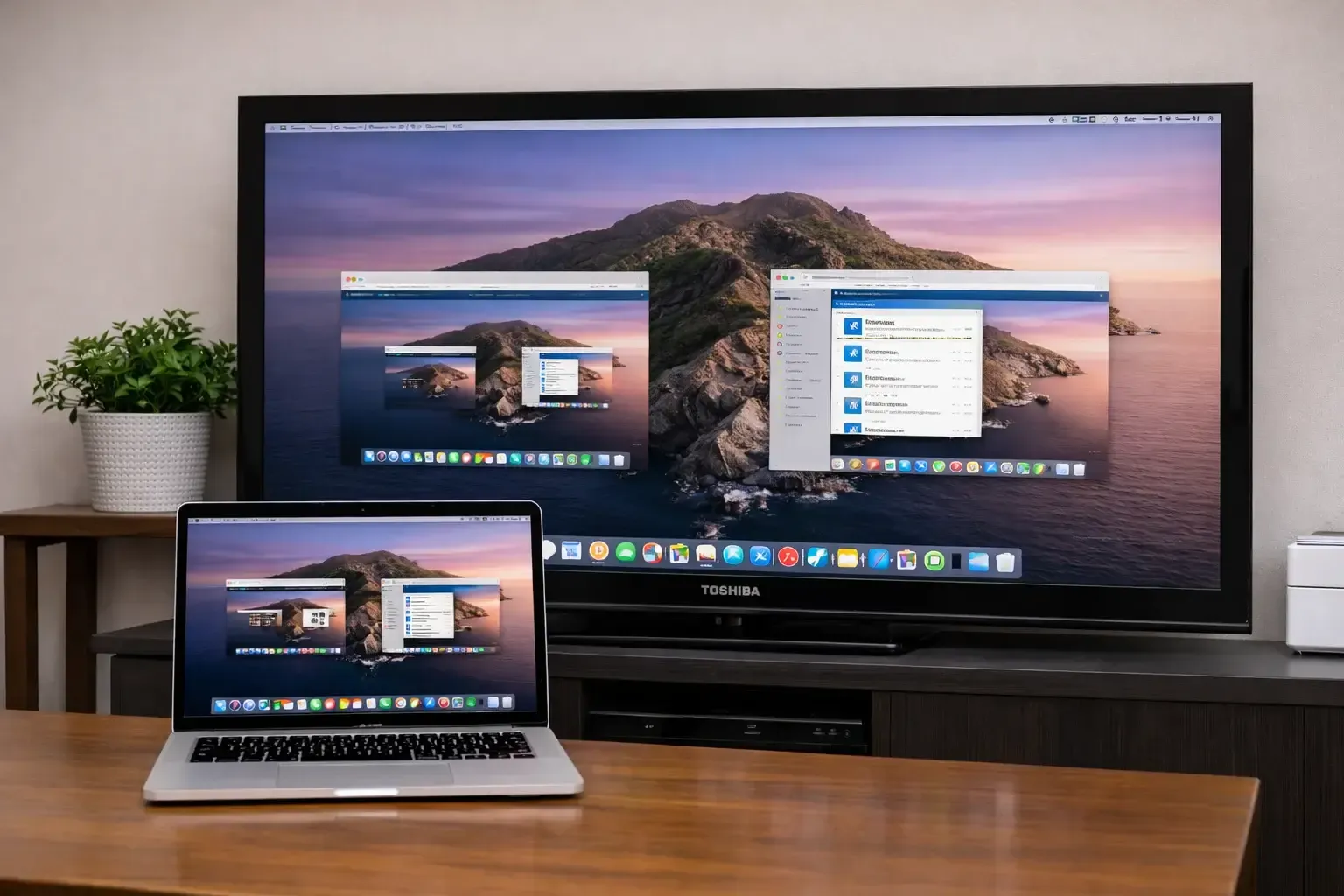
Step 1. Turn on your Toshiba TV and make sure AirPlay is enabled (no need to stay on a specific "mirroring screen" for most models).
Step 2. Connect your Mac and TV to the same Wi-Fi network. Avoid guest networks, as they often block device discovery.
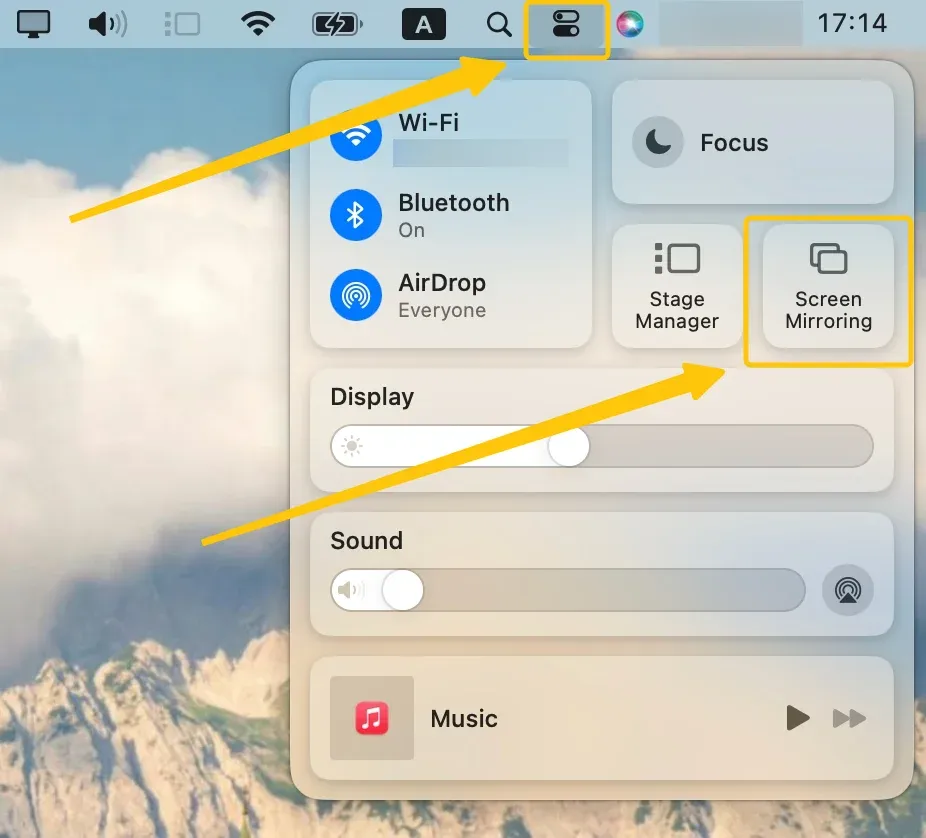
Step 3. On your Mac, click Control Center in the menu bar and select Screen Mirroring.
Step 4. Select your Toshiba TV from the list, then approve any pairing request or enter the code shown on your TV if prompted.
Step 5. Once connected, play a short video, confirm audio outputs to the TV, and adjust display scaling if needed.
Best Alternatives to Toshiba TV Wireless Display Mac
If AirPlay isn't available or the connection is unstable, you'll need a more reliable way to mirror your Mac. Luckily here, you can choose between a wireless tool like PigeonCast or switching to HDMI for a more stable connection.
Alternative 1. PigeonCast
PigeonCast is a wireless screen mirroring tool that works between Mac and smart TVs, including Toshiba models. It supports multiple casting protocols such as AirPlay, Google Cast, and DLNA, which allows it to work across different TV systems instead of relying on a single standard.
Step 1. Make sure Toshiba TV and Mac are on the same WiFi network.


Overall Rating:



Step 2. Install PigeonCast on your Mac from the App Store, and TV from the corresponding app shop if available.
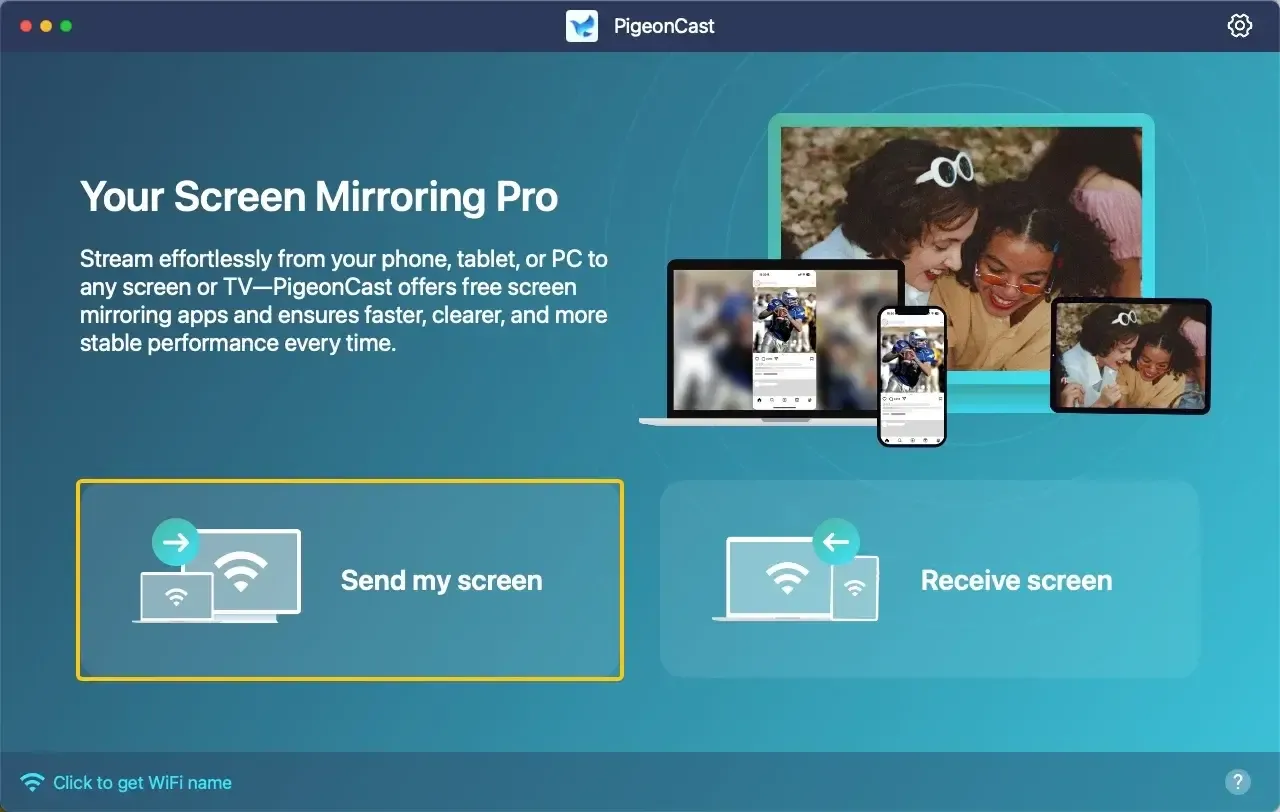
Step 2. Open PigeonCast and the corresponding permissions, then tap Send my screen on the Mac to choose your Toshiba TV from the available receiver list.
Step 3. Enter the onscreen PIN code to confirm the pairing performance.
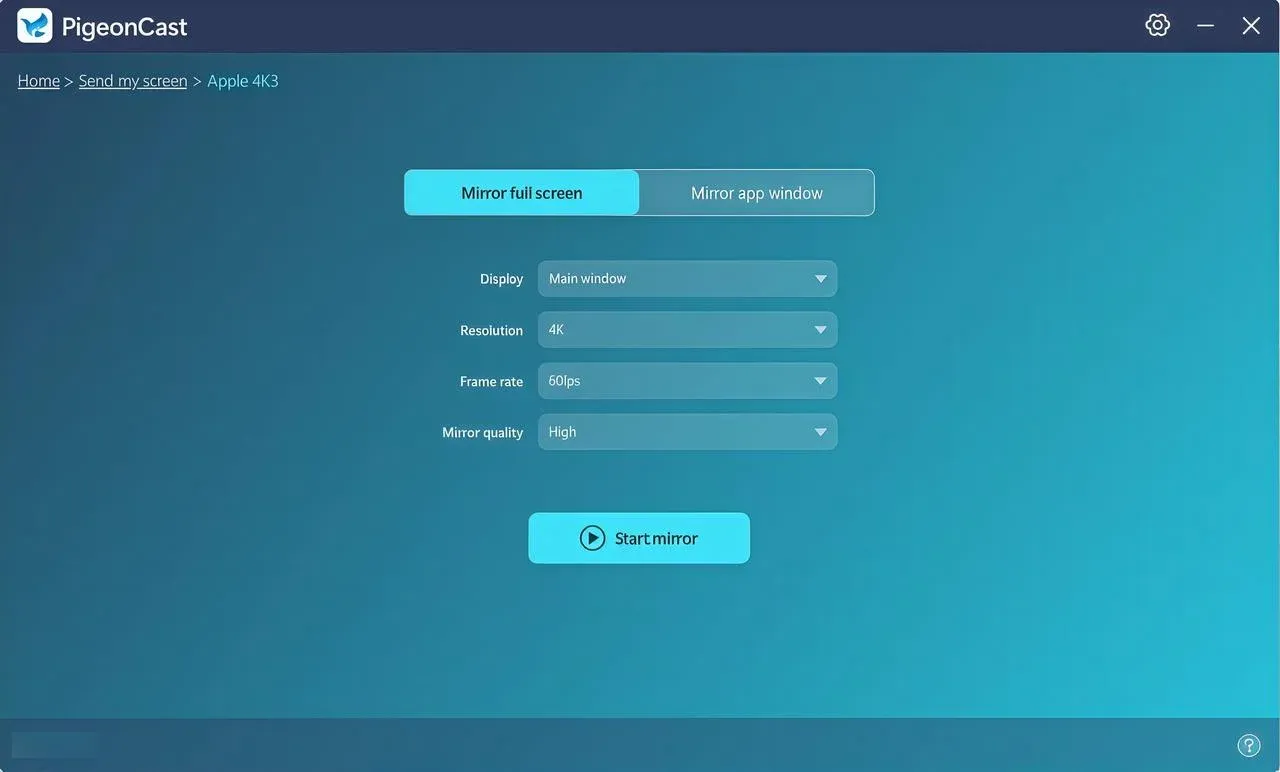
Step 4. Click Start mirror option to connect Mac to Toshiba TV wireless and enjoy the mirroring activities.
Alternative 2. HDMI Connection
HDMI is still the most stable fallback when you cannot risk lag, random drops, or receiver detection problems. It removes wireless discovery from the equation and gives you a direct display path from Mac to Toshiba TV. Here's how to mirror Mac to TV via HDMI cable:
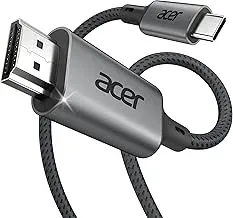
Step 1. Prepare the correct adapter for your Mac port (USB-C or Thunderbolt to HDMI), plus a known-good HDMI cable.
Step 2. Connect Mac to Toshiba TV, then switch the TV input to the matching HDMI port.
Step 3. On Mac, open System Settings > Displays, enable mirror mode, and choose a stable resolution.
Step 4. Open Sound settings and set Toshiba TV as output if audio stays on Mac speakers.
Common Troubleshooting: Wireless Display Toshiba Mac
Even when your TV supports AirPlay and can wireless display MacBook to Toshiba TV, the connection issues can still happen due to network settings, system conflicts, or device states. Most problems fall into a few predictable patterns.
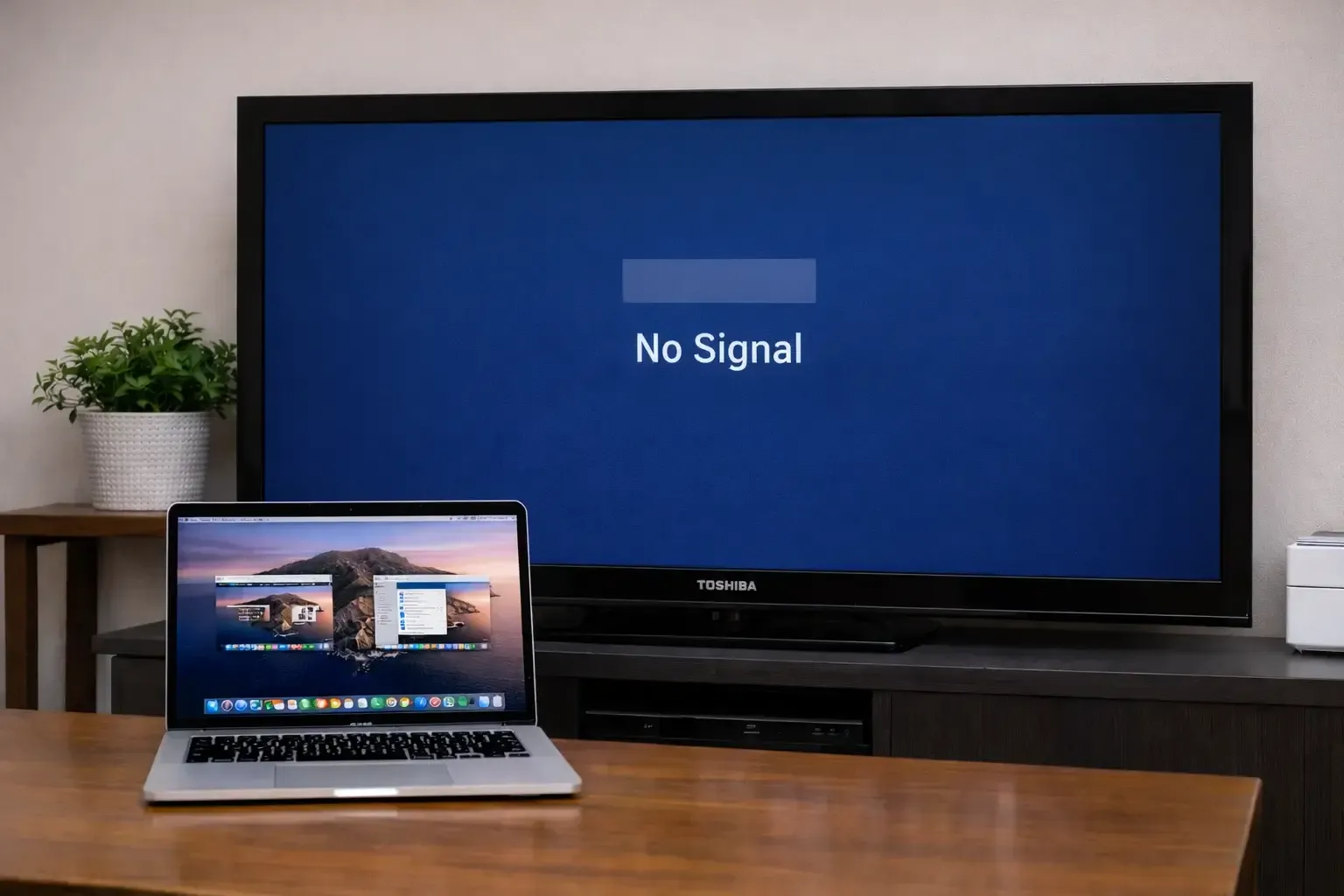
- Mac can't find Toshiba TV in Screen Mirroring
This is usually a network issue. Make sure both devices are on the same Wi-Fi (not guest network), and turn off VPN or firewall temporarily. If the TV still doesn't appear, restart both the Mac and TV to refresh device discovery.
- Toshiba TV doesn't show AirPlay option
Your model likely doesn't support AirPlay. This is common on older or budget Toshiba TVs that only use Miracast or basic casting. In this case, native Mac mirroring won't work, and you'll need a third-party tool or HDMI.
- Connected but no sound on TV
The MacOS sometimes keeps audio on the Mac by default. Go to System Settings > Sound > Output and manually select your Toshiba TV.
- Screen lag or stuttering
Wireless mirroring depends heavily on network quality. Reduce distance to the router, avoid crowded Wi-Fi bands, or switch to a 5GHz network if available. Closing background apps on Mac can also help.
- Connection drops randomly
This often happens when the TV goes into a low-power state or the network becomes unstable. Keep the TV active on the home screen and avoid switching inputs during mirroring.
Wrapping Up
You are allowed to connect MacBook to wireless display reliably once AirPlay is supported and both devices are on the same network. Start with Screen Mirroring and confirm both video and audio after connecting. If the TV doesn't appear, the connection is unstable, or performance drops, try PigeonCast or switch to HDMI for a more reliable result.
Toshiba Wireless Display Mac FAQ
Why Toshiba wireless display not working?
-
Many Toshiba TVs use Miracast, which is not supported by Mac
-
The TV model may not support AirPlay
-
Mac and TV are connected to different Wi-Fi networks
-
AirPlay is turned off on the TV
-
Network restrictions (e.g., guest Wi-Fi) block device discovery
-
Weak or unstable Wi-Fi connection affects performance
-
Temporary system glitches on Mac or TV
Where is the mac address on Toshiba TV?
You can find the MAC address on a Toshiba TV in the network settings. The exact path may vary slightly by system:
-
Fire TV models: Go to Settings > My Fire TV > About > Network, and MAC address is listed there.
-
Android/Google TV models: Go to Settings > Network & Internet > (your network), scroll to see the MAC address
-
Older Toshiba TVs: Go to Settings > Network > Network Information/Status, MAC address will be shown
How to get wireless display off Toshiba TV?
To turn off wireless display (screen mirroring) on a Toshiba TV, it depends on what system your TV uses:
-
If using AirPlay (Fire TV/some Google TV models): Go to Settings > Display & Sounds > AirPlay & HomeKit, then turn AirPlay off.
-
If using Screen Mirroring/Miracast: Exit the mirroring screen or press Back/Home on the remote to stop receiving the connection
-
If currently connected to a device: Disconnect from the casting device (Mac/phone) or switch the TV input/source
How to launch wireless display on Toshiba?
To launch wireless display on a Toshiba TV, the steps depend on the TV system:
-
Fire TV models: Go to Settings > Display & Sounds > Enable Display Mirroring, or press and hold the Home button and select Mirroring.
-
Android/Google TV models: Go to Settings > Apps > Screen Mirroring/Cast, or open the built-in Cast feature from Quick Settings.
-
Older Toshiba TVs (Miracast-based): Go to Input/Source and select Screen Mirroring or Wireless Display.
Can I mirror Mac to Toshiba TV without AirPlay?
Not natively. The macOS does not support Miracast, which is the wireless standard used by many Toshiba TVs. This means your Mac won't be able to connect directly through the built-in wireless display feature. To mirror your screen, you'll need to use a third-party tool (PigeonCast) that works across different protocols, or switch to an HDMI connection for a direct and stable setup.
Can I cast from Mac to Toshiba TV like Chromecast?
If your Toshiba TV has Chromecast built in on Android or Google TV models, you can cast content from supported apps like YouTube or from the Chrome browser on your Mac. However, this is not the same as full screen mirroring. Chromecast only works with specific apps or browser tabs, and it cannot mirror your entire Mac screen.
Clara Rossi is an experienced technology editor and a seasoned expert in screen mirroring and casting technologies. With a keen eye for detail and a deep understanding of how to seamlessly connect devices, Clara excels at optimizing user experiences for effortless sharing and streaming. Whether you're seeking quick fixes or advanced tips, her expertise and responsiveness ensure that every query is met with a well-informed and efficient solution.