
If you searched for Miracast TVs, you probably want one thing: get your screen on the TV quickly. Miracast-style screen mirroring works well in many setups, especially on Windows and Android. This guide gives you methods for laptop and phone, plus HDMI fallback and troubleshooting steps.
Can You Use Miracast for TV
Yes, in many cases. You can mirror to a TV wirelessly from supported devices, and you can always use HDMI when wireless compatibility is limited. Here's the quick answer for setup planning:
- Supported devices: Windows laptop, many Android phones, plus Mac and iPhone through compatible mirroring paths.
- Main options: wireless screen mirroring and HDMI cable connection.
- Compatibility rule: Miracast support depends on both the sending device and the TV or receiver.
- Practical result: even when native Miracast is not available, you still have reliable ways to cast on TV.
In many setups, a compatible Miracast device for TV or receiver is required to complete the connection.
How to Check If Your TV Supports Miracast
Before you start mirroring, verify "does my TV have Miracast?" first to avoid failed connection attempts and unnecessary troubleshooting. Miracast is not enabled on all smart TVs by default, and some brands have replaced it with their own casting technologies, so checking Miracast incompatibility issue early can save time.
Miracast-Compatible TV List
Most Android TV and Google TV models support Miracast (sometimes shown as Wireless Display, Screen Mirroring, or Cast Screen in settings), including many TVs from:
- Sony (selected Bravia models)
- TCL (selected Android/Google TV models)
- Hisense (selected Android/VIDAA models)
- Philips (selected Android TV models)
- Sharp (selected smart TV models)
- Xiaomi (Mi TV series)
Step 1. Open your TV settings and look for screen mirroring options such as Miracast, Screen Mirroring, Wireless Display, or Wi-Fi Display. These are usually found under Network, Connections, or Input settings depending on the brand.
Step 2. Check your TV model on the manufacturer support page and confirm whether Miracast or Wi-Fi Display is listed under wireless or connectivity features.
If only AirPlay or Chromecast is mentioned, Miracast may not be supported. For example, models like Miracast for Sony Bravia TV are often supported, but availability still depends on the specific model.
Step 3. Run a quick Windows test by pressing Win + K on a Windows laptop near the TV. If the TV appears as a wireless display target, it likely supports Miracast or a compatible screen mirroring protocol, although connection quality may still vary.
Step 4. If your TV does not appear and the specifications do not mention Miracast, treat it as unsupported and use HDMI or a compatible external receiver for reliable mirroring.
- Fast compatibility rule:
- Many Windows and smart TV combinations support wireless mirroring, but compatibility depends on the TV brand, model, and firmware version. Some newer platforms, including setups often described as Miracast for Google TV, rely more on Chromecast instead of native Miracast.
- Android support is common but varies by brand and system customization. Some devices use native Miracast, while others rely on proprietary casting features that may not work with all TVs. This includes setups like Miracast for Mi TV, although support may vary by system version.
- Mac and iPhone typically use AirPlay instead of Miracast, which means they require an AirPlay compatible TV or an Apple TV device.
- HDMI works regardless of Miracast support and provides the most stable connection, especially for high resolution or low latency use cases.
How to Connect Miracast to TV
Make sure your TV is turned on and set to the correct input or screen mirroring mode. On some TVs, the mirroring screen does not open automatically, so you may need to enable it manually before your device can find it.
Method 1. Use Miracast TV from a Laptop Wirelessly
This method works best if you want to mirror your laptop without using cables. It is suitable for everyday tasks like presentations or web browsing, though connection stability and delay can vary depending on distance, interference, and device support.
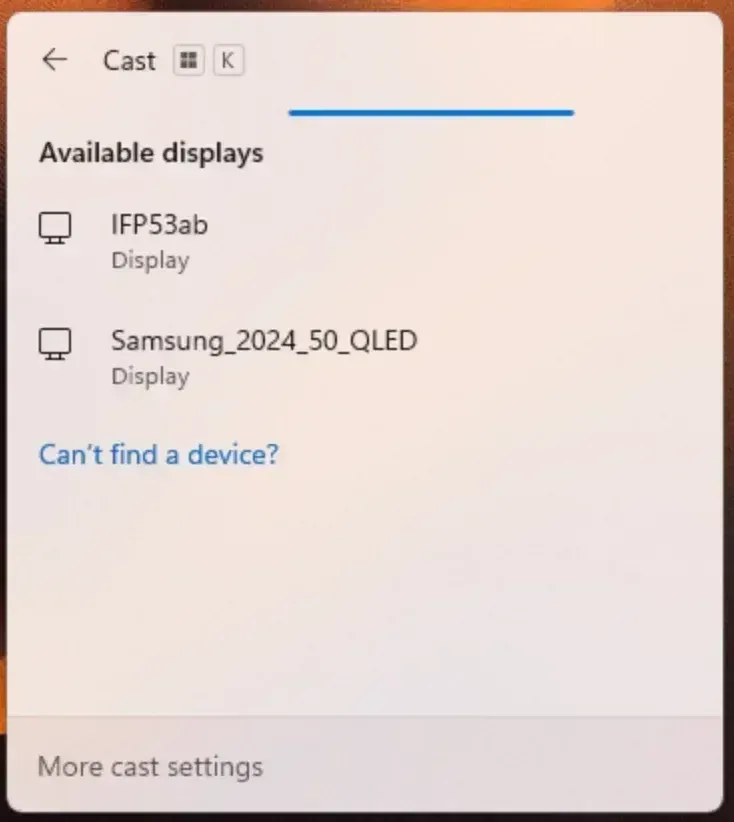
Step 1. Turn on Wi-Fi on both devices and keep them within range. Being on the same network can improve detection but is not strictly required.
Step 2. On Windows, press Win + K to open the Connect menu.
Step 3. Select your TV from the device list and approve the connection on the TV if prompted.
Step 4. After connecting, press Win + P and choose Duplicate for normal screen mirroring or Extend if you need a second display layout.
Step 5. Open your target app, play a short test clip or scroll a web page, and confirm that video and audio both route correctly.
Mac does not support Miracast, but AirPlay is now supported on many modern TVs. If AirPlay is not available on your TV or does not work reliably, tools like PigeonCast can help by supporting multiple protocols such as AirPlay, DLNA, and Google Cast.
Step 1. Make sure your Mac and TV are covered by on the same wireless network.


Overall Rating:



Step 2. Install PigeonCast on your Mac from the App Store and TV if available.
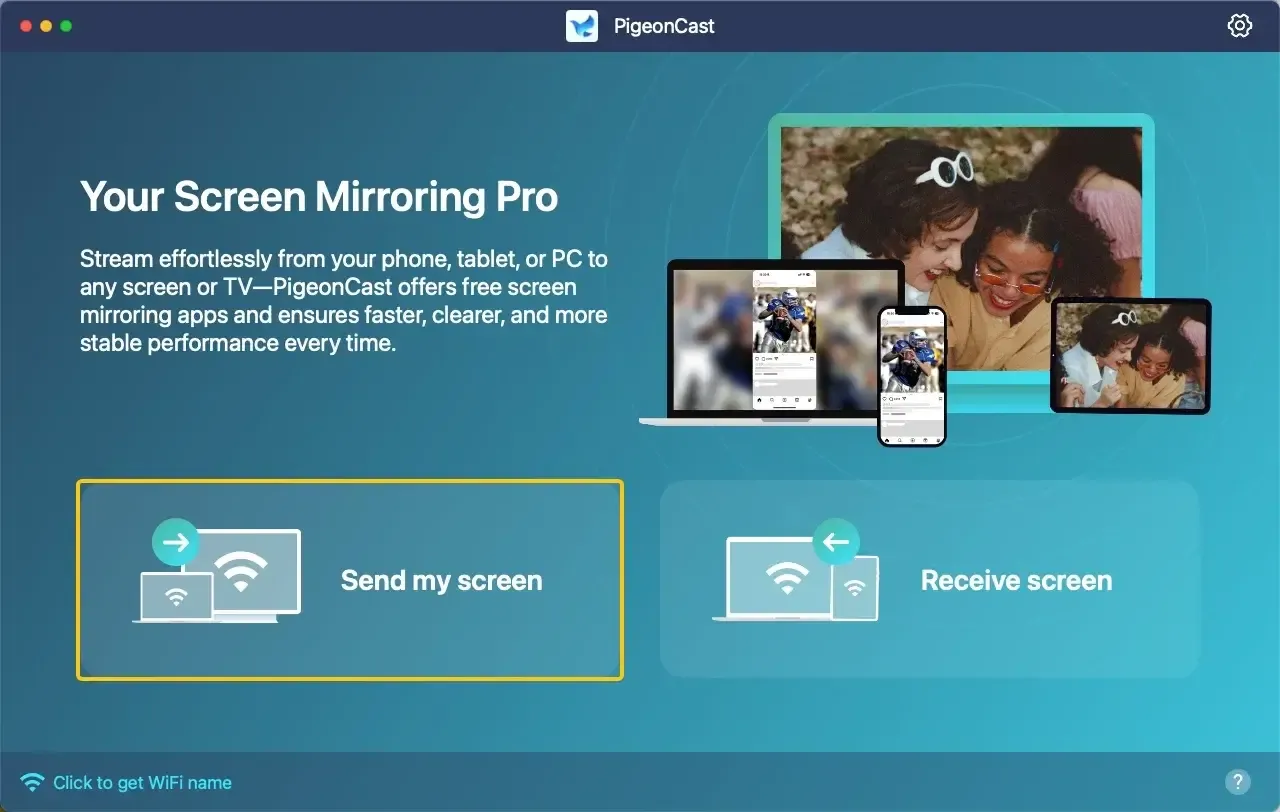
Step 3. Launch the app, tap Send my device to choose your target TV or receiver.
Step 4. If prompted, enter the onscreen PIN code to confirm the pairing process.
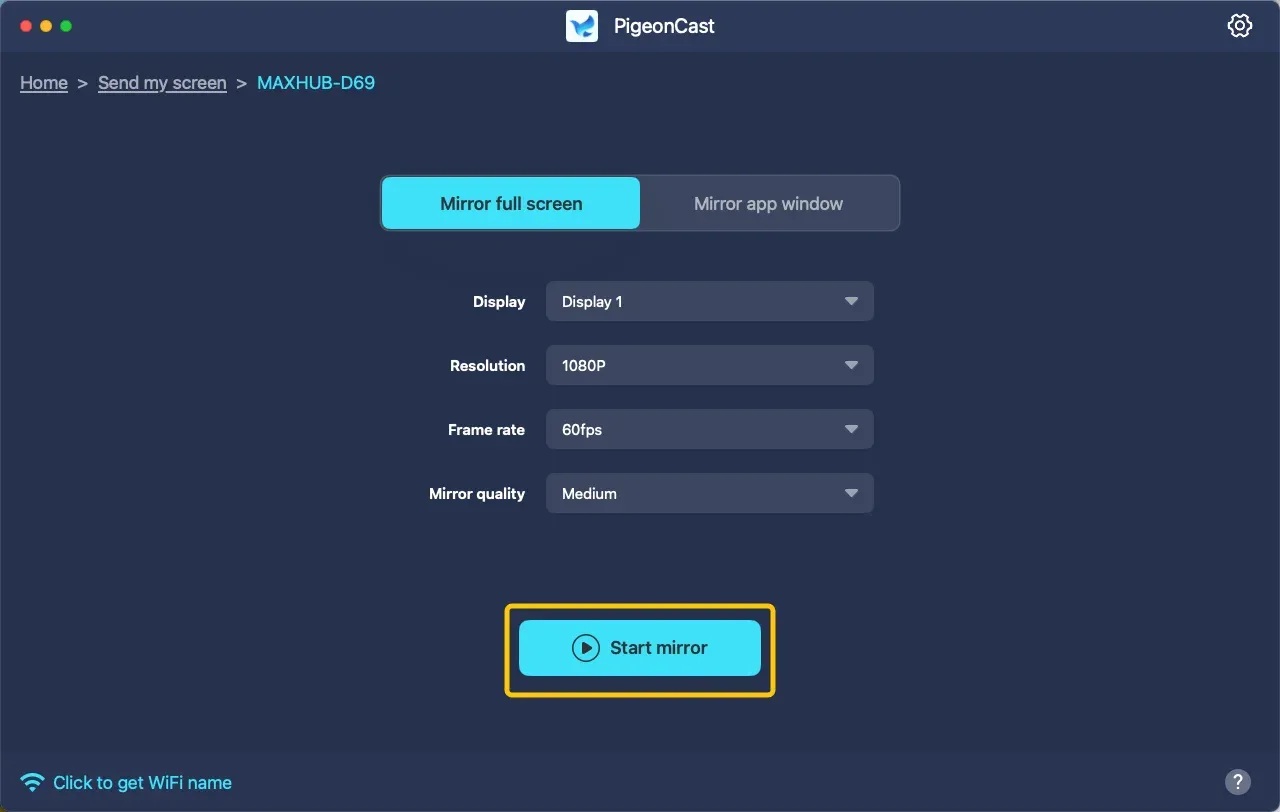
Step 5. When the connection finishes, tap Start mirror to begin your mirroring activties on your television screen. Plus, you can choose whether to mirror the whole screen or a single app window.
Method 2. Use Miracast TV from iPhone or Android
Use this approach if your content is on your phone. It works well for videos, photos, and quick sharing, but performance is more sensitive to Wi Fi quality and background apps running on your device.
Step 1. Enable Wi Fi and keep your phone near the TV to allow it to appear in the cast list.
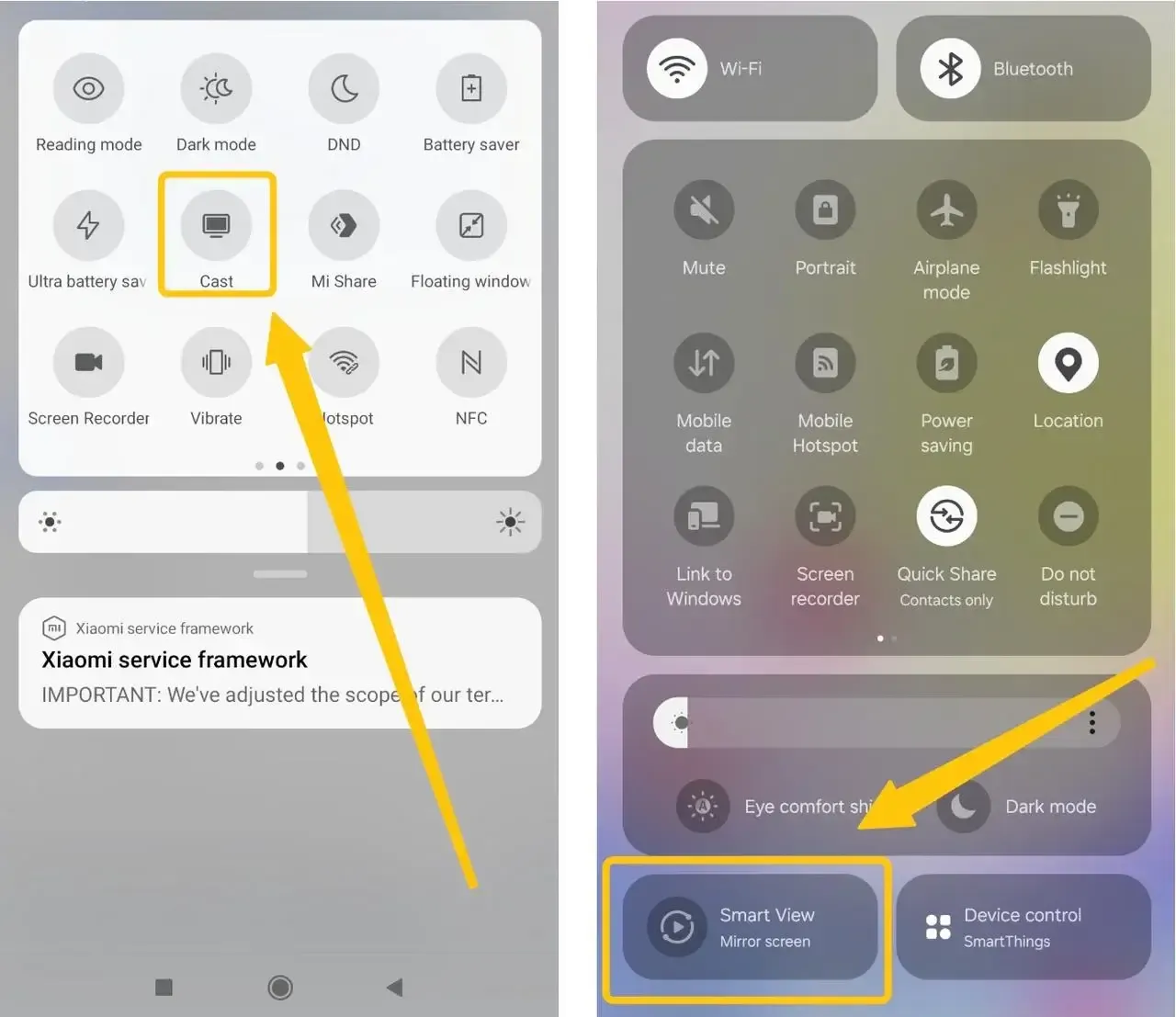
Step 2. Open Quick Settings and tap Cast, Smart View, or Screen Mirror (name varies by brand).
Step 3. Choose your TV from the list and confirm any connection request on the TV.
Step 4. Start your app and test movement, audio, and full-screen behavior.
Step 5. If lag appears, close background apps and stay closer to the router.
iPhone also does not support Miracast. Most TVs work with AirPlay instead, which is the default way to mirror from iPhone. If AirPlay is not available on your TV or the connection is unstable, you can also try tools like PigeonCast, which support AirPlay, DLNA, and Google Cast.
Step 1. Make sure Wi Fi is turned on and your iPhone is within range of the TV.
Overall Rating:
Step 2. Install PigeonCast on your iPhone from the App Store, then open it.
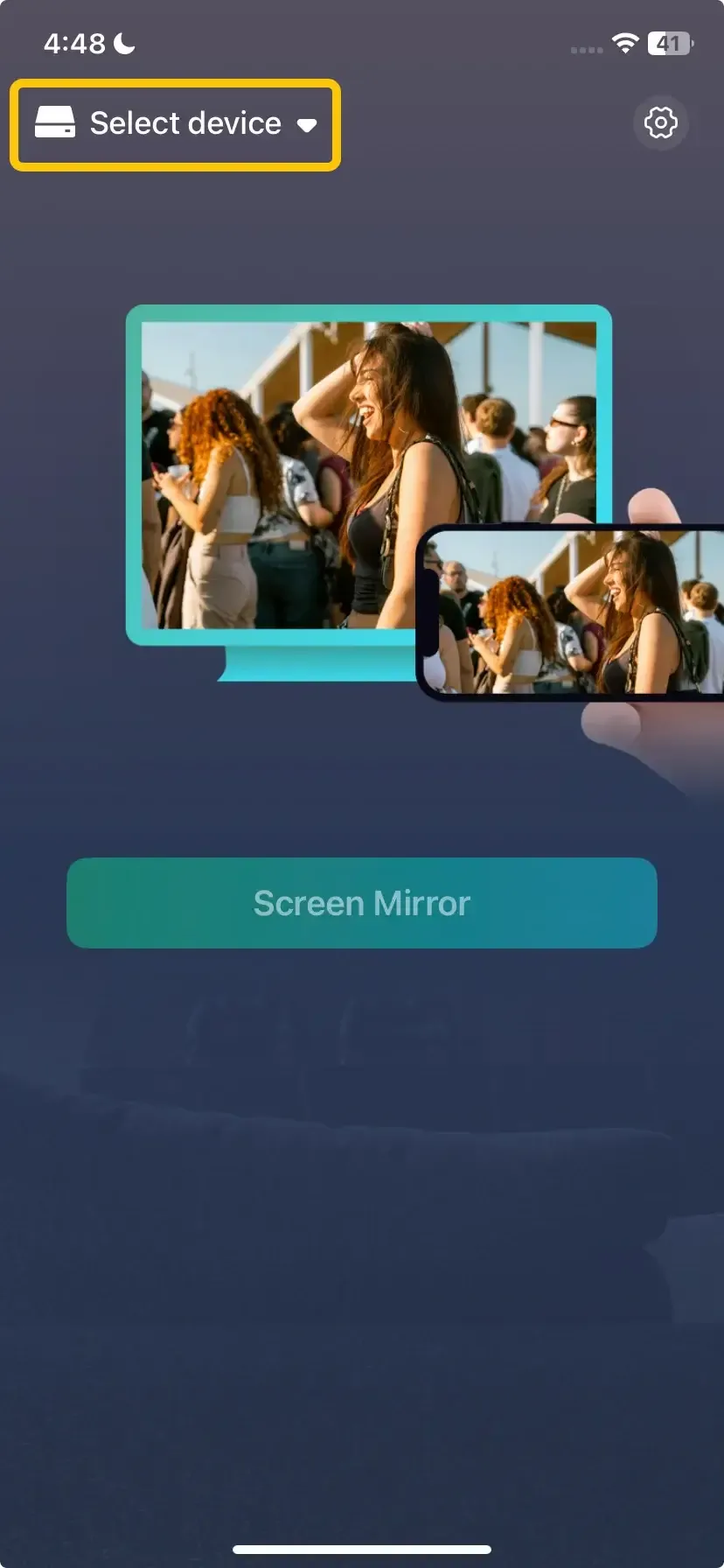
Step 3. Tap Select device to select your TV or receiver and complete any pairing code prompt.
Step 4. Once your pairing succeeds, tap Screen Mirror to enjoy your casting activities on the TV screen
Method 3. Use HDMI for Miracast TV Scenarios (Most Stable)
Switch to HDMI if wireless connection is unstable or you need more consistent performance. A wired setup avoids network interference and is usually the better choice for gaming, high resolution video, or important presentations.
Step 1. Prepare the right cable or adapter (USB-C to HDMI, Lightning to HDMI, or direct HDMI depending on your device).
Step 2. Connect your device to the TV and make sure connectors are fully inserted.
Step 3. Change TV input to the correct HDMI port.
Step 4. Set display mode on your device to mirror or duplicate.
Step 5. Run a quick audio and full-screen test before your actual playback or presentation.
I recommend keeping HDMI as your backup even when wireless mirroring usually works, because it removes most network-related failures. If your TV does not support wireless mirroring, you can also use a Miracast adapter for TV as an alternative to add wireless display support.
If Miracast TV Won't Work, Try These Fixes
Most Miracast issues come from detection or connection problems, not hardware failure. In many cases, the TV is not in mirroring mode or the connection does not initialize correctly. Checking a few common points can usually fix the issue quickly.
- TV not detected
First make sure Wi Fi is enabled on both devices and they are within range. Being on the same network can help discovery, especially if your TV uses network-based detection. If detection still fails, reboot the TV or receiver. A fresh device discovery cycle solves many "invisible TV" cases.
- No signal
For HDMI screen mirroring, verify TV source input and cable seating first. For wireless, disconnect and reconnect mirroring, and make sure the TV is set to the correct screen mirroring mode or input.
- Screen lag
Close heavy background apps and downloads on the sender device. If possible, move to a less congested Wi Fi band such as 5 GHz if available and reduce distance from the router. When low latency matters, switch to HDMI immediately instead of spending extra time tuning wireless settings.
- No sound
Open sound settings on your laptop or phone and set TV/receiver as the active output device. Then replay media from the start. If audio still routes incorrectly, reconnect mirroring so the output profile refreshes.
- Not full screen
Set display mode to Duplicate and check resolution or scaling settings if the image does not fill the screen. Then restart playback in full-screen mode. If edges are cut off, adjust TV picture mode and overscan options, then retest.
To Sum Up
Getting your screen onto a TV comes down to choosing the right method for your device. Miracast works well on Windows and many Android devices, while Mac and iPhone typically rely on AirPlay or alternative tools. If wireless mirroring is unstable or not supported, switching to HDMI or using a multi-protocol tool like PigeonCast can help you connect more reliably without wasting time on repeated setup attempts.
Miracast TV FAQ
How can I tell if my TV has Miracast?
You can tell if your TV supports Miracast by checking its settings, specifications, or testing it directly from a compatible device. Most TVs that support Miracast will label it under screen mirroring features, but availability depends on the brand and model.
- Check TV settings: Look for options like Screen Mirroring, Miracast, Wireless Display, or Wi-Fi Display.
- Check the official specs: Search your TV model on the manufacturer's website and review the wireless or connectivity features.
- Test with Windows: Press Win + K on a nearby Windows laptop. If your TV appears as a wireless display, it likely supports Miracast or a similar protocol.
- No result: If you can't find any of these, your TV likely doesn't support Miracast, and you may need to use HDMI or another casting method.
Do Epson projectors support Miracast?
Many Epson projectors include wireless screen mirroring features, and certain models have built-in Miracast support that lets you connect directly from a Windows or Android device. However, other models use different technologies (like Epson iProjection, AirPlay, or Chromecast), so Miracast may not be available on every projector.
Is HDMI better than wireless Miracast?
Yes, HDMI is generally better than wireless Miracast for stability and performance, but it depends on your needs. HDMI provides a direct wired connection, so it delivers more consistent video quality, lower latency, and fewer connection issues. Miracast, on the other hand, is more convenient because it is wireless, but it can be affected by signal interference, distance, and device compatibility.
How to turn on TV Miracast?
Turning on Miracast on a TV usually means enabling its screen mirroring feature, which may be labeled differently depending on the brand. Most TVs do not use the name "Miracast" directly in the menu.
- Open TV settings: Go to Settings and look under Network, Connections, or Input.
- Find mirroring option: Look for names like Screen Mirroring, Wireless Display, Wi-Fi Display, or Cast.
- Enable or open it: Select the option to turn it on or open the mirroring screen so the TV becomes discoverable.
- Keep the screen active: Some TVs only stay visible while this screen is open.
- Connect from your device: Use a Windows PC (Win + K) or Android phone to find and connect to the TV.
Is there a Miracast dongle for TV?
Yes, there are Miracast dongles for TVs. A Miracast dongle (also called a wireless display adapter) is a small device that plugs into your TV's HDMI port and adds Miracast support if your TV doesn't have it built in.
Can I use Miracast TV from iPhone?
No, you can't use Miracast directly from an iPhone. iPhone does not support Miracast because Apple uses its own protocol called AirPlay for screen mirroring. If your TV doesn't support AirPlay, you can use a third-party app or a tool, like PigeonCast that supports multiple protocols (AirPlay, DLNA, Google Cast).
Clara Rossi is an experienced technology editor and a seasoned expert in screen mirroring and casting technologies. With a keen eye for detail and a deep understanding of how to seamlessly connect devices, Clara excels at optimizing user experiences for effortless sharing and streaming. Whether you're seeking quick fixes or advanced tips, her expertise and responsiveness ensure that every query is met with a well-informed and efficient solution.