
Screen mirroring allows you to display your phone, tablet, or laptop screen on your TV, making it easier to share content such as videos, photos, or presentations. However, before you start streaming your favorite content, you first need to add the TV to your screen mirroring setup. In this guide, we'll show you how to add a TV to screen mirroring, including enabling screen mirroring features on your TV and connecting your devices for a smooth, wireless experience.
How to Enable Screen Mirroring on Your TV
To start using screen mirroring, you must first enable it on your TV. The exact steps depend on which mirroring technology your TV supports. Below, we break down the most common options and explain how to enable each one.
Overview of Screen Mirroring Technologies
Modern TVs typically support one or more of the following screen mirroring methods. Understanding which one your TV uses makes setup much easier.
- Miracast
Miracast is a built-in wireless display standard available on many TVs and streaming devices, including some Samsung TVs, Roku devices, and Fire TV models.
How to enable Miracast for TV screen mirroring:
Step 1. Open your TV's Settings menu.
Step 2. Look for Screen Mirroring, Wireless Display, or Miracast.
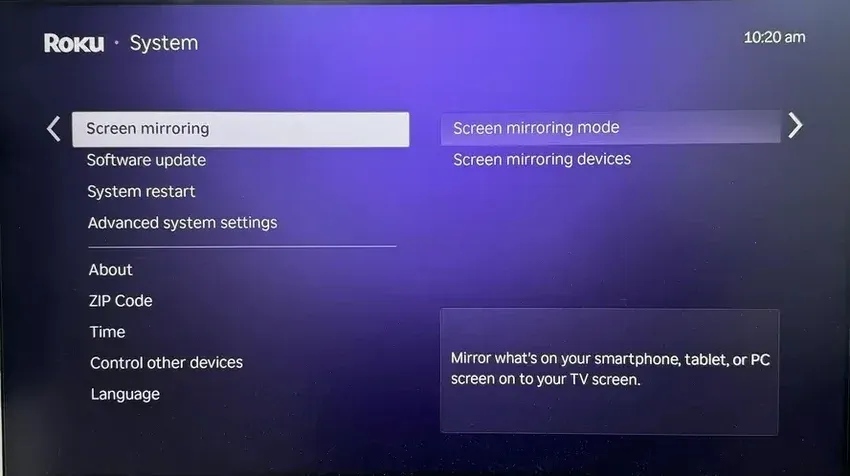
Step 3. Turn the feature on and keep the screen open while connecting from your device.
Miracast also works well for Windows laptops and some Android phones, and screen mirrors to a Miracast-enabled TV from one of these devices easily.
- AirPlay
AirPlay is designed for Apple devices and works best with Apple TV or TVs that officially support AirPlay 2, including Samsung, LG, Sony, and Vizio smart TVs, and so on.
How to enable AirPlay for screen mirroring:
Step 1. Go to Settings on your TV.
Step 2. Select AirPlay and HomeKit or Apple AirPlay Settings.
Step 3. Turn AirPlay on and choose your security preferences.
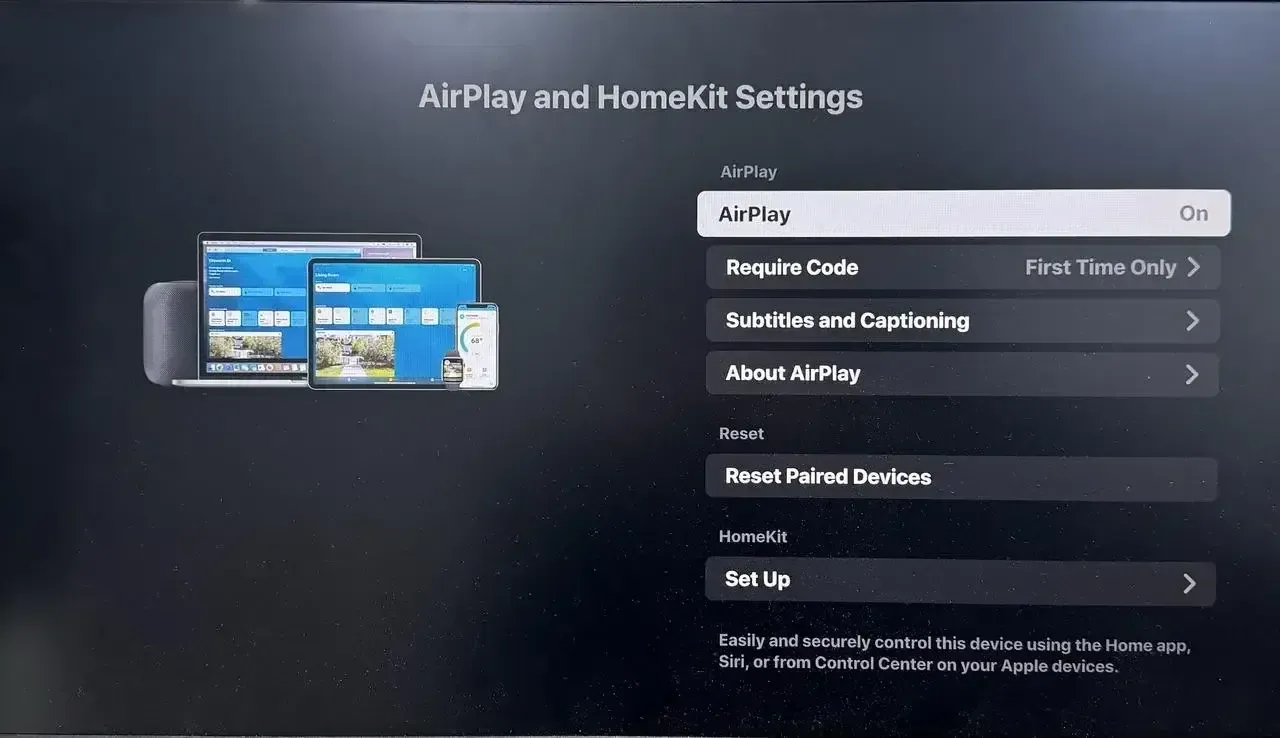
If you use an iPhone, iPad, or Mac, AirPlay is usually the most seamless option.
- Google Cast
Google Cast is ideal for Android phones, Chromebooks, and Chrome browsers. Many Android TVs come with Cast built in.
How to enable Google Cast for TV screen mirroring:
Step 1. Make sure your TV is connected to Wi-Fi.
Step 2. Open Settings and check that Built-in Chromecast or Google Cast is enabled.
Step 3. Sign in your Google account if prompted.
Once enabled, your TV will appear as a cast destination on supported apps.
Use Third-Party Apps for Universal Compatibility
Third-party apps like free PigeonCast provide a more flexible approach when built-in protocols are missing or inconsistent.
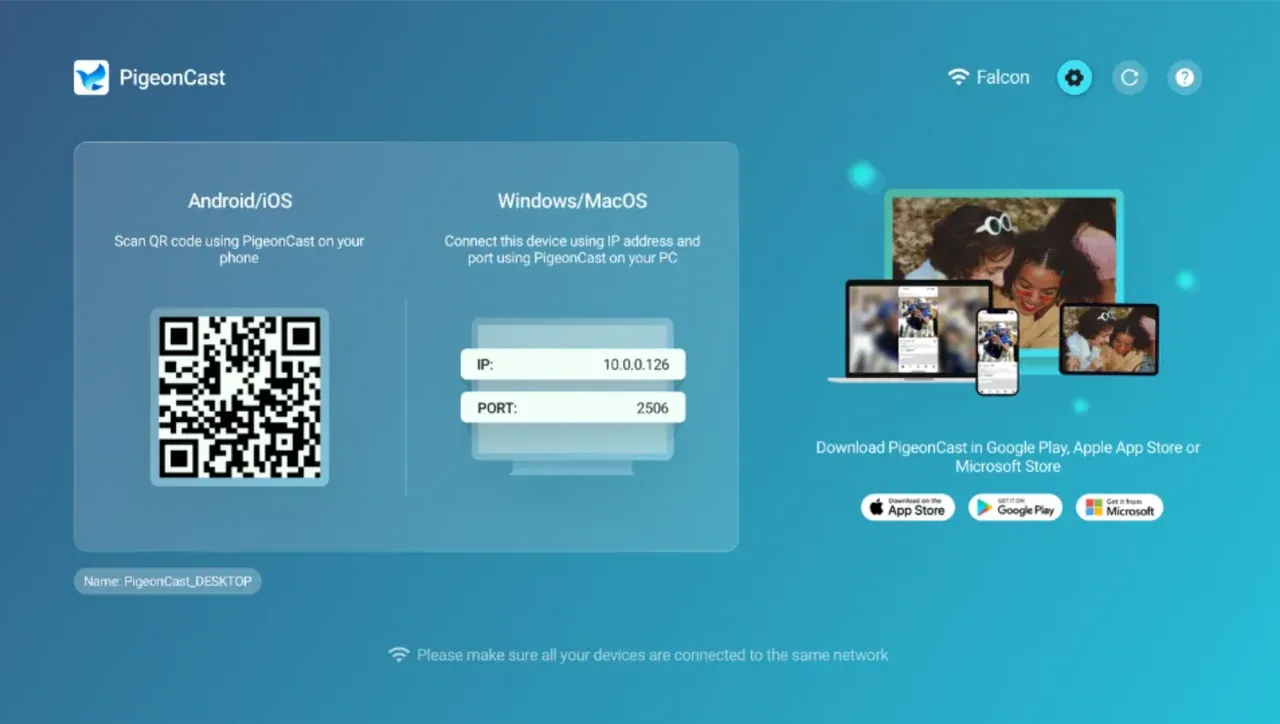
Instead of relying on a single standard, these apps turn your TV into a universal receiver. This means you can mirror from an iPhone, Android phone, Windows laptop, or MacBook without worrying about protocol limitations. The experience is designed to be smooth, stable, and suitable for high-definition streaming and low-latency use cases like gaming.
How to set up PigeonCast for TV screen mirroring:
Step 1. On your TV, go to the app store, search for PigeonCast, and download the app.
Android-tv-apple-tv-download-button
Step 2. Once installed, let the app open on your TV.
How to Enable Screen Mirroring on a Non-Smart TV
If your TV does not support smart features or allow app installtion, you can still add screen mirroring using an external streaming device. Common options include Roku Stick, Fire TV Stick, and Chromecast.
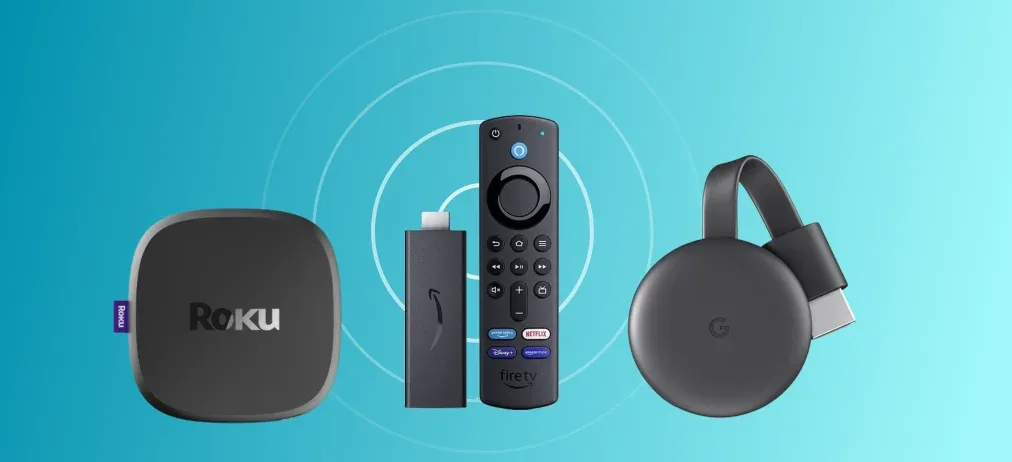
How to add a non-smart TV to screen mirroring:
Step 1. Plug the streaming device into your TV's HDMI port.
Step 2. Connect the device to your Wi-Fi network.
Step 3. Follow on-screen instructions to enable mirroring or install a compatible app.
Step 4. Start screen mirroring from your phone or laptop.
This method effectively upgrades an older TV and allows you to add a TV to screen mirroring without replacing your hardware.
How to Connect to Your TV for Screen Mirroring
Now that your TV is set up for screen mirroring, the next step is connecting your devices. Depending on the type of device you're using, here's how you can connect your phone or laptop to the TV.
Connect iPhone to TV for Screen Mirroring
How to add a TV for screen mirroring from an iPhone? Use AirPlay to wirelessly stream content from your iPhone to your TV if compatible:
Step 1. Ensure your iPhone and TV are on the same Wi-Fi network.
Step 2. On your iPhone, open Control Center, and tap the Screen Mirroring icon.
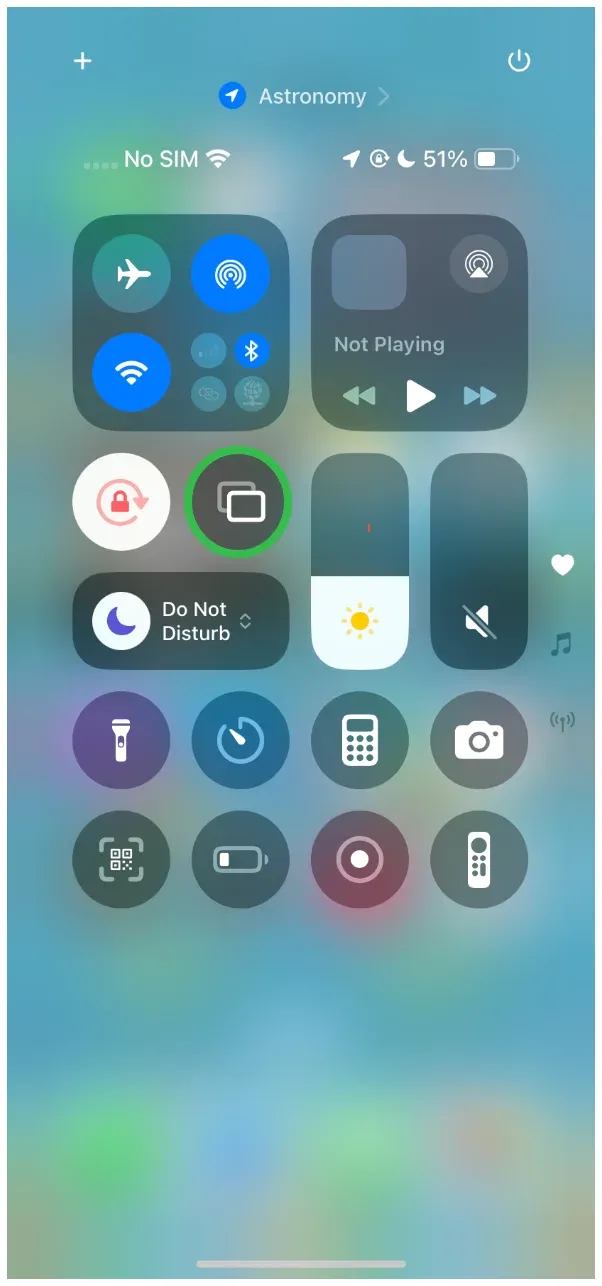
Step 3. Choose your TV from the device list and enter the PIN code if prompted.
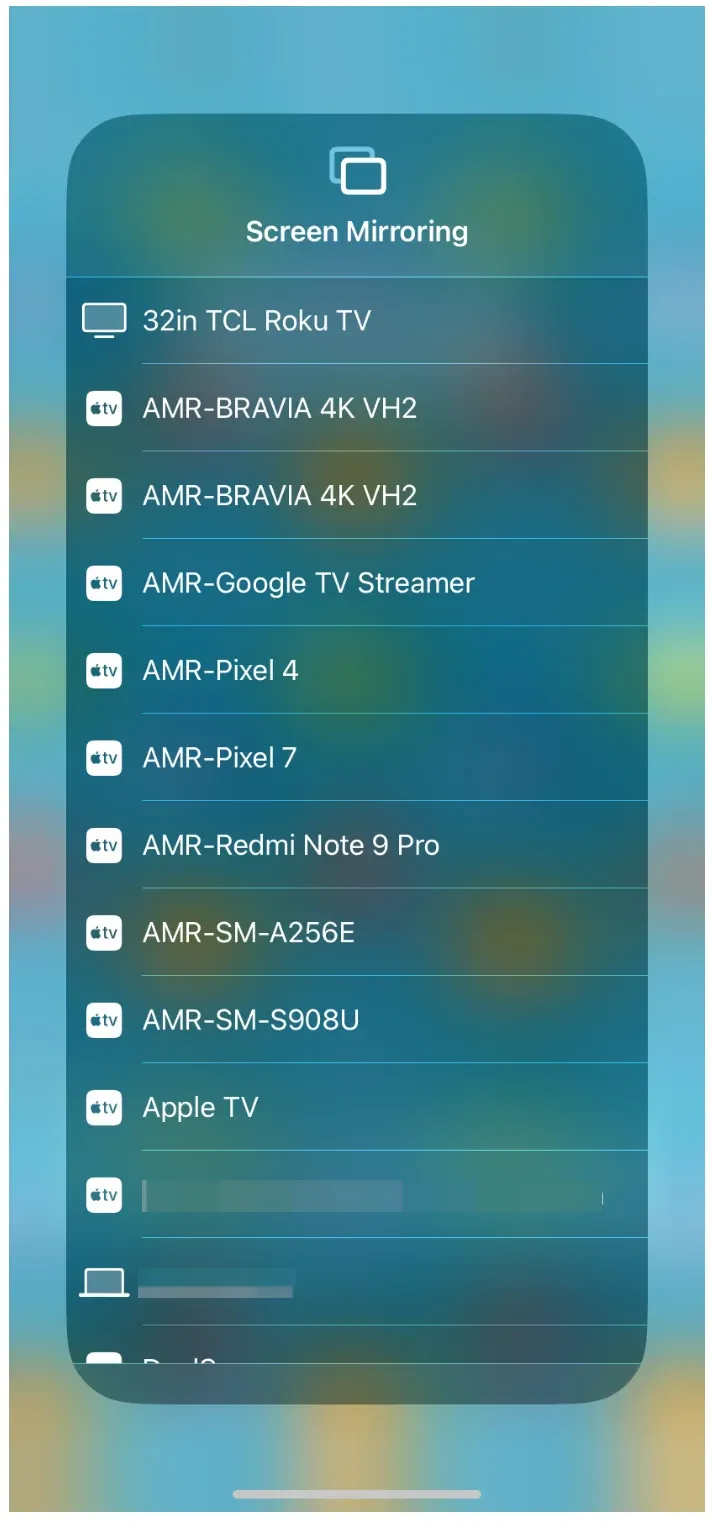
Step 4. Once connected, your iPhone screen will be mirrored onto your TV.
Connect Android to TV for Screen Mirroring
Depending on your Android phone model, you can connect your phone to TV either via Miracast or Google Cast.
How to add a TV on screen mirroring from Android phone:
Step 1. Ensure your Android phone and TV are on the same Wi-Fi network.
Step 2. Enable Cast, Smart View, or a similar option from the Quick Settings on your phone.
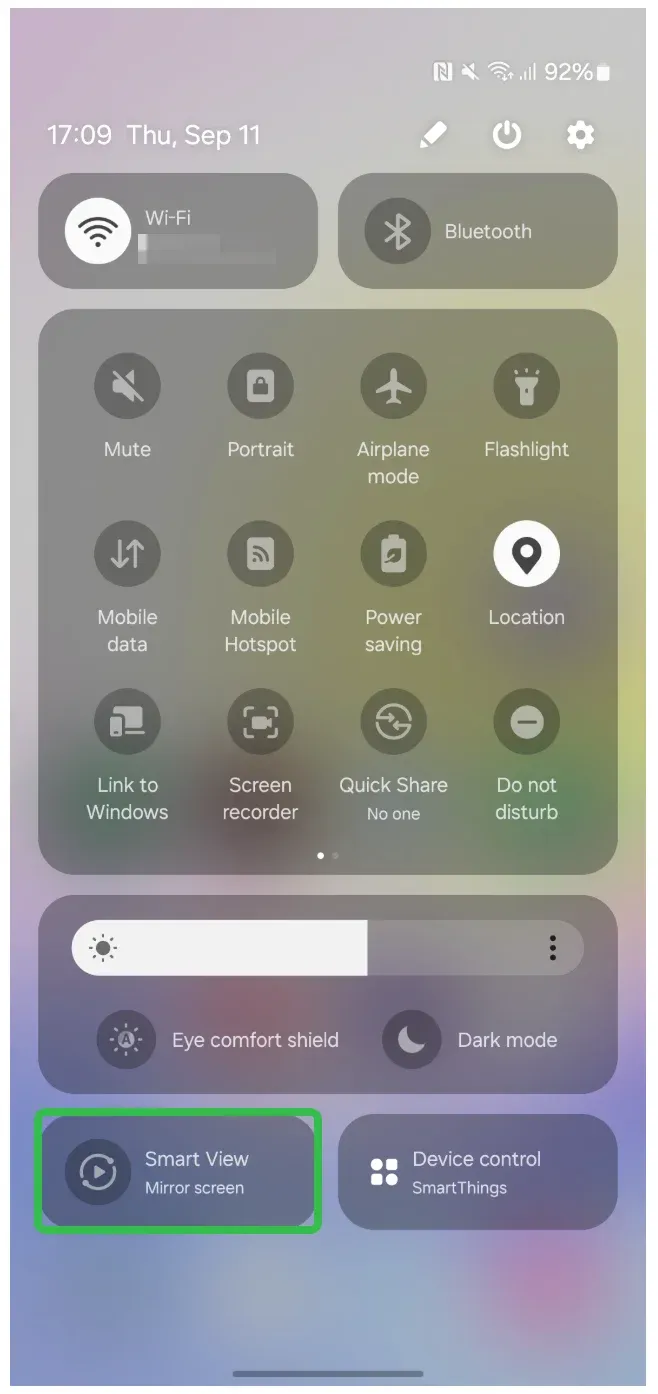
Step 3. Choose your TV from the device list.
Connect Windows PC to TV for Screen Mirroring
For Windows PCs, you can use Miracast to connect to a compatible TV:
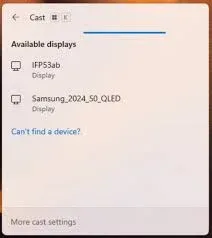
Step 1. Press the Windows + K shortcut on the keyboard.
Step 2. Choose your TV from the Cast menu.
Connect MacBook to TV for Screen Mirroring
If you have an Apple TV or AirPlay-compatible smart TV, you can easily mirror your MacBook screen using AirPlay.
Step 1. Make sure your laptop and TV are connected to the same Wi-Fi network.
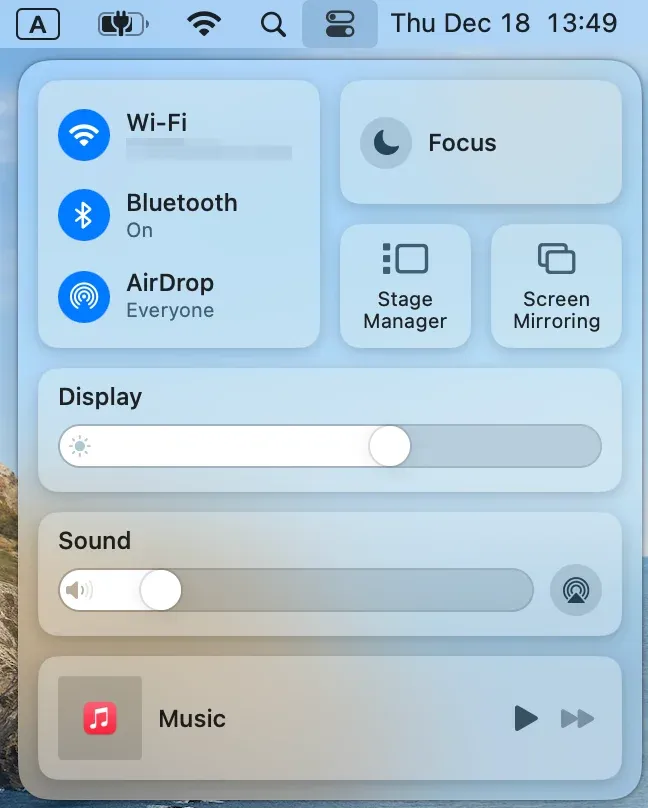
Step 2. On your MacBook, click the Control Center icon at the top menu bar.
Step 3. Click the Screen Mirroring option and choose your TV from the device list.
Connect Phone or PC to TV for Screen Mirroring
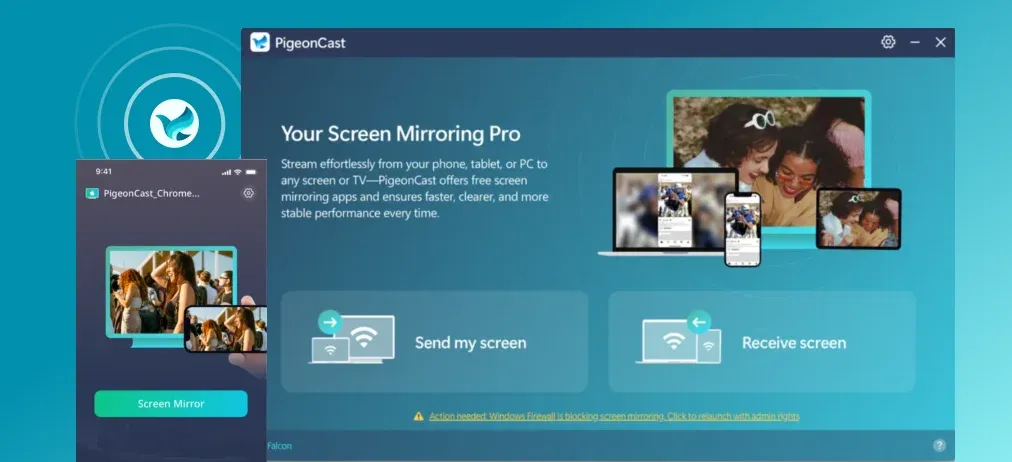
If built-in options like AirPlay, Miracast, or Google Cast are unavailable or unreliable, using PigeonCast can simplify the entire process.
Plus, it is a free screen mirroring app that works across phones and laptops. Instead of relying on a single protocol, it allows different devices to connect through one consistent setup. This is especially helpful when you want to add a TV to screen mirroring without checking whether your phone or laptop and TV support AirPlay, Cast, or Miracast.
How to use PigeonCast for screen mirroring:
Step 1. Install PigeonCast on your phone or laptop.


Overall Rating:



Step 2. Launch PigeonCast on your TV if you install it.
Step 3. Make sure all devices are connected to the same Wi-Fi network.
Step 4. Open PigeonCast on your phone or laptop and select your TV from the list.
Step 5. Start screen mirroring.
Common Troubleshooting Tips for TV Screen Mirroring
Even with the best setup, issues may still arise. Here are some troubleshooting tips to help you resolve common screen mirroring problems:
- TV Not Showing Up:
- Ensure both devices are on the same Wi-Fi network.
- Restart both your TV and device, then try reconnecting.
- Lag and Delay Issues:
- Reduce the distance between your TV and device.
- Switch to a 5 GHz Wi-Fi network for faster speeds.
- Fixing Screen Mirroring Errors:
- If you see a black screen or audio mismatch, check for firmware updates on both the TV and device.
- If the connection drops, ensure that the screen mirroring option is still enabled on the TV.
Conclusion
Adding a TV to screen mirroring is a simple process once you understand how to enable it on your TV and connect your devices. By following the steps outlined in this guide, you can easily share your phone, tablet, or laptop screen with your TV, creating a more immersive viewing or gaming experience. Whether you’re using AirPlay, Google Cast, or a third-party app like PigeonCast, screen mirroring opens up a world of possibilities for wireless streaming.
How to Add a TV to Screen Mirroring FAQs
How do I enable screen mirroring on my TV?
Open your TV’s Settings menu and look for options such as Screen Mirroring, AirPlay, Google Cast, or Wireless Display. The exact name depends on your TV brand and system. Once enabled, keep the screen open while connecting from your phone or laptop.
Can I mirror my laptop screen to my TV without cables?
Yes. Windows laptops can use Miracast, while MacBooks can use AirPlay with compatible TVs or Apple TV. If built-in options are unavailable or unstable, a third-party app like PigeonCast allows wireless, cross-platform screen mirroring without cables.
Why is my TV not showing up for mirroring?
This usually happens when the TV and your device are not on the same Wi-Fi network. Also, check that screen mirroring is enabled on the TV and that no VPN is active. Restarting both devices often resolves detection issues.
What if my TV doesn't support AirPlay or Google Cast?
You can still add a TV to screen mirroring by using a streaming device such as Chromecast, Fire TV Stick, or Roku, or by installing a third-party screen mirroring app like PigeonCast that works across different systems.
What smart TVs support screen mirroring?
Most modern smart TVs support some form of screen mirroring, but the available method depends on the TV brand, operating system, and model.
- Samsung TVs commonly support Miracast, Smart View, and AirPlay
- LG TVs support Screen Share and AirPlay
- Sony and Hisense TVs often support Google Cast
- Android TV and Google TV models typically use Google Cast, while some also support Miracast
- ONN TV screen mirroring varies by platform, with Roku TV and Google TV models using different receiving methods
Support can also vary by model year, so check the TV's settings or specifications before choosing a mirroring method.
Do I need the same brand of phone and TV for screen mirroring?
No. While matching brands can make setup easier, it is not required. Screen mirroring can work across brands using standards like Miracast or Google Cast, or through flexible app-based solutions that remove brand limitations.
Mia Clarke is a technology editor specializing in screen mirroring and casting solutions across multiple platforms. Mia provides clear, practical guides and in-depth insights to help users seamlessly connect their devices. Passionate about enhancing digital experiences, Mia is dedicated to keeping readers updated on the latest trends and tools in cross-platform screen sharing. Whether you’re looking to mirror your smartphone, laptop, or smart TV, Mia’s content delivers reliable, user-friendly advice to simplify your tech setup.