
For ONN TV screen mirroring, the right steps depend on your TV system and the device you want to connect. This guide helps you choose the correct method for iPhone, Android, Windows, or Mac, then fix the connection if your ONN TV does not appear or respond.
Can You Screen Mirror to an ONN TV
Yes, but the available method depends on your TV model and its built-in platform. The most common ONN smart TV platforms include Roku TV, Google TV, and Powered by VIZIO. Check the logo on the home screen or open Settings > System or About to identify your model before choosing a mirroring method.
| ONN TV type | Built-in connection options | What you can display |
|---|---|---|
| Roku TV | Screen Mirroring and AirPlay on supported models | Compatible Android and Windows screens, plus iPhone, iPad, and Mac through AirPlay |
| Google TV | Google Cast | Content from Cast-enabled mobile apps and Chrome tabs or computer screens |
| Powered by VIZIO | Google Cast and AirPlay on supported models | Cast-enabled app content, Chrome content, and compatible Apple devices |
| Non-smart or unsupported model | No built-in wireless receiver | Content through an HDMI adapter, streaming device, or compatible receiver |
How to Screen Mirror iPhone, iPad or Mac to an ONN TV
You can mirror an iPhone, iPad, or Mac directly to an ONN TV only when the TV supports AirPlay. ONN Roku TV and ONN Powered by VIZIO models may include AirPlay, while ONN Google TV mainly uses Google Cast and usually supports app casting rather than full iPhone screen mirroring. Check your TV platform below and follow the matching method.
Mirror iPhone or iPad to an ONN TV with AirPlay
Use this method if your ONN Roku TV or ONN Powered by VIZIO model includes AirPlay. It mirrors the full iPhone or iPad screen, including apps, photos, browser pages, and presentations.
Step 1. Connect your iPhone or iPad and ONN TV to the same Wi-Fi network.
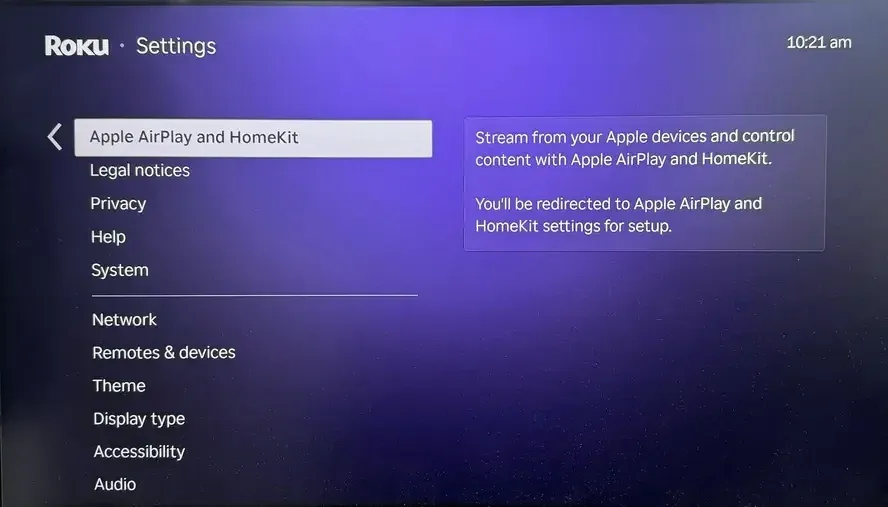
Step 2. On an ONN Roku TV, go to Settings > Apple AirPlay and HomeKit to enable AirPlay. On an ONN Powered by VIZIO TV, open Extras or Smart Home Settings > AirPlay to activate AirPlay. If you cannot find an AirPlay option, your model may not support this method.
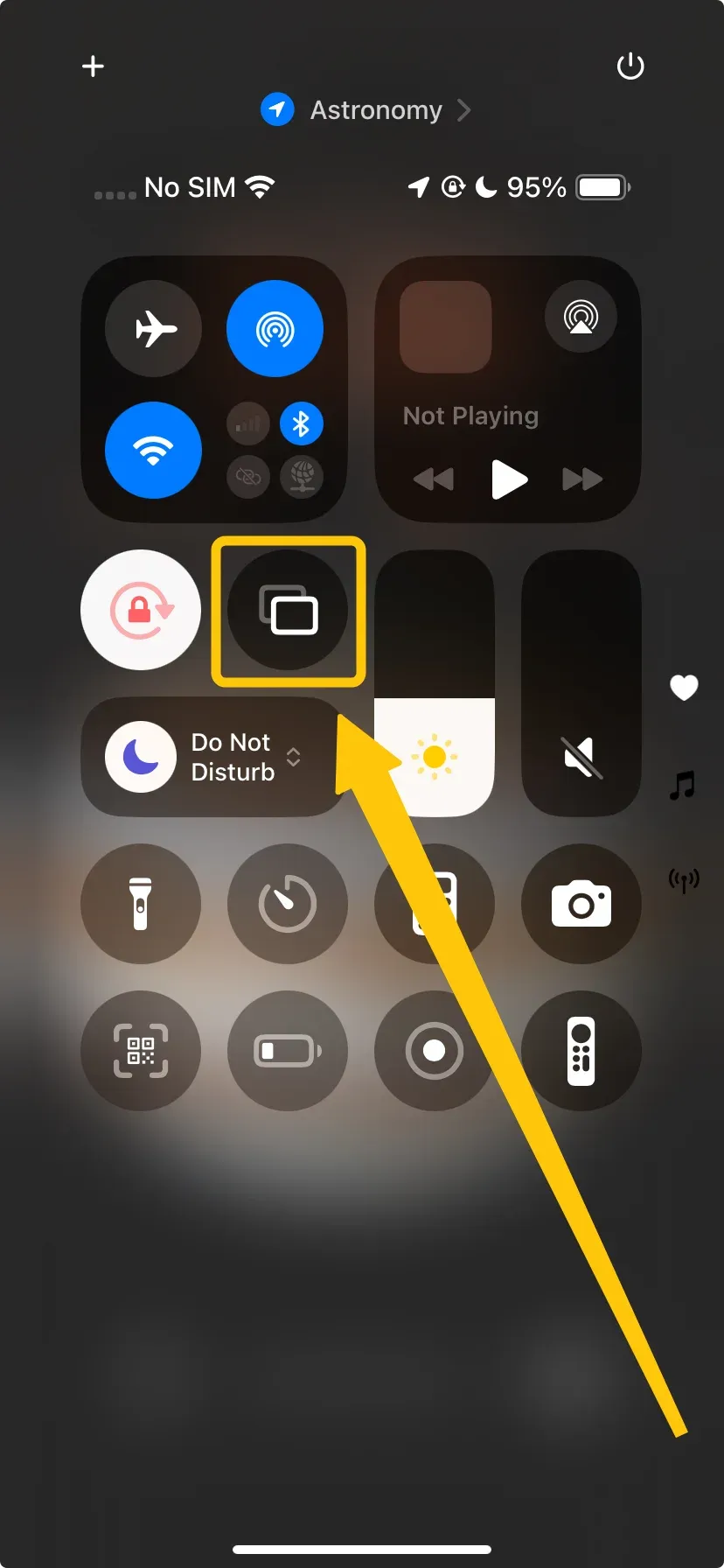
Step 3. Open Control Center on your iPhone or iPad and tap Screen Mirroring to select your ONN TV from the device list.
Step 4. Enter the AirPlay code shown on the TV if prompted to start screen mirroring.
Cast iPhone or iPad to an ONN Google TV with Google Cast
ONN Google TV does not normally receive full-screen mirroring from an iPhone or iPad through Google Cast. Instead, you can send videos, music, and other media directly from apps that include a Cast button.
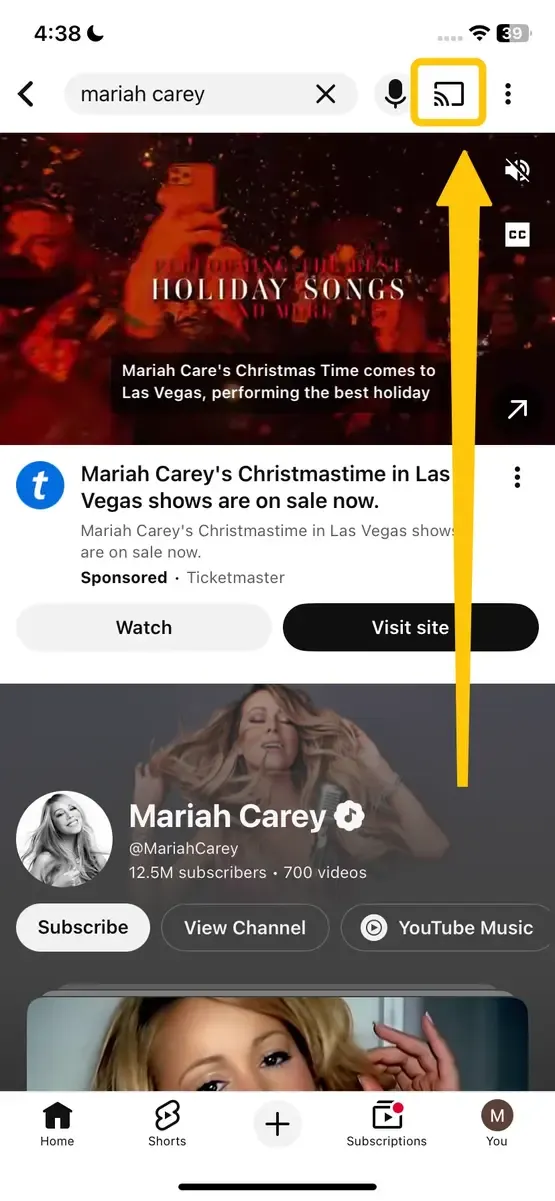
Step 1. Connect your iPhone or iPad and ONN Google TV to the same Wi-Fi network.
Step 2. Open a Cast-enabled app, such as YouTube.
Step 3. Choose the video or media you want to play. Tap the Cast icon and select your ONN Google TV.
- Bonus: Use PigeonCast for Full-Screen Mirroring to an ONN Google TV
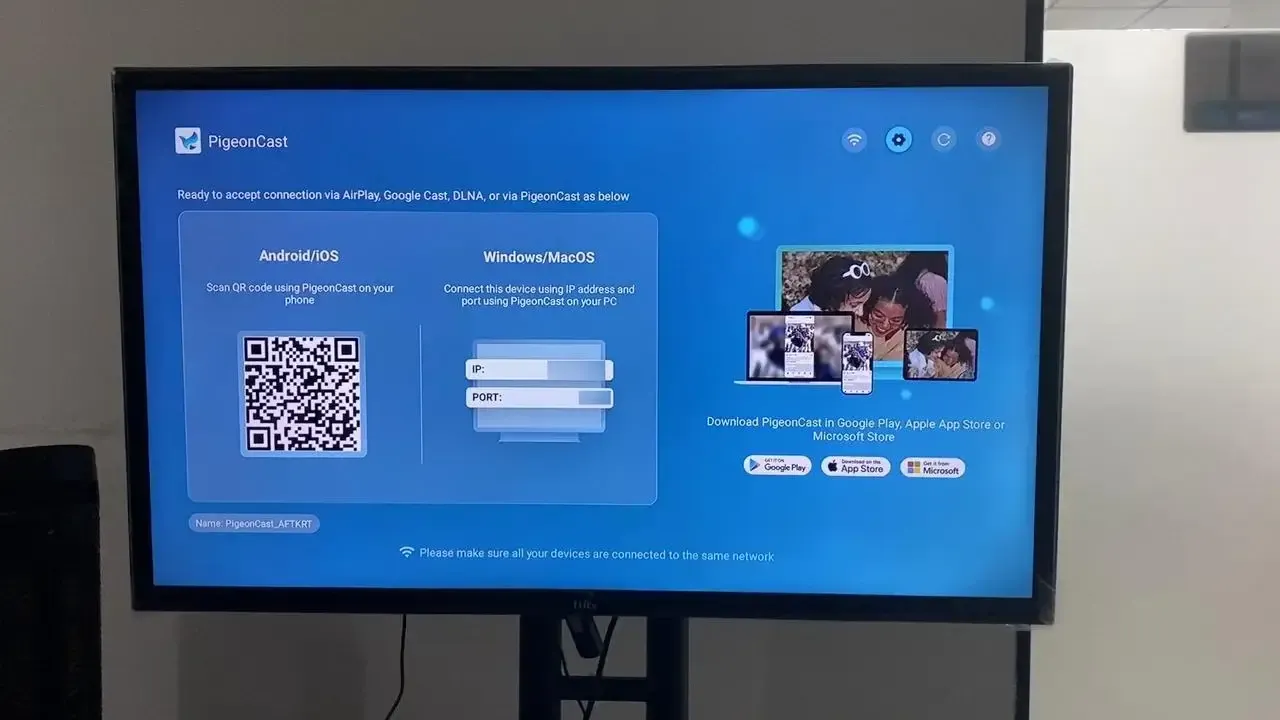
Google Cast is useful for sending videos from supported apps, but it does not normally mirror the full iPhone or iPad screen. If your ONN TV runs Google TV, PigeonCast can turn the TV into a wireless receiver for iPhone, Android, Windows, and Mac. This free mirroring app supports AirPlay, Google Cast, and DLNA, allowing you to share full device screens, browser pages, photos, videos, documents, and presentations without adding a separate receiver or HDMI cable.


Overall Rating:



How to Screen Mirror Android to an ONN TV
The connection method depends on the system running on your ONN TV. ONN Roku TV uses its built-in Screen mirroring feature with compatible Android phones, while ONN Google TV and ONN Powered by VIZIO models mainly receive content through Google Cast. Check your TV platform first, then follow the matching steps below.
Mirror Android to an ONN Roku TV with Screen Mirroring
This method displays the full Android screen on the TV, including apps, photos, browser pages, and presentations. Your phone must support a wireless display feature compatible with Roku screen mirroring.
Step 1. Connect your Android phone and ONN Roku TV to the same Wi-Fi network.
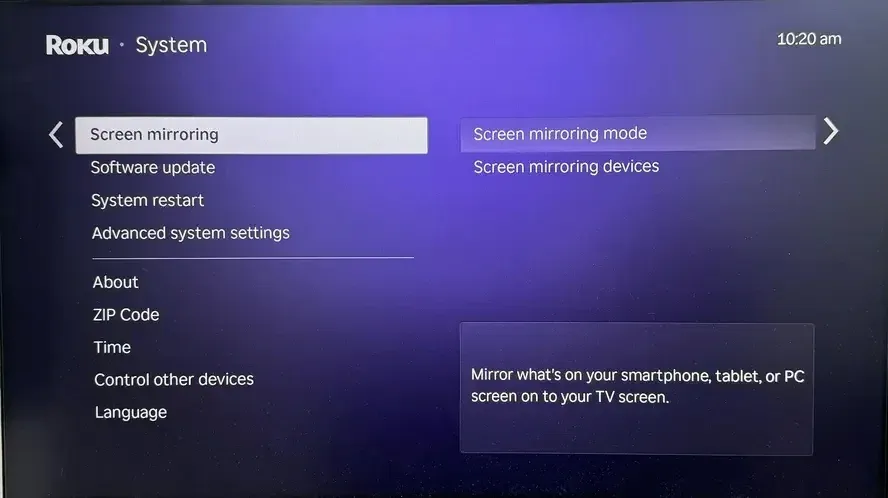
Step 2. On the ONN Roku TV, go to Settings > System > Screen mirroring.
Step 3. Open Screen mirroring mode and select Prompt. This setting lets you approve the phone when it requests a connection.
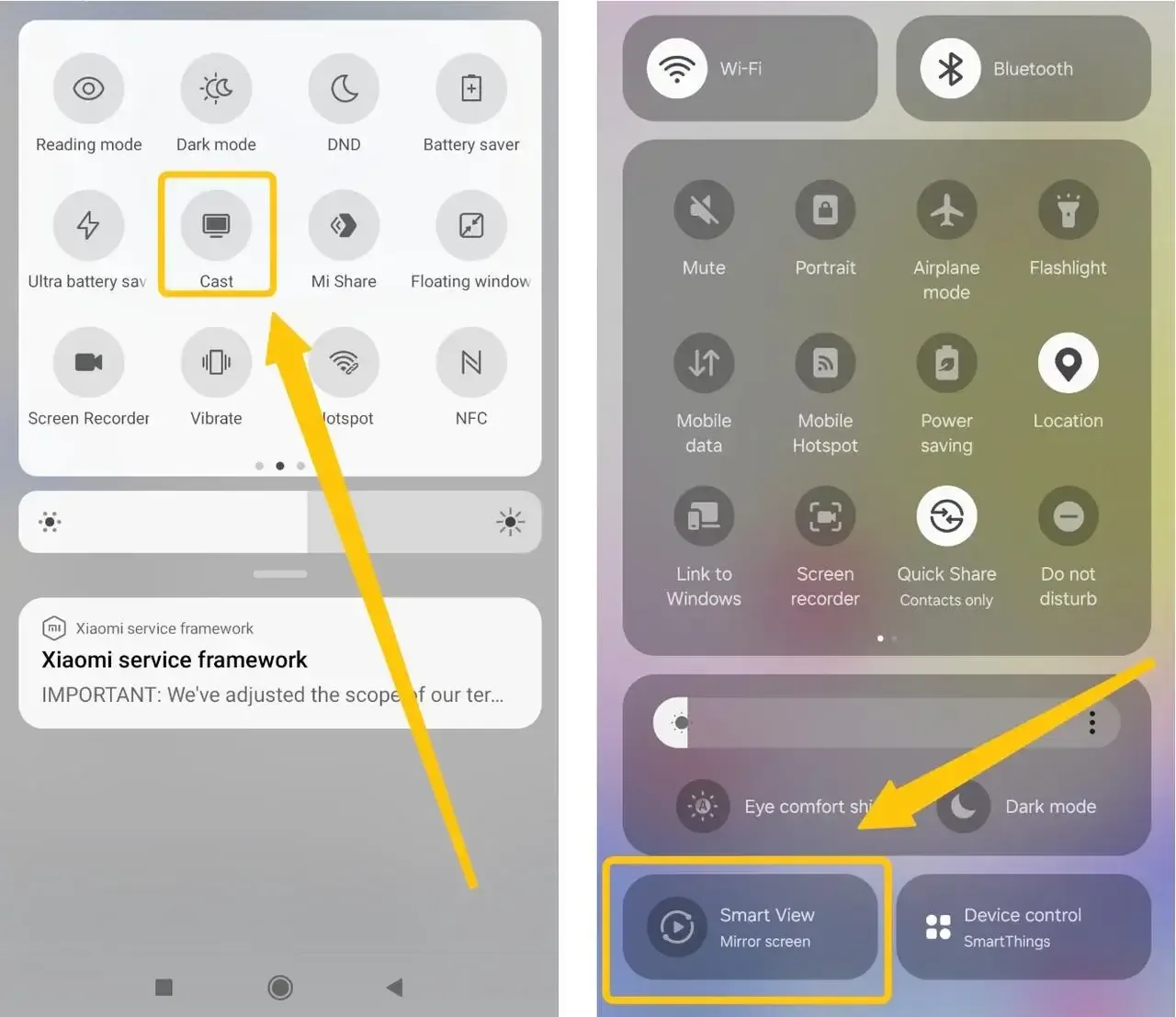
Step 4. Swipe down from the top of your Android phone to open Quick Settings. Find the wireless display control, which may be called Smart View, Screen Cast, Screen Share, Wireless Display, or Screencast, depending on the phone brand.
Step 5. Select your ONN Roku TV from the list. When the connection request appears on the TV, select Allow to display your Android screen.
Cast Android to an ONN Google TV or Powered by VIZIO TV with Google Cast
ONN Google TV and ONN Powered by VIZIO models support Google Cast, allowing you to send videos, music, photos, and other content from compatible Android apps. The selected media plays directly on the TV rather than duplicating everything shown on your phone.
Step 1. Connect your Android phone and ONN TV to the same Wi-Fi network.
Step 2. Open an app that supports Google Cast, such as YouTube.
Step 3. Select the video, song, photo, or other media you want to play.
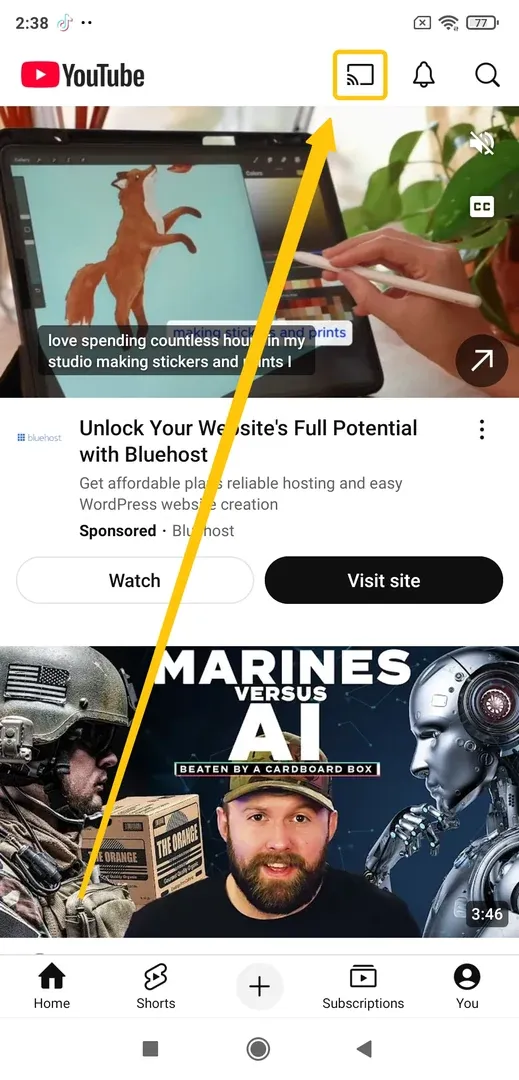
Step 4. Tap the Cast icon inside the app and select your ONN Google TV or ONN Powered by VIZIO TV.
Step 5. Wait for the content to begin playing on the television. You can then use your Android phone to pause playback, adjust the volume, or choose another item.
How to Screen Mirror Windows to an ONN TV
Windows can mirror the full desktop to an ONN Roku TV through Wireless Display. ONN Google TV and ONN Powered by VIZIO models mainly receive browser tabs or the Windows desktop through Google Chrome. Choose the method that matches your TV platform.
Mirror Windows to an ONN Roku TV with Wireless Display
This method duplicates the Windows desktop on the TV. Your computer must support a wireless display connection compatible with Roku screen mirroring.
Step 1. Connect your Windows computer and ONN Roku TV to the same Wi-Fi network.
Step 2. On the ONN Roku TV, go to Settings > System > Screen mirroring > Screen mirroring mode > Prompt.
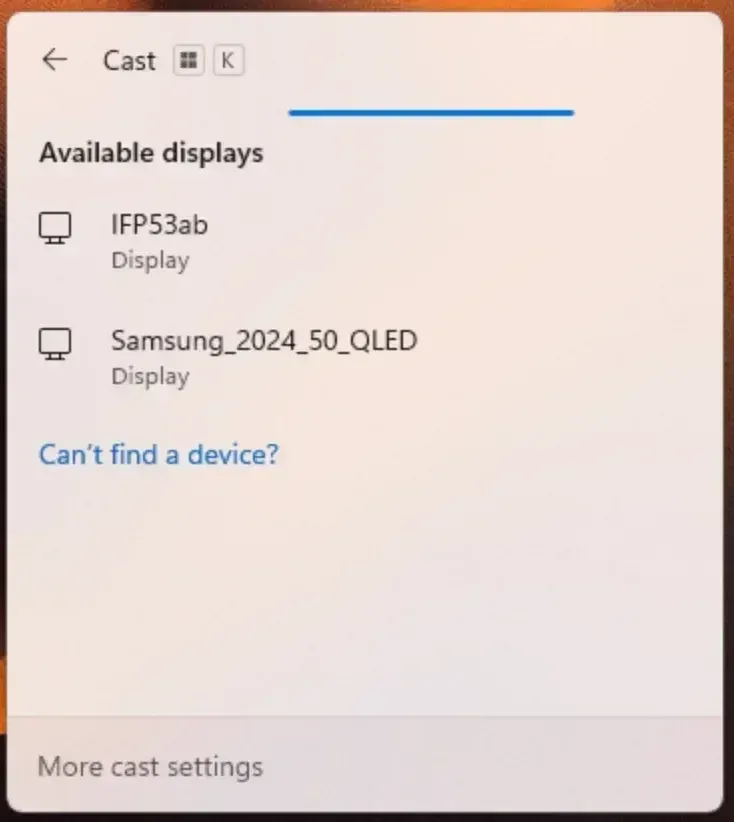
Step 3. On the Windows computer, press Windows + K to open the available wireless displays.
Step 4. Wait for your ONN Roku TV to appear, then select it from the device list.
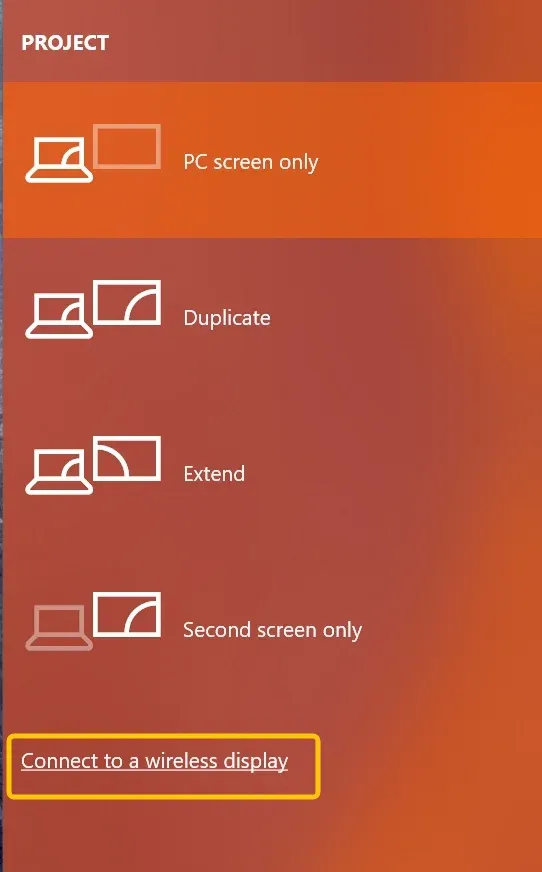
Step 5. You can also press Windows + P and choose how the screen should appear:
- Duplicate shows the same content on the computer and TV.
- Extend uses the TV as a second display.
- Second screen only displays the content only on the TV.
Cast Windows to an ONN Google TV or Powered by VIZIO TV with Google Cast
Google Chrome can send a browser tab or the entire Windows desktop to an ONN Google TV or Powered by VIZIO TV. Use Cast tab for webpages and browser videos, or Cast screen for presentations, apps, and other desktop content.
Step 1. Connect your Windows computer and ONN TV to the same Wi-Fi network.
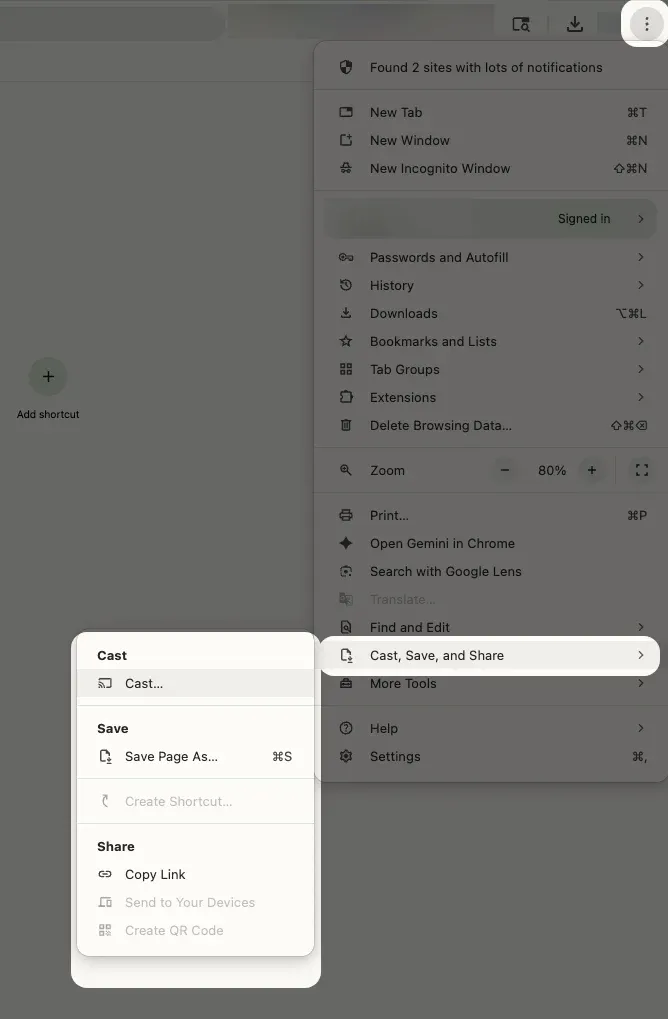
Step 2. Open Google Chrome, click the three-dot menu in the upper-right corner, and select Cast, save, and share > Cast.
Step 3. In the Cast panel, open Sources and choose how you want to share the content:
- Cast tab displays the current Chrome tab.
- Cast screen displays the Windows desktop.
Step 4. Select your ONN Google TV or ONN Powered by VIZIO TV from the available device list.
Step 5. If you selected Cast screen, choose the screen you want to share in the pop-up window, then click Share.
How to Fix ONN TV Screen Mirroring Not Working
Before you begin troubleshooting, first identify whether your ONN TV runs Roku TV, Google TV, or Powered by VIZIO, then follow the steps that apply to your specific setup.
- ONN TV Does Not Appear on Your Device
-
Check that both devices use the same Wi-Fi network. Compare the network names in the ONN TV settings and on your phone or computer. Avoid a guest Wi-Fi network, which may prevent connected devices from finding each other.
-
Turn on the correct receiving feature.
- For Roku TV, enable Settings > System > Screen mirroring for Android or Windows, or Settings > Apple AirPlay and HomeKit for Apple devices.
- For Google TV, use a Google Cast-enabled app or Chrome.
- For Powered by VIZIO, use Google Cast or enable AirPlay on supported models.
-
On an iPhone or iPad, open Settings > Privacy & Security > Local Network and enable access for the app you are casting from. Google requires this permission for Cast-enabled apps to find nearby TVs.
-
An Android phone that only supports Google Cast may not appear on a Roku screen-mirroring list. Similarly, Windows + K is intended for compatible wireless displays, while Google TV and Powered by VIZIO are normally reached through Chrome or Cast-enabled apps.
- The ONN TV Appears but Will Not Connect
-
Review Roku connection permissions. On an ONN Roku TV, open Settings > System > Screen mirroring and check the saved devices. Remove the phone or computer if it was previously blocked, then reconnect and approve the new request. Roku displays a permission request when an Android or Windows device attempts to mirror.
-
Restart both devices, wait for them to reconnect to Wi-Fi, and try again. Apple and VIZIO both include restarting devices among their recommended AirPlay or Cast troubleshooting steps.
-
Update the TV system and casting app. Install available TV software updates and update the Cast-enabled app, Chrome, iOS, Android, or Windows. Google requires a current Cast-enabled app or Chrome browser for casting.
- Mirroring Connects but the Picture Is Blank or Unstable
-
If the home screen mirrors correctly but one streaming app shows a black screen, that app may restrict mirrored playback. Use its built-in Cast or AirPlay button instead.
-
Weak or unstable Wi-Fi can cause delays, low image quality, or repeated disconnections. Test again near the router before changing other settings.
-
Connect a Windows computer directly through HDMI, or use a compatible video adapter for the phone or tablet. This also works with non-smart ONN TVs that do not have a built-in wireless receiver.
Wrapping Up
Choose the connection method that matches both your ONN TV platform and the device you are using. AirPlay is the direct option for compatible Apple devices, Roku Screen Mirroring works with supported Android and Windows devices, and Google Cast is better suited to ONN Google TV and Powered by VIZIO models. If the wireless connection remains unstable or your TV lacks a compatible receiver, an HDMI cable or video adapter provides a reliable alternative.
ONN TV Screen Mirroring FAQ
Can I screen mirror to an ONN TV without Wi-Fi?
You usually need a shared Wi-Fi network for AirPlay, Google Cast, and most wireless screen mirroring methods. An internet connection may not always be required, but the sending device and TV still need to communicate through the same local network. When Wi-Fi is unavailable, use an HDMI cable or a compatible phone-to-HDMI adapter.
Why can I cast videos to my ONN TV but not mirror my full screen?
Casting and screen mirroring use different connection methods. A Cast-enabled app can send supported media to an ONN Google TV or Powered by VIZIO model, but that does not mean the TV can duplicate everything on your phone. Full-screen mirroring requires AirPlay, Roku Screen Mirroring, or another compatible receiver.
Can I use the ONN remote app for screen mirroring?
A remote-control app is mainly designed for navigation, keyboard input, channel control, and media commands. It does not automatically turn the TV into a full-screen mirroring receiver. Use AirPlay, Google Cast, Roku Screen Mirroring, or a wired connection instead.
Why is there no Screen Mirroring option on my ONN TV?
The available menu depends on the television platform. ONN Roku TV includes a dedicated Screen mirroring menu, while ONN Google TV mainly uses Google Cast and may not show an option with that exact name. Some older or non-smart ONN models do not include a built-in wireless receiver.
Why is there a delay between my device and ONN TV?
Screen mirroring continuously sends a live image from your device to the television, so a small delay is normal. The lag becomes more noticeable when the Wi-Fi network is busy, the device is far from the router, or the mirrored content includes fast movement. For gaming or other time-sensitive tasks, a direct HDMI connection will usually provide better responsiveness than wireless mirroring.
Can two devices mirror to the same ONN TV at the same time?
Most built-in ONN TV receivers display one casting or mirroring session at a time. When a second device connects, the first session may stop or the TV may ask which connection to accept. For presentations involving several people, disconnect each device before the next person starts sharing.
Clara Rossi is an experienced technology editor and a seasoned expert in screen mirroring and casting technologies. With a keen eye for detail and a deep understanding of how to seamlessly connect devices, Clara excels at optimizing user experiences for effortless sharing and streaming. Whether you're seeking quick fixes or advanced tips, her expertise and responsiveness ensure that every query is met with a well-informed and efficient solution.