

If you see Apple AirPlay and HomeKit in your TV settings, you may wonder whether it is an app, a single TV feature, or another name for Apple TV. The combined label can be confusing because it places two related but separate Apple technologies inside the same menu.
This guide explains what the setting means, why TV manufacturers group the two features together, how to set them up, and what built-in support can and cannot do.
Quick Answer: What Does Apple AirPlay and HomeKit Mean?
Apple AirPlay and HomeKit is usually the name of a settings section on a compatible smart TV. It groups two separate Apple features in one place: AirPlay for streaming or mirroring content to the TV, and HomeKit for adding the TV to the Apple Home app.
- AirPlay: Streams videos, music, and photos or mirrors the screen of an iPhone, iPad, or Mac |
- HomeKit: Adds the TV to the Apple Home app for supported controls, scenes, and automations |
The combined menu does not mean AirPlay and HomeKit are the same technology. A TV may also support one feature without fully supporting the other.
AirPlay vs HomeKit: What Is the Difference?
Although they appear in the same TV menu, AirPlay and HomeKit work independently and serve different parts of the Apple ecosystem.
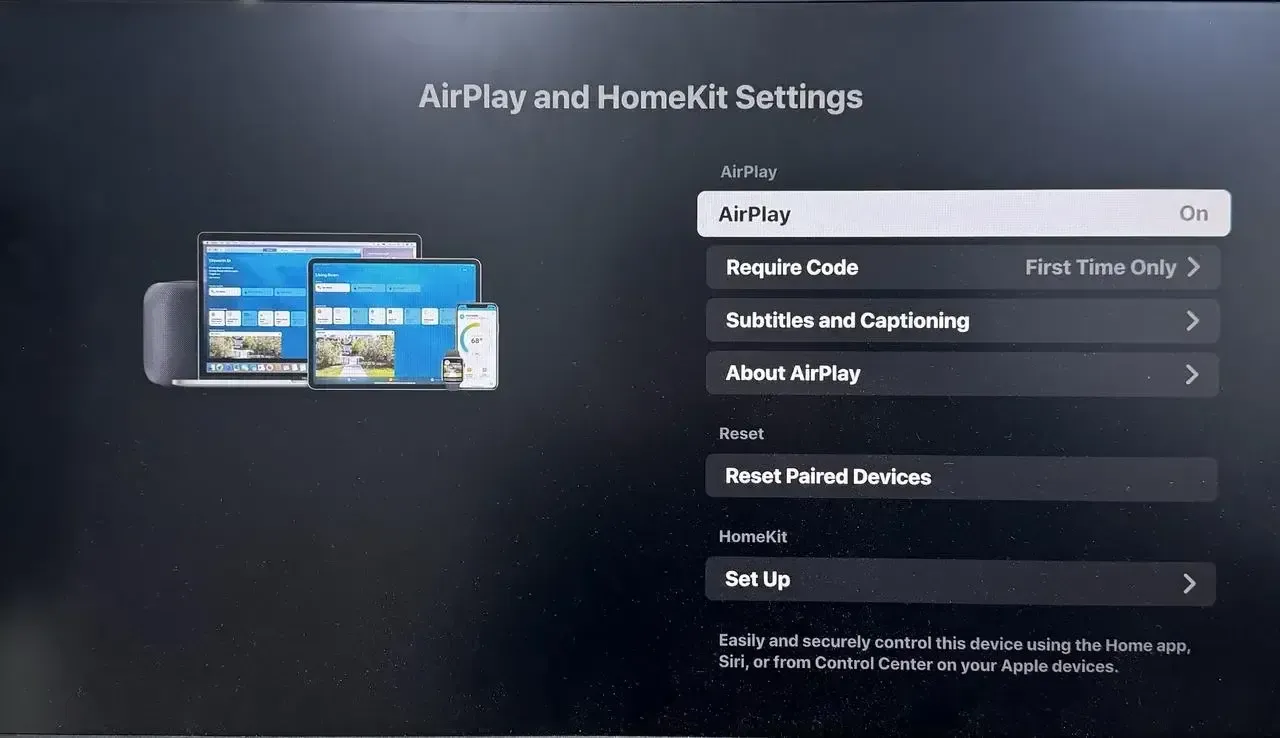
What AirPlay Does
AirPlay is Apple’s wireless streaming and screen-sharing technology. On a TV, it lets an iPhone, iPad, or Mac send video, music, photos, or a mirrored screen to the larger display.
In that workflow, the Apple device is the sender and the TV is the receiver. AirPlay is mainly about playback and screen sharing, not about broader home automation.
What HomeKit Does
HomeKit is Apple’s smart-home framework. Depending on the TV model and manufacturer implementation, it may let you add the device to the Home app, place it in a room, and use supported controls such as power, scenes, automations, or input switching. Available controls depend on the TV model and manufacturer implementation.
Why TVs Group AirPlay and HomeKit Together
TV brands group them together because both belong to the same Apple compatibility layer. If someone wants a TV to work better with iPhone, iPad, Mac, Siri, or the Home app, this is the menu that usually matters.
That grouped label is useful, but it can also create confusion. It helps with setup and marketing, yet it does not mean AirPlay and HomeKit are the same feature.
How to Set Up Apple AirPlay and HomeKit on a TV
The Apple AirPlay and HomeKit menus vary by brand, model, and system version, but the general setup flow is usually similar.
Before setting up AirPlay or HomeKit on your TV, check the requirements for each feature separately:
- For AirPlay: confirm that the TV supports AirPlay, update the TV and your Apple device if needed, keep both devices on the same local network, and make sure AirPlay is turned on in the TV settings if the option appears.
- For HomeKit: confirm that the TV supports HomeKit, sign in to iCloud on your iPhone or iPad, keep Wi-Fi and Bluetooth on, and follow the TV maker’s pairing method inside the Apple AirPlay and HomeKit menu.
How to Turn On and Use AirPlay on a TV
The general AirPlay setup flow usually looks like this:
- Open the TV settings.
- Find Apple AirPlay and HomeKit or a similar AirPlay menu.
- Turn AirPlay on.
- Open the AirPlay or Screen Mirroring menu on your iPhone, iPad, or Mac.
- Choose the TV from the list.
- Enter the on-screen code if the TV asks for one.
How to Add the TV to Apple Home
If the TV supports HomeKit, the usual pairing process is short:
- Open the TV’s Apple AirPlay and HomeKit settings.
- Choose Set Up under HomeKit.
- Follow the on-screen pairing instructions and scan the QR code or enter the setup code if the TV shows one.
- Add the TV to a room in the Home app.
The exact wording may differ by brand, but the goal stays the same: link the TV to Apple Home so it can show up as a supported device there.
What You Can Do with AirPlay and HomeKit on a TV
Once the TV is set up, the real question is not what the label means anymore. The real question is what daily tasks it actually enables.
Stream or Mirror Content with AirPlay
AirPlay is the part that handles media streaming and screen mirroring. In practical use, you can usually:
- stream video from an iPhone or iPad with AirPlay
- play music or other audio through the TV
- display photos on a larger screen
- mirror an iPhone, iPad, or Mac screen to the TV
If you want to stream media or mirror an Apple device to the TV, AirPlay is the relevant feature.
Control the TV with Apple Home
HomeKit is the part that handles Home app integration. Depending on the TV, you may be able to:
- turn the TV on or off
- place it in a room in the Home app
- include it in scenes or automations
- use supported Siri commands
- switch inputs where the TV supports that control
This is useful when the TV is part of a broader Apple household routine instead of acting only as a screen. For example, the TV could be included in a Good Night scene that turns supported devices off together.
What Apple AirPlay and HomeKit Cannot Do
This label is useful, but it has clear boundaries. Most confusion comes from assuming the TV will behave like a full Apple TV device, a universal casting hub, and a complete smart-home endpoint all at once.
It Does Not Turn the TV into an Apple TV
Apple AirPlay and HomeKit does not give the TV the full role of Apple TV hardware. A built-in compatibility menu is not the same thing as the Apple TV box, its interface, or its broader app environment.
It Does Not Guarantee Every App or Video Will Work
AirPlay support does not guarantee that every app or every piece of video content will behave the same way. Some services may limit screen mirroring because of DRM or app restrictions, while some apps may still support in-app AirPlay playback more reliably than full-screen mirroring.
It Does Not Provide Universal Device Compatibility
Built-in AirPlay and HomeKit support is designed primarily for Apple devices and Apple Home. It does not provide one native connection method for every operating system or TV platform.
HomeKit Control Varies by TV
Even when the TV supports HomeKit, the available controls may be limited. Some TVs expose only basic actions, while others offer a little more. Support depends on the model, software version, and the way the TV maker implemented it.
When You May Need Another Mirroring Option
Built-in AirPlay and HomeKit may be enough when your devices are mainly from Apple and your TV supports the features you use. Another mirroring method becomes more useful when you need to connect devices or displays outside that built-in Apple workflow.
Common examples include:
- mirroring to TV from an Android phone or Windows PC
- sharing a screen between a phone and a computer
- mirroring a computer to a TV
- connecting to a TV that does not support AirPlay
- using one mirroring method across different devices and TV systems
For these situations, a cross-platform screen mirroring tool such as PigeonCast may be more practical. It supports screen sharing across iPhone, Android, Windows, Mac, TVs, and browsers. It does not replace HomeKit controls or automations, but it can cover mirroring scenarios outside the built-in Apple workflow.
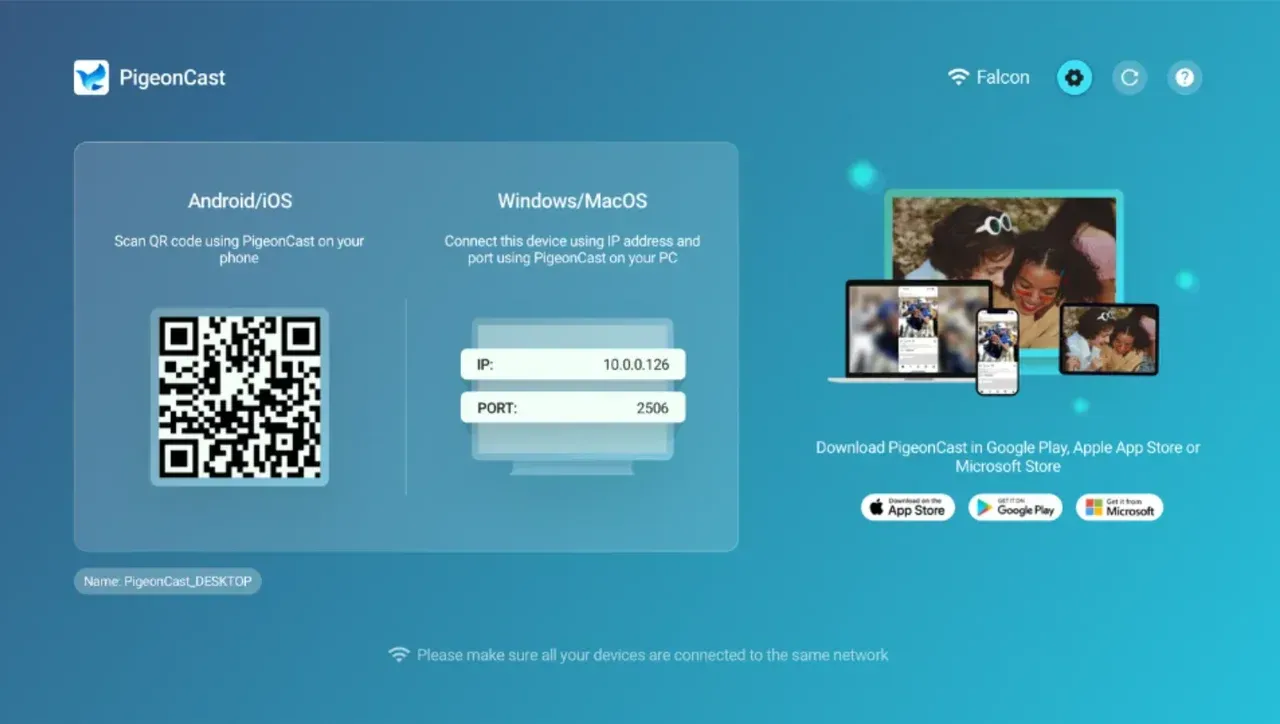
To start mirroring with PigeonCast:
- Install or open PigeonCast on the sending device and receiving device.
- Connect both devices to the same Wi-Fi network.
- Select the receiver, scan the QR code, or enter the PIN to start mirroring.


Overall Rating:



Conclusion
The Apple AirPlay and HomeKit menu is a combined TV settings label, not a single feature. AirPlay handles media streaming and screen mirroring, while HomeKit connects the TV to supported Apple Home controls and automations.
Before setting either one up, check the exact feature support for your TV model. A TV may support AirPlay, HomeKit, both features, or only part of the expected workflow.
Apple AirPlay and HomeKit FAQ
Do all smart TVs support Apple AirPlay and HomeKit?
No. Some smart TVs support Apple AirPlay and HomeKit, but many do not. Support depends on the exact TV platform, model, and software version.
Where is Apple AirPlay and HomeKit in TV settings?
On supported TVs, it is usually inside the general settings, connection settings, or a dedicated Apple menu. The exact location and wording depend on the TV brand and system version.
Why is Apple AirPlay and HomeKit missing from my TV settings?
The most common reason is that the TV may not support those Apple features natively. In other cases, the menu name may differ, a software update may be required, or the TV may support only part of the Apple workflow.
Can a TV support AirPlay without HomeKit?
Yes. Some TVs support AirPlay more clearly than HomeKit, or expose the two features differently in settings. That is one reason the combined label can be confusing when you first see it.
Why does my TV support AirPlay but not appear in Apple Home?
The most common reasons are that the TV may not support HomeKit at all, HomeKit setup may not be finished, or the TV maker may expose AirPlay more clearly than Apple Home integration.
Can you use AirPlay without HomeKit?
Yes. AirPlay does not require the TV to be added to Apple Home. The two features can work independently.
Mia Clarke is a technology editor specializing in screen mirroring and casting solutions across multiple platforms. Mia provides clear, practical guides and in-depth insights to help users seamlessly connect their devices. Passionate about enhancing digital experiences, Mia is dedicated to keeping readers updated on the latest trends and tools in cross-platform screen sharing. Whether you’re looking to mirror your smartphone, laptop, or smart TV, Mia’s content delivers reliable, user-friendly advice to simplify your tech setup.