

No, AirPlay is not a standalone app. It is a built-in Apple wireless streaming and screen mirroring feature that works across compatible Apple devices and supported receivers. People often mistake it for an app because the AirPlay icon appears inside video apps, some TVs have AirPlay settings, and third-party receiver apps sometimes use AirPlay in their names or descriptions.
This guide answers not only the question "is AirPlay an app" but also the bigger questions behind it, including what AirPlay actually is, where you can find it, and when you may need something beyond the built-in Apple option.
Quick Answer: Is AirPlay an App?
| Question | Answer |
|---|---|
| Is AirPlay an app? | No. It is a built-in Apple wireless streaming feature. |
| Do you need to download AirPlay on iPhone? | No. AirPlay is already built into iPhone, iPad, and Mac. |
| Do you need an app on the TV? | Usually not if the TV supports AirPlay, but unsupported TVs may need a receiver app or another compatible device. |
| Can Android or Windows download AirPlay? | They do not have native AirPlay in the Apple sense, but some apps can add sending or receiving support. |
What Is AirPlay and How Does It Work?
AirPlay is Apple’s built-in wireless technology for sending video, music, photos, or a mirrored screen from one device to another. In simple terms, one device acts as the sender and another acts as the receiver.
For example, an iPhone, iPad, or Mac can send content to Apple TV or an AirPlay-compatible TV. Sometimes you are only sending one video or song from a supported app. Other times you are mirroring the entire screen so the receiver shows everything happening on the Apple device.
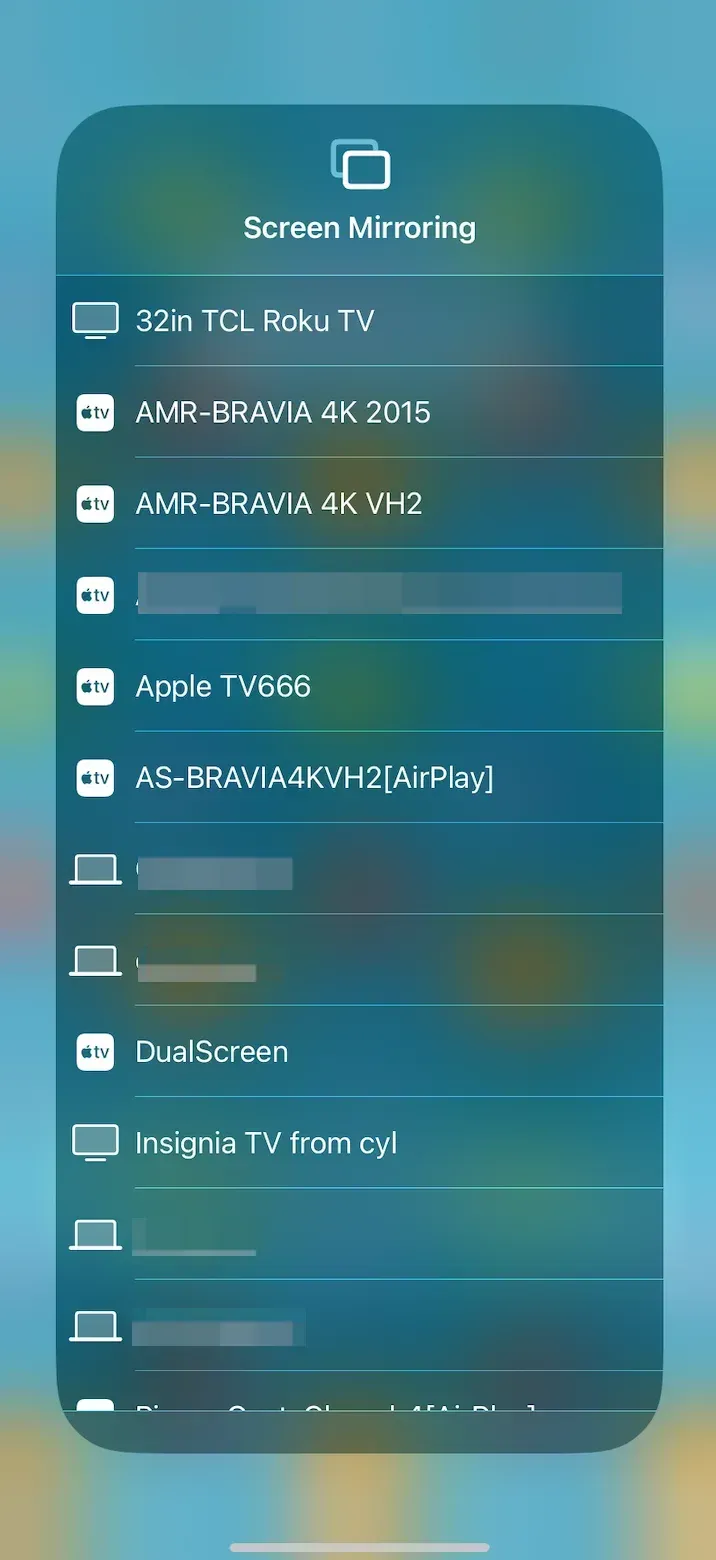
In most home setups, AirPlay works best when both devices are on the same Wi-Fi network and can discover each other nearby. That is why AirPlay often feels built into the system rather than something you launch like a normal app.
Why AirPlay Can Look Like an App
AirPlay confuses people because it often appears in app-like places without actually being a standalone app.
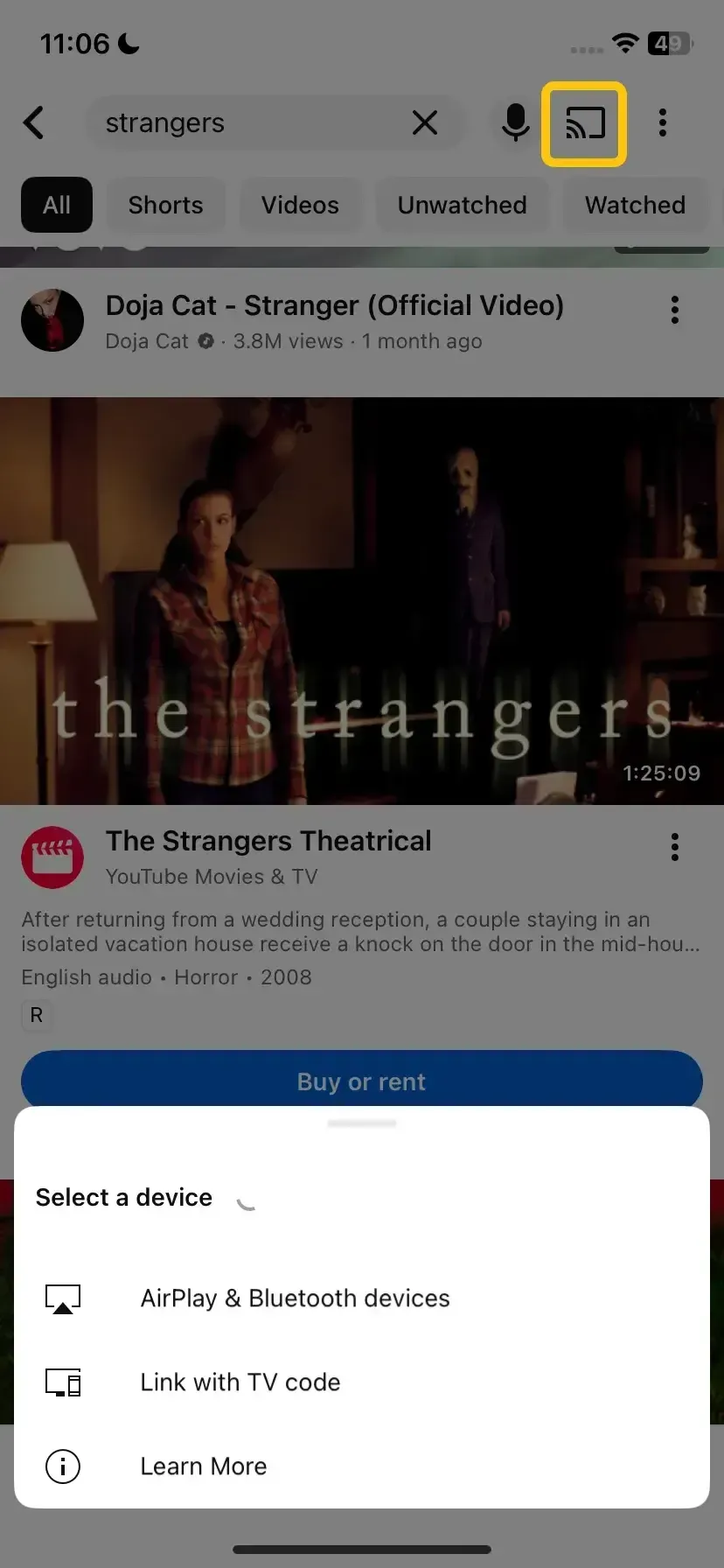
The first reason is that many video, music, and photo apps show an AirPlay icon inside the app itself. That makes it easy to assume AirPlay is part of that app or something you can install separately.
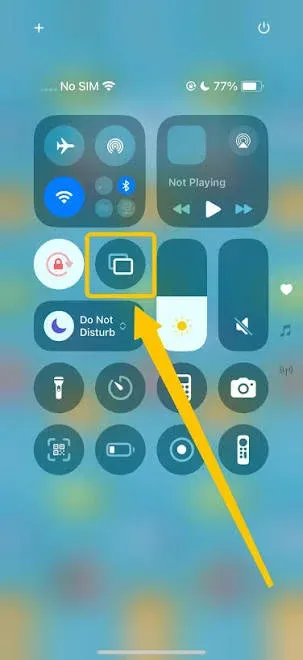
The second reason is that Apple often surfaces AirPlay through Screen Mirroring in Control Center rather than through an app named AirPlay. If you search your Home Screen for an AirPlay icon, you usually will not find one.
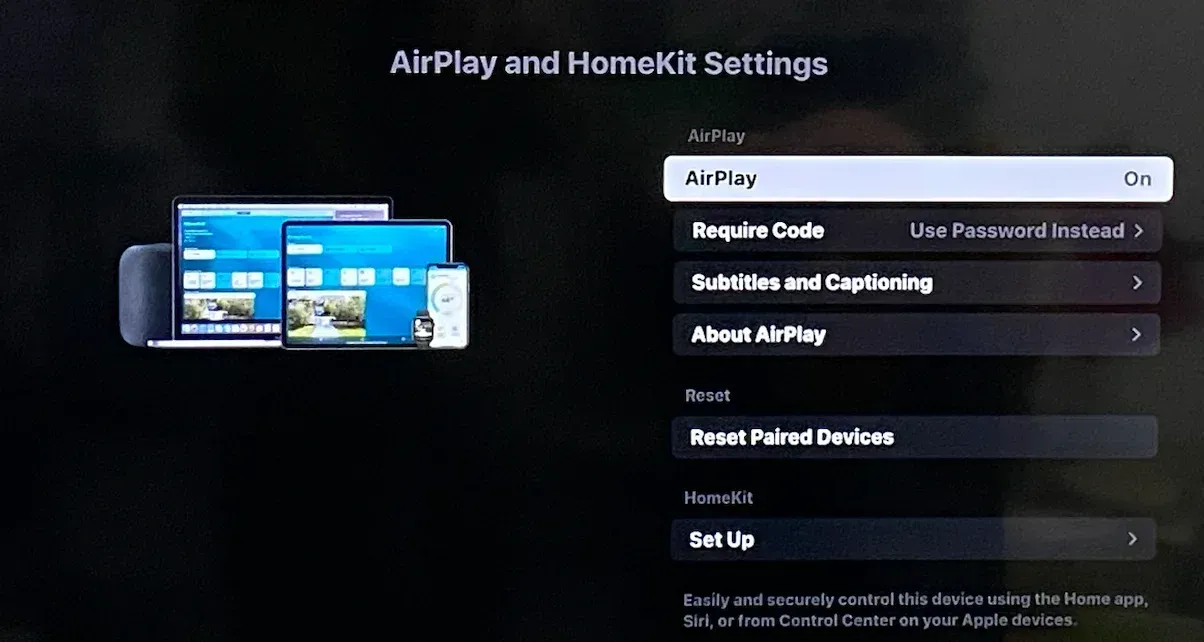
The third reason is on the receiver side. Apple TV and some smart TVs may show menus such as AirPlay or Apple AirPlay and HomeKit in settings, which can make the feature look like TV software instead of a built-in connection method.
There is also extra confusion from the App Store and third-party software. Some apps support AirPlay playback. Some TV receiver apps mention AirPlay in their names or descriptions. Those are not the official AirPlay app. They are just apps that work with AirPlay or imitate part of the AirPlay experience.
Where to Find AirPlay on Your Devices
You usually do not “open AirPlay” like a normal app. Instead, you find it through system controls on Apple devices or through AirPlay settings on supported receivers.
On iPhone and iPad
On iPhone and iPad, the two most common places to find AirPlay are Control Center and supported media apps.
If you want to mirror the full screen, open Control Center and tap Screen Mirroring. That is the system-level path for sending your display to a compatible TV or receiver.
If you only want to send a video, song, or photo, you may see the AirPlay icon inside the app you are already using. This is common in video players, music apps, and the Photos app. Not every app uses the same icon or supports AirPlay in the same way, so the option may look a little different from app to app.
On Mac
On Mac, AirPlay usually appears through Control Center and sometimes through the menu bar. If you want to mirror or extend your display, look for Screen Mirroring. Some Mac video or music apps may also show an AirPlay button when they support sending media directly to another device. For a more detailed guide, see Where Is AirPlay on Mac.
On Apple TV and AirPlay-Compatible TVs
Apple TV normally includes AirPlay receiving as part of the device, so you do not need to go looking for an AirPlay app first. On smart TVs that support AirPlay, the option is usually inside settings under names such as AirPlay, Apple AirPlay, or Apple AirPlay and HomeKit.
If you do not see any AirPlay-related setting on the TV, do not assume it is hidden in an app store. The more likely explanation is that the TV does not support AirPlay natively, or the feature has not been enabled yet.
Do You Need to Download AirPlay?
In most cases, no. On Apple devices and receivers that already support AirPlay, the feature is built in rather than something you install separately.
The answer only changes when you move outside that path. There is no official standalone AirPlay app for Android, Windows, or TVs without native AirPlay support, so what you can add on those platforms is not AirPlay itself, but software that makes screen sharing or receiving possible in another way.
When You May Need a Third-Party App
AirPlay works best when both sides already support Apple’s built-in workflow. Once that stops being true, a third-party app becomes less of a workaround and more of the practical choice.
- If native AirPlay support is missing, whether on the TV side or on platforms such as Android and Windows, you will usually need a receiver app, another compatible device, or a dedicated Android screen mirroring app or Windows screen mirroring app instead.
- If your devices span more than one ecosystem, a cross-platform mirroring app works better than Apple's AirPlay.
- If your goal is broader than handing off one video or song, and you need full-screen mirroring or more flexible receiver options, a mirroring app is usually the better fit.
How to Use a Screen Mirroring App
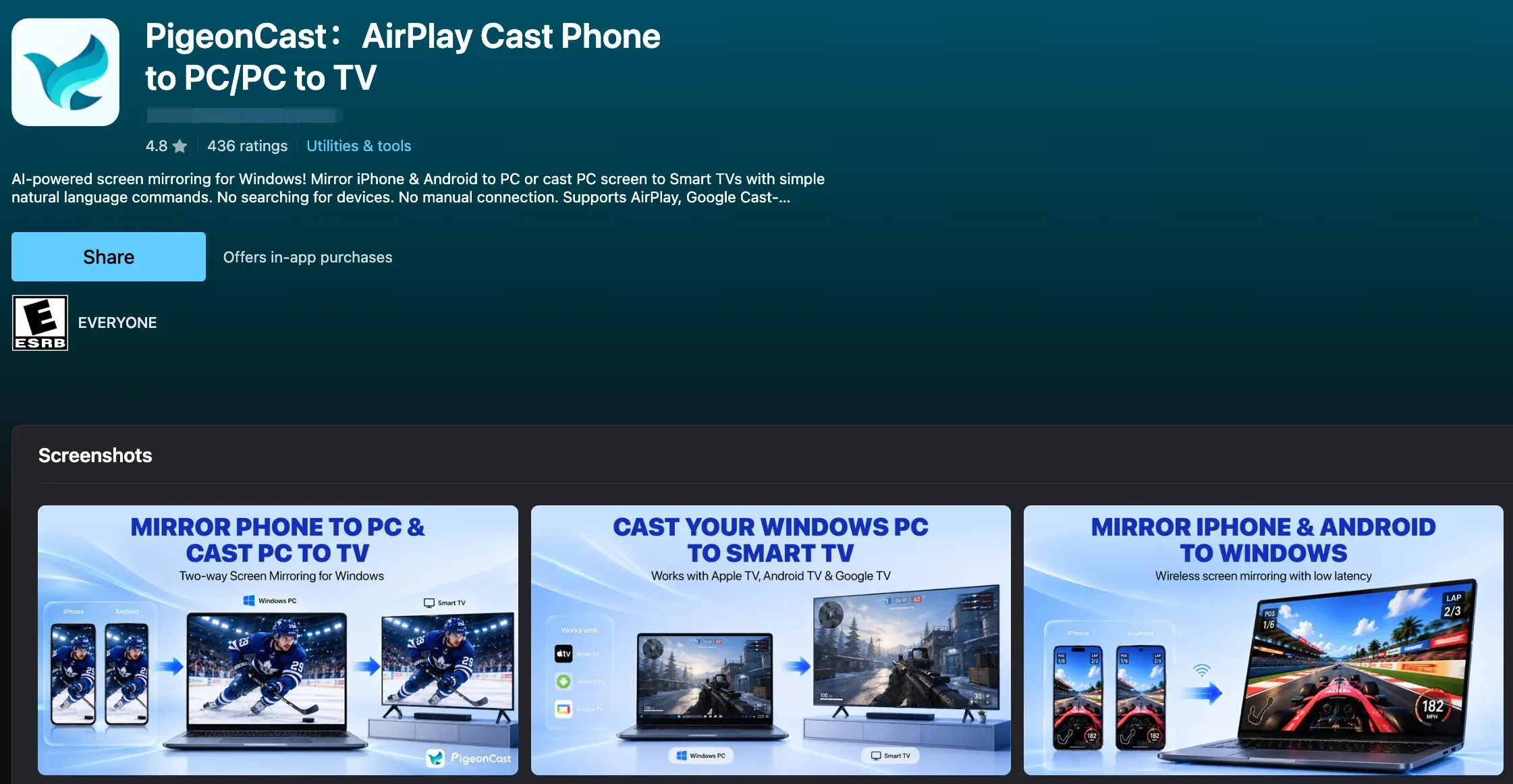
If you decide to use a mirroring app, the setup is usually straightforward. PigeonCast is one example of a cross-platform screen mirroring app designed for broader sender and receiver combinations, including iPhone to Windows PC or Android to Apple TV wirelessly.
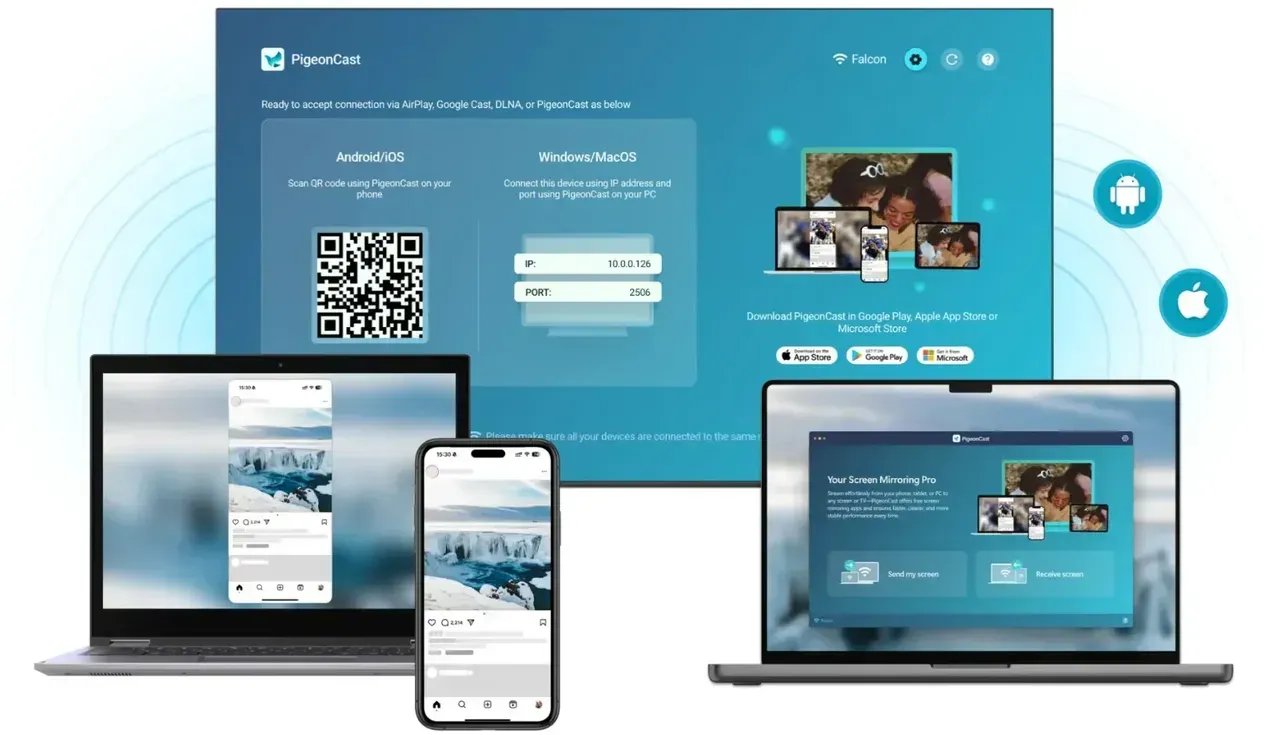
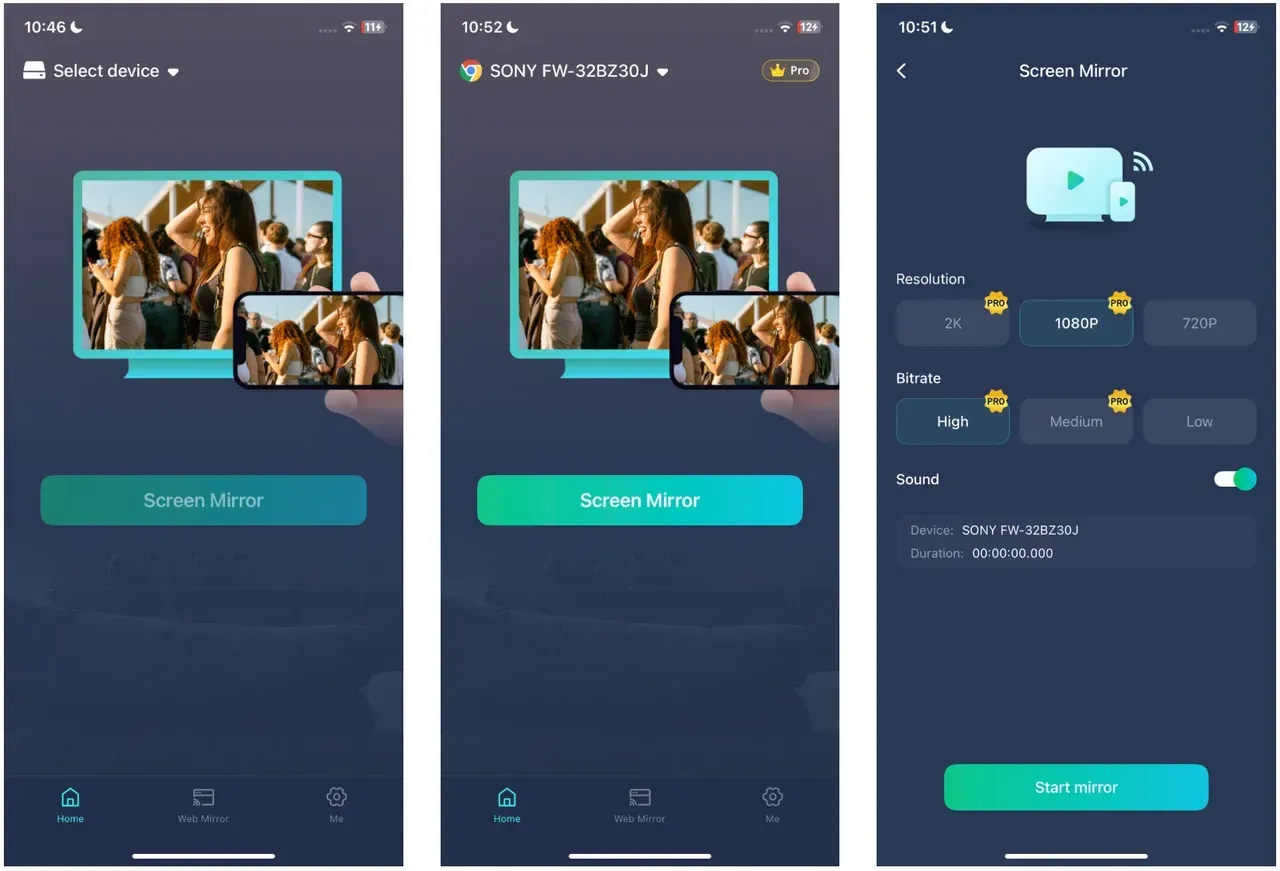
Generally, a screen mirroring app setup is simple:
Step 1. Install the app on the sender and receiver.


Overall Rating:



Step 2. Connect the two devices to the same Wi-Fi network.
Step 3. Launch the app on both sides, choose the target device on the sender, and start mirroring.
Conclusion
AirPlay is not a standalone app you download from the App Store. It is a built-in Apple wireless streaming and screen mirroring feature that appears through system controls, supported apps, and compatible receiver settings.
If your devices already support AirPlay, it is usually the simplest place to start. If they do not, or if your setup needs more flexibility than AirPlay can offer, a third-party mirroring solution may be the better next step.
Is AirPlay an App FAQ
Is AirPlay free to use?
Yes. AirPlay itself is a built-in Apple feature, so there is no separate fee to turn it on. The only real requirement is that your sending device and receiver already support AirPlay.
Does AirPlay use Wi-Fi or Bluetooth?
AirPlay mainly relies on Wi-Fi or a local network-style connection rather than behaving like a normal Bluetooth audio link. That is one reason it can handle video, photos, screen mirroring, and richer playback handoff better than basic Bluetooth streaming.
Can AirPlay work without internet?
Sometimes yes, but not in every setup. In many cases, the devices still need to discover each other over the same local network, so “no internet” does not always mean “no network.”
Can I AirPlay to more than one device at the same time?
It depends on the device, the content, and the way you are using AirPlay. Some Apple audio workflows support multi-device playback more easily than full video or screen mirroring sessions.
Do all smart TVs support AirPlay 2?
No. Many newer smart TVs support AirPlay 2, but support still depends on the exact brand, model, and software version. It is better to check the specific TV rather than assume every smart TV includes it.
Can guests use AirPlay on my TV?
Often yes, but it depends on the permissions and access settings on the receiving device. Some TVs and Apple TVs can limit AirPlay access to the current user, the same network, or approved devices only.
Why does AirPlay work for music but not always for video?
Audio streaming is often less restricted than video playback. Some video apps, TV platforms, or protected content rules can limit the way AirPlay behaves, especially when screen mirroring is involved.
Can AirPlay replace Chromecast or other casting tools?
Not completely. AirPlay is excellent for Apple-first setups, but it is not always the best universal answer for mixed-device homes. If you use Android, Windows, or different TV platforms together, a broader casting or screen mirroring solution may still fit better.
Mia Clarke is a technology editor specializing in screen mirroring and casting solutions across multiple platforms. Mia provides clear, practical guides and in-depth insights to help users seamlessly connect their devices. Passionate about enhancing digital experiences, Mia is dedicated to keeping readers updated on the latest trends and tools in cross-platform screen sharing. Whether you’re looking to mirror your smartphone, laptop, or smart TV, Mia’s content delivers reliable, user-friendly advice to simplify your tech setup.