
AirPlay is one of the most convenient features for those immersed in the Apple ecosystem, allowing you to wirelessly stream content from your Mac to an Apple TV, a compatible smart TV, or speakers. However, if you're new to macOS or haven't used AirPlay before, finding the AirPlay button can be a bit tricky. Where is AirPlay on Mac? This guide will answer the question and show you how to use it for different tasks.
Where to Find AirPlay on Mac
The location of the AirPlay feature depends entirely on what you're trying to accomplish. Are you mirroring your entire screen, extending your desktop, or just sending audio to a speaker? Let's break down the three primary locations where is the AirPlay button on Mac and you can access AirPlay's powerful functions.
In the Menu Bar (For Screen Mirroring & Extending)
Where is AirPlay on Mac to TV? The easiest and most popular way to use AirPlay on your Mac is via the Control Center in the menu bar. It's the primary method for mirroring or extending your screen to a TV.
Step 1. Look at the top-right corner of your screen. You will see icons for Wi-Fi, battery, and time.
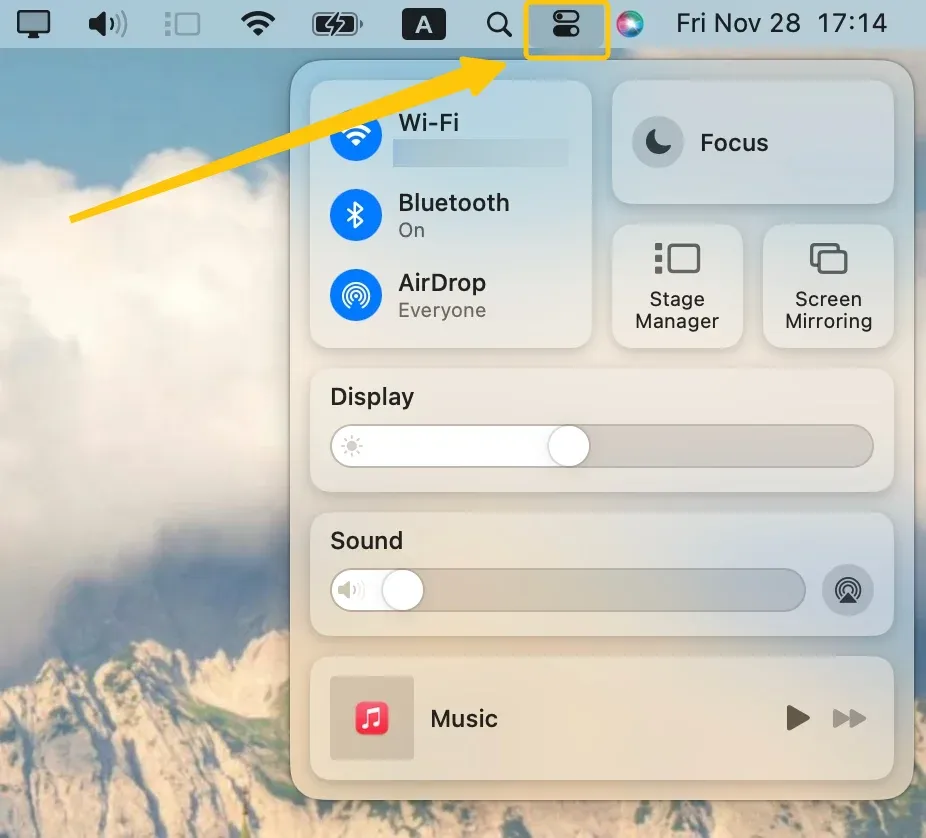
Step 2. Click on the Control Center icon, which looks like two toggle switches.
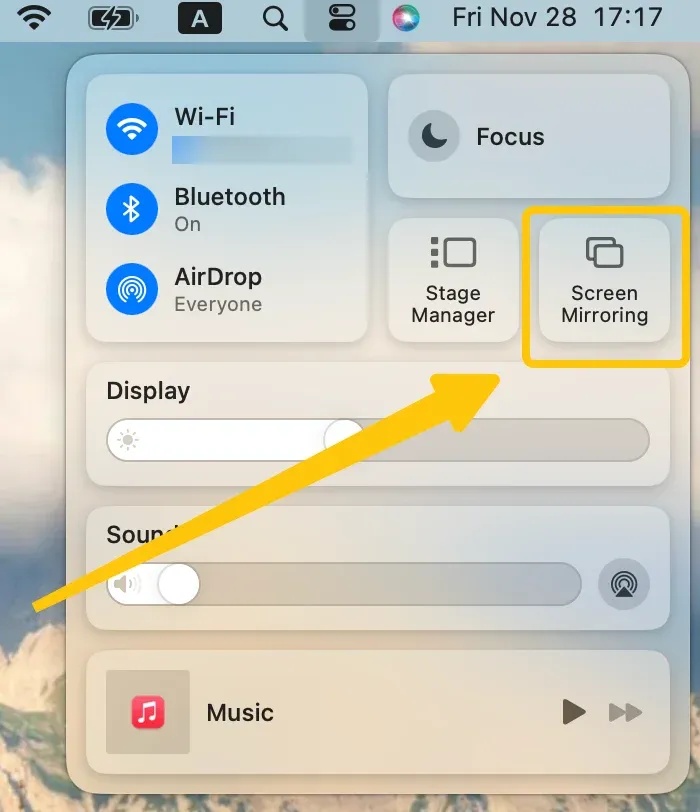
Step 3. In the dropdown menu, find and click the button labeled Screen Mirroring. (If your Mac is already connected to a display, it may show the display's name instead.)
Step 4. A list of available AirPlay 2-compatible devices on your network will appear.
In Supported Apps (For Direct Video & Audio Streaming)
Where is AirPlay on Mac laptop? Sometimes, you don't need to share your entire desktop. For a more targeted approach, many apps have a built-in AirPlay button that lets you send only a specific video or audio stream directly to your receiver.

- For Video: Navigate to a supported app, start playing a video, and hover your cursor over the video player. Look for the AirPlay icon, which is a rectangle with a solid triangle at the bottom. Click it and select your AirPlay device from the list.

- For Audio: Open your music app and start playing a song. Look for the Output or Speaker button, typically located in the bottom-right or top-right corner of the app window. Click it, and a list will appear showing your Mac's speakers and any available AirPlay devices, such as HomePods or Apple TV. Select your preferred AirPlay speaker to route the audio.
In System Settings
Where is the AirPlay icon on Mac? If you want to fine-tune your settings or even use your Mac as an AirPlay receiver, you'll need to dive into the System Settings.
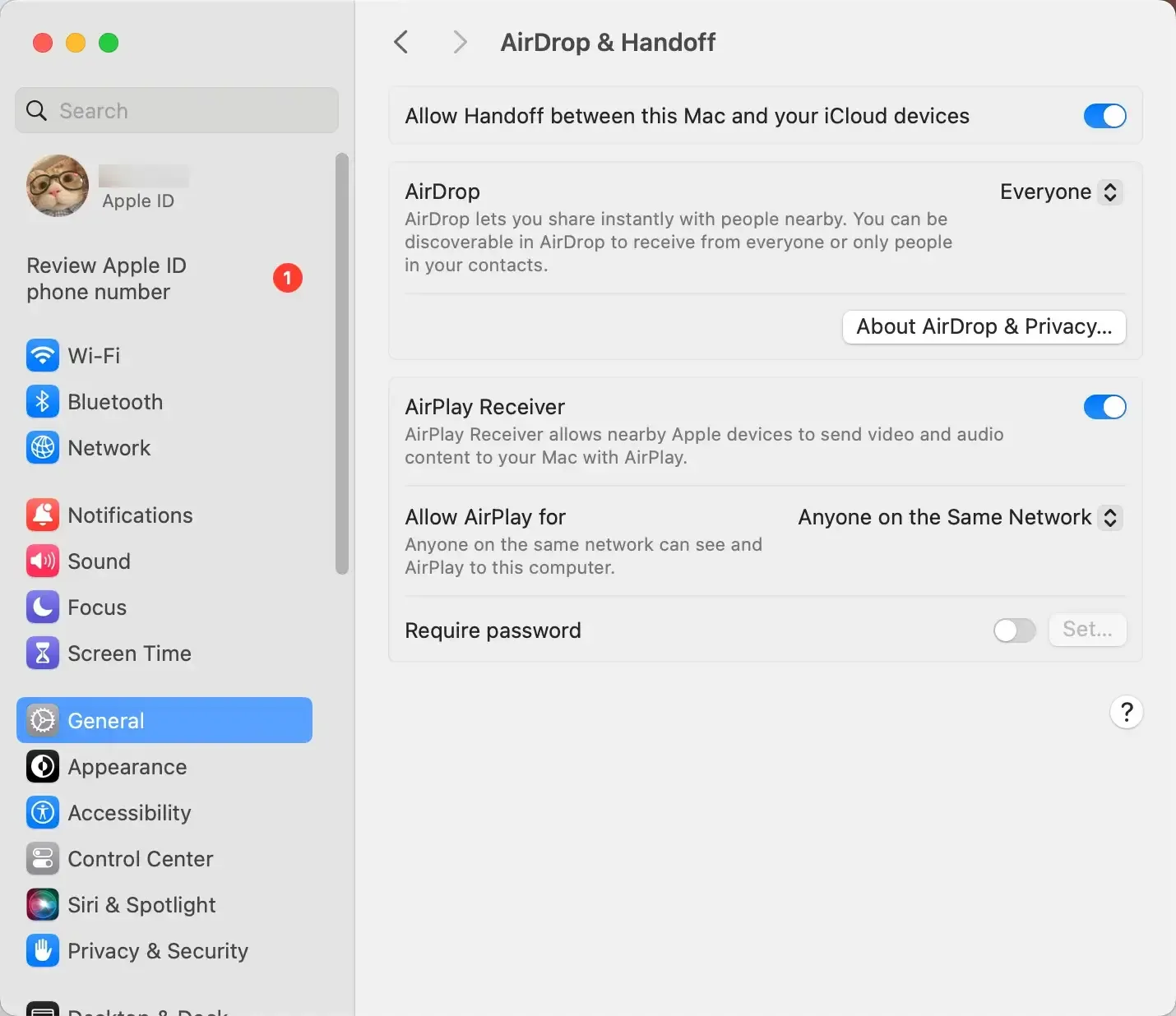
Step 1. Click the Apple logo in the top-left corner of your screen and select System Settings > General > AirDrop & Handoff.
Step 2. In the AirDrop & Handoff menu, customize the AirPlay settings to suit your preferences.
Bonus: AirPlay is one of the easiest ways to mirror your Mac screen, and you can find it quickly in the menu bar or Control Center. However, it only works within Apple's ecosystem. If you want a cross-platform solution that doesn't depend on AirPlay, try PigeonCast, which works across Android, iPhone, Windows, Mac, and smart TVs.


PigeonCast Screen Mirroring

Official Download


How to Use AirPlay on Mac
Once you've located AirPlay on your Mac, you're all set to begin streaming or mirroring content. Here's a detailed guide on how to use AirPlay to stream from your Mac to your TV, as well as how to receive AirPlay content on your MacBook.
How to AirPlay to MacBook
AirPlaying to your MacBook is a convenient way to display content from another Apple device, such as an iPhone or iPad, directly on your MacBook's screen. Here's how to set it up:
Step 1. Make sure both your MacBook and the device you want to AirPlay from (iPhone, iPad, etc.) are connected to the same Wi-Fi network.
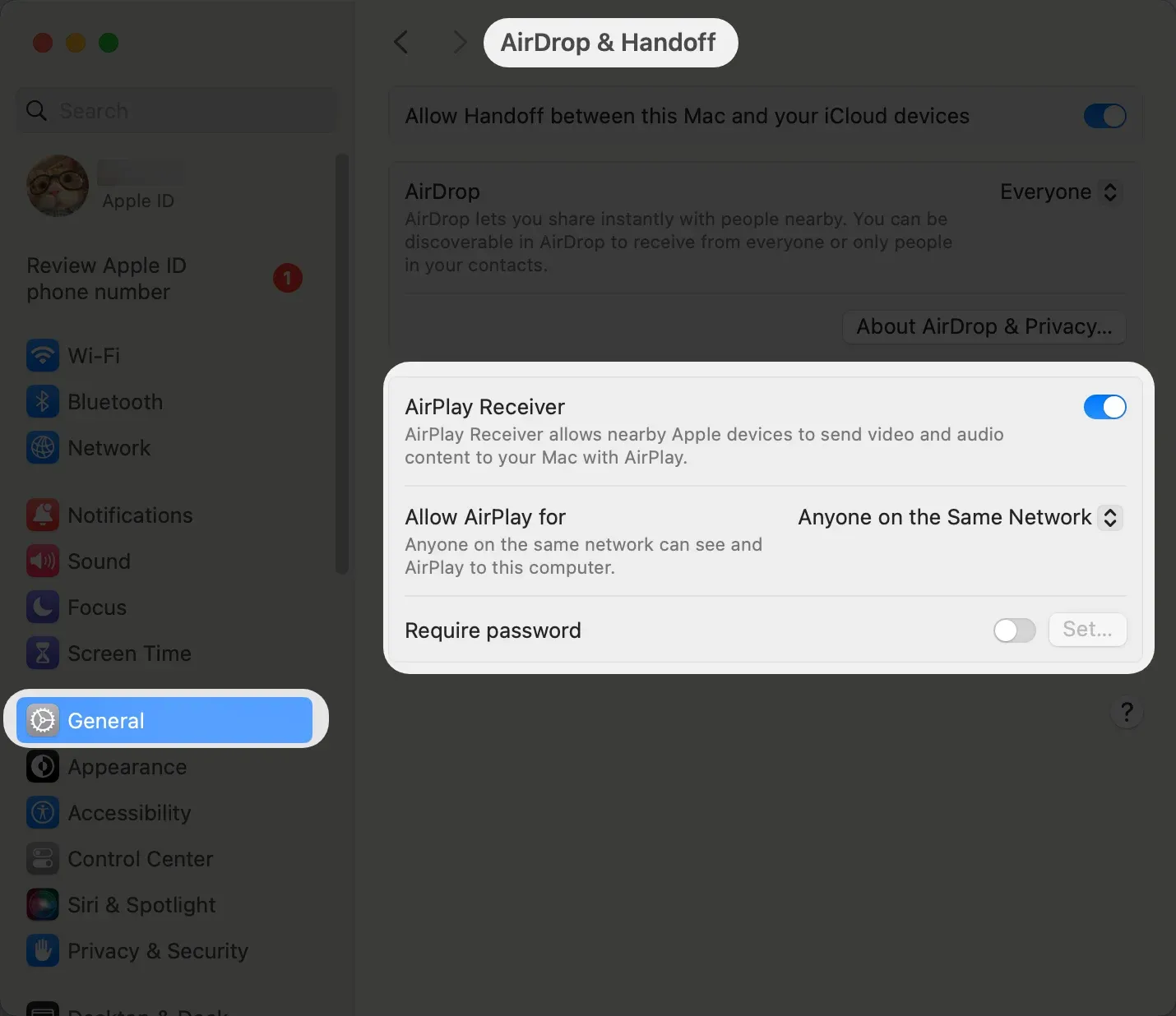
Step 2. On the MacBook, open System Settings > General > AirDrop & Handoff and enable the AirPlay Receiver option.
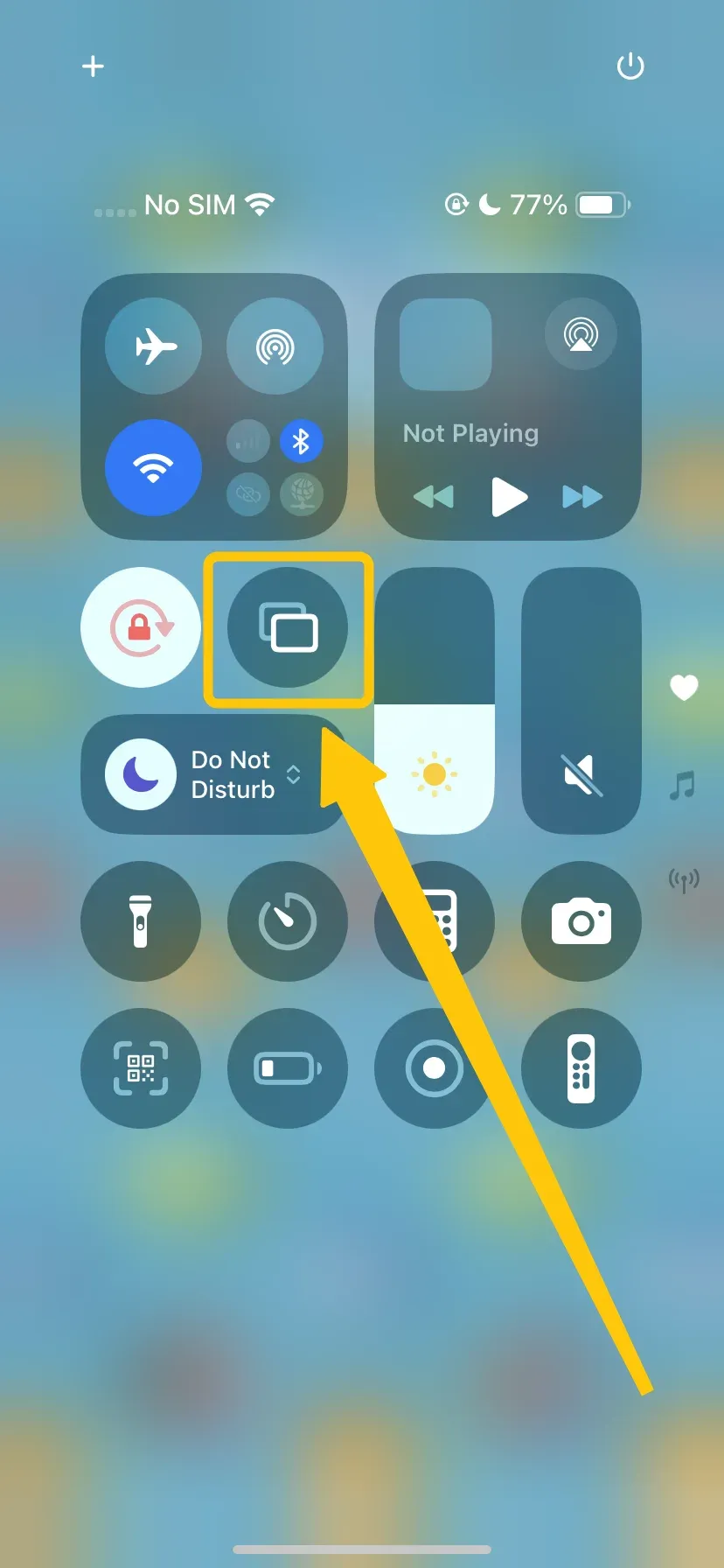
Step 3. On your iPhone or iPad, tap Screen Mirroring in the Control Center to choose your Mac from the device list.
Step 4. Enter the onscreen PIN code, you can then finish the pairing process and start your mirroring activities.
How to AirPlay from Mac to TV
Thanks to AirPlay's versatility, you can connect to a wide range of devices, including Apple TVs, smart TVs with AirPlay support, or even through adapters and streaming boxes. In the following steps, we'll guide you through using AirPlay to display your Mac's screen directly to your TV, ensuring you get the most out of your viewing experience.
Step 1. Ensure your MacBook and AirPlay-compatible TV are connected to the same wireless network.
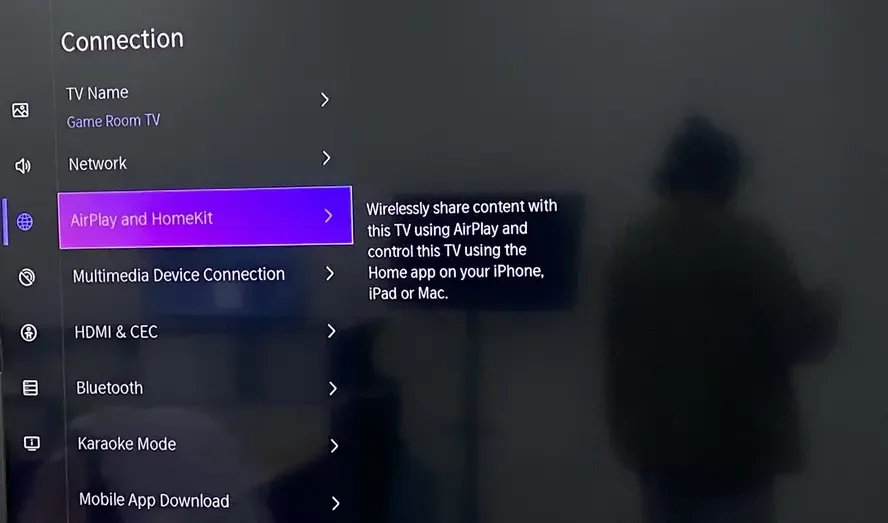
Step 2. On your TV, navigate Settings > AirPlay and HomeKit and toggle the AirPlay option to On.
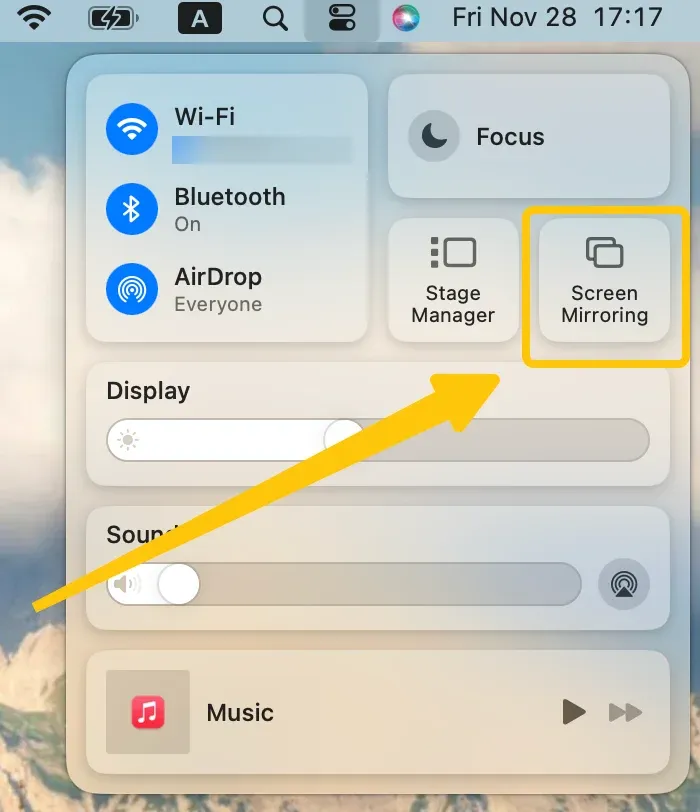
Step 3. On the MacBook, click AirPlay on MacBook Air in the menu bar at the top right of the screen.
Step 4. Select your TV from the available list to finish the connection.
Step 5. Once connected, your content will begin streaming to your TV. You can control playback, pause, and adjust volume directly from your Mac.
AirPlay Not Working on Mac: Common Issues
While AirPlay is usually a smooth experience, it can occasionally run into issues. If you're unable to connect or find AirPlay on your Mac, here are some common problems and solutions:
- Device Not Detected: Make sure both your Mac and the AirPlay device are on the same Wi-Fi network. Restarting both devices often resolves connectivity issues.
- AirPlay Not Connecting: Try restarting your Wi-Fi router and resetting the AirPlay device (e.g., Apple TV). Additionally, check for software updates on both your Mac and the AirPlay device to ensure compatibility.
- Audio or Video Lag: If you're experiencing lag while using AirPlay, check the Wi-Fi signal strength. A poor connection can lead to delayed audio or video. If possible, use a wired connection or ensure your Wi-Fi network has enough bandwidth.
- Check for Obstructions: Ensure that neither device has a firewall or security software that might be blocking the connection. Also, check for any VPNs on your Mac and try disabling them temporarily.
- Update Software: Go to System Settings > General > Software Update on your Mac and Settings > System > Software Updates on your Apple TV to ensure everything is running the latest version.
To Sum Up
Where is AirPlay on MacBook? Finding AirPlay on your Mac is a matter of knowing where to look based on your goal. Whether you're showing your Mac's screen on a TV, sending audio to speakers, or receiving content on your MacBook, the process is simple once you know where to find AirPlay. If your TV doesn't support AirPlay, apps like PigeonCast can offer a great alternative for screen mirroring.
Where Is AirPlay on Mac FAQ
Why can't I find the AirPlay icon on my Mac?
If you can't find the AirPlay icon on your Mac, it could be due to the following reasons:
- Incompatible Devices
- Network Issues
- Disabled AirPlay
- App Restrictions
- Outdated Software
- Display Connection
How to know if AirPlay is on Mac?
To check if AirPlay is enabled on your Mac, follow these steps:
- Control Center: Look for the Control Center icon in the menu bar at the top-right corner of your Mac screen (it looks like two toggle switches). Click on the icon, then look for the Screen Mirroring option. If AirPlay is available, it should be listed here along with any available devices you can stream to.
- AirPlay in Apps: For video or audio streaming, open an app like YouTube or Apple Music. Look for the AirPlay icon (a rectangle with a triangle at the bottom) in the app's video or audio player controls. This indicates that AirPlay is supported and active for streaming.
- AirPlay Receiver: If you want to use your Mac as an AirPlay receiver (i.e., stream content from another Apple device to your Mac), go to System Preferences > General > AirDrop & Handoff and ensure the AirPlay Receiver option is enabled.
Is AirPlay the same as screen mirroring?
No, AirPlay is not the same as screen mirroring. AirPlay is the wireless technology that lets you send content from your Apple device to compatible receivers like TVs or speakers. Screen mirroring is one specific function of AirPlay that duplicates your entire screen on another display. However, AirPlay can also stream individual content like a single video or song without showing your entire screen, giving you more focused control over what appears on the larger display.
Is PigeonCast free and safe?
Yes, PigeonCast is free to use and considered safe. It is a reputable third-party app for wireless screen casting that does not display ads, making it a smooth and user-friendly option for streaming content. However, as with any third-party app, it is important to download it from trusted sources (like the official app store) to ensure its safety and avoid potential security risks. Always keep the app updated to benefit from the latest features and security improvements.
Clara Rossi is an experienced technology editor and a seasoned expert in screen mirroring and casting technologies. With a keen eye for detail and a deep understanding of how to seamlessly connect devices, Clara excels at optimizing user experiences for effortless sharing and streaming. Whether you're seeking quick fixes or advanced tips, her expertise and responsiveness ensure that every query is met with a well-informed and efficient solution.