
How to cast video from iPhone to TV? The simplest answer is that you should start with AirPlay if your TV supports it, then switch to a receiver-side option like PigeonCast if you want broader compatibility.
That distinction matters because you may use the word "cast" for several different actions. Sometimes you want to send a video directly to the TV. Sometimes you want to show your full iPhone screen on a larger display. In practice, the cleanest result usually comes from direct video casting first, not full-screen duplication.
This guide stays focused on the two most practical methods for everyday iPhone use: AirPlay for Apple-friendly setups and PigeonCast on the receiving side for a more flexible TV route.
Quick Method Picker
If you want the fastest decision, choose the method that matches your TV setup instead of trying every option at random.
| Method | Best for | What to expect |
|---|---|---|
| AirPlay | Apple TV or TVs with built-in AirPlay support | The most native iPhone-to-TV experience when supported |
| PigeonCast receiver | Android TV, Google TV, Fire TV, and streaming devices with AirPlay integration | A more flexible receiving-side option when you do not want to depend entirely on built-in AirPlay support |
If your TV already supports Apple's wireless handoff well, AirPlay is the first method worth trying. If AirPlay feels inconsistent or your receiving setup extends beyond one Apple-only path, PigeonCast is usually the more practical backup.
Method 1: Cast Video From iPhone to TV With AirPlay
AirPlay is the default native method when you use an iPhone with Apple TV or a smart TV that supports AirPlay. It works best when your video app exposes the AirPlay path cleanly and both devices can see each other on the same local network.
For example, how to cast video from iPhone to Samsung TV with AirPlay support:
Step 1. Connect the iPhone and the TV to the same Wi-Fi network.
Step 2. Open the video you want to watch on your iPhone.
Step 3. Tap the AirPlay icon if the app shows it in the player controls and select the AirPlay & Bluetooth devices option.

Step 4. Select your TV or Apple TV from the device list.
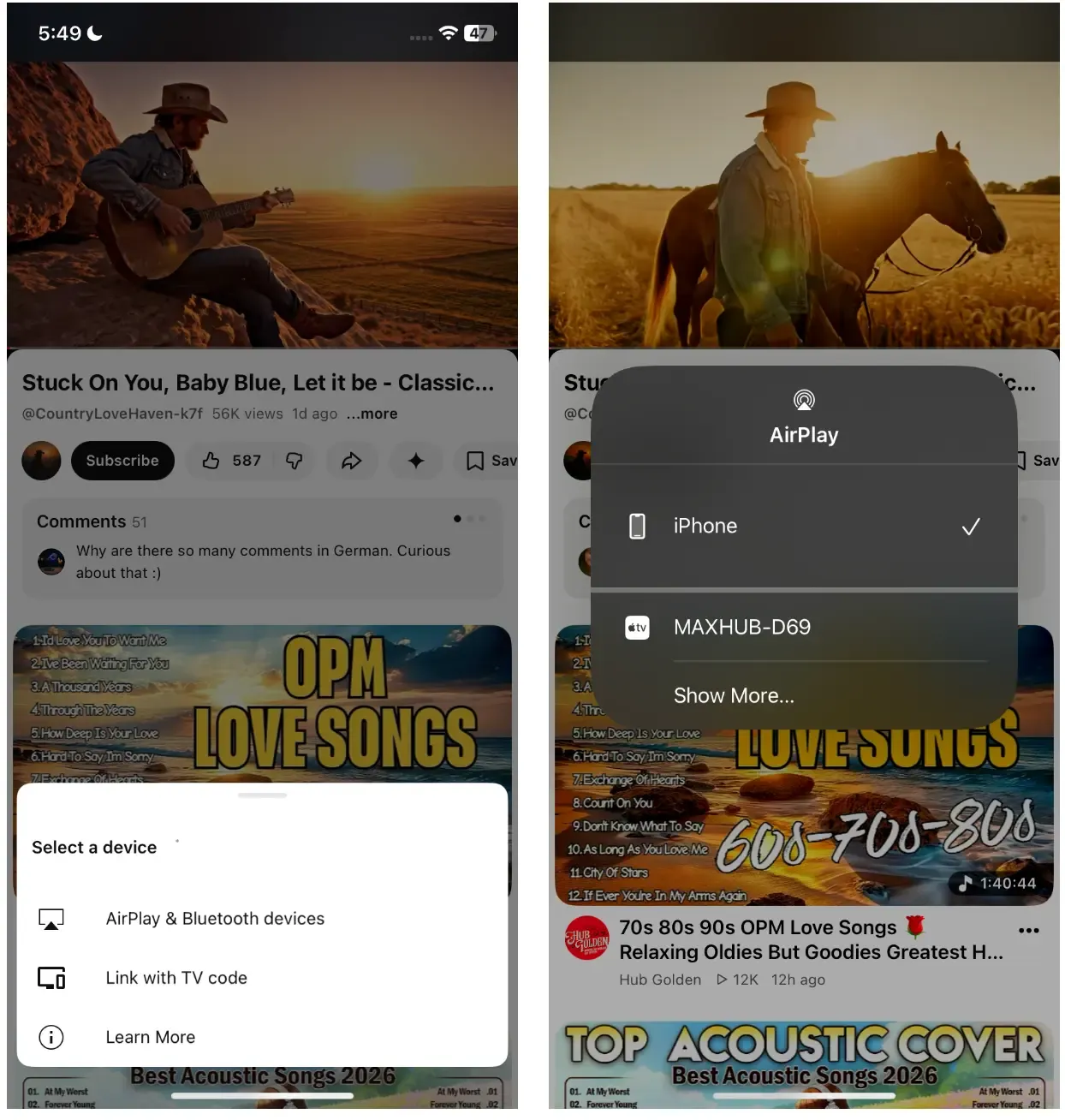
Step 5. Let the TV handle playback while your iPhone acts as the controller.
This is usually the cleanest option because the video is handed off to the TV instead of duplicating everything on your phone display. If you are unsure whether your set supports this feature, confirm AirPlay-compatible TV options before you spend time troubleshooting the wrong issue.
Method 2: Cast Video From iPhone to TV With PigeonCast
PigeonCast makes more sense when you use it on the receiving side instead of relying entirely on built-in Apple support. It works on Android TV, Google TV, Fire TV, and streaming devices with AirPlay and Google Cast integration, which makes it useful when your TV setup does not give you a clean native AirPlay path.
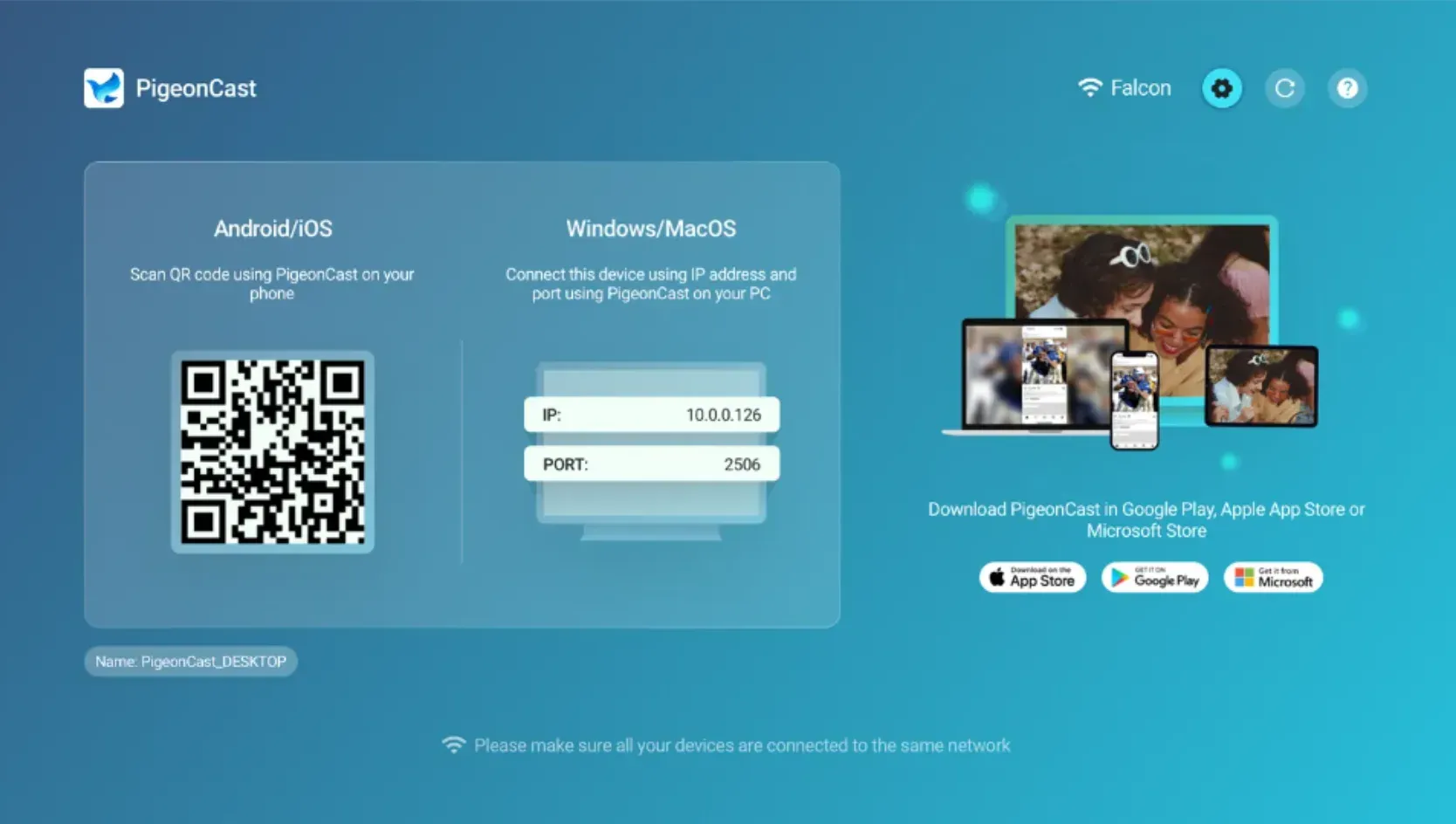
Step 1. Install PigeonCast on the receiving device from Google Play, App Store, or Amazon Appstore when your TV platform supports it.
Tip: PigeonCast also work seamlessly on iPhone, Android, Windows PC, and Mac. If you want to duplicate your phone or laptop screen to your TV, it is a reliable option.


Overall Rating:



Step 2. Make sure your iPhone and the receiving screen are available on the same local network.
Step 3. Open PigeonCast on the TV or receiving device and prepare it to accept the session.
Step 4. On your iPhone, play a video, tap the AirPlay icon and select PigeonCast receiver from the list.
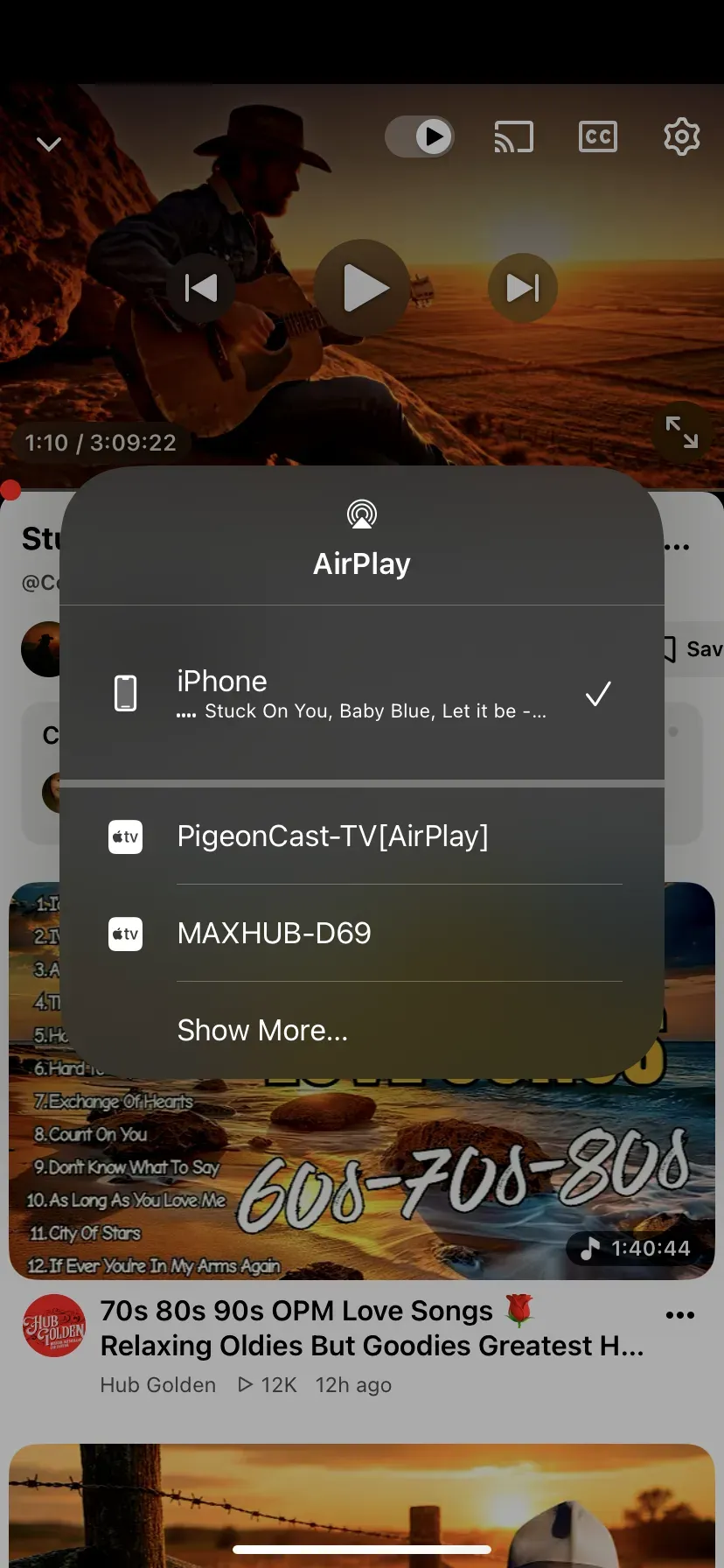
Step 5. Open the video on your iPhone and confirm playback on the TV.
The main advantage here is flexibility on the TV side. Instead of depending entirely on whether one specific TV or streaming app exposes AirPlay correctly, you use a receiving-side workflow that is easier to repeat across different setups.
Why Is My iPhone Not Casting Video to the TV?
When iPhone casting fails, the cause is usually simple. In most cases, you are dealing with a network mismatch, a TV compatibility limit, or an app-level restriction rather than a hidden advanced setting.
- Your iPhone and TV Aren’t on the Same Wi-Fi
This is the most common reason a TV does not appear in the cast list. AirPlay discovery depends on the iPhone and the TV being visible to each other on the same local network.
If one device is on guest Wi-Fi, mobile data, a hotspot, or a different band or router path, the iPhone may not find the TV at all. Before changing anything else, reconnect both devices to the same Wi-Fi network and test again.
- Your TV Doesn’t Support AirPlay
Some smart TVs support built-in casting, but not every TV supports AirPlay specifically. That means your iPhone may work perfectly while the television still never appears as an AirPlay target.
This is where you need to separate "smart TV" from "AirPlay TV." They are not the same thing. If your TV does not support AirPlay, native iPhone casting may fail even when the network is fine. In that situation, PigeonCast becomes the more practical path because you can use it on supported receiving platforms instead of depending entirely on Apple-native receiver support.
- The Streaming App Blocks Casting (DRM Restrictions)
Some streaming services restrict how protected video can be handed off to another screen. If the app uses DRM controls, your video may refuse to cast, play audio without picture, or stop playback when you try to send it to the TV.
That kind of failure is different from a Wi-Fi problem. Your phone and TV may see each other correctly, but the app still blocks the session. If that happens, you may need to try screen mirroring from iPhone to TV or, in stricter cases, screen mirroring with an HDMI cable. Those options can help, but you should treat them as fallback methods rather than the main answer in this article.
Conclusion
Start with AirPlay to stream video from your iPhone to a TV when the TV already supports it. It is the most native and straightforward option for an Apple-friendly setup.
If AirPlay is unavailable, inconsistent, or too limited for your receiving setup, PigeonCast is the better practical alternative. It gives you a more flexible TV-side route without turning every viewing session into a troubleshooting project.
How to Cast Video From iPhone to TV FAQ
How to Cast Amazon Video From iPhone to TV?
Start with AirPlay if your TV or streaming device supports it and the Amazon video you want to watch allows direct playback handoff. Put your iPhone and TV on the same Wi-Fi network, open the video, and look for the AirPlay option in the player.
Can You Cast Video From iPhone to TV Without AirPlay?
Yes. If AirPlay is not available or the TV does not support it, a receiver-side option like PigeonCast can still give you a workable iPhone-to-TV casting route on supported platforms.
Is Screen Mirroring the Same as Casting?
No. Casting usually hands the video stream to the TV, while screen mirroring duplicates everything shown on the iPhone display. If you need the broader workflow difference, this guide on how to cast screen to TV gives the wider picture.
Can You Cast iPhone to TV Without Wi-Fi?
Sometimes, but not in the same way on every setup. Most wireless iPhone-to-TV methods still work best when both devices share the same local network.
Why Do Some Apps Block Casting?
Some apps use DRM or playback protection rules that limit how video can be handed off to another screen. In those cases, the issue is the app's content restrictions rather than the iPhone itself.
What TVs Support iPhone Casting?
Apple TV and smart TVs with built-in AirPlay support are the most direct native choices for iPhone casting. If your TV does not support AirPlay, you may need an app-based alternative instead.
Mia Clarke is a technology editor specializing in screen mirroring and casting solutions across multiple platforms. Mia provides clear, practical guides and in-depth insights to help users seamlessly connect their devices. Passionate about enhancing digital experiences, Mia is dedicated to keeping readers updated on the latest trends and tools in cross-platform screen sharing. Whether you’re looking to mirror your smartphone, laptop, or smart TV, Mia’s content delivers reliable, user-friendly advice to simplify your tech setup.