
Trying to access files on an iPhone from a PC can feel oddly restrictive. You plug in your device, expecting a familiar folder system, only to find… almost nothing. That frustration is real, and it comes from how Apple designs iOS.
If your goal is to transfer photos, view documents, or manage files without headaches, you do have options. Some are smoother than others. In this guide, I'll walk you through four methods that actually work, with clear steps and honest pros and cons so you can pick what fits your situation. Let's dive into how to access files on iPhone from PC.
Why Hard to Access Files on iPhone from PC
Unlike Android, iOS doesn't expose its full file system. Apple keeps tight control over how data is accessed. That's great for security, but not so great when you just want to drag and drop files.
Here's what's going on behind the scenes:
-
Sandboxed apps: Each app stores its data separately, so you can't freely browse everything.
-
Limited file access via USB: Windows only recognizes certain folders like DCIM for photos.
-
No native AirDrop for Windows: File sharing isn't seamless across ecosystems.
So if you're wondering why your iPhone feels "locked" on a PC, that's by design.
How to Access Files on iPhone from PC
Let's break down four practical methods, from wireless convenience to more traditional approaches.
Method 1: Use PigeonCast for Screen Mirroring
If your goal is to view or interact with files quickly, screen mirroring is surprisingly effective. PigeonCast lets you screen mirror iPhone to PC. Instead of digging through folders, you simply access files directly on your phone while controlling or viewing them on a bigger screen.
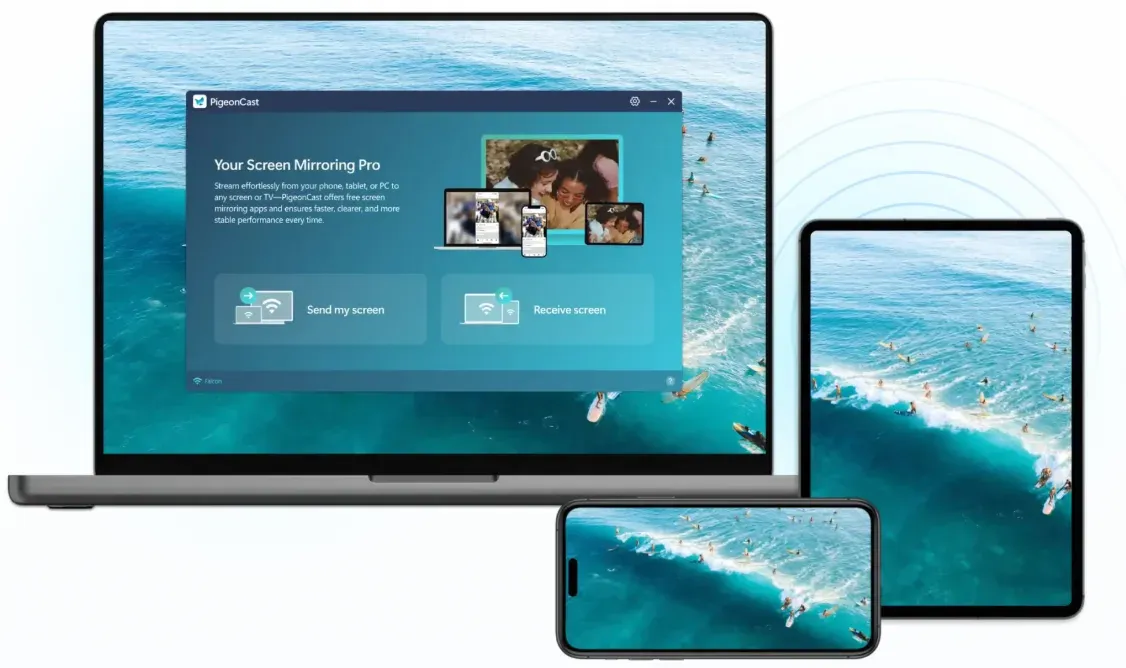
Here's how to view files from iPhone on Windows PC:
Step 1. Install PigeonCast on your iPhone and PC.


Overall Rating:



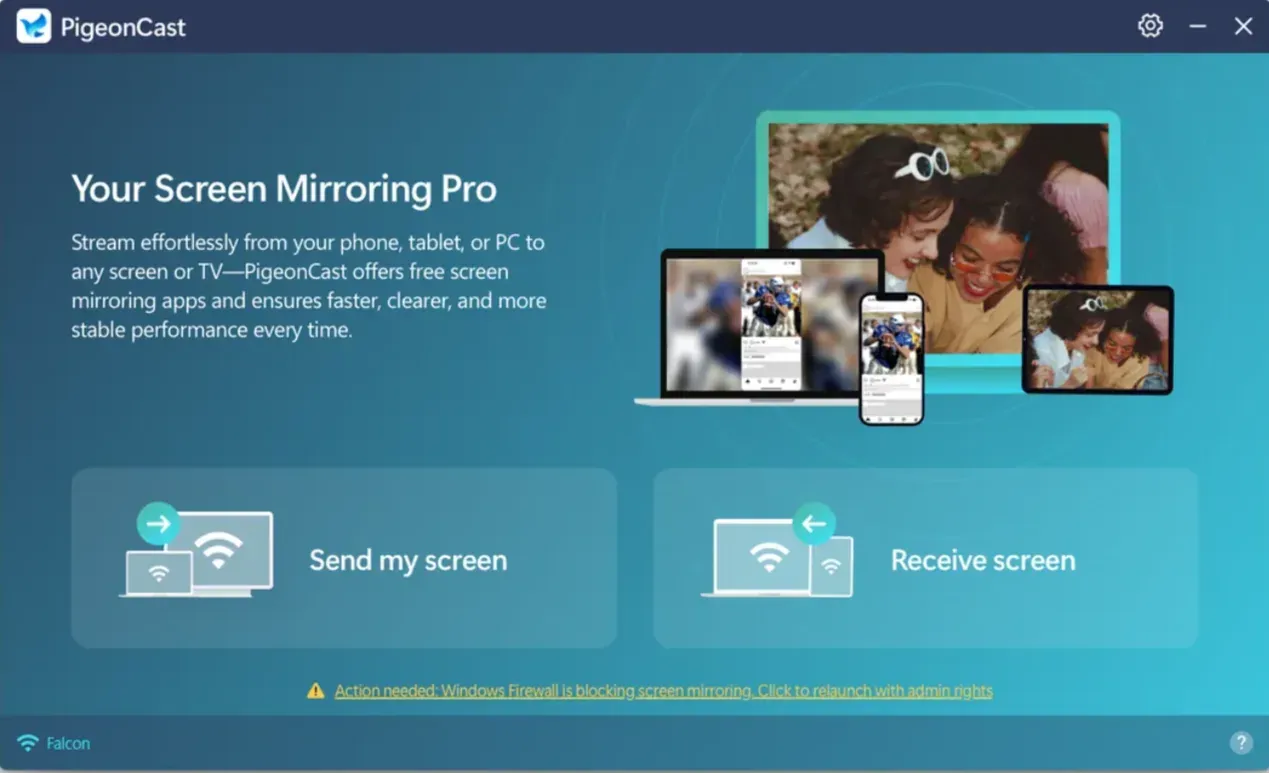
Step 2. Connect both devices to the same WiFi network.
Step 3. Launch PigeonCast on your PC and click Receive screen. It will display a QR code for instant connection.
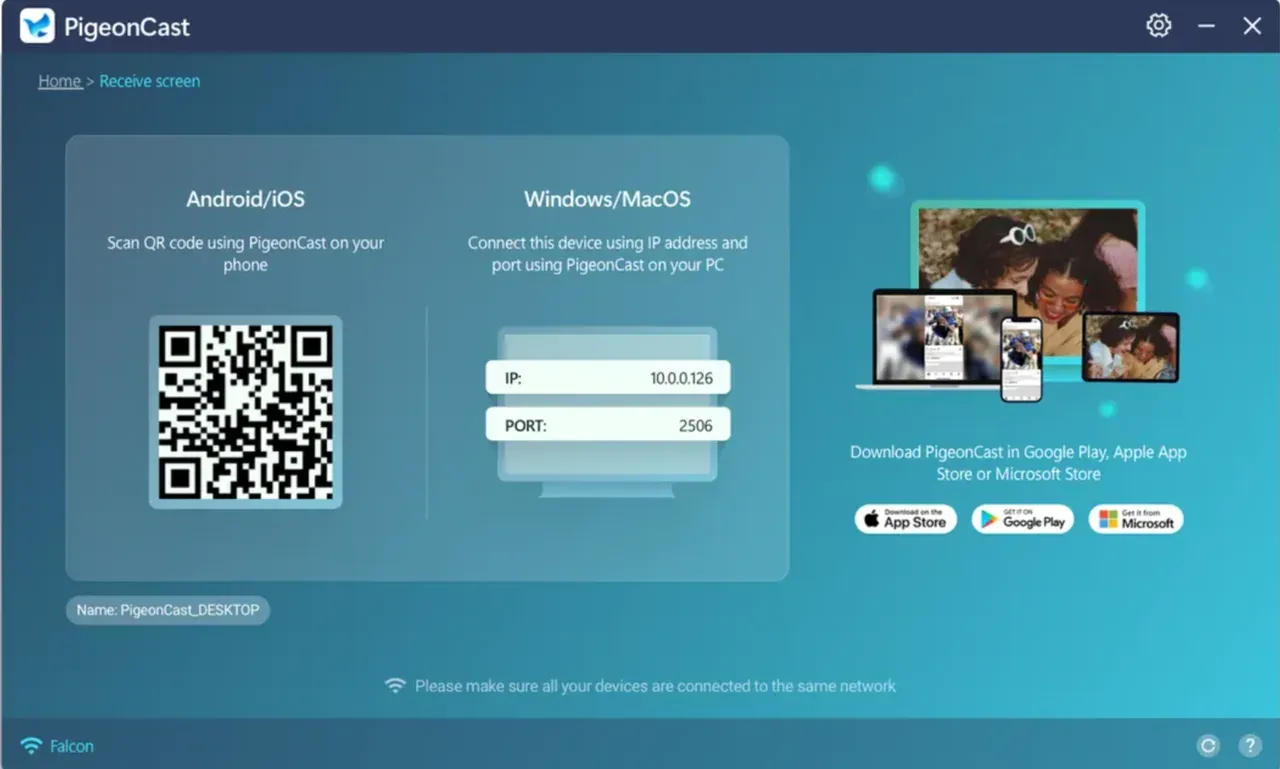
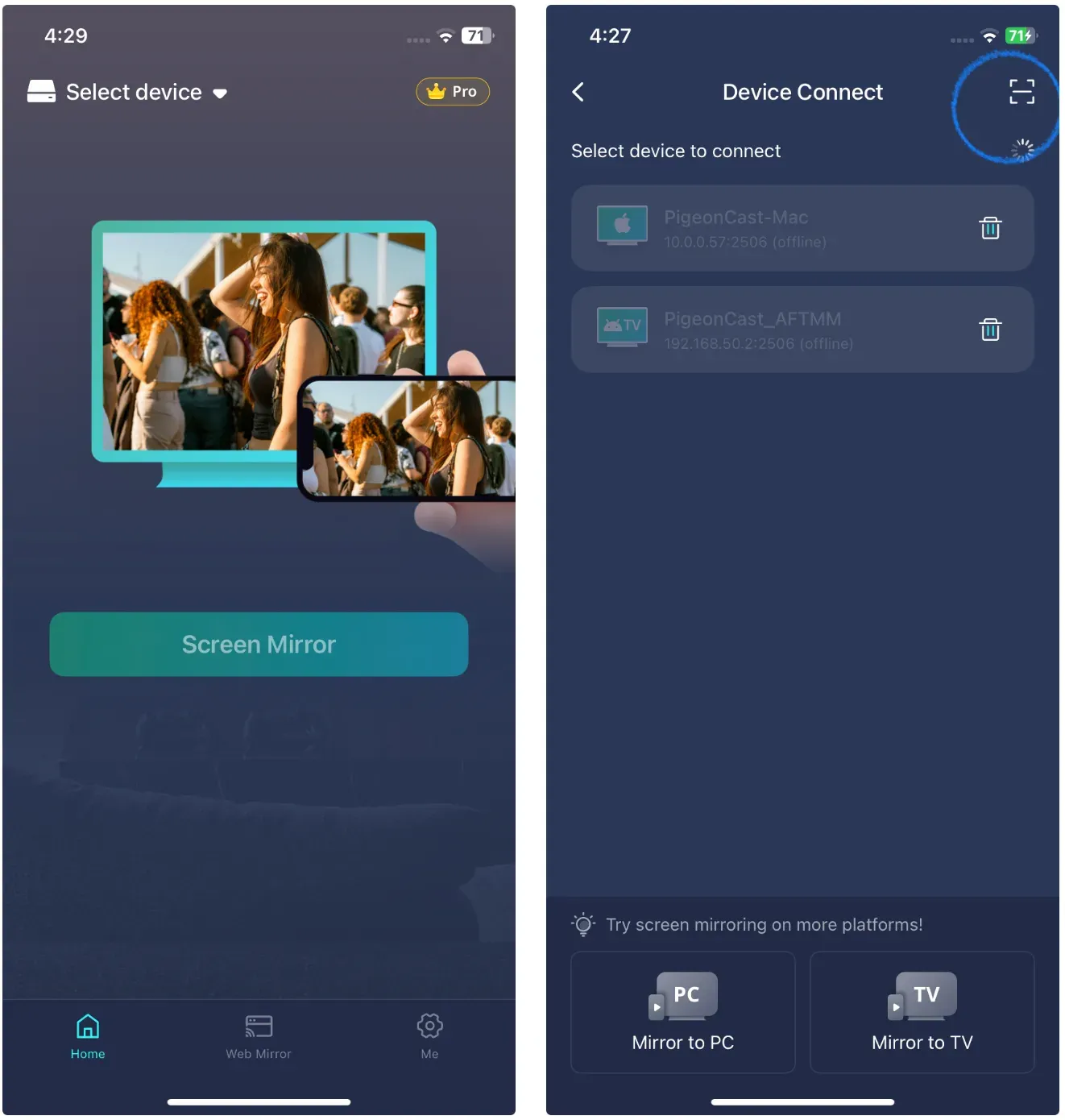
Step 4. On your iPhone, open PigeonCast, tap Select device, scan the QR code on your PC screen by tapping the Scan icon, and tap Screen Mirror.
Step 5. Follow the onscreen instructions to display your iPhone screen on your PC. Then, access the files (like study report) you want to share, and they will display on the PC screen.
PigeonCast is not a traditional file transfer tool, but honestly, for many everyday cases, it's faster than fighting with file systems.
Method 2: Use a USB Cable for Direct Transfer
This is the most straightforward way to access iPhone files on PC, especially for photos and videos. However, this method allows you to access your photos and videos only on your iPhone, which means you have no access to app files or documents.
How to transfer files from iPhone to PC using USB:
Step 1. Connect your iPhone to the PC using a USB cable
Step 2. Unlock your iPhone and tap Trust This Computer.
Step 3. Open File Explorer on Windows.
Step 4. Find your iPhone under Devices and Drives.
Step 5. Navigate to the DCIM folder.
As you see, if all you need is photos, this method is quick and reliable.
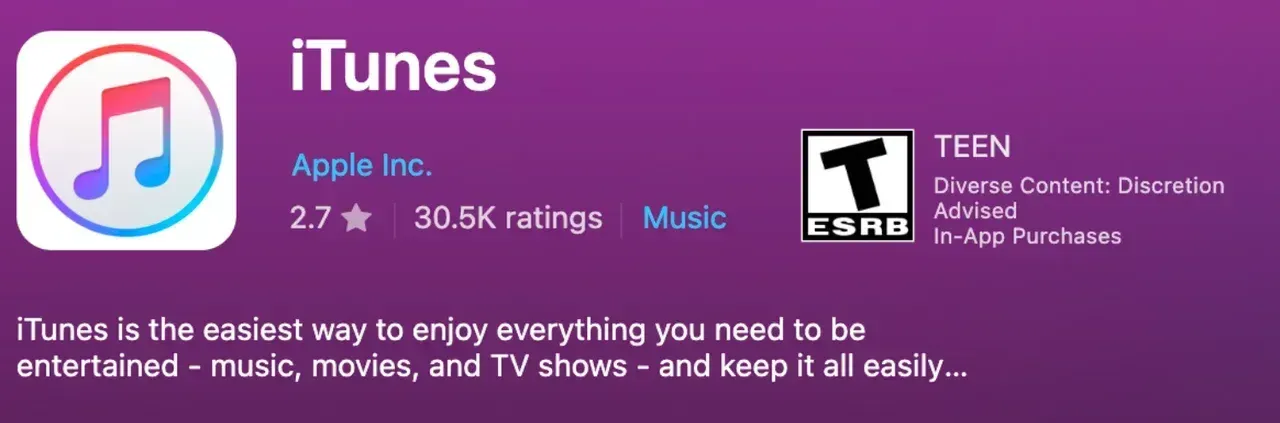
Method 3: Use iTunes for Windows for File Management
If you want more control, tools like iTunes for Windows provide a middle ground between Apple's restrictions and your needs. Think of it as a file manager designed specifically for iOS devices.
Step 1. Download and install iTunes for Windows.
Step 2. Connect your iPhone via USB.
Step 3. Launch the software.
Step 4. Look for the iPhone icon on the iTunes interface. If you find it, your iPhone and Windows PC have already successfully connected.
Step 5. Browse categories like photos, music, and documents.
Step 6. Transfer files with a few clicks.
This is a good choice if you regularly move files and want something more flexible than USB browsing.
Method 4: Use iCloud for Wireless Access
How to access files from iPhone on PC? If you prefer a wireless method without installing extra tools, iCloud works well.
Step 1. Enable iCloud on your iPhone.
Step 2. Turn on sync for files, photos, or specific apps.
Step 3. Go to iCloud.com on your PC browser.
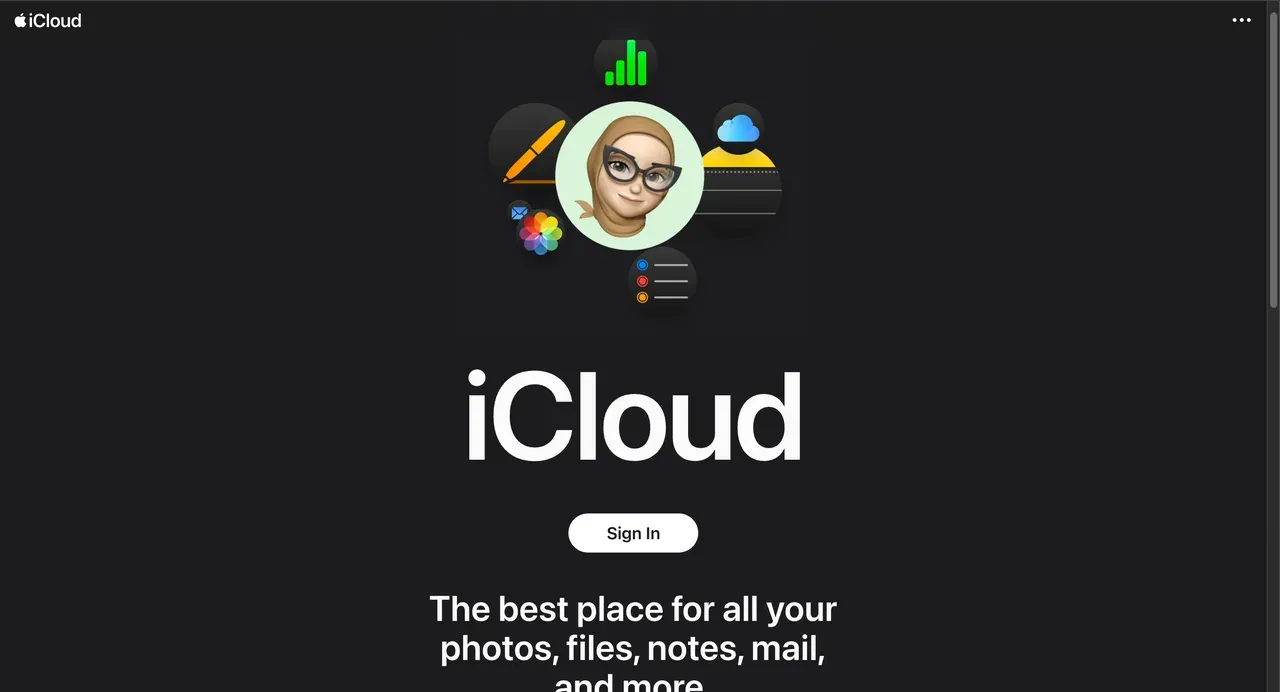
Step 4. Sign in with your Apple ID.
Step 5. Access and download your files.
iCloud is one of the easiest ways to access iPhone files on PC without installing software.
Which Is the Best Way to Access Your iPhone's Files on PC
Here's a quick comparison to help you decide:
| Method | Ease of Use | File Access Level | Wireless | Best For |
|---|---|---|---|---|
| PigeonCast | ⭐⭐⭐⭐ | Visual access | Yes | Quick viewing, broken screen |
| USB Cable | ⭐⭐⭐ | Limited | No | Photos and videos |
| iTunes | ⭐⭐⭐⭐ | Moderate | No | File management |
| iCloud | ⭐⭐⭐⭐ | Moderate | Yes | Remote access |
My take:
-
If you want simplicity, go with iCloud.
-
If you want control, iTunes is better.
-
If you just need quick access or your screen is tricky, PigeonCast is surprisingly useful.
Closing Words
There's no single perfect way to access files on iPhone from PC because Apple doesn't allow full system access. That said, you don't need to struggle.
Pick a method based on what you actually need. Photos? USB is enough. Full control? Use a tool like iTunes. Want something fast and flexible? Screen mirroring might be the easiest shortcut.
Once you stop expecting Android-like behavior, everything becomes much smoother.
How to Access Files on iPhone from PC FAQ
Why can't I access iPhone files on PC?
Because iOS restricts file system access. Windows can only see limited folders like photos, not the entire storage.
Why is my PC not detecting my iPhone through USB?
Common reasons include:
-
You didn't tap "Trust This Computer"
-
USB cable is faulty
-
Apple drivers are missing or outdated
Try switching cables or reinstalling drivers.
How to access files on iPhone from PC without iTunes?
You can use:
-
iCloud via browser
-
Third-party tools like iTunes
-
Screen mirroring tools like PigeonCast
How to access iPhone files on PC with a broken screen?
To view a broken phone screen on a PC, use screen mirroring tools like PigeonCast. As long as the device is still responsive, you can mirror and control it from your PC.
Can I use AirDrop on Windows?
No, AirDrop only works within Apple devices. Windows is not supported.
Is there anything like AirDrop for Windows?
Yes, alternatives include:
-
Nearby Share (for Android and Windows)
-
Third-party tools like PigeonCast
-
Cloud services like iCloud or Google Drive
They aren't identical, but they get the job done.
Mia Clarke is a technology editor specializing in screen mirroring and casting solutions across multiple platforms. Mia provides clear, practical guides and in-depth insights to help users seamlessly connect their devices. Passionate about enhancing digital experiences, Mia is dedicated to keeping readers updated on the latest trends and tools in cross-platform screen sharing. Whether you’re looking to mirror your smartphone, laptop, or smart TV, Mia’s content delivers reliable, user-friendly advice to simplify your tech setup.