
Connecting an iPhone to a Toshiba TV doesn't have to be a guessing game of "will it work?" While newer Toshiba Fire and Google TVs have built-in tools for Apple users, older models often require a bit more creativity. Whether you are looking for a wire-free setup or the stability of a physical connection, here is the definitive guide on how to connect iPhone to Toshiba TV without the headache.
Method 1: Use Apple AirPlay
AirPlay 2 is the most seamless way to connect, provided your Toshiba TV model was made in 2020 or later.
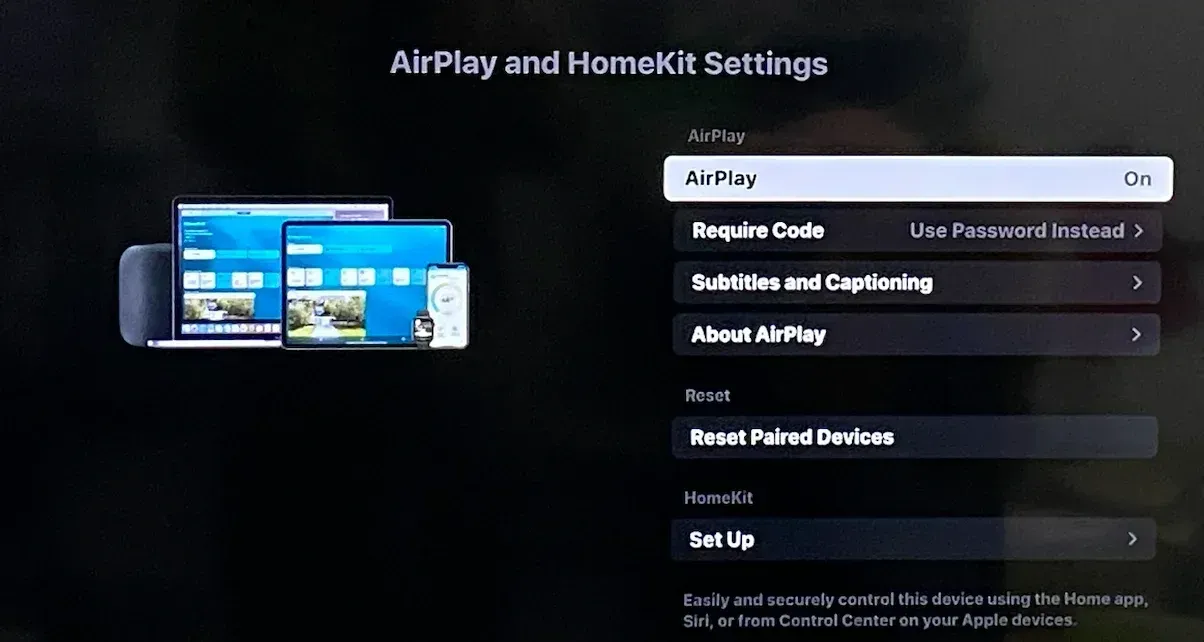
If you own a Toshiba Fire TV Edition or a newer Google TV model, AirPlay is usually baked into the system (check the complete AirPlay-compatible TVs list). It allows you to stream 4K video and mirror your entire display with almost zero lag. However, if your TV is a "dumb" TV or an older smart model, you can skip this section and look at the app-based or hardware options below.
Here's how to connect iPhone to Toshiba Smart TV:
-
Ensure your iPhone and Toshiba TV are on the same 2.4GHz or 5GHz network.
-
On your TV, navigate to Settings > Display & Sounds > Apple AirPlay & HomeKit and ensure AirPlay is toggled On.
-
Swipe down from the top-right corner of your iPhone screen.
-
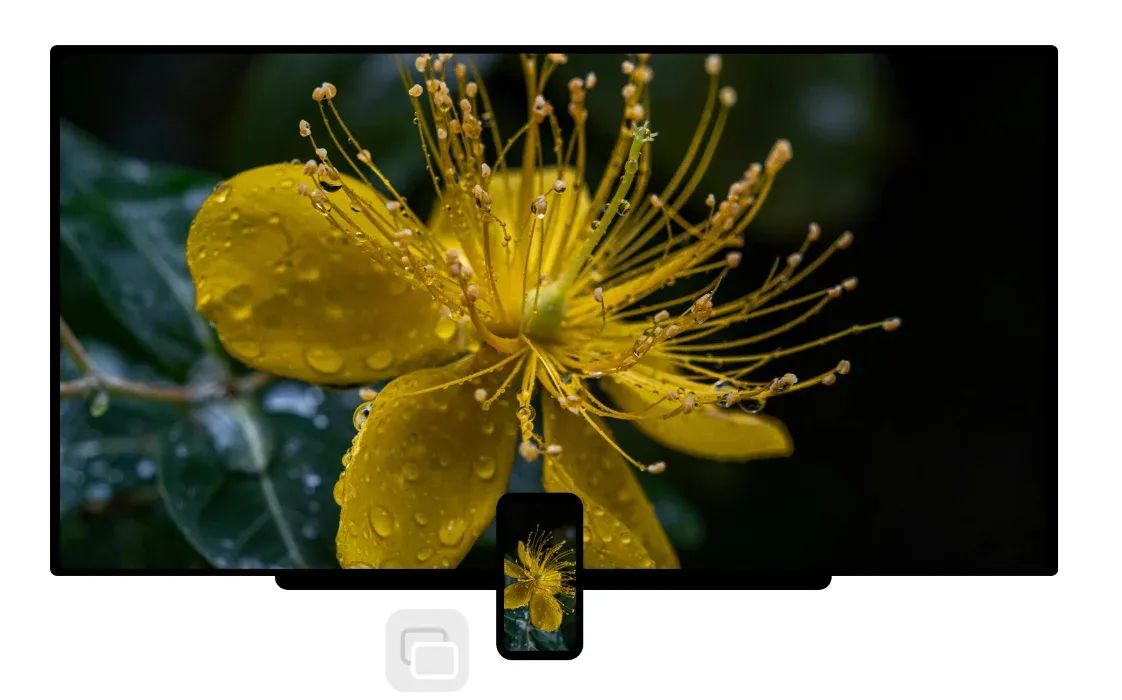
Tap the icon that looks like two overlapping rectangles to enable screen mirroring on iPhone.
-
Choose your Toshiba TV from the list.
-
If a code appears on the TV, enter it into your iPhone.
If you also have a MacBook, you can follow the similar setup to mirror your Mac to Toshiba TV wirelessly.
Method 2: Use the PigeonCast App
The PigeonCast app is the best alternative when your Toshiba TV lacks native AirPlay support but runs a modern OS, or when AirPlay does not work.
While older Toshiba models or those using the VIDAA platform have limited connectivity, many Toshiba sets powered by Fire OS, Google TV, or Android TV can be upgraded with software.
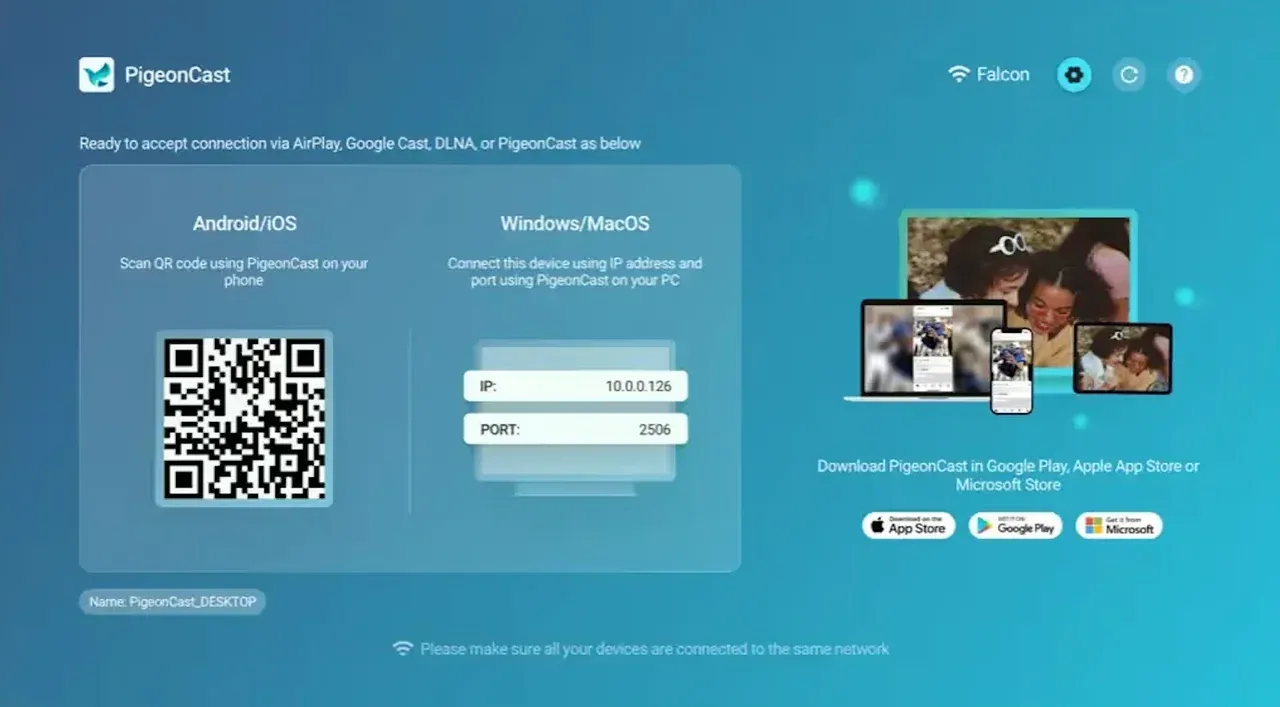
PigeonCast bridges the gap for these specific systems by turning your TV into a high-performance receiver. It is particularly useful for mirroring your screen or casting local photos and videos that otherwise would not appear on your TV due to Apple's restrictive ecosystem.


Overall Rating:


How to connect iPhone to Toshiba TV wireless display using PigeonCast:
-
Ensure your iPhone and Toshiba TV are on the same 2.4GHz or 5GHz network.
-
Install PigeonCast on your iPhone from the App Store and the corresponding TV version from the Amazon Appstore or Google Play Store.
-
Open the app on both devices. Your TV should appear in the device list on your phone instantly.
-
Choose your Toshiba TV from the list of available devices or scan the QR code displayed on the TV.
-
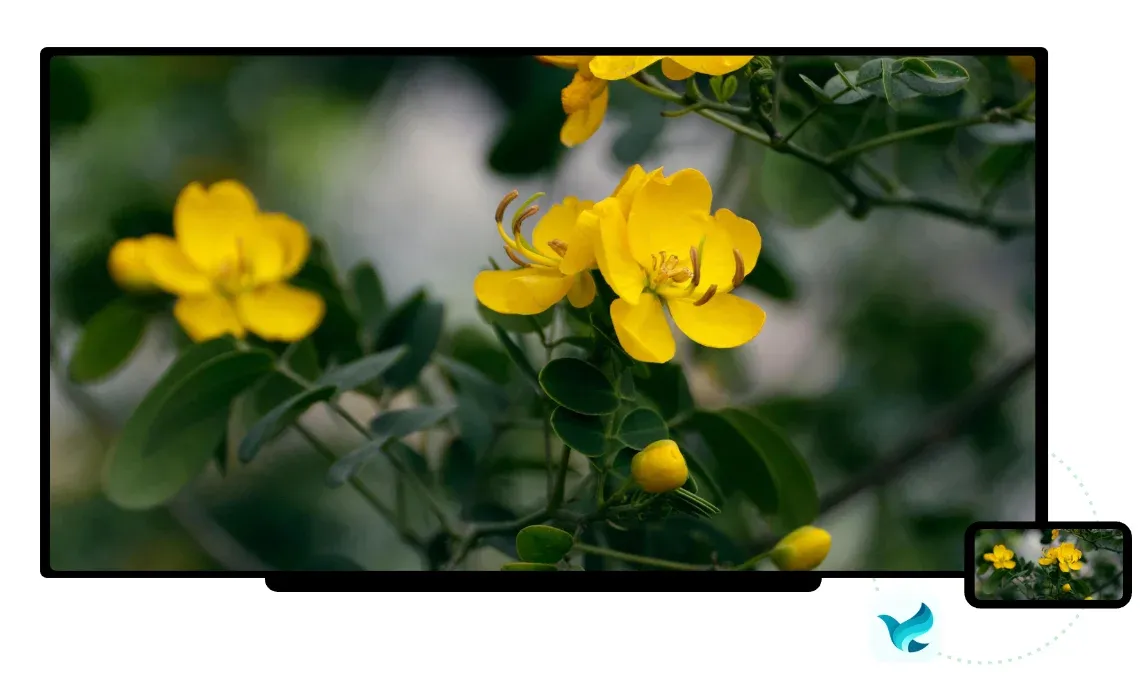
Once the iPhone-to-TV connection is set up, tap Screen Mirror.
-
Follow the onscreen instructions for screen mirroring iPhone to Toshiba TV.
Method 3: Use an HDMI Cable
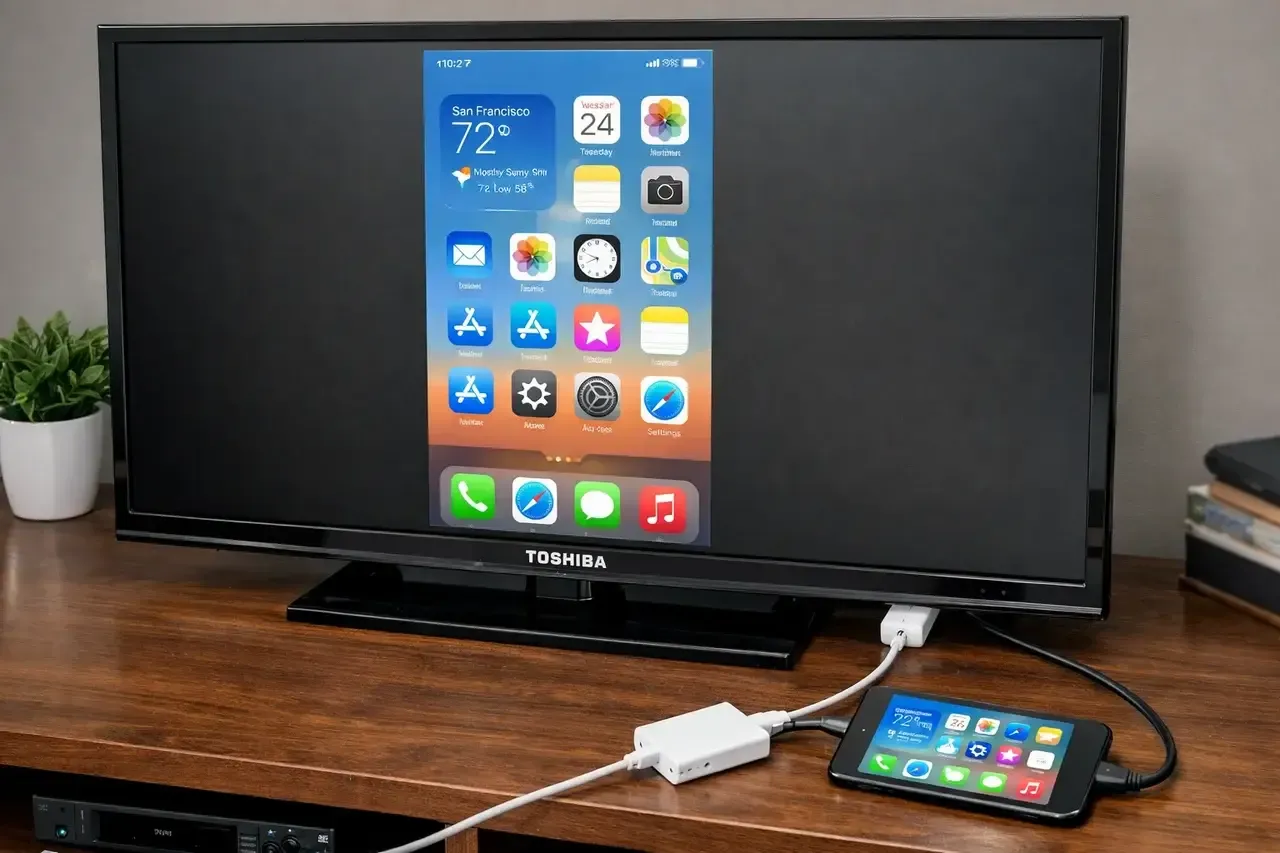
How to screen mirror iPhone to Toshiba TV without Wi-F? A physical HDMI connection is the only "bulletproof" way to connect if you have no Wi-Fi or need zero latency for gaming.
Wireless mirroring depends heavily on your router's strength. If you are in a hotel or a dorm with restricted Wi-Fi, wireless methods often fail. A wired setup bypasses all software glitches and network congestion.
What you need:
-
For iPhone 15 or newer: A USB-C Digital AV Multiport Adapter.
-
For iPhone 14 or older: A Lightning Digital AV Adapter.
-
Standard HDMI Cable: Any high-speed HDMI cable will do.
How to connect phone to Toshiba TV with an HDMI cable:
-
Plug your adapter into the charging port of your iPhone.
-
Connect one end of the HDMI cable to the adapter and the other to an HDMI port on the back or side of your Toshiba TV.
-
Use your TV remote to switch the Input/Source to the corresponding HDMI port.
-
Your iPhone screen will appear instantly.
Final Take
If you have a 2020+ Toshiba Fire TV, AirPlay 2 is your best friend (don't overcomplicate it). For users with older models or inconsistent Wi-Fi, installing PigeonCast on your Google or Fire OS system provides a much more stable bridge than generic casting tools.
If you are still struggling with how to connect Toshiba TV to phone, remember that the HDMI cable is the ultimate fallback for "dead zones" or when you need the absolute highest reliability for a presentation.
How to Connect iPhone to Toshiba TV FAQs
What is the Toshiba TV app for iPhone?
There isn't a single official "Toshiba" app for mirroring. Instead, you should use the Apple Home app (for AirPlay-compatible TVs) or third-party solutions like PigeonCast to handle the connection.
Does my Toshiba TV support AirPlay or AirPlay 2?
Most Toshiba 4K UHD Fire TV models released in 2020 and later support AirPlay 2 (check the comparison between AirPlay and AirPlay 2). You can check this by looking for "AirPlay & HomeKit" in your TV's settings under Display & Sounds.
How do I use AirPlay to connect iPhone to Toshiba Google TV?
-
Open the Control Center on your iPhone
-
Tap Screen Mirroring, and select your Google TV.
-
If it doesn't show up, ensure Google Cast or AirPlay is enabled in the TV's system settings.
Why can't my iPhone find my Toshiba TV for screen mirroring?
The most common culprit is mismatched Wi-Fi. Ensure both devices are on the same network. If the TV still doesn't appear, try a power cycle: unplug the TV from the wall for 60 seconds and restart your iPhone.
Do my iPhone and Toshiba TV need to be on the same Wi‑Fi network?
Yes, for all wireless methods (AirPlay, PigeonCast, or Miracast), both devices must share the same network to "see" each other.
How do I mirror iPhone to Toshiba TV without Wi‑Fi?
You must use a Lightning/USB-C to HDMI adapter and a physical HDMI cable. This bypasses the need for a wireless network entirely.
What adapter do I need to connect iPhone to Toshiba TV with a cable?
You need an Apple-certified Digital AV Adapter. If you have an iPhone 15 or newer, get the USB-C version; for older iPhones, you need the Lightning version.
Why is AirPlay not working on my Toshiba TV?
Often, a pending firmware update on the TV is the cause. Check Settings > System > Software Update. Also, ensure AirPlay hasn't been accidentally disabled in the TV's connectivity settings.
Does every Toshiba TV model support iPhone screen mirroring?
No. Native iPhone screen mirroring (via AirPlay 2) is primarily available on Toshiba 4K UHD Fire TV models from 2020 or later and newer Toshiba Google TVs. Older "Smart" models using the VIDAA system or proprietary firmware often lack this built-in support. For these older or non-Fire/Google models, you will need to use a third-party app or a physical HDMI adapter.
How do I disconnect or stop screen mirroring from iPhone to Toshiba TV?
-
Open the Control Center.
-
Tap the Screen Mirroring icon.
-
Select Stop Mirroring.
Pro Tip: If you were only casting a specific video (AirPlay), tap the blue AirPlay icon within the video player and select iPhone to bring the playback back to your device.
Can I use third‑party apps to mirror my iPhone to a Toshiba TV?
Yes, and in many cases, you should. If your TV doesn't support AirPlay natively but runs Fire OS or Google TV, apps like PigeonCast or DoCast are superior alternatives. They provide a receiver for your iPhone to find when the TV's default software fails. Other popular options include AirScreen and Replica, though some may require a subscription for high-definition streaming or to remove advertisements.
Mia Clarke is a technology editor specializing in screen mirroring and casting solutions across multiple platforms. Mia provides clear, practical guides and in-depth insights to help users seamlessly connect their devices. Passionate about enhancing digital experiences, Mia is dedicated to keeping readers updated on the latest trends and tools in cross-platform screen sharing. Whether you’re looking to mirror your smartphone, laptop, or smart TV, Mia’s content delivers reliable, user-friendly advice to simplify your tech setup.