
Screen mirroring is a game-changer when it comes to sharing content from your device to your TV. Whether you're looking to watch a video, showcase photos, or present on a bigger screen, it's never been easier. However, with several options available, setting up screen mirroring can sometimes feel like a task. Luckily, if you're using an Amazon Fire TV Stick, the process can be simple. In this guide, we'll walk you through the best ways to mirror your screen to your Firestick, so you can get started without the headache, whether you're using Android, iOS, Windows, or macOS devices. Let's dive into how to screen mirror on Firestick.
How to Screen Mirror on Firestick
Firestick offers a number of different ways to mirror your screen, each with its own set of advantages. Whether you're using a smartphone or computer, these methods will help you mirror content quickly and easily.
Way 1: Use Free PigeonCast for Cross-Platform Firestick Screen Mirroring
If you're looking for a hassle-free, reliable way to wirelessly connect different devices to your Firestick and mirror content in high quality, PigeonCast is the perfect solution. This easy-to-use app supports seamless screen mirroring across multiple devices, ensuring a smooth and high-definition experience without the need for complicated setups.
How to start Fire Stick mirroring with PigeonCast:
Step 1. On your Fire OS device, go to the Amazon App Store, search for PigeonCast, and download the app. After installation, launch the app.
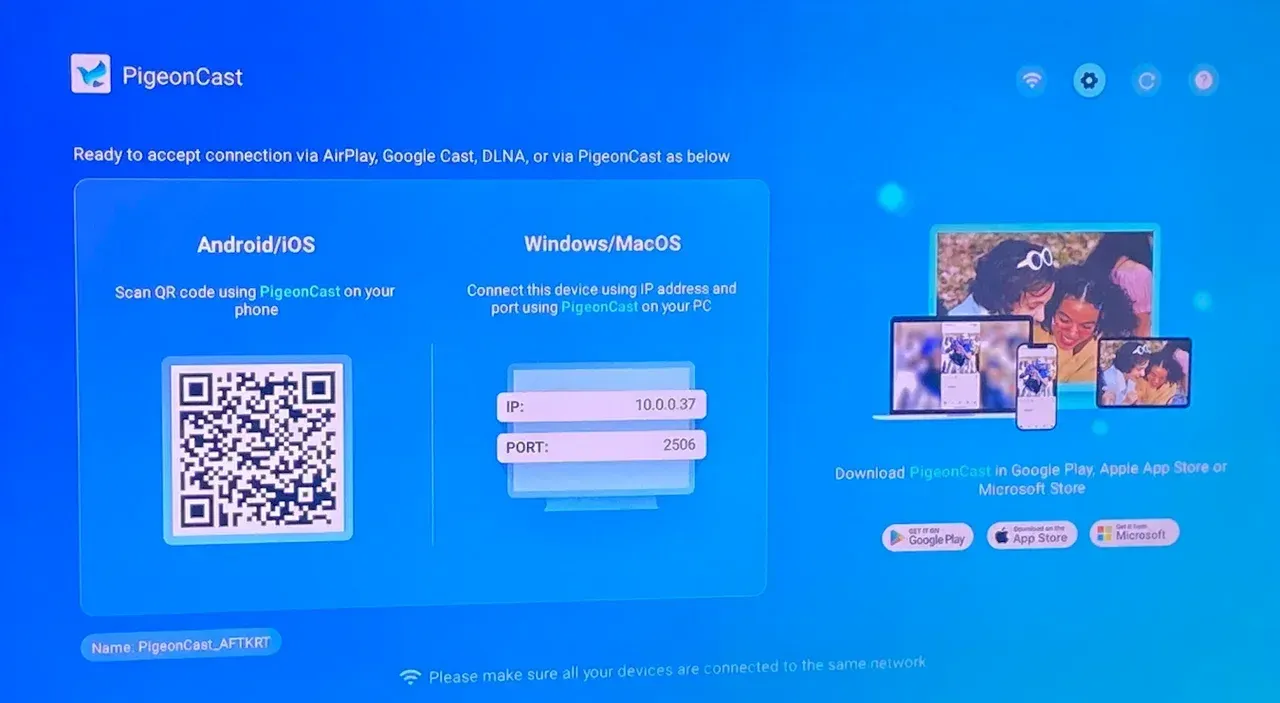
Tip: Remember the name the free screen mirroring app assigns to your Fire OS device. You can change it in the Settings menu if needed.
Step 2. On your sending device (like Android, iPhone, Windows PC, or Mac), set up PigeonCast too for a smoother connection.


Overall Rating:



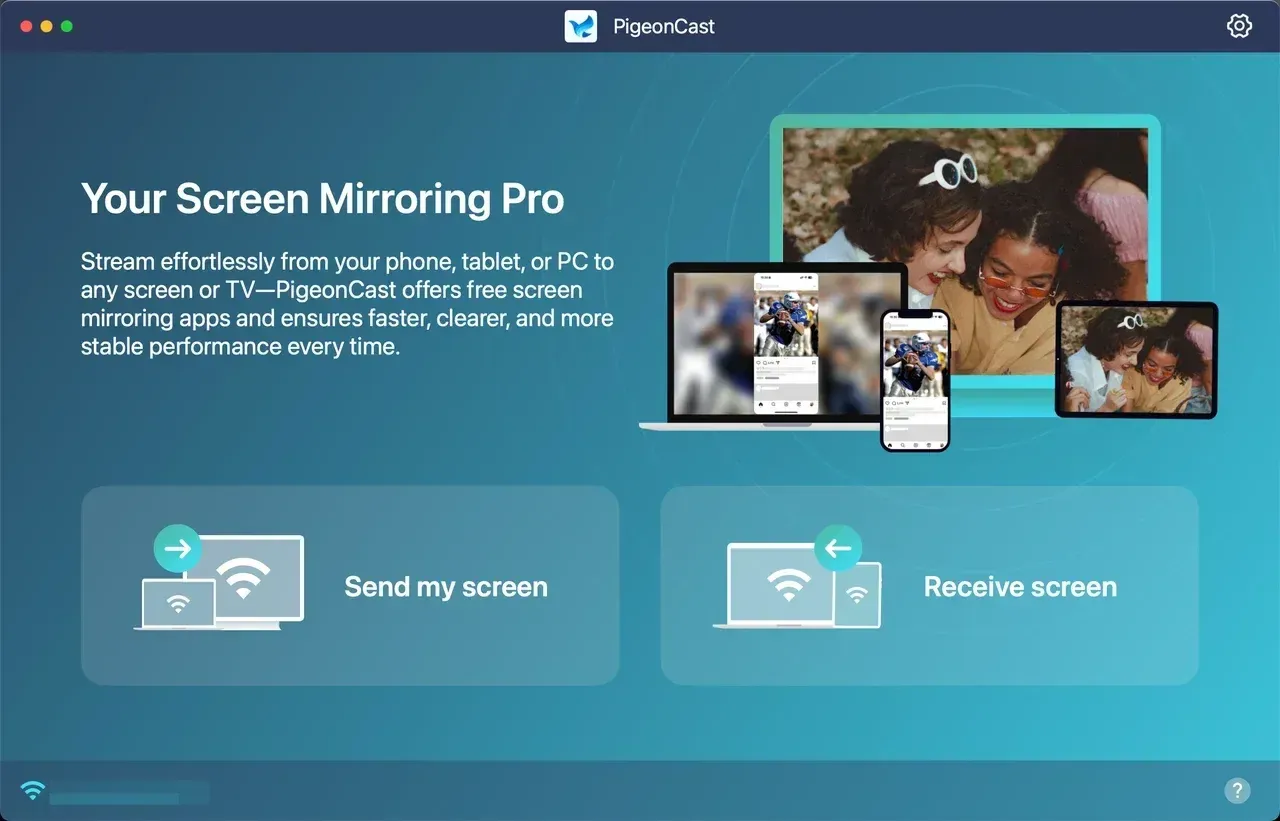
Tip: Alternatively, you can enable the Cast or AirPlay feature from your phone or laptop for direct Fire Stick screen mirroring without app installation.
Step 3. Make sure that your phone or laptop and Firestick or Fire TV are on the same Wi-Fi network (PigeonCast relies on a Wi-Fi network).
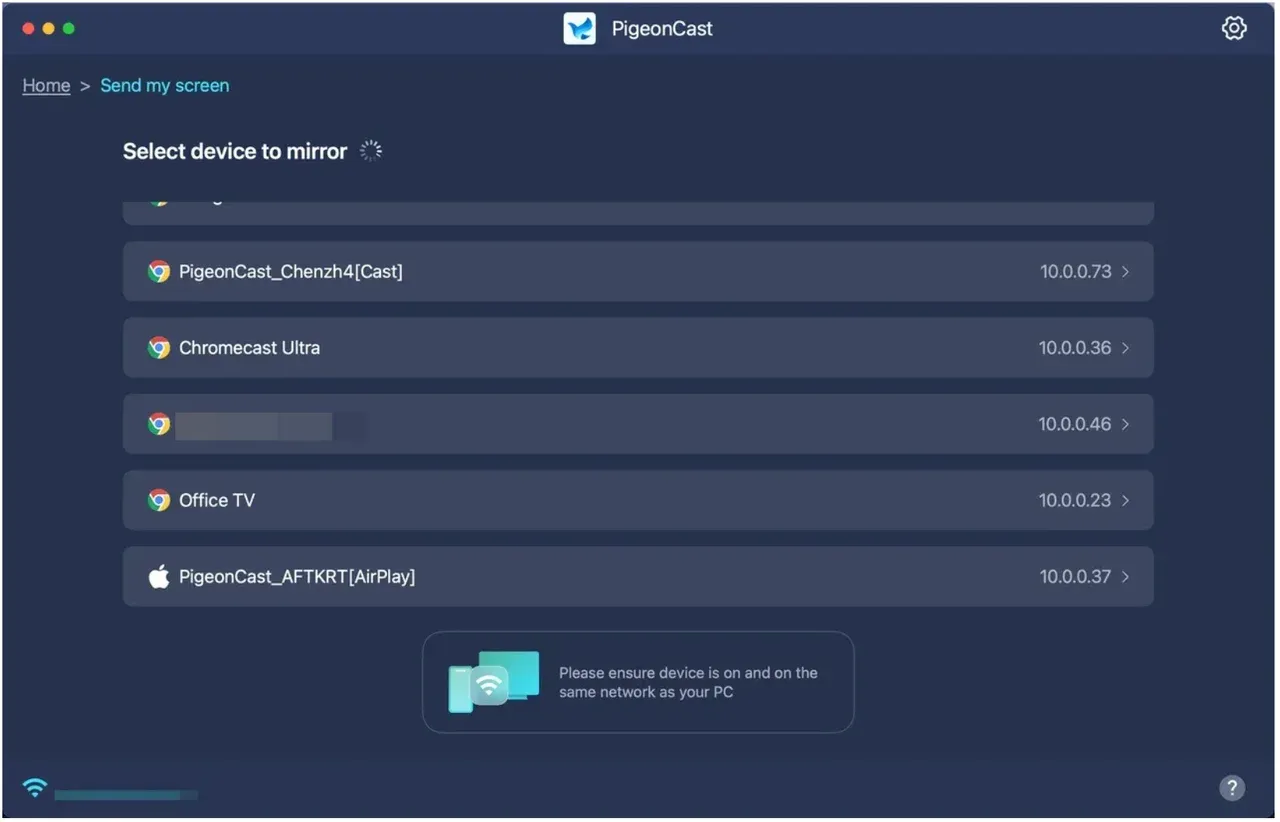
Step 4. Find your PigeonCast-powered device from the device list and follow the onscreen instructions to connect to the device.
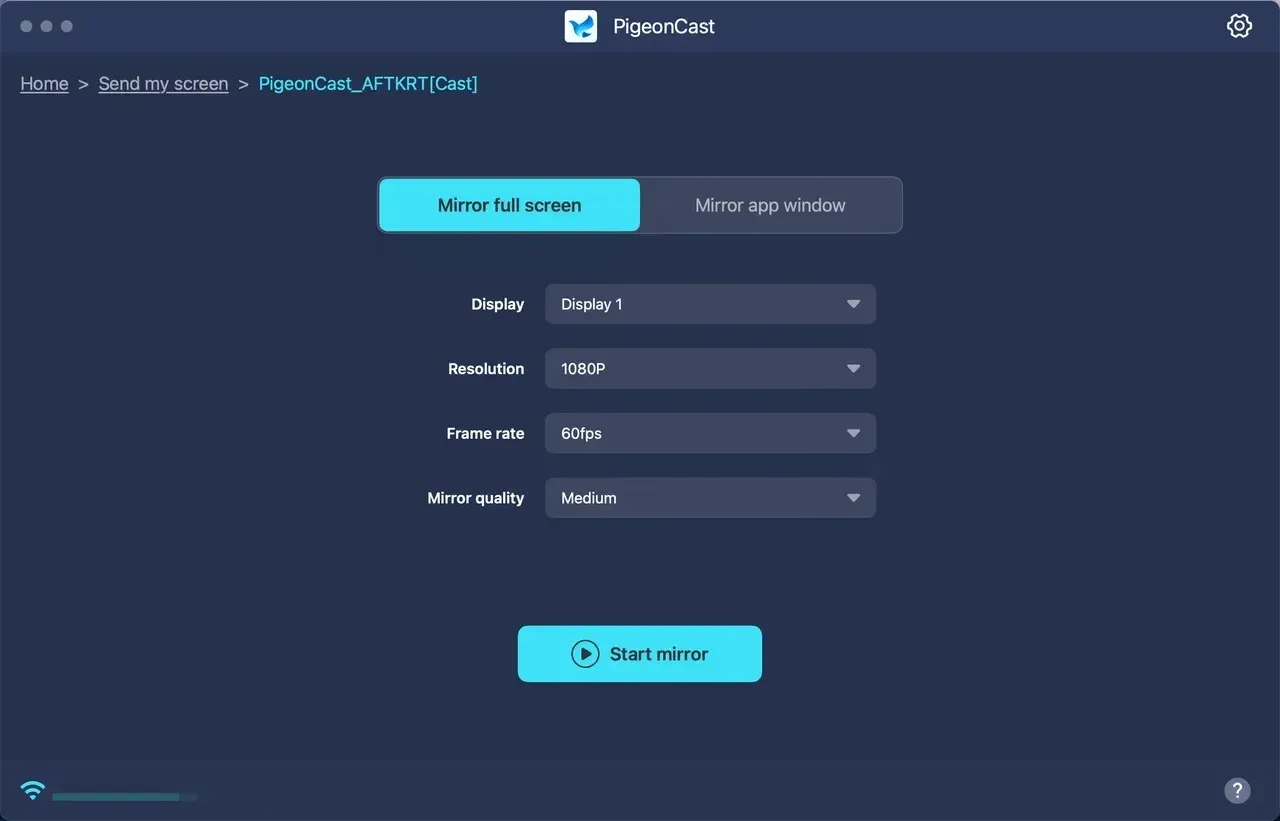
Step 5. Once connected, enable the Screen Mirror feature on the app, and Amazon Fire TV mirroring initiates.
Step 6. On your phone or laptop, you can open an app or play a video or game, and the content will be displayed simultaneously on your large screen.
That's how to screen mirror to Firestick with the PigeonCast app. With this app, you can effortlessly start cross-platform streaming, whether you're mirroring or casting to Firestick from an Android device, iPhone, Windows laptop, or MacBook
Way 2: Use Miracast for Android/Windows-to-Firestick Screen Mirroring
How to mirror screen on Firestick? If you're using an Android device or a Windows PC, Miracast is a great built-in option for screen mirroring. Many modern devices come with Miracast support, making it one of the easiest ways to connect. If you also want to cast phone to Fire TV from Android or compare different phone casting options, your setup will depend on your phone system and Fire TV model.
Here's how to screen mirror on Amazon Fire TV:
Step 1. Press the Home button on your remote for three seconds and choose Mirroring.
Note: If the option doesn't appear, then screen mirroring isn't compatible with your Fire TV.
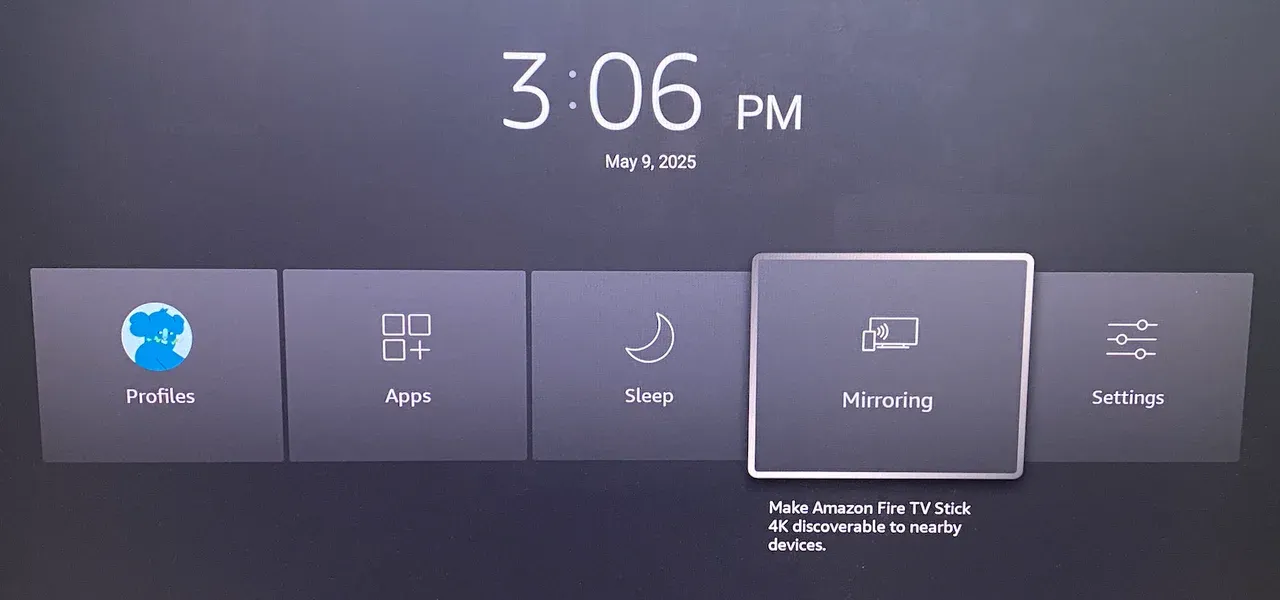
Step 2. Ensure your devices are on the same Wi-Fi network.
Step 3. On your Android device or Windows laptop, enable Miracast.
- On Android, go to the Quick Settings menu and tap Cast, Smart View, or a similar feature.
- On Windows, press Windows + K to launch the Cast menu.
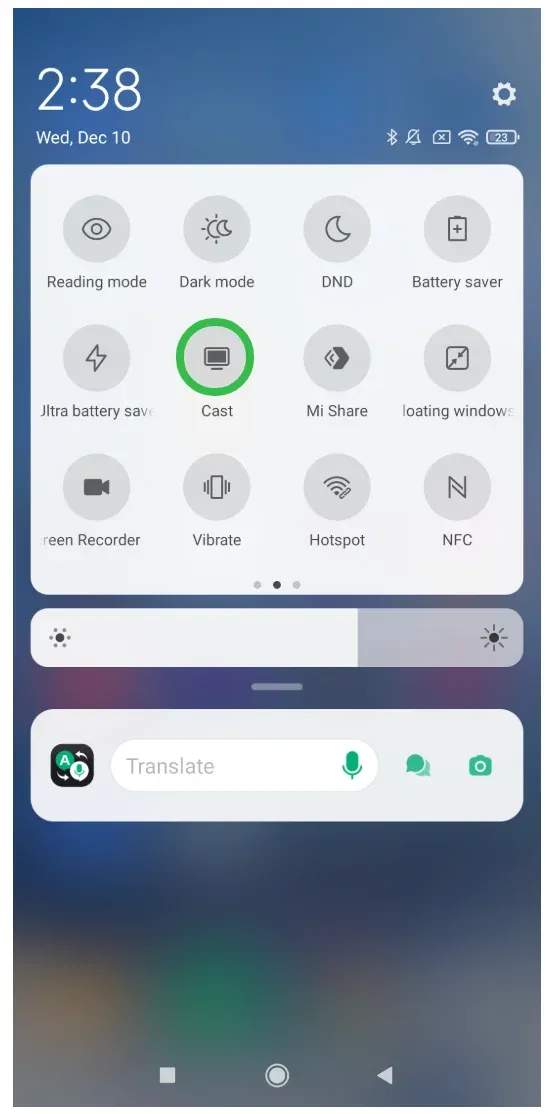
Step 4. Your phone or laptop will detect the available devices; when it detects your Fire OS device, choose it to set up a connection.
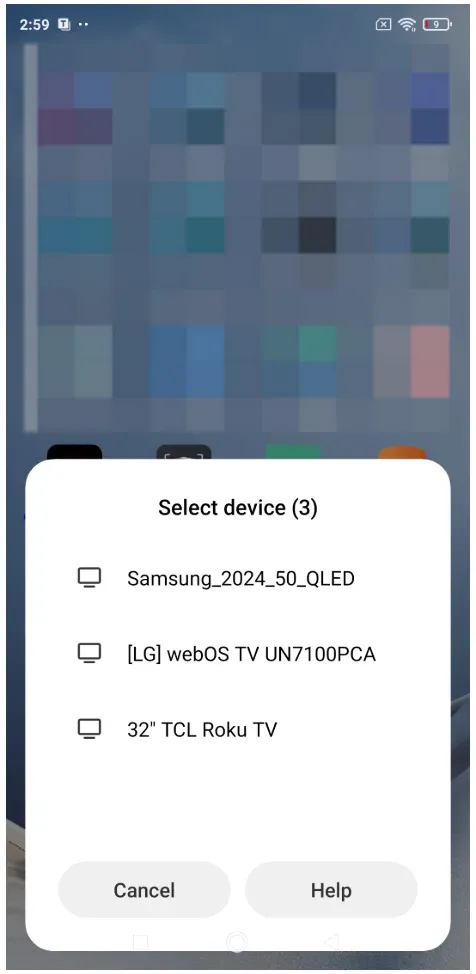
Step 5. Once connected, your phone's or laptop's screen will appear on the large screen.
Not all Android or Windows devices come with Miracast support. If you're unable to mirror your phone or laptop to your Firestick or Fire TV, try using PigeonCast as an easy alternative.
Way 3: Use AirPlay for iPhone/Mac-to-Fire TV Screen Mirroring
How to screen mirror on Amazon Fire TV from iPhone or Mac? While Firestick does not support AirPlay natively, some Fire TV models do. If you own a Fire TV (not a Firestick), AirPlay can be a convenient way to mirror content from your Apple device, such as an iPhone, iPad, or Mac.
How to screen share on Firestick? For Firestick users, the free PigeonCast app is a fantastic alternative, providing seamless, high-quality screen mirroring across a range of devices.
How to use AirPlay for display mirroring Fire TV:
Step 1. Ensure your Applr device and Fire TV are on the same Wi-Fi network.
Step 2. Go to Settings on your Fire TV, navigate to Display & Sounds > Apple AirPlay & HomeKit, and turn on AirPlay.
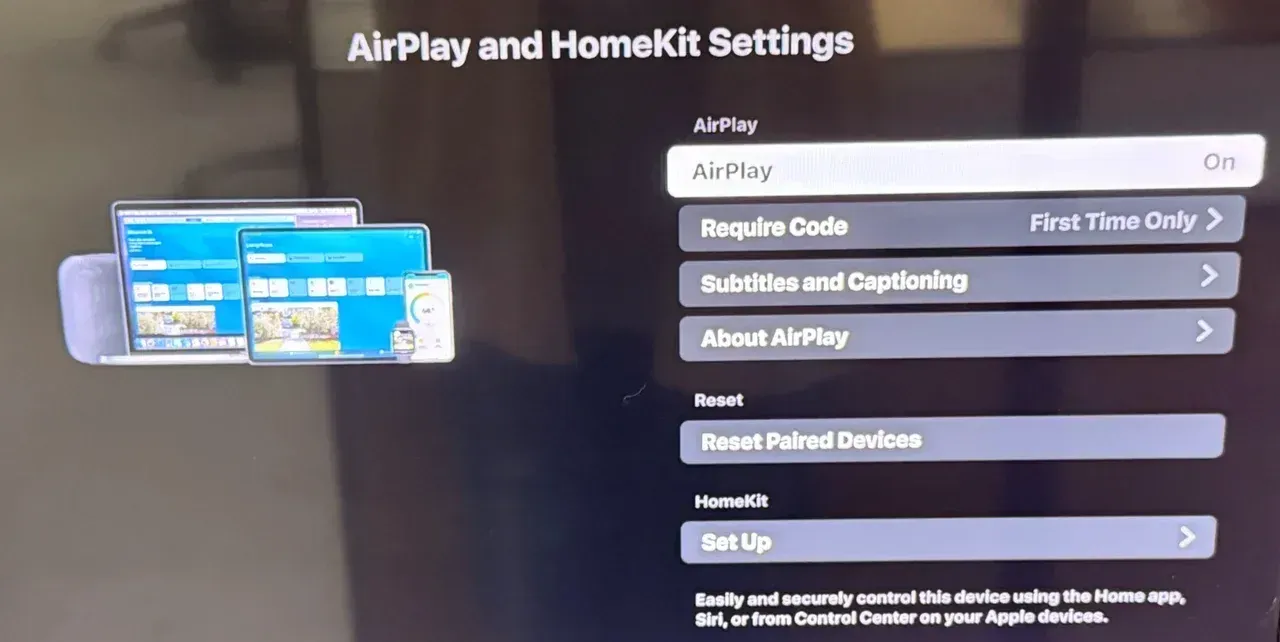
Step 3. On your iPhone or Mac, tap the Screen Mirroring icon in iPhone's Control Center or click the AirPlay icon in the menu bar (Mac).
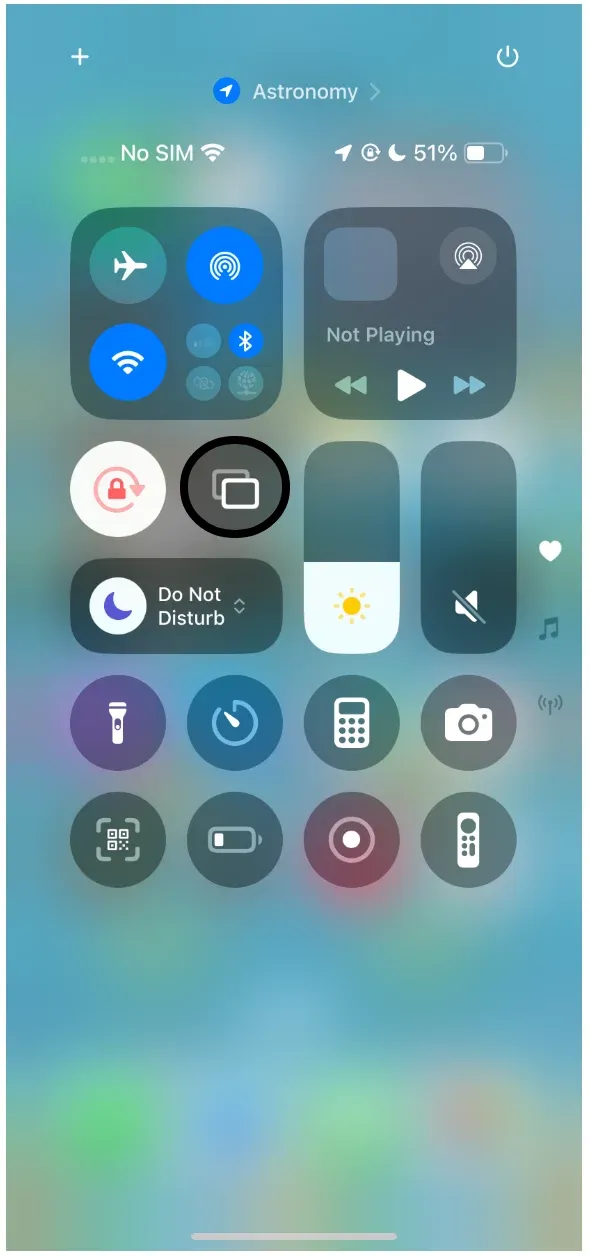
Step 4. From the list of available devices, select your Fire TV.
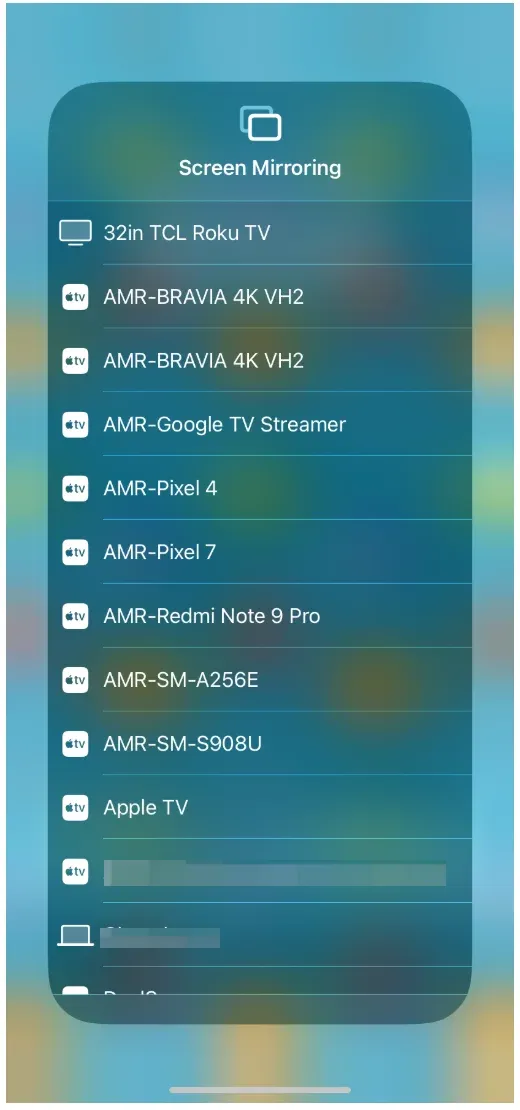
Step 5. Enter the PIN code if required. Then, your Apple device's content will now appear on your TV via AirPlay.
The End
There you have it. The three simple ways to screen mirror on your Firestick or Fire TV. Whether you're using PigeonCast for easy screen mirroring Fire TV, Miracast for seamless Android or Windows support, or AirPlay on a Fire TV, you'll find a method that works perfectly for your setup. By following these steps, you can quickly enjoy your content on the big screen without any technical hassle.
How to Screen Mirror on Firestick FAQs
How do I AirPlay to my Firestick?
AirPlay is only available on Fire TV, not Firestick. If you have a Fire TV, enable AirPlay in the settings and select it from your Apple device's AirPlay menu.
Why won't my Firestick show up on screen mirroring?
Make sure your Firestick and the device you're trying to connect are on the same Wi-Fi network. Also, ensure that screen mirroring is enabled in the Firestick settings.
How do I mirror my screen from Windows to Firestick?
Use Miracast for Windows devices. Enable screen mirroring on your Firestick and select it from the screen mirroring options on your Windows device. Alternatively, install PigeonCast on your Windows PC and Firestick and start streaming easily.
Can I mirror from an iPhone to Firestick?
Firestick doesn't natively support AirPlay, but you can use third-party apps like PigeonCast or AirPlay Cast for Fire TV, which function as AirPlay 2 receivers, allowing you to mirror your iPhone's screen.
Why is my Firestick screen mirroring slow?
Screen mirroring performance can be affected by your Wi-Fi signal strength. Make sure both your devices are close to your router for a stronger and more stable connection.
Mia Clarke is a technology editor specializing in screen mirroring and casting solutions across multiple platforms. Mia provides clear, practical guides and in-depth insights to help users seamlessly connect their devices. Passionate about enhancing digital experiences, Mia is dedicated to keeping readers updated on the latest trends and tools in cross-platform screen sharing. Whether you’re looking to mirror your smartphone, laptop, or smart TV, Mia’s content delivers reliable, user-friendly advice to simplify your tech setup.