
If you searched for tvee app, you are likely trying to mirror your phone to a larger screen without installing anything or dealing with setup friction. That expectation is very specific, and it shapes how this tool should be evaluated.
tvee app is built around speed and accessibility. It removes installation on the receiving device and replaces it with a browser-based workflow. That makes it usable in environments where traditional casting tools often fail, such as shared computers or restricted systems.
However, this simplicity does not mean the process is entirely frictionless. Some steps are less obvious than they first appear, especially during the initial connection. Understanding those details is essential if you want to use the tool smoothly and avoid confusion.
What Is tvee App Used For in Screen Mirroring
tvee app is not a free screen mirroring app, but a browser-based screen mirroring tool that allows you to display your phone screen on laptop or TV without installing software on the receiving side. You open a webpage, generate a session, and connect your phone using a QR code or ID.
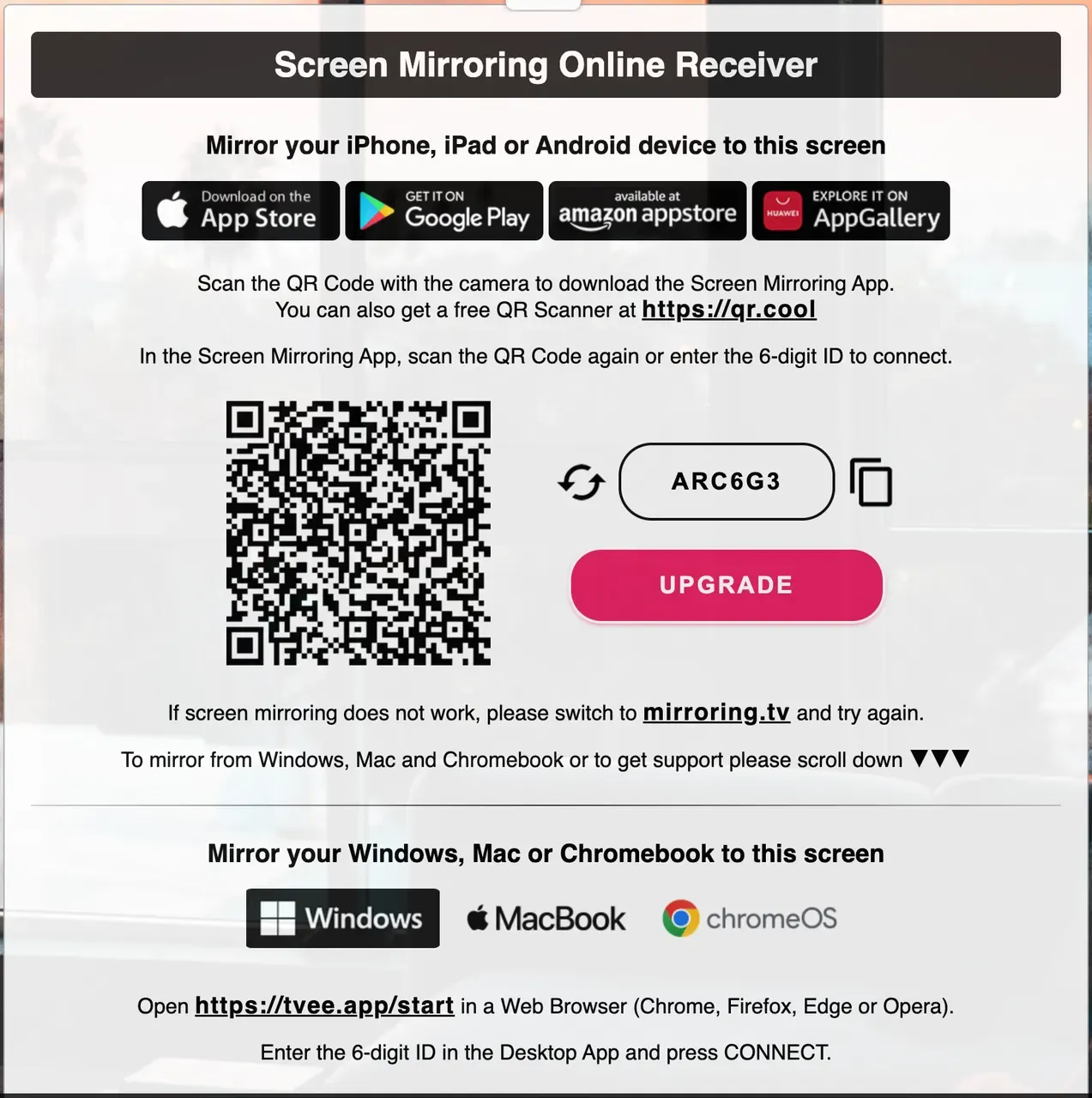
This approach removes the need for traditional receiver apps, which is why it feels faster than most casting tools. At the same time, it does not fully eliminate dependencies, because the sending device often still requires an app to complete the connection.
That distinction is subtle, but important. It explains why some users expect a fully web-based experience and feel confused when an extra step appears.
To understand where this comes from, it helps to look closely at how the connection process actually works.
How Does tvee App Setup Work Step by Step
The logic behind tvee app setup is based on temporary browser sessions. When you open the page, it generates a unique connection point linked to a QR code or a 6-digit ID. Your phone connects to that session, and the screen is mirrored through the browser.
At first glance, this looks like a pure "no-install" solution. In practice, the workflow is slightly more layered.
What Happens When You Scan the QR Code
When you scan the QR code shown on the screen, you will get a prompt to download the screen mirroring app:
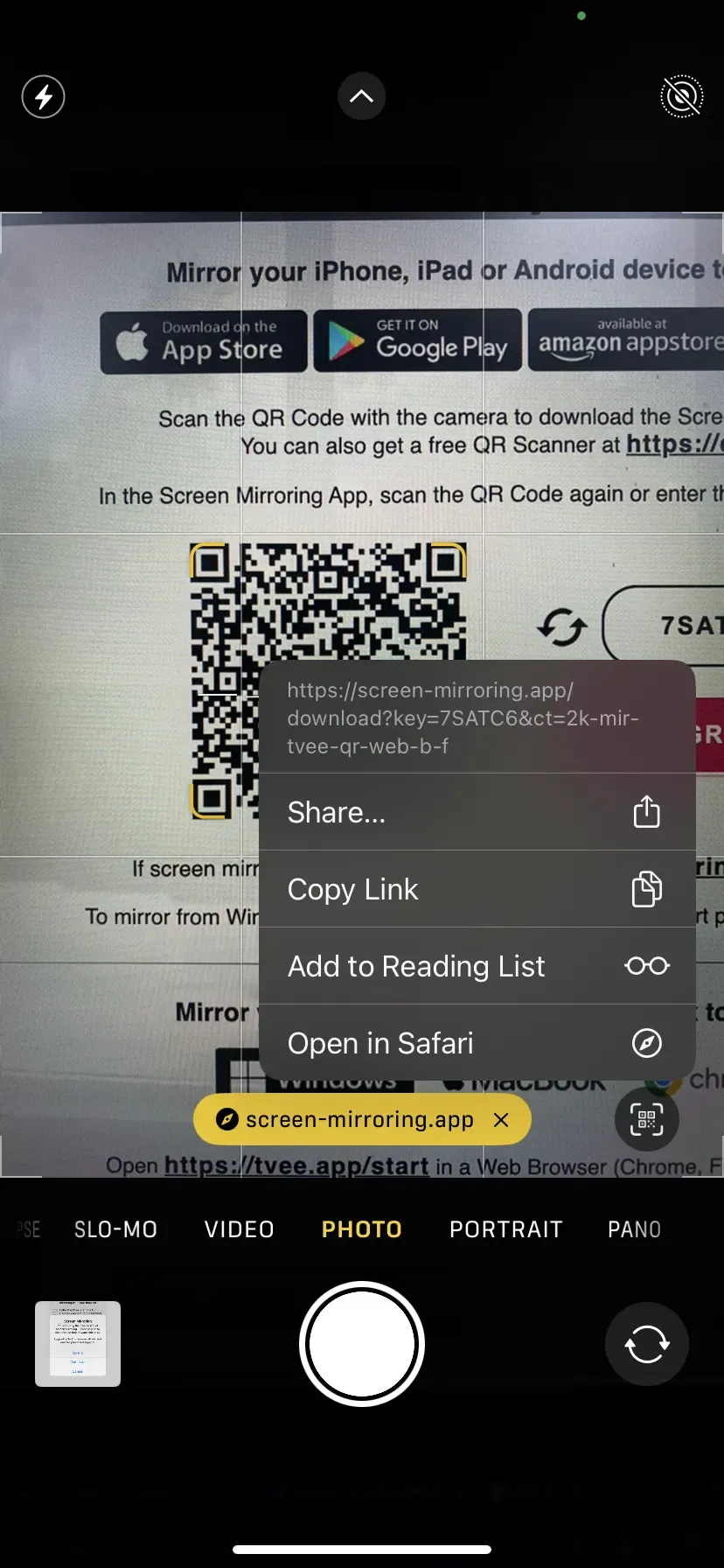
This explains a common point of confusion. The QR code is not only used for connection. It also acts as a gateway to the required app on your phone.
How to Use tvee App
Step 1. Open the tvee.app receiver on the screen you want to mirror to.
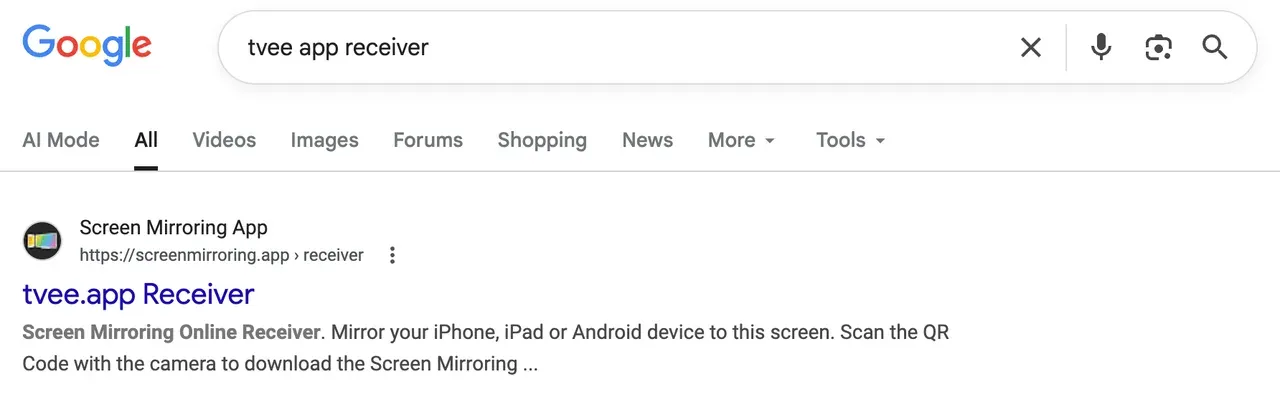
Step 2. Scan the QR code on the screen in two ways:
Option A: Use your phone camera
-
Open the camera app on your phone
-
Point it at the QR code
-
Tap the link that appears
Option B: Use a QR scanner app
If your camera does not support scanning, use a QR scanning app (the page suggests one automatically). Click the https://qr.cool link on the webpage, and it then forwards you to https://qr-scanner.app.
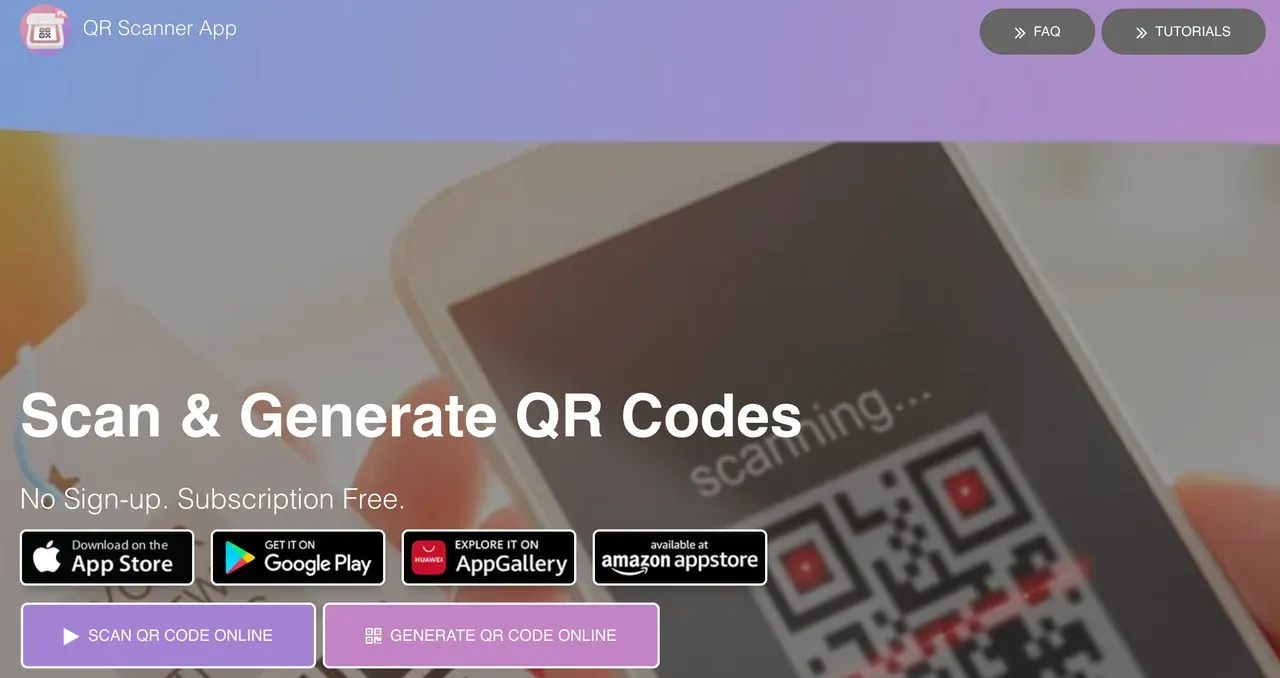
Step 3. Download a screen mirroring app. Although tvee app runs in the browser on the receiving side, the sending side still needs an app to stream your screen.
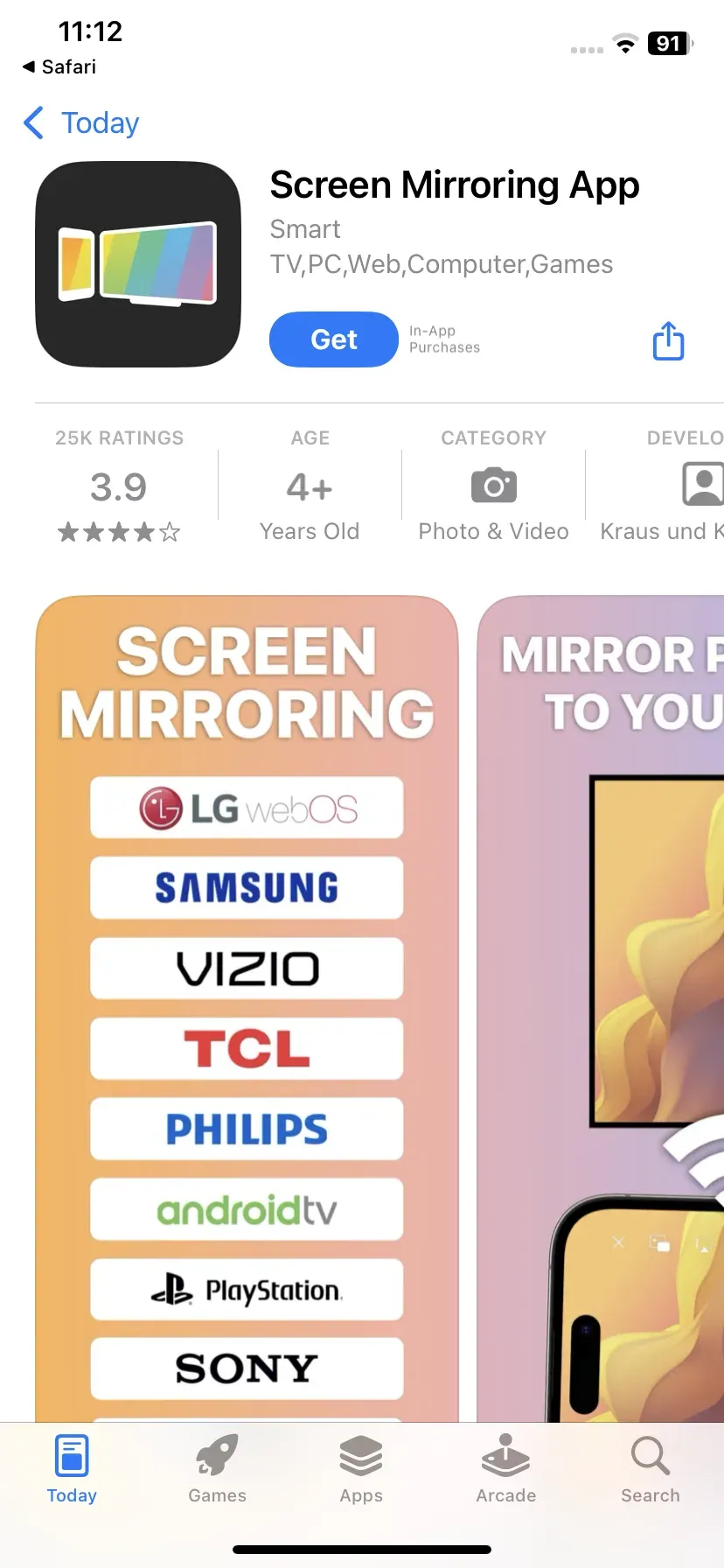
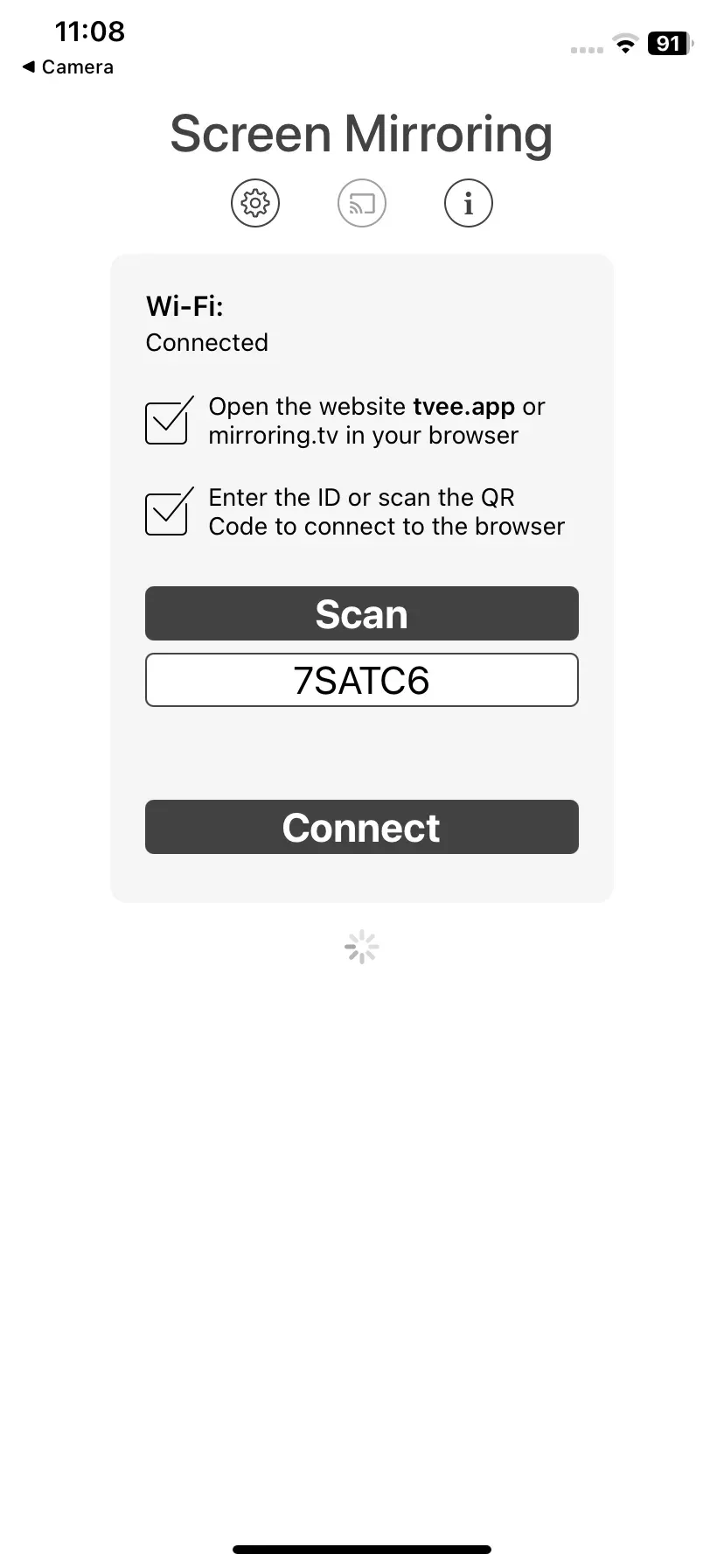
Step 4. Open the app, scan the QR code again, or enter the 6-digit ID manually to connect.
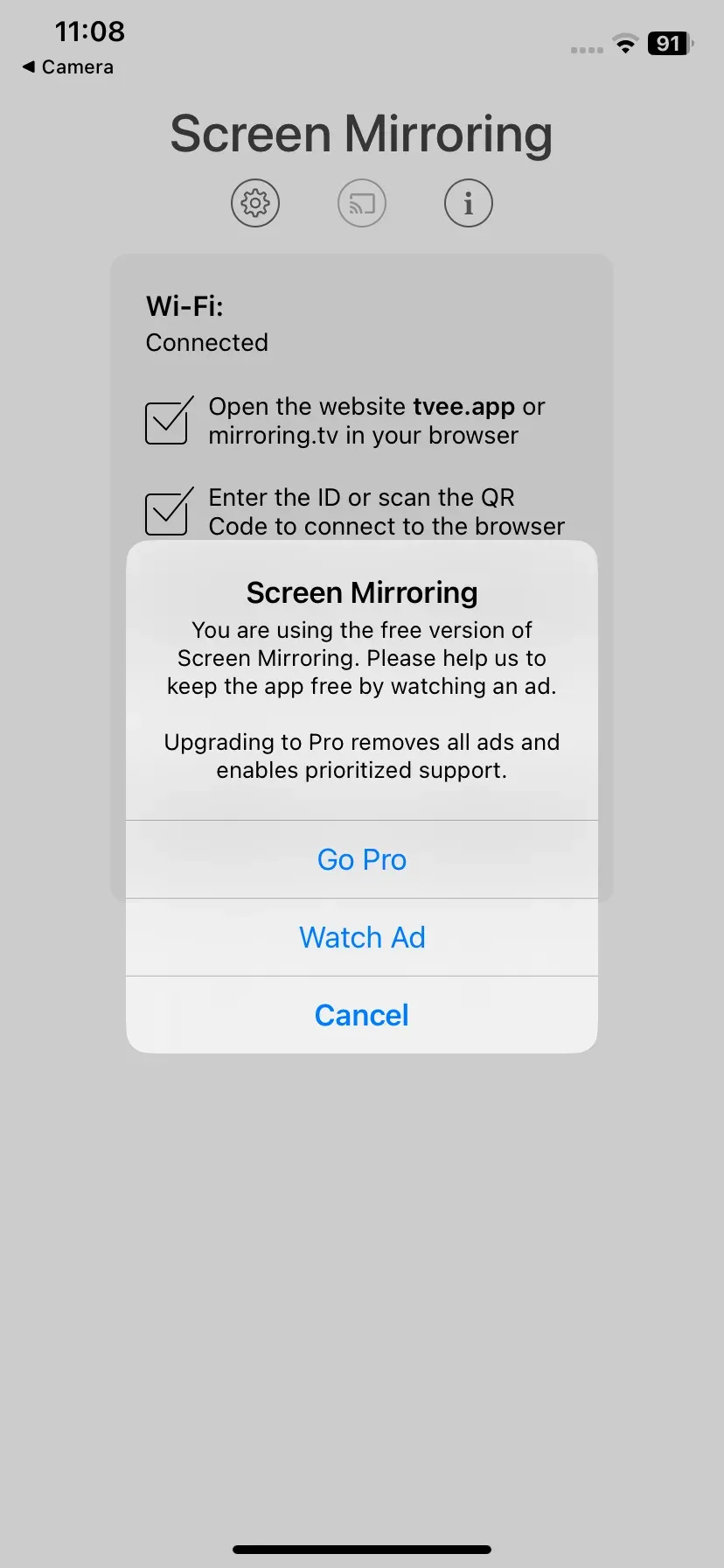
Step 5. The free screen mirroring solution asks you to watch an ad to set up the connection. Or you need to upgrade your plan.
Step 6. After connecting, your phone screen will appear on the browser. The session continues as long as the page stays open.
Note: If the connection does not work, the page may suggest switching to mirroring.tv, which functions as a fallback service.
This setup explains why tvee app feels fast but not entirely effortless. It removes installation on one side, but still relies on an app on the other. That hybrid design is central to how the tool works.
Why Use tvee App for Screen Mirroring
Understanding the setup helps clarify what tvee app does well. Its strengths are not about advanced functionality, but about removing barriers that typically slow users down.
No Installation on the Receiving Device
The most visible advantage of tvee app is that you do not need to install anything on the screen you are casting to. This is particularly useful in restricted environments where downloads are not allowed.
Fast and Direct Connection
The connection process is reduced to scanning a code or entering an ID. There is no pairing history or configuration phase, which makes it feel immediate compared to more complex tools.
Broad Device Compatibility
When discussing tvee app compatibility, the browser-based approach allows it to work across a wide range of devices. It supports:
-
iOS and Android phones
-
Windows and Mac computers
-
Chromebooks and tablets
This flexibility makes it suitable for mixed-device setups.
Focused on Short-Term Use
tvee app works best when used for quick, clearly defined tasks. It is effective for sharing content during a meeting or displaying something briefly without preparation.
Its design is intentionally minimal, which keeps it simple but also limits its range.
Why Is tvee App Not Enough for Screen Mirroring
The same choices that make tvee app fast also create constraints that become more visible with extended use.
Limited Control and Features
The tool focuses on basic screen mirroring. There are no advanced options for managing streams or adjusting quality, which can be restrictive in more demanding situations.
Dependence on Network Stability
Many tvee app troubleshooting cases are related to network conditions. Because the connection runs through a browser session, performance depends heavily on connection quality. Unstable networks can lead to lag or interruptions.
Not Designed for Long Sessions
Short sessions generally work well. However, longer or more demanding use cases, such as streaming video or continuous presentations, can reveal stability issues.
As these limitations appear, users often begin to look for tools like PigeonCast that can handle more consistent performance.
What Is the Best Casting Alternative to tvee App
Over time, priorities tend to shift. What initially feels convenient may start to feel limiting as expectations grow.
You may begin to notice the importance of stable connections, higher quality output, or the need to use screen mirroring regularly without interruptions.
At that point, tvee app is no longer solving the full problem. It still works, but it no longer feels sufficient.
PigeonCast addresses the areas where tvee app is intentionally minimal. It is designed for stability, broader compatibility, and more demanding use cases.
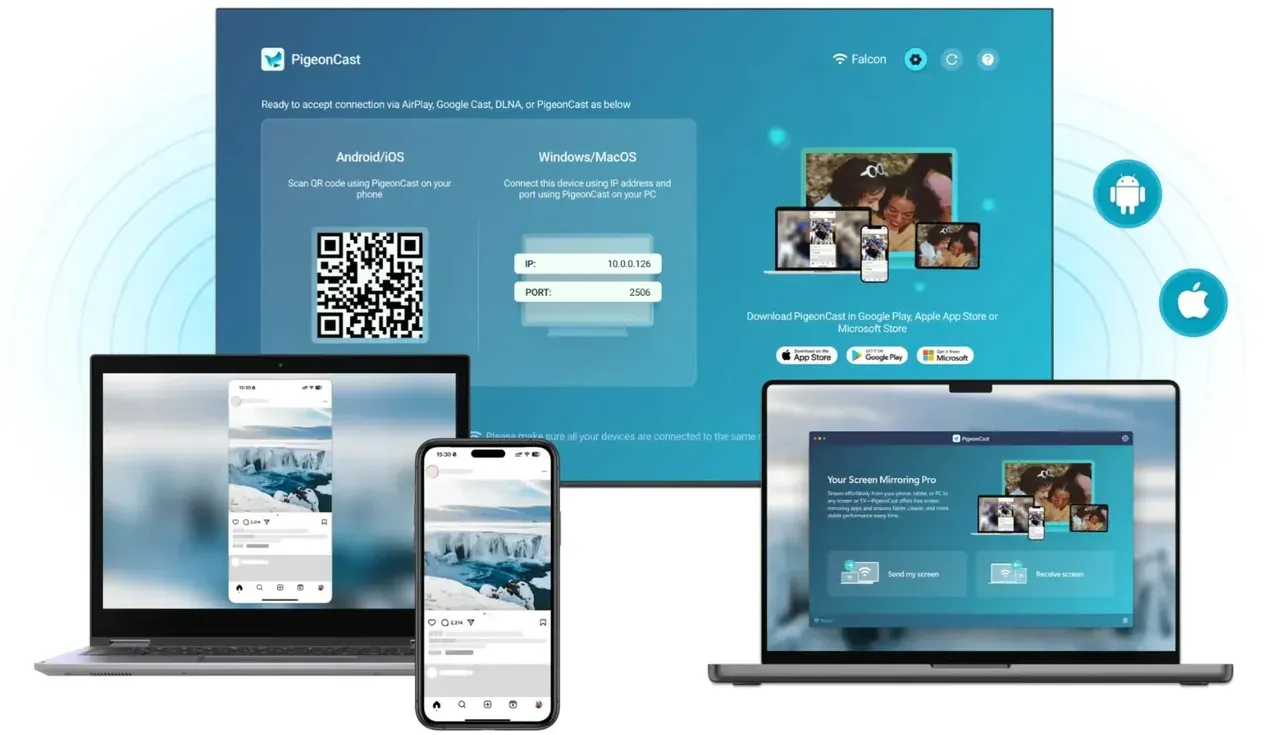
It supports multiple casting protocols and handles longer sessions more reliably. It also delivers better performance when quality matters.
What makes it increasingly relevant is its move toward web-based access. This direction reduces the gap between lightweight tools and full-featured solutions, making it possible to combine ease of use with stronger performance.
tvee App vs PigeonCast: Which Is the Better Choice for Screen Mirroring
| Feature | tvee App | PigeonCast |
|---|---|---|
| Installation | Not required on receiver | Required (currently) |
| Setup Speed | Very fast | Moderate |
| Video Quality | Depends on network | More stable and consistent |
| Session Stability | Best for short sessions | Suitable for long sessions |
| Device Support | Browser-based | Multi-protocol support |
| Advanced Features | Limited | More complete feature set |
Each tool serves a different stage of the same need. One prioritizes speed, the other prioritizes reliability.
How to Use PigeonCast for Screen Mirroring
PigeonCast requires installation on both sides for a stable screen mirroring experience:
Step 1. Download and install PigeonCast from the app store on your device.


Overall Rating:



Step 2. Ensure your devices are on the same network.
Step 3. Open the app on both devices and follow the onscreen instructions to start mirroring.
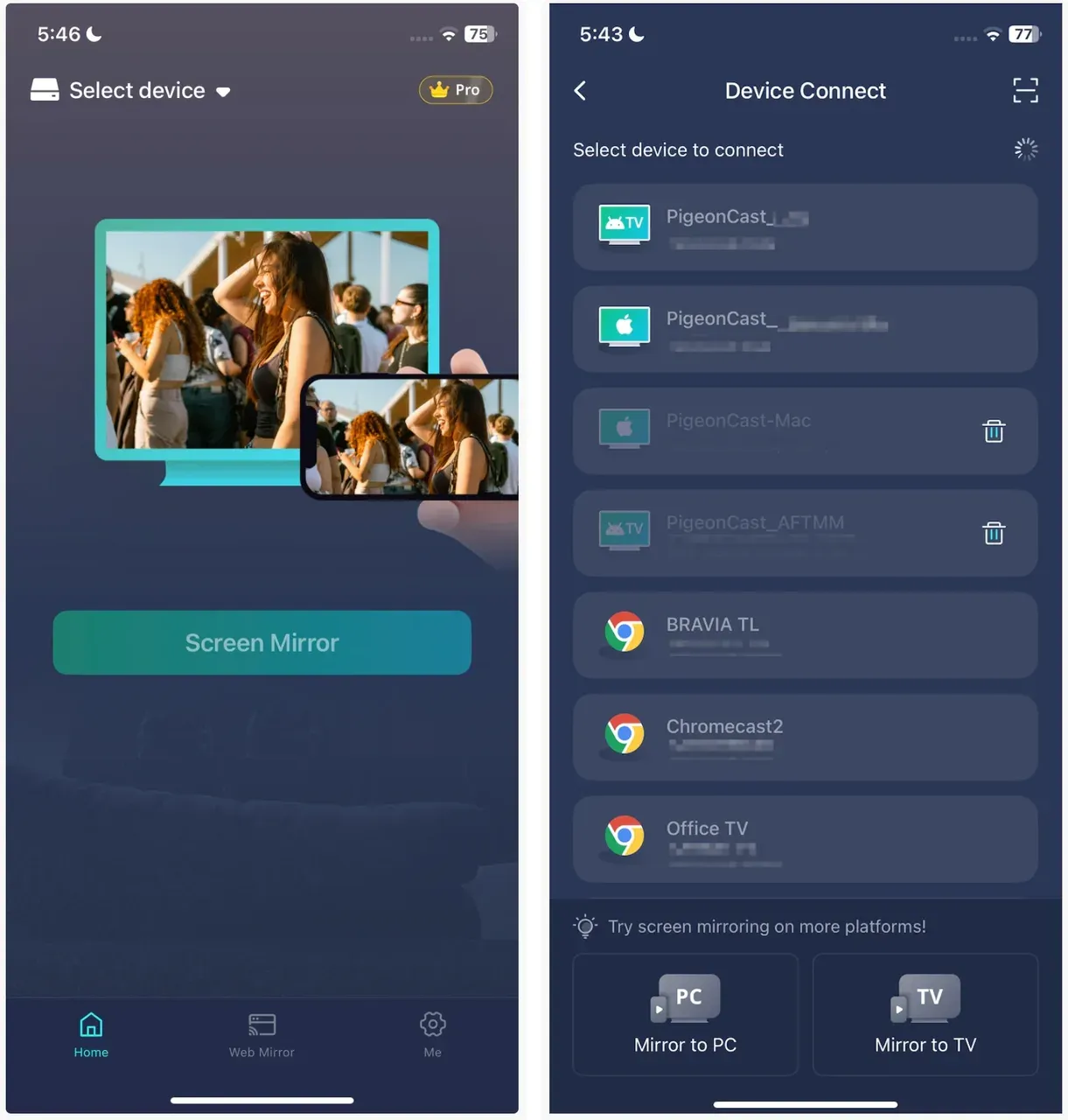
- On your phone, tap Select device, choose your device, and click Screen Mirror.
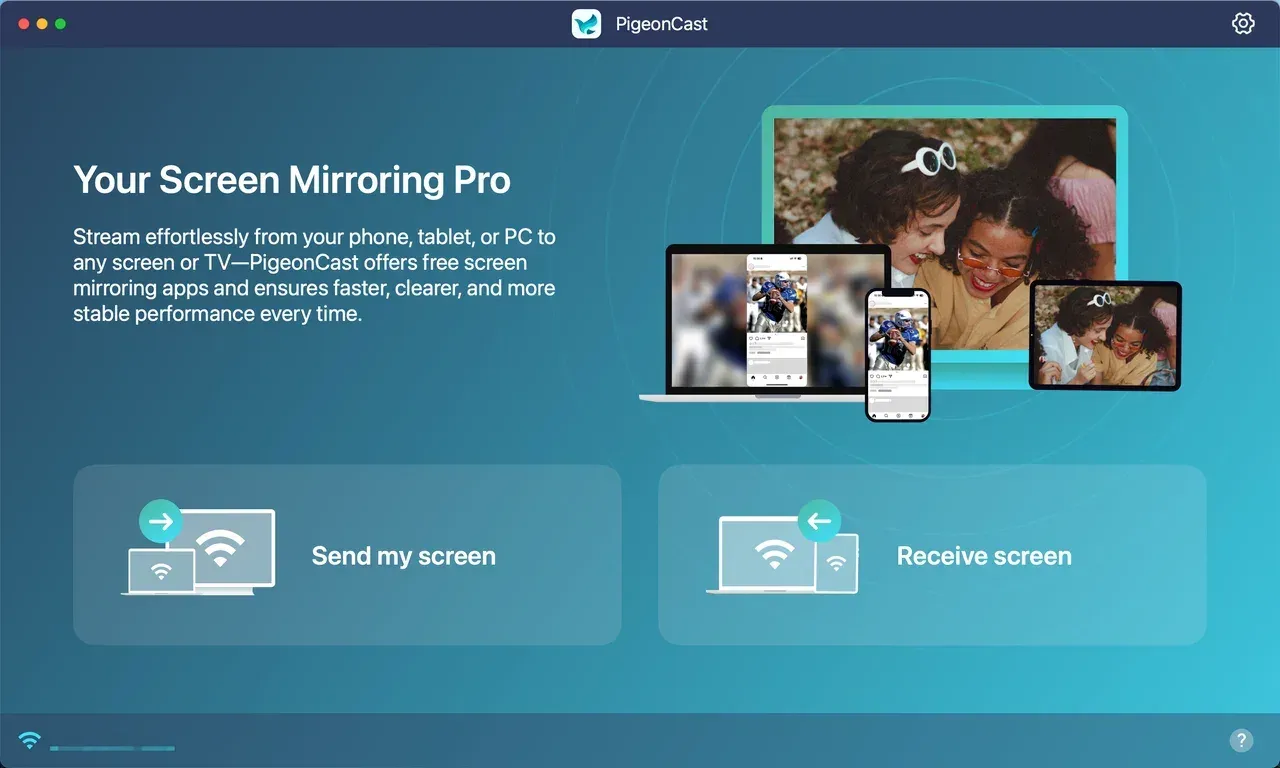
- On your laptop, click Send my screen, choose your target device, and click Start mirror.
Final Thoughts
tvee app is effective because it removes friction at the start. It allows users to begin screen mirroring almost instantly, which makes it a practical choice for quick tasks.
However, it is not designed to handle more demanding scenarios. As requirements grow, the need for stability and control becomes more important.
That is where tools like PigeonCast fit naturally, especially as they continue to evolve toward simpler access without sacrificing performance.
tvee APP FAQ
What is tvee app used for?
tvee app is used for quick screen mirroring through a browser without installing software on the receiving device.
How does tvee app setup actually work?
You open the site, scan a QR code, install the required app, and then connect using the code or ID.
What devices support tvee app compatibility?
It works on most devices with modern browsers, including smartphones, laptops, and tablets.
Why does tvee app redirect to qr.cool and qr-scanner.app?
The QR code leads to those pages to help you download the required scanning or mirroring app.
Why is tvee app not working or lagging?
Most tvee app troubleshooting issues are caused by unstable Wi-Fi or network congestion.
Can I use tvee app without installing anything?
You do not need to install anything on the receiving device, but the sending device usually requires an app.
What is a good casting alternative to tvee app?
PigeonCast is a reliable casting alternative if you need better stability and more features.
When should I switch from tvee app to another tool?
If you need higher quality, longer sessions, or more consistent performance, it is time to upgrade.
Mia Clarke is a technology editor specializing in screen mirroring and casting solutions across multiple platforms. Mia provides clear, practical guides and in-depth insights to help users seamlessly connect their devices. Passionate about enhancing digital experiences, Mia is dedicated to keeping readers updated on the latest trends and tools in cross-platform screen sharing. Whether you’re looking to mirror your smartphone, laptop, or smart TV, Mia’s content delivers reliable, user-friendly advice to simplify your tech setup.