
If you are searching for "what is Scrcpy", the short answer is simple: Scrcpy is a free, open-source tool that lets you mirror and control an Android phone from a Windows, macOS, or Linux computer.
That sounds straightforward, but it does not fully explain why Scrcpy has earned such a loyal following. Plenty of apps can mirror a screen. Very few feel this fast, this lean, and this practical. That is the real reason people keep looking up Scrcpy, Scrcpy Android, and Scrcpy Android screen mirroring even years after the tool first became popular.
My view is clear. Scrcpy is still one of the best options in its category if you care about performance, local control, and flexibility. It is not the easiest tool for complete beginners, and it is definitely not the prettiest. Still, when it works, it works exceptionally well.
What Makes Scrcpy Different From Typical Screen Mirroring Apps
Most screen mirroring apps try to be polished first. They want you to sign in, install a client, scan a code, upgrade to premium, and maybe sit through a few prompts before you even see your phone screen.
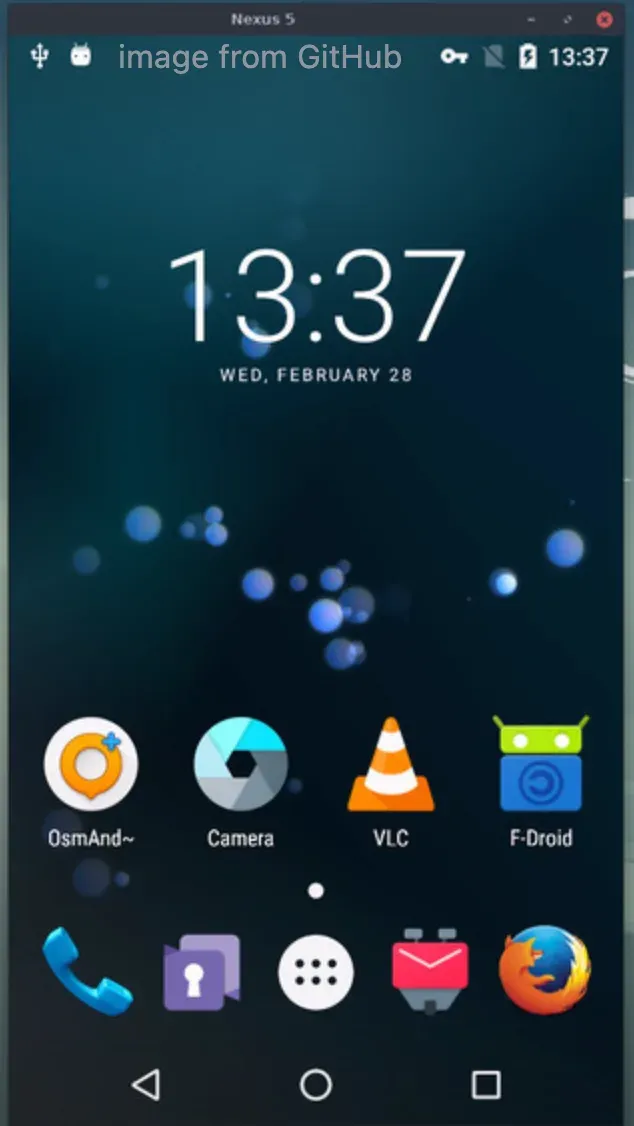
Scrcpy takes a very different route. It is built around direct local control through Android debugging tools. That is why Scrcpy Android screen mirroring often feels faster and more responsive than many mainstream mirroring apps. It is also why developers, testers, power users, and tutorial creators keep coming back to it.
At its core, Scrcpy gives you:
-
Real-time Android screen mirroring on desktop
-
Keyboard and mouse control
-
Copy and paste support
-
Screen recording
-
Wireless options for advanced users
-
No account requirement
-
No ads
-
No software permanently installed on the phone
So when someone asks what Scrcpy is, the better answer is this: it is not just a mirroring app. It is a lightweight control bridge between your computer and your Android phone.
Why Scrcpy Still Has a Strong Reputation
The biggest reason is performance.
A lot of tools can "technically" mirror a phone. That does not mean they feel good to use. Some are laggy during screen mirroring. Some blur the image too much. Some make typing or tapping from a desktop feel delayed and clumsy. Scrcpy built its reputation by avoiding exactly those frustrations.
That is why Scrcpy Android users often describe it with the same few words: fast, clean, reliable.
There is also a second reason people trust it: Scrcpy GitHub is the real center of the project. It is open source, widely used, and transparent. That matters. You are not relying on a black-box app from an unknown publisher. You can see where the tool comes from, how it is maintained, and where official releases live.
In other words, Scrcpy feels less like a throwaway utility and more like a serious tool made by people who actually understand the use case.
The Best Things About Scrcpy
- It is genuinely fast
This is Scrcpy's biggest strength.
The reason many people search for Scrcpy Android screen mirroring instead of just "Android mirroring app" is because they want speed. They do not want a second-rate mirror. They want something close to real-time.
Scrcpy delivers that unusually well. Swipes, taps, typing, and navigation all feel snappy, especially over USB. If you are demonstrating an app, testing mobile UI flows, or recording a phone tutorial, that low-latency feel is a major advantage.
- It gives you real control, not just a passive mirror
There is a big difference between viewing your phone screen and actually controlling your phone comfortably from a computer.
Scrcpy lets you do the second one well. You can:
-
Use your keyboard to type into Android apps
-
Click around with a mouse
-
Paste links, text, and snippets quickly
-
Handle repetitive actions more efficiently than on the phone itself
That makes how to use Scrcpy an especially useful question for anyone who writes long messages, handles app demos, or works with Android devices regularly.
- It stays lightweight
One reason Scrcpy remains appealing is that it never tries to become a bloated all-in-one ecosystem. It focuses on screen mirroring and control. That restraint is part of its charm.
No ads are popping up. No mandatory accounts. No pressure to buy a premium subscription just to unlock decent quality. For many users, that alone makes Scrcpy download worth considering.
- It has depth for advanced users
On the surface, Scrcpy looks simple. Underneath, it offers a lot of control.
You can adjust resolution, bitrate, connection behavior, recording options, and wireless setups. That means beginners can use it in a basic way, while advanced users can push it much further.
This is one reason Scrcpy GitHub continues to attract attention. The project is not static. It has grown into a genuinely capable tool.
Where Scrcpy Falls Short
My review should say this plainly: Scrcpy is not for everyone.
- It is not especially beginner-friendly
If you just want to install something, click one button, and start mirroring, Scrcpy may feel a little rough around the edges.
To use it properly, you usually need to:
-
Enable Developer Options on Android
-
Turn on USB debugging (How to View Broken Phone Screen on PC Without USB Debugging)
-
Connect the device correctly
-
Understand some basic setup steps
That is not a huge barrier for technical users. For casual users, though, it can feel like more work than expected. So, while using Scrcpy is not terribly complex, it is more technical than many consumer-facing apps.
- The interface is functional, not polished
Scrcpy is efficient, but not visually refined. It does not have the friendliest onboarding, and it does not guide users in the way a more commercial app would.
That is a trade-off. Some people appreciate the simplicity. Others will see it as barebones.
- Wireless use is good, but USB is still the best-case scenario
People often discover Scrcpy because they want wireless mirroring. Yes, Scrcpy can do that, but it is strongest over USB. Wireless use can be solid, though it tends to require more setup and may depend more on your local network conditions.
If your goal is effortless wireless mirroring for casual use, you may end up looking for a Scrcpy alternative like PigeonCast.
- It does not solve cross-platform mirroring for Apple devices
This matters because many users eventually ask about Scrcpy for iOS.
The answer is simple: there is no real Scrcpy for iOS screen mirroring. Scrcpy is built for Android. If your phone is an iPhone, this tool is not made for that workflow.
That limitation does not make Scrcpy worse at its job, but it does narrow its audience.
Is Scrcpy Safe to Use
Scrcpy is generally safe if you download it from the official source. Here is why that answer is fair:
-
It is open source
-
It does not require cloud login
-
It does not depend on routing your phone data through an unknown server
-
It does not install persistent junk on your phone
-
The project has strong visibility through Scrcpy GitHub
That said, "safe" depends partly on where you get it. If someone downloads a repackaged file from an unofficial site, that is a different story. So when people ask, "Is Scrcpy safe?", the right answer is really two-part:
-
The official tool is trustworthy
-
The download source matters
Where You Should Actually Get Scrcpy
This part deserves a very direct answer.
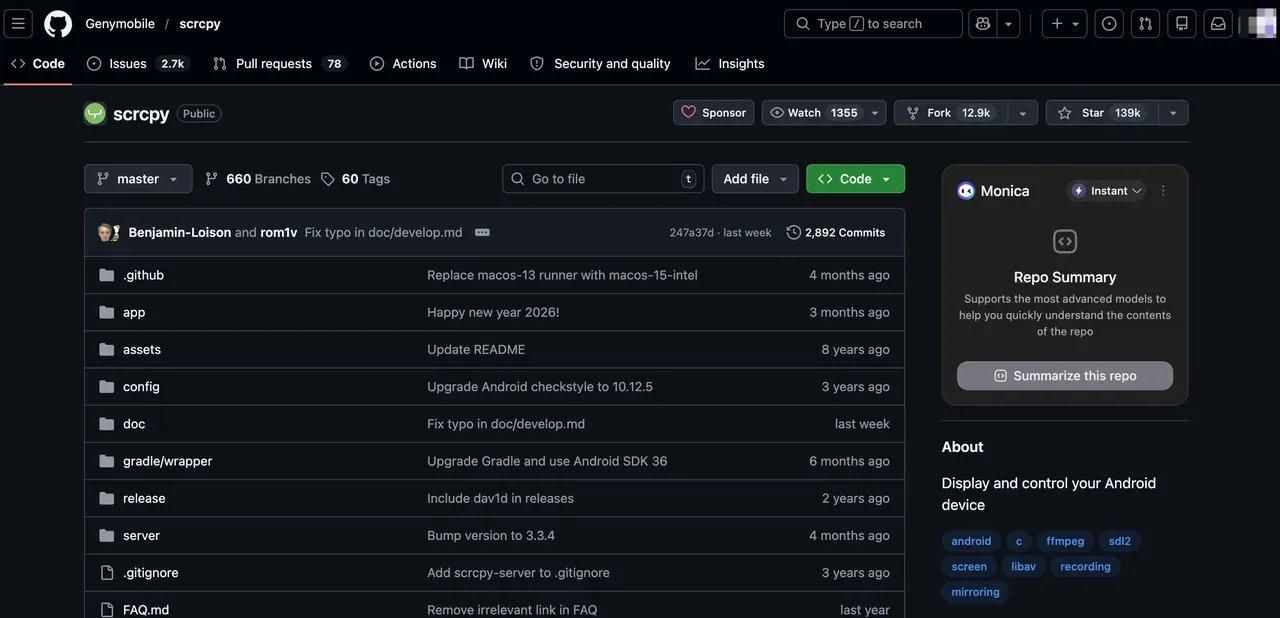
If you are looking for Scrcpy download, the safest and smartest option is the official project release page on GitHub. When people search for Scrcpy download official site, what they really need is the official Scrcpy GitHub repository and its release section.
That matters because many download pages are floating around online. Some are outdated. Some are unofficial. Some are simply not where I would send anyone who cares about security or getting the latest clean build.
So if your question is Scrcpy download official site, here is the practical answer:
-
Use the official GitHub repository
-
Download official release files from there
-
Avoid random mirror sites unless you fully trust the source
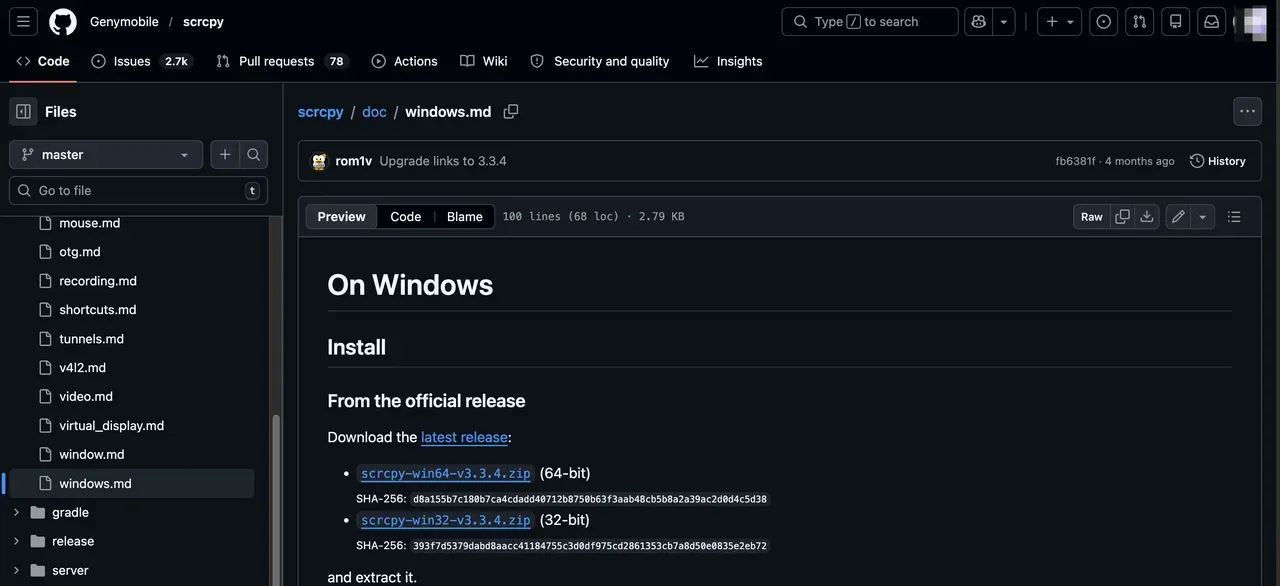
That is the safest route, and it is the one I would recommend every time.
How to Use Scrcpy for Android Screen Mirroring
A lot of tutorials make this sound more intimidating than it really is. The actual basics are manageable. If you want to know how to use Scrcpy, here is the beginner version.
Step 1. Enable developer access on your Android phone.
-
Open Settings.
-
Go to About Phone.
-
Tap Build Number multiple times.
-
Unlock Developer Options.
-
Turn on USB debugging.
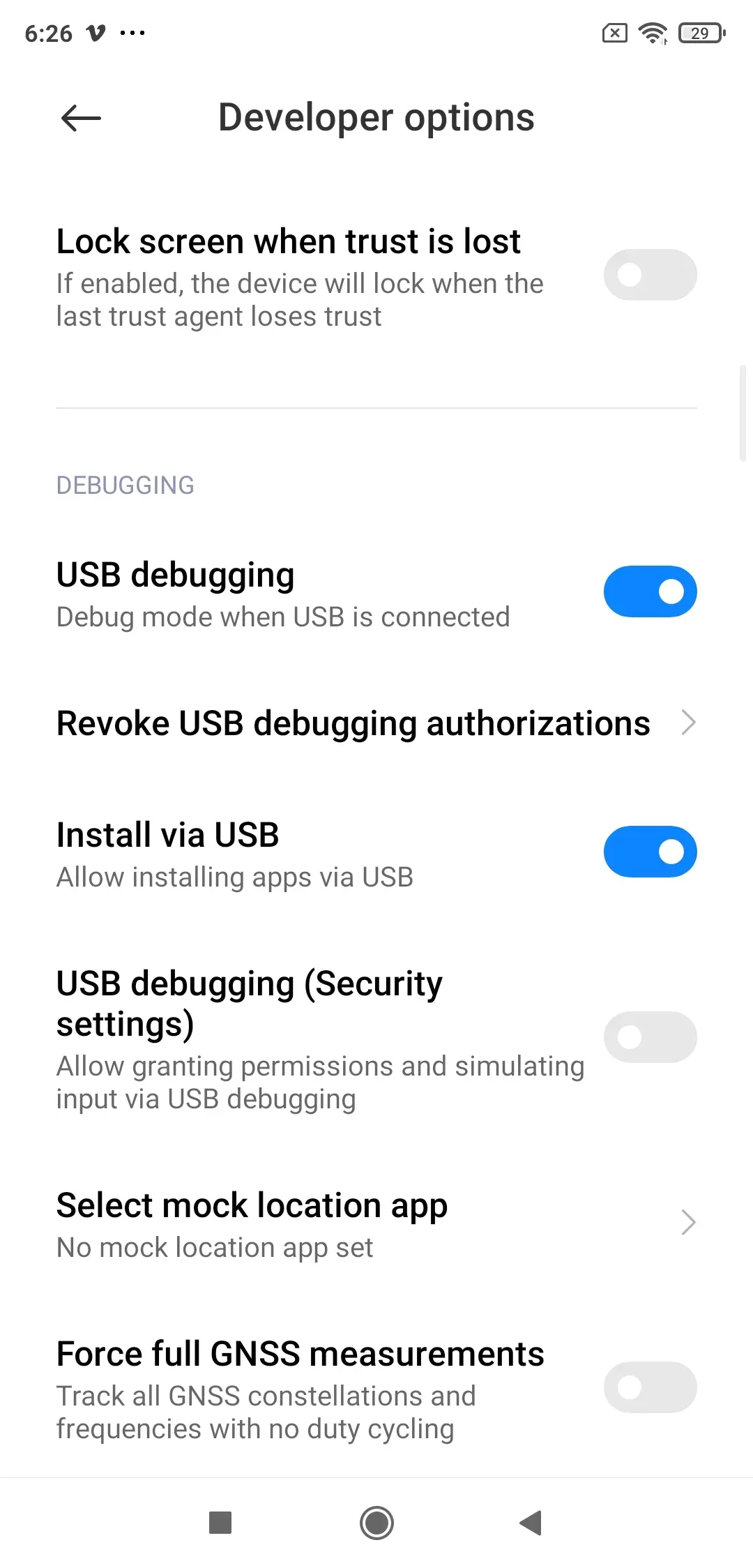
Step 2. Connect your phone to your computer.
-
Plug your phone into your computer using a USB cable
-
Approve the debugging prompt on your phone
Step 3: Launch Scrcpy on your desktop.
-
Open the downloaded Scrcpy folder
-
Run the application file
-
Your phone screen should appear on your desktop
At this point, Scrcpy Android screen mirroring is fully active. You can:
-
Click and navigate with your mouse
-
Type using your keyboard
-
Interact with apps in real time
No extra setup is needed for basic use.
Step 4 (Optional). Enable Wireless Screen Mirroring
If you don't want to stay connected by cable, Scrcpy also supports wireless mode.
-
Connect your phone via USB first
-
Run the wireless command (ADB over TCP/IP)
-
Disconnect the cable once connected
Wireless Scrcpy Android screen mirroring works well, but it depends on your network quality. For the most stable experience, USB is still the better option.
Step 5 (Optional). Improve Your Mirroring Experience.
Once you're comfortable with how to use Scrcpy, you can fine-tune it. Some useful tweaks:
-
Lower resolution for smoother performance
-
Adjust bitrate for better quality
-
Enable recording for tutorials
-
Use full-screen mode for presentations
These are not required, but they make Scrcpy Android much more flexible.
When to Switch to Scrcpy Alternative
Scrcpy makes the most sense for a few specific groups: developers and testers, tutorial creators and trainers, keyboard-first users, and users who care about privacy and local control.
Certainly, not everyone wants power first. Some people want ease first. That is where a Scrcpy alternative becomes relevant.
If you want:
-
Faster setup
-
A more polished interface
-
Easier wireless mirroring
-
Less technical friction
-
Support for broader device scenarios
Then Scrcpy may not be the best fit for your daily use. This is exactly why tools like PigeonCast deserve a mention.
PigeonCast is a more user-friendly screen mirroring app, and that difference matters. It does not target the same power-user mindset as Scrcpy. Instead, it focuses on making the process easier and more approachable. For someone who wants screen mirroring without the ADB feel, PigeonCast can be the more comfortable choice.
I would not call it a replacement for Scrcpy in every case. Scrcpy still has the edge in control and technical efficiency. But as a Scrcpy alternative, PigeonCast makes sense for users who value convenience over tinkering.
Scrcpy vs PigeonCast: Which One Makes More Sense?
Here is the simplest way to look at it.
| Feature | Scrcpy | PigeonCast |
|---|---|---|
| Main focus | Performance and control | Ease of use |
| Setup style | More technical | More beginner-friendly |
| Best for | Developers, testers, power users | Casual users, quick mirroring |
| Wireless experience | Good, but setup can take effort | Easier to approach |
| Device focus | Android | Android, iOS, Windows, Mac, Android TV, Apple TV, Fire TV, etc. |
My opinion is pretty clear here.
-
If raw performance, direct control, and open-source transparency matter most, choose Scrcpy.
-
If your top priority is a smoother everyday experience, especially for simple mirroring tasks, PigeonCast is a sensible Scrcpy alternative.
How to start screen mirroring quickly with PigeonCast:
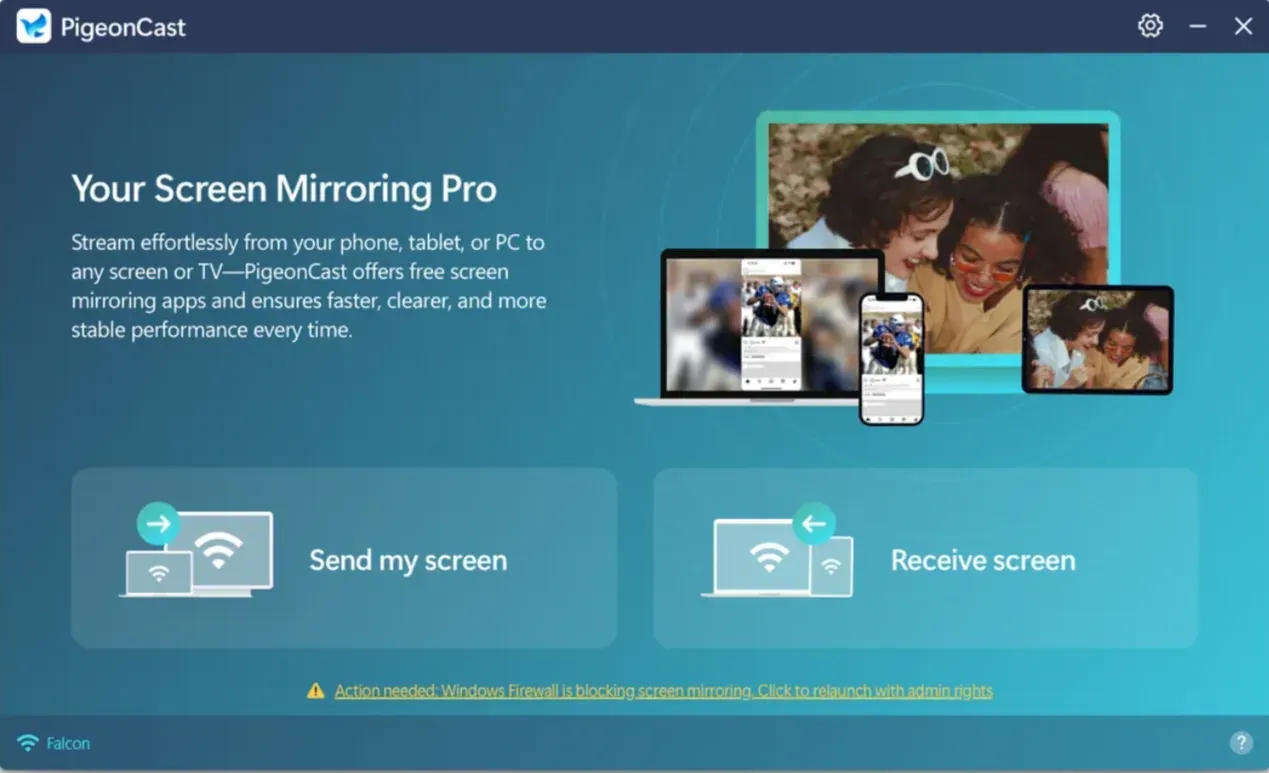
Step 1. Download and install PigeonCast from the app store on your phone and computer.


Overall Rating:



Step 2. Ensure your phone and computer are on the same network for device discovery.
Step 3. Open PigeonCast on both sides, and click the Receive screen option on your computer.
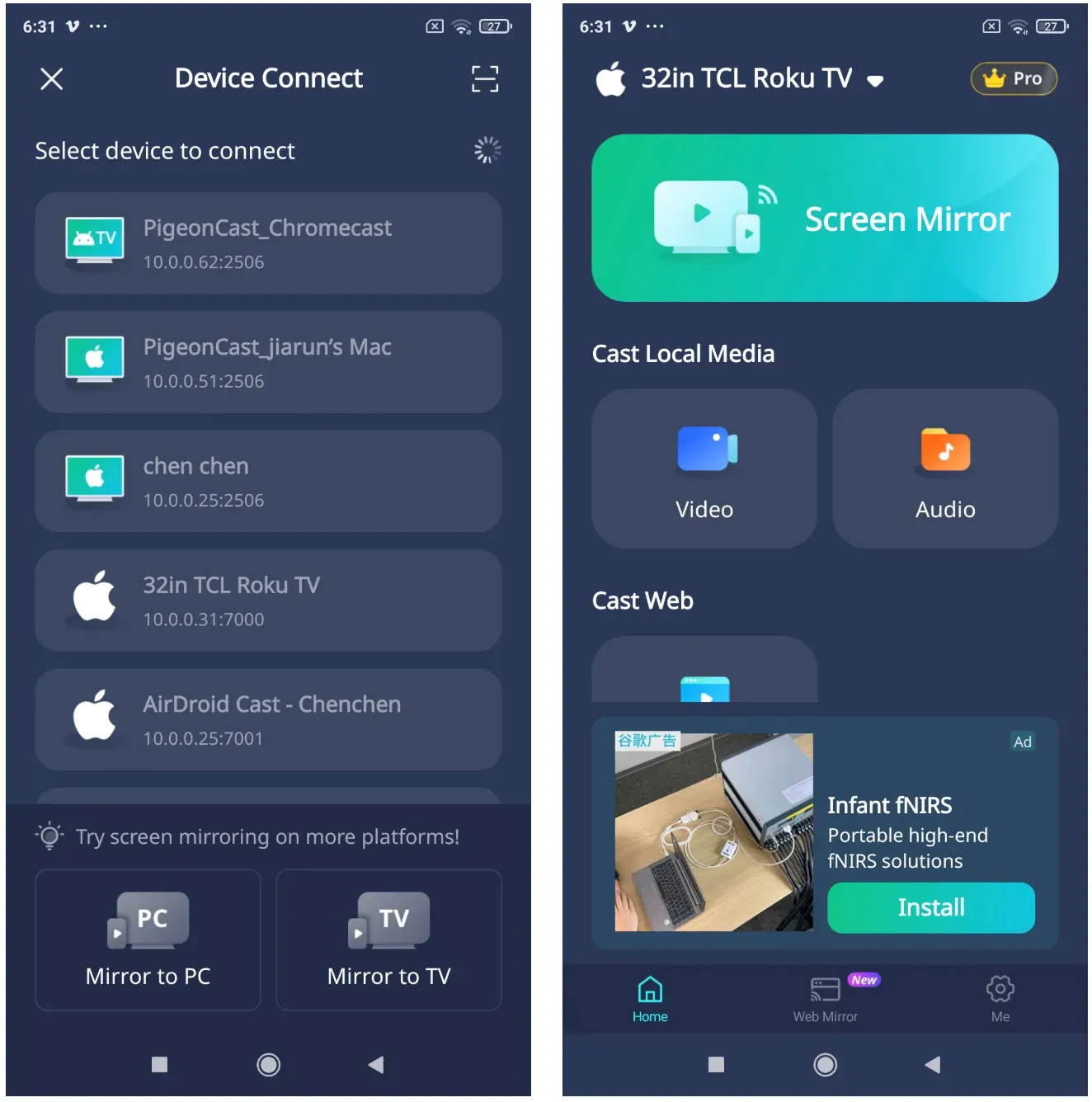
Step 4. Tap the top bar on your phone, choose your computer from the list, and start screen mirroring.
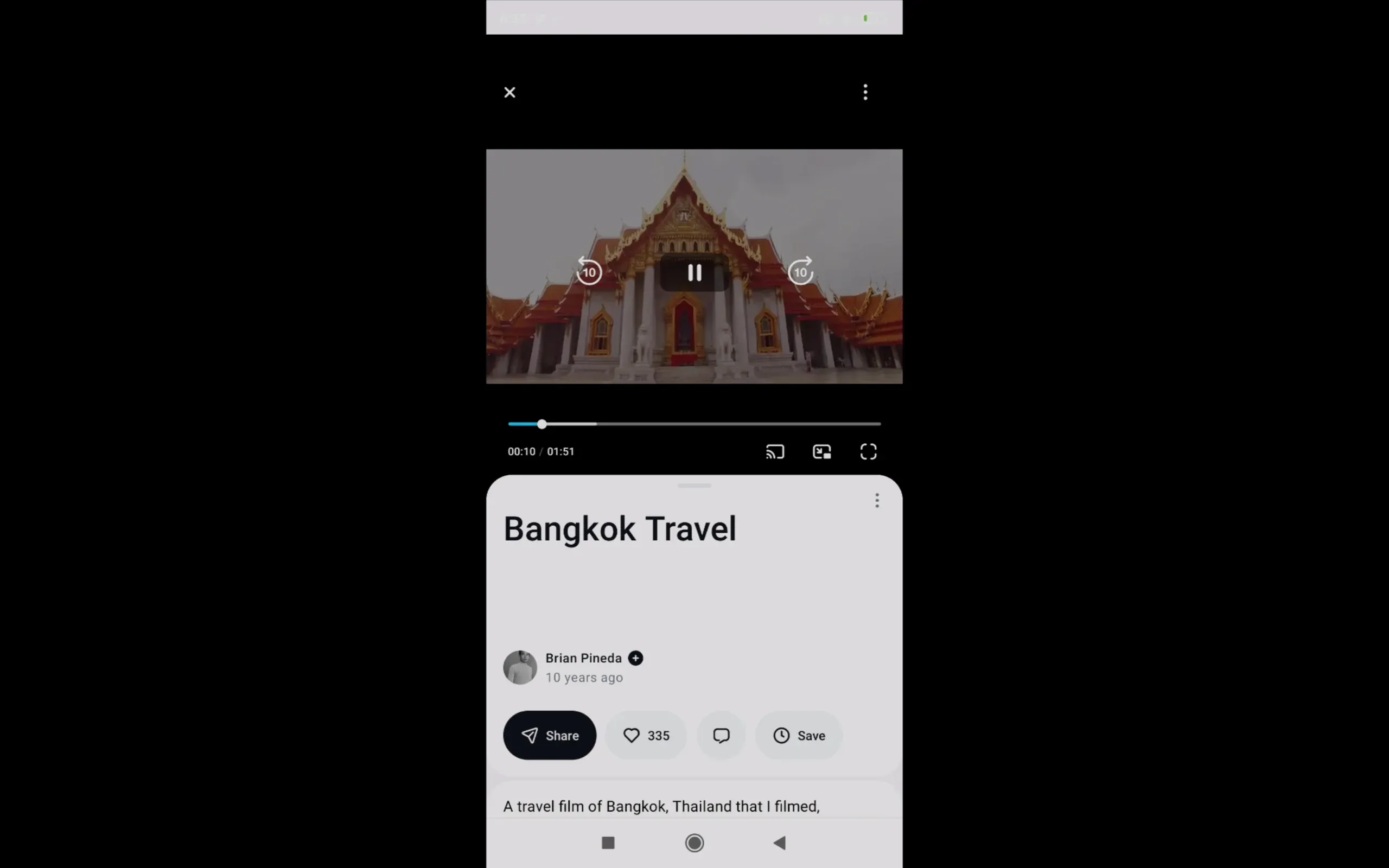
Step 5. You can view your phone content on your computer.
Final Verdict: Is Scrcpy Still Worth Using?
Yes, absolutely, with one important condition.
Scrcpy is worth using if you actually want what it does best.
If you need a fast, efficient, low-latency tool for Scrcpy Android screen mirroring, desktop control, app demos, or Android productivity, Scrcpy is still one of the strongest options available. It remains lean, capable, and unusually honest about what it is.
But if you want a softer learning curve, easier wireless use, or a friendlier out-of-the-box experience, that is where a Scrcpy alternative like PigeonCast starts to look more appealing.
So here is the clearest way I can put it:
-
Choose Scrcpy if you want power, speed, and control
-
Choose PigeonCast if you want simplicity and a more approachable screen mirroring experience
Both serve real needs. I lean toward Scrcpy for serious Android use. For casual users, though, I can easily see why they would choose something friendlier.
Scrcpy FAQ
Is Scrcpy trustworthy?
Yes, Scrcpy is generally trustworthy as long as you download it from the official Scrcpy GitHub repository. It is open-source, widely used, and does not rely on cloud services or external data transmission, which makes it safer than many closed-source mirroring apps. The main risk comes from unofficial download sites, so if you stick to the official Scrcpy download, Scrcpy is a safe and reliable tool.
Does Scrcpy work on iPhone?
No, Scrcpy does not work on iPhone, and there is no official Scrcpy for iOS version available. The tool is built specifically for Android using ADB, which is not supported in Apple's ecosystem, so if you need screen mirroring on iOS, you'll have to look for a Scrcpy alternative that supports both platforms.
How to use Scrcpy when phone screen is broken?
If USB debugging was enabled before the screen broke, you can still use Scrcpy normally by connecting your phone and launching the tool, allowing full Scrcpy Android screen mirroring and control via mouse and keyboard, which is extremely useful for data recovery or navigation. If debugging was not enabled, however, Scrcpy cannot connect, and you may need additional tools like OTG to regain control.
Does Scrcpy work on Windows 7?
Yes, Scrcpy can work on Windows 7, but compatibility depends on the version of the Scrcpy download you use, as newer builds may require updated system components not fully supported on older systems. In most cases it will run, but for better stability and performance when using Scrcpy Android, Windows 10 or newer is recommended.
What platforms support Scrcpy?
Scrcpy supports Windows, macOS, and Linux on the desktop side, while on the mobile side it only works with Android devices. There is no support for iOS, which is why searches like Scrcpy for iOS usually lead users toward other tools or a suitable Scrcpy alternative.
How to use Scrcpy without a USB cable?
To use Scrcpy wirelessly, you first need to connect your phone via USB, enable ADB over TCP/IP, and then switch to a wireless connection using your device's IP address, after which Scrcpy Android screen mirroring will work over Wi-Fi. While this setup is useful, it is slightly more technical and typically less stable than a wired connection.
What is the best Scrcpy alternative?
The best Scrcpy alternative depends on your priorities, but if you want something easier to use with less setup, PigeonCast is a strong option because it offers a cleaner interface and simpler wireless mirroring. scrcpy still delivers better performance and control, but PigeonCast is often a better fit for users who prefer convenience over technical setup.
DeskDock vs Scrcpy, which has lower latency?
Between DeskDock and Scrcpy, Scrcpy generally offers lower latency because it is specifically designed for real-time Scrcpy Android screen mirroring and control, while DeskDock focuses more on input sharing rather than full screen streaming. If responsiveness and visual smoothness matter more, Scrcpy is the better choice.
Mia Clarke is a technology editor specializing in screen mirroring and casting solutions across multiple platforms. Mia provides clear, practical guides and in-depth insights to help users seamlessly connect their devices. Passionate about enhancing digital experiences, Mia is dedicated to keeping readers updated on the latest trends and tools in cross-platform screen sharing. Whether you’re looking to mirror your smartphone, laptop, or smart TV, Mia’s content delivers reliable, user-friendly advice to simplify your tech setup.