
While Apple TV is built to work seamlessly with Apple devices, Windows PC users can also connect easily. With the right tools, you can simply mirror your Windows to Apple TV, turning your TV into a large display for work, gaming, or streaming content. This guide covers the best wireless and wired methods to get you set up.
How to Cast Windows to Apple TV
Connecting a Windows PC to an Apple TV requires bridging the gap between two different operating systems. The key is to use protocols or software that both devices can understand. We'll explore a simple wireless method and a reliable wired alternative about how to connect PC to Apple TV. Let's read on!
Way 1. Cast PC to Apple TV via PigeonCast
How to connect Windows PC to Apple TV? If you're looking for a wireless solution, free PigeonCast is a great option, and this free app works seamlessly across multiple platforms, including Android, iOS, Windows, Mac, and various TVs (tvOS, Android TV, etc.), with no restrictions.
It allows you to screen mirror your Windows screen to Apple TV without the need for physical cables, making it a perfect choice for users who want convenience and flexibility.

Step 1. Ensure your Windows PC and Apple TV are connected to the same WiFi network.


Overall Rating:



Step 2. Search and install PigeonCast on your Windows PC and Apple TV from the app store. Then launch this application.
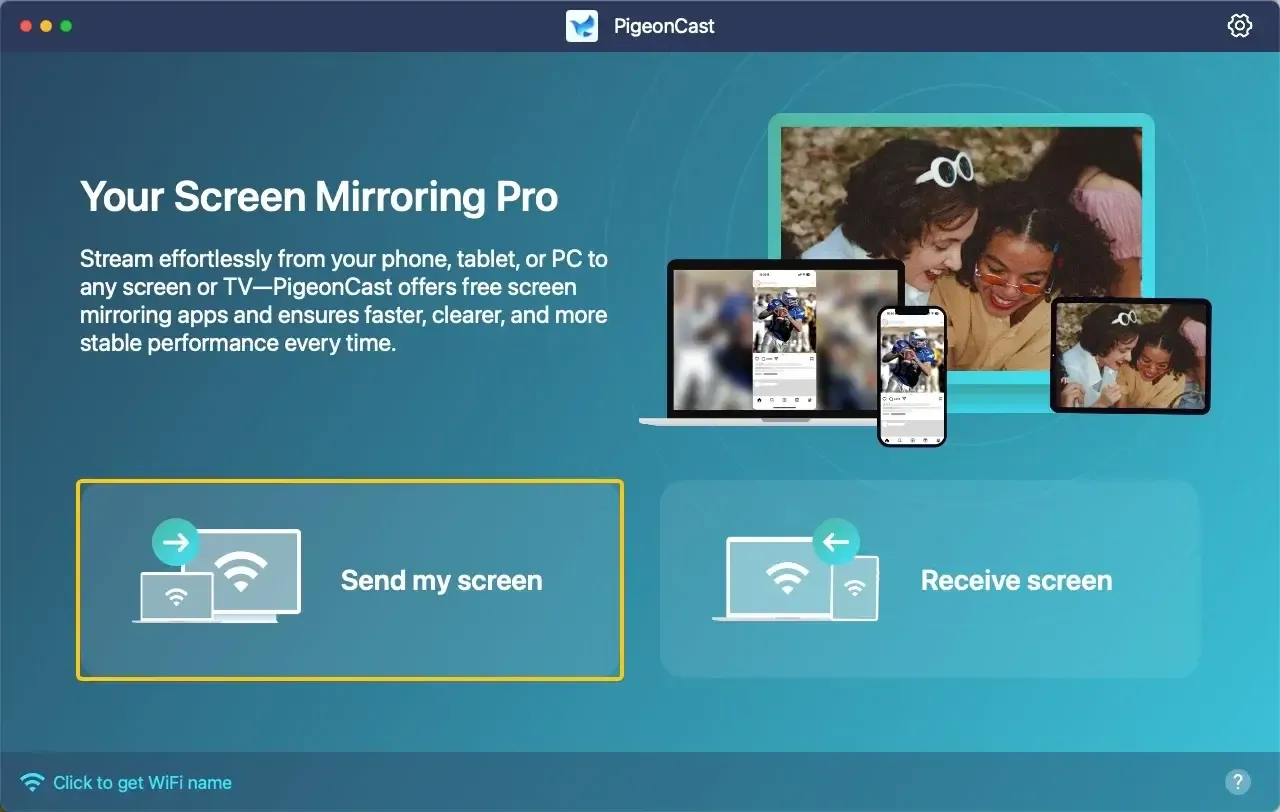
Step 3. On your Windows PC, tap Send my screen to choose your Apple TV from the available list.
Step 4. Enter the onscreen PIN code to build the connection between your devices.
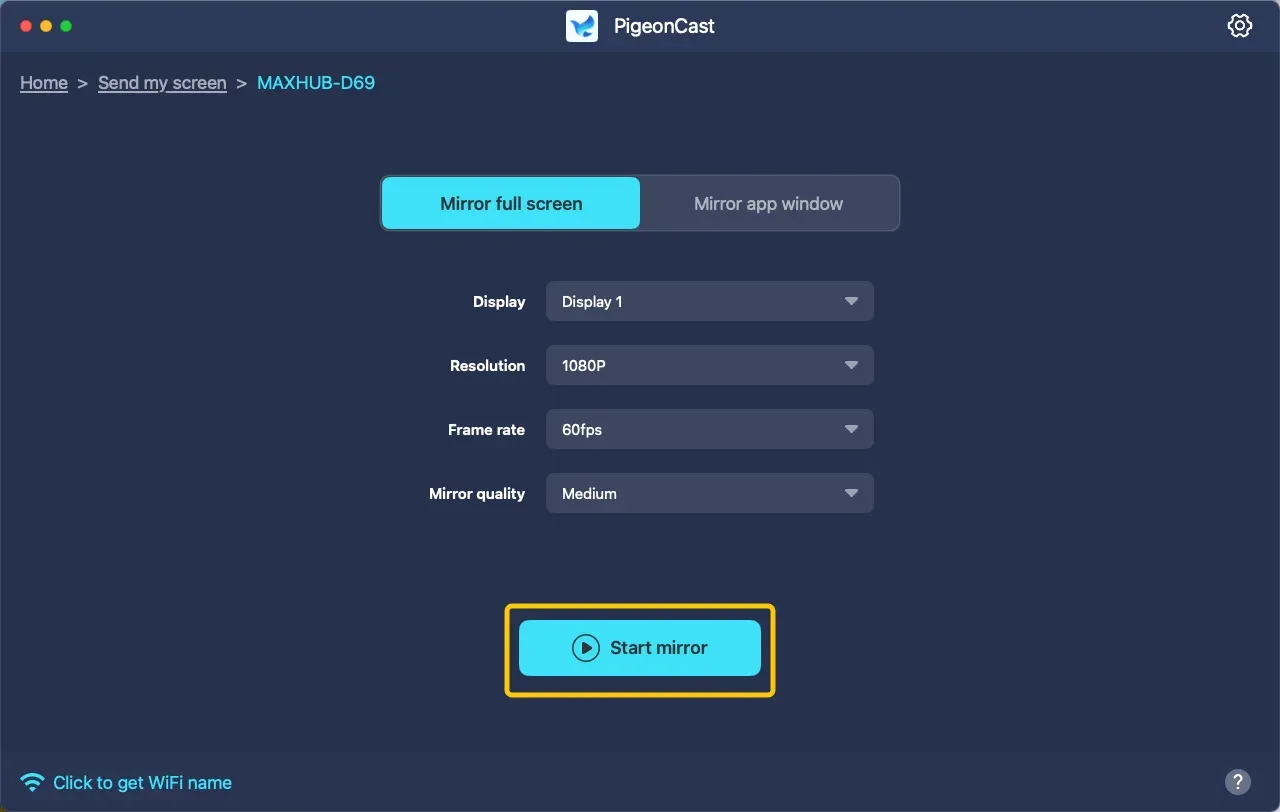
Step 5. When the connection succeeds, you can select to cast to the full screen or a single app window, then click Start mirror to cast to Apple TV from PC.
Way 2. Cast PC to Apple TV via HDMI
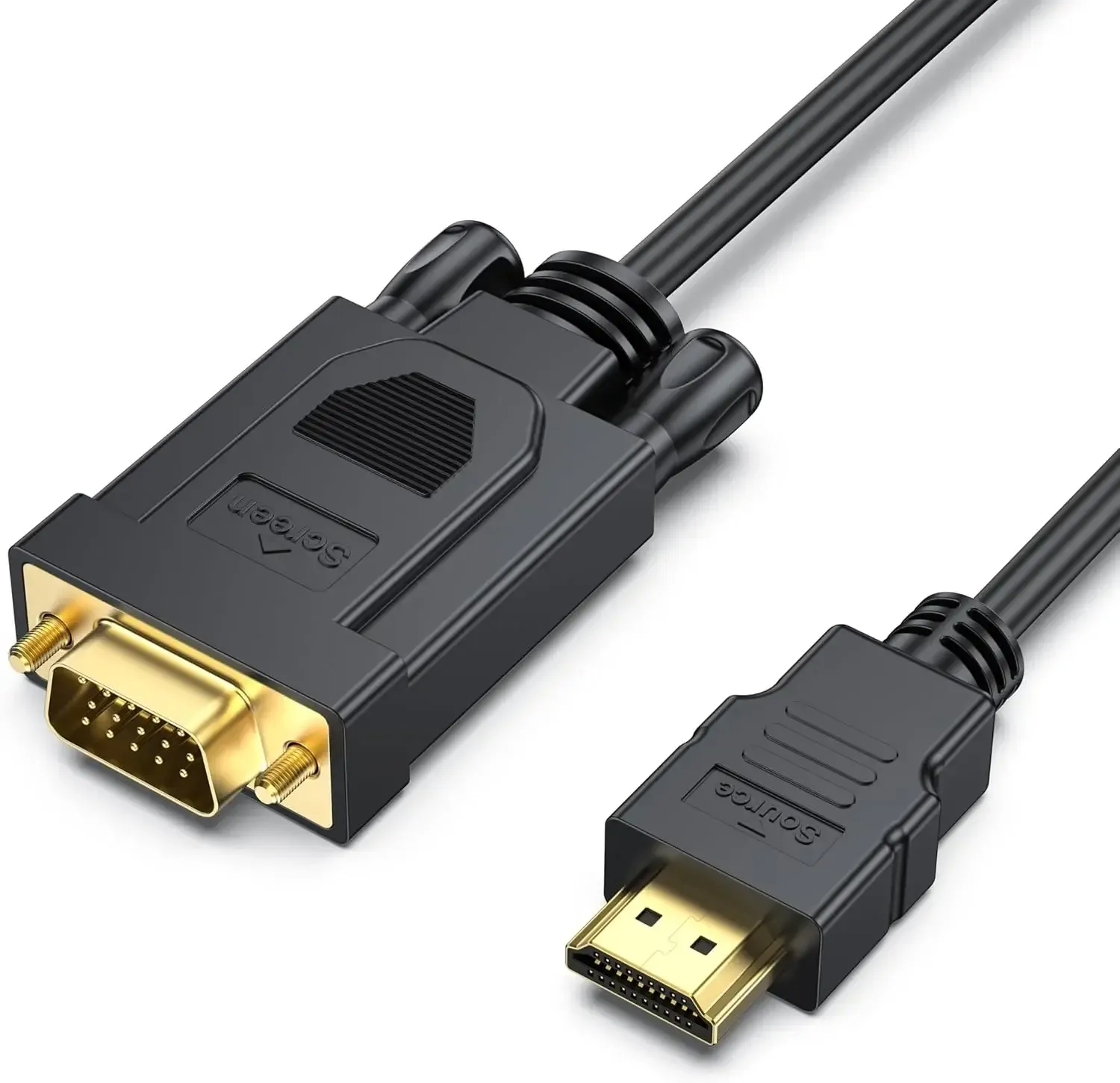
How to mirror PC to Apple TV? If you're seeking a more stable connection without relying on Wi-Fi, using an HDMI cable is a reliable and straightforward solution. Although it's not wireless, HDMI guarantees a lag-free experience with no interference. The process is simple and only requires an available HDMI cable, making it an easy and hassle-free option.
Step 1. Turn on your Apple TV and Windows PC.
Step 2. Connect one end of the HDMI cable to your Windows PC, and one end to the Apple TV.
Step 3. On your TV, use the remote to switch to the appropriate HDMI input.
Step 4. If everything works well, you should stream from PC to Apple TV.
Which Is the Best Way to Stream PC to Apple TV
How do I connect a PC to Apple TV? Now that we've covered both wireless and wired options to cast from PC to Apple TV, you may be wondering which one is the best for your needs. Here's a quick comparison of the two methods:
| Method | Price | Video/Audio Quality | Reliability | Best For |
|---|---|---|---|---|
| PigeonCast | Free | Good, but dependent on Wi-Fi strength; some compression may occur. | Good, but can be affected by network congestion or interference. | Wireless screen mirroring across multiple platforms |
| HDMI Cable | ~$10 – $25 | Excellent; lossless, uncompressed digital signal. | Perfect; no dropouts, interference, or connection issues. | Reliable, high-quality output |
Closing Words
How do I connect my PC to my Apple TV? PigeonCast offers a flexible and convenient wireless solution, while using an HDMI cable provides a stable, lag-free experience. Whether you prioritize convenience or quality, both methods allow you to enjoy your PC's content on the big screen. Choose the one that works best for your setup, and start streaming with ease!
Windows to Apple TV FAQ
Can I cast Windows to Apple TV?
Yes, you can cast Windows to Apple TV using either wireless or wired methods. For a wireless option, you can use apps like PigeonCast, which allows you to mirror your Windows PC screen to Apple TV over Wi-Fi. Alternatively, you can use an HDMI cable to connect your PC directly to the TV for a stable, lag-free connection.
Can I AirPlay from Windows?
No, AirPlay is a proprietary protocol developed by Apple and is not natively supported on Windows PCs. However, you can use third-party software like PigeonCast or 5KPlayer to enable AirPlay functionality on a Windows PC. These apps allow you to stream or mirror content from your Windows computer to an AirPlay-compatible device, such as an Apple TV or AirPlay-enabled speakers.
Why won't my laptop screen mirror to my Apple TV?
Here are some possible reasons why your laptop isn't screen mirroring to your Apple TV:
- Wi-Fi connection issues
- AirPlay not enabled
- Outdated software
- AirPlay icon missing
- Device compatibility
- Device glitch
Clara Rossi is an experienced technology editor and a seasoned expert in screen mirroring and casting technologies. With a keen eye for detail and a deep understanding of how to seamlessly connect devices, Clara excels at optimizing user experiences for effortless sharing and streaming. Whether you're seeking quick fixes or advanced tips, her expertise and responsiveness ensure that every query is met with a well-informed and efficient solution.