
Streaming has become an essential part of our daily lives, and Apple TV+ has quickly become a go-to platform for premium content like Ted Lasso, The Morning Show, and Severance. But what if you're a Windows user? Can you access the Apple TV app for Windows? Let's break it down.
What Is Apple TV
Apple TV+ is a streaming service featuring Apple Originals — award-winning series, compelling dramas, groundbreaking documentaries, kids' entertainment, comedies, and more — with new Apple Originals added every month.
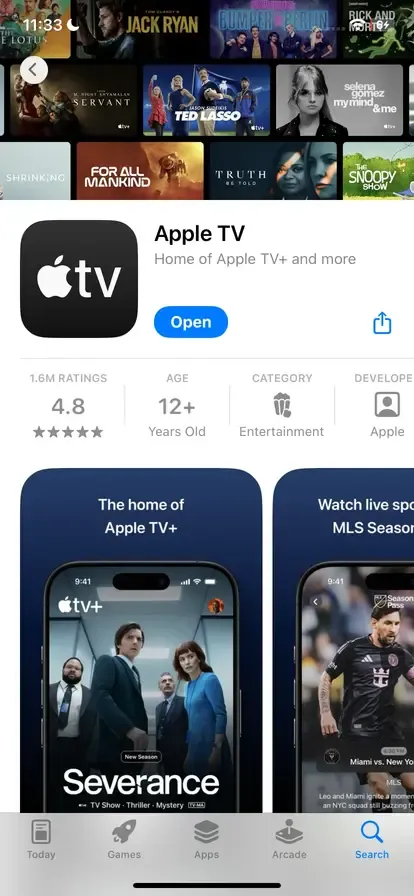
The Apple TV app is Apple's all-in-one streaming hub that lets you watch Apple TV+ originals, rent or buy movies, and access third-party streaming channels all in one place. It's available on Apple devices, smart TVs, gaming consoles, and now Windows 11 via the Microsoft Store. With the Apple TV app, you can:
- Stream Apple TV+ content like Ted Lasso, Foundation, and The Morning Show.
- Buy or rent movies and shows from the iTunes Store.
- Subscribe to and watch premium channels like Showtime or Starz without leaving the app.
- Sync your watch history and recommendations across devices using your Apple ID.
Unlike the Apple TV device (the hardware), the Apple TV app is software that brings Apple's streaming experience to a variety of non-Apple platforms, including Windows.
Is There an Official Apple TV App for Windows 11
Yes, there is. Apple has officially released a preview version of the Apple TV app for Windows 11, available for download through the Microsoft Store. This marks the first time Apple has offered a native app for Windows users, giving them a direct way to access Apple TV+, their iTunes library, and Apple TV Channels.
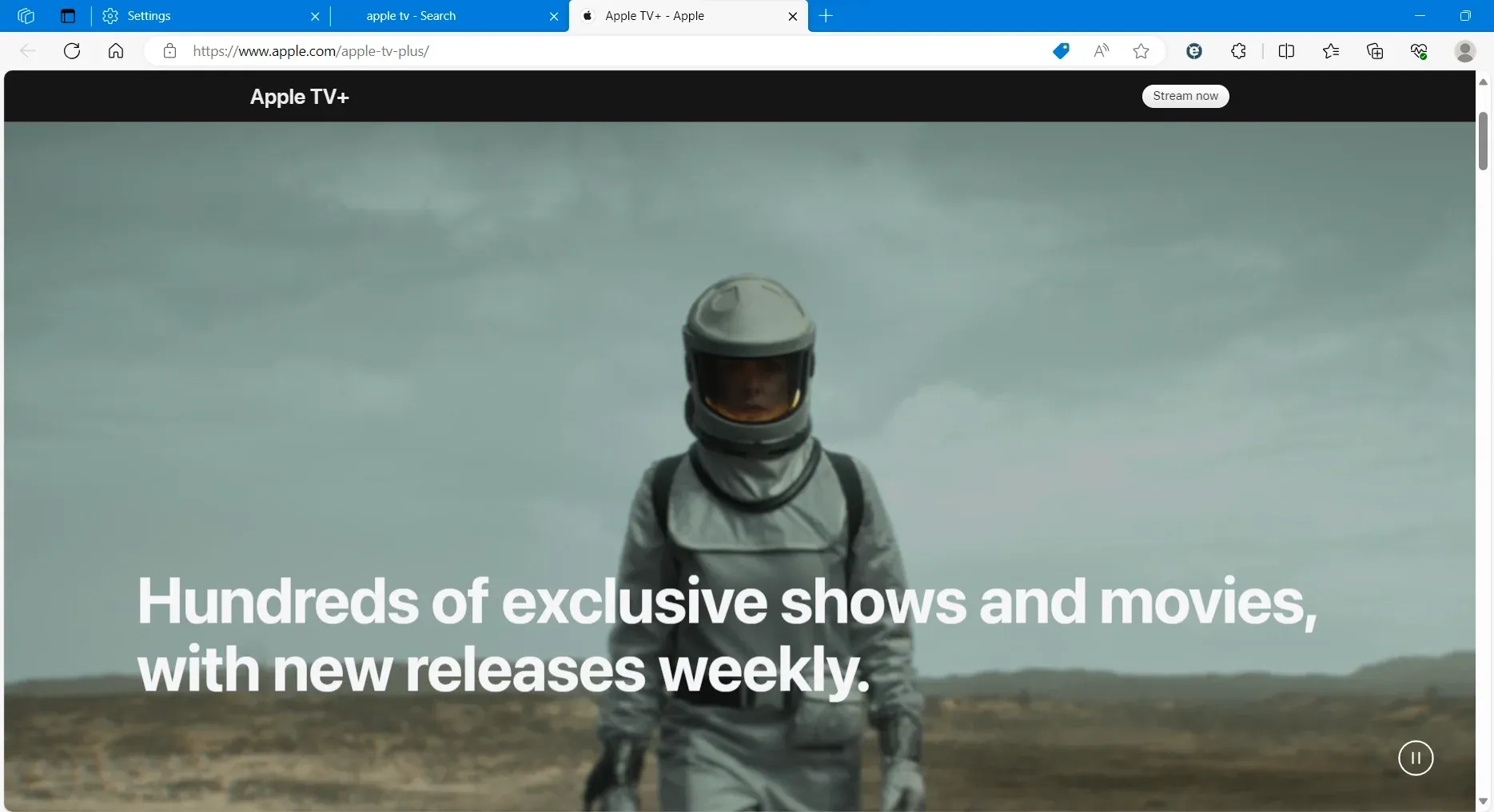
What You Can Do with the Apple TV App Windows
Once you have the Apple TV app installed on Windows, you'll have access to a range of features designed to streamline your entertainment experience. Whether you're looking to enjoy Apple TV+ content, browse your iTunes library, or access premium channels, the app has everything in one place.
- Stream Apple TV+ Originals: Watch all your favorite Apple Originals, from series and films to documentaries, directly from the app.
- Access Your iTunes Library: Enjoy any movies, TV shows, or music you've purchased or rented from iTunes, all without leaving the app.
- Subscribe to Apple TV Channels: Easily subscribe to premium channels like Starz, Showtime, AMC+, and more. You can manage all your subscriptions directly in the app, with no need to juggle multiple services.
- Seamless Syncing Across Devices: Thanks to iCloud syncing, you can pick up right where you left off, whether you're switching from your PC to an Apple TV, iPhone, or iPad.
Apple TV Windows App Limitations
While the Apple TV app for Windows offers a great experience, there are a few limitations to be aware of as you start using it. Here's what you should keep in mind:
- Exclusive to Windows 11: Currently, the app is only available for Windows 11 users. If you're on Windows 10 or an earlier version, you won't be able to install it.
- Preview Version: As a preview release, the app is still in development. You might encounter bugs or missing features as Apple continues to refine the app, so expect occasional glitches.
- Incomplete Features: Some features, like Family Sharing, might not work properly just yet. There could be more updates in the future to improve these functionalities.
- Variable Performance: The app's interface and performance can vary depending on your PC's specs and system updates. A higher-end PC may offer a smoother experience, while older systems might face some lag or performance issues.
How to Watch Apple TV on Windows
If you're eager to enjoy Apple TV content on your Windows PC, there are three simple ways to get started: installing the Apple TV app, streaming directly from your browser, or using a universal screen mirroring app from PigeonCast. Here's how you can access your favorite shows, movies, and more, based on your preferences and your Windows version.
Option 1. Install the Apple TV App on Windows 11
For a more seamless experience, you can download the Apple TV app directly on your Windows 11 PC. Follow these easy steps:
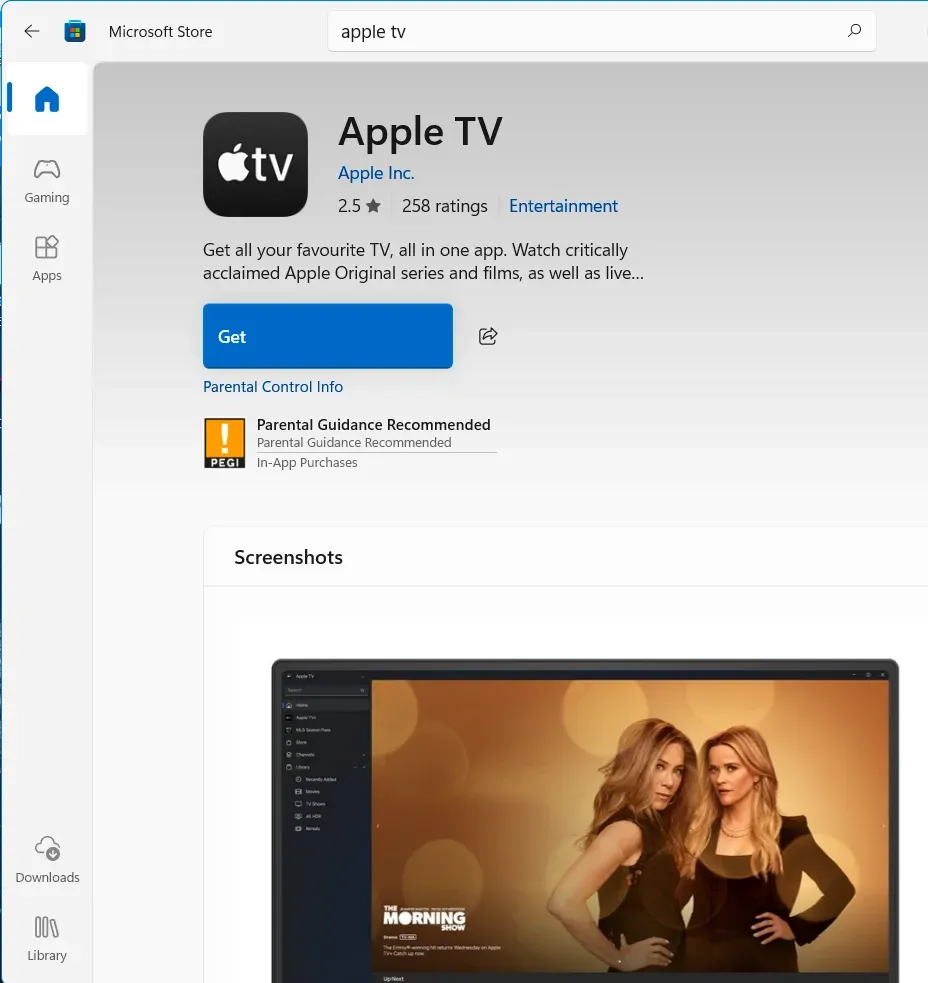
Step 1. Open the Microsoft Store on your Windows 11 PC, search for "Apple TV Preview" in the search bar.
Step 2. Download and install the app on your computer.
Step 3. Sign in with your Apple ID to access your Apple TV+ subscription, iTunes library, and Apple TV Channels.
Step 4. Once installed, the app gives you access to all your content in one place, and you can easily switch between devices with iCloud syncing.
Option 2. Stream Directly from Your Browser
If you're not using Windows 11 or prefer not to install the app, don't worry, you can still enjoy Apple TV content directly from your web browser. This method is quick and convenient, and works on any modern browser:
Step 1. Go to tv.apple.com in your browser.
Step 2. Sign in using your Apple ID credentials, stream your favorite shows and movies directly from the browser.
Step 3. This method works across all major browsers like Chrome, Edge, and Firefox, and offers a hassle-free way to watch content without installing any software.
Option 3. Use a Free Screen Mirror App
Even if your devices aren't on the same operating system, you can still easily stream Apple TV+ content to your Windows PC using the free Windows 10/11 Screen Mirroring app from PigeonCast. Simply connect your iOS or macOS device to your PC, and you can start watching your favorite Apple TV+ shows and movies right on your Windows screen.
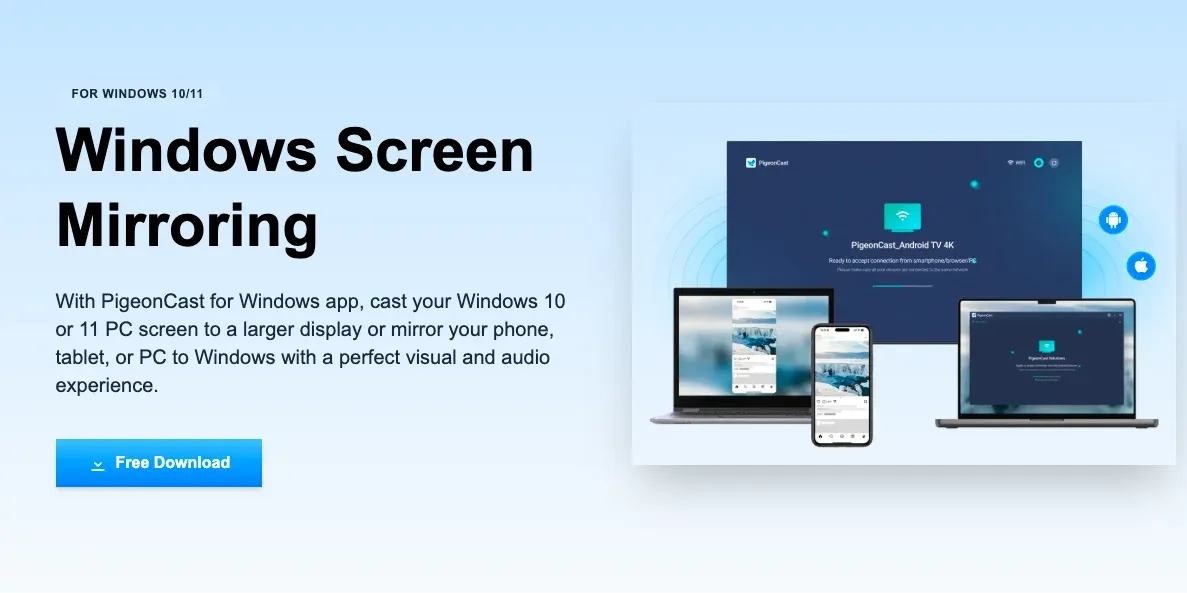

PigeonCast Screen Mirroring

Official Download


Step 1. Install the Windows screen mirroring app on your Windows PC, and ensure your Apple device and PC are covered by the same wireless network.
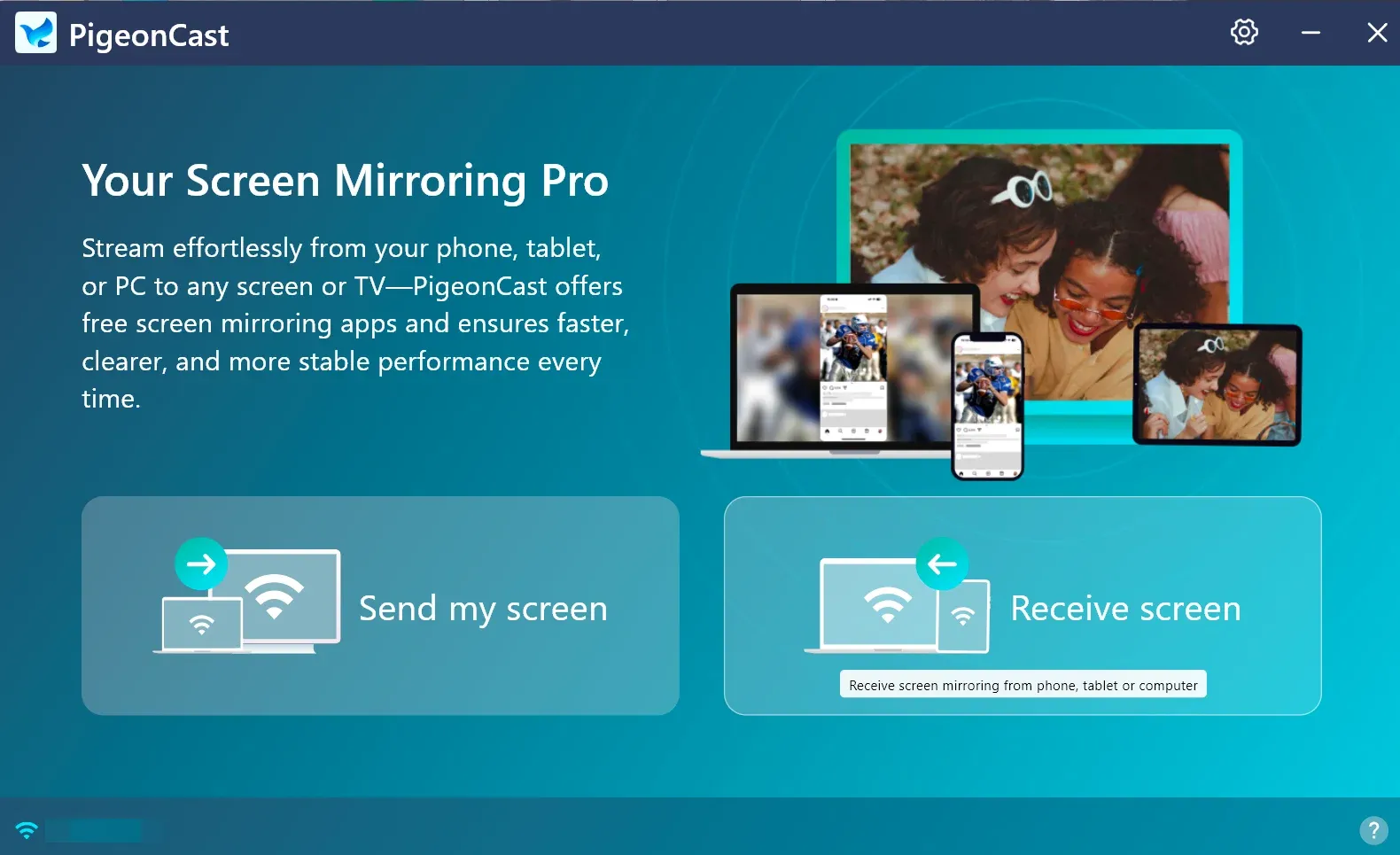
Step 2. Launch the app on PC, click the Receive screen option and it's ready to receive the mirroring screen request from your Apple device, like your iPhone, iPad, or MacBook.
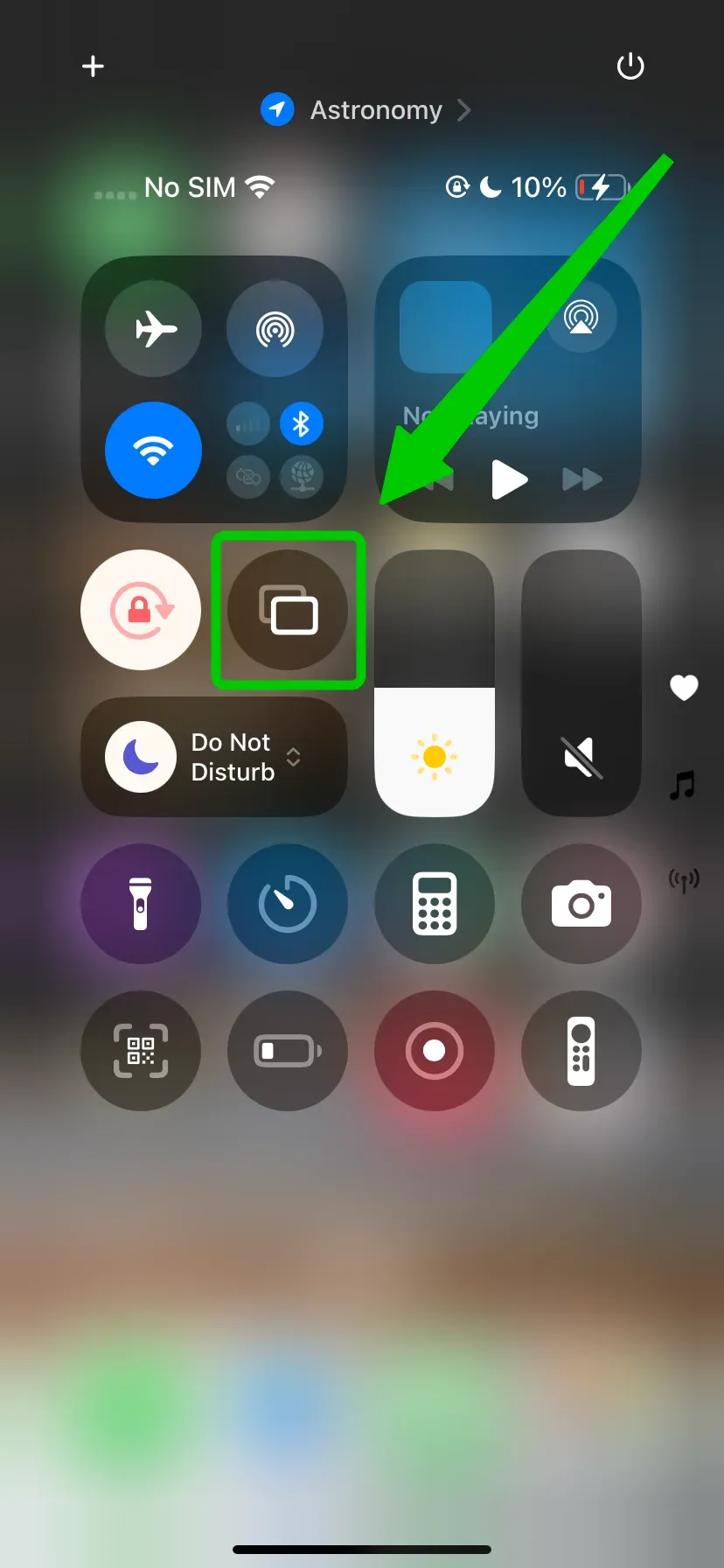
Step 3. On your Apple device, go to the Control Center to enable the Screen Mirroring feature. Then choose your Windows (PigeonCast) from the device list to link these two devices and start screen mirroring.
Step 4. Open the Apple TV app on your Apple device, and you will see the Apple TV + on your Windows computer.
Bottom Line
The Apple TV Windows app is now available on PC 11, giving you native access to Apple's streaming content for the first time. It supports Apple TV+, iTunes purchases, and premium channels. While Windows 10 doesn't support Apple TV, you can watch Apple TV series on your Windows 10 PC through PigeonCast apps.
Apple TV App for Windows FAQ
Is there an Apple TV app for Windows?
Yes, there is an Apple TV app available for Windows, but it's currently only for Windows 11. You can download it for free from the Microsoft Store and access your Apple TV+ subscription, iTunes library, and Apple TV Channels directly on your PC.
Why can't I watch Apple TV on Windows?
If you're unable to watch Apple TV on Windows, it could be because the official Apple TV app is only available for Windows 11 users. If you're using an older version of Windows, like Windows 10, you won't be able to install the app. However, you can still watch Apple TV content by visiting tv.apple.com through any modern web browser or using a free Windows screen mirroring app from PigeonCast.
Can I run Apple TV on my laptop?
Yes, you can run Apple TV on your laptop. If you're using Windows 11, you can download the Apple TV app from the Microsoft Store. If you're using a different operating system or prefer not to install the app, you can simply visit tv.apple.com in any modern browser or try PigeonCast's screen mirror app to stream Apple TV+ content.
Clara Rossi is an experienced technology editor and a seasoned expert in screen mirroring and casting technologies. With a keen eye for detail and a deep understanding of how to seamlessly connect devices, Clara excels at optimizing user experiences for effortless sharing and streaming. Whether you're seeking quick fixes or advanced tips, her expertise and responsiveness ensure that every query is met with a well-informed and efficient solution.