
Connecting your devices to an Apple TV box opens up a world of streaming, screen mirroring, and entertainment on your big screen. While the process is designed to be seamless within the Apple ecosystem, it's also entirely possible to connect non-Apple devices like Android phones and Windows PCs. Knowing how to connect to Apple TV can greatly enhance your viewing experience. Let's dive in!
How to Connect Apple TV
Connecting to Apple TV is simple with compatible devices. However, if you're using an incompatible device, like Android or Windows, you might wonder how to connect to an Apple TV. Fortunately, it's still straightforward. Read on to learn how to connect these devices easily.
How to Connect iPhone to Apple TV
Let's start with AirPlay-compatible devices. If you're using an iPhone, the process is simple and similar to connecting an iPad. We'll use the iPhone as an example, but the steps on how to connect iPad to Apple TV are essentially the same. For MacBooks, however, the process differs slightly. Don't worry, we'll explain that in the next section.
Step 1. Make sure your Apple TV and iPhone are on the same network.
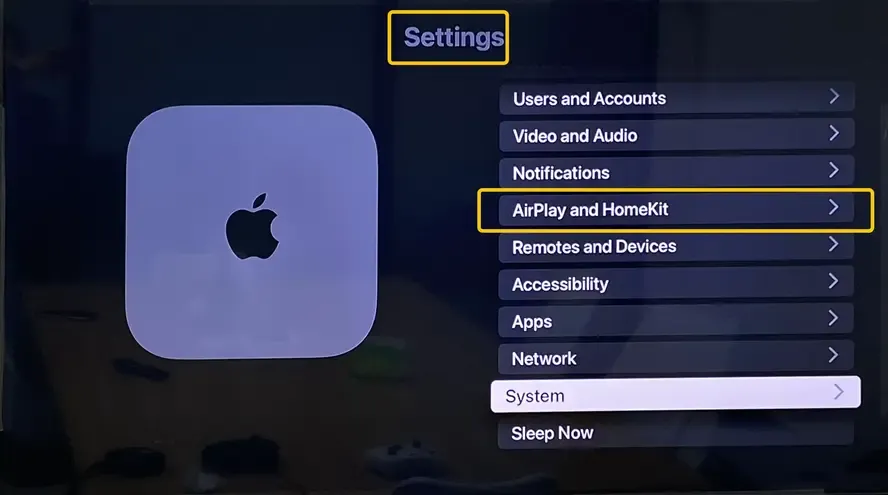
Step 2. On your Apple TV, go to Settings > AirPlay and HomeKit and ensure that AirPlay is turned on.
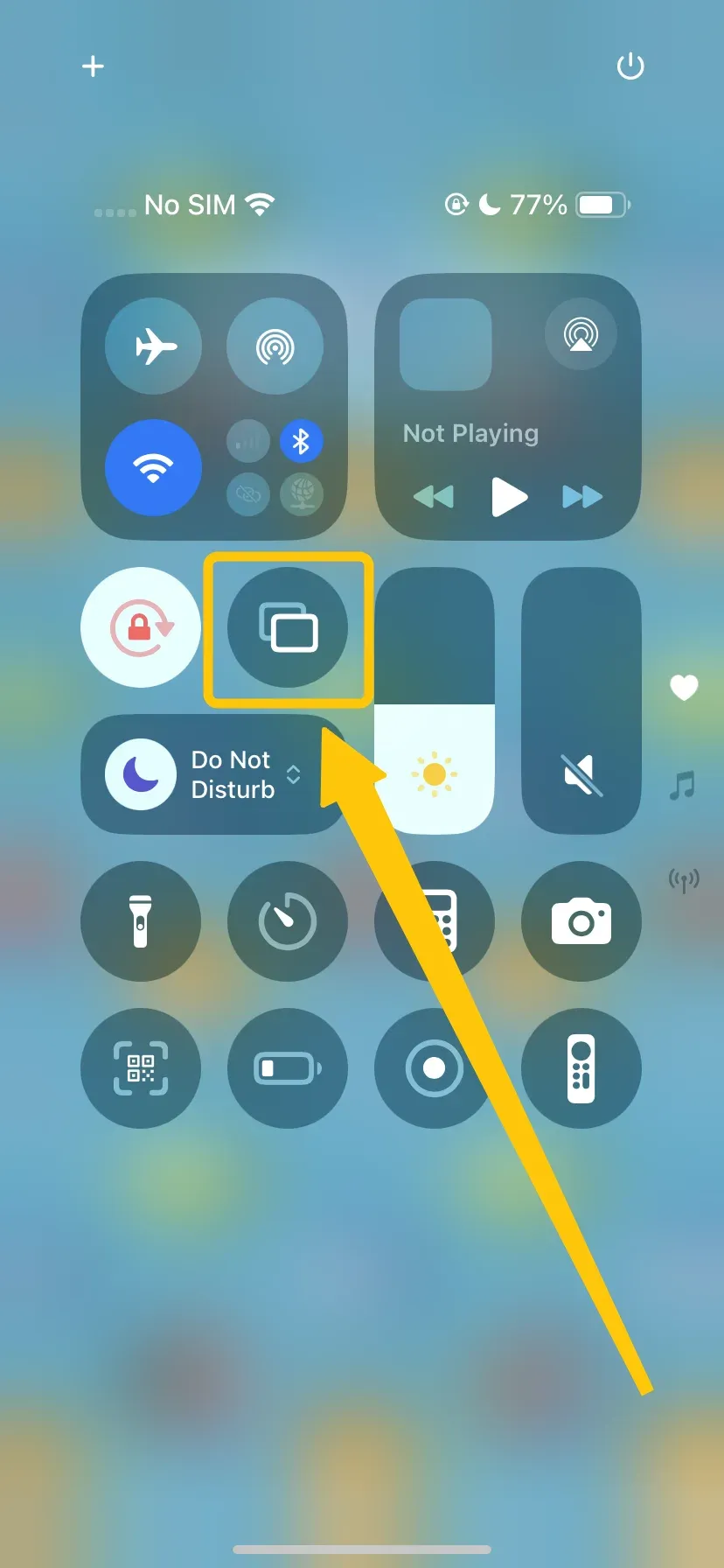
Step 3. Swipe down on your iPhone screen to open the Control Center (on iPhone X or newer) or swipe up (on older models) > Screen Mirroring.
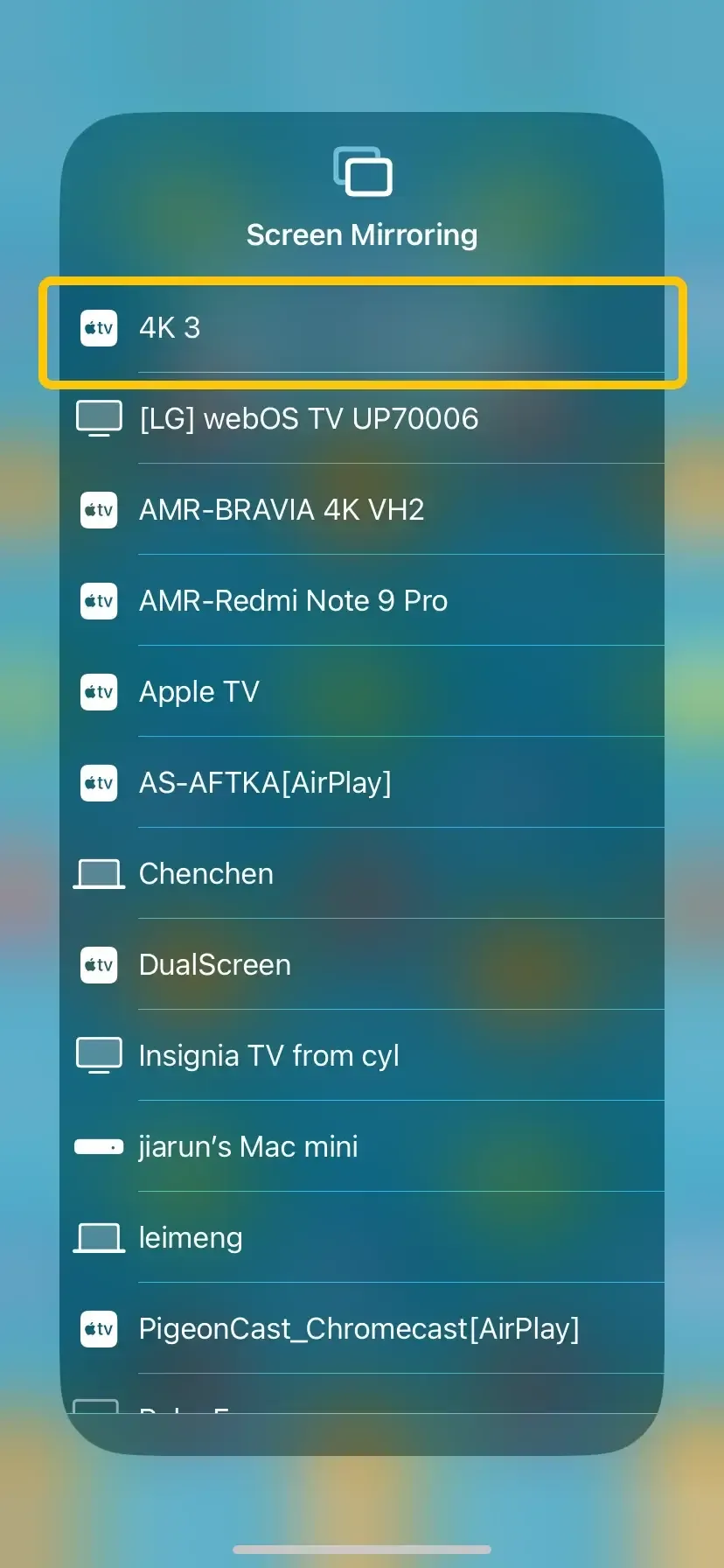
Step 4. Choose your Apple TV from the available list, and enter the prompted code to confirm the connection.
Step 5. Once you finish the connection, everything on your iPhone screen will now be displayed on your TV in real time.
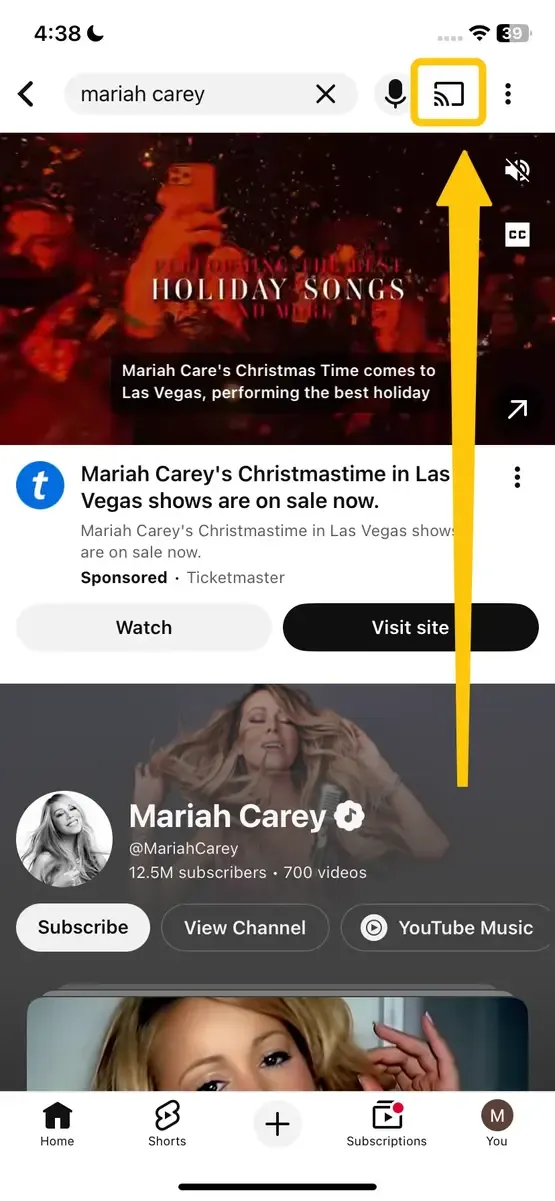
Alternatively, you can play content in a supported app, like Photos, Music, or YouTube, then tap the AirPlay icon or Share icon to select the Apple TV to mirror the specific window or voice.
How to Connect Mac to Apple TV
As mentioned earlier, your Mac uses the same AirPlay protocol to stream content to Apple TV. Let's read on to walk through the steps on how to connect Macbook to Apple TV:
Step 1. Ensure both your Mac and Apple TV are on the same Wi-Fi network.
Step 2. Enable AirPlay on Apple TV from Settings > AirPlay and HomeKit menu.
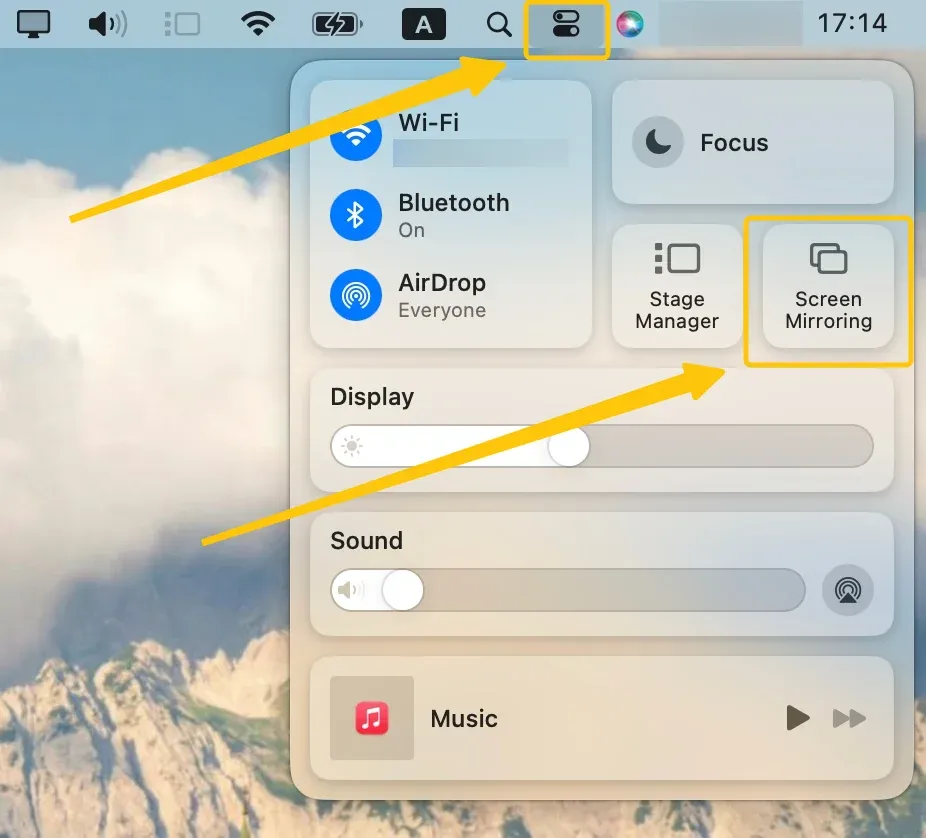
Step 3. Click on the Screen Mirroring in the menu bar at the top-right of your Mac screen.
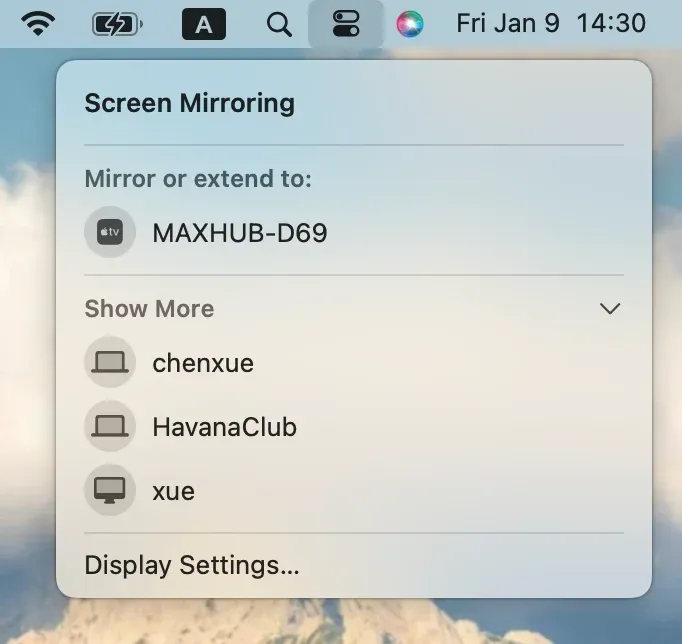
Step 4. Choose your Apple TV from the available list and enter the prompted PIN code.
Step 5. Choose whether to mirror your Mac screen or use the TV as a separate display. Mirroring shows the same content on both screens, while the extended-display option lets you move individual windows onto the TV.
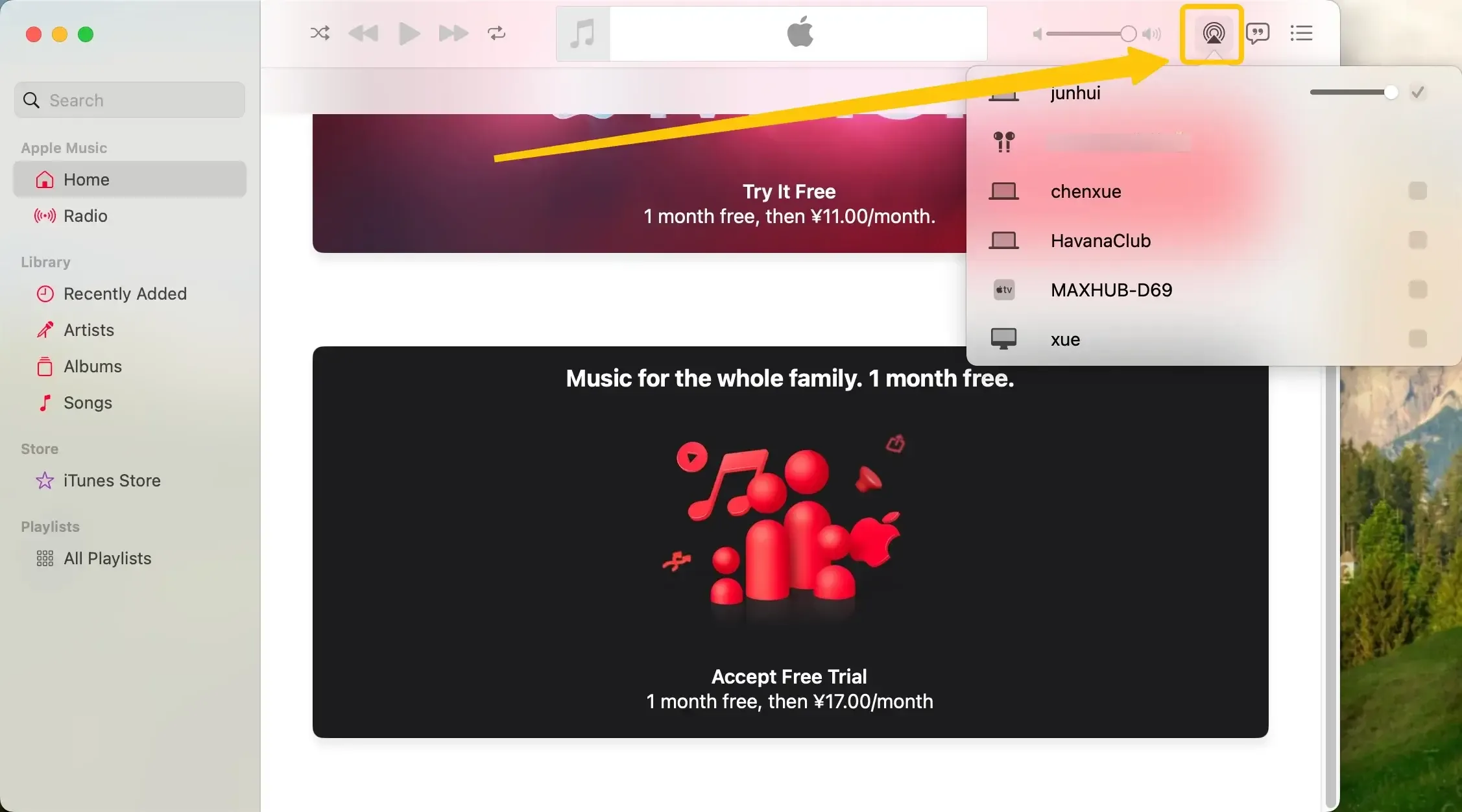
This setup also provides a practical way to use a browser with Apple TV. Open Safari, Chrome, or another browser on your Mac, then mirror the screen or drag the browser window onto the extended TV display.
How to Connect Android to Apple TV
Since Android doesn't support Apple's native AirPlay, you can still connect your Android device to Apple TV using third-party apps like PigeonCast. This free app supports AirPlay, DLNA, and Google Cast, giving you maximum flexibility for casting content. Here's how to connect phone to Apple TV:
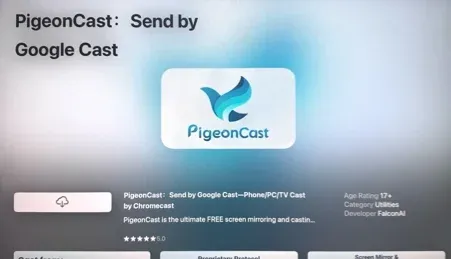
Download button - android/ios


Overall Rating:



Step 1. Ensure your Android and Apple TV are covered by the same wireless network.
Step 2. Install PigeonCast on your Android from Google Play and on Apple TV from App Store, then launch them.
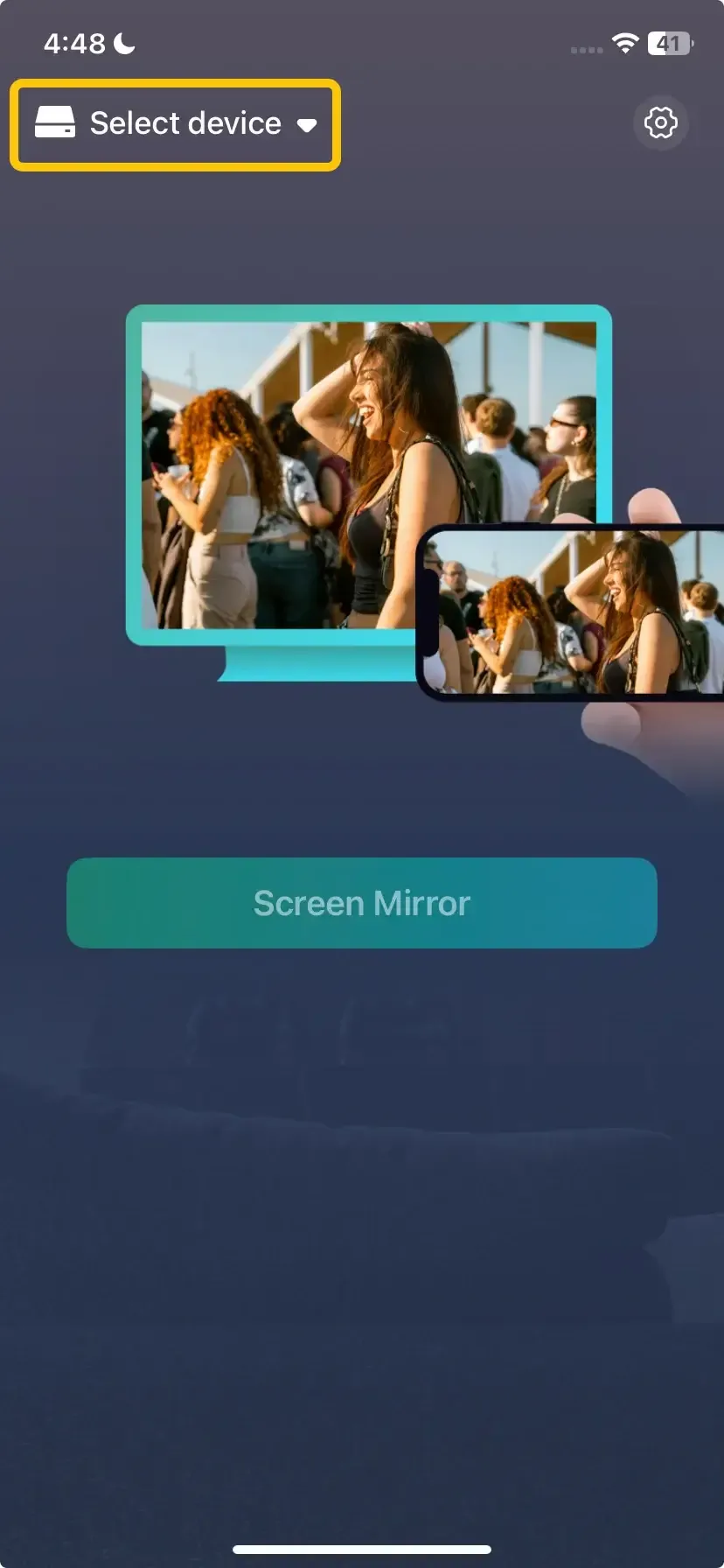
Step 3. On the Android phone, tap Select device to choose your Apple TV from the available list. Or you can scan the onscreen QR code shown on the TV to build the connection.
Step 4. Enter the onscreen code to verify the connection.

Step 5. When you connect successfully, tap Screen Mirror to begin your mirroring activities.
How to Connect PC to Apple TV
To connect your Windows PC to Apple TV, you can still use PigeonCast, as Apple TV does not natively support Windows-based streaming like AirPlay. This free app works smoothly across Android, iOS, Windows, Mac, and even smart TVs (tvOS, Android TV, etc.), with no limitations. It also lets you mirror content between Mac and PC, whether from Mac to PC or vice versa. Here's how to connect computer to Apple TV:

Overall Rating:

Step 1. Ensure your Windows and Apple TV are connected to the same WiFi network.
Step 2. Download the PigeonCast on your PC and Apple TV, then open it.
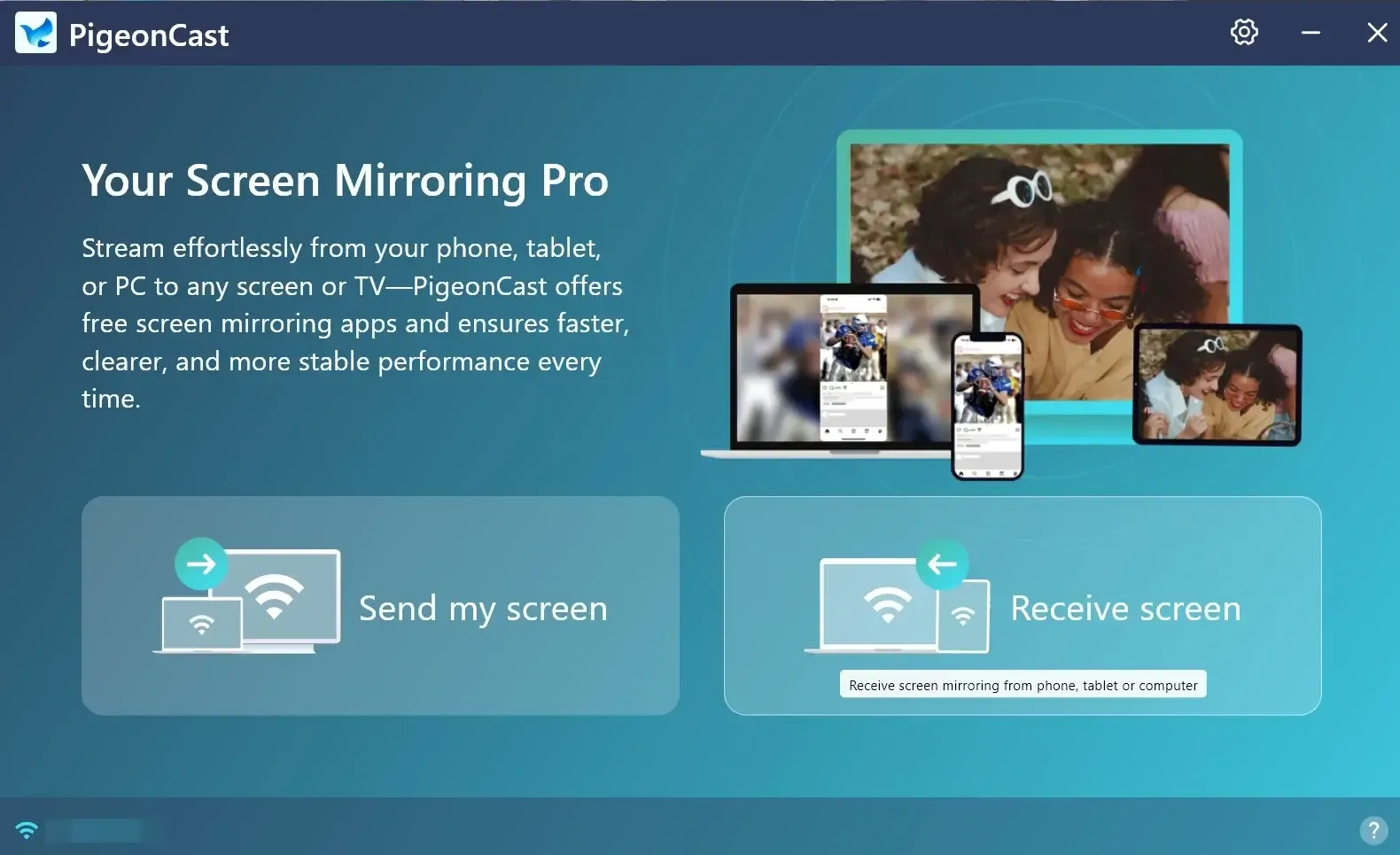
Step 3. On the PC, click Send my screen to choose your Apple TV from the available list.
Step 4. Enter the onscreen PIN code to confirm your connection requisition.
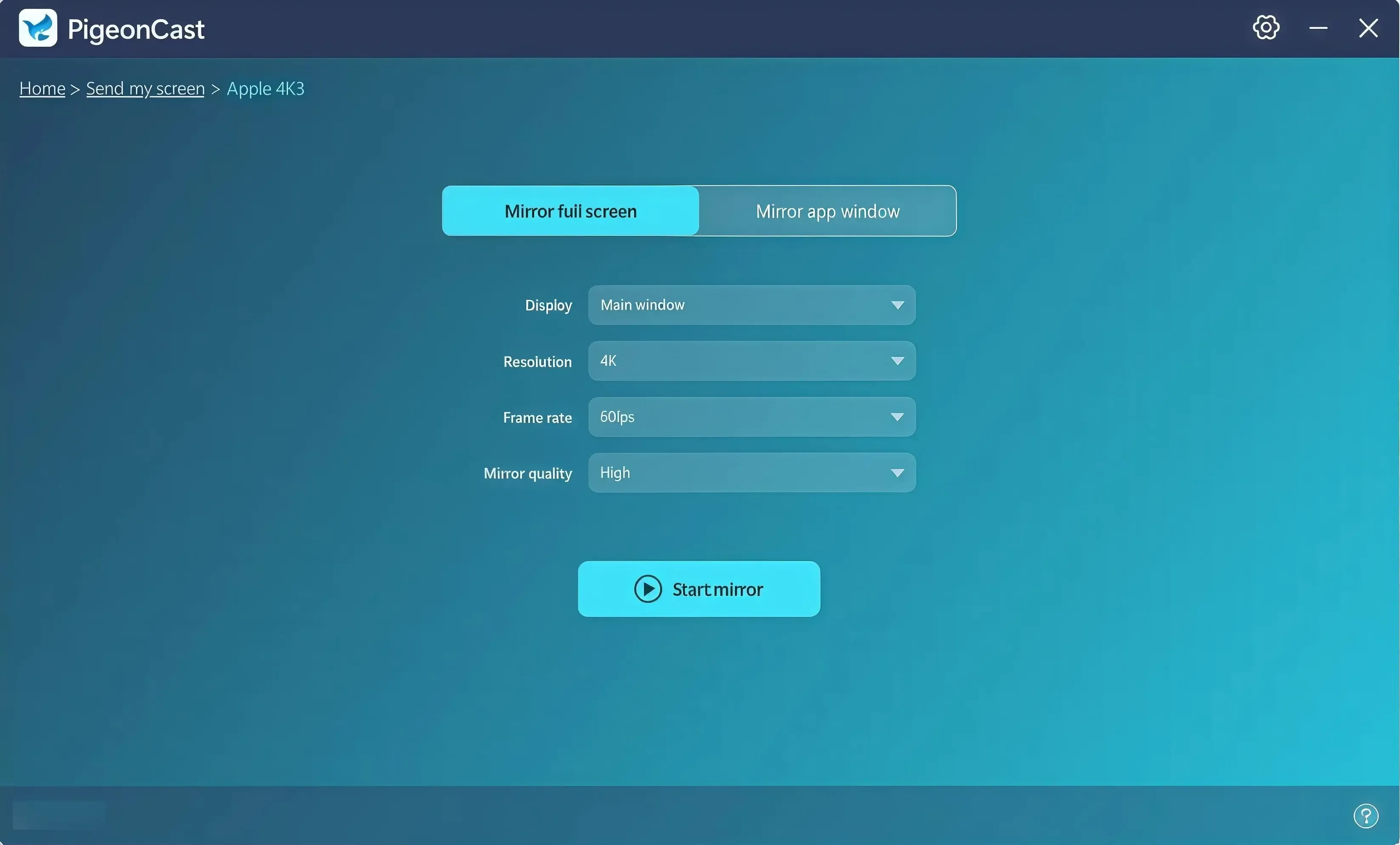
Step 5. Once connected, select mirror the full screen or mirror an app window and choose the Start mirror button to display your PC's screen on your TV via Apple TV.
Bottom Line
How to hook up Apple TV? While Apple devices like iPhones, iPads, and MacBooks connect seamlessly via AirPlay, you can also easily link Android phones and Windows PCs using apps like PigeonCast. These methods ensure you can enjoy content from any device on your big screen without hassle.
How to Connect to Apple TV FAQ
How to connect phone to Apple TV without WiFi?
To connect your phone to Apple TV without WiFi, you can use peer-to-peer AirPlay. This feature allows your iPhone to connect directly to the Apple TV via Bluetooth and Wi-Fi Direct, without needing a shared Wi-Fi network.
- Ensure that both your iPhone and Apple TV are compatible with peer-to-peer AirPlay (Apple TV 4th generation or later, and iPhone 5 or newer).
- Turn on Bluetooth and Wi-Fi on your iPhone.
- On the Apple TV, go to Settings > AirPlay and HomeKit, and make sure AirPlay is enabled.
- On your iPhone, swipe down to open the Control Center and tap Screen Mirroring.
- Select your Apple TV from the list, and the connection will be established.
Why can't I connect to Apple TV?
If you're having trouble connecting to Apple TV, there could be several reasons. Here are a few common issues and solutions to help you troubleshoot:
- Network Mismatch
- AirPlay Disabled
- Wi-Fi/Bluetooth Disabled
- Device Compatibility
- Outdated Software
- Apple TV Not Responding
- Network Interference
- AirPlay Code Issues
- Device Overload
How to connect to Apple TV wirelessly?
To connect to Apple TV wirelessly, follow these steps depending on the device you're using:
- For iPhone, iPad, or iPod Touch:
- Connect both your device and Apple TV to the same Wi-Fi network.
- Swipe down (iPhone X or newer) or up (older models) to open the Control Center.
- Tap Screen Mirroring and select your Apple TV.
- If prompted, enter the code on your TV.
- For Mac:
- Connect both devices to the same Wi-Fi network.
- Click the Screen Mirroring icon in the Mac menu bar, and select Apple TV from the list.
- Enter the AirPlay code if prompted.
- For Android or Windows:
- Use a third-party app like PigeonCast.
- Connect both devices to the same Wi-Fi.
- Open the app, follow the onscreen instructions to select Apple TV, and follow the prompts.
Clara Rossi is an experienced technology editor and a seasoned expert in screen mirroring and casting technologies. With a keen eye for detail and a deep understanding of how to seamlessly connect devices, Clara excels at optimizing user experiences for effortless sharing and streaming. Whether you're seeking quick fixes or advanced tips, her expertise and responsiveness ensure that every query is met with a well-informed and efficient solution.