
Want to share videos, photos, or apps from your iPhone to your Google TV? Although Apple's iOS and Google's Android TV might seem like two worlds apart, there are actually a few easy and effective ways to mirror your iPhone's display onto your TV. In this guide, we'll walk you through how to screen mirror iPhone to Google TV, from app-based casting to a powerful third-party solution and even a simple wired option.
How to Screen Mirror from iPhone to Google TV
Google TV is built around Google's Cast technology, which is supported by a wide variety of apps, making it one of the easiest ways to stream content from your iPhone to your TV. Whether you prefer a wireless or wired connection, there are three methods available to make this happen. Each option has its own benefits, so let's dive into the details and see how to screen mirror on Google TV from iPhone.
Way 1. Use Chromecast-enabled Apps
Chromecast is one of the easiest ways to stream content from your iPhone to Google TV. Apps like YouTube, Netflix, Spotify, and Google Photos support Chromecast natively, making it simple to cast directly from your iPhone to the TV. Here's how to screen mirror to Google TV from iPhone:
Step 1. Connect the iPhone and your Google TV to the Same Wi-Fi network.
Step 2. Open a compatible app such as YouTube, Netflix, or Google Photos on your iPhone.
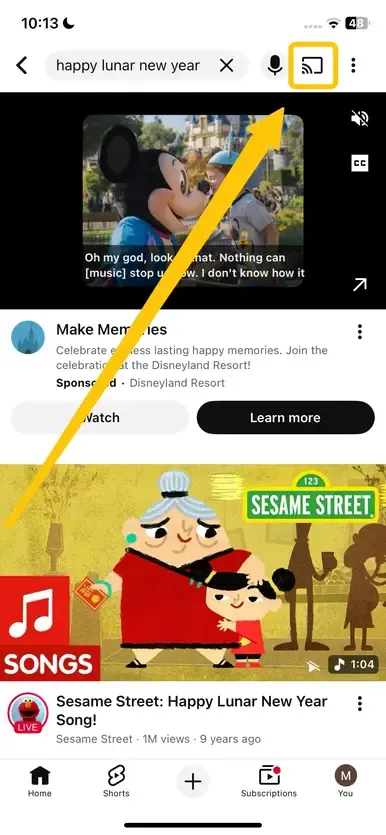
Step 3. In the app, look for the Cast icon to choose your Google TV from the list of available devices.
Step 4. Your content will now be displayed on the Google TV screen.
Way 2. Use PigeonCast
How to screen mirror on Google TV with iPhone? If you want more flexibility in mirroring your entire iPhone screen to Google TV, PigeonCast is a great free option. This ad-free app lets you mirror everything from your iPhone, including photos, videos, and apps, directly to your Google TV. It can also connect to a Windows PC from iPhone without the need for cables or adapters, making it a versatile solution for all your casting needs.
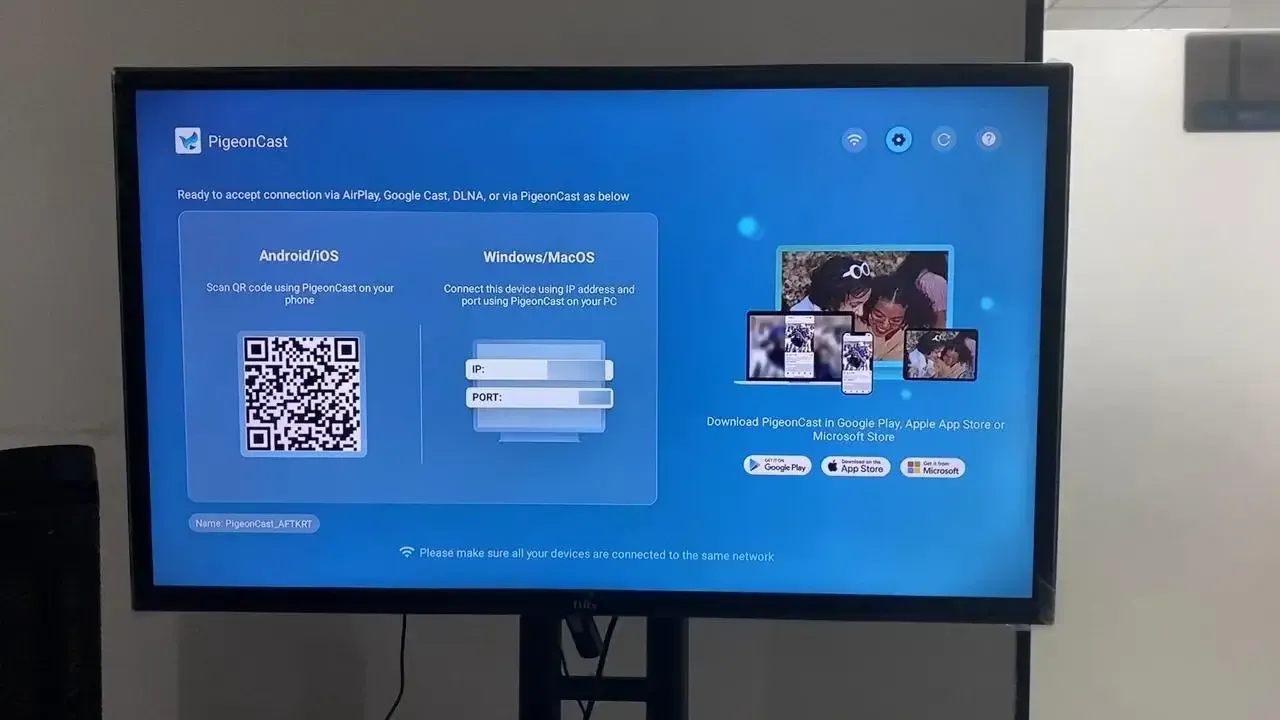
Step 1. Ensure your iPhone and Google TV are covered by the same WiFi network.


Overall Rating:



Step 2. Install PigeonCast on your iPhone from App Store, and Google TV from Google Play, then launch them.
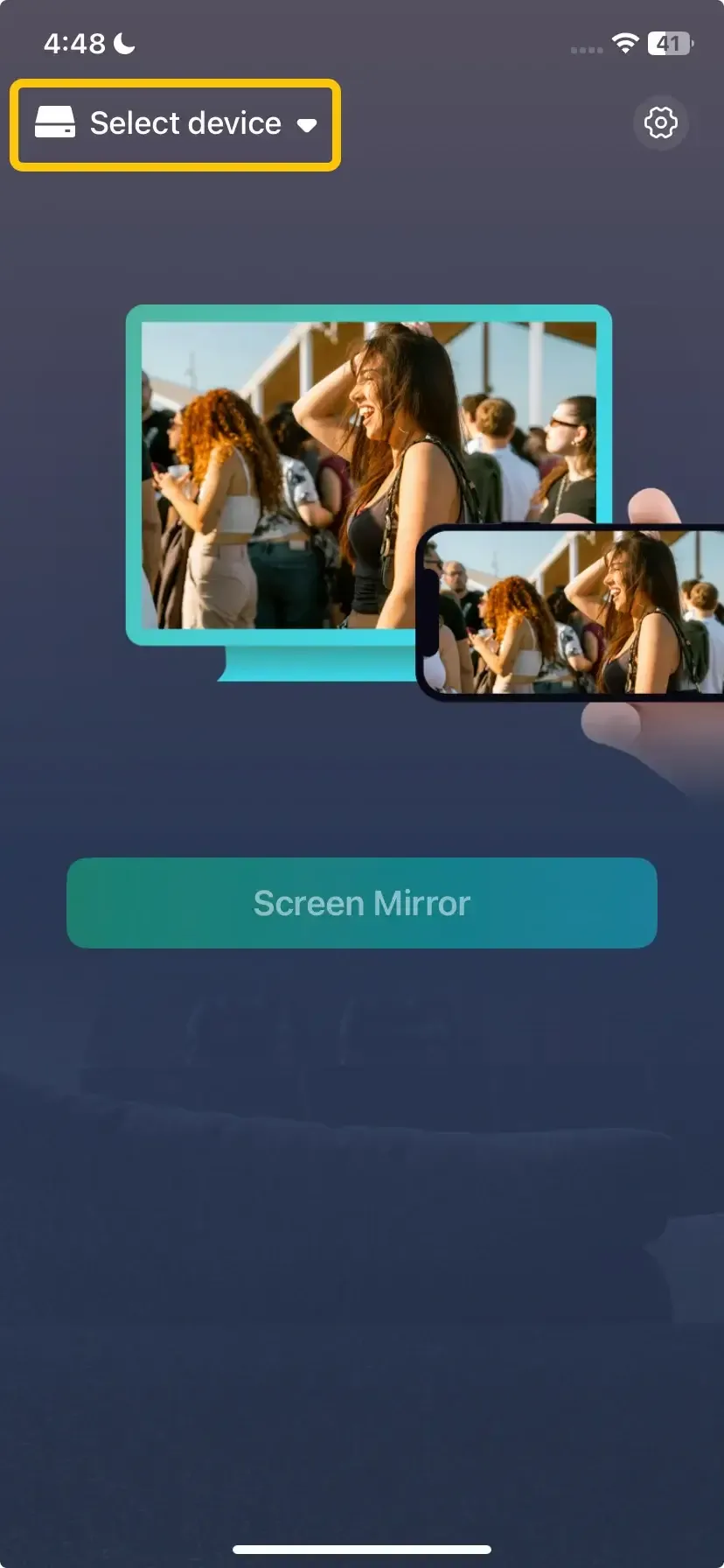
Step 3. On your iPhone, tap Select device to choose your Google TV from the device list. Alternatively, you can scan the QR Code shown on your Google TV screen.
Step 4. Enter the onscreen code to confirm the connection requisition.
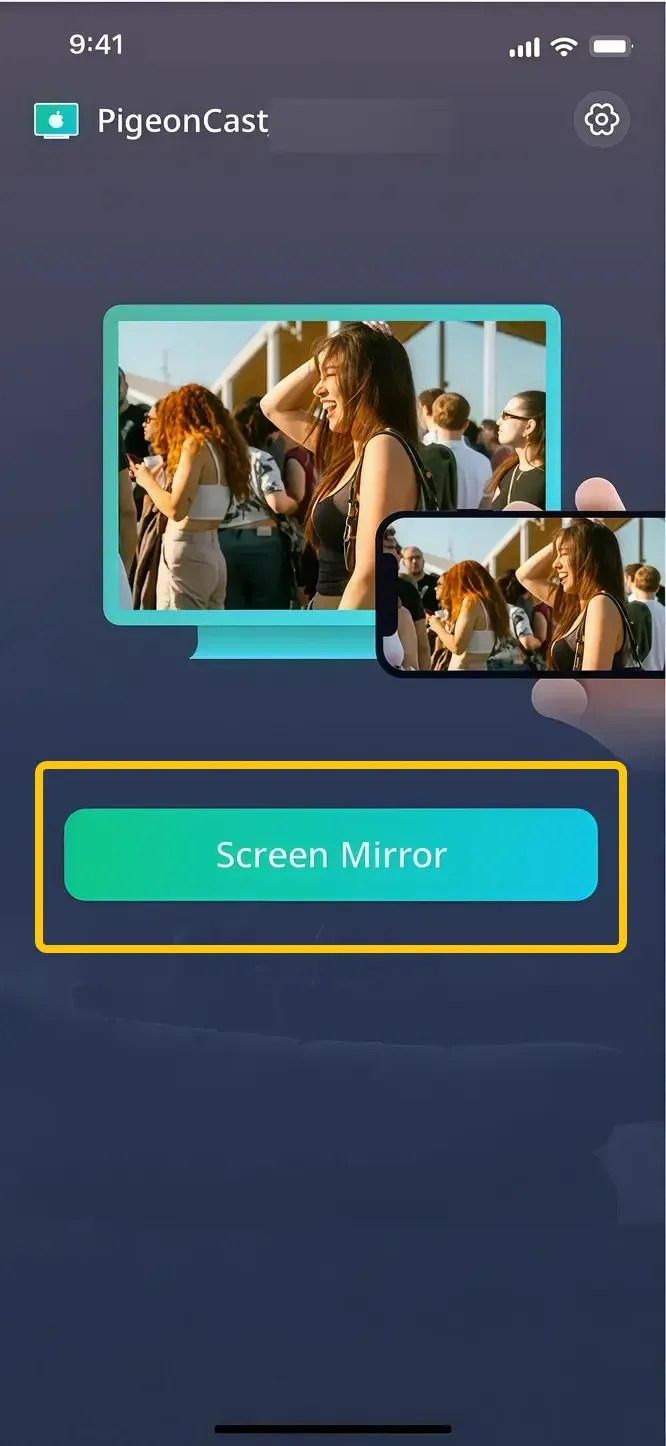
Step 5. When you finish the pairing process, you can then tap Screen mirror start screen mirroring iPhone to Google TV.
Way 3. Use a Wired HDMI Adapter
How to connect iPhone to Google TV? For the most stable and reliable connection, using a direct HDMI cable is the best option. This method converts your iPhone's video output into an HDMI signal, ensuring perfect synchronization with your TV. Read on to check how to Google cast from iPhone via HDMI cable:
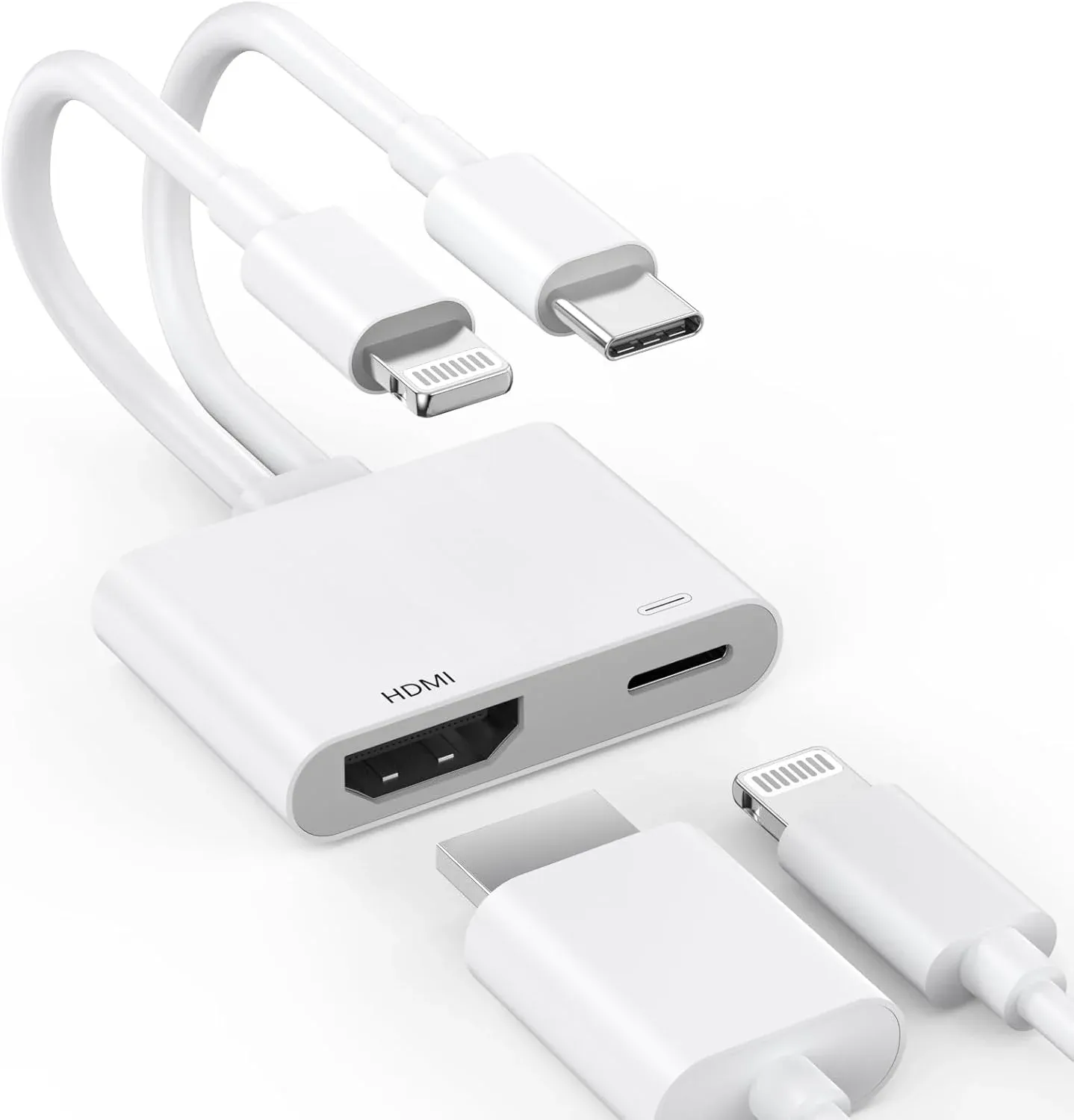
Step 1. Choose the right adapter based on your iPhone's charging port (either Apple's official Lightning to Digital AV Adapter or a USB-C to HDMI Adapter. Then, pick up a compatible HDMI cable.
Step 2. Plug the adapter into your iPhone's charging port, connect one end of the HDMI cable to the adapter and connect the other end to an available HDMI port on your Google TV.
Step 3. Using your TV remote, switch the Input/Source to the corresponding HDMI port. Your iPhone's screen will instantly and perfectly mirror the TV.
To Sum Up
It's easy to cast iPhone to Google TV, isn't it? You can use Chromecast-enabled apps for quick casting, try PigeonCast for full-screen mirroring, or go for a wired HDMI connection for the most stable setup. Each method offers its own benefits, so you can choose the one that works best for you and enjoy a smooth streaming experience on your big screen.
How to Screen Mirror iPhone to Google TV FAQ
How to Screen Mirror iPhone to TCL Google TV?
The steps for screen mirroring an iPhone to TCL Google TV are the same as those for any Google TV. Use either Chromecast-enabled apps, PigeonCast, or a wired HDMI adapter to get started.
How to mirror iPhone to Google TV for free?
To mirror your iPhone to Google TV for free, you can use Chromecast-enabled apps like YouTube, Netflix, and Google Photos. For more flexibility, consider using PigeonCast, which is a free app that allows you to mirror your entire screen.
How to screen mirror iPhone to Philips Google TV?
To screen mirror from your iPhone to Philips Google TV, use Chromecast for compatible apps, or try PigeonCast for more flexible screen mirroring. Both options work well for most Philips Google TV models.
How to screen mirror iPhone to Sony Google TV?
You can screen mirror your iPhone to Sony Google TV using the same methods: Chromecast-enabled apps, PigeonCast, or a wired HDMI adapter. Simply ensure that both your iPhone and Sony TV are on the same Wi-Fi network for wireless mirroring.
Why can't I cast my iPhone to my Google Chromecast?
Here are some common reasons why you can't cast your iPhone to your Google Chromecast:
- Your iPhone and Chromecast are not connected to the same Wi-Fi network.
- The Chromecast device is not properly set up or is out of date.
- The app you're using does not support casting from iPhone.
- There are issues with your Wi-Fi connection or network stability.
- The Chromecast device is malfunctioning or not recognized by your iPhone.
- The Chromecast firmware or the iPhone's iOS needs an update.
Clara Rossi is an experienced technology editor and a seasoned expert in screen mirroring and casting technologies. With a keen eye for detail and a deep understanding of how to seamlessly connect devices, Clara excels at optimizing user experiences for effortless sharing and streaming. Whether you're seeking quick fixes or advanced tips, her expertise and responsiveness ensure that every query is met with a well-informed and efficient solution.