
Screen recording on an iPhone is one of the most useful features Apple has introduced. Whether you want to capture a gameplay highlight, record a tutorial for a friend, save a video call moment, or even document a bug for tech support, the built-in screen recording tool gets the job done. In this guide, we'll show you how to screen record on iPhone and share the recordings.
What Is iPhone Screen Recording
iPhone screen recording is a built-in feature that lets you capture everything on your screen as a video. Key features include:
- Record on-screen activity: Capture apps, games, or tutorials in real time.
- Audio options: Record sound from the device or microphone.
- Easy editing: Trim and edit recordings directly in the Photos app.
- Quick sharing: Save and share videos via messages, email, or social media.
- No extra apps needed: Available on iPhones running iOS 11 and later.
How Do You Screen Record on iPhone
Now that you understand what iPhone screen recording is and its key features, the next step is learning how to record on iPhone. Before recording, you need to make sure the screen recording feature is accessible from the Control Center. If it isn't here, let's see how to get screen record on iPhone:
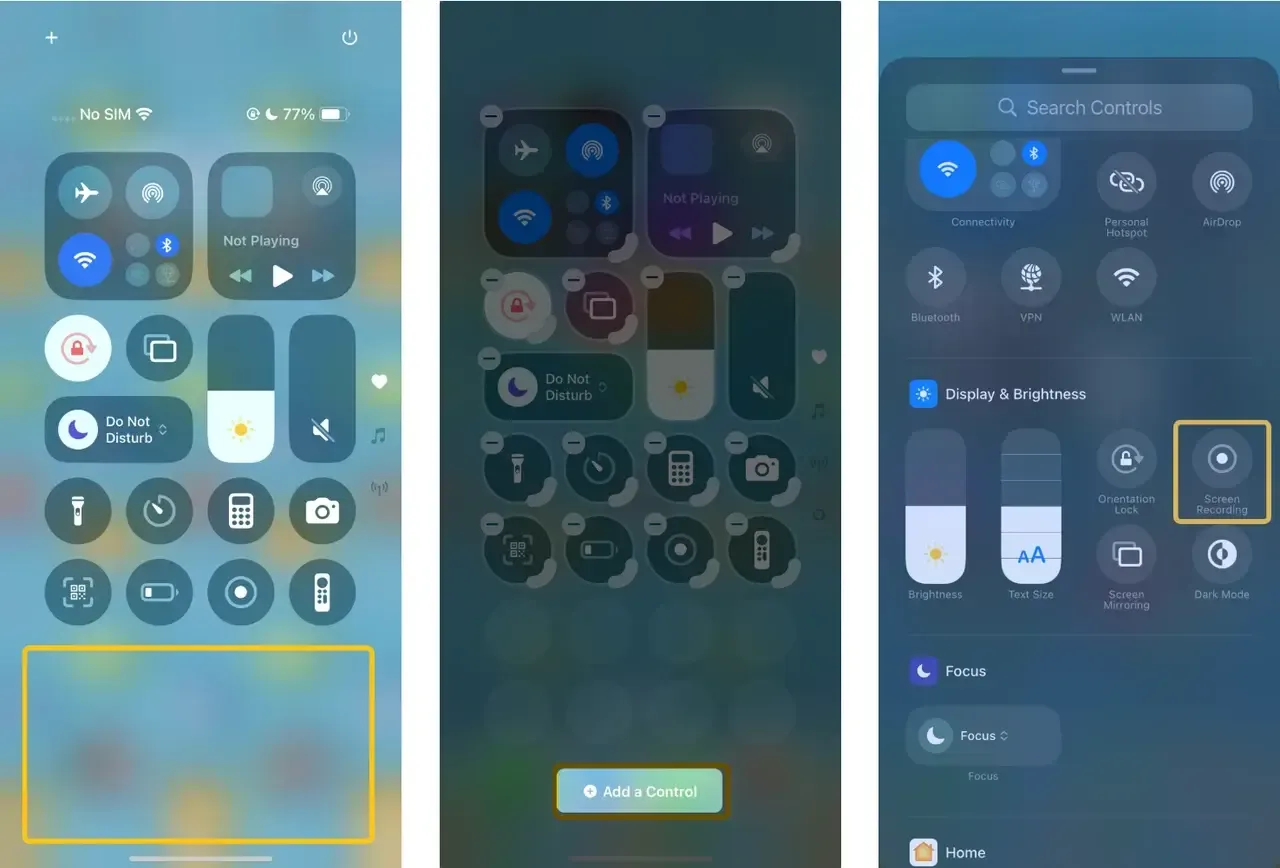
Step 1. Go to Control Center, tap and hold the bottom of the screen where no icons, and tap "Add a Control" to choose Screen Recording in the Display & Brightness section. Alternatively, access Settings > Control Center, scroll down, and tap the green + next to Screen Recording.
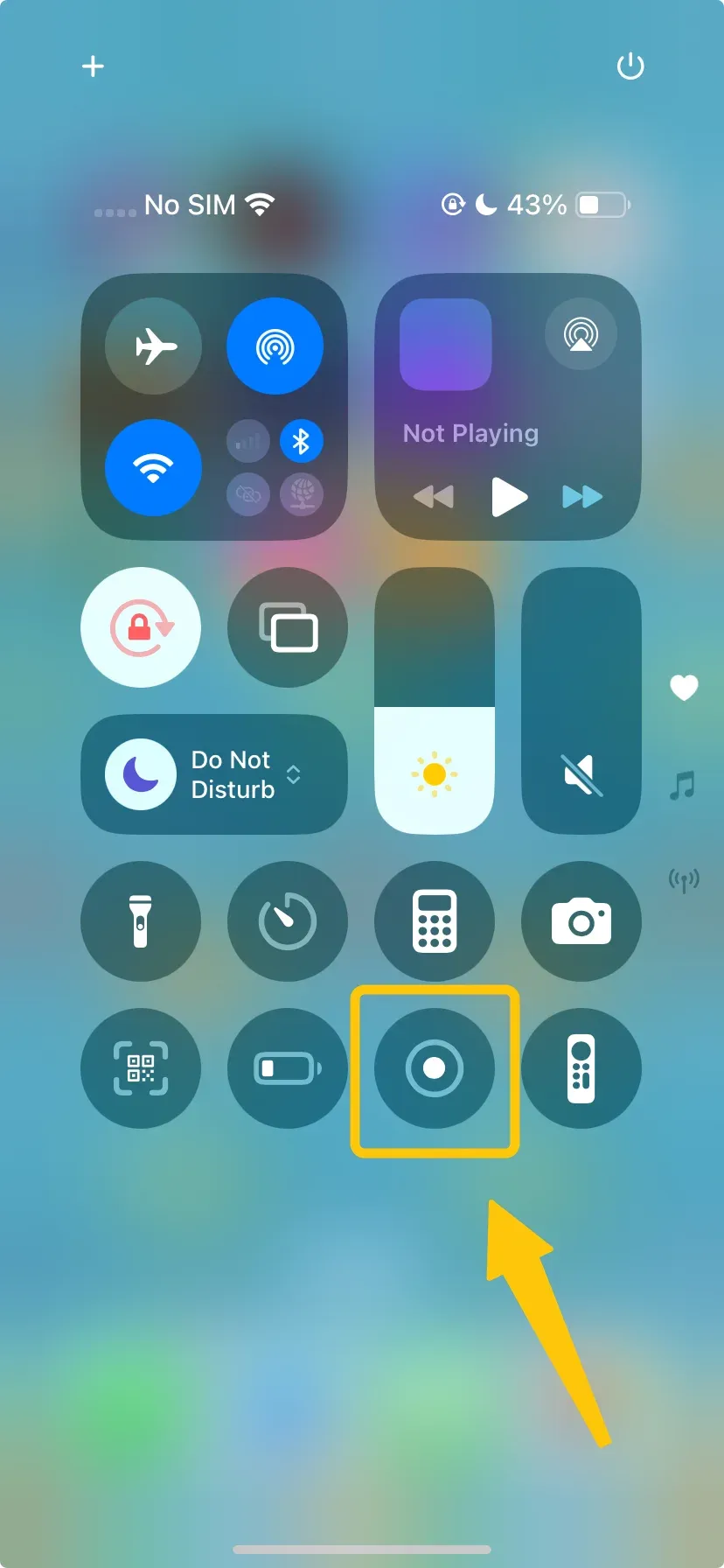
Step 2. Open Control Center, tap the Screen Recording icon, and a three-second countdown will appear. A red status bar or Dynamic Island will indicate that recording is active.
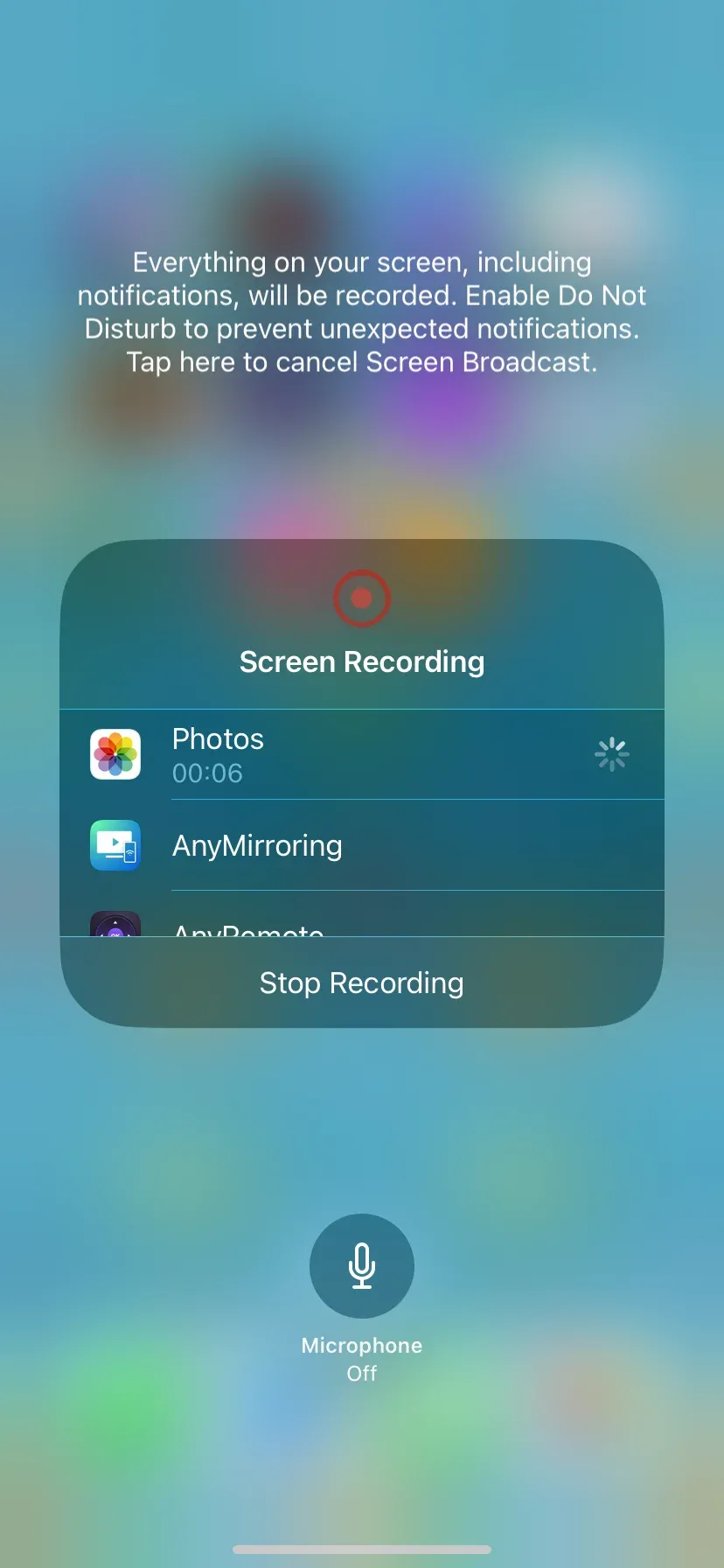
Step 3. To include sound, press and hold the Screen Recording icon in Control Center and tap the Microphone button. This will record both the screen and your voice or ambient sounds.
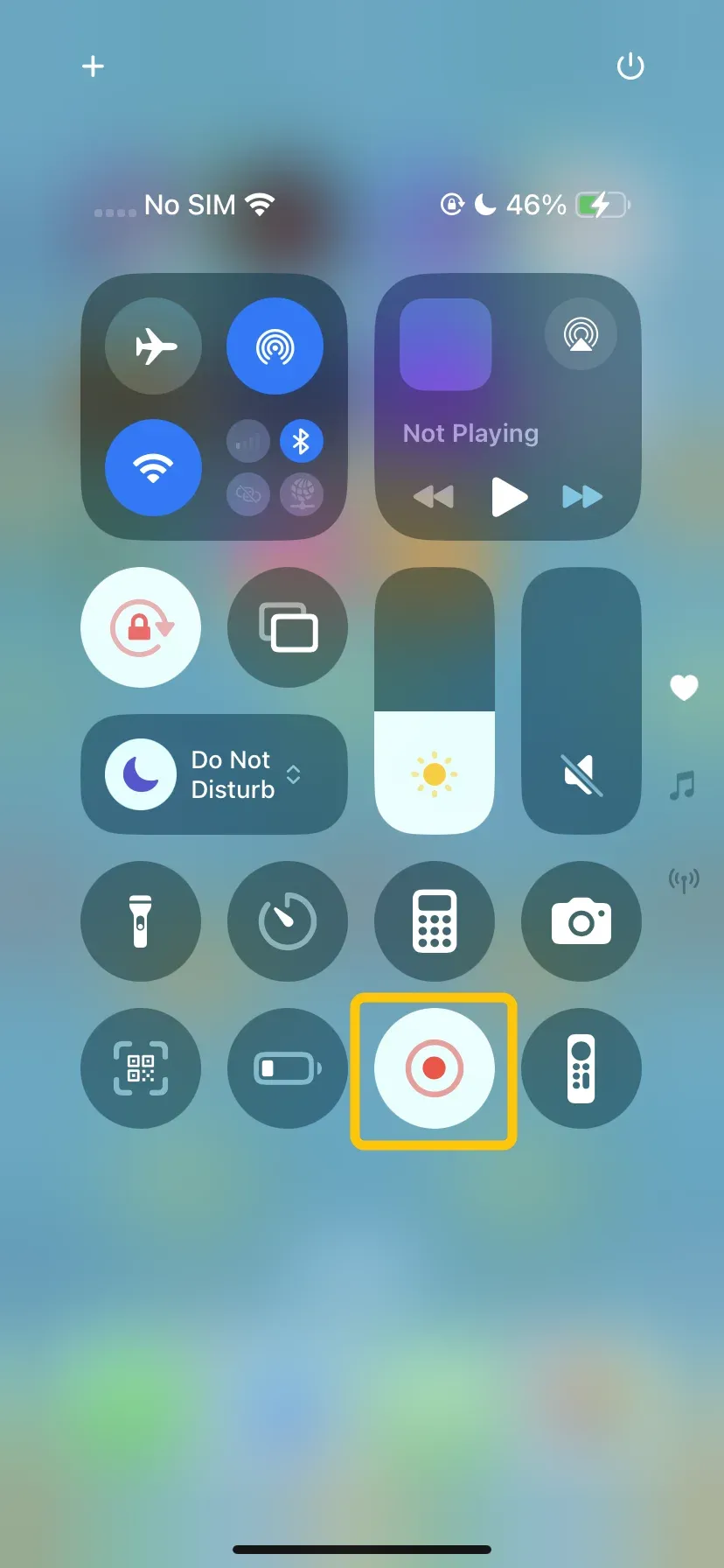
Step 4. Tap the red bar or the Screen Recording icon again to stop. The video will automatically save to the Photos app, under Recents and Screen Recordings.
You might be interested in the guide on How to Screen Record on a Mac.
How to Share Your iPhone Screen Recording
After recording your screen, you can easily share the video with others. For nearby devices, you can use AirDrop or AirPlay to send it directly to AirPlay-compatible devices. If the receiving device isn't compatible, you can mirror your iPhone screen to a larger display instead. To get a better viewing experience, adjusting iPhone screen mirroring to full screen can help remove black borders and make your content fit the display better.

For incompatible devices mirroring, we recommend PigeonCast, the universal screen mirroring app that transforms your Windows or smart TV into an AirPlay receiver. This app also supports reverse control to play, pause, or skip the video playing on the TV or Windows.
Step 1. Install the PigeonCast app on your TV or Windows PC and launch the app.

PigeonCast Screen Mirroring

Official Download



Step 2. Ensure your iPhone and TV or Windows PC are connected to the same wireless network.
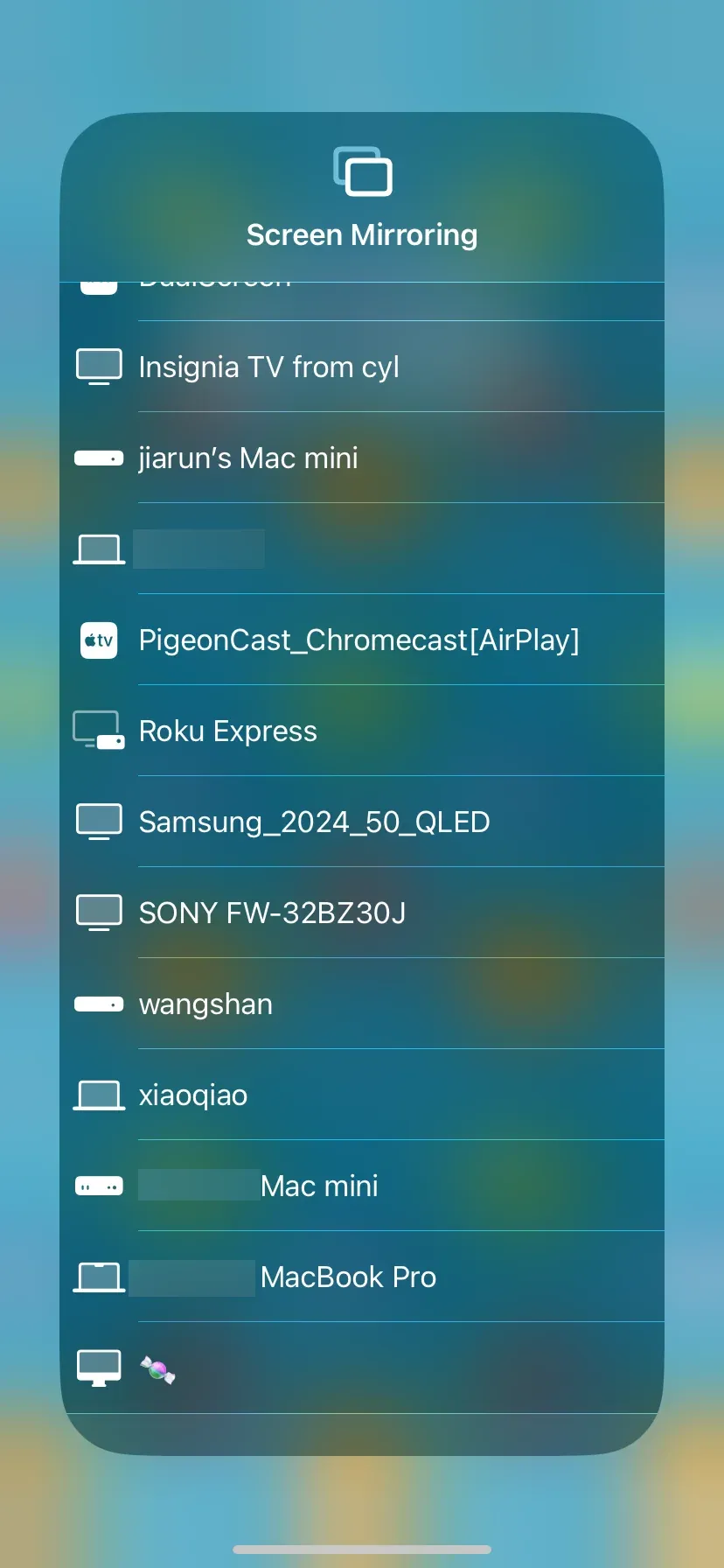
Step 3. If you only want to mirror the recording video, tap the AirPlay button in the photo and choose the PigeonCast name. If you don't screen record but want to share the whole iPhone screen, tap the Screen Mirroring button in the Control Center on your iPhone to choose the PigeonCast name device from the available list.
Step 4. Enter the onscreen PIN code to finish the connection, and you can then see your iPhone screen displayed on a bigger screen.
Wrapping Up
iPhone screen recording lets you capture anything on your screen, with sound, edit it easily, and share it quickly. Wondering how to turn on screen recording on iPhone? Just follow the steps in this guide, and for devices that don't support AirPlay, apps like PigeonCast make it easy to mirror and share your recordings on a TV or Windows PC.
How to Screen Record on iPhone FAQ
Q: How do I turn on my iPhone screen recording?
To turn on screen recording on your iPhone, go to Settings > Control Center, then tap the + next to Screen Recording. Once added, open Control Center and tap the Screen Recording icon to start recording. To include audio, press and hold the icon and enable the Microphone. The recording will automatically save to the Photos app.
Q: How to screen records on an iPhone without buttons?
You can screen record on an iPhone without using physical buttons by using AssistiveTouch. Here's how:
- Go to Settings > Accessibility > Touch > AssistiveTouch and turn it on.
- A floating AssistiveTouch menu will appear on your screen.
- Open Control Center from the AssistiveTouch menu (or swipe down from the top-right corner) and tap the Screen Recording icon.
- To include audio, press and hold the icon and enable the Microphone.
- Tap the red status bar or the Screen Recording icon in Control Center to stop recording. The video will automatically save to the Photos app.
Q: Why can't I find my screen recording on my iPhone?
If you can't find your screen recording on your iPhone, it's usually because of one of these reasons:
- Saved to Photos app: Screen recordings automatically save to Photos > Recents. Check there first.
- iCloud or storage issues: If your iCloud storage is full or your device is low on storage, the recording might not save.
- Screen recording not completed: Make sure you tapped the red status bar or Control Center icon to stop the recording; otherwise, it may not save.
- Hidden or filtered albums: Check Albums > Media Types > Screen Recordings to see if it's categorized there.
Q: Is screen recording legal?
Yes, screen recording is legal, but there are important limits:
- Personal use: Recording your own screen for personal purposes, tutorials, or saving content for offline use is generally legal.
- Consent matters: Recording someone else's conversation, video call, or copyrighted content without permission can violate privacy laws or copyright rules.
- Public content: Capturing content from apps, streaming services, or games may be restricted by the service's terms of use.
Q: Does screen recording record audio?
Yes, iPhone screen recording can capture audio. By default, it records the sounds from the device, and you can also enable the microphone in the Control Center to record your voice or external sounds along with the screen.
Q: How to share an iPhone screen?
To share your iPhone screen, use AirPlay to mirror it to an Apple TV or AirPlay-compatible device. Swipe down from the top-right corner of your iPhone to open Control Center, tap Screen Mirroring, and select the device you want to share your screen with.
Clara Rossi is an experienced technology editor and a seasoned expert in screen mirroring and casting technologies. With a keen eye for detail and a deep understanding of how to seamlessly connect devices, Clara excels at optimizing user experiences for effortless sharing and streaming. Whether you're seeking quick fixes or advanced tips, her expertise and responsiveness ensure that every query is met with a well-informed and efficient solution.