
Trying to watch MLB games on a bigger screen should be simple, but many users quickly run into problems like the Cast button not appearing, iPhone casting behaving differently from Android, Chromecast connecting but video failing, AirPlay working inconsistently, or the TV app buffering or crashing
If you are searching for how to cast MLB app to TV, the best method depends on your phone, TV platform, and how stable you want the experience to be.
For most users who want the most consistent cross-device solution, PigeonCast is the easiest place to start because it works across iPhone, Android, and multiple TV platforms without depending entirely on MLB’s built-in casting behavior.
This guide compares PigeonCast, Chromecast, AirPlay, screen mirroring, and native TV apps so you can choose the method that fits your setup best.
Quick Method Picker
| Method | Best for | Reliability | Best Advantage |
|---|---|---|---|
| PigeonCast | Mixed-device households | High | One consistent workflow across devices |
| Built-in Chromecast | Android + Chromecast | High | Native app-to-TV playback |
| AirPlay | iPhone + Apple TV | Medium-High | Clean Apple ecosystem integration |
| Screen Mirroring | Any phone + smart TV | Medium | Works even when casting fails |
| Native TV App | Roku, Apple TV, Fire TV | High | No phone required |
Best method by device
| Device Setup | Recommended Method |
|---|---|
| iPhone + Chromecast | PigeonCast or screen mirroring |
| iPhone + Apple TV | AirPlay |
| Android + Chromecast | Built-in Cast button |
| Samsung Smart TV | Native MLB app or PigeonCast |
| Mixed household devices | PigeonCast |
How to Cast MLB App to TV With PigeonCast
For many users, PigeonCast is the most dependable method because it avoids the inconsistent behavior that sometimes appears between MLB, Chromecast, and AirPlay implementations.
Instead of relying on whether the MLB player exposes a specific Cast button on a specific device, PigeonCast provides one repeatable casting workflow across multiple platforms.


Overall Rating:



How to watch MLB on Smart TV with PigeonCast:
Step 1. Install PigeonCast on your phone and on the receiving device when required.
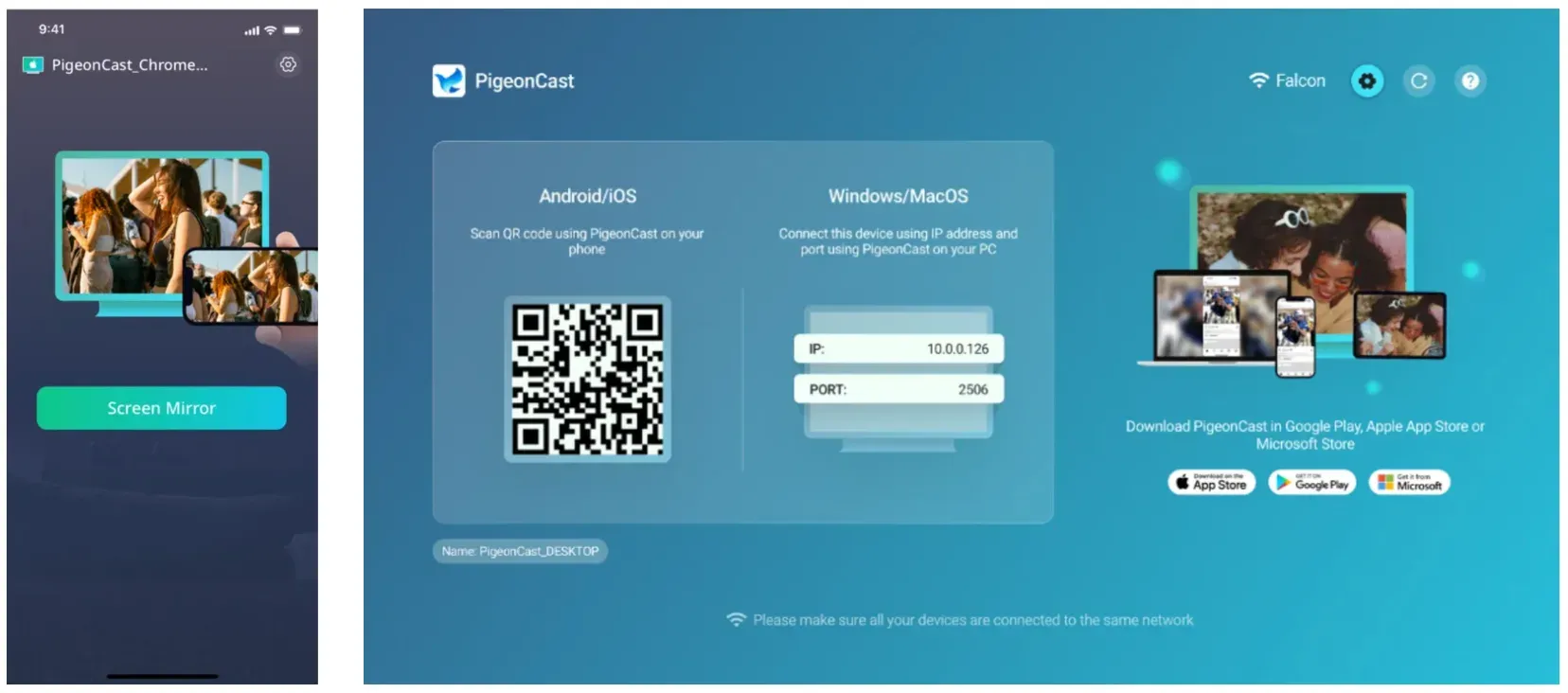
Step 2. Connect both devices to the same Wi-Fi network.
Step 3. Open PigeonCast and select your TV or receiving screen.
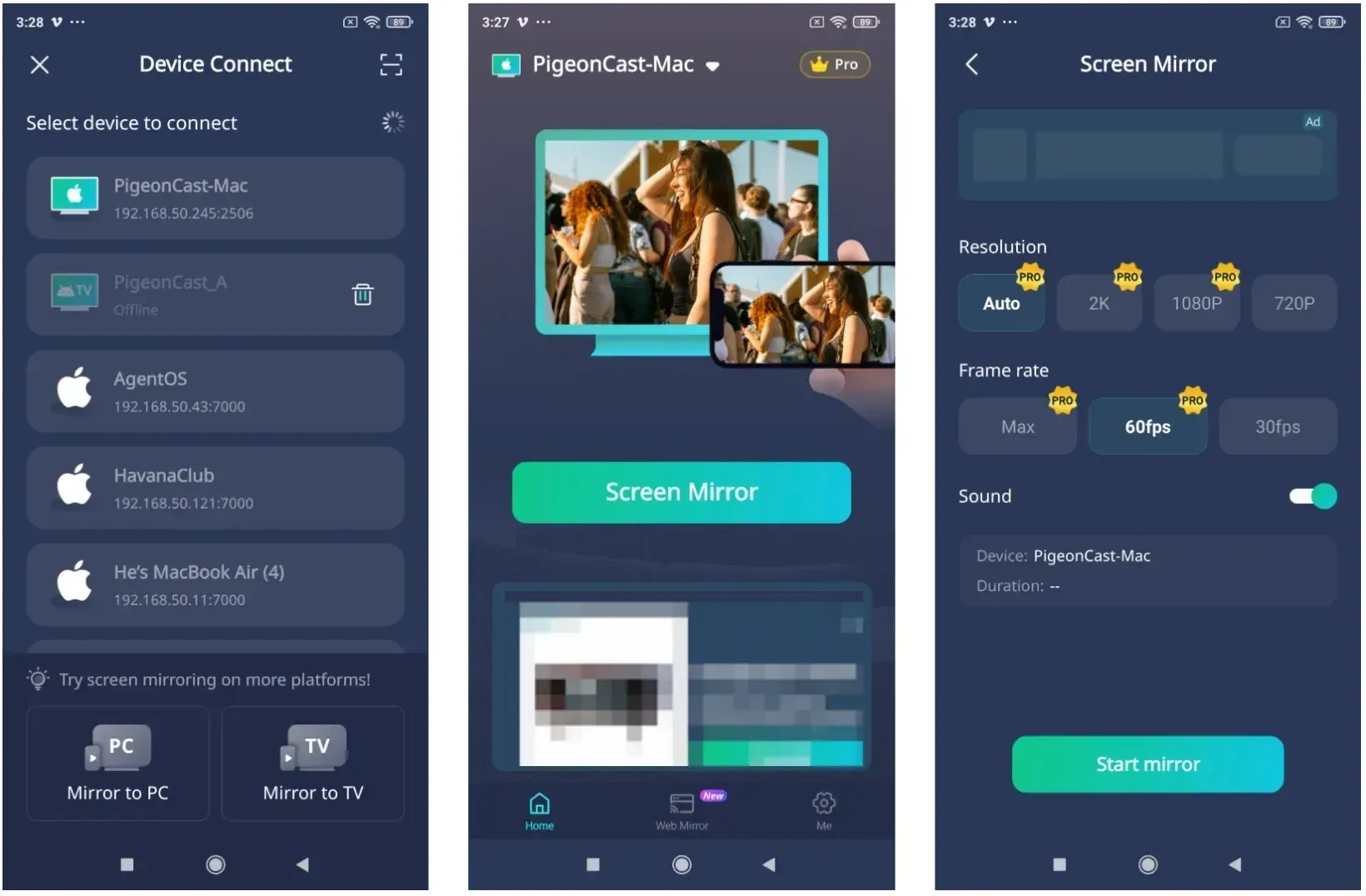
Step 4. Start mirroring or casting using the onscreen setup instructions.
Step 5. Open the MLB app and begin playback.
Why Many Users Prefer PigeonCast
PigeonCast is especially useful when:
- your household mixes iPhone and Android devices
- Chromecast support behaves differently between platforms
- AirPlay appears inconsistently inside the MLB player
- you want one repeatable method across multiple apps and TVs
- you prefer controlling playback directly from your phone
Native casting methods are still excellent when they work properly on your setup. However, PigeonCast often becomes the simpler long-term solution for users who switch between devices regularly.
How to Cast MLB App to TV With Chromecast
If you use Android with Chromecast or Google TV, MLB’s native Cast support is usually the cleanest direct playback option.
How to Cast MLB to Chromecast
Step 1. Connect your phone and Chromecast device to the same Wi-Fi network.
Step 2. Open the MLB app and sign in.
Step 3. Switch to the Watch tab and tap the Cast icon.
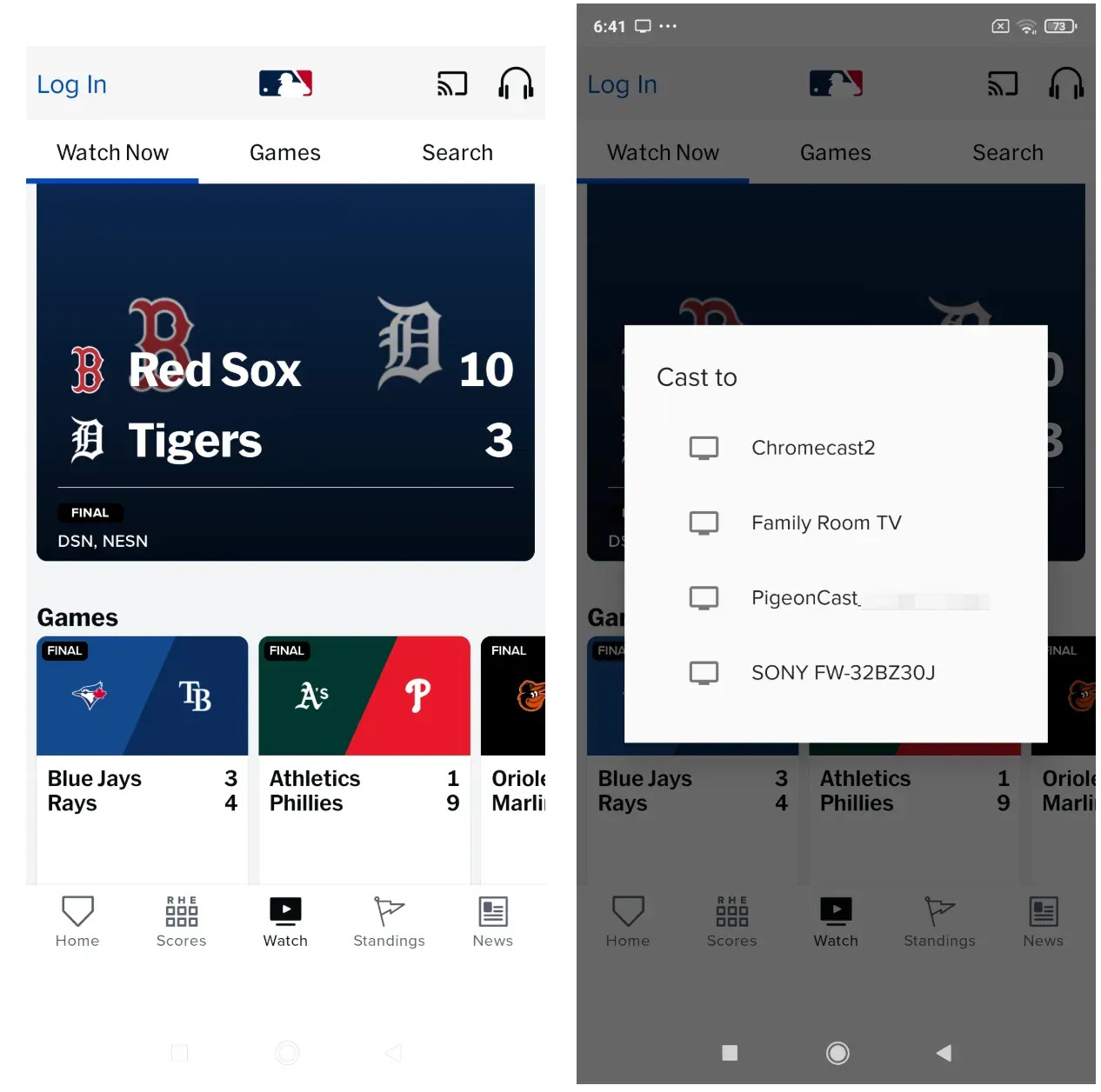
Step 4. Select your TV or Chromecast receiver.
Once connected, the TV handles playback directly while the phone acts as the controller.
How to AirPlay MLB From iPhone or iPad
If you use Apple TV or an AirPlay-compatible smart TV, AirPlay is the most natural iPhone-based solution.
How to AirPlay MLB App to TV
Step 1. Connect the iPhone and TV to the same Wi-Fi network.
Step 2. Open the MLB app.
Step 3. Start the video.
Step 4. Tap the AirPlay icon if available.
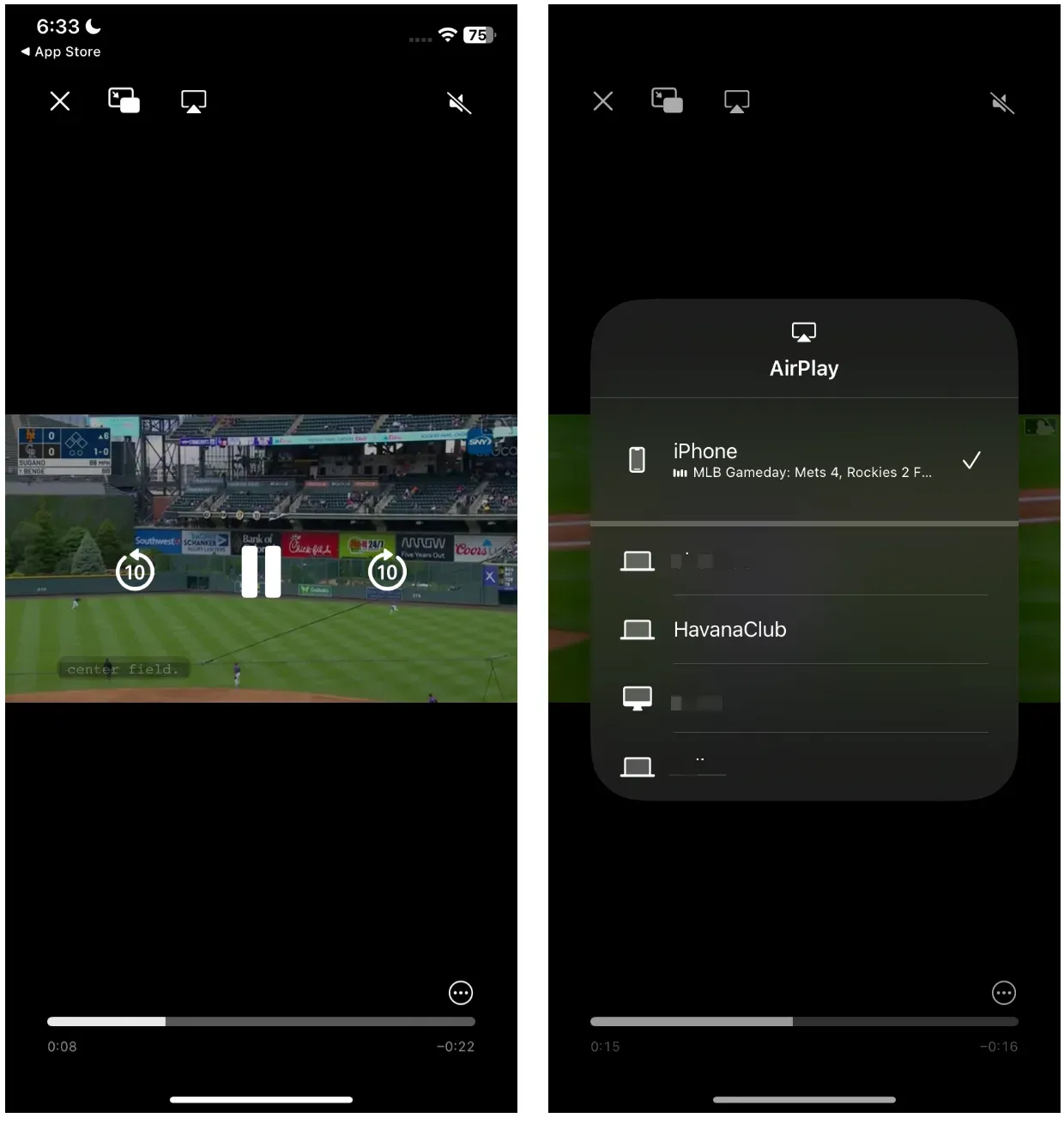
Step 5. Select your TV.
If AirPlay does not appear directly inside the player or AirPlay does not connect to TV, use iPhone screen mirroring instead.
How to Screen Mirror MLB App to TV
Screen mirroring is the most universal option because it duplicates your full phone display onto the TV.
It is not as elegant as direct casting, but it works even when the MLB app does not expose native casting features properly.
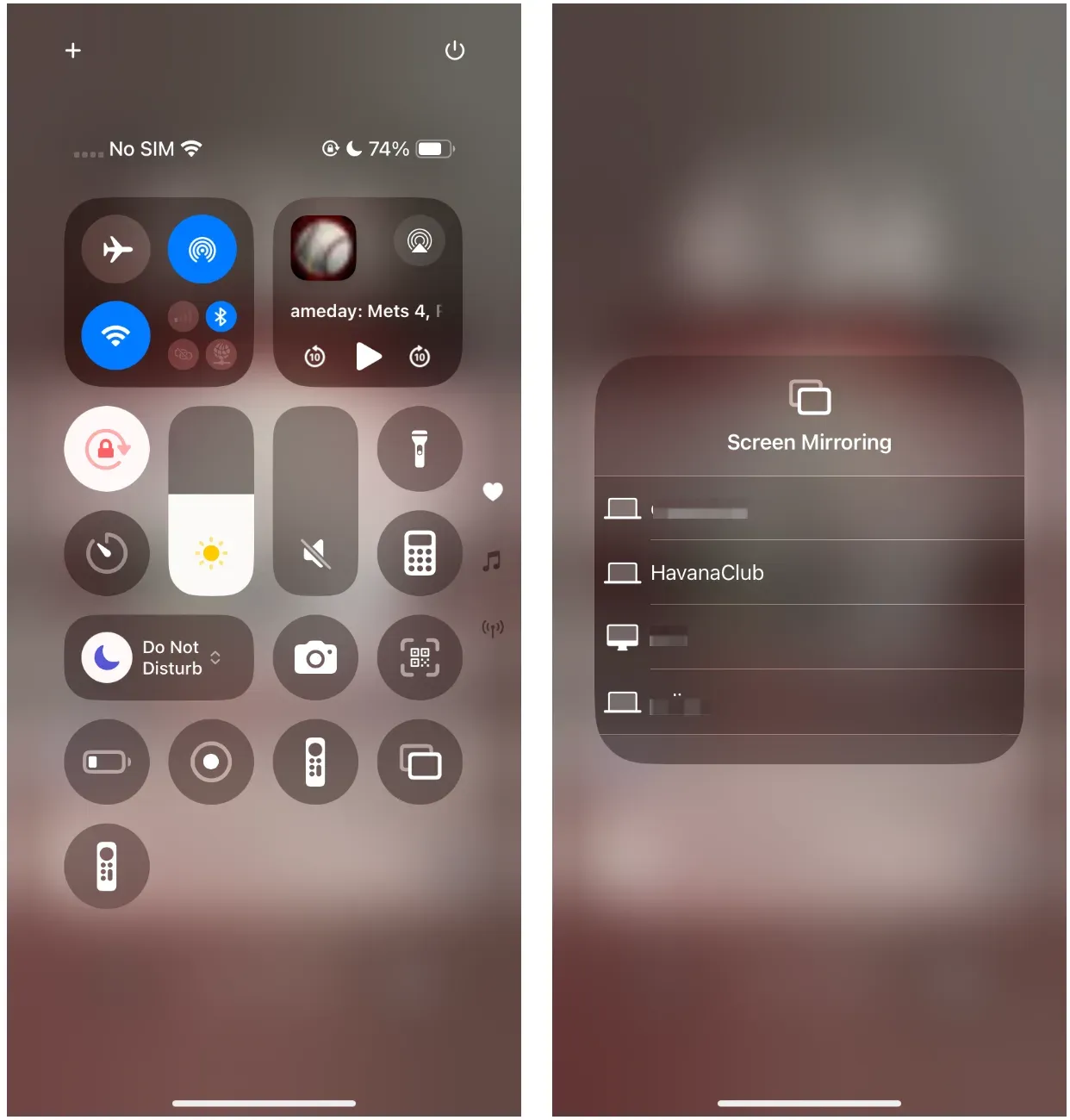
Screen Mirroring from iPhone
- Open Control Center.
- Tap Screen Mirroring.
- Select your TV or Apple TV.
- Open the MLB app.
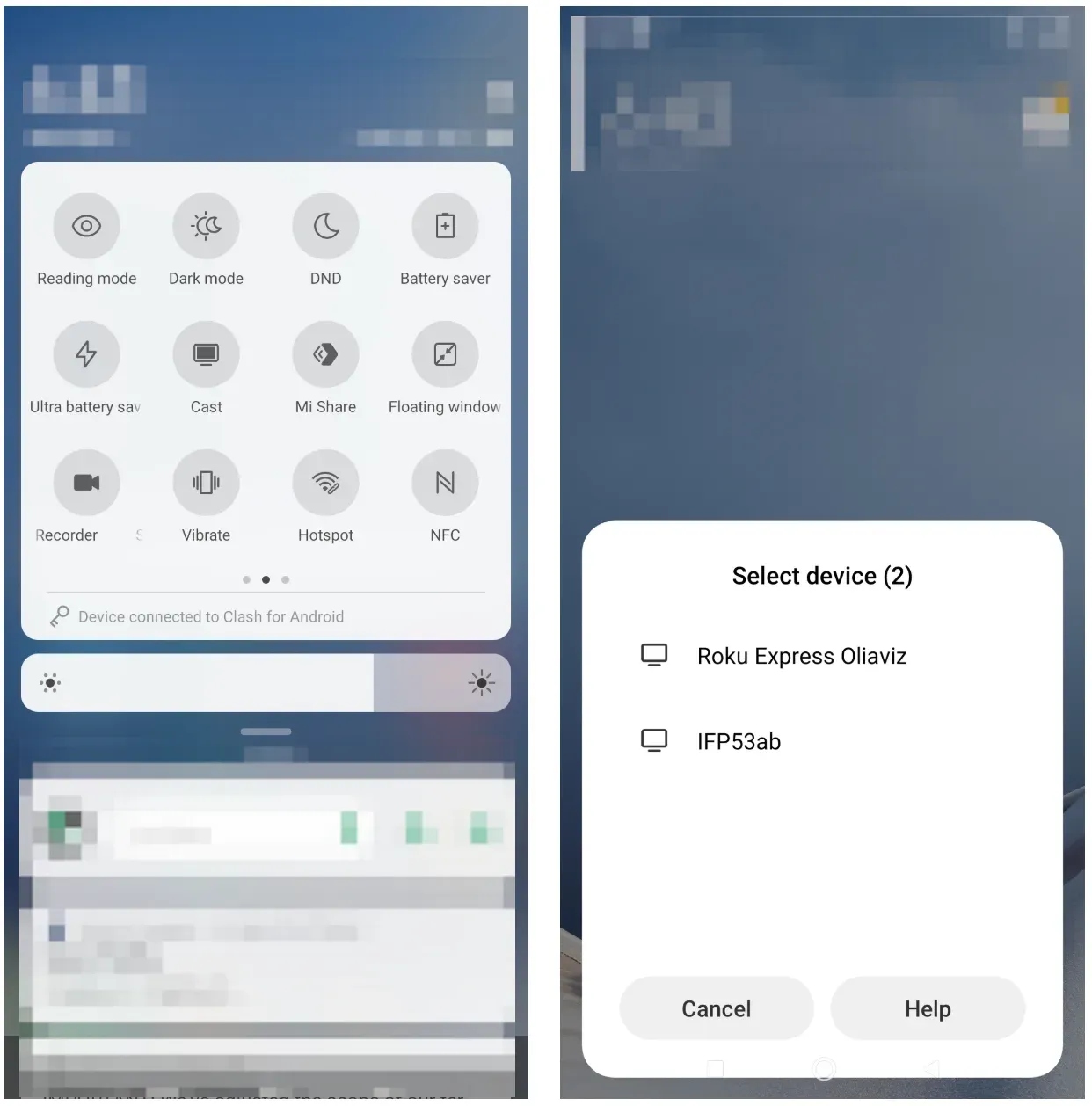
Screen Mirroring from Android
- Open Quick Settings.
- Tap Cast or Smart View.
- Select your TV.
- Start MLB playback.
Why Is the MLB App Not Casting to TV?
MLB cast not working always come from a few common causes rather than a hidden advanced setting.
Cast Button Missing
If the Cast icon does not appear:
- devices may not be on the same Wi-Fi network
- local network permissions may be blocked
- the TV may not support Chromecast or AirPlay
- the app may require an update
- the current video type may not support direct casting
Stream Connects and Disconnects
This usually points to network instability.
Try this order:
- Restart the phone
- Restart the TV or streaming device
- Restart the router
- Reconnect to Wi-Fi
- Retest the stream
MLB Blackout or Playback Restrictions
A blackout message is different from a casting failure.
VPN usage, hotel Wi-Fi, hotspot routing, and certain mobile carrier networks can interfere with MLB location verification systems.
If the game fails before playback begins, the issue is likely account or location related rather than casting related.
Should You Cast MLB or Use the TV App Directly?
If your streaming device already runs the MLB app smoothly, the simplest option is to watch MLB on TV.
However, casting still makes sense when:
- you start watching on your phone first
- your TV app performs poorly
- you want easier playback control
- your household uses multiple ecosystems
- you want one consistent workflow across apps
For users who frequently switch between devices, PigeonCast often provides the most predictable long-term experience.
Final Recommendation
The best MLB casting method depends on your devices, but the simplest decision path looks like this:
- Android + Chromecast → Use native Chromecast first
- iPhone + Apple TV → Use AirPlay
- Mixed devices or inconsistent casting → Use PigeonCast
- Casting repeatedly fails → Use screen mirroring or the native TV app
The goal is not forcing one method to work everywhere. The best solution is the one that gives you the most reliable and repeatable viewing experience.
How to Cast MLB App to TV FAQ
Can you cast the MLB app to Chromecast?
Yes. Android devices typically offer the most reliable native Chromecast support inside the MLB app.
Can you AirPlay MLB from iPhone?
Yes, if the MLB player exposes AirPlay controls properly. Otherwise, screen mirroring is the more dependable fallback option.
Why is the MLB Cast button missing?
This is usually caused by network mismatch, unsupported receivers, blocked permissions, or app compatibility limitations.
Is PigeonCast only for troubleshooting?
No. Many users use PigeonCast as their primary casting workflow because it works consistently across multiple devices and TV platforms.
Is screen mirroring different from casting?
Yes. Casting sends the video stream directly to the TV, while screen mirroring duplicates everything shown on the phone display.
Mia Clarke is a technology editor specializing in screen mirroring and casting solutions across multiple platforms. Mia provides clear, practical guides and in-depth insights to help users seamlessly connect their devices. Passionate about enhancing digital experiences, Mia is dedicated to keeping readers updated on the latest trends and tools in cross-platform screen sharing. Whether you’re looking to mirror your smartphone, laptop, or smart TV, Mia’s content delivers reliable, user-friendly advice to simplify your tech setup.