
Streaming your favorite Hulu shows and movies on the big screen transforms your viewing experience, making it more immersive and social. While Hulu is available on many smart TVs and devices natively, casting offers a flexible alternative, allowing you to use your phone, tablet, or computer as a content navigator. This guide will walk you through every method to cast Hulu to TV, troubleshoot common issues, and answer your most pressing questions.
Can You Cast Hulu to TV
Yes, you can do Hulu cast to TV. Casting is a feature that lets you wirelessly send, or "mirror" content from a compatible mobile device or laptop to your television. It's a convenient option if your TV isn't a smart TV or if you prefer navigating on a smaller device. However, the specific method depends on the devices you own. Common casting technologies include Google Cast, AirPlay, and Miracast.
How Do I Cast Hulu to My TV
Before you start casting, make sure both your devices are properly set up. This includes ensuring they're connected to the same Wi-Fi network, checking that both devices have the latest software updates, and confirming that the casting or mirroring technologies are compatible on both the sending and receiving devices.
How to Cast Hulu from Android to TV
Android devices typically use Google Cast technology. This method works with Chromecast devices, smart TVs with built-in Chromecast, and speakers or displays with Google Cast functionality.
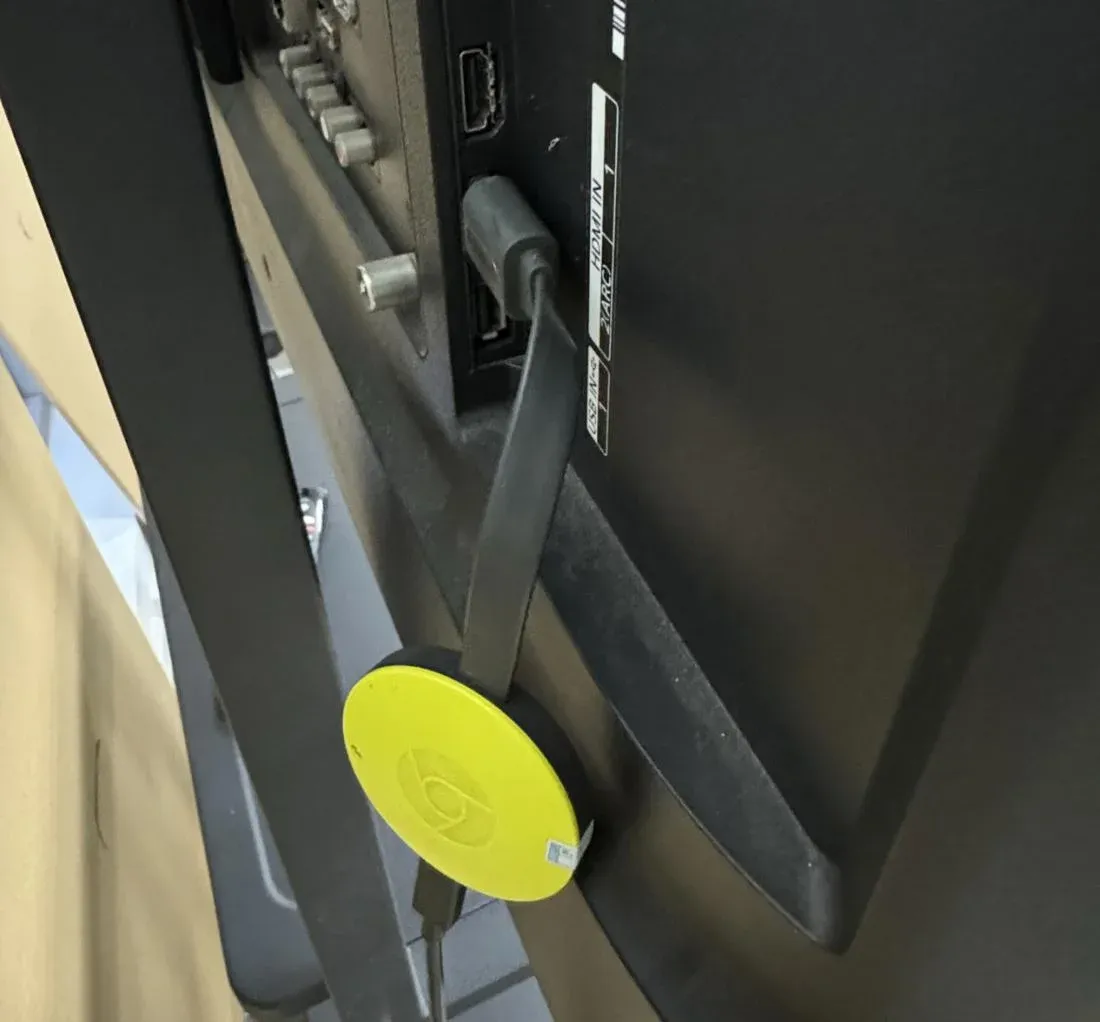
Step 1. Connect your Android device and your Chromecast or Chromecast-compatible TV to the same Wi-Fi network.
Step 2. Open the Hulu app on your Android device and start playing the content you want to cast.
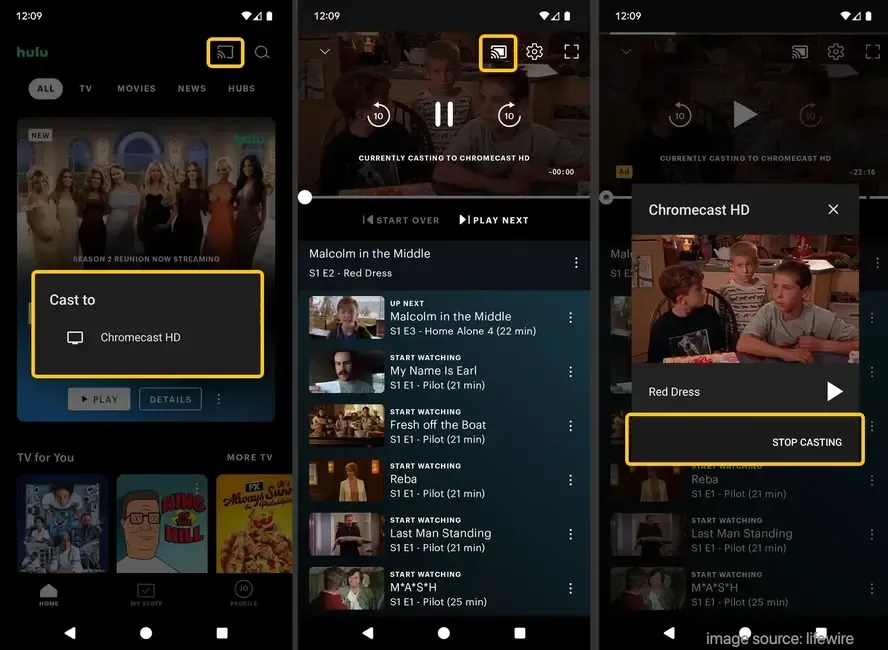
Step 3. Tap the Cast icon located in the top-right corner of the screen, select your Chromecast-enabled TV from the list of available devices.
Step 4. Your video will now play on the TV. You can use your Android device as a remote to control playback, browse for other content, or disconnect.
This workaround works for Chromecast-supported applications, like Peacock, YouTube, Netflix, and so on.
How to Cast Hulu from iPhone to TV (Include iPad and Mac)
How to cast Hulu to TV? For Apple users, casting is done through AirPlay to compatible devices like Apple TV or AirPlay 2-enabled smart TVs from Samsung, LG, Vizio, etc. Here's the specific step:
Step 1. Ensure your iPhone/iPad and Apple TV or AirPlay-compatible TV are on the same Wi-Fi network.
Step 2. Open the Hulu app and begin playing your selected video.
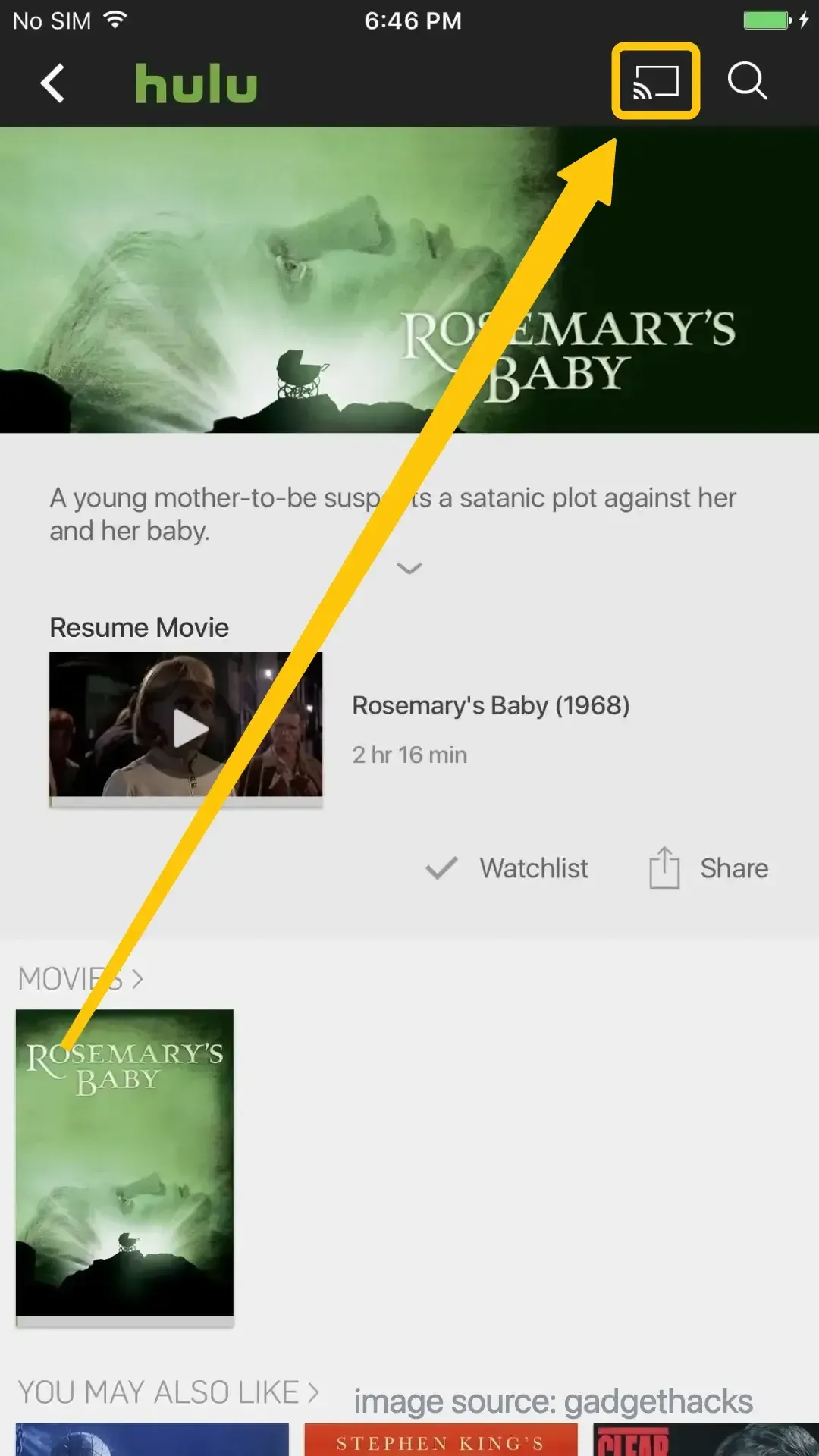
Step 3. Tap the AirPlay button (a rectangle with an upward-pointing triangle at the bottom) in the playback controls.
Step 4. Choose your Apple TV or AirPlay-compatible TV from the menu.
Step 5. The content will be transferred to your TV, and you can control playback from your iOS device or lock it without interrupting the stream.
How to Cast Hulu from Laptop to TV
Casting from a laptop to TV gives you the advantage of a larger screen for easier browsing. For Windows PCs, the primary method is using the Google Chrome browser.
Step 1. Connect your laptop and your Chromecast or Cast-enabled TV to the same network.
Step 2. Open the Google Chrome browser and navigate to hulu.com, and start playing the video you want to cast.
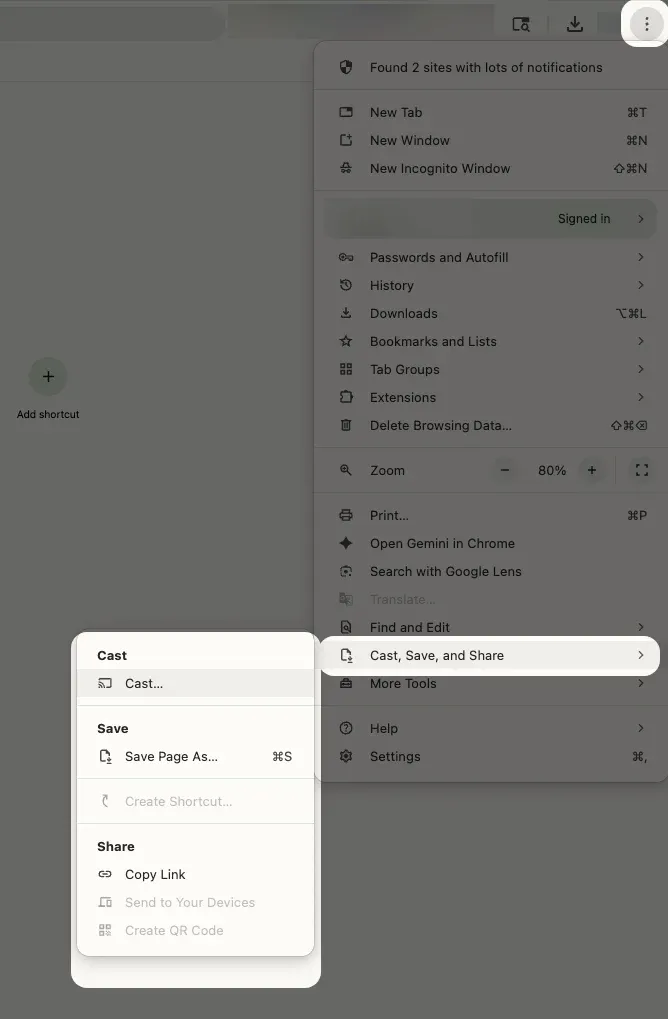
Step 3. Click the three-dot menu in the top-right corner of Chrome, and select Cast... from the menu.
Step 4. In the Cast dialog box, choose your Chromecast from the Sources dropdown menu.
Step 5. You can cast just the tab or your entire desktop, and the video will now play on your TV. For optimal performance, it's best to cast the entire tab.
Universal Method: Using PigeonCast for Any Screen Mirroring
If you don't have a Chromecast or face compatibility issues, PigeonCast offers a versatile solution for casting. This free screen mirroring tool works by installing a receiver app on your smart TV (if available in the app store) or by using built-in protocols like Google Cast, AirPlay, and DLNA for direct communication.

Step 1. Ensure both your devices are covered by the same wireless network.


Overall Rating:



Step 2. Install PigeonCast on your phone, tablet, or laptop from App Store, Google Play, or Microsoft Store.
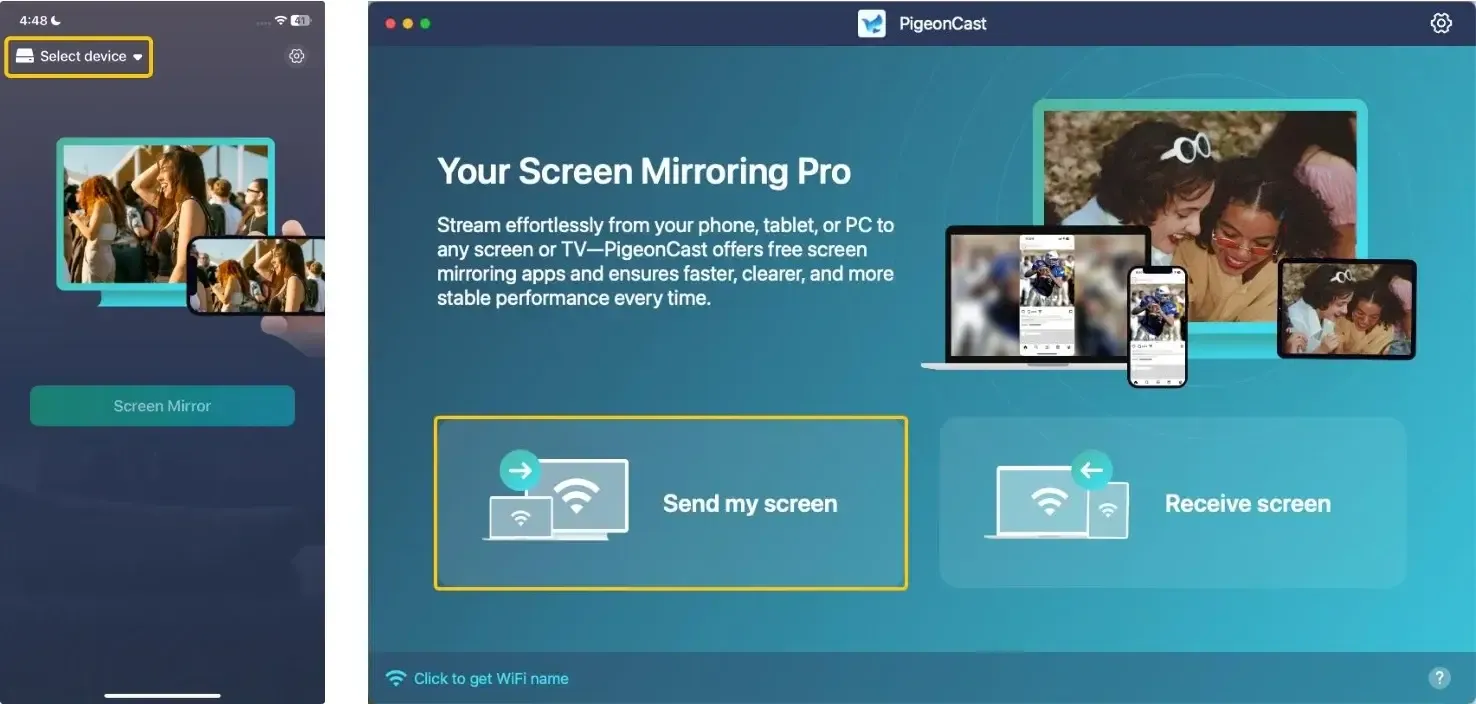
Step 3. Launch the app, tap Select device or Send my screen to choose your TV from the available list. If you use an Android, you can also click the onscreen corresponding button to cast your media.
Step 4. Enter the onscreen PIN code to confirm the pairing requisition.
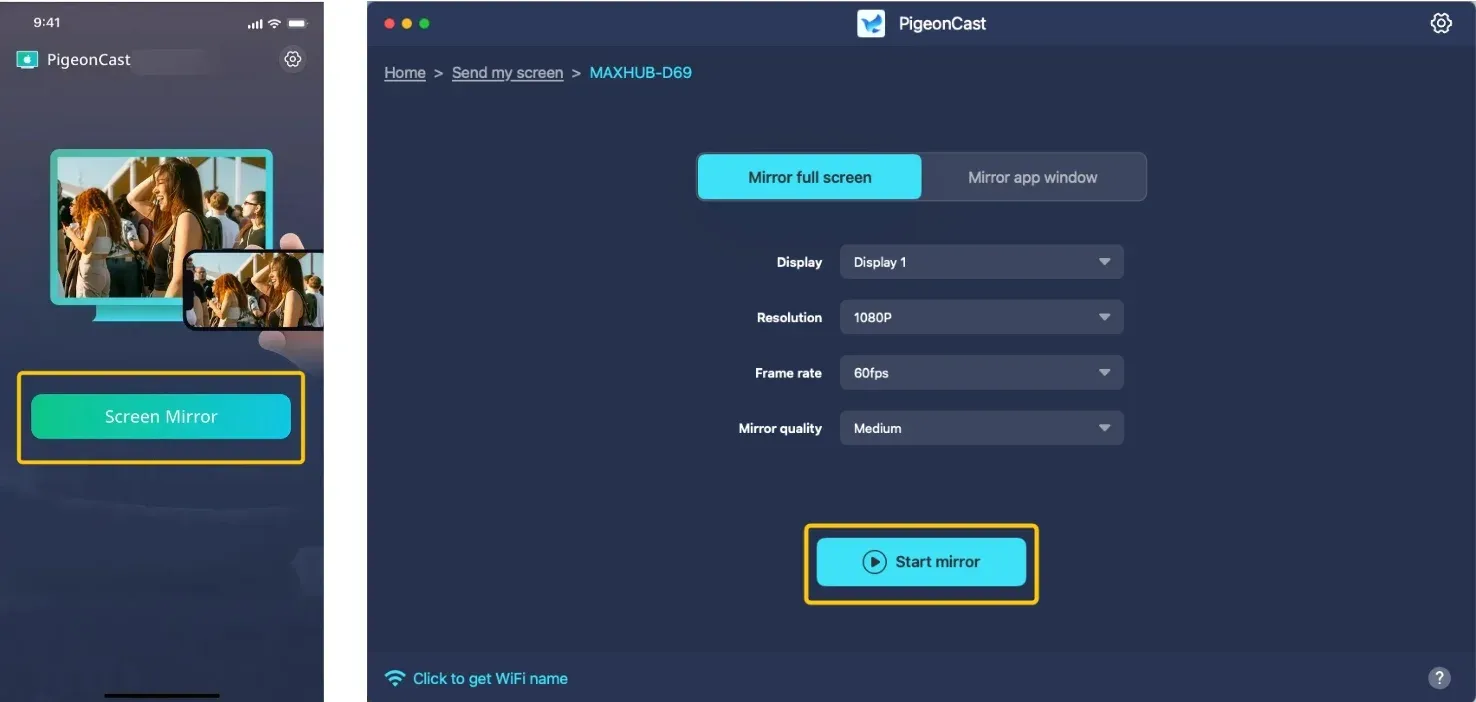
Step 5. Once the connection succeeds, tap Screen Mirror or Start mirror, and choose the Hulu app on your mobile device to start the mirroring activities. If you use a laptop, you can select whether to mirror the whole screen or only a single app window.
Wrapping Up
How to cast Hulu on TV? Whether you use Google Cast, AirPlay, or a third-party tool like PigeonCast, you can easily stream Hulu from your phone, tablet, or laptop to the big screen. Just make sure both devices are connected to the same Wi-Fi network and are compatible.
Cast Hulu to TV FAQ
Can You Cast Hulu from Phone to TV?
Yes, you can cast Hulu from both iPhone (via AirPlay) and Android phones (via Google Cast) to a compatible TV or streaming device, provided they are on the same Wi-Fi network.
Can you cast Hulu to a Samsung TV?
Yes, if you have a 2019 or newer Samsung Smart TV, it likely supports AirPlay 2. You can cast directly from an iPhone or iPad using the AirPlay button. For Android or Windows, if the TV has built-in Chromecast, use the Cast button. Otherwise, use the native Hulu app on the TV app store.
How to cast Hulu from phone to Roku TV
The easiest method is to use the Roku mobile app:
- Ensure your phone and Roku are on the same Wi-Fi.
- Open the Hulu app on your phone, start playing a video, then tap the Cast button.
- Select your Roku device from the list. You can also use the "Play on Roku" feature within the Roku app.
How to cast Hulu to TV without Chromecast?
You have several options:
- Use AirPlay to an Apple TV or a compatible smart TV,
- Use the Roku mobile app to cast to a Roku device,
- Use Smart View or similar screen mirroring for Samsung phones and TVs, or
- Connect your laptop to the TV via an HDMI cable.
- Use a free universal mirroring tool: PigeonCast
Why can't I cast Hulu to my TV?
Here are the reasons why you might not be able to cast Hulu to your TV:
- Wi-Fi Connection issues
- Device compatibility
- Casting Settings
- Incompatible streaming method
- Device or App bugs
- Hulu subscription issues
How to cast Hulu from phone to TV without WiFi?
Traditional casting requires Wi-Fi. For a Wi-Fi-free solution, you can use a direct HDMI adapter (like USB-C to HDMI or Lightning to Digital AV Adapter) to physically connect your phone to the TV. Alternatively, use a mobile hotspot to create a shared network for both devices.
Does Hulu not let you cast?
Hulu fully supports casting via official methods like Google Cast and AirPlay. If you cannot cast, it is almost always due to a device, network, or app issue, not a restriction from Hulu.
Where is the cast button on the Hulu app?
The cast button is typically in the top-right corner of the app's home screen or in the playback controls while a video is playing. On Android, it's the Google Cast icon. On iOS, when an AirPlay device is available, the AirPlay icon will replace the full-screen button during playback. If you don't see it, check your network connections.
Clara Rossi is an experienced technology editor and a seasoned expert in screen mirroring and casting technologies. With a keen eye for detail and a deep understanding of how to seamlessly connect devices, Clara excels at optimizing user experiences for effortless sharing and streaming. Whether you're seeking quick fixes or advanced tips, her expertise and responsiveness ensure that every query is met with a well-informed and efficient solution.