
If you want to know how to cast NFL app to TV, the short answer is yes, but the best method depends on your phone, your TV or streaming device, and the type of NFL content you are trying to watch. Some setups work best with AirPlay or Chromecast, while others are easier with a dedicated casting app like PigeonCast.
One detail matters before you start: casting support is not the same as full content availability. According to NFL support pages updated on February 3, 2026 and February 18, 2026, some NFL+ content works on supported TV devices, but live local and primetime regular-season and postseason games are still limited to phones and tablets. This guide focuses on the practical ways to watch NFL content on a bigger screen without assuming every game or device behaves the same way.
Can You Cast NFL to TV?
Yes, you can cast NFL content to a TV in many cases, but not every NFL stream follows the same rule.
The easiest way to think about it is to separate three different situations:
- the NFL app sends video directly to a TV with AirPlay or Chromecast
- you mirror your phone screen to the TV
- you open the NFL app directly on a supported TV platform such as Apple TV, Roku, Fire TV, Android TV, or certain smart TVs
If your question is "can I cast NFL+ to my TV", the answer is partly yes and partly no. NFL says some NFL+ content supports connected devices, and NFL also lists supported platforms such as Apple TV, Roku, Fire TV, Android TV, and select smart TVs. But NFL also says live local and primetime regular-season and postseason games cannot be cast to a television during those live events and remain limited to phones and tablets.
That is why readers often get confused. A device may support the NFL app, and the app may support casting for some content, but that still does not mean every live NFL+ stream can be pushed to the TV the same way. The right method depends on both your hardware and the content rights tied to that stream.
How to Cast NFL to TV
There are four practical ways to handle this. The best one depends on whether you use iPhone or Android, whether your TV supports the native casting path, and whether you want a built-in method or one repeatable workflow across devices.
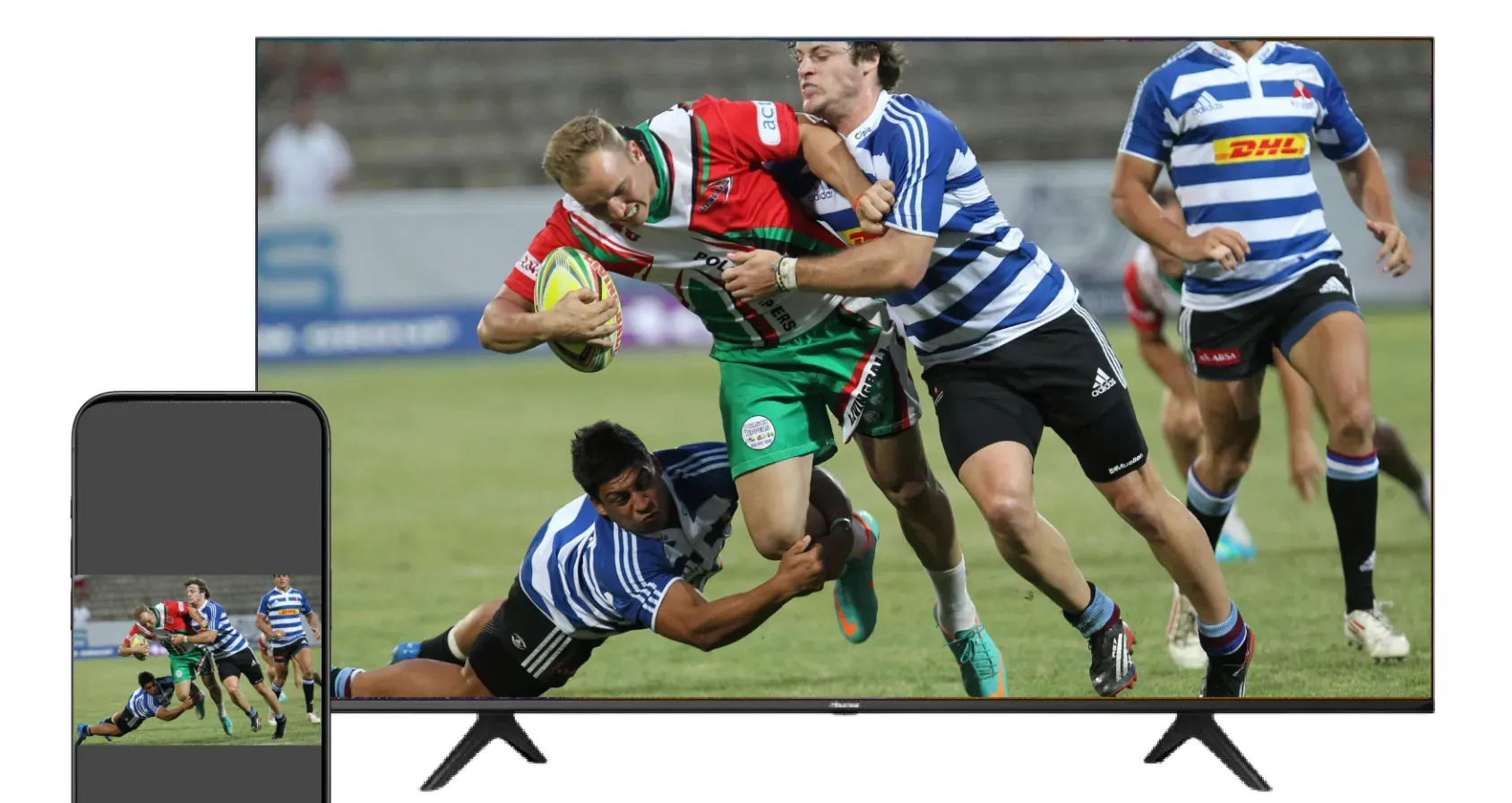
Method 1. Use AirPlay
AirPlay is the most natural method when you use an iPhone or iPad and your TV supports AirPlay, or when you watch through Apple TV. Apple’s current support guidance says both devices should be on the same Wi-Fi network, and some apps may not support AirPlay the same way as others.
Step 1. Connect your iPhone or iPad and your TV or Apple TV to the same Wi-Fi network.
Step 2. Open the NFL app and start the video you want to watch.
Step 3. Look for the AirPlay button in the player. If it appears, tap it and choose your TV.
Step 4. If the app does not show a direct AirPlay option, open Control Center, tap Screen Mirroring, and select your TV or Apple TV instead.
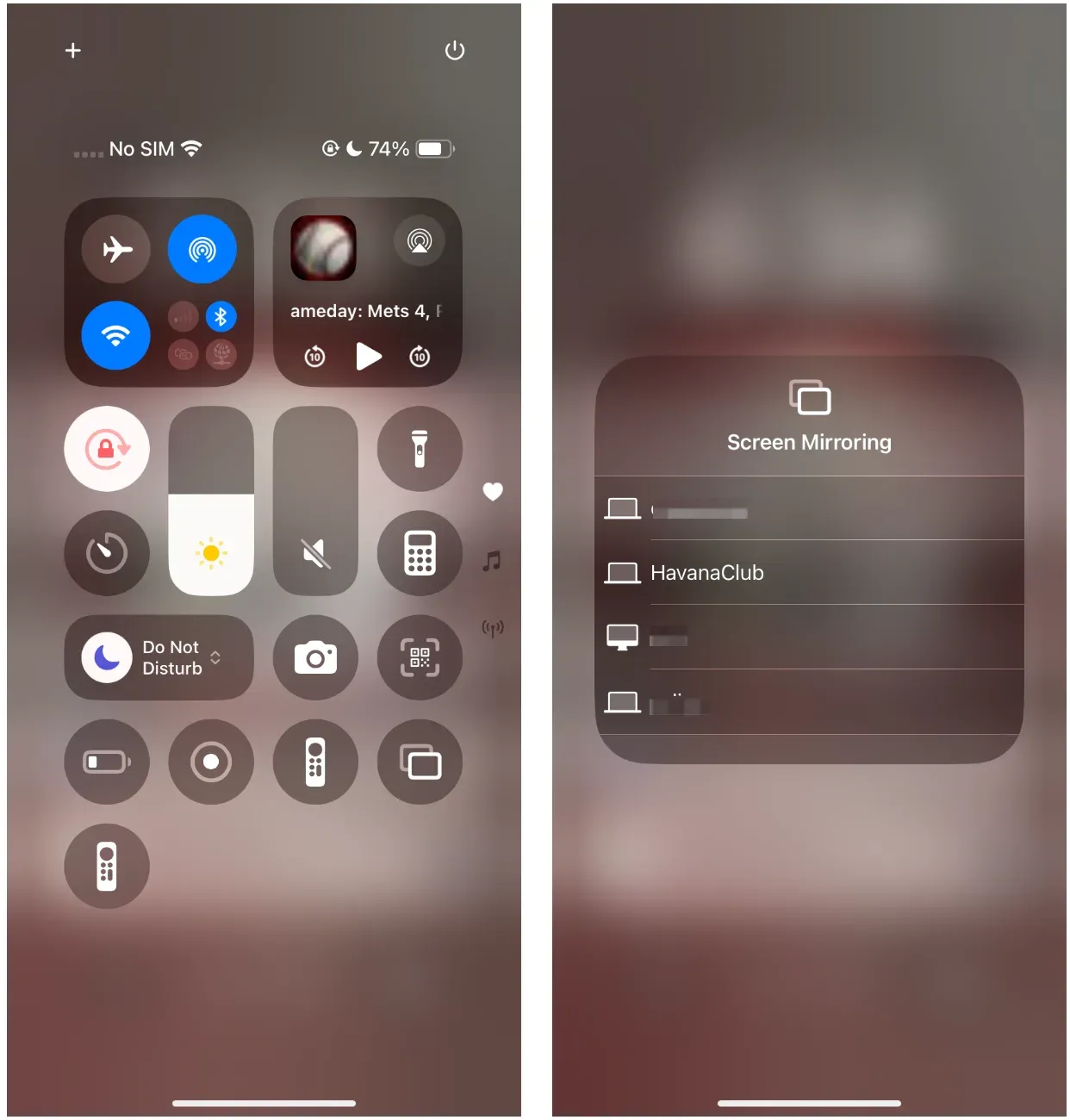
Step 5. Enter the AirPlay code on your phone if your TV asks for one.
This method is best when you already live inside the Apple ecosystem and want the fastest built-in route. If you specifically want to AirPlay NFL app content from iPhone to a bigger screen, this should be your first test before moving to a third-party method. If the video player does not expose AirPlay cleanly, screen mirroring may still work, but it is less elegant than handing the video off directly to the TV.
Method 2. Use Chromecast
Chromecast is usually the better native option for Android phones, Google TV devices, and TVs with Google Cast built in. For this method to work smoothly, the phone and the receiver should be on the same Wi-Fi network, and the app itself must be Google Cast-enabled for the Cast button to appear.
Step 1. Connect your Android phone and your Chromecast, Google TV, or Cast-enabled TV to the same Wi-Fi network.
Step 2. Open the NFL app and sign in if needed.
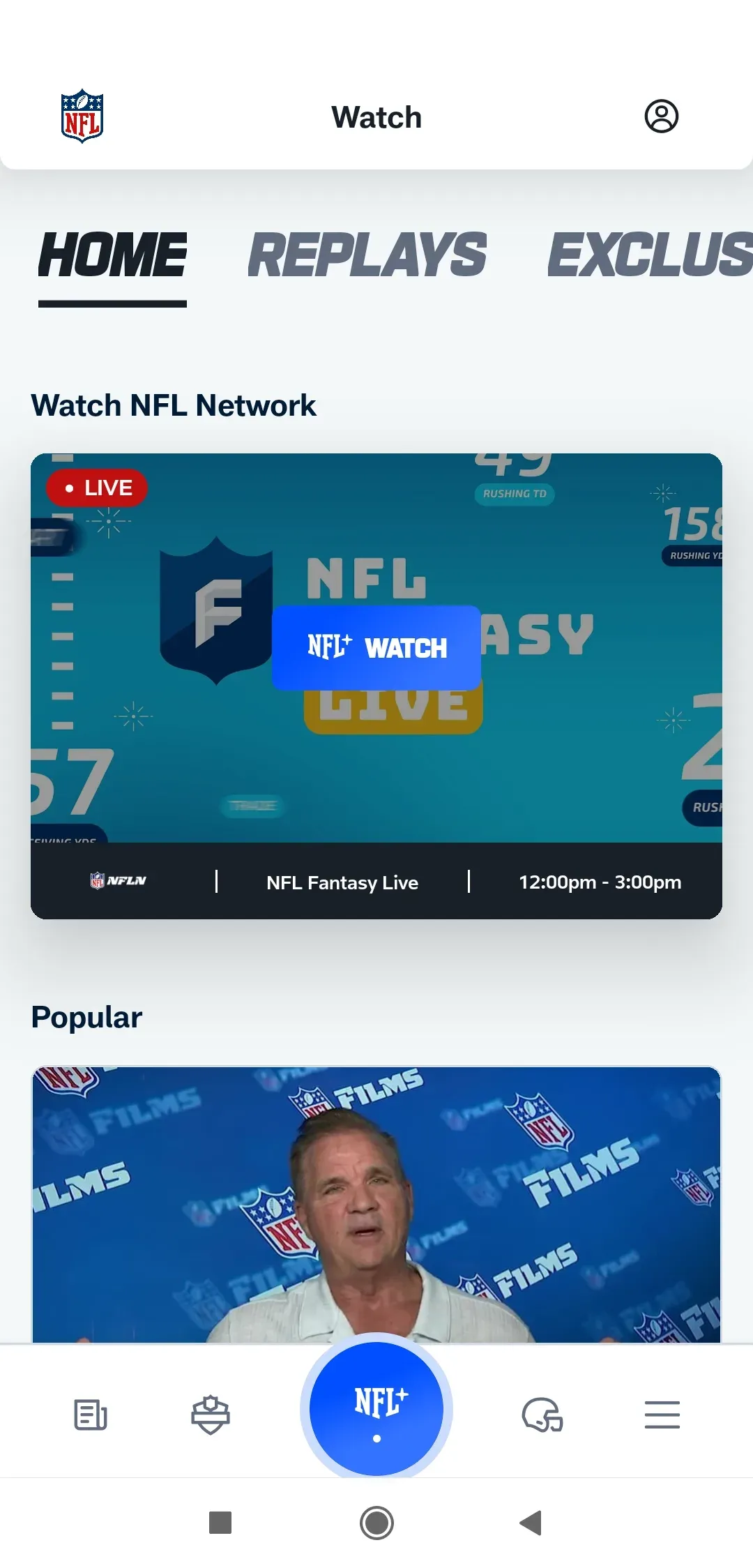
Step 3. Start the video and look for the Cast icon.
Step 4. Tap the Cast icon and choose your TV or streaming device.
Note: Alternatively, enable screen mirroring on your Android phone by going to Quick Settings, tapping Cast, and choosing the target device.
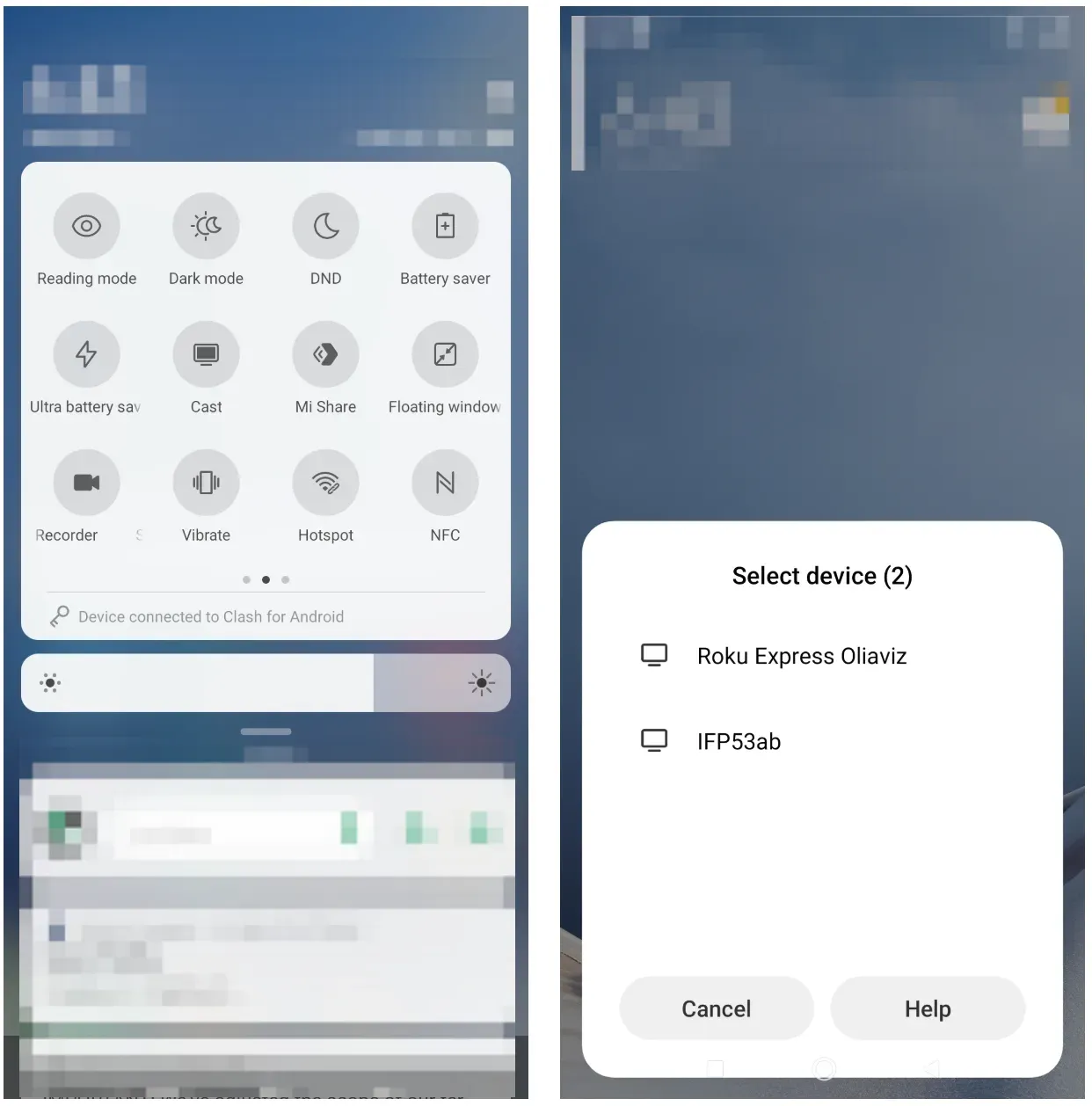
Step 5. Control playback from your phone while the TV handles the stream.
This is often the cleanest answer for readers searching how to cast NFL plus to TV because direct casting usually feels smoother than full-screen mirroring. If your goal is to cast NFL app to Chromecast, this is the most natural built-in method to try first on Android or Google TV style setups. But if the Cast icon is missing, that does not always mean your TV is broken. It can also mean the specific content, app behavior, permissions, or device pairing is not exposing the native cast path in that session.
Method 3. Use PigeonCast
PigeonCast is a full method of its own, not just a troubleshooting backup. It makes the most sense when you want one repeatable casting workflow across iPhone, Android, and different TV platforms instead of switching between AirPlay rules, Chromecast rules, and device-specific limitations.
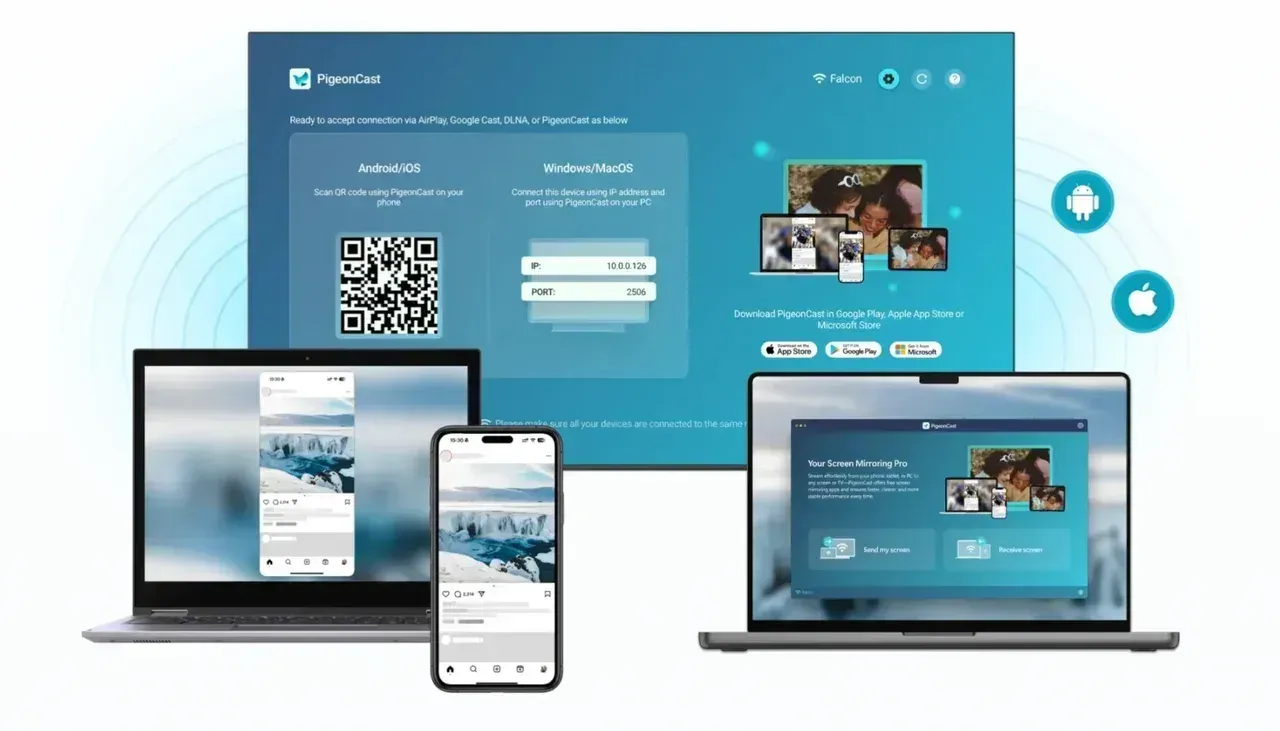
Step 1. Install PigeonCast on the devices you need for your setup from Google Play, App Store, or the app store on your TV.


Overall Rating:



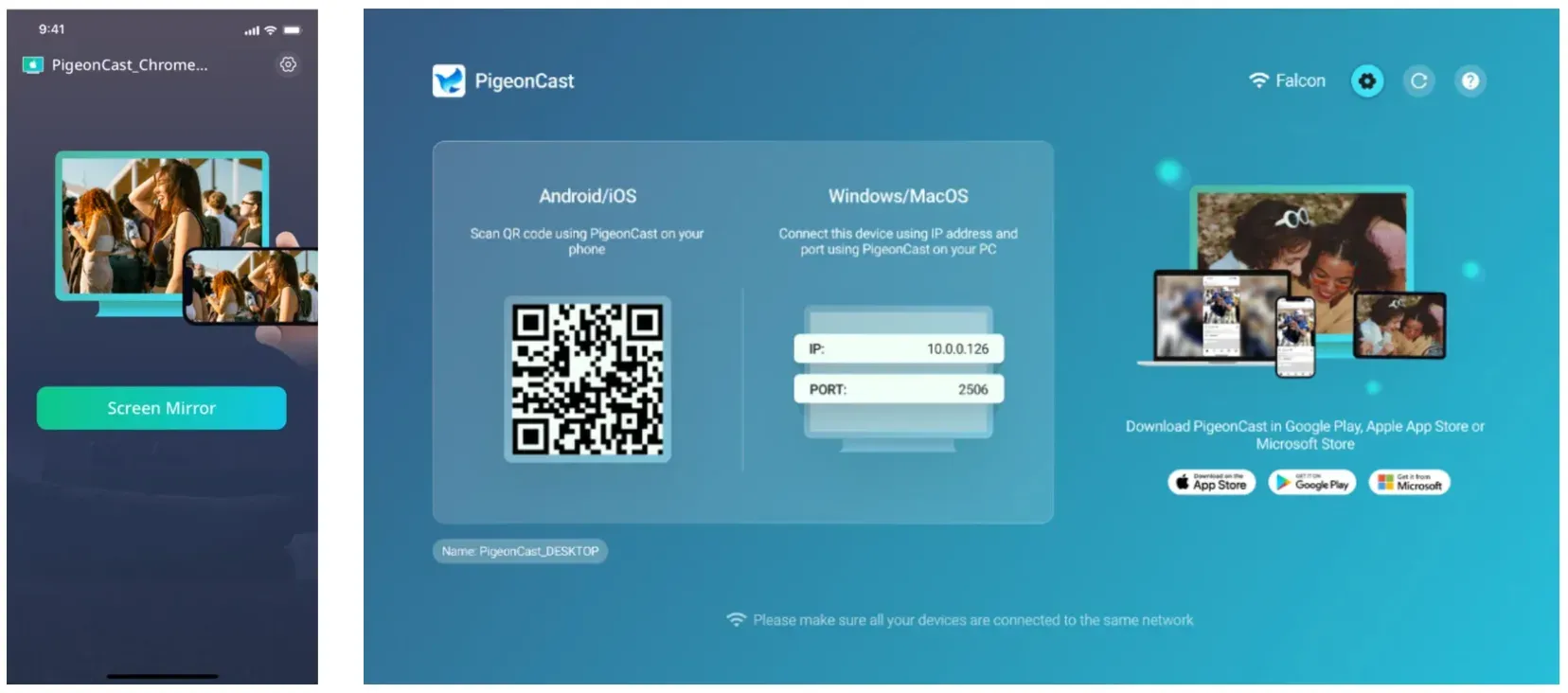
Step 2. Make sure the sending device and the receiving TV or display are on the same local network.
Step 3. Open PigeonCast and choose the target TV or receiving screen or scan the QR code on the big screen.
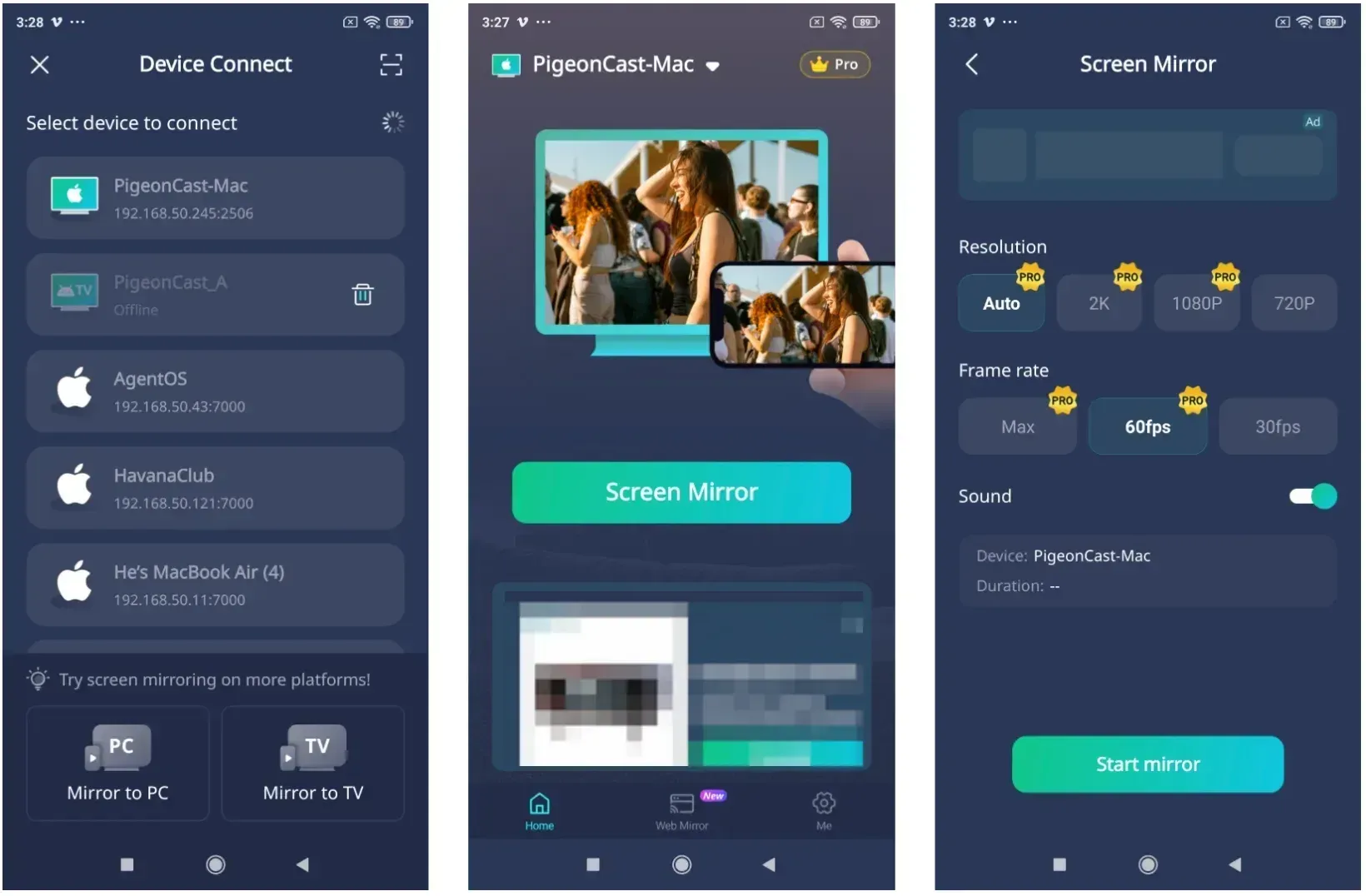
Step 4. Start the casting or screen-mirroring session inside PigeonCast.
Step 5. Open the NFL app on your phone and begin playback.
PigeonCast is often the better choice when your household mixes iPhone and Android devices, when native casting is inconsistent, or when you want one app-based workflow you can reuse beyond the NFL app.
Method 4. Use the TV or Streaming-Device App Directly
This method is the simplest when your real goal is not casting itself, but getting the NFL app on TV with the fewest steps. NFL currently lists support for platforms such as Apple TV, Roku, Fire TV, Android TV, and select smart TVs, so in many homes the easiest path is to open the app directly on the television or streaming device instead of sending it from your phone.
Step 1. Open the app store or channel store on your smart TV or streaming device.
Step 2. Search for the NFL app and install it if it is not already there.
Step 3. Sign in with the account tied to your NFL or NFL+ access.
Step 4. Start the video you want to watch and test playback directly on the TV.
Step 5. If the content you want is unavailable on TV, switch back to one of the phone-led methods above and confirm whether the limitation is about casting or about content rights.
This is often the best answer when readers say they want the NFL app on TV but do not actually care whether the video reaches the screen through casting, mirroring, or a native TV app.
Which Is the Best Way for NFL Casting?
There is no single best method for every setup. The better approach is to match the method to your devices and to the kind of NFL content you are trying to watch.
| Method | Best for | Main advantage | Main limitation |
|---|---|---|---|
| AirPlay | iPhone, iPad, Apple TV, AirPlay-compatible TVs | Simple native Apple workflow | App behavior and TV support can vary |
| Chromecast | Android phones, Google TV, Chromecast devices | Direct app-to-TV casting feels clean | Requires a Cast-enabled path in the app |
| PigeonCast | Mixed-device homes and cross-platform use | One repeatable workflow across different devices | Requires app-based setup |
| Direct TV app | Roku, Fire TV, Apple TV, Android TV, select smart TVs | Often easier than casting from a phone | Some NFL+ live game rights still stay phone/tablet-only |
Use AirPlay if you mostly use Apple devices and your TV already supports the built-in Apple path. Use Chromecast if you are on Android or already have a Google Cast-style receiver in the living room. Use PigeonCast if you want a more uniform method across different devices or if native casting feels inconsistent. And if your TV platform already supports the NFL app directly, opening the app on the TV may be simpler than casting from your phone at all.
The most important decision rule is this: pick the most native method your current devices already support, but do not confuse device support with content rights. Even if the NFL app works on a TV platform, some live NFL+ games still remain phone-and-tablet only based on the NFL support guidance updated on February 3, 2026.
Conclusion
The practical answer to how to cast NFL app to TV is that you usually have four good paths: AirPlay for Apple-heavy setups, Chromecast for Google-friendly setups, PigeonCast when you want a more flexible method across devices, and the direct TV app when supported playback is already available on your television or streaming device.
The key is to check two things separately. First, does your device pair support the casting method you want? Second, does the specific NFL or NFL+ content you want to watch allow TV playback during that event? Once you separate compatibility from content rights, it becomes much easier to choose the right method without wasting time on the wrong fix.
How to Cast NFL App to TV FAQ
How to cast NFL Plus to TV from iPhone?
Start with AirPlay if your TV supports it or if you use Apple TV. If the NFL app does not show a direct AirPlay option, use iPhone screen mirroring instead. If you want a more uniform cross-device workflow, PigeonCast is another practical option.
Can I cast the NFL app to Chromecast?
If the NFL app exposes the Cast icon on your device and your Chromecast or Google TV device is on the same Wi-Fi network, yes. If the Cast icon is missing, the issue may be app behavior, permissions, or content limitations rather than the TV itself.
Why is the NFL app not casting to my TV?
The most common reasons are:
- the phone and TV are on different Wi-Fi networks
- the TV or streaming device does not support the method you chose
- the app does not expose the Cast or AirPlay button for that session
- local network permissions are blocked on your phone
- the content itself is restricted to mobile viewing
Separate compatibility problems from content-rights problems first. That usually saves the most time.
Is AirPlay better than Chromecast for NFL casting?
Not universally. AirPlay is usually the better fit for iPhone and Apple TV users, while Chromecast is often the cleaner native choice for Android and Google TV setups. The better option depends more on your device ecosystem than on the NFL app alone.
Is PigeonCast only a backup option?
No, it is a full method in the comparison set. It is especially useful when you want one casting routine across different phones and TV platforms instead of relying on separate native rules for each ecosystem.
Should I cast the NFL app or use the TV app directly?
If your TV or streaming device already supports the NFL app well, opening it directly on the TV is often simpler than casting. Casting makes more sense when you want to start from your phone, control playback from the phone, or use one cross-device workflow across multiple apps.
Mia Clarke is a technology editor specializing in screen mirroring and casting solutions across multiple platforms. Mia provides clear, practical guides and in-depth insights to help users seamlessly connect their devices. Passionate about enhancing digital experiences, Mia is dedicated to keeping readers updated on the latest trends and tools in cross-platform screen sharing. Whether you’re looking to mirror your smartphone, laptop, or smart TV, Mia’s content delivers reliable, user-friendly advice to simplify your tech setup.