
TCL TVs are known for offering great value with premium features, including smart platforms that often support Apple's AirPlay. This technology lets you wirelessly stream videos, photos, music, and even mirror your entire device screen from your Apple ecosystem to your TV. However, does your specific TCL model support AirPlay, and if so, how do you set it up? This guide will show you how to AirPlay on TCL TV.
Does TCL TV Have AirPlay
Yes, TCL TVs do support AirPlay 2, but there's an important catch. AirPlay 2 isn't available on all models. It's mainly found on TCL TVs that run the Roku TV or Google TV platforms, usually from the 2019 model year onward.
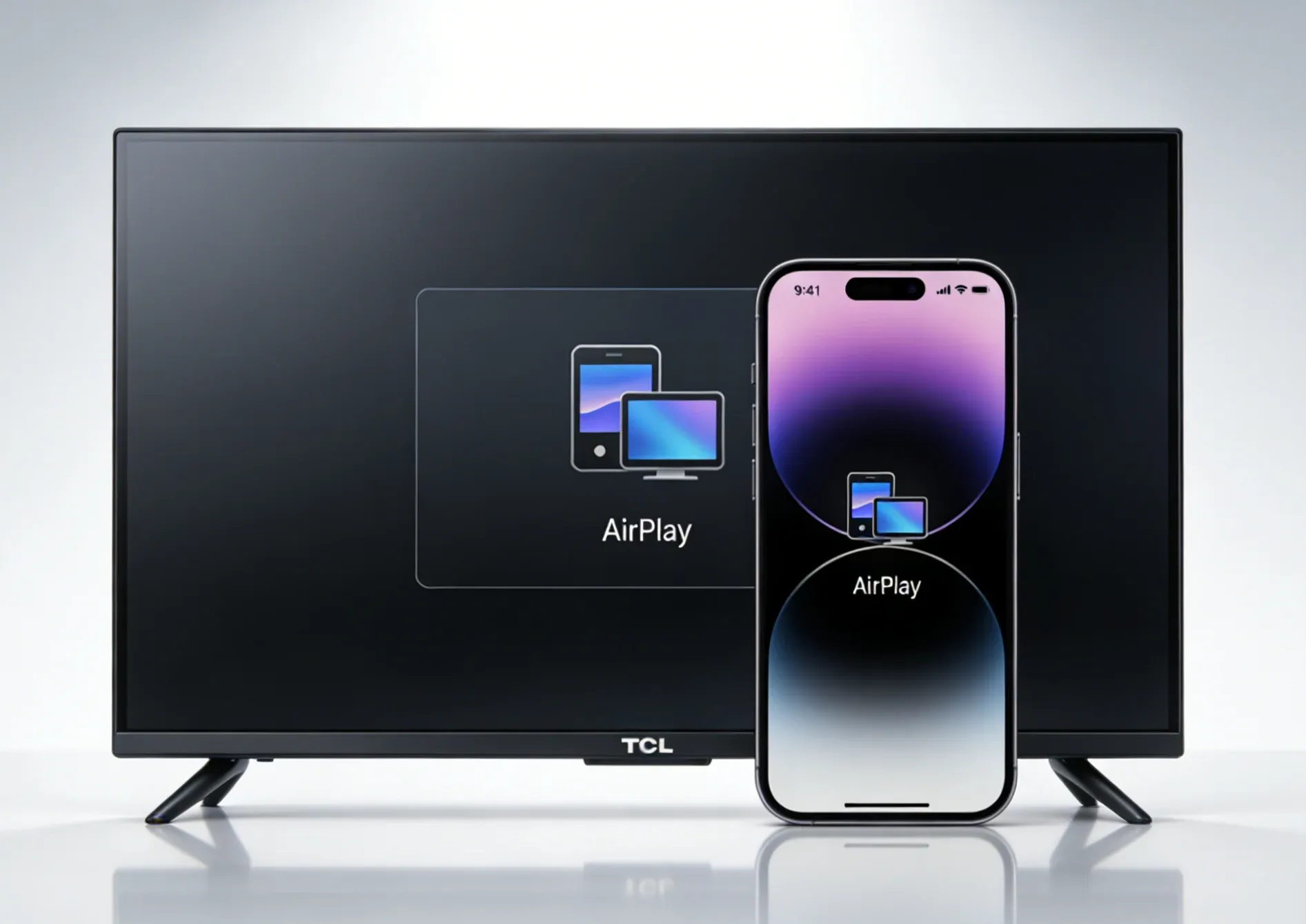
- TCL Roku TVs: Models like the TCL 4-Series, 5-Series, 6-Series, and newer usually support AirPlay 2. The feature is integrated directly into the Roku OS.
- TCL Google TVs: Models like the TCL 4-Series, 5-Series, and newer running Google TV also include built-in AirPlay 2 support.
- Older or Other Models: If you have a much older TCL TV or one using a different, less common smart platform, it likely does not support AirPlay natively.
How to AirPlay on a TCL TV
The core process for AirPlay is remarkably similar across iPhone, iPad, and Mac, with just a slight variation in where you start on your Apple device. Once you ensure your TCL television supports AirPlay, let's dive into the specific steps on how to use AirPlay on TCL TV. If your TCL TV doesn't support AirPlay, you can skip ahead to the next section to learn how to use a free universal mirroring app as an alternative.
Condition 1. AirPlay iPhone, iPad to TCL TV
AirPlaying from your iPhone or iPad to a TCL TV is quick and easy, and the steps are nearly identical across both. Whether you're sharing photos, videos, or apps, you'll be able to enjoy your content on a larger screen in no time. Here's how to enable AirPlay on TCL TV from iPhone or iPad:
Step 1. Connect your iPhone or iPad to the same wireless network as your TCL TV.
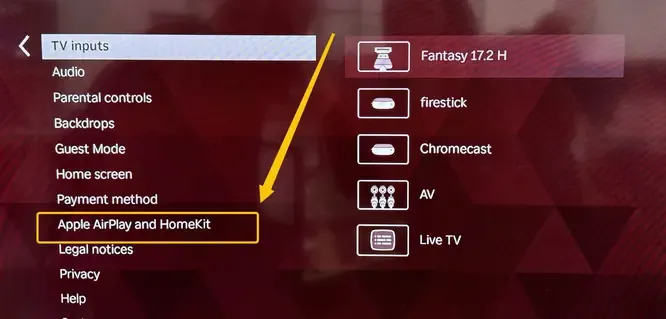
Step 2. Go to TCL TV's Settings > Apple AirPlay and HomeKit, and turn AirPlay On.
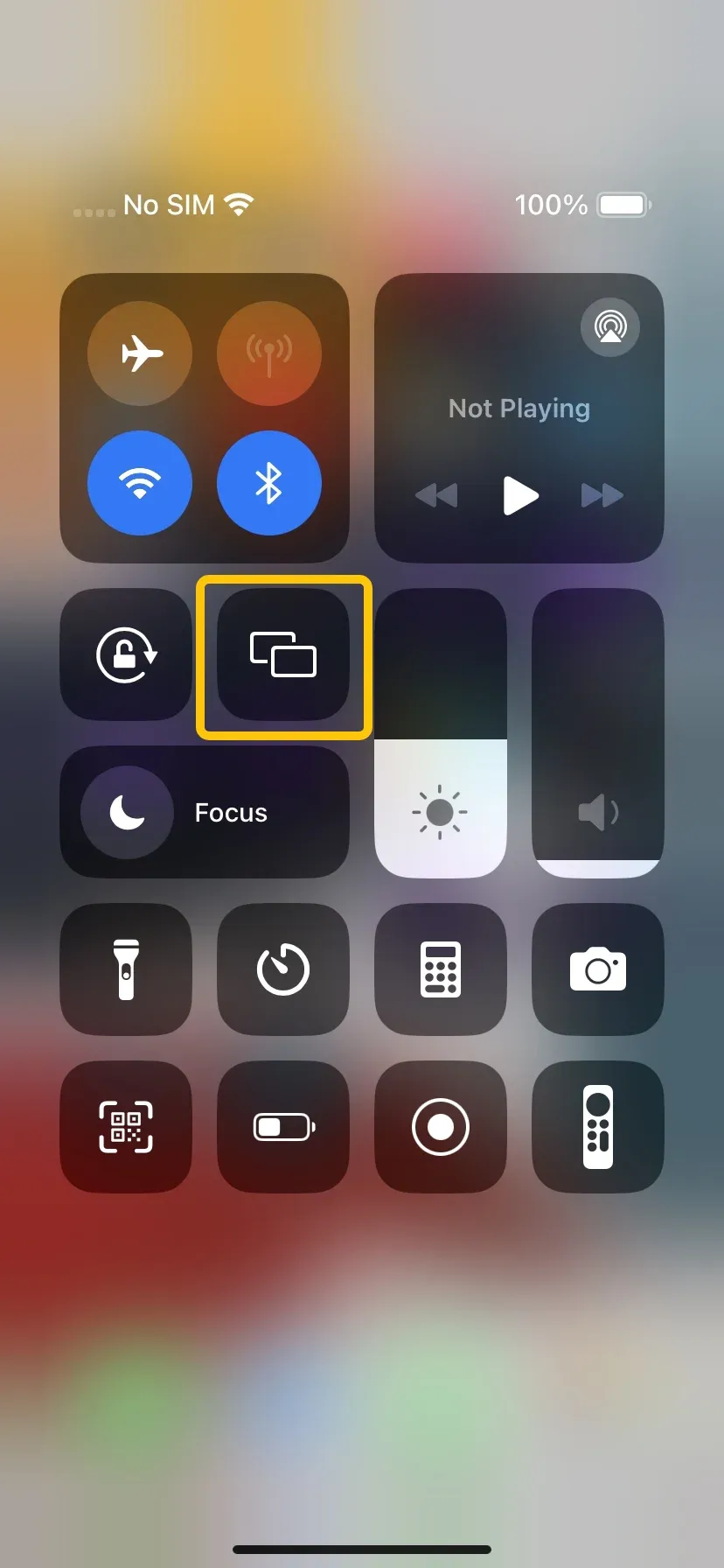
Step 3. On your iPhone or iPad, swipe down from the top-right corner to open Control Center and tap Screen Mirroring to choose your TCL TV from the available list.
Step 4. If prompted on your TV, verify that the code shown on your Apple device matches.
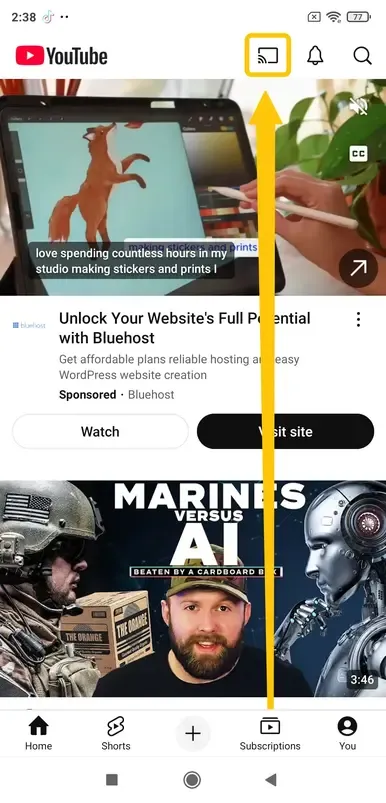
Step 5. Your screen is now mirrored. To stream a specific video from an app like YouTube or Netflix, simply tap the AirPlay icon within that app instead.
Condition 2. AirPlay MacBook to TCL TV
For Mac users, the steps are just as straightforward and similar to those on the iPhone and iPad. This makes AirPlay a great option for everything from giving presentations and watching browser-based content to using your TV as a second display. Let's check how to use AirPlay on TCL Roku TV from a MacBook:
Step 1. Ensure your Mac and TCL TV are under the same WiFi network.
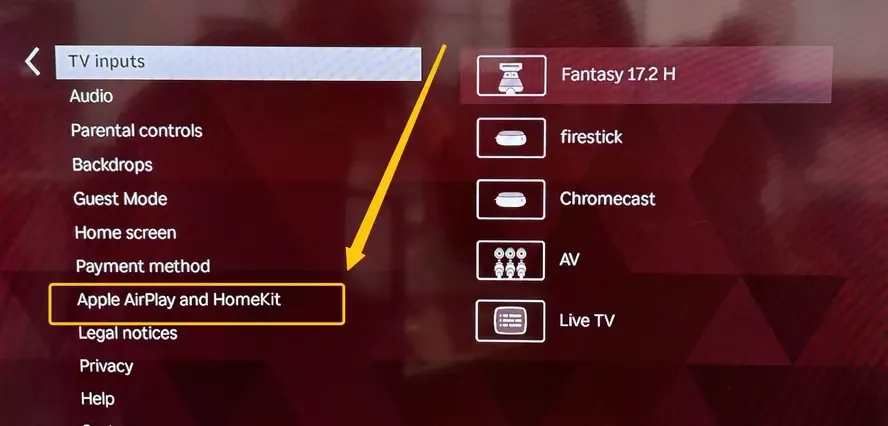
Step 2. On TCL TV, move to Settings > Apple AirPlay and HomeKit, and toggle AirPlay On.
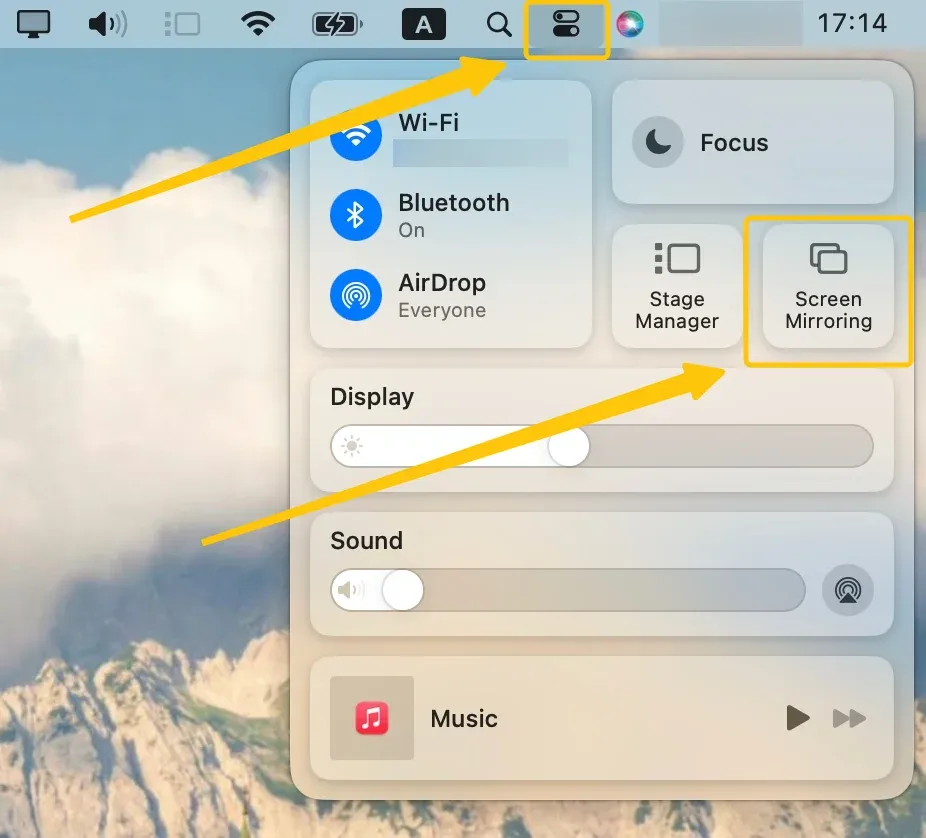
Step 3. On your MacBook, click the Control Center icon in the menu bar, then click Screen Mirroring to choose your TCL TV from the list.
Step 4. You will be given the option to mirror your Mac's display or use it as a separate display to extend your desktop.
2026 Best Mirror Tool: Use PigeonCast to Mirror on TCL TV
PigeonCast is a great free alternative to AirPlay for TCL TVs, especially when you run into compatibility issues or need to mirror Android or Windows devices. This TCL AirPlay alternative supports AirPlay, DLNA, and Google Cast, offering flexibility for different platforms. It's free, ad-free, and streams content in up to 4K resolution with minimal delay, providing an excellent viewing experience.
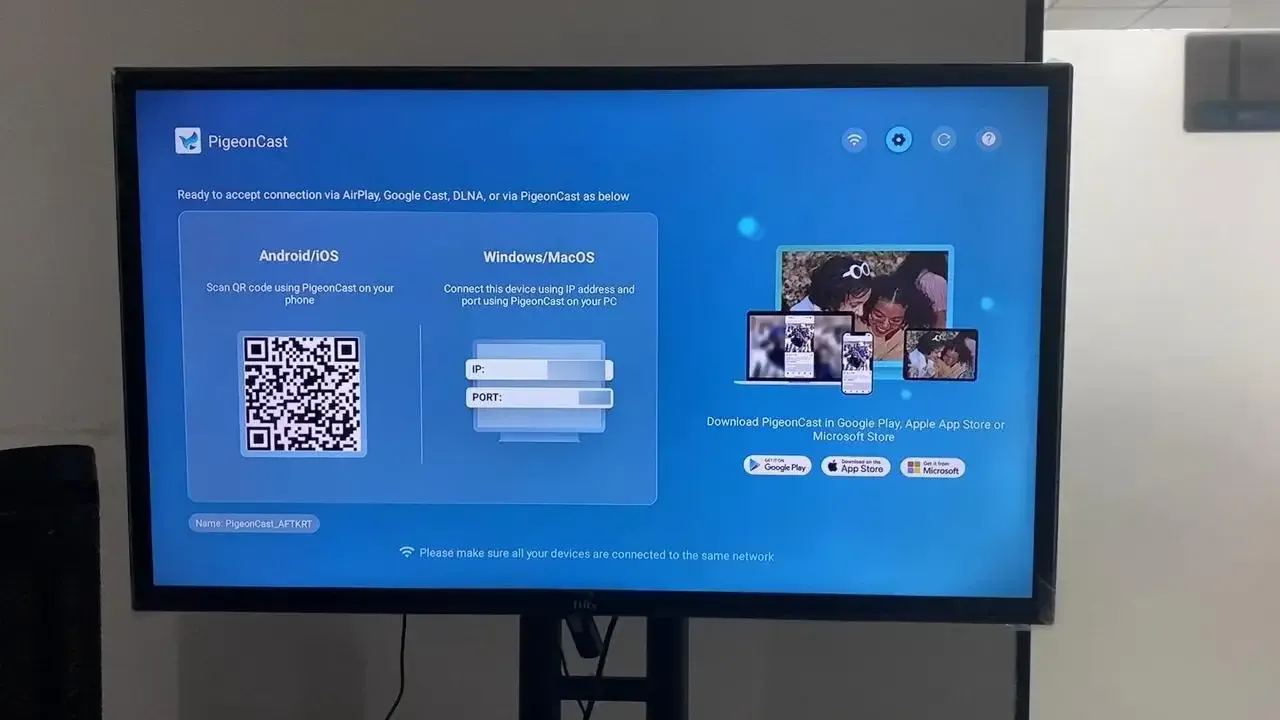
Step 1. Ensure your Apple device and TCL TV are under the same wireless network.


Overall Rating:


Step 2. Install PigeonCast on your Apple device from the App Store and launch it.
Step 3. Download PigeonCast on your TCL TV from the app store, then open it.
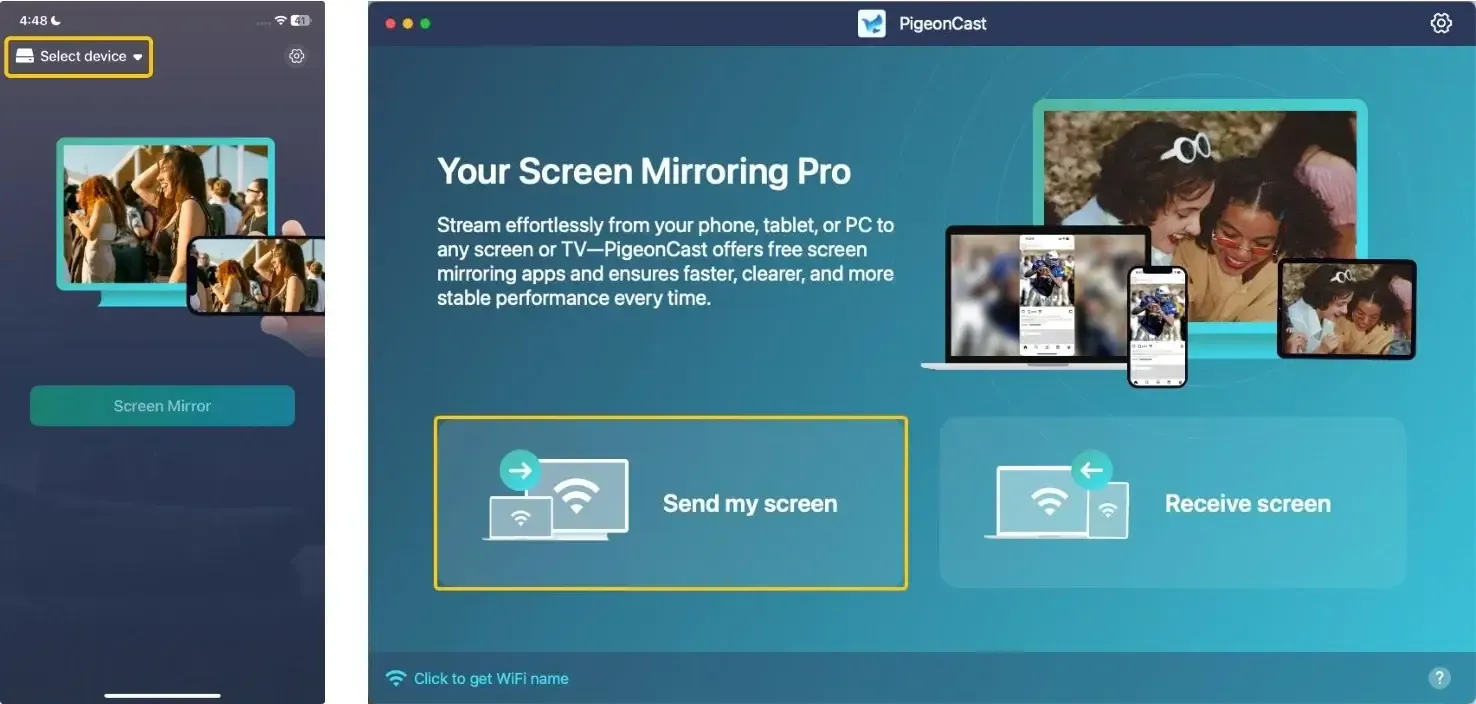
Step 4. On the mobile deivce or laptop, tap Select device or Send my screen to choose your TCL TV from the available list.
Step 5. Enter the prompted PIN code to confirm your connection requisition.
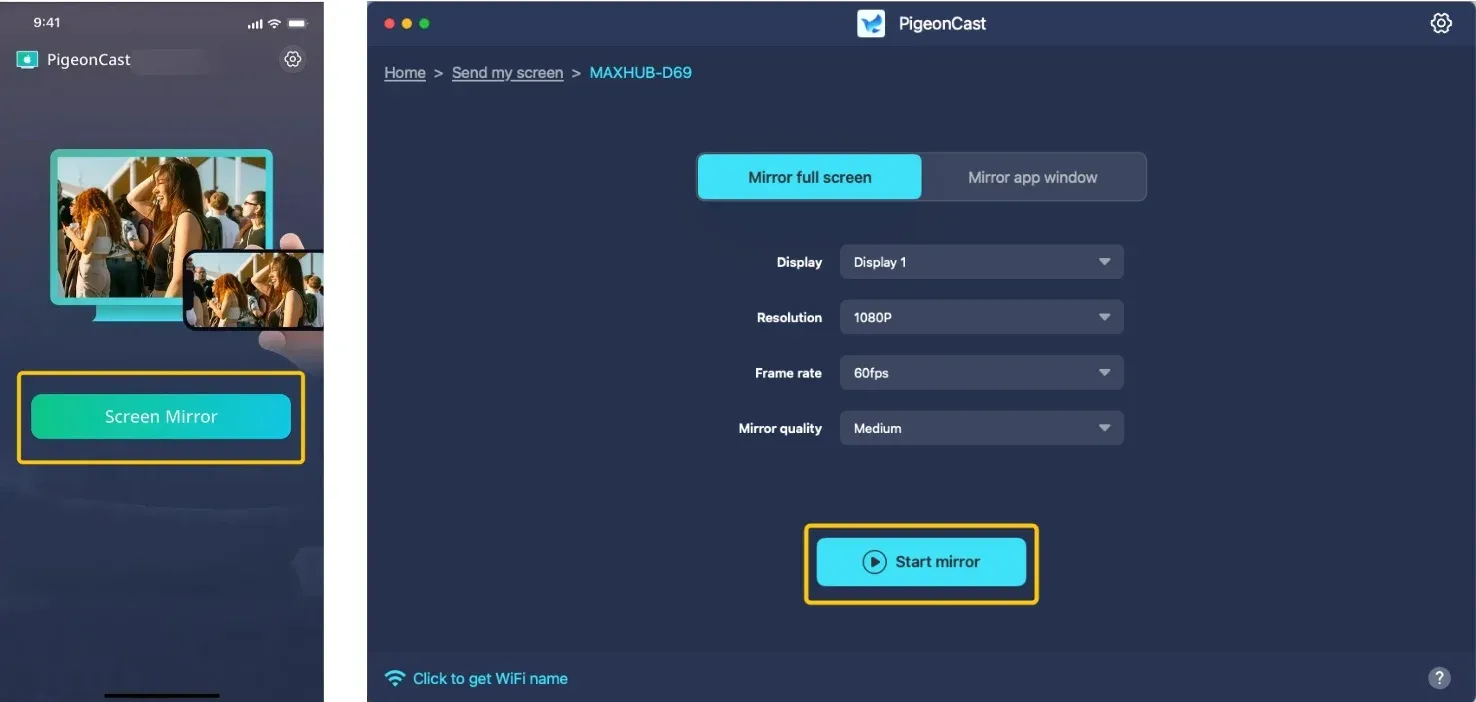
Step 6. Once you finish the connection, tap Screen Mirror or Start mirror to begin your mirroring activities on the TCL television. (On the laptop, you can even choose whether to mirror a full screen or mirror a single app window on your television screen.)
To Sum Up
AirPlay is usually the best place to start when you want to mirror an iPhone, iPad, or Mac to a compatible TCL TV, but it is only one of several ways TCL TVs can receive content. The right method depends on both your TCL operating system and the device you're casting from: Apple devices may use AirPlay, Android devices often rely on Google Cast or screen mirroring, while PigeonCast can help when the built-in protocols on the two devices do not match.
If AirPlay is enabled but your TV does not appear, the connection drops, or mirroring starts without playing correctly, changing casting methods immediately may not solve the underlying issue. Problems with Wi-Fi, TV permissions, software versions, and device compatibility can all cause TCL TV screen mirroring not working even when AirPlay itself is supported.
And if AirPlay is not the right option for your particular TCL model or source device, first identify which receiving technology your TV actually supports. The broader TCL TV screen mirroring setup covers AirPlay, Google Cast, Roku screen mirroring, and app-based options, so you can choose the connection method that matches your TV instead of forcing every device through AirPlay.
How to AirPlay on TCL TV FAQ
How to AirPlay on TCL Roku TV?
To AirPlay on a TCL Roku TV, follow these steps:
- Ensure your iPhone, iPad, or Mac and TCL Roku TV are connected to the same Wi-Fi network.
- On your TCL Roku TV, go to Settings > Apple AirPlay & HomeKit and turn on AirPlay.
- On your iPhone/iPad, open the Control Center and tap Screen Mirroring, then select your TCL Roku TV from the list.
- On your Mac, click the Control Center icon in the menu bar, then choose Screen Mirroring and select your TCL Roku TV.
- If prompted, verify the pairing code on your TV.
How to enable AirPlay on TCL Google TV?
To enable AirPlay on your TCL Google TV, follow these steps:
- Ensure your iPhone, iPad, or Mac and TCL Google TV are connected to the same Wi-Fi network.
- On your TCL Google TV, go to Settings > Apple AirPlay & HomeKit, and toggle AirPlay to On.
- Once enabled, you can AirPlay content from your Apple device to your TV. On your iPhone or iPad, open the Control Center, tap Screen Mirroring, and select your TCL Google TV. On your Mac, click the Control Center in the menu bar, then choose Screen Mirroring and select your TCL Google TV.
How to mirror iPhone to TCL TV for free?
To mirror your iPhone to a TCL TV for free, you can use AirPlay if your TCL TV supports it. Here's how:
- Using AirPlay (for supported TCL models):
- Connect your iPhone and TCL TV to the same Wi-Fi network.
- On your TCL TV, go to Settings > Apple AirPlay & HomeKit and make sure AirPlay is turned on.
- On your iPhone, open the Control Center:
- For iPhones with Face ID, swipe down from the top-right corner.
- For iPhones with a Home button, swipe up from the bottom.
- Tap Screen Mirroring and select your TCL TV from the list of available devices.
- If prompted, enter the code shown on your TV to confirm the connection.
- If your TCL TV doesn't support AirPlay: (free app like PigeonCast for screen mirroring)
- Download and install PigeonCast on both your iPhone (from the App Store) and TCL TV (from the TV's app store).
- Make sure both devices are on the same Wi-Fi network.
- Open PigeonCast on both your iPhone and TCL TV.
- On your iPhone, tap Select device or Send my screen and choose your TCL TV.
- Enter the code (if prompted) and start mirroring your iPhone's screen to the TV.
How to cast to TCL TV from Android?
To cast to a TCL TV from an Android device, you can use Google Cast (Chromecast) if your TCL TV supports it (many TCL TVs with Roku TV or Google TV platforms do). Here's how you can do it:
- Using Google Cast (for TCL TVs with Roku TV or Google TV):
- Connect your Android device and TCL TV to the same Wi-Fi network.
- On your TCL TV, ensure that Google Cast is enabled: If you have a Google TV or Roku TV, it should automatically support casting, but you can double-check by going to Settings > Display & Sound > Google Cast or Roku settings for casting options.
- On your Android device, open the app you want to cast (e.g., YouTube, Netflix).
- Tap the Cast icon (usually a small square with a Wi-Fi symbol in the corner) in the app.
- Select your TCL TV from the list of available devices, and the content will start playing on your TCL TV.
- Using a Third-Party App (if your TCL TV doesn't support Google Cast):
If your TCL TV doesn't support Google Cast natively, you can use free apps like PigeonCast to mirror or cast content to the TV:
- Install PigeonCast on both your Android device and TCL TV.
- Ensure both devices are on the same Wi-Fi network.
- Open the app on your Android and select your TCL TV.
- Tap the Cast or Screen Mirror option to start streaming content from your Android to your TCL TV.
Why is AirPlay not working on my TCL TV?
Here are some reasons why AirPlay might not be working on your TCL TV:
- Incompatible TV Model: Not all TCL TVs support AirPlay. Older models or those with non-Roku or non-Google TV platforms may not have AirPlay functionality.
- Different Wi-Fi Networks: Your Apple device and TCL TV might be connected to different Wi-Fi networks (e.g., 2.4 GHz vs. 5 GHz), causing connectivity issues.
- AirPlay Not Enabled: AirPlay may be turned off on your TCL TV.
- Outdated Software: Either your TCL TV or Apple device may be running outdated software that’s causing compatibility issues.
- Network Interference: Other devices or network congestion could be causing interference, preventing a stable AirPlay connection.
- VPN or Proxy: If you're using a VPN or proxy on your Apple device, it could be blocking the connection between your devices.
- App-Specific Issues: AirPlay may work with some apps but not others due to app-specific compatibility or restrictions.
- Connection Conflicts: There may be a conflict between multiple devices trying to connect to your TCL TV via AirPlay.
Clara Rossi is an experienced technology editor and a seasoned expert in screen mirroring and casting technologies. With a keen eye for detail and a deep understanding of how to seamlessly connect devices, Clara excels at optimizing user experiences for effortless sharing and streaming. Whether you're seeking quick fixes or advanced tips, her expertise and responsiveness ensure that every query is met with a well-informed and efficient solution.